
Offline F5-TTS voice cloning for ARCx: train voices, speak replies instantly, and save MP3/WAV with no cloud or per-sentence cost
 Windows
 ARM
ARM
 Linux
Linux
 MacOS
MacOS
How to add the Onnx Text To Speech Voice Cloner robot skill
- Load the most recent release of ARCx on a compatible operating system (Get ARCx).
- Press the + Skills menu from the top menu bar in ARCx.
- Choose the Audio category tab.
- Press the Onnx Text To Speech Voice Cloner icon to add the robot skill to your project.
Don't have a robot yet?
Follow the Getting Started Guide to build a robot and use the Onnx Text To Speech Voice Cloner robot skill.
How to use the Onnx Text To Speech Voice Cloner robot skill
Gives the robot any voice you like, cloned from a few seconds of someone speaking. The skill uses F5-TTS, an open source neural text to speech model, and runs it on the computer ARCx is running on through Microsoft's ONNX Runtime. You don't need Python, a cloud service or an account, and there is no cost per sentence. It runs on the graphics card chosen in ARCx's Options, Preferences, Acceleration (WebGPU on any graphics card, CUDA on NVIDIA, Core ML on a Mac), and falls back to the processor anywhere.
This skill is the project's text to speech engine. Every Audio.say(), Speech Synthesis action and AI reply in the project is spoken in the voice you train here. The speech comes out wherever the project's audio goes, which is this computer's speakers or an EZB's.
Requirements
- ARCx on Windows (x64), Linux (x64 or ARM64) or macOS (Apple silicon).
- An internet connection the first time, to download the model (720MB to 1.4GB). After that, none.
- 2 to 3GB of free memory while the model is loaded.
- A graphics card is strongly recommended. For about seven seconds of speech with the full precision model and 16 quality steps:
| Hardware | Time |
|---|---|
| Processor (6 core desktop) | about 50 seconds |
| WebGPU (GeForce GTX 1070 Ti) | about 10 seconds |
Newer graphics cards are much faster. On the processor alone, the phrase cache and pre-generated phrases make the difference: anything the robot has said before is instant.
- Only one text to speech engine is allowed in a project.
The window
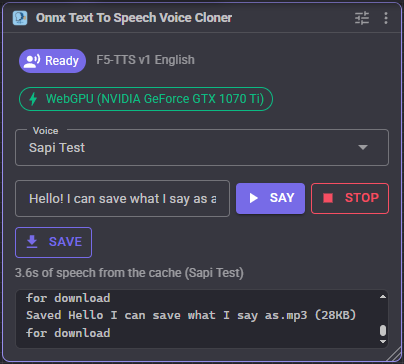
- Status: Ready, Loading model, Synthesizing with a percentage, Caching (a phrase being prepared in the background), Not downloaded, No voice, or Error.
- Model and hardware: the model in use, and what it runs on, such as WebGPU (NVIDIA GeForce RTX 4070) or CPU.
- Download model: appears when the chosen model is not on this computer yet.
- Voice: switches the voice that speaks. The switch is immediate and is saved with the project.
- Say / Stop: type a sentence to hear it through the project's speech output. Stop cancels the synthesis and what is already playing.
- Save: speaks the sentence into an MP3 or WAV file that your browser downloads, instead of playing it. See Saving speech to a file.
- Progress: the part of the text and the step being worked on. After it finishes, how long the speech is and how long it took, or that it came from the cache.
The configuration
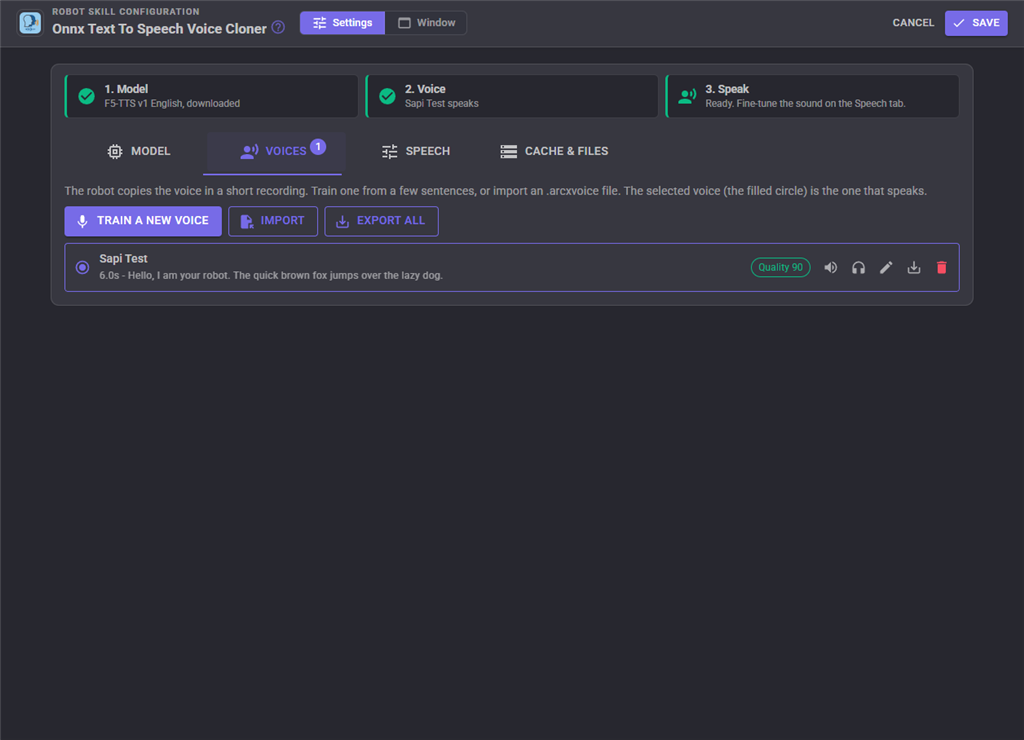
The top of the configuration shows the three steps to a speaking robot: 1. Model (download one), 2. Voice (train or import one) and 3. Speak. A green check marks a finished step, and clicking a step opens the tab that finishes it. The settings are split into four tabs:
- Model: the model, its download, and where it runs. See Models and Where it runs.
- Voices: train, import, export, edit and choose voices. The number on the tab is how many voices the project has.
- Speech: how every voice sounds. See Speech settings.
- Cache & files: the phrase cache and the MP3 quality for saving speech to a file.
The configuration opens on the Model tab until a model is ready, and on Voices after that.
Training a voice
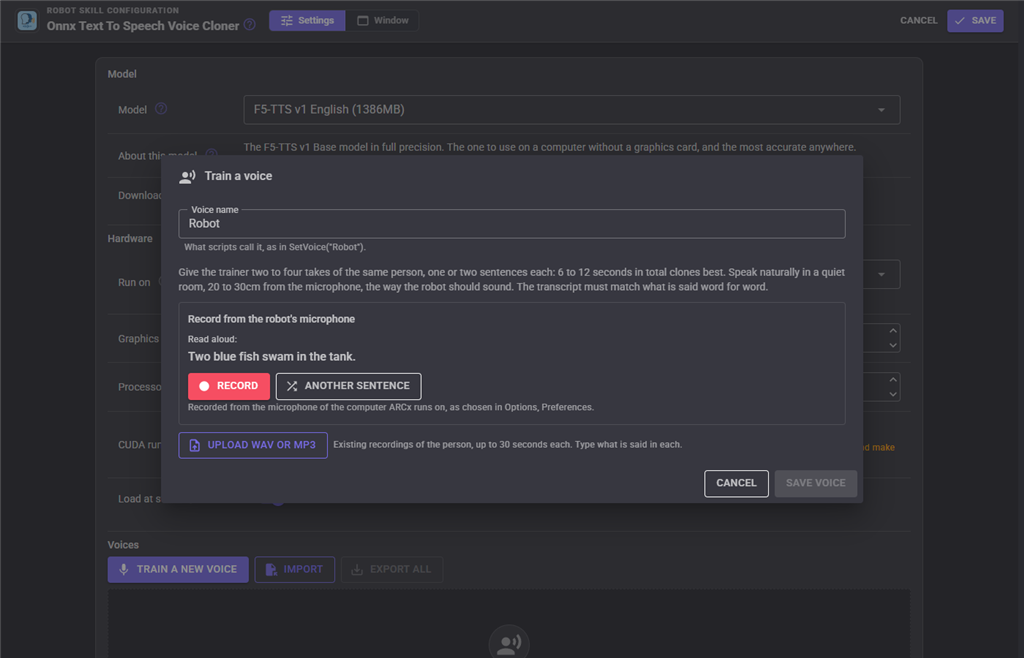
F5-TTS doesn't learn a voice by retraining itself. It listens to a short reference recording along with a transcript of exactly what is said in it, then says new text in the same voice. Training a voice in this skill means building the best possible reference, and the trainer does that for you.
Open the configuration, go to Voices and press Train a new voice:
- Name the voice. Scripts use this name.
- Record from the robot's microphone. The trainer shows a sentence to read aloud. Press Record, read it naturally, and press Stop. Each take gets a new sentence, and the sentence becomes that take's transcript. The recording comes from ARCx's audio input, the microphone chosen in Options, Preferences, which may be the robot's rather than the one on the computer you are browsing from.
- Or upload WAV or MP3 recordings of the person, up to 30 seconds each, and type exactly what is said in each one.
- Each take is cleaned up as it arrives. Rumble below 80Hz is filtered out, silence before and after the speech is trimmed, and long pauses are shortened. The take is then scored out of 100, with advice where it falls short:
- Noise: how far the voice stands above the room. 30dB or more is clean. Below 20dB the background is cloned along with the voice.
- Clipping: distortion from a level set too high.
- Level: a recording that is too quiet.
- Transcript: whether its length is plausible for the speech. A missing or extra word is the most common reason a cloned voice sounds garbled.
- Press Build voice. The best takes are combined into one reference of up to about 12 seconds; 6 to 12 seconds clones best. You can listen to the result on the robot or in your browser.
- Type a test sentence and press Speak it to hear the new voice before keeping it. The test uses the speech settings on the page, including ones you haven't saved yet.
- Press Save voice, then SAVE on the configuration.
Tips for a good voice:
- Two to four takes of one or two sentences each is plenty.
- Record in a quiet room, 20 to 30cm from the microphone, speaking the way the robot should sound. The model copies the energy and pace of the recording as well as the voice itself.
- The transcript must match the recording word for word, including numbers written the way they are said.
- An expressive recording gives an expressive voice, and a flat one a flat voice.
Each voice has buttons to play its recording on the robot or in the browser, edit it, export it and delete it. Edit corrects the name, the transcript and the notes, sets a speed for that voice alone, and has its own test sentence. The round button marks the voice that speaks.
Import and export
Voices travel as .arcxvoice files. Export one voice with the button on its row, or every voice with Export all. Import adds the voices in a file to the project; a name that is already taken gets a number after it. An .arcxvoice file is an ordinary zip holding voice.json (names, transcripts, quality) and a 24kHz WAV per voice, so the recordings can be listened to with any audio player.
Voices are also saved inside the project, so a project copied to another robot speaks with the same voices without importing anything.
Models
| Model | Download | Use it for |
|---|---|---|
| F5-TTS v1 English | 1.4GB | The default. The best choice on the processor, and the most accurate anywhere |
| F5-TTS v1 English (half precision) | 720MB | Graphics cards with 16-bit support. Half the download, but slower than full precision on the processor. If it will not start on your card, use full precision |
| F5-TTS German | 1.4GB | German text. Train German voices with German recordings and transcripts |
| Custom model folder | - | Any export of F5-TTS in the DakeQQ/F5-TTS-ONNX format of April 2025: a folder holding F5_Preprocess.onnx, F5_Transformer.onnx, F5_Decode.onnx and vocab.txt |
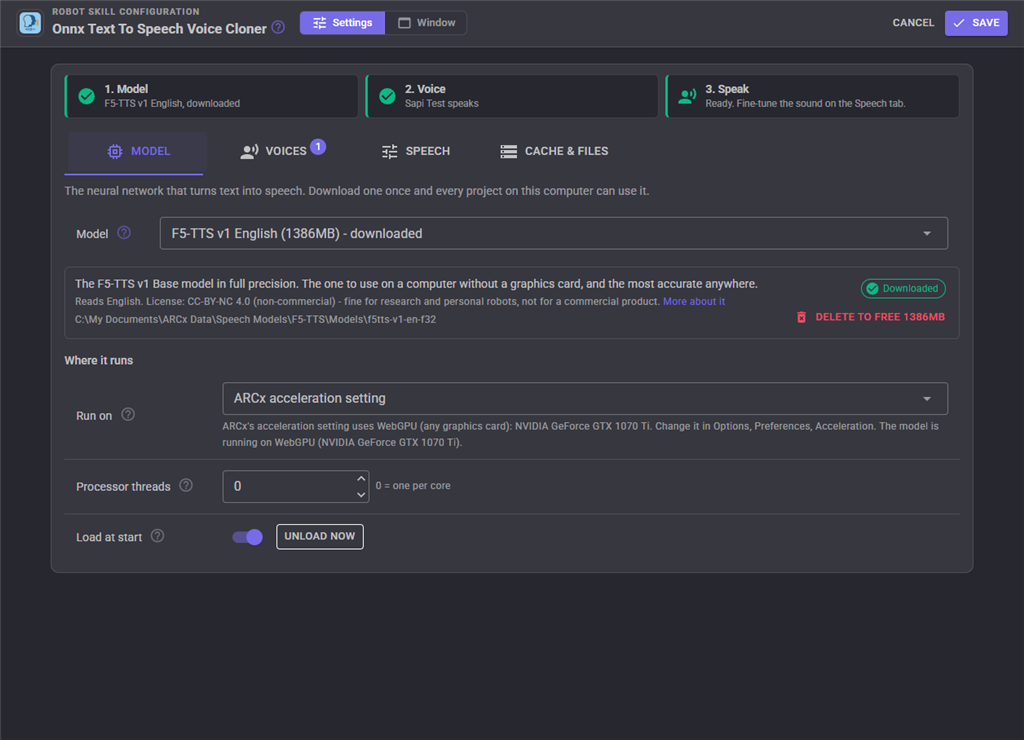
Models are downloaded once, shared by every project on the computer, and kept in Documents\ARCx Data\Speech Models\F5-TTS\Models on Windows, or ~/ARCx Data/Speech Models/F5-TTS/Models on Linux and macOS. If a download is interrupted, the files that finished are kept and the next attempt carries on from there. The configuration can delete a model to free the space.
The F5-TTS weights are licensed CC-BY-NC 4.0 by their authors. That allows research and personal robots, but not a commercial product.
Text is read letter by letter against the model's alphabet, which suits English, German and other languages written in the Latin alphabet. Chinese text needs a pinyin conversion that this skill doesn't do.
Where it runs
These settings are on the Model tab, under the model.
| Setting | What it does |
|---|---|
| Run on | ARCx acceleration setting runs the model on the graphics card chosen for every robot skill in ARCx's Options, Preferences, Acceleration, which is also where the graphics card is picked and CUDA is downloaded. Processor (CPU) only keeps this skill off the graphics card. If the graphics card cannot start, the processor is used instead and the log says why |
| Processor threads | 0 uses one per physical core. Lower it to leave cores free for the rest of the robot |
| Load at start | Loads the model as soon as the project opens, so the first sentence doesn't wait for it. Unload now frees the memory until it is next needed |
Speech settings
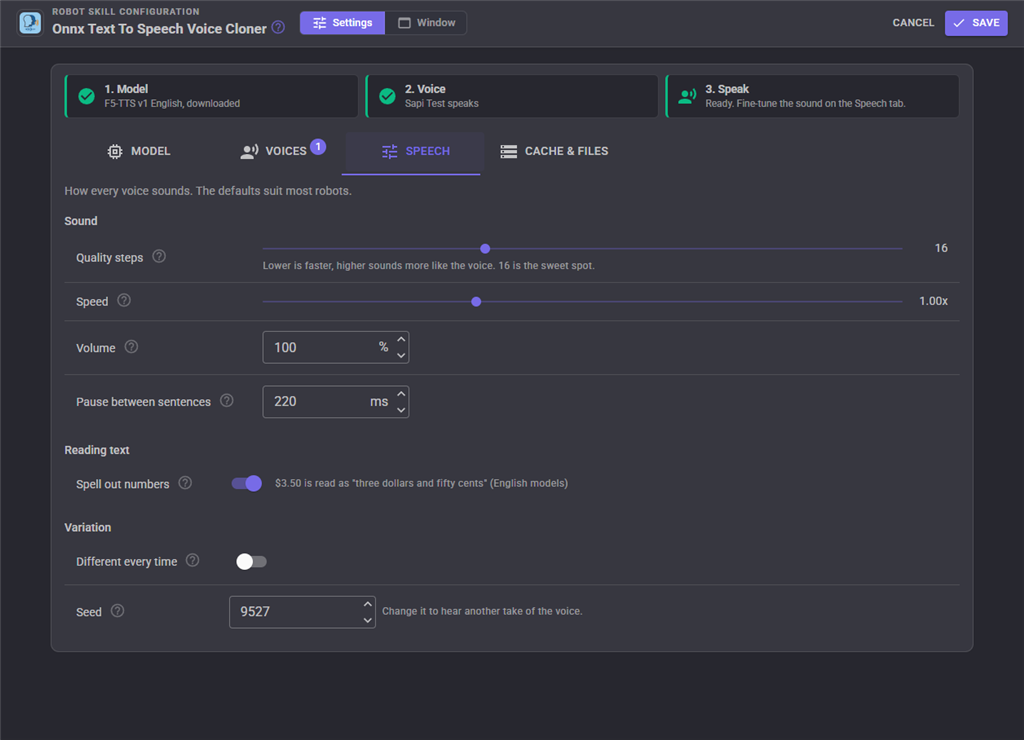
| Setting | What it does |
|---|---|
| Quality steps | Refinement steps per sentence, 8 to 31. The time to speak grows with it. 16 sounds the same as 31 at half the time; 8 to 12 is faster and still clear, but a little less like the voice |
| Speed | 0.5 to 2.0 times the pace of the voice's recording. Each voice can adjust it further |
| Volume | 10 to 200 percent. A soft limiter stops loud settings from clipping |
| Pause between sentences | Long text is spoken a sentence or a few at a time and joined with this much silence |
| Spell out numbers | English models only. Reads $3.50 as "three dollars and fifty cents", 7:45 pm as "seven forty five p m", 25% as "twenty five percent", 1984 as "nineteen eighty four", 3rd as "third" and Dr. as "doctor" |
| Different every time | A new random starting point for every sentence, for a little variety. It turns the phrase cache off |
| Seed | The random starting point. The same seed always says the same text the same way. Change it to hear another take of the voice. Not used while Different every time is on |
SSML is accepted. Its text is spoken and a <break> becomes a pause. Other SSML markup is ignored.
Saving speech to a file
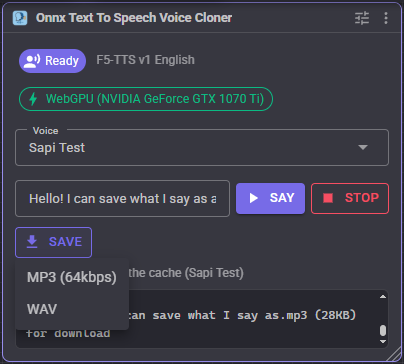
Type a sentence in the window, press Save and choose MP3 or WAV. The sentence is spoken in the selected voice with the current speech settings, and the file downloads to the computer you are browsing from, named after its first few words. It doesn't play on the robot. The progress shows in the window as usual, and Stop cancels it. A sentence the robot has said before comes straight from the phrase cache.
- WAV is exactly what the model said: 24kHz, 16 bit, mono, about 47KB a second.
- MP3 is encoded by ARCx itself, so it works the same on Windows, Linux and macOS without installing anything. MP3 bitrate on the configuration's Cache & files tab sets the quality. 64kbps (8KB a second) is the default and is clear for speech. 96kbps and above keeps a near perfect copy, and 32kbps or less starts to sound muffled.
Scripts can save speech on the computer ARCx runs on with the SaveToFile control command, which takes the text and a file name. A name ending in .mp3 is saved as an MP3 at the configured bitrate, and any other name is saved as a WAV. A name without a folder is saved in Documents\ARCx Data\Voice Cloner Audio on Windows, or ~/ARCx Data/Voice Cloner Audio on Linux and macOS. The command returns the full path once the file is written. The older SaveToWav command still works and always saves a WAV.
Phrase cache
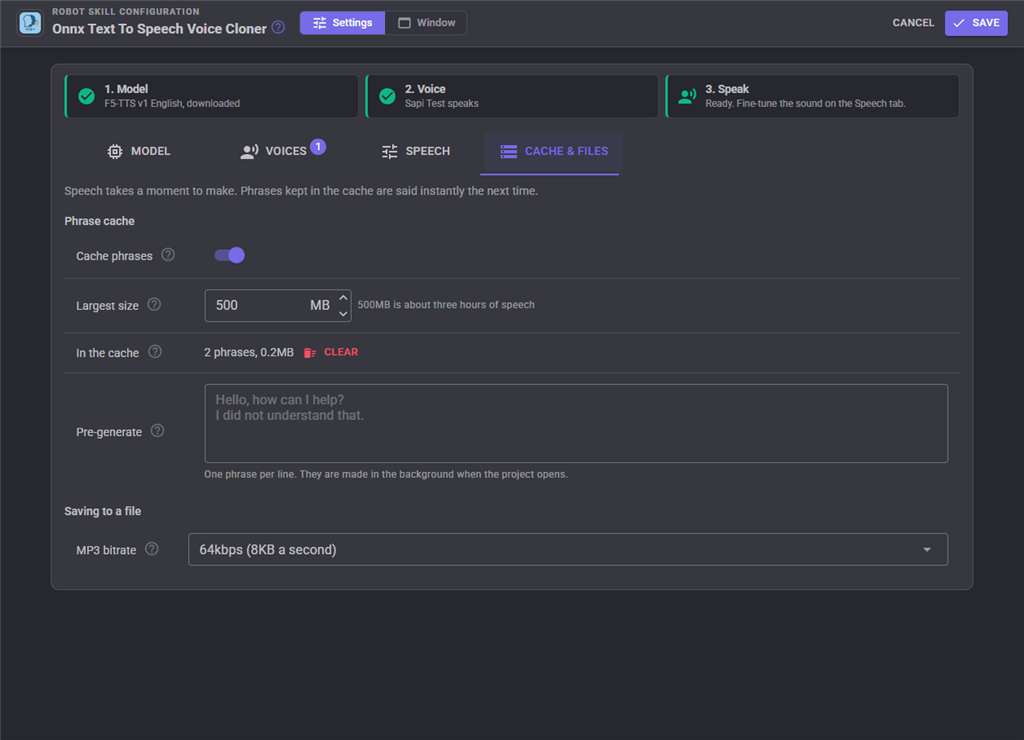
Every sentence the robot says is kept on disk, keyed on the text, the voice, the model and every setting that changes the sound. When the robot says it again, it plays instantly. Retraining a voice or changing a setting simply creates new entries, and the least recently used phrases are removed once the cache reaches its size limit (500MB by default, about three hours of speech). The cache is shared by every project on the computer and can be cleared from the configuration.
Pre-generate takes phrases, one per line, and prepares them in the background whenever the project loads. Greetings, confirmations and error messages are good candidates. Pre-generating always stops for anything the robot needs to say right now.
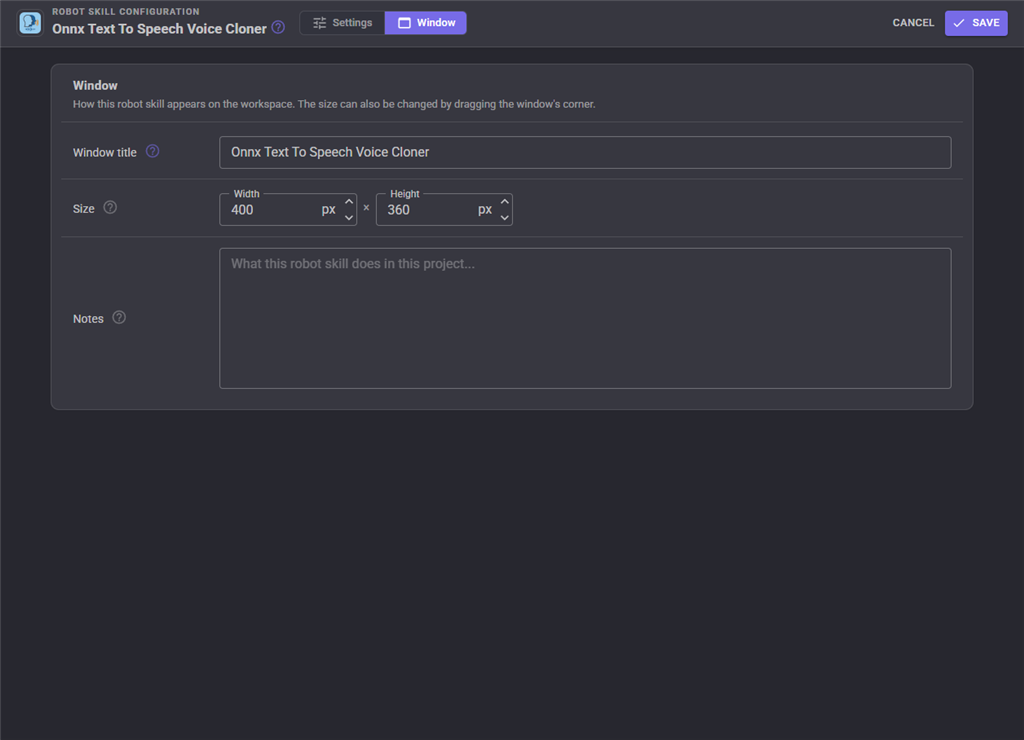
The Window tab sets the robot skill's window title, its size on the workspace and notes about what it does in this project.
Custom UI
The skill offers a Voice widget for your own control panel screens. It shows the voice that speaks, a picker to change it, the progress of what is being said, and a stop button. The widget settings can hide the picker or the stop button.
Known limitations
- Each piece of text is synthesized completely before it plays. On a slow computer, pre-generate the phrases you know the robot will say.
- The reference and the new speech together have to stay under about 43 seconds, so long text is always spoken in pieces. Choosing where to split is automatic.
- There is no ONNX Runtime for macOS on Intel processors, so the skill runs on Apple silicon only.
Control Commands for the Onnx Text To Speech Voice Cloner robot skill
There are Control Commands available for this robot skill which allows the skill to be controlled programmatically from scripts or other robot skills. These commands enable you to automate actions, respond to sensor inputs, and integrate the robot skill with other systems or custom interfaces. If you're new to the concept of Control Commands, we have a comprehensive manual available here that explains how to use them, provides examples to get you started and make the most of this powerful feature.
Control Command ManualThis robot skill has 15 control commands, listed below. Send them from a JavaScript or Python script, from Blockly, or from another robot skill.
The first value is always the window title, which is the name in the title bar of the robot skill on your workspace. It starts out as Onnx Text To Speech Voice Cloner, which is what every example below uses. If you rename the robot skill, or add a second copy of it to the project, use the title as it appears on that window instead.
ControlCommand() can be shortened to CC(), and both spellings work in JavaScript and in Python. The examples are JavaScript; Python is the same call, except that true and false are written True and False.
ClearCache
Delete every cached phrase. Returns true.
Syntax
ControlCommand("Onnx Text To Speech Voice Cloner", "ClearCache")
Returns: Boolean [true or false]
Example
var result = ControlCommand("Onnx Text To Speech Voice Cloner", "ClearCache");
GetSpeed
How fast the voice talks, 0.5 to 2.0.
Syntax
ControlCommand("Onnx Text To Speech Voice Cloner", "GetSpeed")
Returns: Double [5.0e324 to 1.7e308]
Example
var result = ControlCommand("Onnx Text To Speech Voice Cloner", "GetSpeed");
GetVoice
The name of the voice that speaks. Empty when no voice is trained.
Syntax
ControlCommand("Onnx Text To Speech Voice Cloner", "GetVoice")
Returns: String
Example
var result = ControlCommand("Onnx Text To Speech Voice Cloner", "GetVoice");
GetVoices
The names of every trained voice.
Syntax
ControlCommand("Onnx Text To Speech Voice Cloner", "GetVoices")
Returns: Array of String
Example
var result = ControlCommand("Onnx Text To Speech Voice Cloner", "GetVoices");
IsReady
Is the model loaded and a voice trained, so speaking starts without waiting for a load? Returns true|false.
Syntax
ControlCommand("Onnx Text To Speech Voice Cloner", "IsReady")
Returns: Boolean [true or false]
Example
var result = ControlCommand("Onnx Text To Speech Voice Cloner", "IsReady");
IsSynthesizing
Is speech being synthesized right now? Returns true|false.
Syntax
ControlCommand("Onnx Text To Speech Voice Cloner", "IsSynthesizing")
Returns: Boolean [true or false]
Example
var result = ControlCommand("Onnx Text To Speech Voice Cloner", "IsSynthesizing");
PreGenerate
Synthesize a phrase into the cache in the background, in the voice that speaks now, so saying it later is instant. Returns true at once.
Syntax
ControlCommand("Onnx Text To Speech Voice Cloner", "PreGenerate", (String)text)
Parameters
| # | Name | Type | What to pass |
|---|---|---|---|
| 1 | text | Text | Your text, in quotes |
Returns: Boolean [true or false]
Example
var result = ControlCommand("Onnx Text To Speech Voice Cloner", "PreGenerate", "text");
SaveToFile
Synthesize text in the voice that speaks now and save it to a file instead of playing it. A name ending in .mp3 is saved as an MP3 at the bitrate in the configuration, one ending in .wav as a 24000Hz WAV, and any other name gets .wav added. The file name may be a full path, or a name saved in the Voice Cloner Audio folder of ARCx Data. Returns the full path once it is written.
Syntax
ControlCommand("Onnx Text To Speech Voice Cloner", "SaveToFile", (String)text, (String)fileName)
Parameters
| # | Name | Type | What to pass |
|---|---|---|---|
| 1 | text | Text | Your text, in quotes |
| 2 | fileName | Text | Your text, in quotes |
Returns: String
Example
var result = ControlCommand("Onnx Text To Speech Voice Cloner", "SaveToFile", "text", "fileName");
SaveToWav
Synthesize text in the voice that speaks now and save it as a 24000Hz WAV file instead of playing it. The file name may be a full path, or a name saved in the Voice Cloner Audio folder of ARCx Data. Returns the full path once it is written. SaveToFile does the same and can also save an MP3.
Syntax
ControlCommand("Onnx Text To Speech Voice Cloner", "SaveToWav", (String)text, (String)fileName)
Parameters
| # | Name | Type | What to pass |
|---|---|---|---|
| 1 | text | Text | Your text, in quotes |
| 2 | fileName | Text | Your text, in quotes |
Returns: String
Example
var result = ControlCommand("Onnx Text To Speech Voice Cloner", "SaveToWav", "text", "fileName");
SayWaitWithVoice
Say something in a particular voice and return once it has been heard. Returns true.
Syntax
ControlCommand("Onnx Text To Speech Voice Cloner", "SayWaitWithVoice", (String)voiceName, (String)text)
Parameters
| # | Name | Type | What to pass |
|---|---|---|---|
| 1 | voiceName | Text | Your text, in quotes |
| 2 | text | Text | Your text, in quotes |
Returns: Boolean [true or false]
Example
var result = ControlCommand("Onnx Text To Speech Voice Cloner", "SayWaitWithVoice", "voiceName", "text");
SayWithVoice
Say something in a particular voice without changing the voice that speaks otherwise. Returns true once the speech is synthesized and queued, before it has been heard.
Syntax
ControlCommand("Onnx Text To Speech Voice Cloner", "SayWithVoice", (String)voiceName, (String)text)
Parameters
| # | Name | Type | What to pass |
|---|---|---|---|
| 1 | voiceName | Text | Your text, in quotes |
| 2 | text | Text | Your text, in quotes |
Returns: Boolean [true or false]
Example
var result = ControlCommand("Onnx Text To Speech Voice Cloner", "SayWithVoice", "voiceName", "text");
SetQualitySteps
Refinement steps per sentence, 8 to 31. Fewer is faster; 16 sounds the same as 31. Returns the number that was set.
Syntax
ControlCommand("Onnx Text To Speech Voice Cloner", "SetQualitySteps", (Number)steps)
Parameters
| # | Name | Type | What to pass |
|---|---|---|---|
| 1 | steps | Number | A number, without quotes |
Returns: Integer [-2,147,483,648 to 2,147,483,647]
Example
var result = ControlCommand("Onnx Text To Speech Voice Cloner", "SetQualitySteps", 0);
SetSpeed
How fast the voice talks, 0.5 (slow) to 2.0 (fast), 1.0 being the pace of the voice's recording. Returns the speed that was set.
Syntax
ControlCommand("Onnx Text To Speech Voice Cloner", "SetSpeed", (Number)speed)
Parameters
| # | Name | Type | What to pass |
|---|---|---|---|
| 1 | speed | Number | A number, without quotes |
Returns: Double [5.0e324 to 1.7e308]
Example
var result = ControlCommand("Onnx Text To Speech Voice Cloner", "SetSpeed", 0);
SetVoice
Speak in another trained voice from now on, by its name. Returns true. Fails when there is no voice with that name.
Syntax
ControlCommand("Onnx Text To Speech Voice Cloner", "SetVoice", (String)voiceName)
Parameters
| # | Name | Type | What to pass |
|---|---|---|---|
| 1 | voiceName | Text | Your text, in quotes |
Returns: Boolean [true or false]
Example
var result = ControlCommand("Onnx Text To Speech Voice Cloner", "SetVoice", "voiceName");
StopSynthesis
Stop the speech being synthesized, and what is already playing. Returns true.
Syntax
ControlCommand("Onnx Text To Speech Voice Cloner", "StopSynthesis")
Returns: Boolean [true or false]
Example
var result = ControlCommand("Onnx Text To Speech Voice Cloner", "StopSynthesis");
This list is read out of the robot skill itself each time its package is uploaded, so it matches the published version (v10).



This robot skill has been updated to v2.
What has changed
First time uploading. Read the manual!
This robot skill has been updated to v4.
What has changed
compatible with the latest ARCx v2026.09.27.01
This robot skill has been updated to v5.
What has changed
updated to support latest audio service of ARCx 2026.09.28.02
This robot skill has been updated to v7.
What has changed
The latest ARCx (2026.09.30.03) includes ONNX runtimes. This robot skill uses those runtimes rather than distributing duplicates.
This robot skill has been updated to v8.
What has changed
updated to use new threading features of ARCx v2026.10.04.01
This robot skill has been updated to v10.
What has changed
save generated audio to wav/mp3. cleaned up the config menu