
Records raw or processed camera video to .mkv files with overlays, for demos, evidence, and reviewing tracking behavior.
 Windows
 ARM
ARM
 Linux
Linux
 MacOS
MacOS
How to add the Video Recorder robot skill
- Load the most recent release of ARCx on a compatible operating system (Get ARCx).
- Press the + Skills menu from the top menu bar in ARCx.
- Choose the Camera category tab.
- Press the Video Recorder icon to add the robot skill to your project.
Don't have a robot yet?
Follow the Getting Started Guide to build a robot and use the Video Recorder robot skill.
How to use the Video Recorder robot skill
Records any video source in the project to a video file on the computer, either as the raw camera image or with every detection overlay drawn on it.
Useful for capturing a demo, for keeping evidence of what the robot saw while it was running on its own, and for reviewing what a tracking skill was actually seeing when it misbehaved.
Requirements
- A video source in the project - Camera Source (usb) or Camera Source (ezb) - with video running.
- Enough disk space. Recording is H.264 into an
.mkvfile.
Several instances are allowed, so you can record two cameras at once, or record the same camera raw and processed at the same time.
Adding it to a project
- Add a camera skill and start the video.
- Add Video Recorder (Camera category).
- Open the configuration, choose the Video Source, and set the FPS to match the frame rate that source reports (it is shown beside each source's name in the list).
- Save, then press Record.
The window
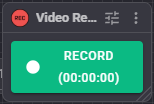
One button:
- Record (green) - starts recording.
- Stop (red) - stops and closes the file.
- The elapsed time is shown on the button as
hh:mm:ssand updates once a second.
Where the files go
Files are written to ARCx's media folder with a name built from the date and time, for example ARCx Recording 2026-09-20 14-33-07.mkv. The destination folder is part of the skill's configuration (DestinationFolder) but has no field in the dialog - change it through ARCx's configuration API if you need it somewhere else.
Each press of Record starts a new file.
Configuration
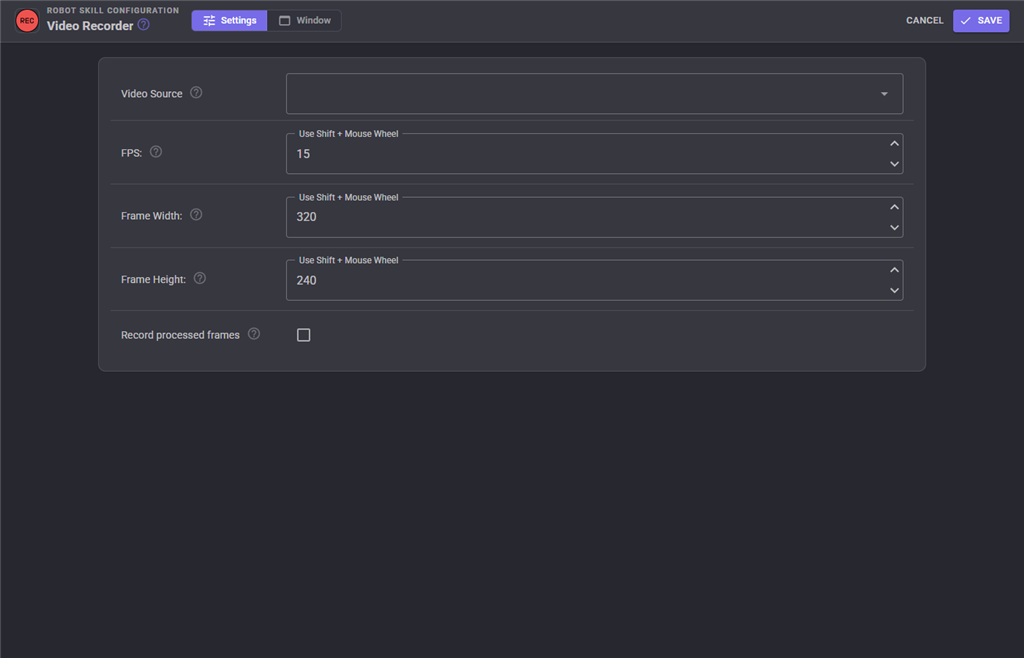
| Setting | Meaning | Default |
|---|---|---|
| Video Source | Which camera to record. The list shows each source's current frame rate. | first source |
| FPS | The frame rate written into the video file. This must match the source's frame rate, otherwise playback runs fast or slow - the recorder writes every frame it receives, and this number only tells the player how quickly to show them. | 15 |
| Frame Width / Frame Height | The size of the recorded video. Frames are scaled to this, so a mismatch with the camera's aspect ratio will stretch the picture. | 320 x 240 |
| Record processed frames | On records the video with all the markup drawn by detection skills - face boxes, tracked objects, text. Off records the raw camera image. | off |
The configuration dialog will not open while a recording is running - stop it first.
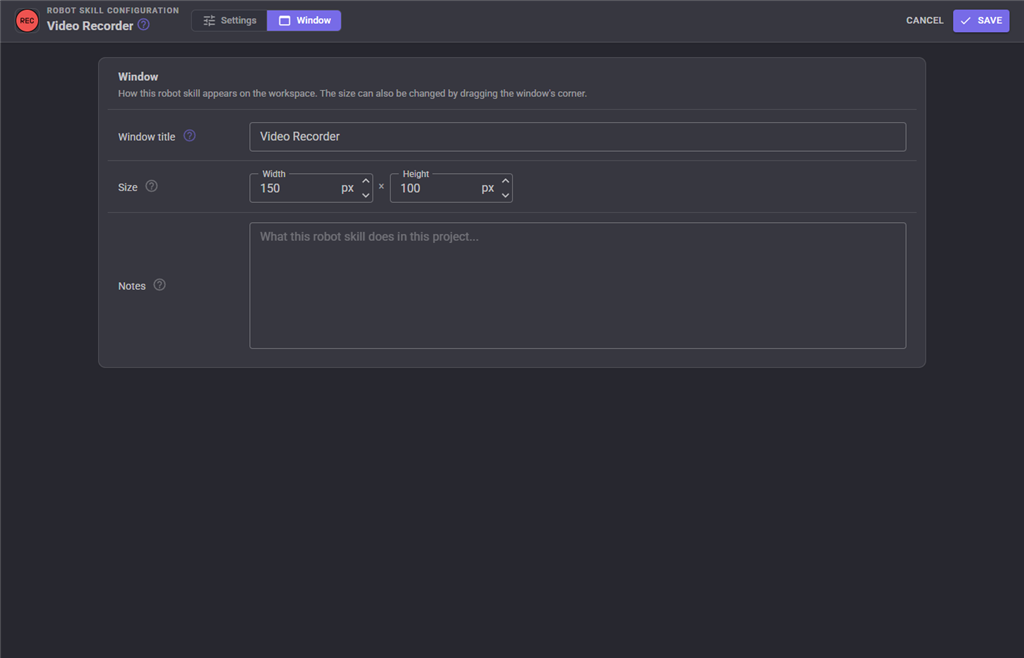
The Window tab sets the robot skill's window title, its size on the workspace and notes about what it does in this project.
Notes and limitations
- Recording is video only. No audio is captured.
- If writing a frame fails - disk full, codec problem, a source that changed size - recording stops and the error is written to the ARCx log.
- Recording pauses along with everything else when ARCx pauses all workers.
- Getting a smooth file is mostly about the FPS setting: check the number shown beside the source in the configuration dialog while the camera is running, and use that.
Troubleshooting
| Symptom | Cause |
|---|---|
| "Source Name is empty" | No video source chosen in the configuration. |
| Playback is too fast or too slow | The FPS setting does not match the real source frame rate. |
| Configuration will not open | A recording is running. Press Stop. |
| Recording stops by itself | Look in the ARCx log - out of disk space, or the frame could not be written. |
| The picture is stretched | Frame Width/Frame Height do not match the camera's aspect ratio. |
| No overlays in the file | Turn on Record processed frames. |
See also
- Camera Source (usb) / Camera Source (ezb) - the video sources
Control Commands for the Video Recorder robot skill
There are Control Commands available for this robot skill which allows the skill to be controlled programmatically from scripts or other robot skills. These commands enable you to automate actions, respond to sensor inputs, and integrate the robot skill with other systems or custom interfaces. If you're new to the concept of Control Commands, we have a comprehensive manual available here that explains how to use them, provides examples to get you started and make the most of this powerful feature.
Control Command ManualThis robot skill has 3 control commands, listed below. Send them from a JavaScript or Python script, from Blockly, or from another robot skill.
The first value is always the window title, which is the name in the title bar of the robot skill on your workspace. It starts out as Video Recorder, which is what every example below uses. If you rename the robot skill, or add a second copy of it to the project, use the title as it appears on that window instead.
ControlCommand() can be shortened to CC(), and both spellings work in JavaScript and in Python. The examples are JavaScript; Python is the same call, except that true and false are written True and False.
IsRecording
Is the robot skill currently recording. Returns true|false if recording.
Syntax
ControlCommand("Video Recorder", "IsRecording")
Returns: Boolean [true or false]
Example
var result = ControlCommand("Video Recorder", "IsRecording");
Start
Start recording. Returns TRUE if successful, FALSE if not
Syntax
ControlCommand("Video Recorder", "Start")
Returns: Boolean [true or false]
Example
var result = ControlCommand("Video Recorder", "Start");
Stop
Stop recording. Returns TRUE if successful, FALSE if not
Syntax
ControlCommand("Video Recorder", "Stop")
Returns: Boolean [true or false]
Example
var result = ControlCommand("Video Recorder", "Stop");
This list is read out of the robot skill itself each time its package is uploaded, so it matches the published version (v5).




This robot skill has been updated to v1.
This robot skill has been updated to v2.
This robot skill has been updated to v3.
This robot skill has been updated to v4.
This robot skill has been updated to v5.
What has changed
compatible with the latest ARCx v2026.09.27.01