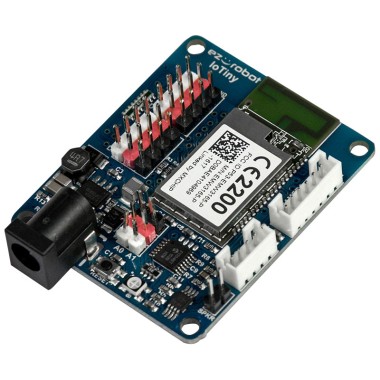
EZ-B Iotiny by EZ-Robot

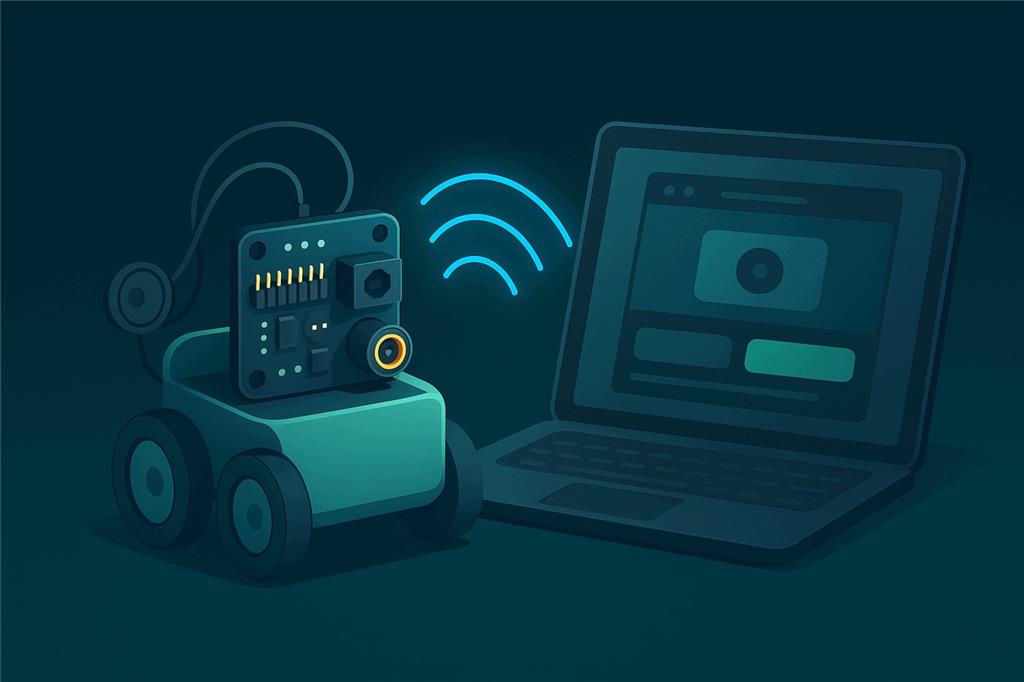
A tiny Wi-Fi brain for small robots
The IoTiny is the smallest controller in EZ-Robot's EZB family: eight servo ports, two analog inputs, I²C, a camera port and a speaker on a board that fits almost anywhere. Connect it to Synthiam ARCx and control servos, the camera and the robot's voice from any web browser.
How the IoTiny works with Synthiam: the IoTiny ships with EZB firmware, so there is nothing to program on the board. A computer running Synthiam software connects to it over Wi-Fi and does the thinking: speech recognition, vision, scripts and AI run on the computer, and the IoTiny moves the servos, reads the sensors and streams the camera. In ARCx, the Ezb Connection robot skill connects to it and Camera Source (ezb) brings in the camera. We recommend ARCx, which runs on Windows, Ubuntu and Raspberry Pi and is used from any browser. ARC on Windows supports the IoTiny too.
What is the EZ-B IoTiny?
The EZ-B IoTiny (usually just "IoTiny") is a small Wi-Fi robot and IoT controller. Think of it as the "brain" that lets your computer, tablet or phone control servos, LEDs, sensors and an EZ-Robot camera. Its size makes it easy to fit into small robots, animated props and custom enclosures.
A 100 MHz ARM Cortex-M4 processor inside the Wi-Fi module runs the hardware in real time. Around it are a power-efficient switching power supply, a LiPo battery monitor, an amplified speaker output and solderless plug-and-play connectors.
- 8 multi-use ports for digital I/O, servos and transmit-only serial (D0–D7)
- 2 analog inputs (A0–A1)
- 1 I²C port
- 1 camera connector for the EZ-Robot Camera (v2)
- 1 speaker output, with spoken setup prompts so you know what mode it is in
- Wi-Fi with discovery, an embedded web server (HTTP) and Telnet
"Digital" means on or off, like a light switch. "Analog" means a range, like a dimmer knob.
IoTiny at a glance
| Type | Wi-Fi robot and IoT controller running EZB firmware |
|---|---|
| Maker | EZ-Robot |
| Processor | 100 MHz ARM Cortex-M4 (in the Wi-Fi module), 128 KB RAM |
| Connection | Wi-Fi 802.11 b/g/n 2.4 GHz, access point or client mode |
| Ports | 8 digital/servo, 2 ADC, 1 I²C, camera, speaker |
| Power | 4.5–16 V DC barrel jack, typically a 7.4 V 2S LiPo |
| Synthiam uses it for | Small robots, animatronics and IoT projects with servos, a camera and a voice |
| Website | ez-robot.com |
What you can do with the IoTiny in Synthiam
In many projects you do not write any code. Robot skills move servos, read sensors, run scripts and automate behavior with a few clicks, so the time goes into the robot instead of compilers and programmers.
Servos and animation
Up to 8 servos on D0–D7. Use the Servo skill, build poses with Auto Position, or animate a prop on a timeline with Servo Animation.
Small rovers
Two continuous rotation servos make a robot that drives: add the Continuous Rotation Movement Panel and steer with the Movement Joystick or a gamepad.
Camera and vision
The EZ-Robot Camera streams into Camera Source (ezb) for Face Tracking, Color Tracking, object training and recording. The vision runs on the computer.
A voice
Speech and sounds can play from the IoTiny's speaker. Record your own voice with Microphone Playback (ezb) and make a jaw move with Talk Servo.
Sensors and IoT
Watch analog sensors with Adc Monitor and switches with Digital Monitor, which can run a script when a port changes. Remote switches, alarms and sensors become simple IoT devices.
Scripts, AI and remote access
Program in Blockly, JavaScript or Python. ARCx is an MCP server, so AI agents can see and move the robot, and Exosphere lets you control it from anywhere.
Where everything plugs in
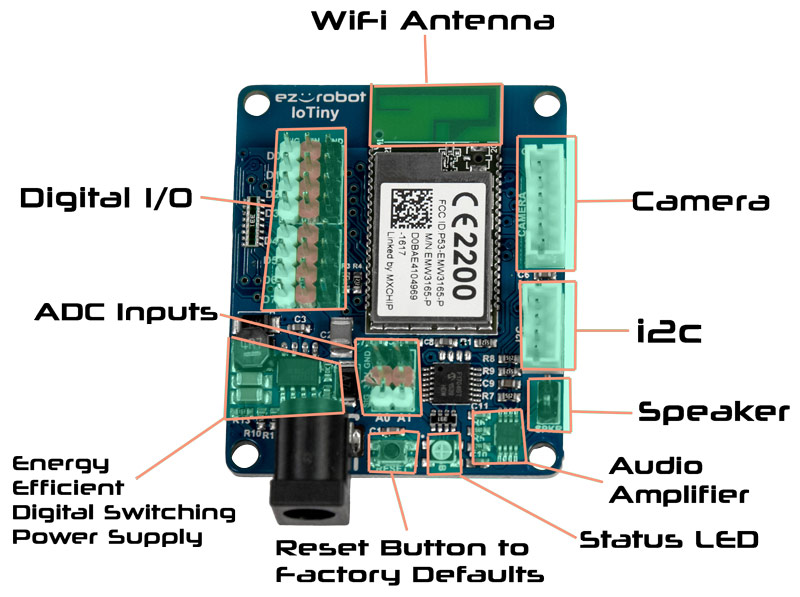
Most IoTiny ports use a 3-pin GVS layout: Ground, Voltage (power) and Signal (data or control).
- Ground is the return path for power and the reference for the signal.
- Voltage powers the device you plug in (servo, sensor and so on).
- Signal is the control or data wire: a servo position, a digital input, a sensor reading.
Match the colors. EZ-Robot accessories are color-coded: the black wire usually lines up with the black (ground) side of the IoTiny port. If a plug feels forced or reversed, stop and check the alignment.
| Port | Connector | Power on the V pin | What it does |
|---|---|---|---|
| Digital D0–D7 | 3-pin; Signal, Vin, Ground (left to right) | Unregulated: the battery voltage (Vin) | Servos, PWM, digital output (0 V or 3.3 V), digital input (5 V tolerant) and transmit-only serial. A 330 Ω resistor limits each signal pin to about 10 mA. |
| Analog A0–A1 | 3-pin; Ground, 3.3V, Signal (top down) | Regulated 3.3 V | Read 0–3.3 V as 8-bit (0–255) or 12-bit (0–4095) values. Not 5 V tolerant: never apply more than 3.6 V. |
| I²C | 4-pin 2 mm JST-PH; SCL, SDA, 3.3V, GND (top down) | Regulated 3.3 V | Smart sensors, displays and modules. 100 kHz by default, configurable up to 400 kHz. |
| Camera | 6-pin 2 mm JST-PH; 3.3V, GND, RX, TX, RTS, CTS (top down) | Regulated 3.3 V | EZ-Robot Camera (v2) on its own 3.33 Mbps channel. Pin labels are printed on the back of the board. |
| Speaker | 2 pins | – | Amplified audio, 0.3 W maximum. Use an 8 Ω 0.5 W speaker (one is included when bought from EZ-Robot). |
| Status LED | RGB LED | – | Shows the network state (see below). |
| Reset button | Push button | – | A momentary press restores the default access point network settings. |
| Power | Barrel jack | – | 4.5–16 V DC into an on-board switching power supply. |
Serial devices: the IoTiny has no hardware UART, so it cannot receive serial data. Any digital port can send serial:
in ARCx with UART.sendSerial() or UART.sendSerialString() (or the Blockly serial blocks), in ARC with SendSerial().
For two-way serial devices, use an EZ-B v4.
The EZ-Robot Camera (v2) connects with a 6-pin camera cable. The connector is keyed with notches so it only fits the correct way. If the camera disconnects, the usual cause is a slightly loose cable: power off, unplug both ends and plug them back in firmly, and avoid sharp bends right at the connector.
Status LED and spoken prompts
The IoTiny speaks on start-up, on a successful or failed network connection, and when the battery is low. The RGB status LED tells the same story:
| The LED does this | It means |
|---|---|
| Flashes blue, then white, then back to flashing blue | Started up in access point (AP) mode, waiting for a connection |
| Solid blue | Synthiam software is connected in AP mode |
| Flashes blue, white, green, then keeps flashing green | Joined your Wi-Fi network in client mode |
| Flashes blue, white, green, then keeps flashing red | Could not join your Wi-Fi network in client mode |
| Solid green | Synthiam software is connected in client mode |
| Flashing aqua blue | Firmware is being updated |
| Flashing yellow | Resetting to default settings |
Access point mode or client mode
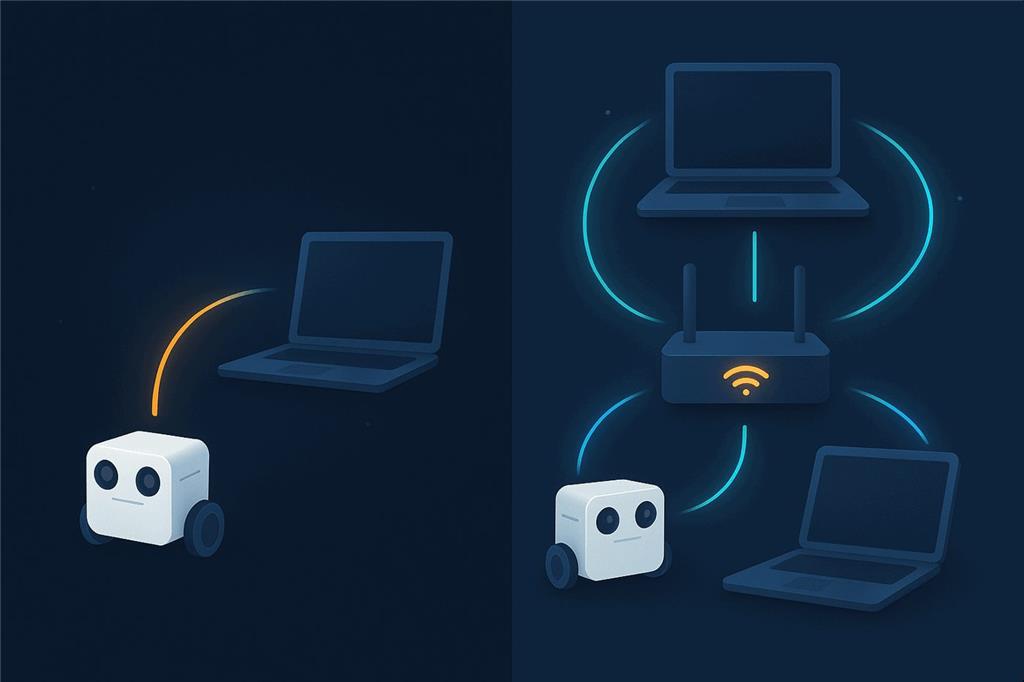
AP mode (direct connect) – start here
The IoTiny creates its own Wi-Fi network and your computer or phone joins it. This is the default out of the box and after a reset, and it works anywhere, even without home Wi-Fi. While joined, your device usually loses internet access, because it can only use one Wi-Fi network at a time. That is normal.
Client mode (join your Wi-Fi)
The IoTiny joins your home or office router like any other device. Use it when you want to keep internet access, or when several devices need to reach the robot. The EZB scanner in ARCx and ARC finds the address your router gave it.
Switch modes on the IoTiny's built-in web configuration page, which also holds the network, security (WPA2, WPA or WEP), channel (1–11; 1, 6 or 11 recommended) and battery monitor settings. In AP mode, join the IoTiny's Wi-Fi and open the address below (http, not https). In client mode, browse to the address your router assigned.
Web configuration (AP mode):  http://192.168.1.1
Telnet (AP mode):             telnet 192.168.1.1 8080
Ezb Connection address:       192.168.1.1   (default EZB port 23)
To return to defaults, press the reset button while the IoTiny is powered. All network settings go back to AP mode.
Give it a voice
The IoTiny's amplified speaker output (0.3 W, for an 8 Ω 0.5 W speaker) lets the robot speak and play sounds itself instead of through the computer.
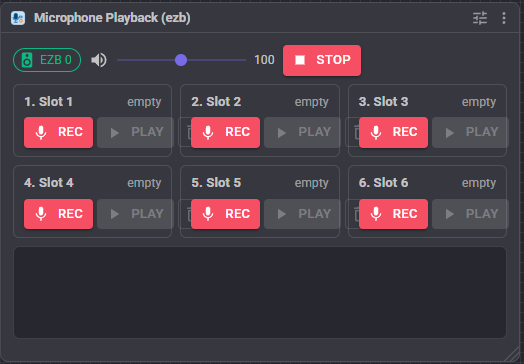
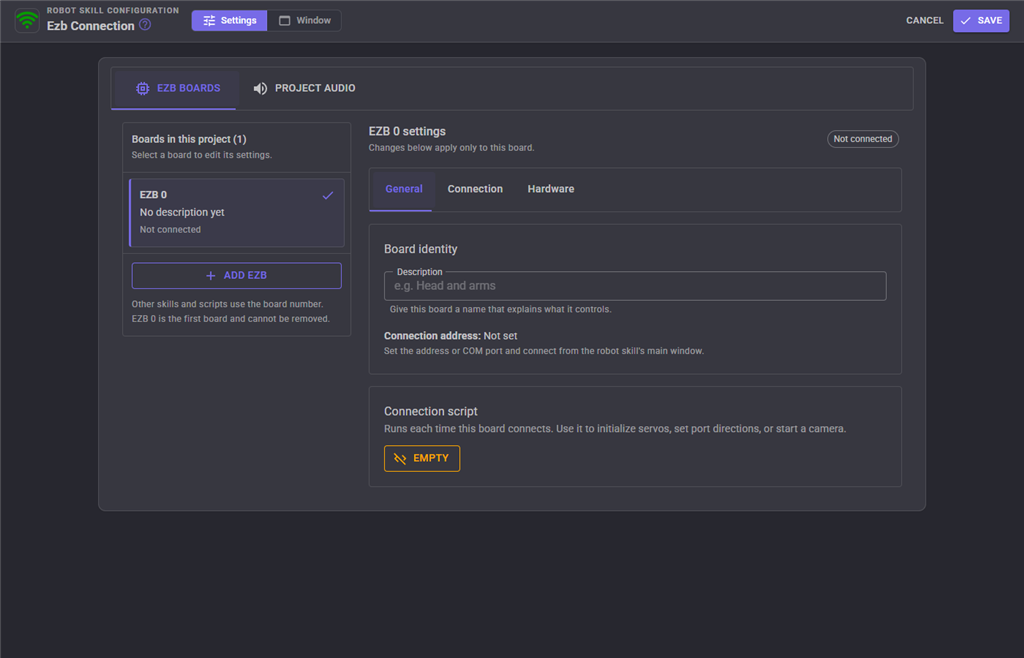
In ARCx, open the Ezb Connection configuration, choose Project audio and set Play audio through to EZB speaker. Every robot skill's speech and sound then plays from the IoTiny. Microphone Playback (ezb) records your voice into named slots that a button, script or AI can play. In ARC, use SoundBoard (EZB) and the EZB speech commands.
Read this before plugging in devices
Digital port power is unregulated
The V pin on the digital ports carries the same voltage you feed the IoTiny. Power it from 12 V and those pins output 12 V, which can damage a 5 V device or most servos. Choose a supply that matches your devices: many EZ-Robot servos are happiest around 6–7.4 V (check your servo's specifications). Use an inline regulator for parts that need something else.
Regulated 3.3 V ports: ADC, I²C and camera only.
Battery monitor and protection
The low battery monitor protects LiPo batteries and is on by default at 7 V. Below that the IoTiny repeats a spoken warning and its ports stop responding. With other batteries or a power adapter, change or turn it off in the web configuration (permanent), in ARCx under Ezb Connection > EZB boards > Hardware, or in ARC's connection settings. Only disable it if you understand your battery's safe limits.
The digital power pins are not protected: EZ-Robot recommends a 20 A (or lower) ATM automotive fuse between the battery and the IoTiny.
Electrical characteristics
| Parameter | Min | Typ | Max | Unit | Note |
|---|---|---|---|---|---|
| Voltage input (Vin) | 4.5 | 7.4 | 16 | V DC | Typ = 2-cell (2S) LiPo |
| Regulated supply (Vcc) | 3.2 | 3.3 | 3.4 | V DC | |
| Vin continuous current | 0.008 | 1.3 | 5 | A | Typ = 8 servos |
| Vin current spikes (fuse protected) | 0 | 5 | 20 | A | Typ = 8 servos |
| Vcc continuous current | 0 | 0.12 | 1 | A | Typ = IoTiny + camera |
| Vcc current spikes | 0 | 0.4 | 3 | A | Typ = IoTiny + camera |
| Vin low battery warning | OFF | 7 | 16 | V DC | Default 7 V for 2S LiPo |
| Current draw, no peripherals | 60 | 70 | 80 | mA | |
| Current draw with camera | 110 | 120 | 130 | mA | |
| Digital input high | 1.6 | 3.3 | 5 | V DC | 5 V tolerant, high above 1.6 V |
| Digital input low | 0 | 0 | 1 | V DC | Low below 1 V |
| Digital output level | 0 | 3.3 | 3.3 | V DC | Regulated to Vcc |
| Digital port power pin | 0 | 7.4 | 16 | V DC | Unregulated, follows Vin |
| ADC input | 0 | 3.3 | 3.6 | V DC | Not 5 V tolerant |
| ADC power pin | 3.2 | 3.3 | 3.4 | V DC | Regulated to Vcc |
| I²C signal level | 0 | 3.3 | 5 | V DC | 5 V tolerant |
| I²C power pin | 3.2 | 3.3 | 3.4 | V DC | Regulated to Vcc |
| Camera signal level | 0 | 3.3 | 5 | V DC | 5 V tolerant |
| Camera power pin | 3.2 | 3.3 | 3.4 | V DC | Regulated to Vcc |
Vin is the battery or DC supply voltage minus a small diode drop (about 0.14–0.36 V, depending on current). Vcc is the regulated 3.3 V from the on-board switching supply, used for logic and the regulated ports. Digital I/O reads or outputs about 0 V (low) or 3.3 V (high). ADC measures an analog voltage and converts it to a number. I²C is a bus several smart devices share; do not mix 5 V and 3.3 V devices on it. If you are ever unsure, disconnect power and check your supply with a multimeter before reconnecting devices. Source: EZ-Robot IoTiny datasheet.
Move your first servo with ARCx
- Power the IoTiny with a supply your servos can handle (see Power above). It speaks a start-up prompt and the LED flashes blue.
- Join the IoTiny's Wi-Fi from the computer that will run ARCx (AP mode). Later, put the IoTiny in client mode so it, the ARCx computer and your phone share your own network.
- Install ARCx on Windows 10/11, Ubuntu 24.04 or a Raspberry Pi running Ubuntu 24.04. Download ARCx, start it and open it in a browser.
-
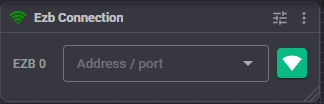
Add the Ezb Connection robot skill from the Communication category, enter
192.168.1.1(or pick the IoTiny from the list) and press the green connect button. - Move a servo. Plug a servo into D0 with the black wire on the ground side, add the Servo skill, pick D0 and move the slider. Confirm it moves smoothly, then add more parts.
- Add the camera and a voice: Camera Source (ezb) for video, and Project audio set to EZB speaker so the robot talks.
Using ARC on Windows? Join the IoTiny's Wi-Fi, enter 192.168.1.1 in the EZB Connection skill and press Connect.
IoTiny or EZ-B v4?
You will see the EZ-B v4/2 in related documentation. It is the larger EZB with more ports and features; servos, the camera cable and the Synthiam software work the same way on both.
- Choose the IoTiny for a very small controller with fewer ports: 8 digital, 2 analog, 1 I²C, Wi-Fi only.
- Choose the EZ-B v4 for more expansion: 24 digital, 8 analog, 3 I²C, 3 hardware UARTs and an optional USB serial connection.
- Need both? One project can use several EZBs at once, each with its own index.
Both work. ARCx is recommended.
| ARCx Recommended | ARC | |
|---|---|---|
| Runs on | Windows 10/11 x64, Ubuntu 24.04 x64 and ARM64, including Raspberry Pi 4/5 | Windows |
| User interface | Any web browser on the network, several people at once; the robot keeps running when the browser closes | Windows desktop application |
| Camera and speaker | Camera Source (ezb), Microphone Playback (ezb), project audio to the EZB speaker | Camera Device, SoundBoard (EZB), EZB speech |
| AI agents | Built-in MCP server | Through robot skills |
| Connection skill | Ezb Connection | EZB Connection |
When something does not work
- The battery may be weak and sagging under load.
- The supply may not deliver enough current for several servos.
- A servo may be stalled (mechanically blocked) and drawing high current.
- Check the unregulated power warning above: the wrong voltage can damage servos.
http://192.168.1.1 again. Use http, not https.
Frequently asked questions
Make something small and smart
Install ARCx, add Ezb Connection, and control your IoTiny from any browser.

@Athena, Can the EZ-B IoTiny be controlled directly via Wi-Fi from the ARC PC? Without a router between them.
In my case, this kit works correctly only through a router. In the IoTiny interface, the servo drive test goes well, which means it is connected correctly. In ARC, only the connection is accepted, the rest does not work. What is the reason, the problem?
Yes, the EZ-B IoTiny can be controlled directly via Wi-Fi from ARC on a PC without a router between them. This is known as a Wi-Fi Direct or Ad-Hoc connection. To establish a direct connection, you need to configure the IoTiny to create its own Wi-Fi network that your PC can connect to.
Here are the steps to connect your PC directly to the IoTiny:
If you are experiencing issues where ARC connects to the IoTiny but does not control it, here are a few troubleshooting steps:
If you continue to experience issues, you may want to refer to the support section on the Synthiam website for detailed troubleshooting articles: https://synthiam.com/Support. Additionally, you can use the ARC software to perform diagnostic tests and ensure that the IoTiny is functioning correctly.
@FANT0MAS that is a rare thing to happen. Athena has some great suggestions, like check for anti-virus or firewall blocking, or IP address conflict (your router is on 192.168.1.1) - in the IoTiny webserver which can be accessed with anything that can connect to it's SSID and load a webpage (enter 192.168.1.1) you can change the IP address in the Access point settings.
Have you tried to connect to another PC or mobile device with your IoTiny?