
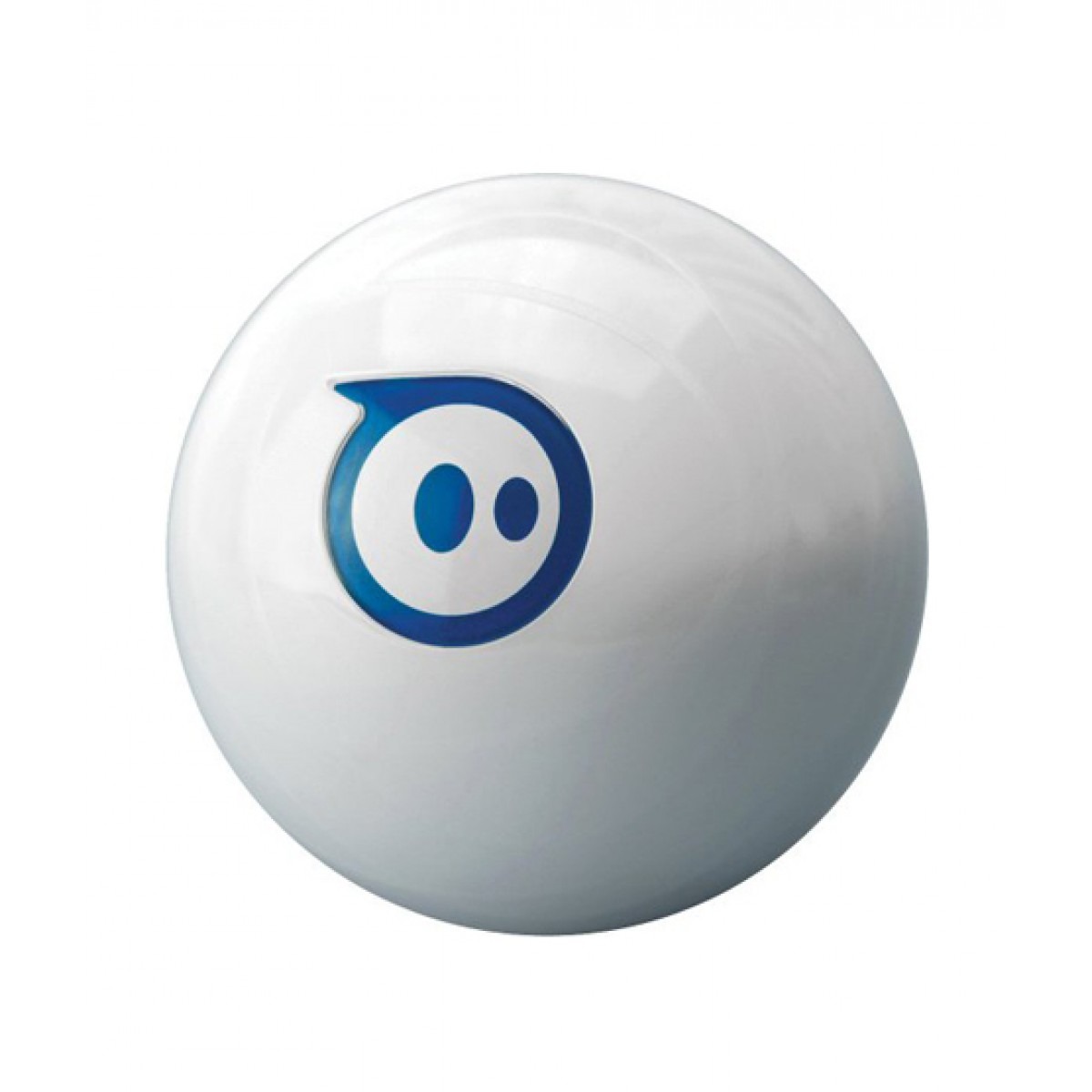
Sphero by Sphero
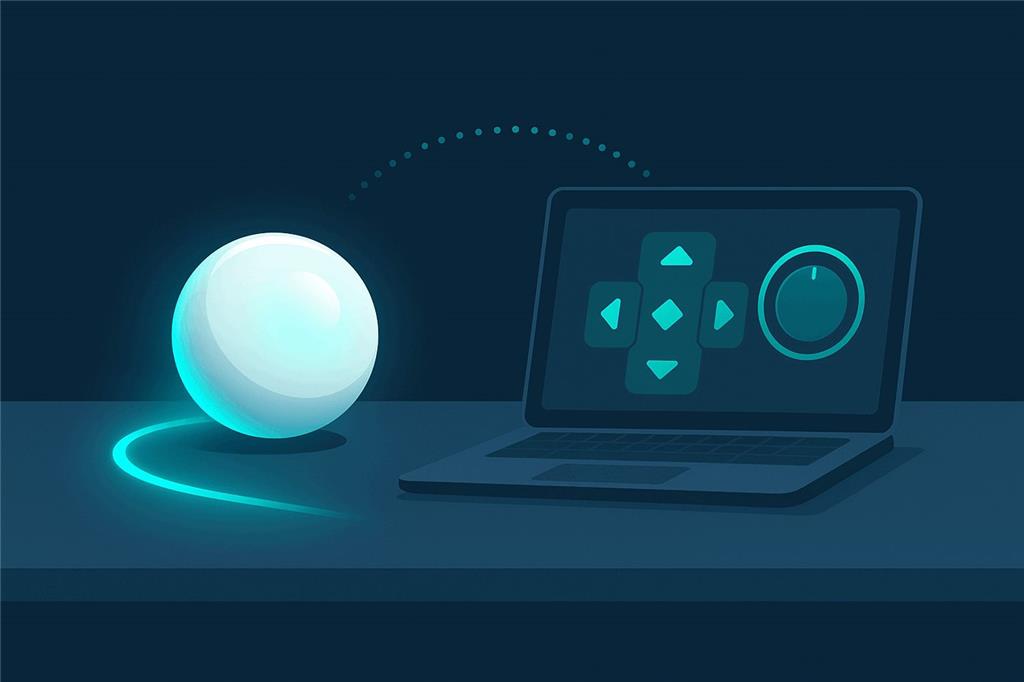
Drive a Sphero from your PC, and teach it new tricks
Sphero is a remote-control robotic ball that connects over Bluetooth. With Synthiam ARC you can drive it from your computer and add features far beyond the phone app: voice control, scripted behaviors, chatbots and more, one skill at a time.
How Sphero works with Synthiam. Sphero is not an EZB. ARC, running on a Windows PC, is the software brain; Sphero is the robot it talks to over a Bluetooth serial (COM) port through the Sphero Movement Panel robot skill. Once connected, ARC sends movement commands (drive, stop, change heading) and you can layer other ARC skills on top. Sphero is supported in ARC only; there is no ARCx skill for it.
What is Sphero?
Sphero is a small robotic ball made by Sphero, Inc. Inside its sealed shell, motors roll the ball in any direction, and it is steered wirelessly from a phone, tablet or computer, for play and for learning to code.
ARC's Sphero Movement Panel connects through the Bluetooth serial COM port that Windows creates when a Sphero is paired, which is how the original Sphero robotic balls (Sphero 1.0 and 2.0) connect. Community testing confirms the original Sphero ball; Synthiam does not publish an official list of other compatible models.
Discontinued. Sphero lists the Sphero 1.0 and 2.0 (and the SPRK+) among its discontinued products: they are no longer made, though many still work. If you have one, ARC can still give it new life.
Sphero at a glance
| Type | Robotic ball |
|---|---|
| Maker | Sphero |
| Connection | Bluetooth, paired as a serial COM port on Windows |
| Power | Built-in rechargeable battery |
| Synthiam software | ARC on Windows 10/11, Sphero Movement Panel |
| Synthiam uses it for | Driving, voice control and scripted behaviors |
| Website | sphero.com |
What you can do with Sphero in ARC
The Sphero skill is a movement panel, so anything in ARC that moves a robot rolls the Sphero: on-screen controls, joysticks, scripts, speech recognition and web control.
Drive it from your PC
Roll forward and backward and turn with on-screen controls, the keyboard or a joystick.
Voice control
Add Speech Recognition and say “forward”, “stop” or “turn left”.
Scripted behaviors
Make Sphero patrol, spin, pause or perform a sequence of moves automatically with ARC scripts.
AI conversations
Connect a chatbot such as PandoraBots so your project responds conversationally while it moves.
Combine skills
Mix movement with sound, a PC camera with tracking, timers and automation.
Connect a Sphero to ARC
- Charge Sphero so it does not disconnect mid-session.
- Pair it with Windows. Turn on Bluetooth on your PC (or plug in a USB Bluetooth adapter), keep Sphero within a few feet of the computer, and pair it. Windows usually creates two COM ports for a paired Sphero; only one of them works with ARC.
- Install ARC and open a project. Get ARC for Windows.
- Add the Sphero Movement Panel from Project, Add Robot Skill, Movement Panels. Read the Sphero Movement Panel manual for details.
- Connect and test. Choose one of Sphero's COM ports and connect. If nothing happens, try the other port. Try a slow roll first.
- Add skills one step at a time: speech recognition, scripts, then AI.
Bluetooth tips
- Only one app or program can usually control Sphero at a time. Close any Sphero app on your phone or tablet.
- After a disconnect or a restart you may need to remove Sphero from Windows Bluetooth devices and pair it again. Sphero was designed mainly to connect to phones and tablets.
- Keep Sphero close to the computer during setup.
Sphero is an ARC robot
The Sphero Movement Panel exists for ARC, Synthiam's Windows desktop software, and not for ARCx. Use ARC on a Windows 10 or 11 PC with Bluetooth.
If you are choosing a robot to start with today, consider one that ARCx supports. ARCx runs on Windows, Linux and Raspberry Pi, is used from any web browser by several people at once, and lets AI agents see, drive and program the robot. See ARCx and the robots in this hardware catalog.
Troubleshooting
- Try Sphero's other COM port: only one of the two works.
- Restart Bluetooth on your PC, power-cycle Sphero, and try again.
- Close any other Sphero app that might be connected.
- Remove Sphero from Windows Bluetooth devices and pair it again.
Frequently asked questions
Give your Sphero new tricks
Pair it, add the Sphero Movement Panel in ARC, then add voice, scripts and AI one step at a time.

What are the com port speed settings to attach the sphere? I have tried both ports to no avail.
Sphero didn't make it very easy on that front. Every time you pair the PC to Sphero over bluetooth a different COM port is set. Once you power-off the sphero, the bluetooth COM port must be removed and repaired again.
You'll find "a bit" more info about that here: https://synthiam.com/Support/Skills/Movement-Panels/Sphero-Movement-Panel?id=16124