
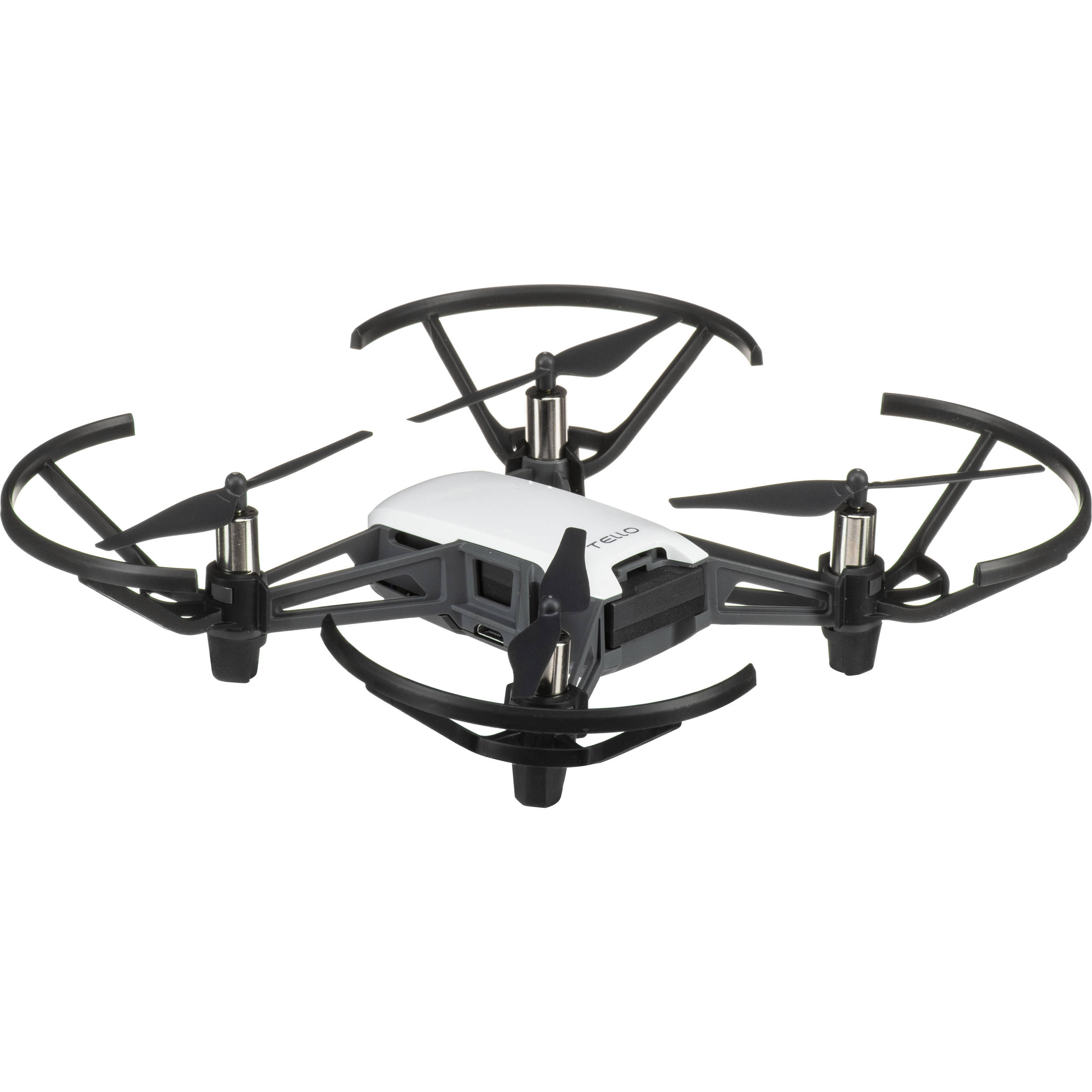
Tello Drone by DJI
Fly, see and program a Tello drone
The Tello is a small, affordable drone that is fun to fly and a great way to learn robotics and coding. With Synthiam it becomes a flying robot: fly it from a browser, use its camera for vision tracking, script measured moves, and let an AI assistant fly it within limits you set.
How the Tello works with Synthiam. The Tello is not an EZB and needs no extra hardware. A dedicated robot skill, the Dji Tello Movement Panel, talks to the drone over its own Wi-Fi using the Tello SDK, the drone's text command protocol. The computer running Synthiam joins the drone's network, the skill flies it, and the drone's camera becomes a video source for every vision skill. We recommend ARCx: its Tello skill listens to the drone's telemetry, adds a flight HUD, safety limits, scripts on events and AI tools, decodes the video itself so it works on Linux too, and is used from any web browser.
What is the Tello?
The Tello is a palm-sized quadcopter sold by DJI and made by Ryze Tech, designed for indoor flying, learning and education. It holds its position using a downward-facing sensor, streams video from its front camera, and is controlled over Wi-Fi through a published SDK.
The Tello EDU adds features for classrooms and developers: it can join your own Wi-Fi router (station mode) instead of making its own network, and it recognizes mission pads, printed mats it can locate itself above and fly to.
Because the drone does the hard work of staying stable in the air, Synthiam can concentrate on everything else: where to fly, what the camera sees, and what to do about it.
Tello at a glance
| Type | Mini quadcopter drone with camera |
|---|---|
| Maker | DJI / Ryze Tech |
| Connection | The drone's own Wi-Fi (TELLO-XXXXXX), drone at 192.168.10.1 |
| Ports | UDP 8889 commands, 8890 telemetry, 11111 video |
| Camera | Forward camera, H.264 stream, about 30 frames a second |
| Power | The drone's own rechargeable battery |
| Synthiam uses it for | A flying robot with a camera for vision tracking and programming |
| Website | DJI Store |
What you can do with a Tello in Synthiam
The Tello skill is a movement panel, so everything in Synthiam that moves a robot flies the drone: the Movement Joystick, Movement.forward() in a script,
a Custom UI joystick, a tracking skill or an AI assistant.
Fly it
Take off, land, hover, climb, descend, turn, fly forward and back and slide sideways, from on-screen sticks laid out like a mode 2 remote, the keyboard, or a joystick.
Computer vision
The live camera feed works with object, color and face tracking and detection, so the drone can follow a target or react to what it sees: “if a red object is seen, rotate right.”
Pilot's HUD
An artificial horizon, heading, height, ground distance, speed, climb rate, battery, Wi-Fi signal, temperature and flight time over the camera, without touching the video the vision skills see.
Measured moves
Scripts can fly an exact distance in centimeters, turn a number of degrees, fly to a point or an arc, flip, and (Tello EDU) fly to a point over a mission pad, waiting until the drone arrives.
Write code
Automate flights with scripts tied to buttons, events or vision triggers. ARCx uses JavaScript and Python; ARC also offers EZ-Script, and C++ or .NET for advanced development.
Telemetry and events
Battery, height, attitude, speed, temperature and mission pad become global variables, and scripts run when the drone connects, takes off, lands, loses its link or runs low on battery.
AI assistants
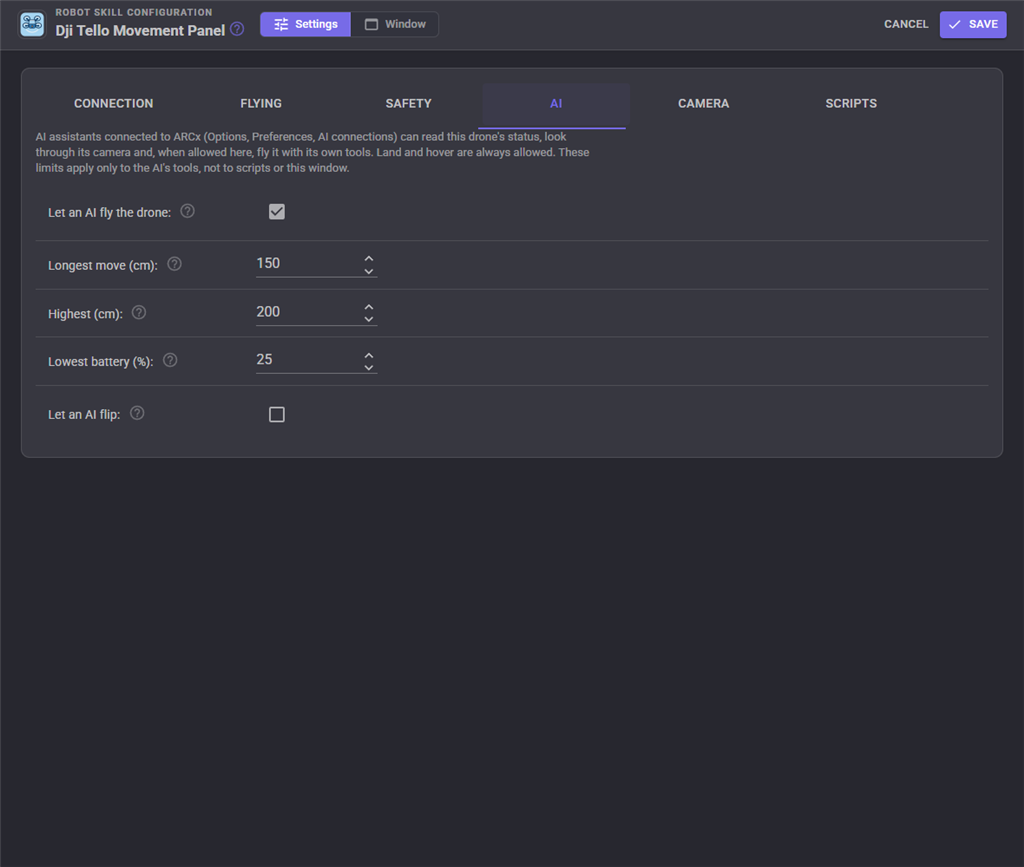
AI assistants connected to ARCx can read the drone's status, look through its camera, take off, land, move and turn, within a longest move, a ceiling and a lowest battery you set.
Custom UI widgets
A Tello Camera HUD widget and a Tello Flight Buttons widget turn a phone or tablet into a pilot's screen when placed beside a Custom UI joystick.
Safety built in
A ceiling, low battery warning and automatic landing, auto hover when commands stop, landing on disconnect, and a panic button that hovers, lands or cuts the motors.
How movement becomes flight
The movement panel's directions become the Tello's sticks. How far each stick is pushed at top speed is set on the Flying tab, and a lower movement speed pushes it less.
| Direction | What the drone does |
|---|---|
| Forward, Reverse | Forward stick. Different left and right speeds also turn, toward the slower side. |
| Left, Right | Turn on the spot (yaw), or slide sideways when Left and right is set to Slide. |
| Up, Down | Climb and descend. |
| Roll left, Roll right | Slide sideways. |
| Take off, Land, Emergency | takeoff, land, emergency. Take off rises to about 80 cm. |
| Stop | All sticks centered: hover. |
Keeping the link alive. A Tello lands by itself when it hears nothing for 15 seconds. The ARCx skill asks for the battery or Wi-Fi signal every few seconds when nothing else is sent, repeats the sticks five times a second while moving, notices when the link is lost, runs the Disconnected script and keeps trying to reach the drone.
Connect a Tello to ARCx
- Power on the Tello with a charged battery and wait until its light blinks yellow (ready).
-
Join the Tello's Wi-Fi. On the computer running ARCx, connect to the network named like TELLO-XXXXXX, just like joining home Wi-Fi.
The drone is then at the default address:
192.168.10.1 - Install ARCx and open a project. Download ARCx for Windows or Linux. When the firewall asks, allow ARCx on private networks so telemetry (UDP 8890) and video (UDP 11111) can arrive.
- Add the robot skill. Open Robot Skills, choose Movement Panels and add the Dji Tello Movement Panel. Only one movement panel can be in a project.
- Connect and test. Press Connect, confirm the video feed appears, then try Take off, a short hover and Land. Know where Hover and E-stop are before you take off.
- Add vision one step at a time. The camera is published as Tello Camera, so add a Camera, tracking or detection skill and choose it.
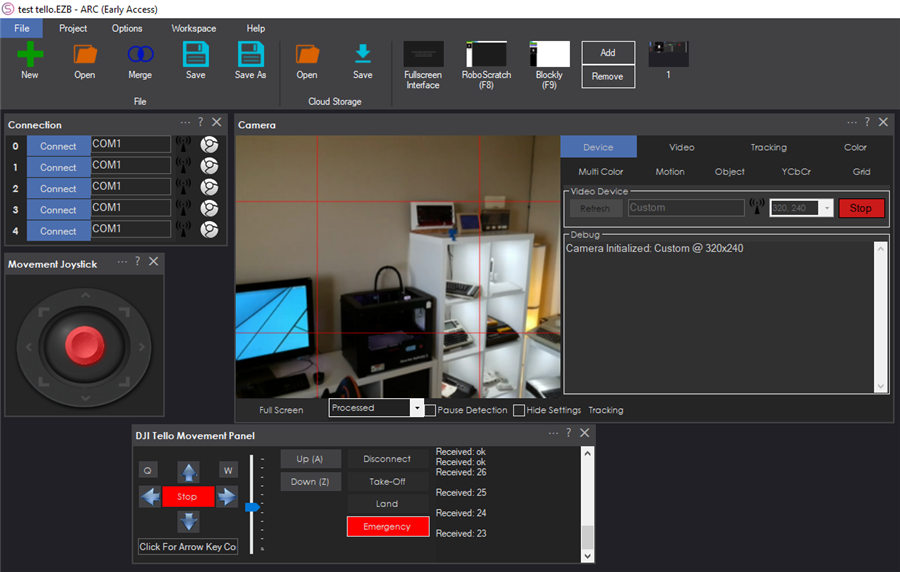
Using ARC instead?
Join the Tello's Wi-Fi, add the DJI Tello Movement Panel for ARC and press Connect. For video, add a Camera Device, select CUSTOM and press Start, then choose that Camera Device in the Tello skill's configuration and save. Allow ARC through the firewall on both private and public networks: Windows treats the Tello's Wi-Fi as public by default.
Safety first
- Test in a clear, open area with minimal airflow.
- Start with short takeoffs, gentle movements and low altitude.
- Keep hair, fingers, faces, pets and loose objects away from the propellers. Consider prop guards while learning.
- Set a Ceiling below the room's ceiling on the Safety tab.
- E-stop cuts the motors and drops the drone out of the air. It is for a drone about to hurt someone, not for stopping; use Hover or Land for that.
Beginner tip: get basic flight working first (connect, video, take off and land). Then add vision features one at a time, so it is easier to troubleshoot.
The Tello in ARC and ARCx
Telemetry variables in ARCx
All start with the variable prefix, Tello by default.
| Variable | What it is |
|---|---|
TelloConnected, TelloFlying | The link and the flight state |
TelloBattery, TelloLowBattery | Battery percent, and whether it is at the warning level |
TelloHeight, TelloTimeOfFlight | Height above the take-off point, and the downward sensor's distance to the ground, in cm |
TelloPitch, TelloRoll, TelloYaw | Attitude in degrees |
TelloTemperatureLow, TelloTemperatureHigh | Board temperature in degrees Celsius |
TelloWifiSnr | The Wi-Fi signal to noise ratio |
TelloMissionPad, TelloPadX, TelloPadY, TelloPadZ | Tello EDU: the mission pad in view (-1 for none) and the drone's position over it in cm |
TelloLastAnswer | The drone's answer to the last command sent |
A simple Low battery script:
Audio.say("Battery low, coming home");
controlCommand("Dji Tello Movement Panel", "Land");Both fly the Tello. ARCx listens to it too.
If you are starting today, choose ARCx. It runs on Windows 10/11 x64 and Ubuntu 24.04 x64 and ARM64, is used from any web browser by several people at once, and lets AI agents see and fly the drone through MCP, within your limits.
| ARCx + Dji Tello Movement Panel Recommended | ARC + DJI Tello Movement Panel | |
|---|---|---|
| Runs on | Windows 10/11 x64, Ubuntu 24.04 x64 and ARM64 | Windows |
| Fly with the movement panel, joysticks and scripts | Yes | Yes |
| Camera | Published as its own video source, decoded inside ARCx | Through a Camera Device set to CUSTOM |
| Reads the drone's answers and telemetry | Yes, with variables and a HUD | Sends commands without listening |
| Keep alive, link loss and reconnect, ceiling, low battery landing | Yes | - |
| Measured moves, mission pads, event scripts, widgets, AI tools | Yes | - |
Troubleshooting
- Is the computer joined to the TELLO-XXXXXX Wi-Fi, and is the drone's light blinking yellow (ready)?
- Some computers drop a Wi-Fi network that has no internet. Tell the computer to stay connected.
- Only one program can fly a Tello: close the Tello app on your phone.
Frequently asked questions
Turn a Tello into a flying robot
Install ARCx, add the Dji Tello Movement Panel, and fly, see and program your drone from any browser.

I did test it, I am at my farm just a hot spot. My drone makes it's own Wi-Fi connection, I could not connect to ARC here nor my drome's camera.
I do connect on my hot spot (like now) for some internet connection.
Need to try this at home with real internet and a router