Record, edit, and loop servo motions with script points and audio tracks for precise robot playback and choreography
 Windows
 ARM
ARM
 Linux
Linux
 MacOS
MacOS
How to add the Servo Animation robot skill
- Load the most recent release of ARCx on a compatible operating system (Get ARCx).
- Press the + Skills menu from the top menu bar in ARCx.
- Choose the Servo category tab.
- Press the Servo Animation icon to add the robot skill to your project.
Don't have a robot yet?
Follow the Getting Started Guide to build a robot and use the Servo Animation robot skill.
How to use the Servo Animation robot skill
The Servo Animation robot skill records the servos of your robot as they move and plays the movement back whenever you like: at any speed, forwards or backwards, once or on a loop. It records from every EZB in the project or only the ones you choose, and whatever moves the servos is captured, whether that is a script, a servo Pad, Auto Position, a joystick or another robot skill.
Every recording can then be opened in a timeline editor, where each servo has its own lane and its movement is drawn as a curve. Keys can be moved, added and deleted, the curve between two keys can be changed from a hard step to a smooth ease or shaped by hand with Bezier handles, and servos that were never recorded can be added and animated from scratch. A script lane above the servos holds script points, each a script that runs when playback reaches it, so a recording can speak, play a sound or trigger another robot skill in step with the movement. Audio lanes hold clips of WAV and MP3 files, drawn as waveforms, that play through the project's speaker in step with the servos, so a dance can be built to its music and a sound effect dropped exactly on a footstep. It is the place to fine tune how the robot moves after the performance has been captured.
The Window
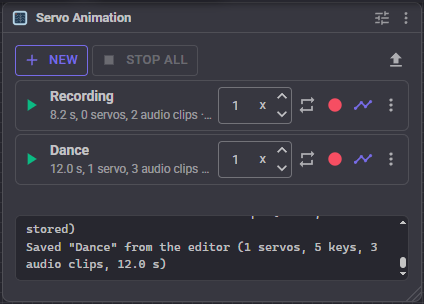
The window lists the recordings. Each row shows the recording's name, its length, how many servos it moves, how many script points and audio clips it has, and which EZBs it records from, followed by its controls:
| Control | What it does |
|---|---|
| Play / Stop | Plays the recording from the start, or stops it. A recording with a negative speed shows a rewind icon and plays from the end. |
| Speed | 1 plays as recorded, 2 twice as fast, 0.5 half speed. A negative speed plays backwards. -5 to 5. Changing it while the recording plays takes effect straight away, including flipping direction. |
| Loop | Plays the recording over and over until it is stopped. |
| Record | Starts recording into this recording. Press it again to stop. |
| Edit | Opens the recording in the timeline editor. |
| More | Rename, duplicate, choose which EZBs to record from, swap with the previous recording, move up or down, export, delete. |
New adds an empty recording, Stop all stops everything that is playing, and the upload button at the right imports recordings from a file. Click a recording's name to rename it. Scripts play recordings by name, so every name is unique.
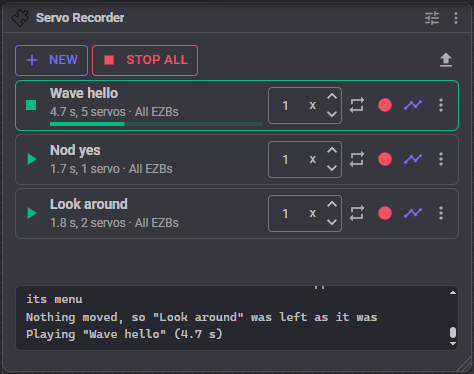
Any number of recordings can play at once. A playing recording has a green outline and a progress bar.
Recording
Press the red record button on a recording, move the robot, and press it again (or Stop in the red bar) to keep what was recorded. By default the clock starts when the first servo moves, so the time spent getting ready is not part of the recording.
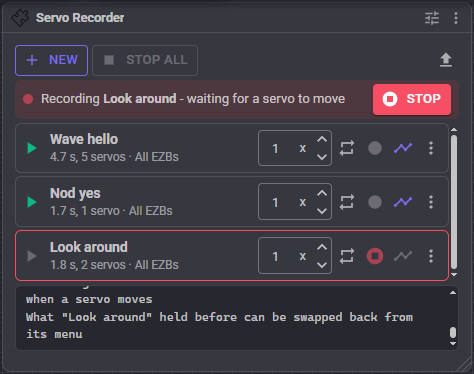
While recording, every servo position sent to the chosen EZBs becomes a key at the moment it was sent. A servo sent the position it already had adds nothing, so a servo that sits still costs nothing. A servo that first moves part way through the recording also gets a key at the start with the position it was holding, so on playback it waits where it was, then moves, exactly as it did.
Only one recording can record at a time. A recording that is open in the timeline editor cannot be recorded over until the editor is closed. If nothing moved while recording, the recording is left as it was.
Choosing the EZBs
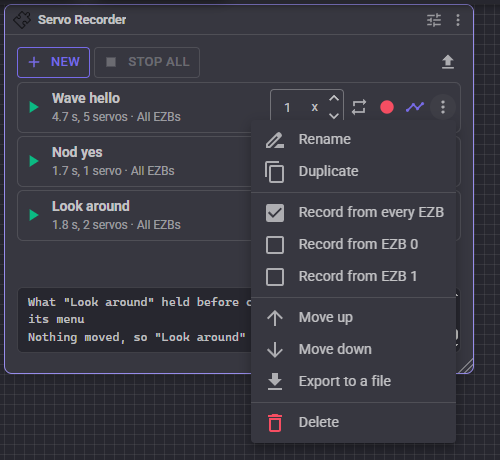
The More menu lists every EZB in the project. Record from every EZB captures all of them. Tick one or more EZBs to capture only those: a robot with its head on one EZB and its arms on another can have one recording for the head and another for the arms, each recorded while the whole robot is being moved.
Recording over a recording
Recording replaces what the recording held. The previous version is kept in memory until ARCx closes, and Swap with the previous recording in the More menu puts it back. Pressing it again swaps back to the newer one.
Layering
Servos moved by this robot skill's own playback are not recorded, unless Record this skill's own playback is turned on in the configuration. That makes it possible to play one recording, such as walking arms, and record a second one, such as head movements, over the top of it without copying the first into the second.
Playing
A recording plays each servo along its curve, sending a new position only when it changes, no more often than the update interval in the configuration (20 milliseconds by default). The servos of one EZB are sent together in one command so they move in step.
Playback leaves a servo alone until the recording reaches that servo's first key. After its last key the servo stays where it ended.
While any recording plays, the global variable $IsServoRecorderRunning is true. The name can be changed, or the variable turned off, in the configuration.
The Timeline Editor
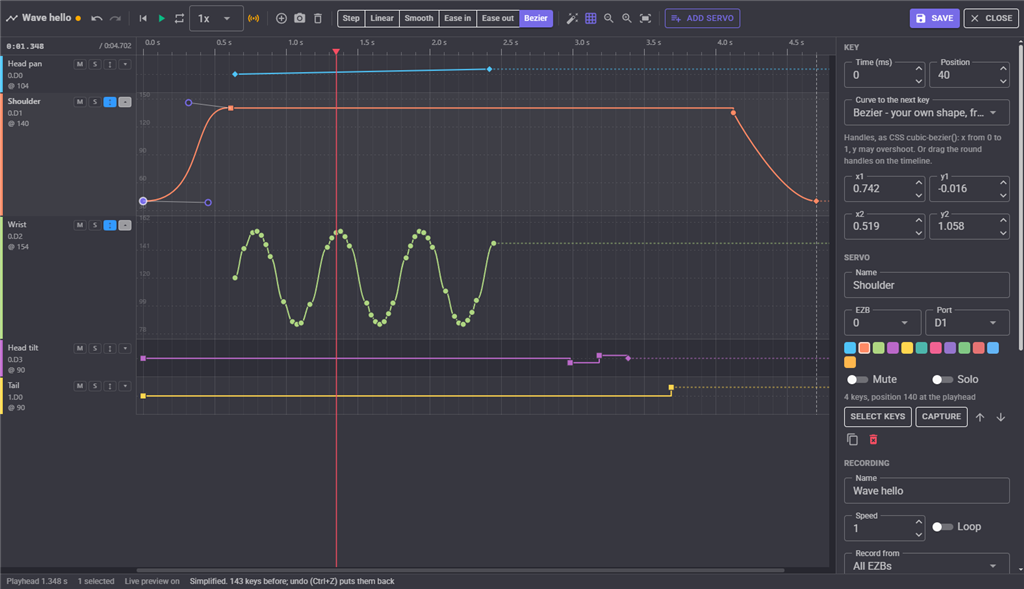
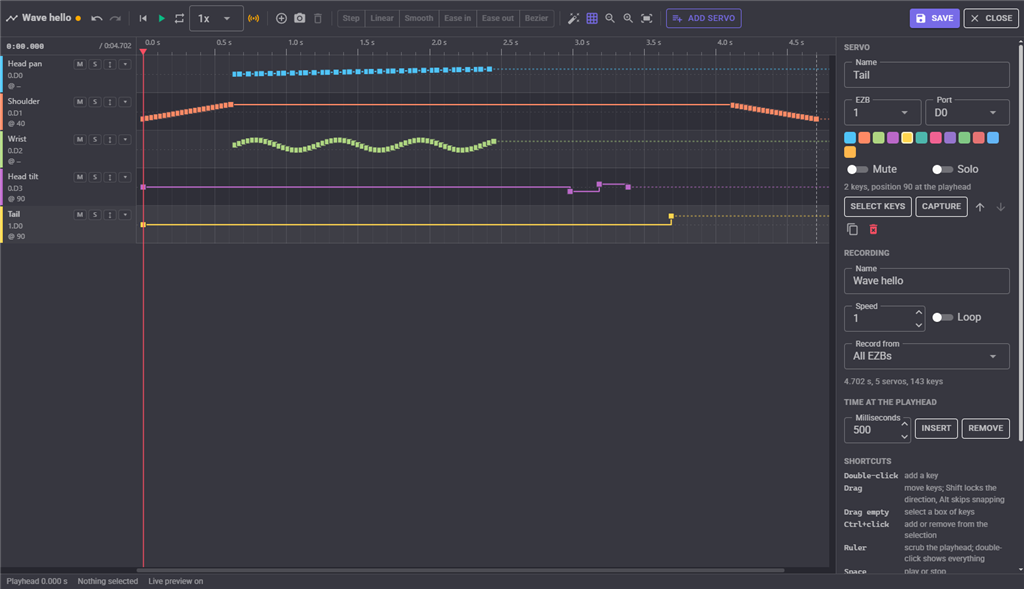
Press a recording's Edit button to open it in the timeline editor, which fills the screen. Time runs left to right. Under the ruler is the script lane, which never scrolls away, then the audio lanes, and below them each servo has a lane, where the line is the servo's position over time, low positions at the bottom and high positions at the top. The red line is the playhead. The dashed line marks the end of the recording.
Changes are made to a copy of the recording. Nothing changes on the robot's saved recording until Save is pressed, and closing with unsaved changes asks whether to save them. Undo and Redo (Ctrl+Z and Ctrl+Y) cover every edit, scripts included.
Every option in the inspector on the right has a small question mark beside it. Rest the mouse on it (or tab to it) for an explanation of what the option does.
A freshly recorded recording has a key for every position the servos were sent, often dozens a second:
Lanes
The left side of each lane shows the servo's name, its EZB and port, and its position at the playhead (a dash where playback does not move it yet). The four small buttons are:
| Button | What it does |
|---|---|
| M | Mutes the servo: it is not played. |
| S | Solos the servo: while any servo is soloed, only soloed servos are played. Handy for working on one arm without the rest of the robot moving. |
| Fits the lane to the positions the servo actually uses, instead of the whole servo range, so small movements are easier to see and edit. | |
| Makes the lane taller, with position guides, for precise curve work. |
Click a lane's name to make it the focused servo, which the inspector on the right shows. Double-click the name to select every key on that servo. The arrow keys move the focus up and down when no keys are selected.
Keys and curves
A key is a point the servo passes through: a time and a position. The curve from one key to the next belongs to the first key, and the shape of the key shows which curve it has:
| Curve | Shape | Movement |
|---|---|---|
| Step | square | Holds the position, then jumps to the next key's position when the next key is reached. Recordings are captured this way because it is exactly what the servos were sent. |
| Linear | diamond | Constant speed from one key to the next. |
| Smooth | circle | Starts slowly, speeds up, and slows down into the next key. |
| Ease in | circle | Starts slowly and arrives at full speed. |
| Ease out | circle | Leaves at full speed and slows down into the next key. |
| Bezier | circle | Your own shape, set with two handles. |
Select keys and press a curve button on the toolbar (or the keys 1 to 6) to change their curve. The button of the curve the selected keys share is highlighted.
Selecting and moving keys
- Click a key to select it. Shift+click adds to the selection, Ctrl+click adds or removes.
- Drag across an empty part of the lanes to select every key inside the box, across as many servos as it covers.
- Drag a selected key to move every selected key. Left and right changes their time, up and down their position. Hold Shift to move only in time or only in position, whichever way you move first.
- Times snap to the grid, the playhead and other keys while the grid button is on. Hold Alt while dragging to ignore snapping.
- The arrow keys nudge the selected keys 10 milliseconds or one position step; with Shift, 100 milliseconds or ten steps.
- Delete removes the selected keys. Ctrl+C, Ctrl+X and Ctrl+V copy, cut and paste them; pasting puts the first key at the playhead, on the same servos. Keys copied from a single servo paste onto the focused servo when the recording does not have the servo they came from, so a movement can be copied from one servo to another, and between recordings.
Hovering over a key shows its time, position and curve.
Adding keys
- Double-click an empty part of a lane to add a key there, at the position under the pointer.
- K (or the add button on the toolbar) adds a key on the focused servo at the playhead, on the curve where it already is, so the movement does not change until the key is moved.
- Capture (the camera button) adds a key on every servo at the playhead, at the position the robot is in right now. Pose the robot with any other robot skill, move the playhead, capture, and repeat to build a movement pose by pose. The Capture button in the servo section of the inspector does the same for the focused servo only.
The inspector
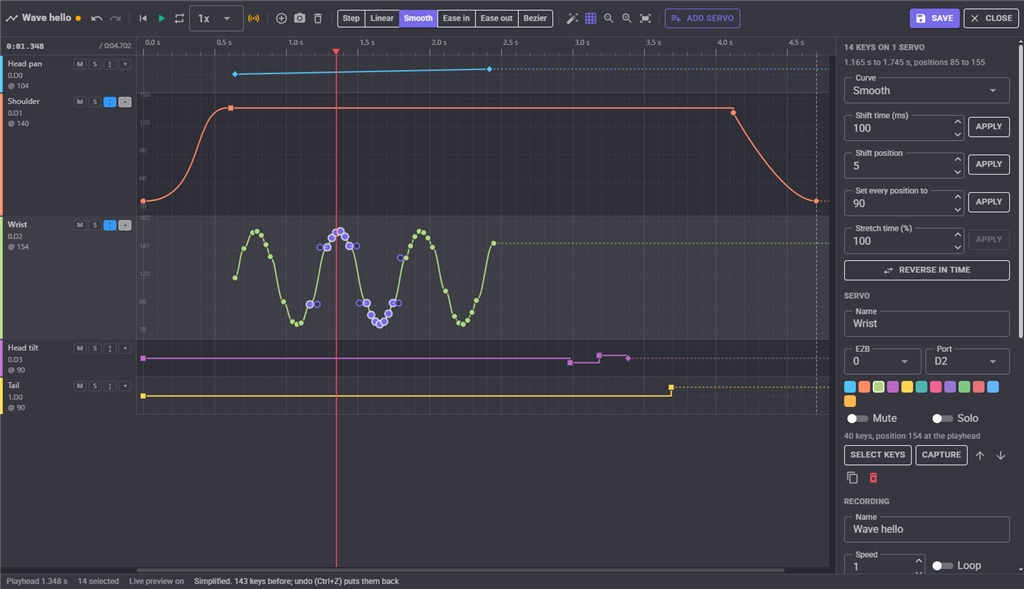
The panel on the right edits whatever is selected.
With one key selected it shows the key's time and position, its curve, and for a Bezier curve the four handle values (x1, y1, x2 and y2, as in CSS cubic-bezier: the x values run from 0 to 1, the y values may go past 0 and 1 to overshoot).
With several keys selected it can:
| Action | What it does |
|---|---|
| Curve | Gives them all the same curve. |
| Shift time | Moves them all later (or earlier, with a negative number). |
| Shift position | Moves them all up or down. |
| Set every position to | Gives them all the same position. |
| Stretch time | Spreads them out (over 100%) or squeezes them together (under 100%), from the first of them, to make a movement slower or faster without touching the rest of the recording. |
| Reverse in time | Plays the selected movement backwards: a reach becomes a pull back. |
The Servo section edits the focused servo: its name, which EZB and port it drives (to move a whole track to another servo), its colour, mute and solo, and buttons to select its keys, capture it, move it up or down, duplicate it onto the next free port, or delete it.
The Recording section holds the recording's name, the speed and loop the window plays it with, the EZBs it records from, and whether its script points run. These are saved with the keys.
Time at the playhead inserts or removes time across every servo: Insert pushes every key at or after the playhead later, Remove cuts that much time out and brings later keys earlier. Use them to lengthen a pause or tighten a gap without moving keys one by one.
Bezier handles
Select a key whose curve is Smooth, Ease in, Ease out or Bezier and two round handles appear on the curve to the next key (and on the curve from the key before, when that one eases too). Drag a handle to reshape the curve; the curve becomes a Bezier. Pull a handle past the next key's position to make the servo overshoot and settle. Make the lane taller, and fit it, to give the handles room.
Simplify
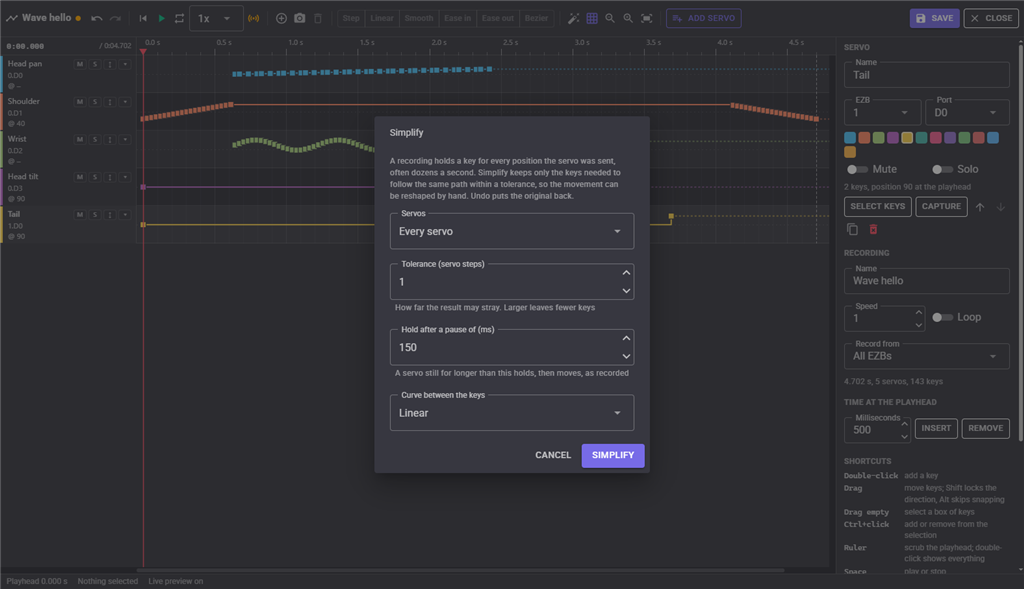
Simplify (the magic wand) turns a dense recording into a few keys that follow the same path, which are far easier to reshape. It can work on the focused servo, the servos with selected keys, or every servo.
| Setting | What it does |
|---|---|
| Tolerance | How many position steps the simplified movement may stray from the recording. Larger leaves fewer keys. 1 is barely noticeable. |
| Hold after a pause of | A servo that stood still for longer than this keeps standing still and then moves, as it did when recorded, instead of drifting slowly across the pause. |
| Curve between the keys | Linear or Smooth. |
Simplify can be undone.
The script lane
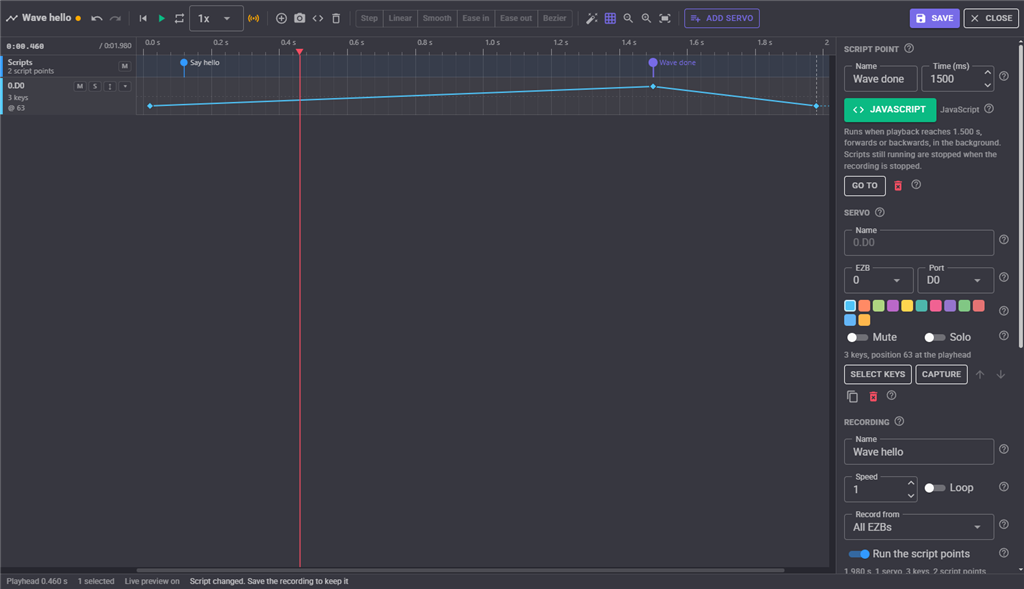
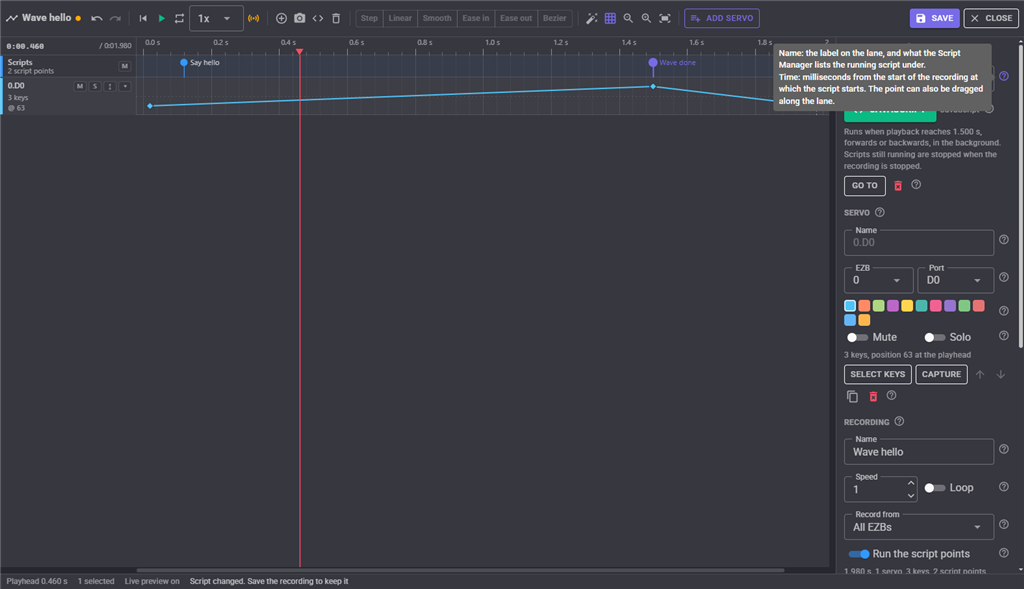
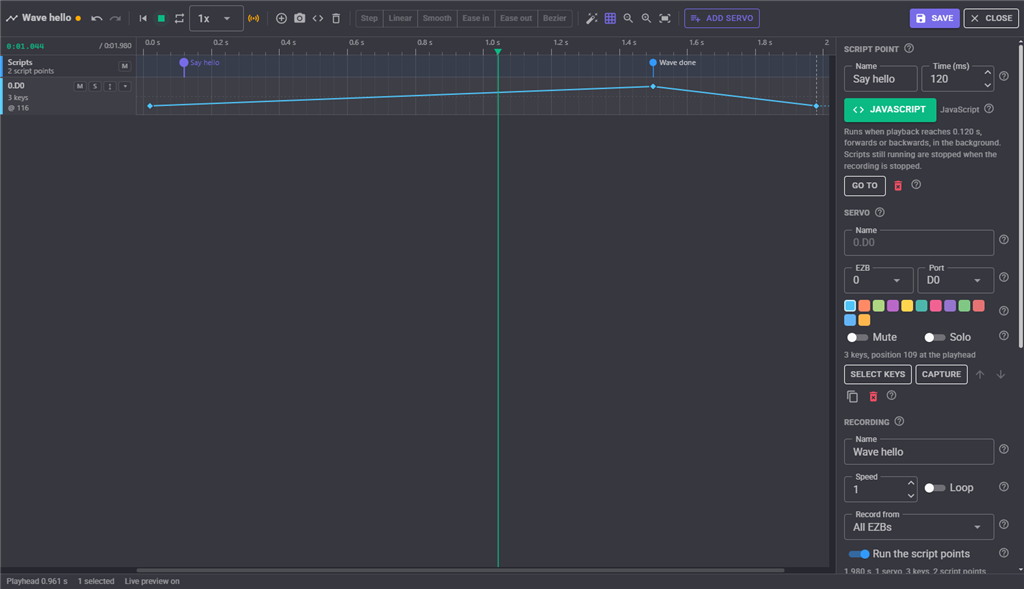
The lane pinned under the ruler is the recording's script track. A pin on it is a script point: a time and a script, in JavaScript, Python or Blockly, that starts when playback reaches that time. The script runs in the background on its own executor, so a long script never holds the servos up, and it runs whether the recording is played from the editor, from the window, from a Custom UI button or by a control command. Use script points to have the robot speak a line as its arm comes up, play a sound effect on a footstep, flash a light, or send a ControlCommand to another robot skill at just the right moment.
- Double-click the lane (or press Shift+K, or the code button on the toolbar) to add a script point at that time. It is selected, and the Script point section of the inspector shows it: its name, its time, and an Edit script button that opens the ARCx script editor. Save & Close in the script editor keeps the script; the recording still has to be saved afterwards.
- A pin is blue when it has a script and hollow when it is still empty. An empty point is skipped when playing. Hovering a pin shows its name, time and language.
- Drag a pin to move it in time; it snaps to the grid, the playhead and the keys like a key does. Selected keys move with it, and selected pins move with dragged keys, so a sound stays on the movement it belongs to. The arrow keys nudge it, Delete removes it, and Ctrl+C, Ctrl+X and Ctrl+V copy, cut and paste script points along with their scripts, between recordings too.
- Insert and Remove time at the playhead, and Shift time and Stretch time on a selection, move script points along with the keys.
- The M button on the lane's header, or Run the script points in the Recording section, mutes the whole lane: the servos play but no script runs. It is saved with the recording.
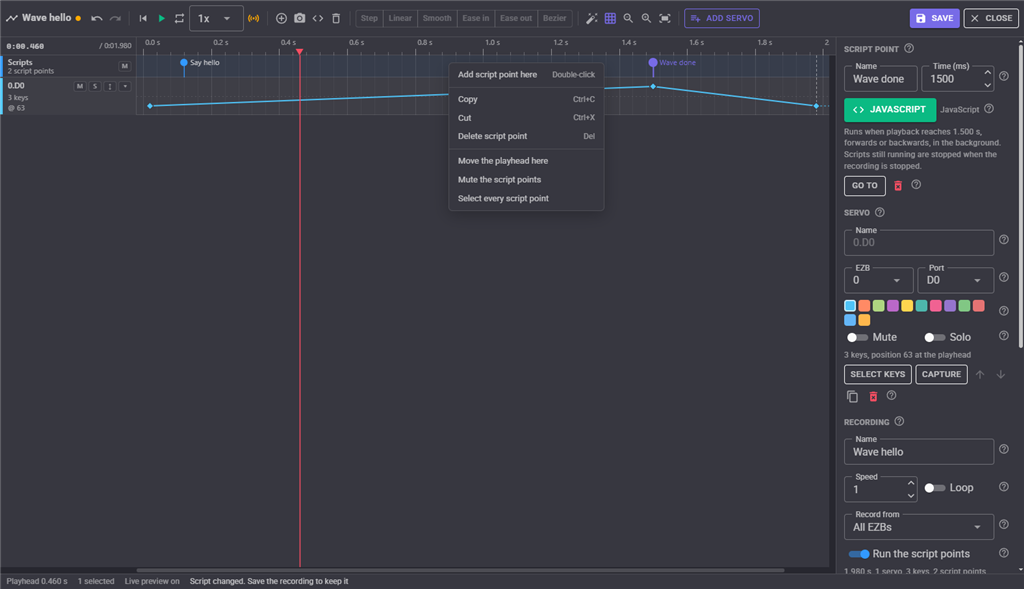
Playing forwards, a script point fires when the playhead reaches or passes its time; playing backwards it fires when the playhead comes back past it, so a recording played in reverse runs its scripts in reverse order. A looping recording fires its points on every pass. When a recording is stopped by hand (the window's Stop, Stop all, the Stop ControlCommand or the panic button), any of its scripts still running are stopped with it; a recording that finishes on its own lets its scripts run to their end. The window's log notes each script point as it fires, and the script's own output and errors go to the ARCx log, like any other script. The Script Manager lists a running script point under the robot skill's window title and the point's name.
Audio lanes
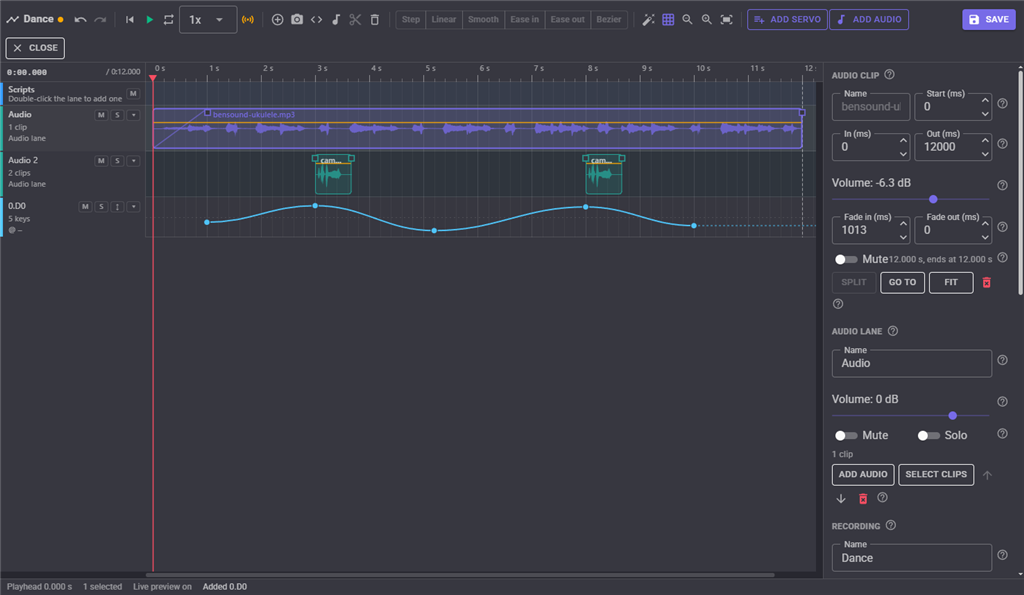
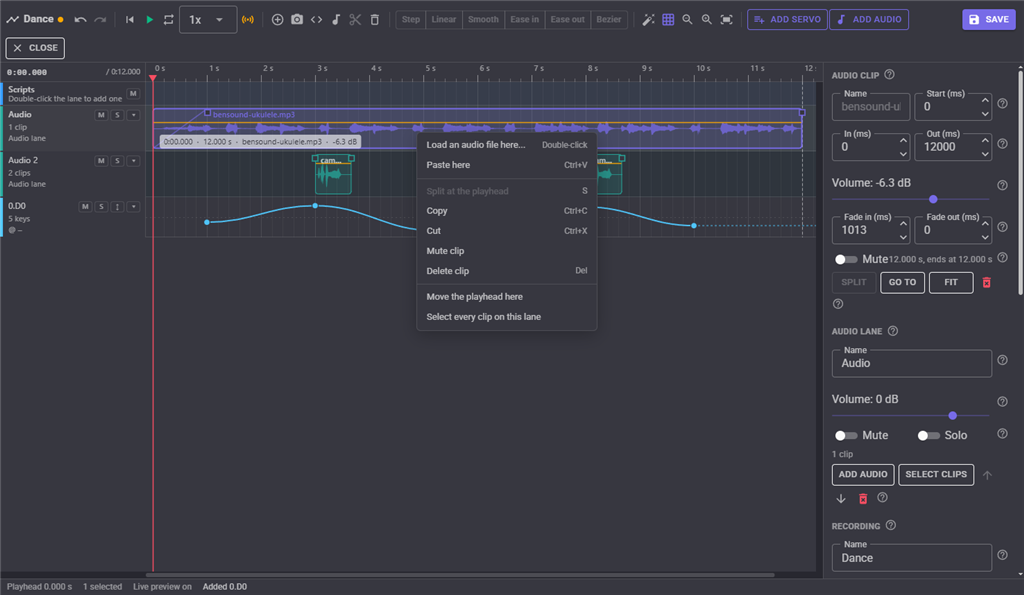
An audio lane holds clips of audio files, placed along the timeline so they play in step with the movement. Press Add audio on the toolbar (or double-click an empty audio lane, or right-click one) and pick a WAV or MP3 file: it becomes a clip at the playhead on the focused audio lane, or on a new lane when the recording has none. The file is decoded, converted to mono at the ARCx output rate, stored inside the recording as MP3, and drawn as a waveform scaled to its loudest moment, so a quiet file still shows its shape. Stereo files, any sample rate and surround files load; a file is limited to twenty minutes. The audio plays through the project's speaker, the PC or an EZB, whenever the recording plays: from the editor, from the window, from a Custom UI button or by a control command.
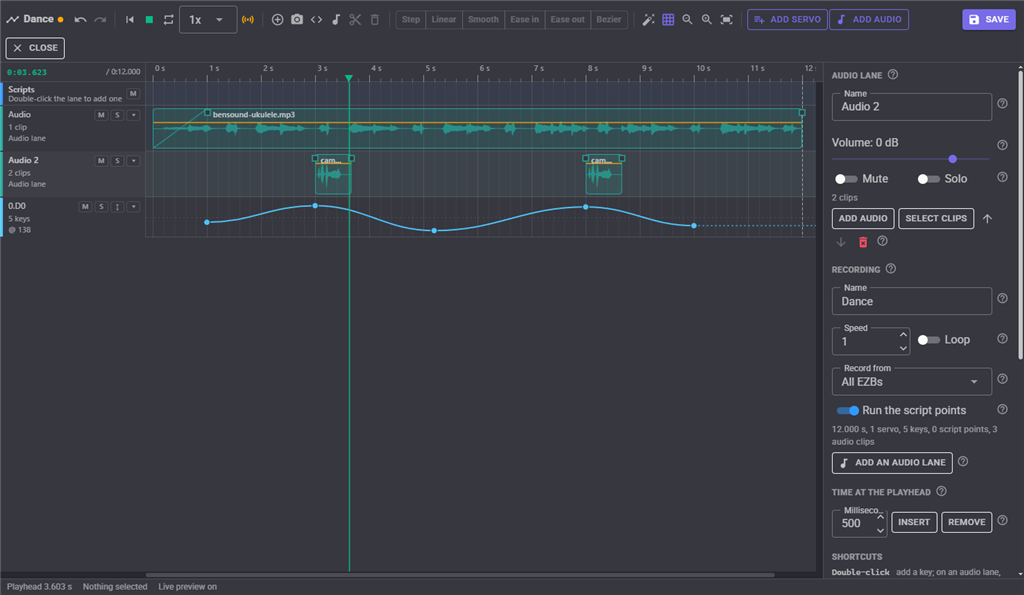
Lanes play together, so sounds that overlap in time go on separate lanes: music on one, voice or effects on another. Add an audio lane in the Recording section of the inspector (or in the right-click menu of an empty part of the timeline) adds an empty lane. A lane's header shows its name, how many clips it has and its volume, with buttons to mute it, solo it (while any audio lane is soloed only soloed audio lanes are heard; solo on an audio lane leaves the servos alone) and make it taller. Click the header to focus the lane, which the Audio lane section of the inspector edits: its name, its volume, mute and solo, and buttons to load a file onto it, select its clips, move it up or down, or delete it.
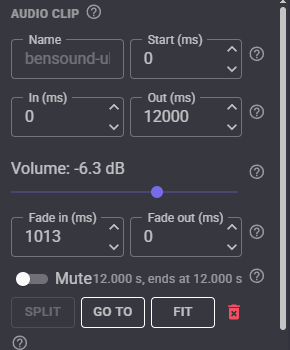
A clip is a piece of a loaded file: it says which part plays (In to Out, in milliseconds into the file), when (Start), and how loud. Everything about it can be done on the timeline:
- Drag the clip to move it in time; it snaps to the grid, the playhead, the keys and the edges of other clips, like a key does, and Alt skips snapping. Drag it up or down to move it to another audio lane. Selected keys, script points and clips move together, so a sound stays on the movement it belongs to.
- Drag the left or right edge to trim it. Trimming the front keeps the clip's end where it is on the timeline. A clip can never be trimmed beyond the file it came from, so a trimmed clip can be dragged back out later.
- Drag the small squares at the top corners to set the fade in and fade out. The waveform follows the fades.
- Drag the horizontal line across the clip up or down to change its volume, from silent to +12 dB. The line sits at 0 dB when the clip plays as loaded. Several selected clips change together.
- S, the scissors on the toolbar or Split at the playhead in the right-click menu cuts the selected clips (or the clip under the playhead on the focused lane) in two at the playhead; each half keeps playing its part of the file.
- Delete removes the selected clips. Ctrl+C, Ctrl+X and Ctrl+V copy, cut and paste clips with the keys and script points, between recordings of the same robot skill too; pasted clips go back onto the lane they came from, or the focused lane, or a new lane.
- Drag across empty lane to box-select clips along with keys and script points. Ctrl+click adds or removes a clip from the selection; double-clicking a lane's header selects every clip on it.
The Audio clip section of the inspector edits the selected clip by number: its name (blank shows the file name), start, In and Out, volume in decibels, fades, and mute, with buttons to split it, move the playhead to it, zoom to it and delete it. With several clips selected it sets their volume and fades, shifts them in time, mutes or unmutes them, or splits them all at the playhead. Hovering a clip shows its start, length, name and volume; hovering an edge, a fade handle or the volume line shows that value.
Insert and Remove time at the playhead work on audio too: inserting time splits a clip the playhead is inside and opens the gap in the audio; removing time cuts that stretch out of the clips that span it.
While playing, a clip starts the moment the playhead enters it, from the right place inside it, so playing from the middle of a song picks the song up at that point. Audio follows the playback speed: twice as fast plays the audio twice as fast (and higher), and a negative speed plays it backwards. A looping recording starts its clips again on each pass, and stopping the recording stops the audio at once. Scrubbing the playhead does not play audio. The audio is stored in the project file with the recording (as mono MP3 at 96 kbps, so a three minute song adds about two megabytes), travels with it when it is exported and imported, and is dropped when the last clip that uses it is deleted and the recording saved.
Adding servos
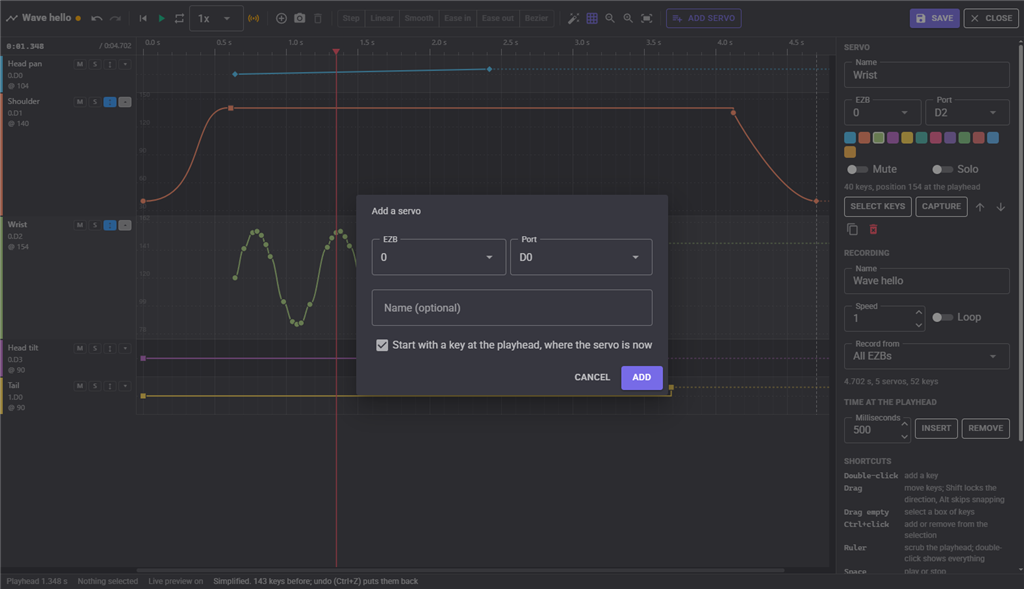
Add servo adds a lane for any servo port of any EZB, even one that was never recorded, so a recording can be extended with new movement by hand. With Start with a key at the playhead ticked, the new lane starts with a key where that servo is right now. A servo can only have one lane in a recording.
Playing and previewing in the editor
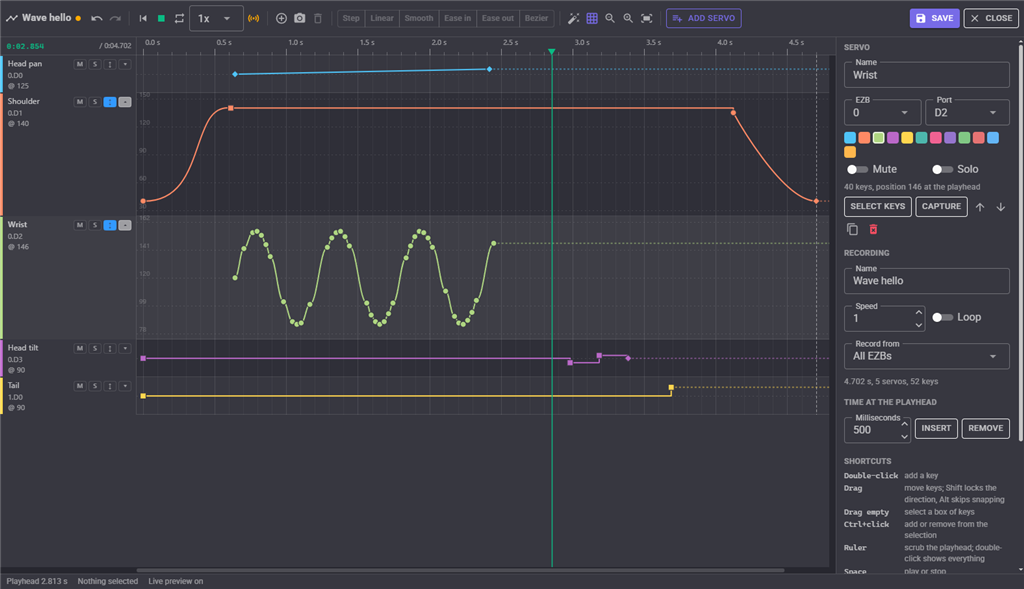
Play (or Space) plays the editor's copy on the robot from the playhead, through the same playback engine the saved recording uses. The playhead follows and turns green. Edits made while it plays are heard straight away, so with Loop on, a movement can be tuned while it repeats. The speed menu beside it plays slower or faster, or backwards, for checking timing; it does not change the recording's own speed.
With Live on (the orange antenna), the robot follows the editor: scrubbing the playhead along the ruler moves every servo to where the recording has it at that moment, and dragging a key moves its servo to the key's position. Turn it off to edit without moving the robot.
Click or drag on the ruler to move the playhead. Home and End jump to the start and the end. Double-click the ruler, or press F, to see the whole recording; Shift+F zooms to the selected keys. Ctrl and the mouse wheel zoom in time around the pointer, the wheel scrolls the lanes, Shift and the wheel scroll in time, and dragging with the middle button pans.
Right-click
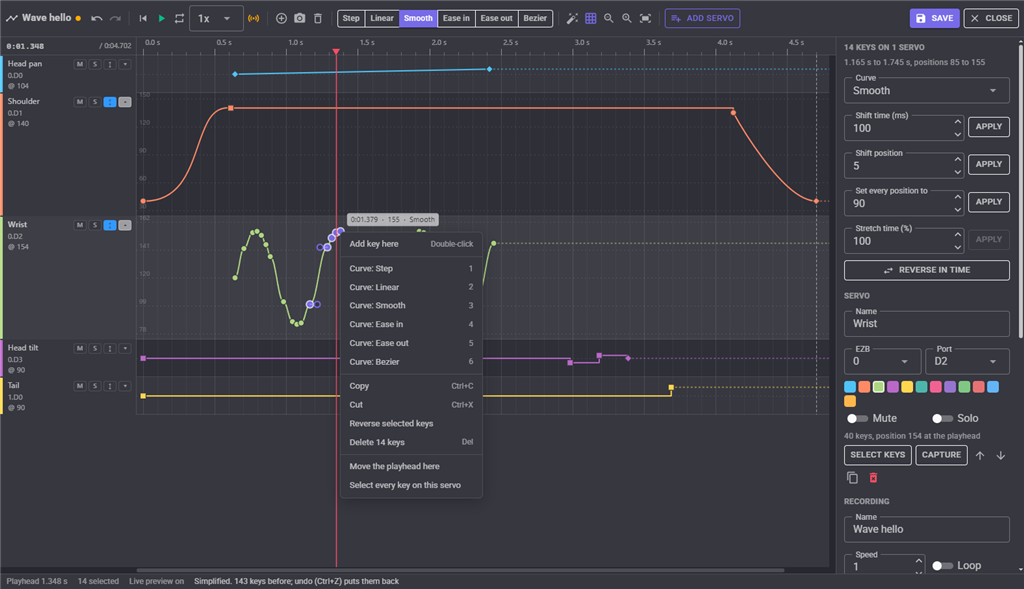
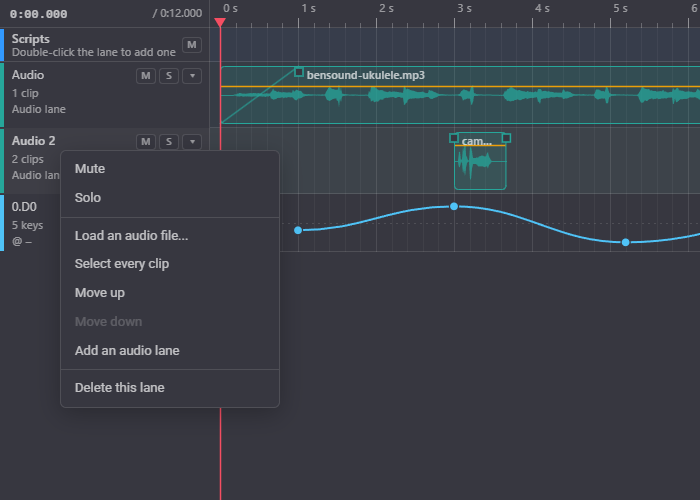
Right-clicking in a lane offers adding a key there, the curves, copy, cut, paste, reverse and delete for the selection, moving the playhead there and selecting every key on the servo. Right-clicking a lane's name offers mute, solo, simplify, move, duplicate and delete for that servo. Right-clicking the script lane offers adding a script point there, copy, cut, paste and delete for the selected points, muting the lane and selecting every point. Right-clicking an audio lane offers loading a file there, paste, split, copy, cut, mute and delete for the clip, and on the lane's name mute, solo, loading a file, selecting its clips, moving it, adding another lane and deleting it.
Import and Export
Export to a file in a recording's More menu saves it as a .servorecording.json file, audio included. The import button at the top right of the window adds the recordings in such a file to this robot skill, renaming any whose name is already taken. Use it to copy recordings between projects or share them.
Custom UI
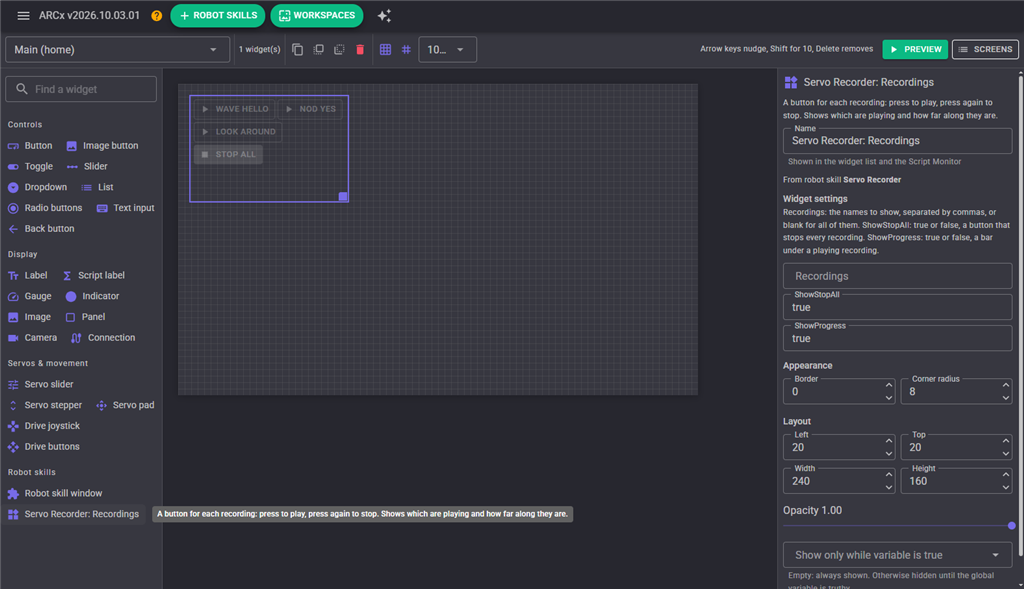
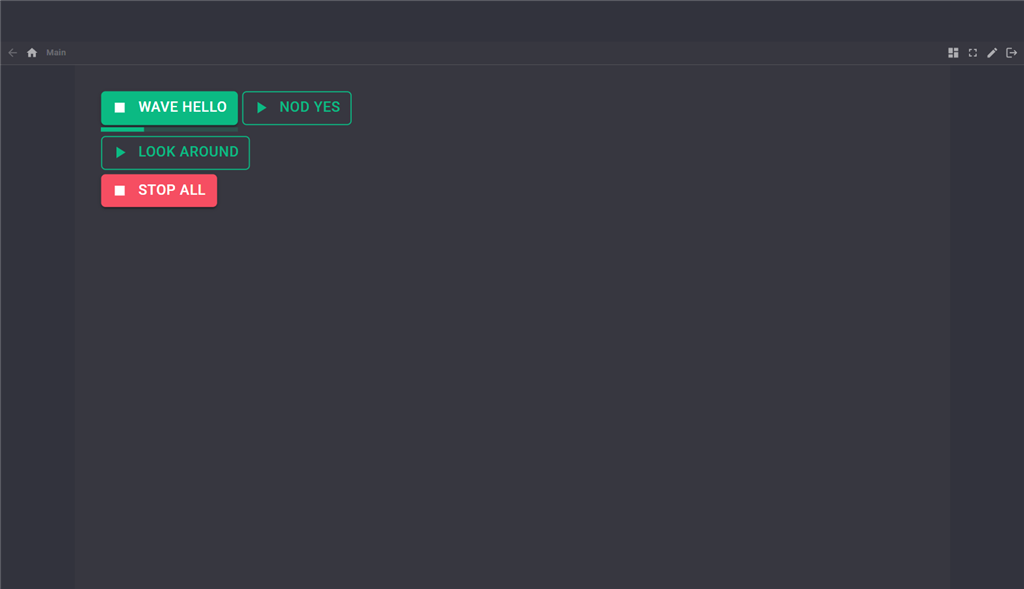
The Recordings widget puts a button for each recording on your own Custom UI screens: press to play, press again to stop. A playing recording's button is filled, with a progress bar under it.
| Setting | What it does |
|---|---|
| Recordings | The names to show, separated by commas, in that order. Blank shows every recording. |
| ShowStopAll | true or false: a button that stops every recording. |
| ShowProgress | true or false: the progress bar under a playing recording. |
Configuration
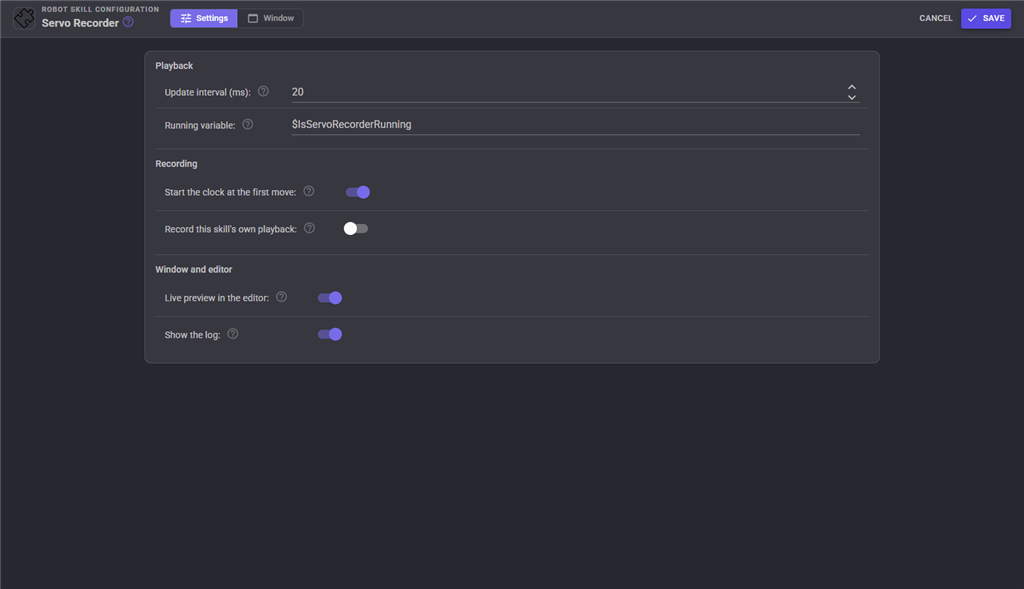
| Setting | What it does |
|---|---|
| Update interval (ms) | How often a playing recording sends new servo positions, 5 to 100. Smaller is smoother and busier on the controller. 20 suits most servos. |
| Running variable | The global variable that is true while any recording plays. Blank sets no variable. The default, $IsServoRecorderRunning, matches ARC's servo Recorder. |
| Start the clock at the first move | On: a recording starts with the first servo that moves. Off: it starts the moment Record is pressed, including any wait before the first movement. |
| Record this skill's own playback | Off: servos moved by this skill's own playback and by the editor's live preview are not recorded. On: they are. |
| Live preview in the editor | Whether the editor's Live button starts on. |
| Show the log | A few lines under the list saying what was played, recorded and saved. |
The configuration page does not change recordings, so it can be opened and saved at any time, even while recording.
Coming from ARC
Projects and scripts written for ARC's servo Recorder carry over: the Play, SetSpeed, Stop and Record control commands take the same parameters, a negative speed still plays backwards, and $IsServoRecorderRunning is set the same way. Playback of a fresh recording matches ARC's: each servo holds its position until the moment it was sent the next one.
Control Commands for the Servo Animation robot skill
There are Control Commands available for this robot skill which allows the skill to be controlled programmatically from scripts or other robot skills. These commands enable you to automate actions, respond to sensor inputs, and integrate the robot skill with other systems or custom interfaces. If you're new to the concept of Control Commands, we have a comprehensive manual available here that explains how to use them, provides examples to get you started and make the most of this powerful feature.
Control Command ManualThis robot skill has 14 control commands, listed below. Send them from a JavaScript or Python script, from Blockly, or from another robot skill.
The first value is always the window title, which is the name in the title bar of the robot skill on your workspace. It starts out as Servo Animation, which is what every example below uses. If you rename the robot skill, or add a second copy of it to the project, use the title as it appears on that window instead.
ControlCommand() can be shortened to CC(), and both spellings work in JavaScript and in Python. The examples are JavaScript; Python is the same call, except that true and false are written True and False.
GetDuration
How long a recording is at normal speed, in milliseconds
Syntax
ControlCommand("Servo Animation", "GetDuration", (String)name)
Parameters
| # | Name | Type | What to pass |
|---|---|---|---|
| 1 | name | Text | Your text, in quotes |
Returns: Integer [-2,147,483,648 to 2,147,483,647]
Example
var result = ControlCommand("Servo Animation", "GetDuration", "name");
GetRecordings
The names of every recording
Syntax
ControlCommand("Servo Animation", "GetRecordings")
Returns: Array of String
Example
var result = ControlCommand("Servo Animation", "GetRecordings");
GoToTime
Move every servo of a recording to where it is at a moment of the recording, in milliseconds from the start, and leave it there. Uses a recording as a set of poses
Syntax
ControlCommand("Servo Animation", "GoToTime", (String)name, (Number)milliseconds)
Parameters
| # | Name | Type | What to pass |
|---|---|---|---|
| 1 | name | Text | Your text, in quotes |
| 2 | milliseconds | Number | A number, without quotes |
Returns: Boolean [true or false]
Example
var result = ControlCommand("Servo Animation", "GoToTime", "name", 0);
IsPlaying
True while the named recording plays. With no name, true while any recording plays
Syntax
ControlCommand("Servo Animation", "IsPlaying", (String)name)
Parameters
| # | Name | Type | What to pass |
|---|---|---|---|
| 1 | name | Text | Your text, in quotes |
Returns: Boolean [true or false]
Example
var result = ControlCommand("Servo Animation", "IsPlaying", "name");
IsRecording
True while a recording is recording
Syntax
ControlCommand("Servo Animation", "IsRecording")
Returns: Boolean [true or false]
Example
var result = ControlCommand("Servo Animation", "IsRecording");
Play
Play a recording from the start. speed is optional: 1 as recorded, 2 twice as fast, 0.5 half speed, negative plays backwards from the end (-5 to 5). Returns straight away; false when there is nothing to play
Syntax
ControlCommand("Servo Animation", "Play", (String)name, (Number)speed)
Parameters
| # | Name | Type | What to pass |
|---|---|---|---|
| 1 | name | Text | Your text, in quotes |
| 2 | speed | Number | A number, without quotes |
Returns: Boolean [true or false]
Example
var result = ControlCommand("Servo Animation", "Play", "name", 0);
PlayAndWait
Play a recording and wait until it finishes. speed is optional, as for Play. Returns true when it played to the end, false when it was stopped first
Syntax
ControlCommand("Servo Animation", "PlayAndWait", (String)name, (Number)speed)
Parameters
| # | Name | Type | What to pass |
|---|---|---|---|
| 1 | name | Text | Your text, in quotes |
| 2 | speed | Number | A number, without quotes |
Returns: Boolean [true or false]
Example
var result = ControlCommand("Servo Animation", "PlayAndWait", "name", 0);
PlayLoop
Play a recording over and over until it is stopped. speed is optional, as for Play
Syntax
ControlCommand("Servo Animation", "PlayLoop", (String)name, (Number)speed)
Parameters
| # | Name | Type | What to pass |
|---|---|---|---|
| 1 | name | Text | Your text, in quotes |
| 2 | speed | Number | A number, without quotes |
Returns: Boolean [true or false]
Example
var result = ControlCommand("Servo Animation", "PlayLoop", "name", 0);
Record
Start recording servo movements into a recording, from the EZBs it is set to record from. A recording of that name is created when there is none. What it held is replaced when recording stops
Syntax
ControlCommand("Servo Animation", "Record", (String)name)
Parameters
| # | Name | Type | What to pass |
|---|---|---|---|
| 1 | name | Text | Your text, in quotes |
Returns: Boolean [true or false]
Example
var result = ControlCommand("Servo Animation", "Record", "name");
SetLoop
Set whether a recording starts again each time it finishes, including while it plays
Syntax
ControlCommand("Servo Animation", "SetLoop", (String)name, (Bool)loop)
Parameters
| # | Name | Type | What to pass |
|---|---|---|---|
| 1 | name | Text | Your text, in quotes |
| 2 | loop | True or false | true or false, without quotes |
Returns: Boolean [true or false]
Example
var result = ControlCommand("Servo Animation", "SetLoop", "name", true);
SetSpeed
Change a recording's playback speed, including while it plays: 1 as recorded, 2 twice as fast, negative backwards (-5 to 5, not 0)
Syntax
ControlCommand("Servo Animation", "SetSpeed", (String)name, (Number)speed)
Parameters
| # | Name | Type | What to pass |
|---|---|---|---|
| 1 | name | Text | Your text, in quotes |
| 2 | speed | Number | A number, without quotes |
Returns: Boolean [true or false]
Example
var result = ControlCommand("Servo Animation", "SetSpeed", "name", 0);
Stop
Stop a recording that is playing, or that is recording
Syntax
ControlCommand("Servo Animation", "Stop", (String)name)
Parameters
| # | Name | Type | What to pass |
|---|---|---|---|
| 1 | name | Text | Your text, in quotes |
Returns: Boolean [true or false]
Example
var result = ControlCommand("Servo Animation", "Stop", "name");
StopAll
Stop every recording that is playing. Returns how many were
Syntax
ControlCommand("Servo Animation", "StopAll")
Returns: Integer [-2,147,483,648 to 2,147,483,647]
Example
var result = ControlCommand("Servo Animation", "StopAll");
StopRecording
Stop recording and keep what was recorded. Returns false when nothing was recording
Syntax
ControlCommand("Servo Animation", "StopRecording")
Returns: Boolean [true or false]
Example
var result = ControlCommand("Servo Animation", "StopRecording");
This list is read out of the robot skill itself each time its package is uploaded, so it matches the published version (v4).



This robot skill has been updated to v1.
What has changed
first release
This robot skill has been updated to v2.
What has changed
renamed to servo animator
This robot skill has been updated to v3.
What has changed
updated to use new threading features of ARCx v2026.10.04.01
This robot skill has been updated to v4.
What has changed
New features for scripts within the timeline, and adding audio timelines with editing capabilities.