

Maps ARCx virtual servo ports to Pololu Maestro channels for servo control, with per-channel pulse, speed, accel, invert, and readback.
 Windows
 ARM
ARM
 Linux
Linux
 MacOS
MacOS
How to add the Maestro Servo Controller robot skill
- Load the most recent release of ARCx on a compatible operating system (Get ARCx).
- Press the + Skills menu from the top menu bar in ARCx.
- Choose the Servo category tab.
- Press the Maestro Servo Controller icon to add the robot skill to your project.
Don't have a robot yet?
Follow the Getting Started Guide to build a robot and use the Maestro Servo Controller robot skill.
How to use the Maestro Servo Controller robot skill
The Maestro servo Controller robot skill drives the servos on a Pololu Maestro (Micro Maestro 6, Mini Maestro 12, 18 or 24) from ARCx virtual servo ports. Every robot skill that moves servos (Auto Position, joysticks, scripts, servo Animation, kinematics) moves a virtual port such as V7, and this robot skill turns that move into Maestro serial commands and sends them to the board.
Unlike the ARC Maestro skill, which tied V1 to channel 1, V2 to channel 2 and so on, any virtual port can be mapped to any Maestro channel. V7 can drive channel 3, one port can drive two channels for a mirrored pair, and each channel has its own pulse range, direction, speed and acceleration. ARCx's servo velocity and acceleration become the Maestro's own speed and acceleration limits, so the Maestro smooths the motion itself.
Requirements
- A Pololu Maestro with its own servo power supply.
- One way to talk to it:
- USB: the Maestro's USB cable plugged into the computer running ARCx. The Maestro appears as two serial ports; use the Command Port. Its serial mode must be USB Dual Port (the factory setting) or USB Chained. No EZB is needed for the servos.
- EZB hardware UART: the Maestro's RX wired to the TX pin of UART 0, 1 or 2 of an EZ-B v4, and the Maestro's TX to the UART's RX if you want to read anything back, with a common ground. Set the Maestro's serial mode to UART, detect baud rate (or UART, fixed baud rate at the same rate as the robot skill).
- EZB digital port: the Maestro's RX wired to any digital port. This is transmit only: servos move, but nothing can be read back.
- The Pololu Maestro Control Center to set each channel up once: Servo, Input or Output mode, the Min and Max pulse the channel may ever go to, and the home position. The robot skill never changes those settings.
Even when the Maestro is on USB, the robot skill listens to the virtual ports of one EZB in the project (EZB #0 unless you change it), because that is where ARCx keeps virtual servo positions. That EZB does not have to be connected for a USB Maestro to work.
The window
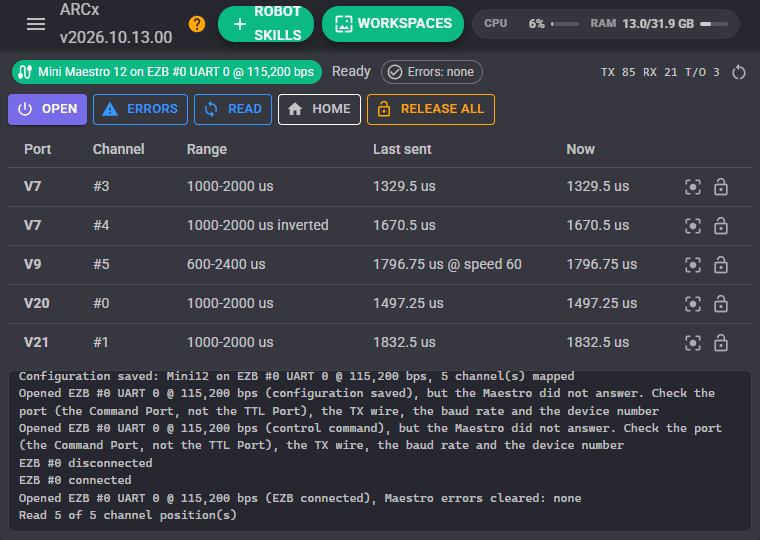
- Link chip - the model and the connection (USB port, or EZB and UART). Green when the link is working, amber when the last attempt failed, grey when the port is not there.
- Status - Ready, or the reason the last send failed.
- Errors chip - the Maestro's error register from the last read. Red when an error was set. Reading the register clears it.
- TX / RX / T/O - commands sent, replies received and queries that timed out since the counters were reset with the button beside them.
- Open - opens (or reopens) the link now and clears any error the Maestro has latched. It also opens by itself when the EZB connects, when the project loads for a USB Maestro, and on the first move.
- Errors - reads and clears the Maestro's error register. A quick check that the Maestro answers.
- Read - asks the Maestro for the pulse each mapped channel is putting out right now and shows it in the Now column. Part way through a slow move it differs from Last sent.
- Home - sends every channel to the home position set in the Maestro Control Center.
- Release all - releases every mapped port, so the servos go limp and can be moved by hand.
- Table - one row per mapped channel: the virtual port, the Maestro channel, its pulse range, the last target sent (with its speed, when there was one) and the last reading. The buttons on each row move the port to the centre position or release it, through ARCx, the same as any other robot skill would.
- Log - what the robot skill did. With Debug logging on, every byte sent and received.
Configuration: Connection
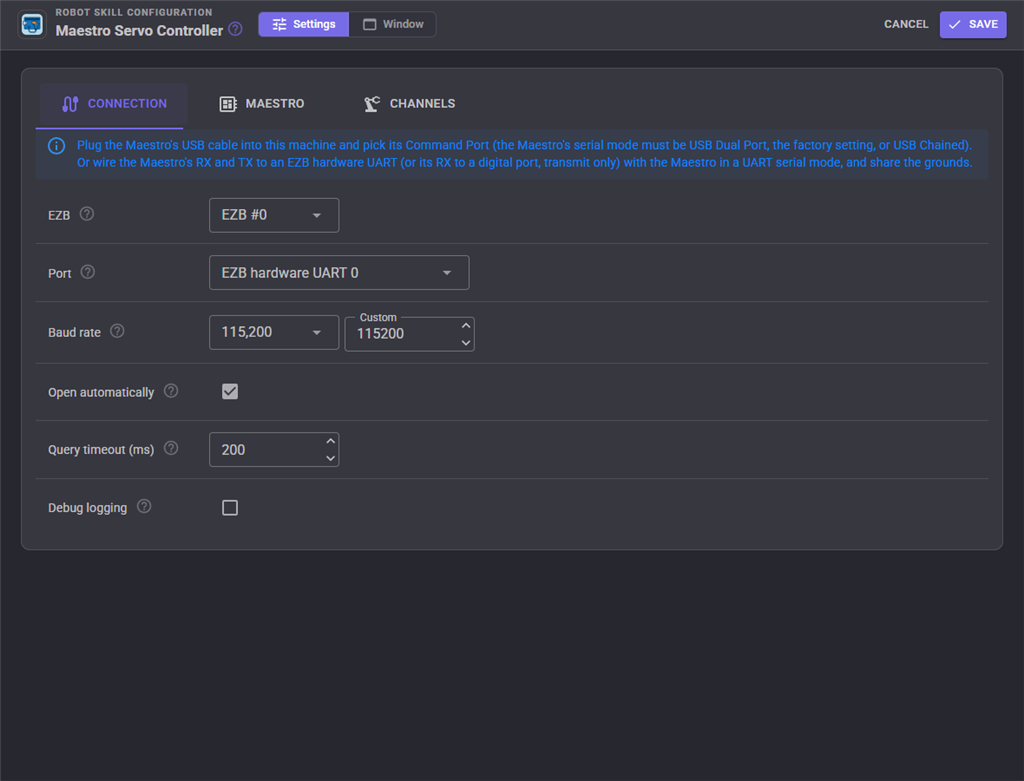
| Setting | Meaning |
|---|---|
| EZB | The EZB whose virtual servo ports (V0 to V255) this robot skill answers to. For the UART and digital port connections it is also the EZB the Maestro is wired to. |
| Port | Where the Maestro is connected: a COM port on this computer (USB), EZB hardware UART 0, 1 or 2, or an EZB digital port (transmit only). |
| COM port | For USB, the Maestro's Command Port. On Windows the Device Manager names it "Pololu Maestro ... Command Port"; on Linux it is the lower numbered of the two /dev/ttyACM ports. Press refresh after plugging the Maestro in. |
| Baud rate | The serial speed on the wire, for a UART, a digital port or a USB to serial adapter. The Maestro's own USB port ignores it. In UART, detect baud rate mode anything up to 200,000 works; in UART, fixed baud rate mode it must match the Maestro Control Center. |
| Open automatically | Open the link as soon as the EZB connects (or the project loads, for USB). Otherwise it opens on the first move. |
| Query timeout (ms) | How long a question to the Maestro (position, errors, moving, inputs, script status) waits for the answer. |
| Debug logging | Write every byte sent and received to the log, in hex. Useful while wiring up the board, noisy once it works. |
Configuration: Maestro
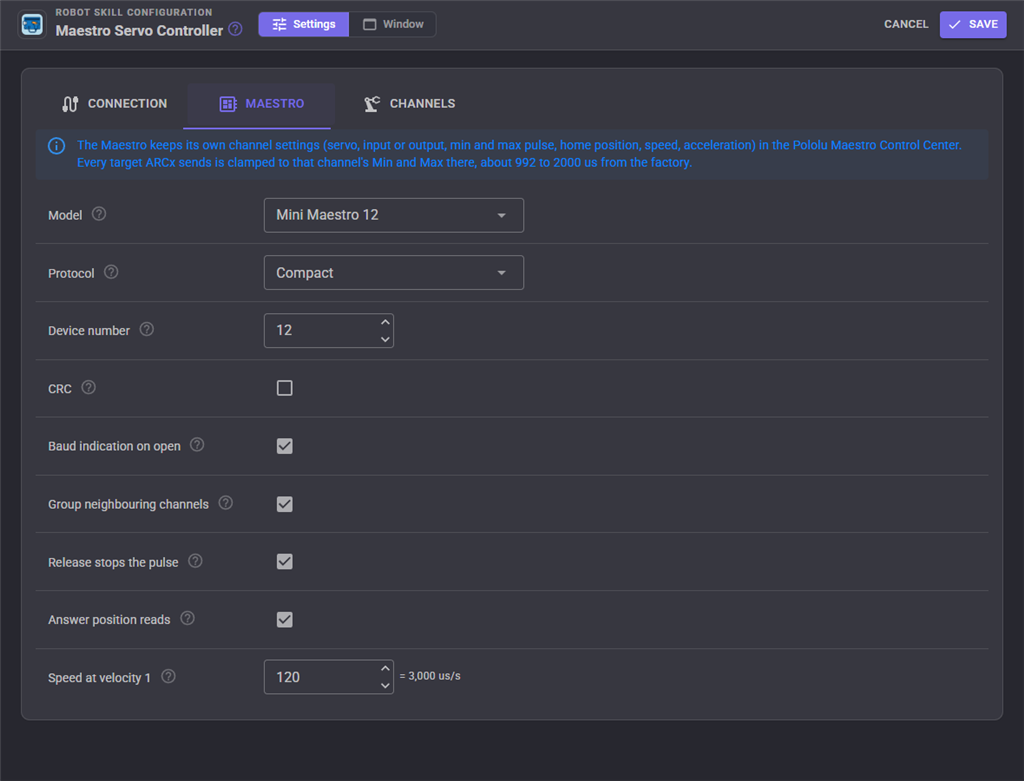
| Setting | Meaning |
|---|---|
| Model | Micro Maestro 6, Mini Maestro 12, 18 or 24. It sets how many channels can be mapped. Only the Mini Maestros can group moves, report whether servos are still moving, and drive the PWM output. |
| Protocol | Compact for a Maestro alone on its serial line or on USB. Pololu addresses the Maestro by its device number, so several Maestros (or other Pololu controllers) can share one serial line. |
| Device number | The Maestro's device number from the Serial Settings tab of the Maestro Control Center, 12 from the factory. Used by the Pololu protocol and by the baud rate indication. |
| CRC | Tick only when Enable CRC is ticked in the Maestro Control Center. Every command then carries a CRC-7 byte. A mismatch either way makes the Maestro reject the commands. |
| Baud indication on open | When the link opens, send a Pololu protocol Get Errors. Its first byte (0xAA) tells a Maestro in UART, detect baud rate mode what the baud rate is, which it waits for before obeying anything, and the reply clears any error it has latched. Harmless in the other serial modes. |
| Group neighbouring channels | Mini Maestro only. Moves of neighbouring channels (3, 4, 5...) go out as one Set Multiple Targets command, so they start together and take fewer bytes. |
| Release stops the pulse | When ARCx releases a port, send its channels a target of 0, which stops the pulses so the servos go limp. Off leaves them holding their last position. |
| Answer position reads | When a script or robot skill asks for a mapped port's real position (Servo.getPositionRealtime, for example), ask the Maestro what it is putting out right now. Every read is a round trip on the link. Off answers with the last position ARCx sent. |
| Speed at velocity 1 | How ARCx servo velocities become Maestro speeds, in Maestro units (one unit is 25 microseconds per second). Velocity 1 gets this speed and higher velocities are slower: with 120, velocity 2 is 60 and velocity 10 is 12. Velocity 0 uses each channel's own Speed. |
Configuration: Channels
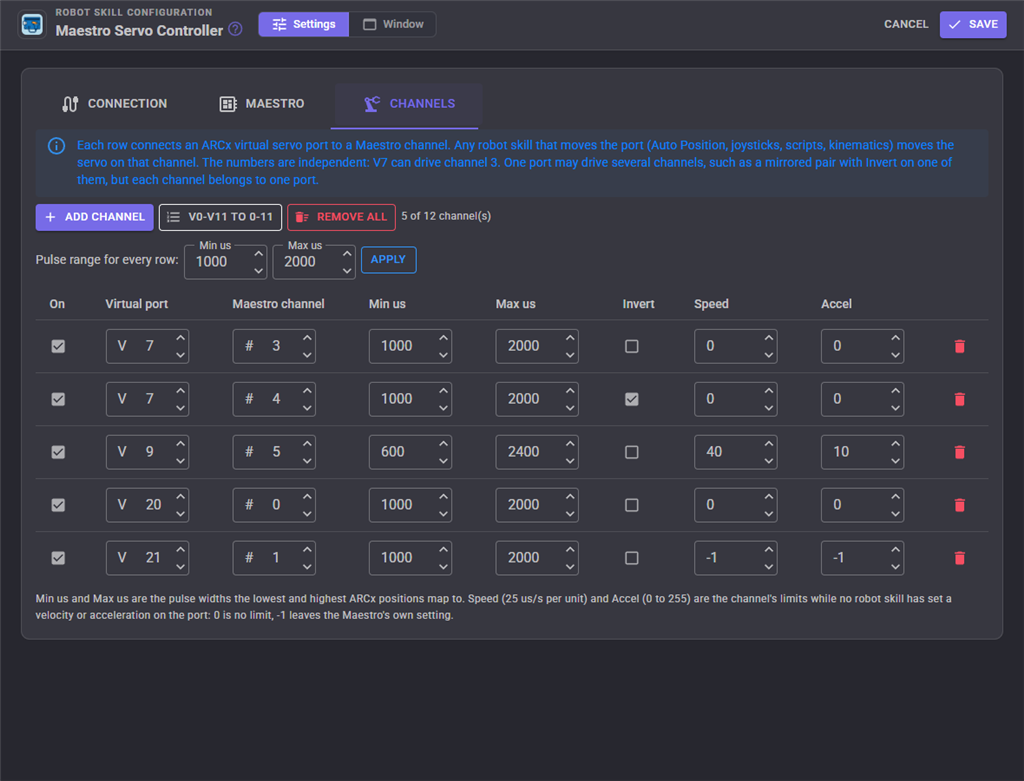
Each row connects one ARCx virtual servo port to one Maestro channel. A new robot skill starts with V0 to V5 on channels 0 to 5. Add channel adds a row on the next free channel, the V0-V5 to 0-5 button (named for the selected model, V0-V11 to 0-11 on a Mini Maestro 12) replaces the whole map with a one to one layout for the selected model, and Remove all empties it. Pulse range for every row sets Min us and Max us on every row at once.
| Column | Meaning |
|---|---|
| On | An unticked row is kept but ignored, so a channel can be parked without losing its settings. |
| Virtual port | The ARCx port (V0 to V255) that drives the channel. |
| Maestro channel | The channel number printed beside the servo header on the Maestro. |
| Min us / Max us | The pulse widths the lowest and highest ARCx positions map to (1000 and 2000 by default, like the ARC skill). |
| Invert | Reverse the direction, for a servo mounted mirrored. |
| Speed | The channel's speed limit while no robot skill has set a velocity on the port, in Maestro units (25 us/s each). 0 is no limit. -1 leaves whatever the Maestro has, from the Maestro Control Center or a Maestro script. |
| Accel | The channel's acceleration limit (0 to 255) while no robot skill has set an acceleration on the port. 0 is no limit, 1 is the gentlest. -1 leaves the Maestro's own setting. |
Warnings above the table point out rows that will not work as expected: a channel used twice (only the first row drives it), a channel the selected model does not have, a pulse range outside 64 to 4000 us, or a Min equal to its Max.
The Maestro's own limits come first
The Maestro clamps every target to the channel's Min and Max in the Maestro Control Center, which are about 992 to 2000 us from the factory. If you widen Min us and Max us here and the servo stops short, widen them in the Maestro Control Center too.
One port, several channels
Two rows with the same virtual port and different channels move both servos together, for example a pair of shoulder servos facing each other. Tick Invert on one of them so they turn the same way.
How moves reach the Maestro
- Every move ARCx makes on mapped ports goes to the Maestro in one write. On a Mini Maestro, neighbouring channels share one Set Multiple Targets command.
- Speed and acceleration are only sent when they change, so a stream of moves at the same speed costs nothing extra. When the link reopens they are sent again, in case the Maestro was reset.
- Targets are sent in quarter microseconds, the Maestro's full resolution.
- ARCx's servo fine tune is applied before the pulse width is worked out, so fine tuning a port in ARCx fine tunes the Maestro channel.
- Ports that are not mapped are ignored, so this robot skill can share an EZB's virtual ports with other servo drivers as long as they use different ports.
Using it from scripts
Move servos with the normal servo commands on the mapped virtual ports. The robot skill's control commands add what the servo commands cannot do: raw pulses, the Maestro's inputs, outputs and PWM, its stored scripts, and questions to the board.
// Move V7 (both of its channels) to 120 degrees, gently
Servo.setVelocity(v7, 4);
Servo.setPosition(v7, 120);

// Wait until the Maestro says every servo has arrived (Mini Maestro)
while (controlCommand("Maestro servo Controller", "IsMoving"))
  sleep(50);

// Read a potentiometer on channel 11, set as an Input in the Maestro Control Center
var volts = controlCommand("Maestro servo Controller", "ReadInputVoltage", 11);
print("Pot: " + volts + " V");

// Run subroutine 2 of the script stored on the Maestro, and wait for it to finish
controlCommand("Maestro servo Controller", "RestartScript", 2);
while (controlCommand("Maestro servo Controller", "IsScriptRunning"))
  sleep(100);
# Switch an LED on channel 8, set as an Output in the Maestro Control Center
controlCommand("Maestro servo Controller", "SetDigitalOutput", 8, True)

# Check for errors (reading them clears them)
print(controlCommand("Maestro servo Controller", "GetErrors"))
Anything sent with the raw commands goes straight to the board, so ARCx's own idea of the servo positions does not change. Use the servo commands for anything other robot skills need to know about. SetPositionRaw from the ARC Maestro skill still works: it sends a pulse in microseconds to every channel a virtual port is mapped to.
Notes
- Questions to the board (Errors, Read, IsMoving, the inputs, the script status and Answer position reads) need USB, or the Maestro's TX wired back to the EZB UART's RX. Over a digital port they fail at once.
- Any error the Maestro detects (a wrong baud rate, a garbled command, a CRC mismatch, a script bug) sends every servo to its home position and lights the red LED until the error register is read. The Errors button, the GetErrors command and opening the link all read it.
- Get Moving State is not offered on the Micro Maestro 6, whose firmware has a bug in that command.
- The table's Last sent is what ARCx sent, not what the servo did. Read shows what the Maestro is putting out.
- When the EZB disconnects, a UART or digital port link stops until it reconnects; it reopens by itself when Open automatically is on. A USB link does not care about the EZB.
- Add the robot skill once per Maestro for a robot with more than one, each with its own connection (or its own device number with the Pololu protocol) and its own ports. Two instances cannot share one COM port.
Troubleshooting
| Symptom | Cause |
|---|---|
| Opening says the Maestro did not answer | The COM port is the TTL Port rather than the Command Port, the Maestro's TX is not wired back, the baud rate does not match a fixed baud Maestro, or (Pololu protocol) the device number is wrong. Movement may still work over a transmit-only wire. |
| Nothing moves, the status is Ready | The port that moved is not mapped or its row is unticked, the channel is not set to servo in the Maestro Control Center, the Maestro's serial mode does not accept commands from that port, or the servo power supply is off. Turn on Debug logging and check the bytes in the log. |
| The red LED is on and the servos jumped home | The Maestro latched an error. Press Errors to see which, and fix the cause (usually the baud rate or the CRC setting). |
| Could not find file 'COM5' | The COM port is not there. Plug the Maestro in, press refresh on the Connection tab and pick the port again. The Maestro Control Center also holds the port while it is connected. |
| A servo stops short of its full travel | The Maestro's own Min and Max for the channel are narrower than Min us and Max us. Widen them in the Maestro Control Center. |
| A servo moves the wrong way | Tick Invert on its row. |
| Servos ignore the speed or acceleration set in the Maestro Control Center | The rows' Speed and Accel are 0, which the robot skill sends as "no limit". Set them to -1 to keep the Maestro's own settings. |
Control Commands for the Maestro Servo Controller robot skill
There are Control Commands available for this robot skill which allows the skill to be controlled programmatically from scripts or other robot skills. These commands enable you to automate actions, respond to sensor inputs, and integrate the robot skill with other systems or custom interfaces. If you're new to the concept of Control Commands, we have a comprehensive manual available here that explains how to use them, provides examples to get you started and make the most of this powerful feature.
Control Command ManualThis robot skill has 21 control commands, listed below. Send them from a JavaScript or Python script, from Blockly, or from another robot skill.
The first value is always the window title, which is the name in the title bar of the robot skill on your workspace. It starts out as Maestro servo Controller, which is what every example below uses. If you rename the robot skill, or add a second copy of it to the project, use the title as it appears on that window instead.
ControlCommand() can be shortened to CC(), and both spellings work in JavaScript and in Python. The examples are JavaScript; Python is the same call, except that true and false are written True and False.
GetChannelMap
The enabled virtual port to channel mappings, one "V3 -> #12" entry per channel.
Syntax
ControlCommand("Maestro servo Controller", "GetChannelMap")
Returns: Array of String
Example
var result = ControlCommand("Maestro servo Controller", "GetChannelMap");
GetChannelPulse
Ask the Maestro for the pulse width it is outputting on a channel right now, in microseconds (part way through a speed or acceleration limited move). 0 means no pulse. Needs the USB command port or the Maestro's TX wired back.
Syntax
ControlCommand("Maestro servo Controller", "GetChannelPulse", (Number)channel)
Parameters
| # | Name | Type | What to pass |
|---|---|---|---|
| 1 | channel | Number | A number, without quotes |
Returns: Double [5.0e324 to 1.7e308]
Example
var result = ControlCommand("Maestro servo Controller", "GetChannelPulse", 0);
GetErrors
Read and clear the Maestro's error register. Returns the errors that were set as text, or "none". Any error sends the servos home and lights the red LED.
Syntax
ControlCommand("Maestro servo Controller", "GetErrors")
Returns: String
Example
var result = ControlCommand("Maestro servo Controller", "GetErrors");
GetStatus
The model, link description and status, such as "Mini12 on COM5: Ready".
Syntax
ControlCommand("Maestro servo Controller", "GetStatus")
Returns: String
Example
var result = ControlCommand("Maestro servo Controller", "GetStatus");
GoHome
Send every Maestro channel to its home position from the Maestro Control Center settings (Off channels stop their pulses).
Syntax
ControlCommand("Maestro servo Controller", "GoHome")
Returns: Boolean [true or false]
Example
var result = ControlCommand("Maestro servo Controller", "GoHome");
Initialize
Open (or reopen) the link to the Maestro now rather than on the next move, sending the baud rate indication and clearing any latched error. Returns true when it opened.
Syntax
ControlCommand("Maestro servo Controller", "Initialize")
Returns: Boolean [true or false]
Example
var result = ControlCommand("Maestro servo Controller", "Initialize");
IsMoving
True while any servo on the Maestro is still moving because of a speed or acceleration limit, false once all have arrived. Mini Maestro only, and needs the USB command port or the TX wired back.
Syntax
ControlCommand("Maestro servo Controller", "IsMoving")
Returns: Boolean [true or false]
Example
var result = ControlCommand("Maestro servo Controller", "IsMoving");
IsScriptRunning
True while the script stored on the Maestro is running. Needs the USB command port or the TX wired back.
Syntax
ControlCommand("Maestro servo Controller", "IsScriptRunning")
Returns: Boolean [true or false]
Example
var result = ControlCommand("Maestro servo Controller", "IsScriptRunning");
ReadInput
Read a channel set as an Input in the Maestro Control Center: 0 to 1023 for 0 to 5 volts (channels 12 and up on the Mini Maestro 18 and 24 are digital, 0 or 1023). Needs the USB command port or the TX wired back.
Syntax
ControlCommand("Maestro servo Controller", "ReadInput", (Number)channel)
Parameters
| # | Name | Type | What to pass |
|---|---|---|---|
| 1 | channel | Number | A number, without quotes |
Returns: Integer [-2,147,483,648 to 2,147,483,647]
Example
var result = ControlCommand("Maestro servo Controller", "ReadInput", 0);
ReadInputVoltage
Read a channel set as an Input in the Maestro Control Center as volts, 0 to 5.
Syntax
ControlCommand("Maestro servo Controller", "ReadInputVoltage", (Number)channel)
Parameters
| # | Name | Type | What to pass |
|---|---|---|---|
| 1 | channel | Number | A number, without quotes |
Returns: Double [5.0e324 to 1.7e308]
Example
var result = ControlCommand("Maestro servo Controller", "ReadInputVoltage", 0);
ReleaseAll
Release every mapped virtual port, which stops the pulses on their Maestro channels so the servos go limp.
Syntax
ControlCommand("Maestro servo Controller", "ReleaseAll")
Returns: Boolean [true or false]
Example
var result = ControlCommand("Maestro servo Controller", "ReleaseAll");
ReleaseChannel
Stop the pulses on one Maestro channel so its servo goes limp, bypassing the virtual port map.
Syntax
ControlCommand("Maestro servo Controller", "ReleaseChannel", (Number)channel)
Parameters
| # | Name | Type | What to pass |
|---|---|---|---|
| 1 | channel | Number | A number, without quotes |
Returns: Boolean [true or false]
Example
var result = ControlCommand("Maestro servo Controller", "ReleaseChannel", 0);
RestartScript
Start the script stored on the Maestro at a subroutine, numbered from 0 in the order the script defines them. An optional parameter (0 to 16383) is pushed on the script's stack first.
Syntax
ControlCommand("Maestro servo Controller", "RestartScript", (Number)subroutine, (Number)parameter)
Parameters
| # | Name | Type | What to pass |
|---|---|---|---|
| 1 | subroutine | Number | A number, without quotes |
| 2 | parameter | Number | A number, without quotes |
Returns: Boolean [true or false]
Example
var result = ControlCommand("Maestro servo Controller", "RestartScript", 0, 0);
SendBytes
Send bytes to the Maestro exactly as given, in hex ("84 00 70 2E" sets channel 0 to 1500 us). No protocol prefix or CRC is added and nothing is read back. A malformed command latches a protocol error, which sends the servos home.
Syntax
ControlCommand("Maestro servo Controller", "SendBytes", (String)hexBytes)
Parameters
| # | Name | Type | What to pass |
|---|---|---|---|
| 1 | hexBytes | Text | Your text, in quotes |
Returns: Boolean [true or false]
Example
var result = ControlCommand("Maestro servo Controller", "SendBytes", "hexBytes");
SetChannelAcceleration
Set a channel's acceleration limit on the Maestro now, 0 to 255; 0 is no limit and 1 the gentlest. It lasts until the next move of a mapped port sends its own acceleration, or until the Maestro resets.
Syntax
ControlCommand("Maestro servo Controller", "SetChannelAcceleration", (Number)channel, (Number)acceleration)
Parameters
| # | Name | Type | What to pass |
|---|---|---|---|
| 1 | channel | Number | A number, without quotes |
| 2 | acceleration | Number | A number, without quotes |
Returns: Boolean [true or false]
Example
var result = ControlCommand("Maestro servo Controller", "SetChannelAcceleration", 0, 0);
SetChannelPulse
Send a raw pulse width in microseconds (quarter microsecond resolution, such as 1500.25) to a Maestro channel, bypassing the virtual port map and ARCx's servo state. The Maestro still clamps it to the channel's Control Center limits. Optional speed and acceleration in Maestro units (0 for no limit). Returns the pulse sent.
Syntax
ControlCommand("Maestro servo Controller", "SetChannelPulse", (Number)channel, (Number)microseconds, (Number)speed, (Number)acceleration)
Parameters
| # | Name | Type | What to pass |
|---|---|---|---|
| 1 | channel | Number | A number, without quotes |
| 2 | microseconds | Number | A number, without quotes |
| 3 | speed | Number | A number, without quotes |
| 4 | acceleration | Number | A number, without quotes |
Returns: Double [5.0e324 to 1.7e308]
Example
var result = ControlCommand("Maestro servo Controller", "SetChannelPulse", 0, 0, 0, 0);
SetChannelSpeed
Set a channel's speed limit on the Maestro now, in units of 0.25 us per 10 ms (25 us/s each); 0 is no limit. It lasts until the next move of a mapped port sends its own speed, or until the Maestro resets.
Syntax
ControlCommand("Maestro servo Controller", "SetChannelSpeed", (Number)channel, (Number)speed)
Parameters
| # | Name | Type | What to pass |
|---|---|---|---|
| 1 | channel | Number | A number, without quotes |
| 2 | speed | Number | A number, without quotes |
Returns: Boolean [true or false]
Example
var result = ControlCommand("Maestro servo Controller", "SetChannelSpeed", 0, 0);
SetDigitalOutput
Drive a channel set as an Output in the Maestro Control Center: true for high, false for low.
Syntax
ControlCommand("Maestro servo Controller", "SetDigitalOutput", (Number)channel, (Bool)high)
Parameters
| # | Name | Type | What to pass |
|---|---|---|---|
| 1 | channel | Number | A number, without quotes |
| 2 | high | True or false | true or false, without quotes |
Returns: Boolean [true or false]
Example
var result = ControlCommand("Maestro servo Controller", "SetDigitalOutput", 0, true);
SetPositionRaw
The ARC Maestro skill's command: send a raw pulse width in microseconds to every channel a virtual port (such as V3) is mapped to, ignoring the channels' ranges and Invert. Returns the number of channels sent to.
Syntax
ControlCommand("Maestro servo Controller", "SetPositionRaw", (String)virtualPort, (Number)microseconds)
Parameters
| # | Name | Type | What to pass |
|---|---|---|---|
| 1 | virtualPort | Text | Your text, in quotes |
| 2 | microseconds | Number | A number, without quotes |
Returns: Integer [-2,147,483,648 to 2,147,483,647]
Example
var result = ControlCommand("Maestro servo Controller", "SetPositionRaw", "virtualPort", 0);
SetPwm
Set the Mini Maestro's PWM output (channel 8 on the Mini Maestro 12, channel 12 on the 18 and 24, which must be set to Output) to an on time and period in microseconds. The period can be up to 341 us (21.25 us gives 47 kHz); a period of 0 turns the PWM off.
Syntax
ControlCommand("Maestro servo Controller", "SetPwm", (Number)onTimeUs, (Number)periodUs)
Parameters
| # | Name | Type | What to pass |
|---|---|---|---|
| 1 | onTimeUs | Number | A number, without quotes |
| 2 | periodUs | Number | A number, without quotes |
Returns: Boolean [true or false]
Example
var result = ControlCommand("Maestro servo Controller", "SetPwm", 0, 0);
StopScript
Stop the script running on the Maestro.
Syntax
ControlCommand("Maestro servo Controller", "StopScript")
Returns: Boolean [true or false]
Example
var result = ControlCommand("Maestro servo Controller", "StopScript");
This list is read out of the robot skill itself each time its package is uploaded, so it matches the published version (v1).




This robot skill has been updated to v1.
What has changed
initial release