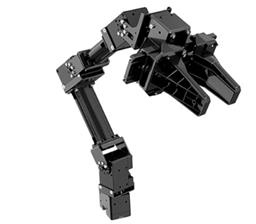
Publish robot arms as named kinematic chains and move tools by millimetre coordinates with inverse kinematics, linear moves, and saved poses.
 Windows
 ARM
ARM
 Linux
Linux
 MacOS
MacOS
How to add the Kinematics Service robot skill
- Load the most recent release of ARCx on a compatible operating system (Get ARCx).
- Press the + Skills menu from the top menu bar in ARCx.
- Choose the Servo category tab.
- Press the Kinematics Service icon to add the robot skill to your project.
Don't have a robot yet?
Follow the Getting Started Guide to build a robot and use the Kinematics Service robot skill.
How to use the Kinematics Service robot skill
Describe a robot arm - or a leg, a neck, a pan-tilt head - once, and then move it by coordinates in millimetres instead of by servo angles. "Put the gripper at 200, 0, 150" rather than "shoulder to 87, elbow to 132".
The skill publishes each arm to ARCx's KinematicsService under a name, so scripts (Kinematics.MoveTo("LeftArm", ...)), other robot skills, the ROS connector and the Autonomous AI skill can all drive the same arm the same way.
Any number of chains can be configured in one skill.
Note: the geometry conventions here are millimetres, +X forward, +Y left, +Z up.
Concepts
| Term | Meaning |
|---|---|
| Chain | One serial arm: a base, a list of joints, and a tool. Published under a Name. |
| Joint | One servo, rotating about X (roll), Y (pitch) or Z (yaw) in its own frame. |
| Link | The offset from a joint to the next one (or to the tool for the last joint), measured in that joint's rotated frame. |
| Tool | The point being positioned - the tip of the gripper, the camera lens. |
| Forward kinematics | Where the tool is, given the servo positions. Always available. |
| Inverse kinematics | What the servos must do to put the tool at a target. This is what MoveTo solves. |
Describing an arm
Geometry is described link by link - the "walk out along the arm" way, which is easier to measure with a ruler than Denavit-Hartenberg parameters and is exactly as expressive for a servo arm:
- Base - where the first joint sits (
BaseX/Y/Z) relative to whatever origin you want to measure from, and how the arm is mounted (BaseRoll/Pitch/Yaw). An arm bolted on sideways or upside down is described here rather than by fudging every joint. - Joints, in order from the base. For each: its servo, the axis it rotates about, the link offset to the next joint, its angle limits, the servo position that means zero degrees, degrees per servo position, and whether its direction is inverted.
- Tool - the offset from the last joint to the tip.
Measure with the arm in a known pose, note each servo's position there, and use those as the zero positions.
Mirroring
A chain can be mirrored across the X-Z plane to make the other arm of a humanoid. Every Y is negated, and joints rotating about X or Z have their direction and limits flipped. The servo ports are left blank deliberately - the other arm has its own servos.
The window
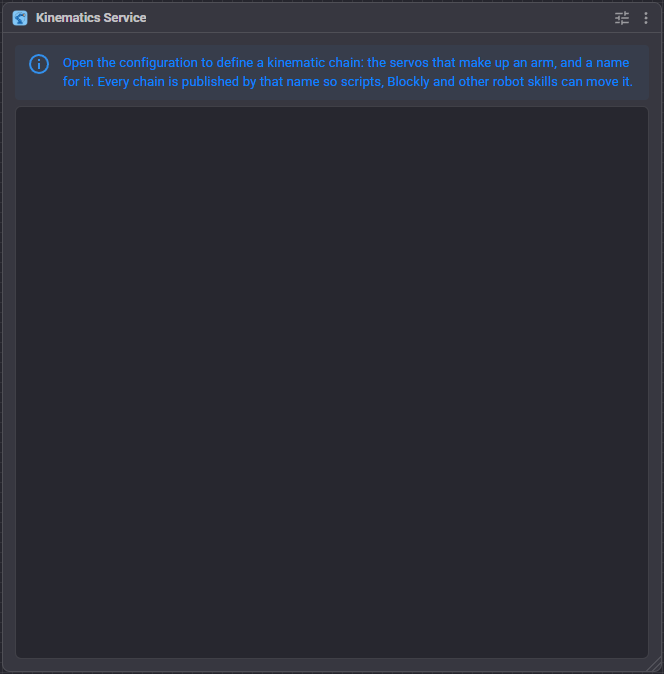
- Chain selector.
- A live arm view with the joints, the tool, the reach envelope and the saved positions.
- The joint list, each showing its servo, axis and limits.
- X, Y, Z target boxes with:
- Read - fill in where the tool is now;
- Move - joint move (every servo goes straight to its final angle);
- Linear - straight line move (the tool travels in a line);
- Stop - abort the move in progress.
- Jog - step the tool by a set number of millimetres along each axis.
- Speed - for moves from this window: 255 is the configured rate, lower is slower.
- Release - stop and release every servo in the chain.
- Saved positions - click one to go there, or the x to forget it.
Joint move versus linear move
- A joint move solves the target once and sends every servo to its final angle. It is fast and the tool takes whatever curved path falls out of it.
- A linear move steps along the straight line between here and the target, solving at each step. Use it when the tool must not sweep through something - reaching into a box, or drawing.
Configuration
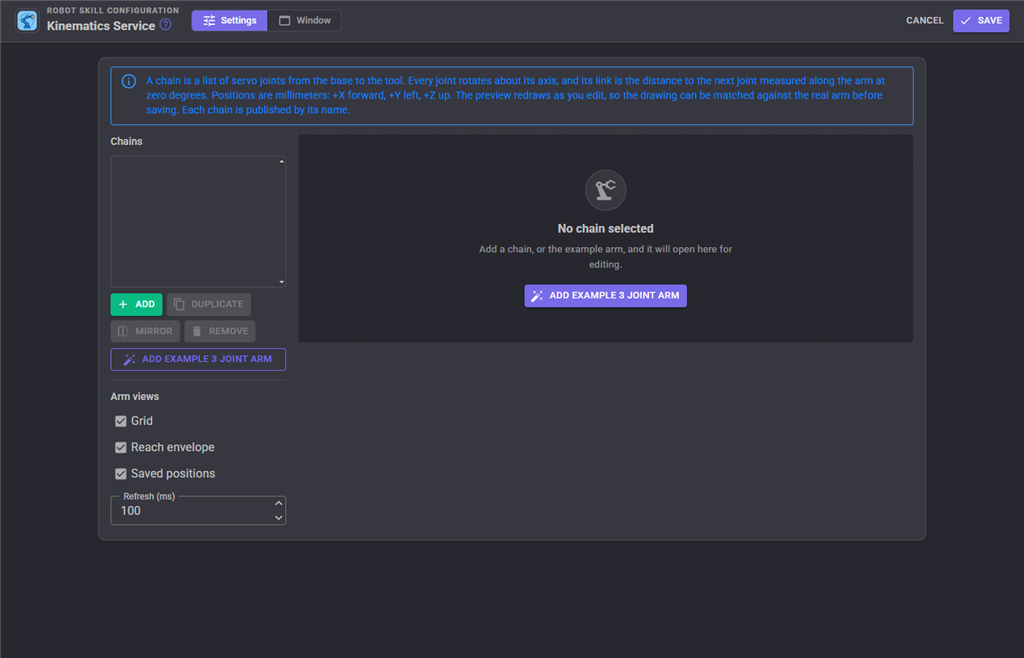
Per chain
| Setting | Meaning | Default |
|---|---|---|
| Name | What every consumer addresses this chain by. Unique across the project. | Arm |
| Description | Free text, shown to consumers including the AI. | empty |
| Enabled | A disabled chain stays configured but is not published. | on |
| Publish variables | Publish the Kinematic<Name>... global variables. |
on |
| Base X/Y/Z | Offset of the first joint from your chosen origin, in mm. | 0 |
| Base roll/pitch/yaw | Mounting orientation of the first joint, in degrees. | 0 |
| Joints | The joint list (see above). | empty |
| Tool X/Y/Z | Offset from the last joint to the tool tip, in mm. Zero means the last joint itself. | 0 |
| Use floor / Floor Z | Refuse to send the tip below a height - a table, a chassis top. Targets below it are raised to it, and the move result says so. | off / 0 |
Solver
| Setting | Meaning | Default |
|---|---|---|
| Max iterations | Iterations per attempt. The solver stops early once within tolerance. | 150 |
| Tolerance (mm) | How close counts as reached. | 1.0 |
| Orientation tolerance (degrees) | How close an orientation counts as reached, when orientation is used. | 2.0 |
| Damping | Damping of the least squares step, relative to the arm's reach. Larger is steadier near singularities but slower to converge. 0.05 to 0.3 is the useful range. | 0.1 |
| Move to nearest when unreachable | When a target is out of reach, go to the closest point the arm can get to instead of refusing. The result reports unreachable either way. | on |
| Use orientation | Honour roll, pitch and yaw in a target pose. Needs enough joints to control orientation, usually 5 or 6; with fewer, the solver trades position accuracy for orientation. | off |
Motion
| Setting | Meaning | Default |
|---|---|---|
| Servo velocity / Servo acceleration | Sent with every position, or -1 to leave the servo's own setting alone. | -1 |
| Linear step (mm) | Distance between steps of a straight line move. Smaller is straighter and slower. | 5 |
| Linear step delay (ms) | Pause between steps at full speed. | 25 |
| Joint degrees per second | How fast the joints are assumed to turn, used to estimate how long a joint move takes so IsMoving and the wait functions have something to go on. Hobby servos are typically 200-400 degrees/second unloaded; an arm under load is slower. |
120 |
| Joint settle (ms) | Extra settle time added to every joint move estimate. | 150 |
Display
| Setting | Meaning | Default |
|---|---|---|
| Show grid | Draw a millimetre grid behind the arm views. | on |
| Show reach | Draw the reach envelope. | on |
| Show positions | Label the saved positions. | on |
| Canvas refresh (ms) | Shortest gap between arm view redraws. | 100 |
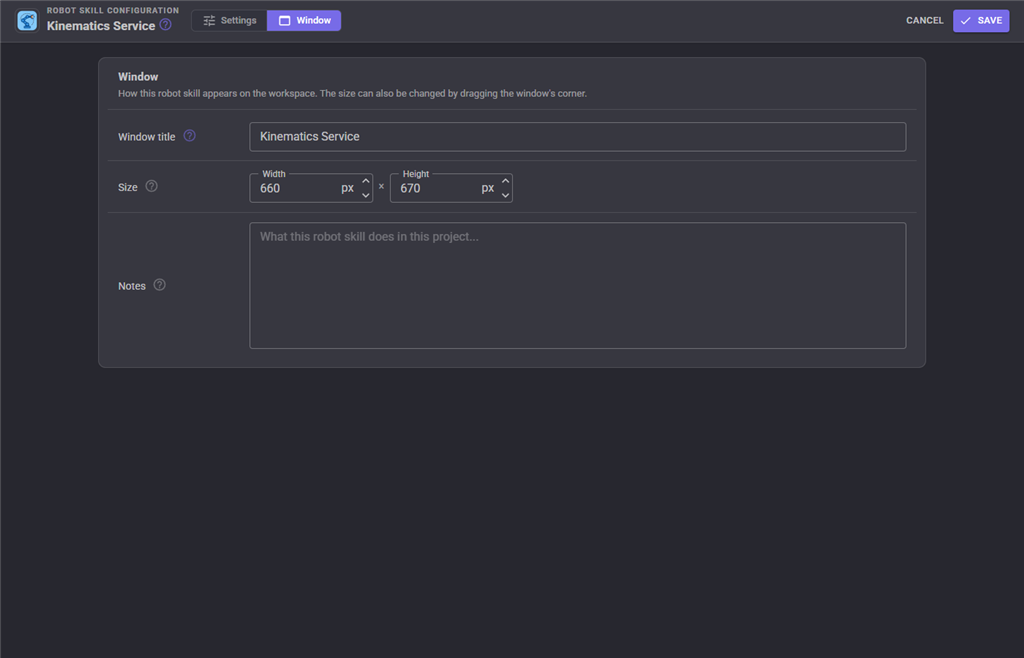
The Window tab sets the robot skill's window title, its size on the workspace and notes about what it does in this project.
Variables published
With Publish variables on, each chain publishes, where <Name> is the chain's name:
| Variable | Contents |
|---|---|
Kinematic<Name>X / Y / Z |
The tool position in mm. |
Kinematic<Name>IsMoving |
true while a move is in progress. |
Kinematic<Name>Roll / Pitch / Yaw |
Tool orientation in degrees, when orientation is in use. |
Saved positions
A named pose - "Home", "Pick", "Drop" - with its coordinates, optionally its orientation, and whether to travel there in a straight line. Save them in the configuration, from the window, or with the SavePosition control command, then go to them by name from a script, a button or the AI.
Troubleshooting
| Symptom | Cause |
|---|---|
| The arm goes to the wrong place | Geometry is wrong. Check each joint's zero position and degrees per position first; those two are the usual culprits. |
| A joint moves the opposite way | Set Invert direction on that joint rather than negating the link. |
| Moves report unreachable | The target is outside the reach envelope, blocked by joint limits, or below the floor. The arm view draws the envelope. |
| The arm judders near full extension | A singularity. Raise Damping. |
| A linear move is slow | Raise Linear step (mm) or lower Linear step delay. |
IsMoving clears too early or too late |
Tune Joint degrees per second and Joint settle (ms) - the move duration is an estimate, not feedback. |
| Orientation is ignored | Use orientation is off, or the chain has too few joints for it. |
| Another skill cannot find the chain | Chains are addressed by Name; a disabled chain is not published. |
See also
- Auto Position (movement panel) - pose-based animation instead of coordinates
- The
Kinematicsscript object, which is the richer interface for scripts
Control Commands for the Kinematics Service robot skill
There are Control Commands available for this robot skill which allows the skill to be controlled programmatically from scripts or other robot skills. These commands enable you to automate actions, respond to sensor inputs, and integrate the robot skill with other systems or custom interfaces. If you're new to the concept of Control Commands, we have a comprehensive manual available here that explains how to use them, provides examples to get you started and make the most of this powerful feature.
Control Command ManualThis robot skill has 13 control commands, listed below. Send them from a JavaScript or Python script, from Blockly, or from another robot skill.
The first value is always the window title, which is the name in the title bar of the robot skill on your workspace. It starts out as Kinematics Service, which is what every example below uses. If you rename the robot skill, or add a second copy of it to the project, use the title as it appears on that window instead.
ControlCommand() can be shortened to CC(), and both spellings work in JavaScript and in Python. The examples are JavaScript; Python is the same call, except that true and false are written True and False.
GetPositions
The names of the chain's saved positions
Syntax
ControlCommand("Kinematics Service", "GetPositions", (String)chainName)
Parameters
| # | Name | Type | What to pass |
|---|---|---|---|
| 1 | chainName | Text | Your text, in quotes |
Returns: Array of String
Example
var result = ControlCommand("Kinematics Service", "GetPositions", "chainName");
GetX
The chain's end effector X (mm), from the live servo positions
Syntax
ControlCommand("Kinematics Service", "GetX", (String)chainName)
Parameters
| # | Name | Type | What to pass |
|---|---|---|---|
| 1 | chainName | Text | Your text, in quotes |
Returns: Double [5.0e324 to 1.7e308]
Example
var result = ControlCommand("Kinematics Service", "GetX", "chainName");
GetY
The chain's end effector Y (mm), from the live servo positions
Syntax
ControlCommand("Kinematics Service", "GetY", (String)chainName)
Parameters
| # | Name | Type | What to pass |
|---|---|---|---|
| 1 | chainName | Text | Your text, in quotes |
Returns: Double [5.0e324 to 1.7e308]
Example
var result = ControlCommand("Kinematics Service", "GetY", "chainName");
GetZ
The chain's end effector Z (mm), from the live servo positions
Syntax
ControlCommand("Kinematics Service", "GetZ", (String)chainName)
Parameters
| # | Name | Type | What to pass |
|---|---|---|---|
| 1 | chainName | Text | Your text, in quotes |
Returns: Double [5.0e324 to 1.7e308]
Example
var result = ControlCommand("Kinematics Service", "GetZ", "chainName");
IsMoving
Is the chain executing a move?
Syntax
ControlCommand("Kinematics Service", "IsMoving", (String)chainName)
Parameters
| # | Name | Type | What to pass |
|---|---|---|---|
| 1 | chainName | Text | Your text, in quotes |
Returns: Boolean [true or false]
Example
var result = ControlCommand("Kinematics Service", "IsMoving", "chainName");
MoveLinear
Move a chain's end effector to an absolute X, Y, Z position (mm) in a straight line. Returns true when the target was reachable.
Syntax
ControlCommand("Kinematics Service", "MoveLinear", (String)chainName, (Number)x, (Number)y, (Number)z)
Parameters
| # | Name | Type | What to pass |
|---|---|---|---|
| 1 | chainName | Text | Your text, in quotes |
| 2 | x | Number | A number, without quotes |
| 3 | y | Number | A number, without quotes |
| 4 | z | Number | A number, without quotes |
Returns: Boolean [true or false]
Example
var result = ControlCommand("Kinematics Service", "MoveLinear", "chainName", 0, 0, 0);
MoveRelative
Move a chain's end effector by an offset (mm) from where it is now. Returns true when the target was reachable.
Syntax
ControlCommand("Kinematics Service", "MoveRelative", (String)chainName, (Number)dx, (Number)dy, (Number)dz)
Parameters
| # | Name | Type | What to pass |
|---|---|---|---|
| 1 | chainName | Text | Your text, in quotes |
| 2 | dx | Number | A number, without quotes |
| 3 | dy | Number | A number, without quotes |
| 4 | dz | Number | A number, without quotes |
Returns: Boolean [true or false]
Example
var result = ControlCommand("Kinematics Service", "MoveRelative", "chainName", 0, 0, 0);
MoveTo
Move a chain's end effector to an absolute X, Y, Z position (mm) with a joint move. Returns true when the target was reachable.
Syntax
ControlCommand("Kinematics Service", "MoveTo", (String)chainName, (Number)x, (Number)y, (Number)z)
Parameters
| # | Name | Type | What to pass |
|---|---|---|---|
| 1 | chainName | Text | Your text, in quotes |
| 2 | x | Number | A number, without quotes |
| 3 | y | Number | A number, without quotes |
| 4 | z | Number | A number, without quotes |
Returns: Boolean [true or false]
Example
var result = ControlCommand("Kinematics Service", "MoveTo", "chainName", 0, 0, 0);
MoveToPosition
Move a chain to one of its saved positions by name (as saved in the configuration or with SavePosition). Returns true when the target was reachable.
Syntax
ControlCommand("Kinematics Service", "MoveToPosition", (String)chainName, (String)positionName)
Parameters
| # | Name | Type | What to pass |
|---|---|---|---|
| 1 | chainName | Text | Your text, in quotes |
| 2 | positionName | Text | Your text, in quotes |
Returns: Boolean [true or false]
Example
var result = ControlCommand("Kinematics Service", "MoveToPosition", "chainName", "positionName");
Release
Stop the chain and release every servo in it
Syntax
ControlCommand("Kinematics Service", "Release", (String)chainName)
Parameters
| # | Name | Type | What to pass |
|---|---|---|---|
| 1 | chainName | Text | Your text, in quotes |
Returns: Boolean [true or false]
Example
var result = ControlCommand("Kinematics Service", "Release", "chainName");
SavePosition
Remember the chain's current end effector pose under a name. Overwrites a position of the same name. Saved with the project.
Syntax
ControlCommand("Kinematics Service", "SavePosition", (String)chainName, (String)positionName)
Parameters
| # | Name | Type | What to pass |
|---|---|---|---|
| 1 | chainName | Text | Your text, in quotes |
| 2 | positionName | Text | Your text, in quotes |
Returns: Boolean [true or false]
Example
var result = ControlCommand("Kinematics Service", "SavePosition", "chainName", "positionName");
Stop
Abort the move in progress on a chain
Syntax
ControlCommand("Kinematics Service", "Stop", (String)chainName)
Parameters
| # | Name | Type | What to pass |
|---|---|---|---|
| 1 | chainName | Text | Your text, in quotes |
Returns: Boolean [true or false]
Example
var result = ControlCommand("Kinematics Service", "Stop", "chainName");
StopAll
Abort every move in progress on every chain of this robot skill
Syntax
ControlCommand("Kinematics Service", "StopAll")
Returns: Boolean [true or false]
Example
var result = ControlCommand("Kinematics Service", "StopAll");
This list is read out of the robot skill itself each time its package is uploaded, so it matches the published version (v3).


This robot skill has been updated to v1.
This robot skill has been updated to v2.
This robot skill has been updated to v3.
What has changed
compatible with the latest ARCx v2026.09.27.01