
Browser-based keyboard robot control with remappable keys for driving, servo control, speed changes, scripts, and safe deadman stopping.
 Windows
 ARM
ARM
 Linux
Linux
 MacOS
MacOS
How to add the Key Control robot skill
- Load the most recent release of ARCx on a compatible operating system (Get ARCx).
- Press the + Skills menu from the top menu bar in ARCx.
- Choose any of these category tabs, the robot skill appears in each of them: Remote Control, Scripting, Servo.
- Press the Key Control icon to add the robot skill to your project.
Don't have a robot yet?
Follow the Getting Started Guide to build a robot and use the Key Control robot skill.
How to use the Key Control robot skill
Key Control drives your robot from a keyboard. Hold the arrow keys and the robot drives through whichever Movement Panel the project has; let go and it stops. Every key can be remapped, and each one can drive in a direction, change the speed, nudge a servo, move a servo to a position, disarm the keyboard or simply run a script when it goes down and another when it comes up.
ARCx runs in a web browser, so the keys are read in the browser you are typing into: the computer on the robot, a laptop across the room, a tablet, or a Custom UI kiosk with a keyboard plugged in. Nothing has to be installed on the robot's computer to read the keyboard, and it works the same on Windows, Linux and macOS.
The window
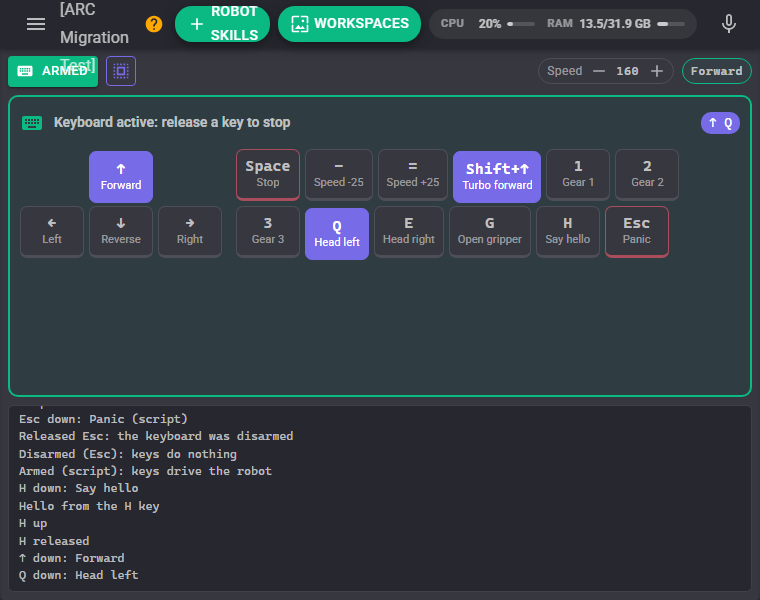
The bar along the top has the Armed button, the page-wide capture button, the movement speed with - and + buttons, and what the Movement Panel is doing right now.
Below it is the keyboard pad. Click it and its border turns green with Keyboard active: from then on the bound keys drive the robot. Click anywhere else, switch to another window or hide the browser tab and every held key is released, which stops the robot. This is the same "click here to activate" box ARC had.
The key map inside the pad has a tile for every binding, showing the key and what it does. The arrow keys are laid out as an inverted T. A tile lights up while its key is held, from this browser, another browser or a script, and the keys held right now are listed on the right of the pad. Tiles can also be held down with the mouse or a finger, so a phone without a keyboard still makes a usable remote.
The log at the bottom shows each key going down and up, why keys were released (focus lost, watchdog, disarmed) and anything the key scripts print.
Arming and safety
Keys only do something while the keyboard is armed. Disarming releases every held key and, with Stop On Disarm, stops the robot. Arm and disarm from the window, the Custom UI widget, a script (controlCommand("Key Control", "Disarm")) or an AI. Disarm before an autonomous routine so nobody's keyboard interferes with it, and bind a panic key (Escape, say) to Disarm the keyboard.
Movement keys are a deadman by default: the robot moves only while the key is held. Hold Up and tap Left, and when Left is released the robot carries on forward (Resume Held Direction). Several things release held keys for you:
- The pad loses focus (unless page-wide capture is on), the browser window loses focus, the tab is hidden or the page is closed.
- The watchdog: a browser holding a key reports in four times a second. If it goes quiet for longer than the watchdog time (Wi-Fi drops, a phone locks, the browser crashes) its keys are released and the robot stops.
- The configuration page is opened, the configuration changes, or the panic button is pressed.
The browser's own key repeat is ignored, so holding a key is one press however long it is held. Keys that repeat on purpose (servo nudges, speed up and down) repeat at their own rate.
Page-wide capture
With Capture Page-Wide on, an armed Key Control also reads keys pressed anywhere on the ARCx page that shows it, not only in the pad, so you can drive while looking at a camera on the same workspace. Typing in a text field, a dropdown, a slider or a script editor is left alone, and only bound keys are taken from the page. Turn it on and off with the button in the window's bar or the SetCapturePageWide control command.
Custom UI widget
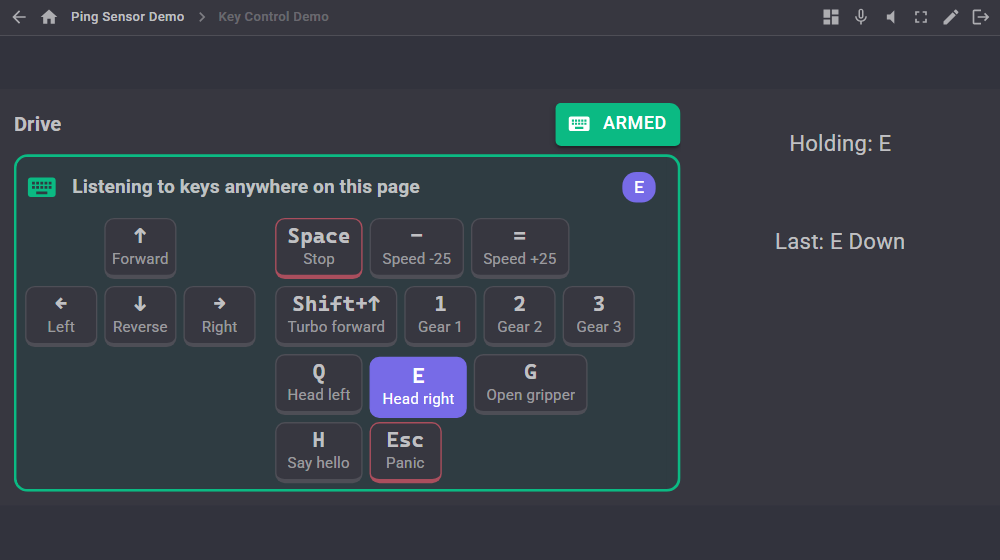
The Keyboard drive pad widget puts the pad, the key map and the Armed button on a Custom UI screen. It captures keys anywhere on the screen while armed, which suits a kiosk with a keyboard plugged in: open the screen and drive, no clicking first. On a phone the tiles are big enough to hold with a finger.
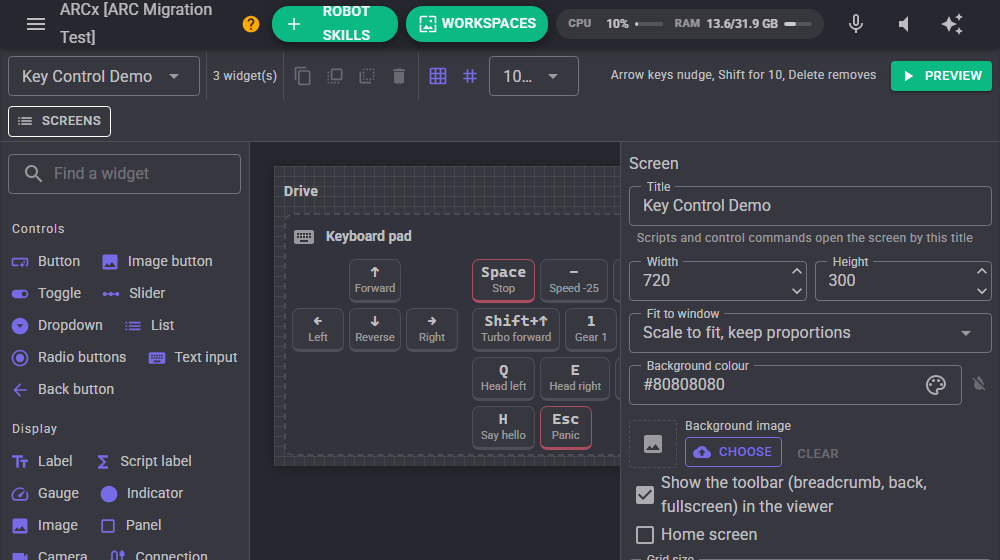
| Setting | What it does |
|---|---|
| Caption | The title above the pad |
| CapturePageWide | true (default): listen to keys anywhere on the screen while armed. false: only after the pad is tapped |
| ShowKeyMap | Show the key tiles |
| ShowArmButton | Show the Armed / Disarmed button |
Custom UI labels can show the keys too, for example Holding: {KeyControlKeysHeld}.
Configuration
The configuration page lists the options and every binding on the left. Pick one to edit it on the right. Add makes a new binding and the gamepad button adds the arrow keys, Space and the speed keys for any of them that are not bound yet.
Bindings
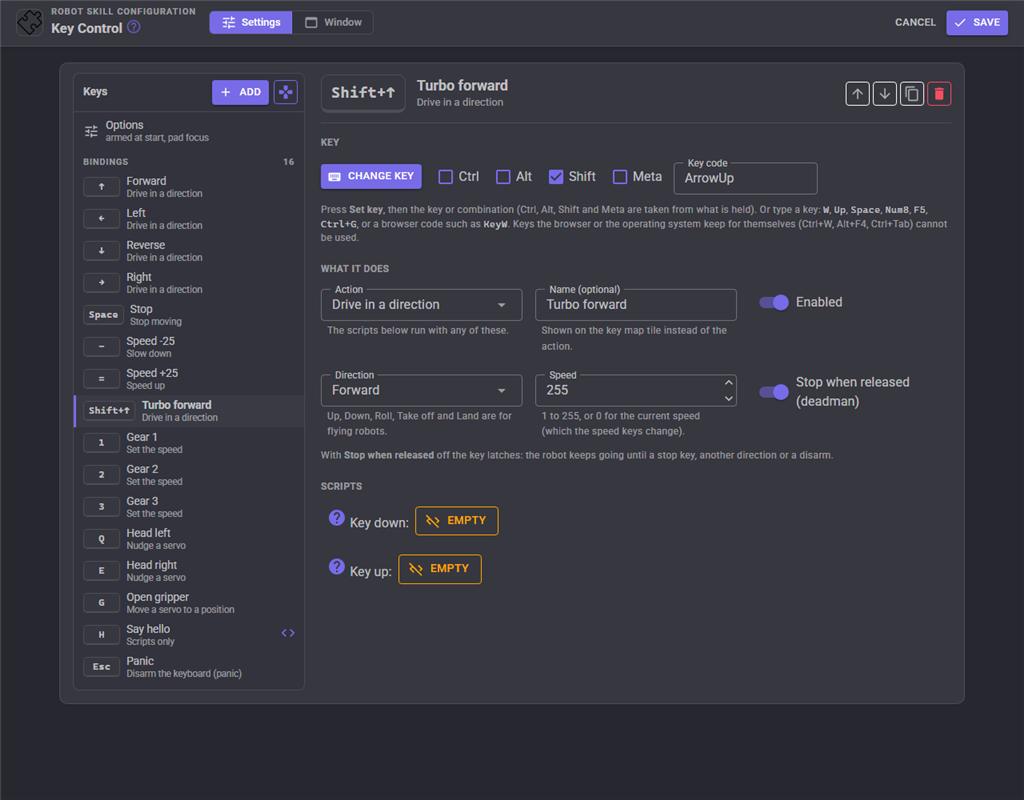
Press Set key (or Change key) and then press the key, or the combination with Ctrl, Alt, Shift or Meta held. A modifier on its own, such as Left Shift, can be a key too: press and release it by itself. You can also type the key into Key code: W, Up, Space, Num8, F5, Ctrl+G, or a browser code such as KeyW. Keys are stored by their position on the keyboard, so a binding works the same on any keyboard layout. A combination must match exactly: Shift+Up and Up are different bindings, which makes Shift+Up a handy turbo.
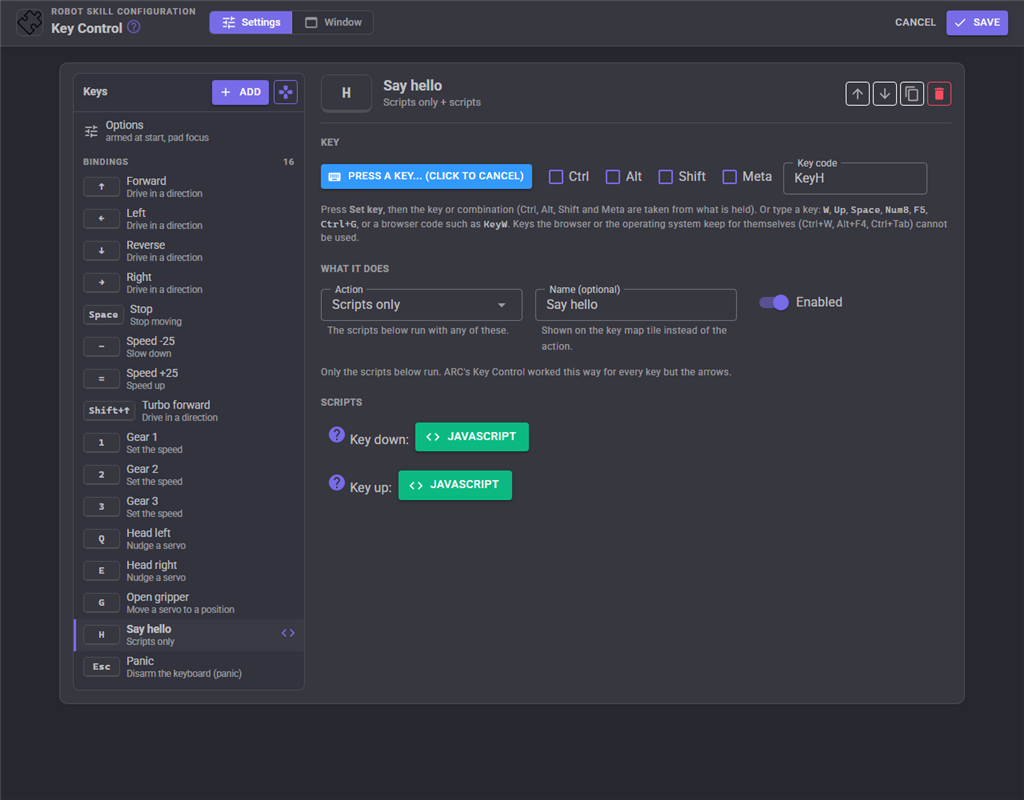
| Action | What the key does |
|---|---|
| Scripts only | Nothing of its own; only its key down and key up scripts run |
| Drive in a direction | Forward, Reverse, Left, Right (and Up, Down, Roll, Take off, Land for flying robots). Speed 0 uses the current speed, or set 1 to 255 for this key. Stop when released makes it a deadman; turn it off and the key latches until a stop |
| Stop moving | Stops the robot and forgets any movement keys still held |
| Speed up / Slow down | Changes the speed by the step, repeating while held when Repeat every is above 0 |
| Set the speed | Sets the speed, for gear keys such as 1, 2 and 3 |
| Nudge a servo | Moves the servo (or several together) by the step, repeating while held. Bind a second key with the opposite step |
| Move a servo to a position | Moves the servo when pressed, and to the release position when let go (0 stays put): hold G to open a gripper, let go to close it |
| Disarm the keyboard | A panic key |
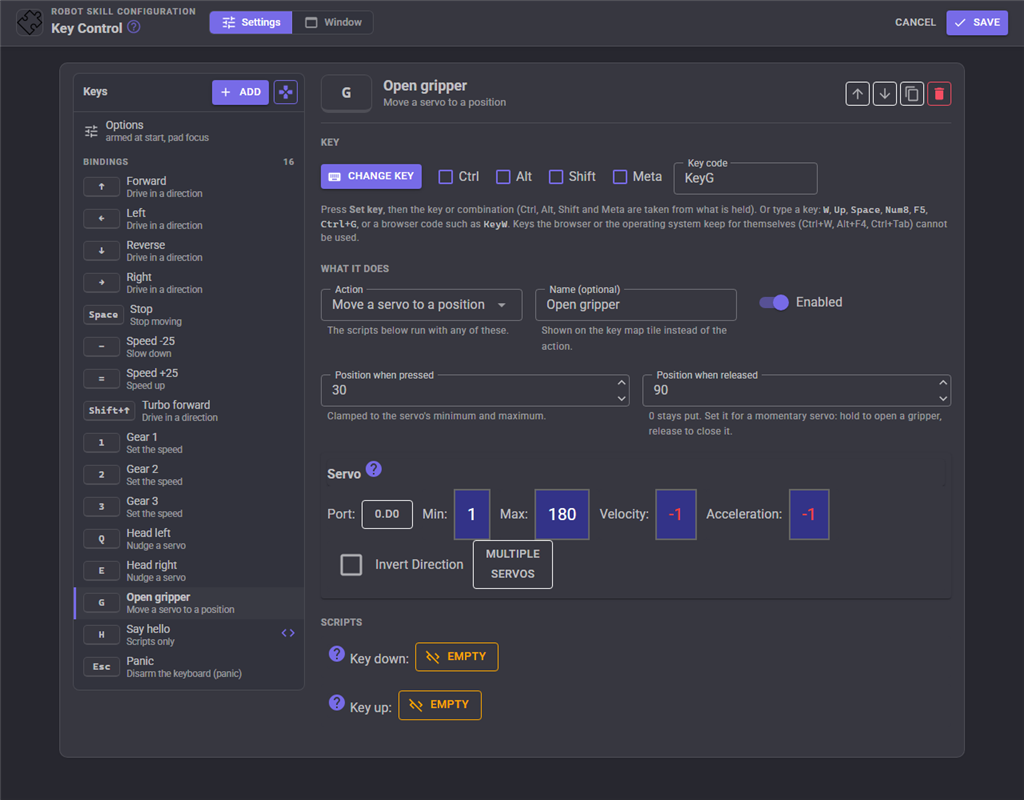
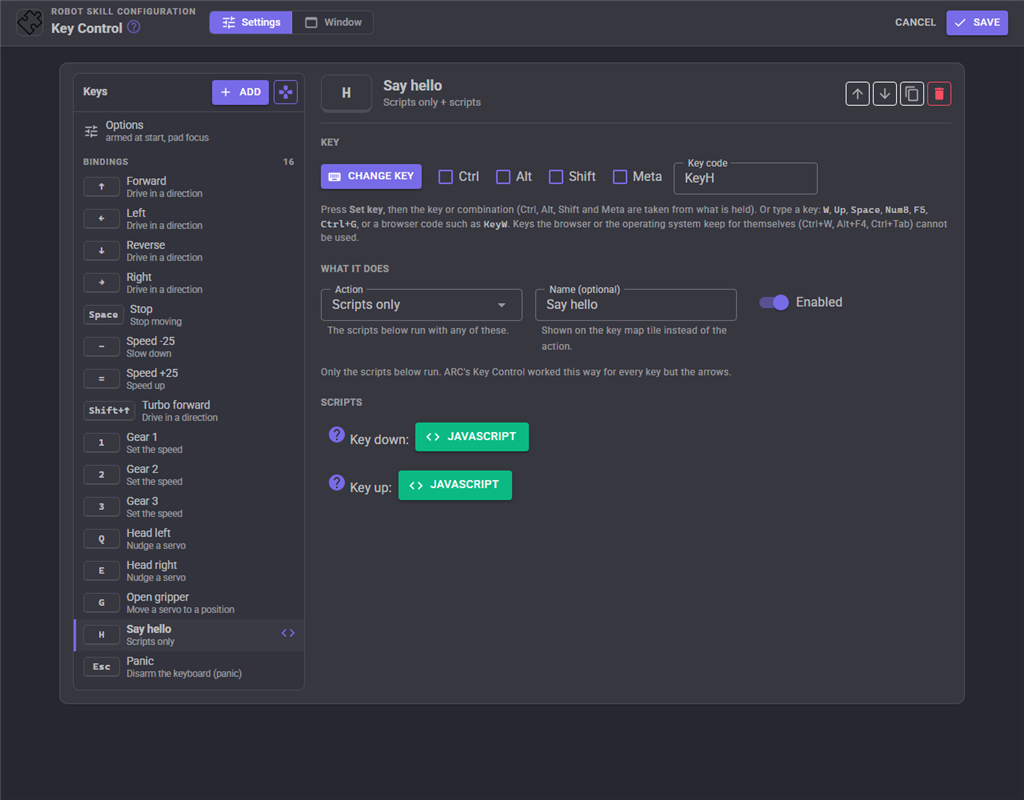
Every binding has a Key down script, which runs once when the key is pressed, and a Key up script, which runs when it is released or released for it. The two share one script runner, so the key up script stops a key down script that is still running. An optional Name is shown on the tile instead of the action. A binding with a warning symbol in the list has a problem, such as a key that is already bound above it.
Options
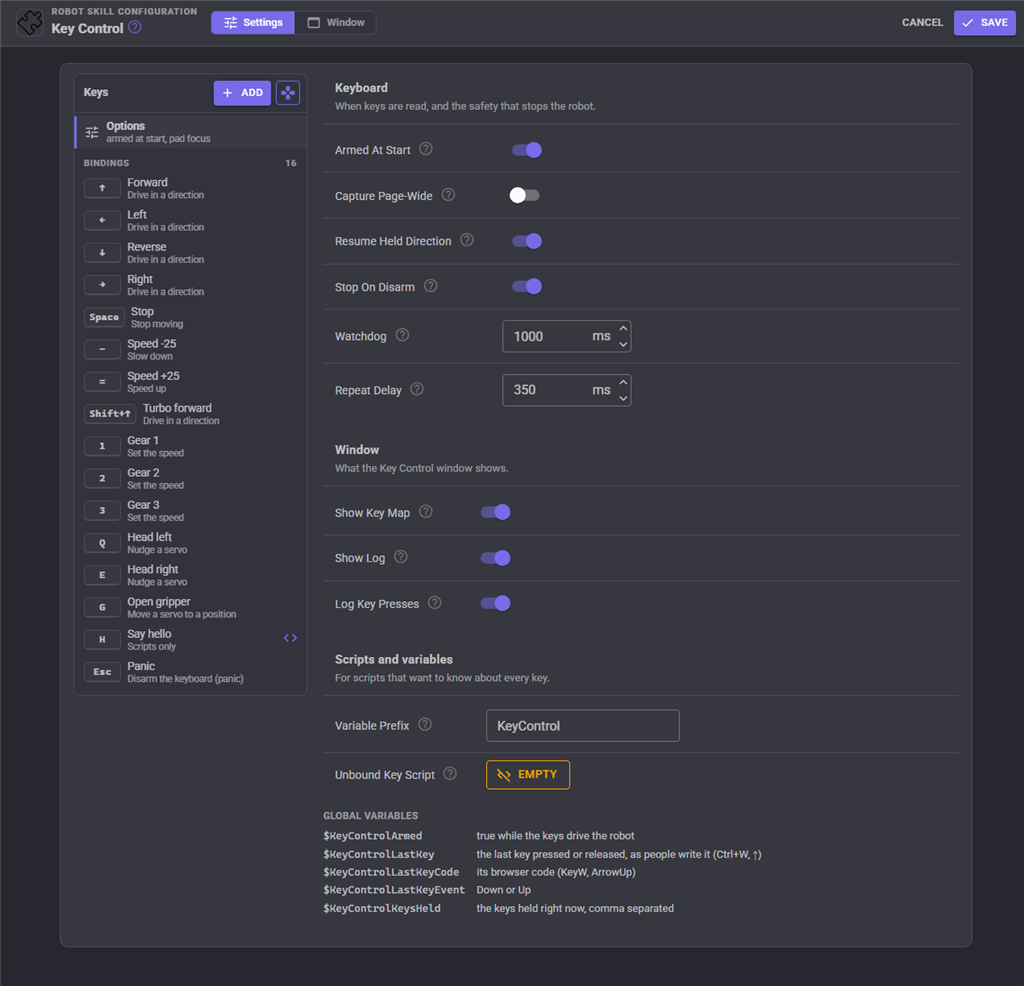
| Setting | What it does |
|---|---|
| Armed At Start | Arm the keyboard when the project loads |
| Capture Page-Wide | Read keys anywhere on the page while armed, not only in the pad |
| Resume Held Direction | Releasing the newest of two held movement keys resumes the other one instead of stopping |
| Stop On Disarm | Stop the robot whenever the keyboard is disarmed |
| Watchdog | How long a browser holding a key may go quiet before its keys are released, 300 to 10000 ms |
| Repeat Delay | How long a repeating key waits before it starts repeating |
| Show Key Map | Show the key tiles in the window |
| Show Log | Show the log in the window |
| Log Key Presses | Write every bound key press and release to the log |
| Variable Prefix | The start of the global variable names, for giving each Key Control in a project its own |
| Unbound Key Script | Runs when an armed key with no binding is pressed |
Variables
| Variable | Value |
|---|---|
$KeyControlArmed |
true while the keys drive the robot |
$KeyControlLastKey |
The last key pressed or released, as people write it (Ctrl+W, ``) |
$KeyControlLastKeyCode |
Its browser code (KeyW, ArrowUp) |
$KeyControlLastKeyEvent |
Down or Up |
$KeyControlKeysHeld |
The keys held right now, comma separated |
The Unbound Key script can use them to handle many keys in one place:
var key = getVar("$KeyControlLastKey");

if (key == "P")
  Audio.say("Taking a picture");
else
  print("Nothing is bound to " + key);
Pressing keys from a script
Scripts and AI assistants can press the same keys, which is handy for testing a key map or replaying a sequence. These work even while the keyboard is disarmed, because they were asked for explicitly.
// Drive forward for one second, then stop
controlCommand("Key Control", "PressKey", "Up", 1000);

// Hold a key until told otherwise
controlCommand("Key Control", "KeyDown", "Q");
sleep(500);
controlCommand("Key Control", "KeyUp", "Q");
Reading keys on the robot's own keyboard
Key Control reads the keyboard through a browser. A keyboard plugged into the robot's computer works by showing ARCx (or a Custom UI screen with the Keyboard drive pad widget) in a browser on that computer, for example as a kiosk. Reading the keyboard behind the browser's back would need a different system hook on Windows, Linux and macOS, and permissions on each, so Key Control does not do it.
Control Commands for the Key Control robot skill
There are Control Commands available for this robot skill which allows the skill to be controlled programmatically from scripts or other robot skills. These commands enable you to automate actions, respond to sensor inputs, and integrate the robot skill with other systems or custom interfaces. If you're new to the concept of Control Commands, we have a comprehensive manual available here that explains how to use them, provides examples to get you started and make the most of this powerful feature.
Control Command ManualThis robot skill has 11 control commands, listed below. Send them from a JavaScript or Python script, from Blockly, or from another robot skill.
The first value is always the window title, which is the name in the title bar of the robot skill on your workspace. It starts out as Key Control, which is what every example below uses. If you rename the robot skill, or add a second copy of it to the project, use the title as it appears on that window instead.
ControlCommand() can be shortened to CC(), and both spellings work in JavaScript and in Python. The examples are JavaScript; Python is the same call, except that true and false are written True and False.
Arm
Arm the keyboard: keys pressed in the Key Control pad (or anywhere on the page with page-wide capture) drive the robot and run their scripts. Returns true.
Syntax
ControlCommand("Key Control", "Arm")
Returns: Boolean [true or false]
Example
var result = ControlCommand("Key Control", "Arm");
Disarm
Disarm the keyboard: every held key is released (stopping the robot) and keys do nothing until it is armed again. Use it before an autonomous routine so nobody's keyboard interferes. Returns false.
Syntax
ControlCommand("Key Control", "Disarm")
Returns: Boolean [true or false]
Example
var result = ControlCommand("Key Control", "Disarm");
GetBindings
Every enabled binding as "key = action" (" = Forward", "Ctrl+G = Open gripper").
Syntax
ControlCommand("Key Control", "GetBindings")
Returns: Array of String
Example
var result = ControlCommand("Key Control", "GetBindings");
GetHeldKeys
The keys held down right now, as people write them ("", "Ctrl+W").
Syntax
ControlCommand("Key Control", "GetHeldKeys")
Returns: Array of String
Example
var result = ControlCommand("Key Control", "GetHeldKeys");
IsArmed
Whether the keyboard is armed.
Syntax
ControlCommand("Key Control", "IsArmed")
Returns: Boolean [true or false]
Example
var result = ControlCommand("Key Control", "IsArmed");
KeyDown
Hold a key down until KeyUp (or ReleaseAll) releases it: a movement key keeps driving, a servo step key keeps stepping. Works while disarmed. Returns true when the key is bound.
Syntax
ControlCommand("Key Control", "KeyDown", (String)key)
Parameters
| # | Name | Type | What to pass |
|---|---|---|---|
| 1 | key | Text | Your text, in quotes |
Returns: Boolean [true or false]
Example
var result = ControlCommand("Key Control", "KeyDown", "key");
KeyUp
Release a key held with KeyDown. Returns true.
Syntax
ControlCommand("Key Control", "KeyUp", (String)key)
Parameters
| # | Name | Type | What to pass |
|---|---|---|---|
| 1 | key | Text | Your text, in quotes |
Returns: Boolean [true or false]
Example
var result = ControlCommand("Key Control", "KeyUp", "key");
PressKey
Press a key as if it were typed: its binding acts and its key down script runs, then after the duration it is released (a movement key stops, the key up script runs). Works while disarmed. The key is a name such as "Up", "W", "Ctrl+W", "Space", "F5", "Num8", or a browser code such as "ArrowUp" or "KeyW". The duration is in milliseconds (default 250, up to 60000). Returns true when the key is bound.
Syntax
ControlCommand("Key Control", "PressKey", (String)key, 250)
Parameters
| # | Name | Type | What to pass |
|---|---|---|---|
| 1 | key | Text | Your text, in quotes |
| 2 | durationMs | Number | The fixed value 250. Leave it as it is. |
Returns: Boolean [true or false]
Example
var result = ControlCommand("Key Control", "PressKey", "key", 250);
ReleaseAll
Release every held key from every browser and script, which stops a robot a key was driving. Returns how many keys were held.
Syntax
ControlCommand("Key Control", "ReleaseAll")
Returns: Integer [-2,147,483,648 to 2,147,483,647]
Example
var result = ControlCommand("Key Control", "ReleaseAll");
SetCapturePageWide
True: while armed, keys pressed anywhere on the page showing Key Control are captured (not while typing in a text field or script editor). False: only while the Key Control pad has focus. Saved with the project. Returns the new setting.
Syntax
ControlCommand("Key Control", "SetCapturePageWide", (Bool)pageWide)
Parameters
| # | Name | Type | What to pass |
|---|---|---|---|
| 1 | pageWide | True or false | true or false, without quotes |
Returns: Boolean [true or false]
Example
var result = ControlCommand("Key Control", "SetCapturePageWide", true);
ToggleArm
Arm the keyboard if it is disarmed, disarm it if it is armed. Returns the new state: true when armed.
Syntax
ControlCommand("Key Control", "ToggleArm")
Returns: Boolean [true or false]
Example
var result = ControlCommand("Key Control", "ToggleArm");
This list is read out of the robot skill itself each time its package is uploaded, so it matches the published version (v1).

This robot skill has been updated to v1.
What has changed
initial release