Turns a Stereolabs ZED camera into GPU-free depth, obstacle scans, video, IMU and AI-ready 3D sensing for ARC on Windows, Linux and macOS.
 Windows
 ARM
ARM
 Linux
Linux
 MacOS
MacOS
How to add the Stereolabs Zed Camera robot skill
- Load the most recent release of ARCx on a compatible operating system (Get ARCx).
- Press the + Skills menu from the top menu bar in ARCx.
- Choose any of these category tabs, the robot skill appears in each of them: Camera, Infrared Distance, Navigation.
- Press the Stereolabs Zed Camera icon to add the robot skill to your project.
Don't have a robot yet?
Follow the Getting Started Guide to build a robot and use the Stereolabs Zed Camera robot skill.
How to use the Stereolabs Zed Camera robot skill
Turns a Stereolabs ZED stereo camera (ZED, ZED Mini, ZED 2, ZED 2i) into a depth sensor for your robot, on Windows, Linux and macOS, without a graphics card. A ZED is two cameras side by side, like a pair of eyes: it sends both pictures over USB as one wide video, and the distance to everything it sees comes from how far each thing shifts between the two pictures. Stereolabs' own ZED SDK does that on an NVIDIA graphics card. This skill does it itself: it straightens both pictures with the camera's factory calibration (downloaded from Stereolabs automatically) and matches them with OpenCV's semi-global block matcher, so a ZED works on any ARCx computer, from a laptop to a Raspberry Pi class board.
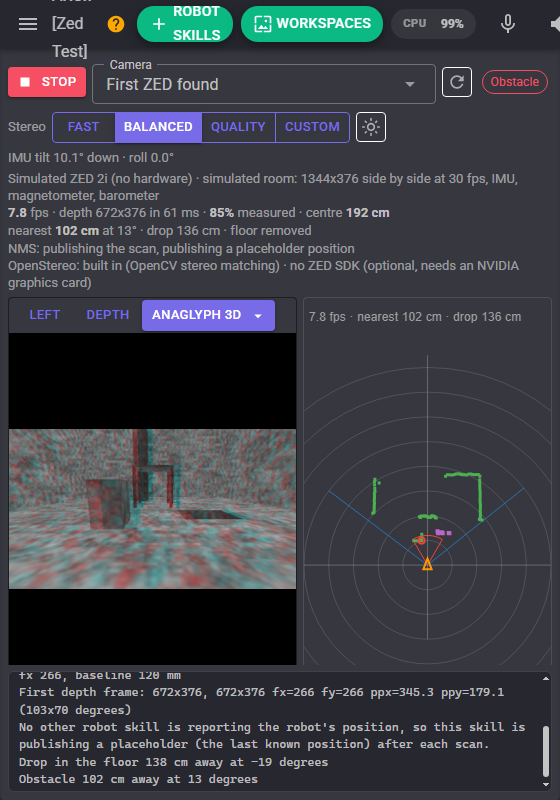
The depth becomes an obstacle scan for the Navigation Messaging System (NMS), with the floor removed by height and drops in the floor found, so a navigator such as Another Navigator can map and avoid what a lidar would miss. The left picture, lined up pixel for pixel with the depth, becomes a video source, and every face, colour, glyph or object another skill detects on it gets its real distance. The camera's accelerometer measures how far it is tilted, so the floor stays where it is when the mount moves. There are anaglyph 3D, disparity and confidence views, point clouds, an obstacle zone, picture controls, global variables, MCP tools for AI, a Custom UI widget, and a simulated ZED that renders a real stereo pair, so everything can be tried before the camera arrives.
When the ZED SDK is installed on a computer with an NVIDIA graphics card, the skill can use it instead, for the SDK's neural depth and its positional tracking (the robot's position from the camera alone).
What you need
- A ZED, ZED Mini, ZED 2 or ZED 2i on a USB 3 port. A USB 2 port carries only the VGA mode (the skill falls back to it and says so).
- The camera's serial number for its factory calibration. The ZED Mini, ZED 2 and ZED 2i report it themselves on every computer; the original ZED reports it on Linux. Otherwise type it in: it is on the label under the camera and on its box.
- An internet connection the first time each camera starts, to download its calibration (it is kept afterwards), or the calibration file copied from a computer that has it.
| Camera | OpenStereo (this skill's own depth) | ZED SDK driver |
|---|---|---|
| ZED | Depth and video. No IMU (it has none). | Yes |
| ZED Mini | Depth, video, accelerometer and gyroscope | Yes |
| ZED 2, ZED 2i | Depth, video, accelerometer, gyroscope, magnetometer, barometer, temperatures | Yes |
| ZED X, ZED X Mini (GMSL2) | Not possible: they are not USB cameras | Jetson only, with the ZED SDK and a capture card |
| Computer | OpenStereo | IMU | LED | ZED SDK |
|---|---|---|---|---|
| Windows x64 | Yes (DirectShow or Media Foundation) | Yes (Windows' own HID) | No | Yes, with an NVIDIA GPU |
| Linux x64 and ARM64 (Ubuntu 24.04) | Yes (V4L2) | Yes (hidraw, needs the udev rule) | Yes | Yes on x64 with an NVIDIA GPU, and on Jetson |
| macOS | Yes (AVFoundation) | No | No | No (Stereolabs does not support macOS) |
Setting up
Windows. Plug the camera in; Windows' own camera driver is all OpenStereo needs. Close ZED Explorer and ZED Depth Viewer, which hold the camera while they run.
Linux. Plug the camera in. For the IMU, the LED and reading an original ZED's serial number, install Stereolabs' udev rule once (the Camera tab shows the command, which copies the rule the skill ships to /etc/udev/rules.d), then unplug and replug the camera. The ZED SDK installs the same rule.
macOS. Allow ARCx to use cameras (System Settings, Privacy & Security, Camera) and type the serial number in the Camera tab. Depth works; the IMU and LED do not.
The ZED SDK driver (optional). Install the ZED SDK 5 for your CUDA version from Stereolabs, and its C wrapper: on Windows, sl_zed_c.dll from Stereolabs' Stereolabs.zed NuGet package or a build of their zed-c-api, placed in the ZED SDK's bin folder; on Linux, build zed-c-api (cmake, make, sudo make install) for /usr/local/lib/libsl_zed_c.so. The skill finds both by itself, or takes the wrapper's path in the Camera tab. Automatic then uses the ZED SDK whenever it sees a camera.
The factory calibration
Stereo depth is only as good as the calibration: where each lens points, its focal length and its distortion, measured by Stereolabs for every camera. The skill finds it by serial number, in this order: a file chosen in the Calibration tab; the skill's calibration folder (My Documents/ARCx Data/Stereolabs Zed/Calibration); the ZED SDK's settings folder (C:\ProgramData\Stereolabs\settings on Windows, /usr/local/zed/settings on Linux); a download from calib.stereolabs.com, saved to the calibration folder so it happens once. The Calibration tab's Download now button fetches it ahead of time, for a robot that will run without internet. The log says where the calibration came from and its baseline.
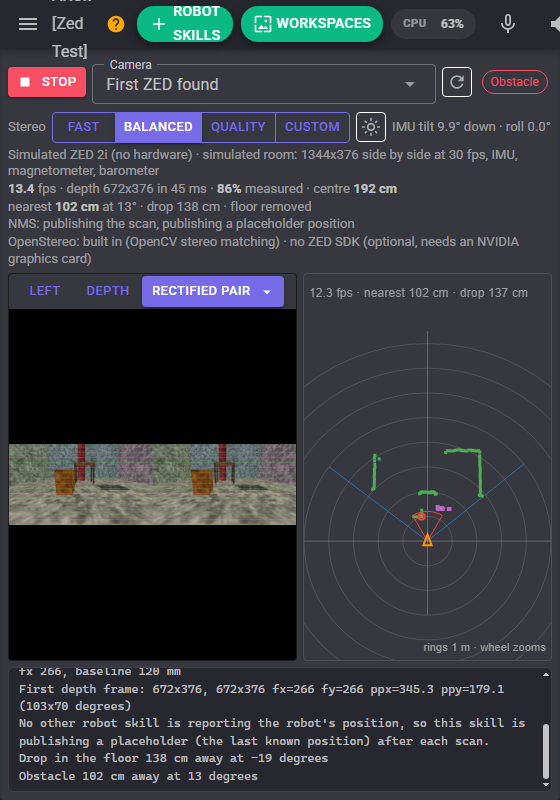
To check the calibration, choose the Rectified pair view: the same thing should sit on the same green line in both pictures.
The window
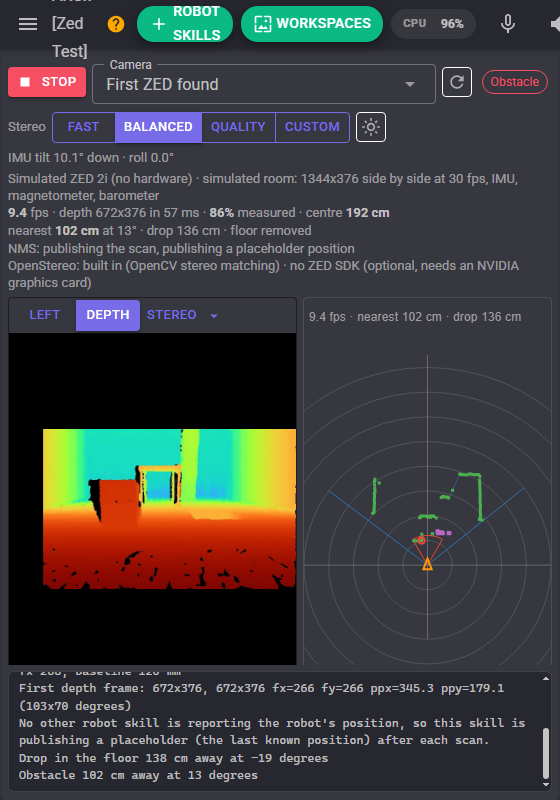
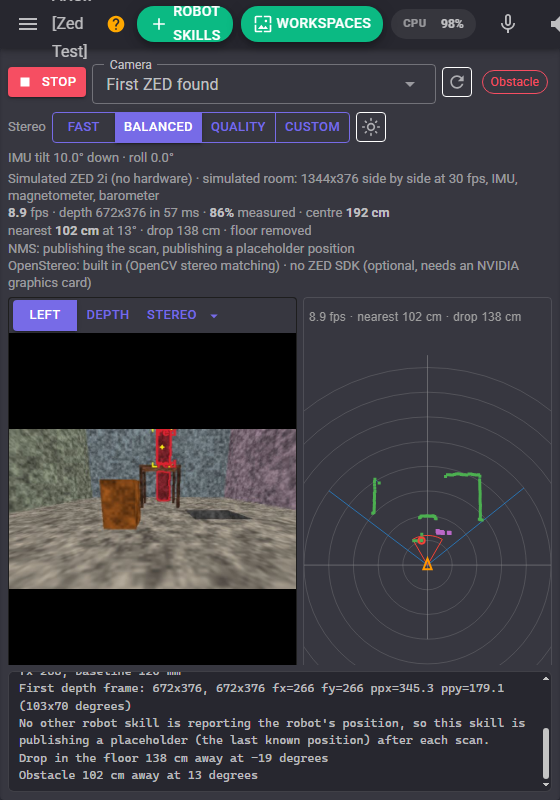
- Start / Stop opens and closes the camera. Camera chooses which one (or the simulated one); the refresh button looks again.
- Stereo: Fast, Balanced, Quality, Custom changes how hard the matcher works while it runs, on the next frame. The sun button switches the LED. On the right, the tilt and roll the IMU measures.
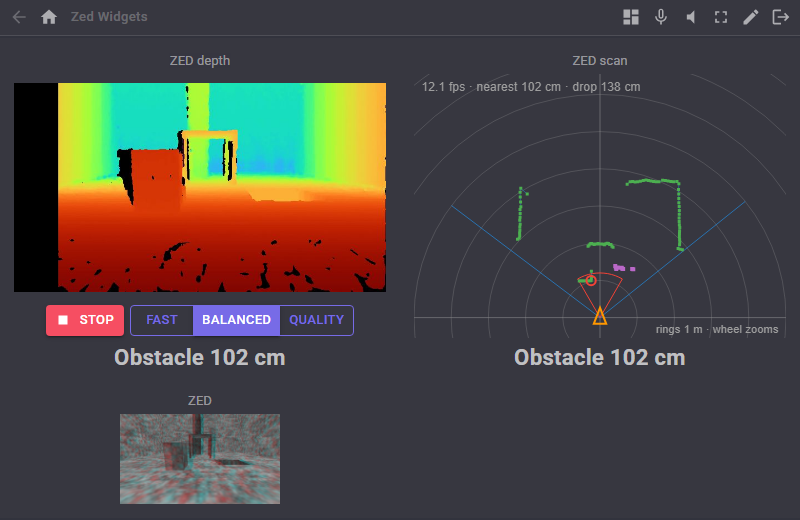
- The readouts: frames a second, the depth picture's size and how long matching took, how much of the picture has depth, the distance to whatever the middle of the picture sees, the nearest obstacle and drop, and what is being sent to the NMS.
- The picture: Left (the colour picture the depth lines up with), Depth (coloured near to far), or one of the stereo views from the Stereo menu.
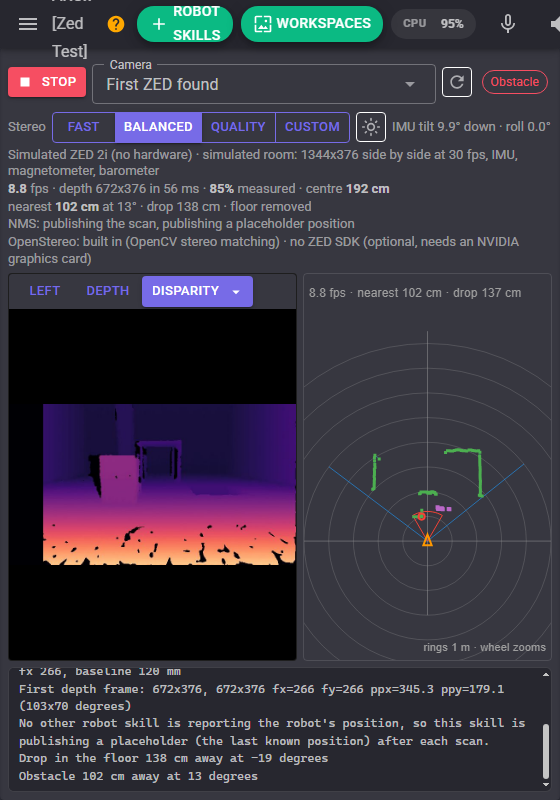
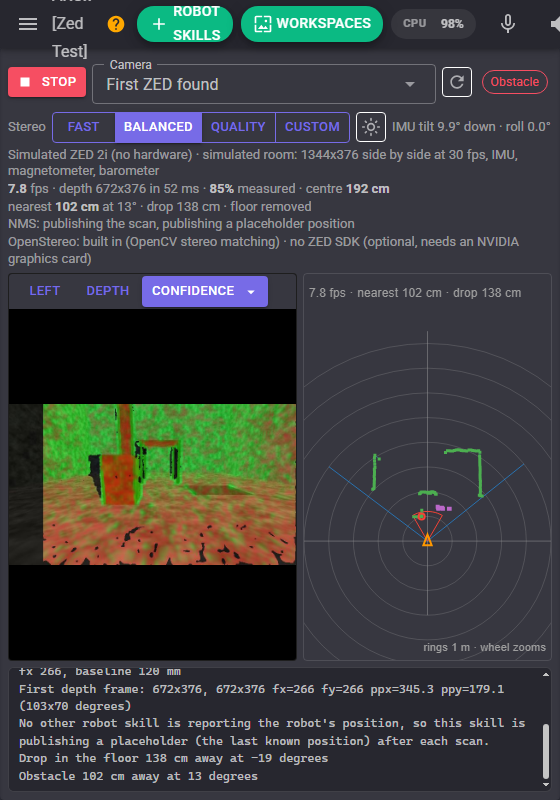
- The scan view: a top-down view of the robot (the orange triangle), what the camera can see (the blue lines), the nearest obstacle in each degree (green, joined along surfaces), drops in the floor (purple), and the obstacle zone (orange, red with something in it). The mouse wheel zooms; a click says how far away the nearest thing is in that direction.
Stereo views
The Stereo video source (and the window's Stereo menu) shows how the depth is made:
| View | What it shows |
|---|---|
| Side by side | Both eyes exactly as the camera sends them. |
| Rectified pair | Both eyes after straightening, with green lines across: the same thing sits on the same line in both when the calibration is right. |
| Right | The right eye, straightened. |
| Anaglyph 3D | Left in red, right in cyan: put on red-cyan glasses. |
| Disparity | The matcher's raw result: how far each pixel moved between the eyes, bright near and dark far. |
| Confidence | The left picture tinted green where the depth can be trusted, red where it is doubtful, darkened where there is none. |
How the depth is made
Each frame, the camera's side-by-side picture is split into its two eyes. Both are straightened (rectified) with the factory calibration directly at the working width the matcher runs at, so the same point of the world lands on the same row in both. OpenCV's semi-global block matcher then finds, for each pixel of the left picture, how far it moved in the right one (its disparity), and the distance is the focal length times the distance between the lenses divided by that disparity. Pixels the matcher could not trust are dropped: plain areas with no texture to match (a white wall), a failed left-right check, a doubtful match, specks, and anything outside the depth range.
| Quality | Matching | Working width | Time per frame (desktop, VGA) |
|---|---|---|---|
| Fast | Three-direction semi-global matching | 448 | about 5 to 15 ms |
| Balanced | Four-direction semi-global matching (HH4) with speckle removal | 672 | about 40 ms |
| Quality | Eight-direction semi-global matching (HH) with stricter checks | 672 | about 90 ms |
| Custom | Every matcher setting from the Depth tab, including OpenCV's WLS smoothing filter | your choice |
In the simulator, where the true distance of every pixel is known, Balanced measures 86% of the visible scene with a median error of 0.6% (9 mm in a room), 97% of pixels within 5%; flat targets at 1 and 2 m came out within 5 mm. Stereo error grows with the square of the distance: at 5 m a quarter of a pixel of disparity is 20 cm with a ZED 2 at VGA, so use the scan for the near few metres and HD720 for further. A real camera adds noise, lighting and reflections the simulator does not have, so expect less on real surfaces, and give plain walls texture where it matters.
The left edge of the depth picture is always empty: the right eye does not see that strip, so nothing can be matched there.
How the scan is made
Every depth pixel is placed in the robot's frame from where the camera is mounted: how far ahead, how far to the left, how high off the floor, and how far it looks down (from the IMU, or typed in). With the mount height set, anything lower than the lowest obstacle height is the floor and is dropped, anything higher than the highest obstacle height (a table top the robot passes under, the ceiling) is dropped too, and the nearest of what is left in each slice of the view becomes the scan. Points seen below the floor are drops (stairs going down, a ledge), reported where the floor ends. Without a mount height the skill cannot tell the floor from an obstacle and reports everything inside the detection area.
The mount is measured to the middle of the camera; the skill moves it to the left lens, where the depth comes from, by half the baseline. With the ZED SDK's positional tracking on, the robot's position and heading go to the NMS too, so a navigator can map without wheel encoders.
Configuration
Camera
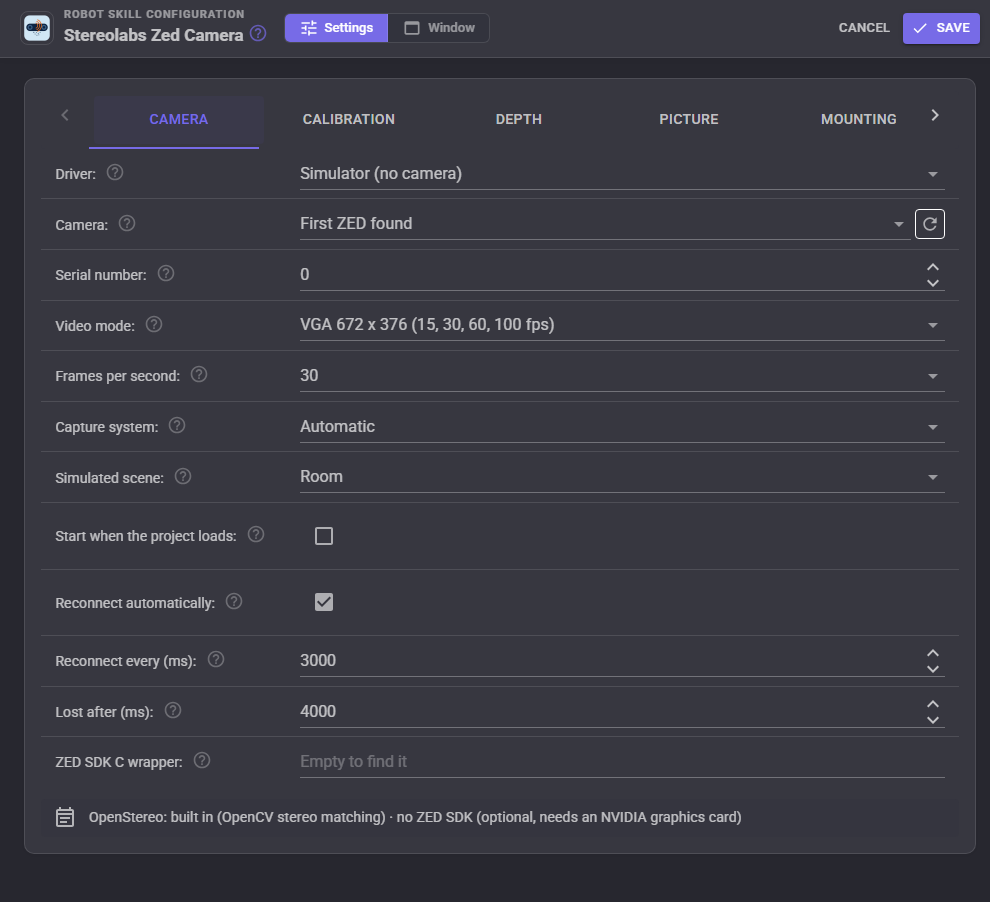
| Setting | What it does |
|---|---|
| Driver | Automatic, OpenStereo (every platform, no graphics card), ZED SDK (NVIDIA graphics card) or Simulator. |
| Camera | Which camera, when there is more than one. |
| Serial number | The camera's serial, for its calibration. 0 reads it from the camera where it can. |
| Video mode, Frames per second | VGA (672 x 376 per eye) up to 100 fps, HD720 up to 60, HD1080 up to 30, HD2K at 15. |
| Capture system | DirectShow, Media Foundation, V4L2 or AVFoundation; Automatic picks the usual one. |
| Simulated scene | The simulator's room, corridor or distance targets. |
| Start when the project loads, Reconnect automatically, Reconnect every, Lost after | Starting, and what happens when the camera goes away. |
| ZED SDK C wrapper | The path of sl_zed_c when it is not where the skill looks. Needs ARCx restarted. |
Calibration
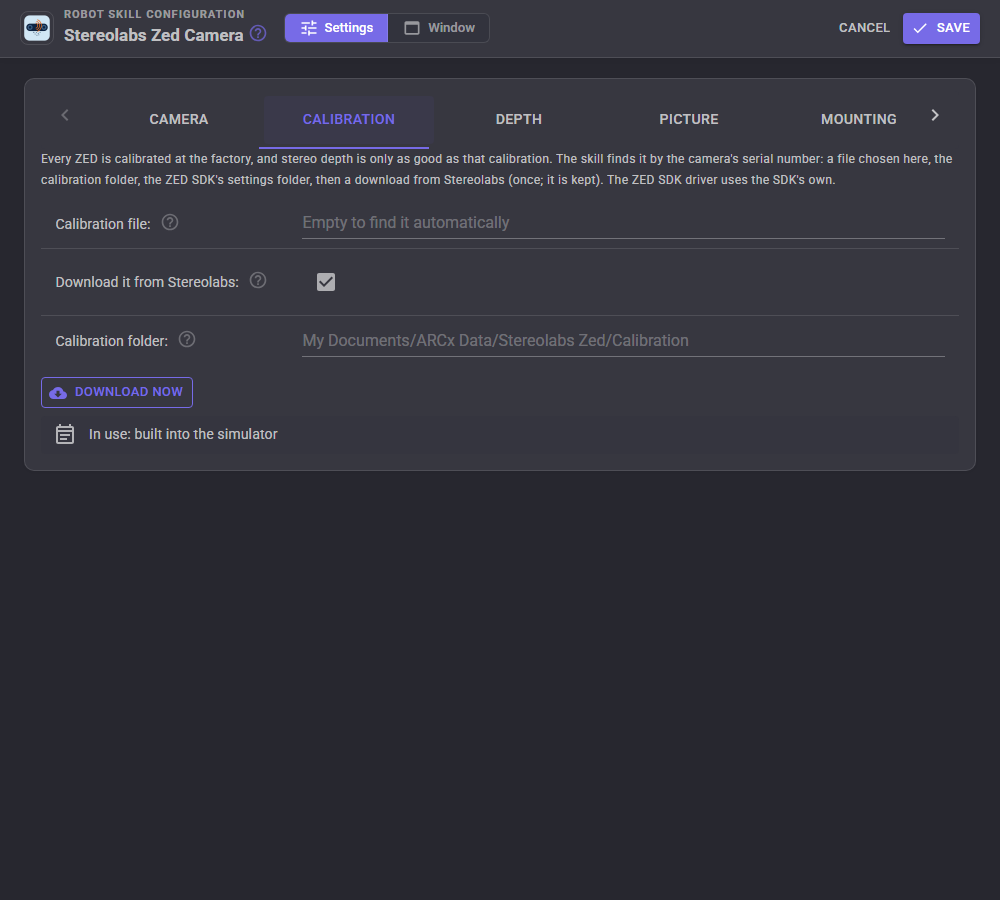
| Setting | What it does |
|---|---|
| Calibration file | A SN[serial].conf to use instead of finding one. |
| Download it from Stereolabs | Fetch the calibration the first time when it is not on this computer. |
| Calibration folder | Where downloaded calibrations are kept. |
| Download now | Fetch it now for the serial number typed in the Camera tab. |
Depth
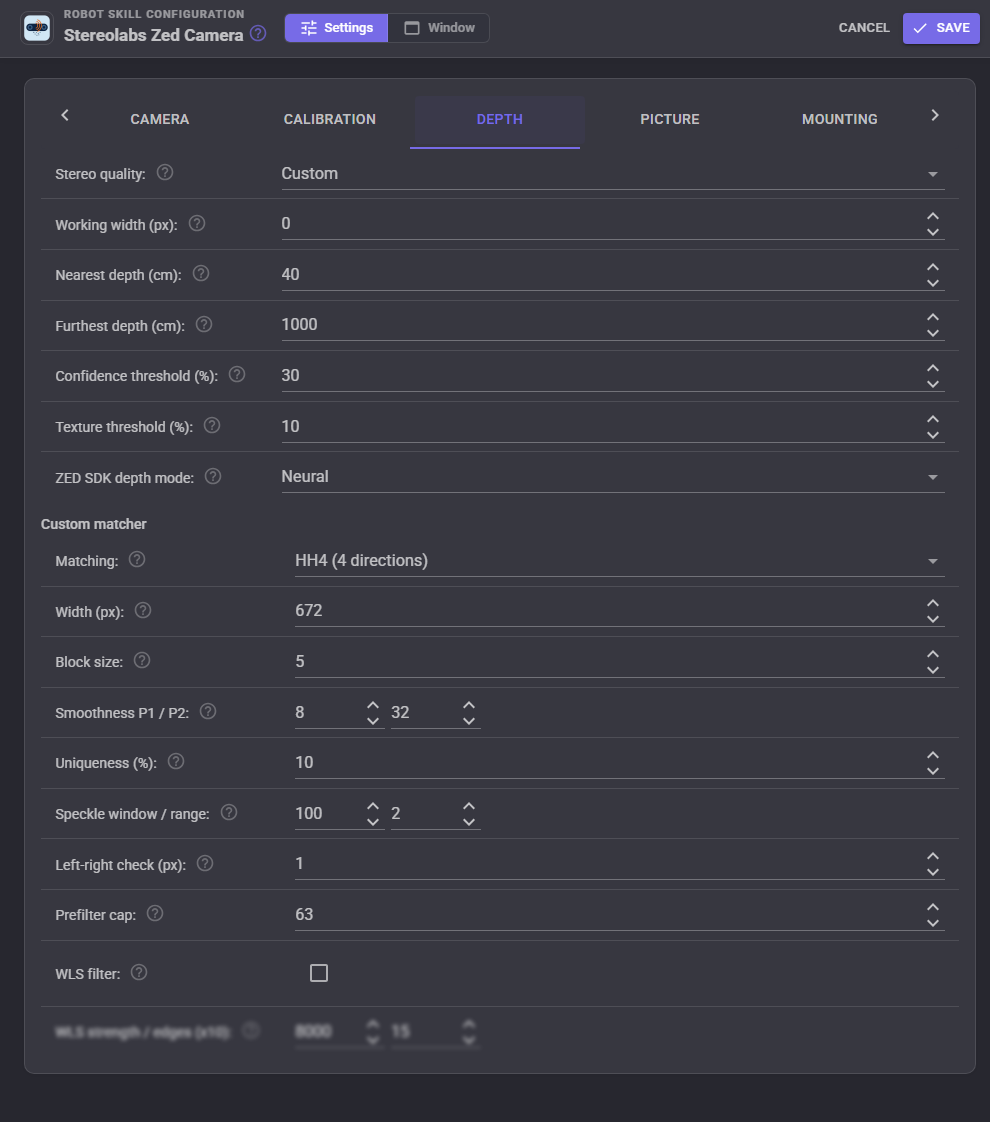
| Setting | What it does |
|---|---|
| Stereo quality | Fast, Balanced, Quality or Custom. |
| Working width | The width the pair is matched at, which is the depth picture's width. 0 uses the quality's own. |
| Nearest depth, Furthest depth | The depth range. The nearest also sets how far the matcher searches: seeing closer costs time. |
| Confidence threshold | Drops doubtful depth (with the WLS filter and the ZED SDK). |
| Texture threshold | Drops plain, textureless areas where stereo guesses. |
| ZED SDK depth mode | Neural Light, Neural, Neural Plus or Performance, for the ZED SDK driver. |
| Custom matcher | Matching variant, width, block size, smoothness penalties, uniqueness, speckle removal, left-right check, prefilter cap, and the WLS filter with its strength and edge sensitivity. |
Picture
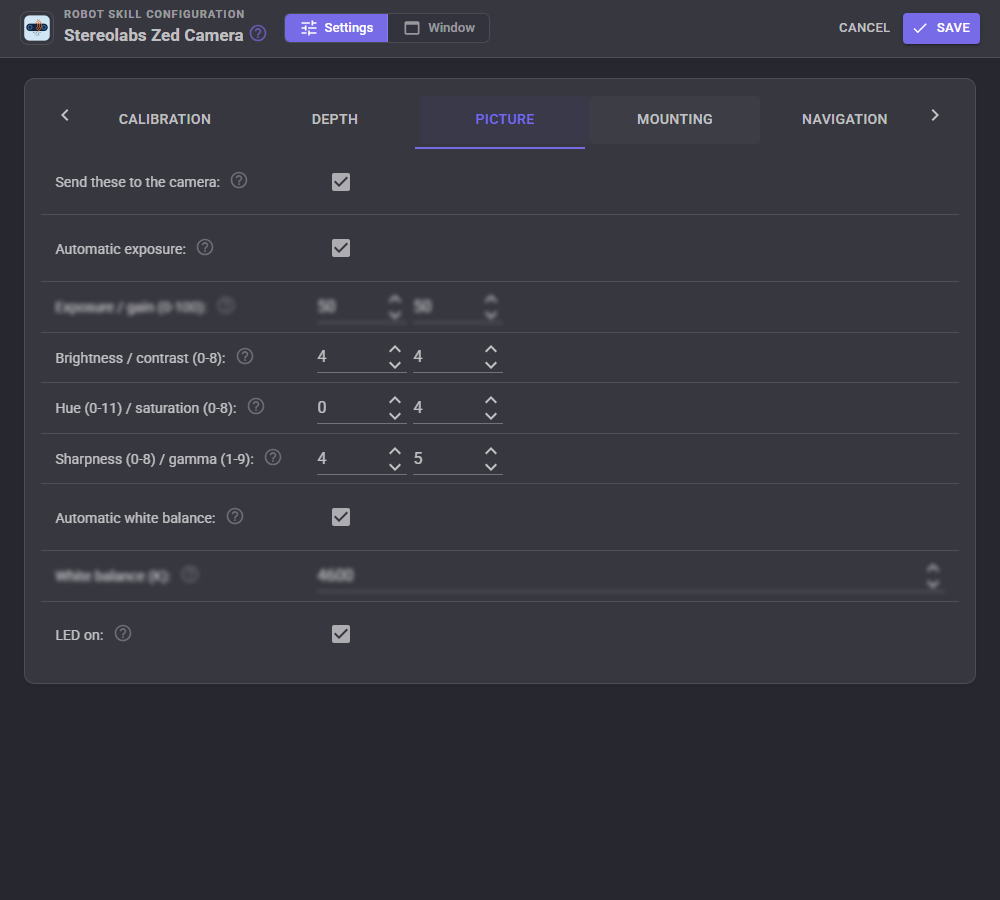
Exposure and gain (or automatic exposure), brightness, contrast, hue, saturation, sharpness, gamma, white balance (or automatic) and the LED, sent to the camera when it starts and whenever they change. Through OpenStereo the standard controls go through the operating system's camera driver and the log lists which the camera took; with the ZED SDK they go through the SDK. The LED can be switched on Linux, with the ZED SDK and in the simulator.
Mounting
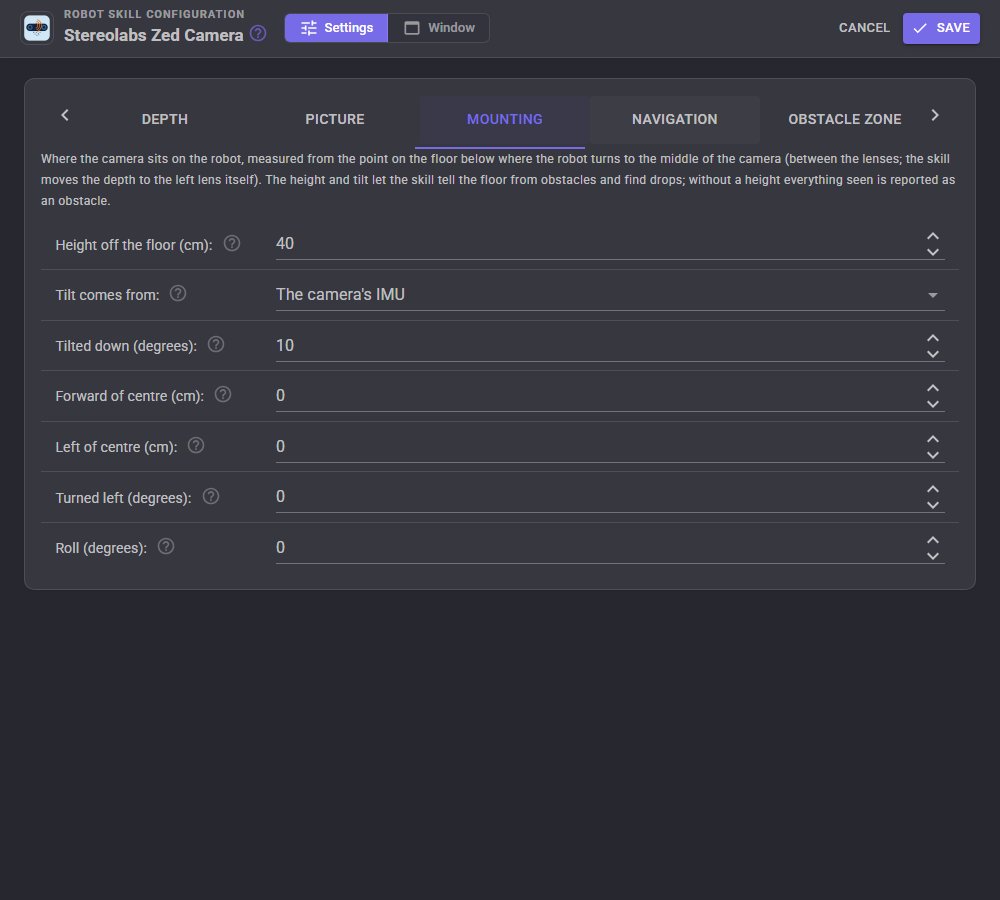
Where the camera sits, measured from the point on the floor below where the robot turns to the middle of the camera: height off the floor, forward and left of that point, which way it faces, and its roll. The tilt comes from the camera's IMU (ZED Mini, ZED 2, ZED 2i) or is typed in.
Navigation
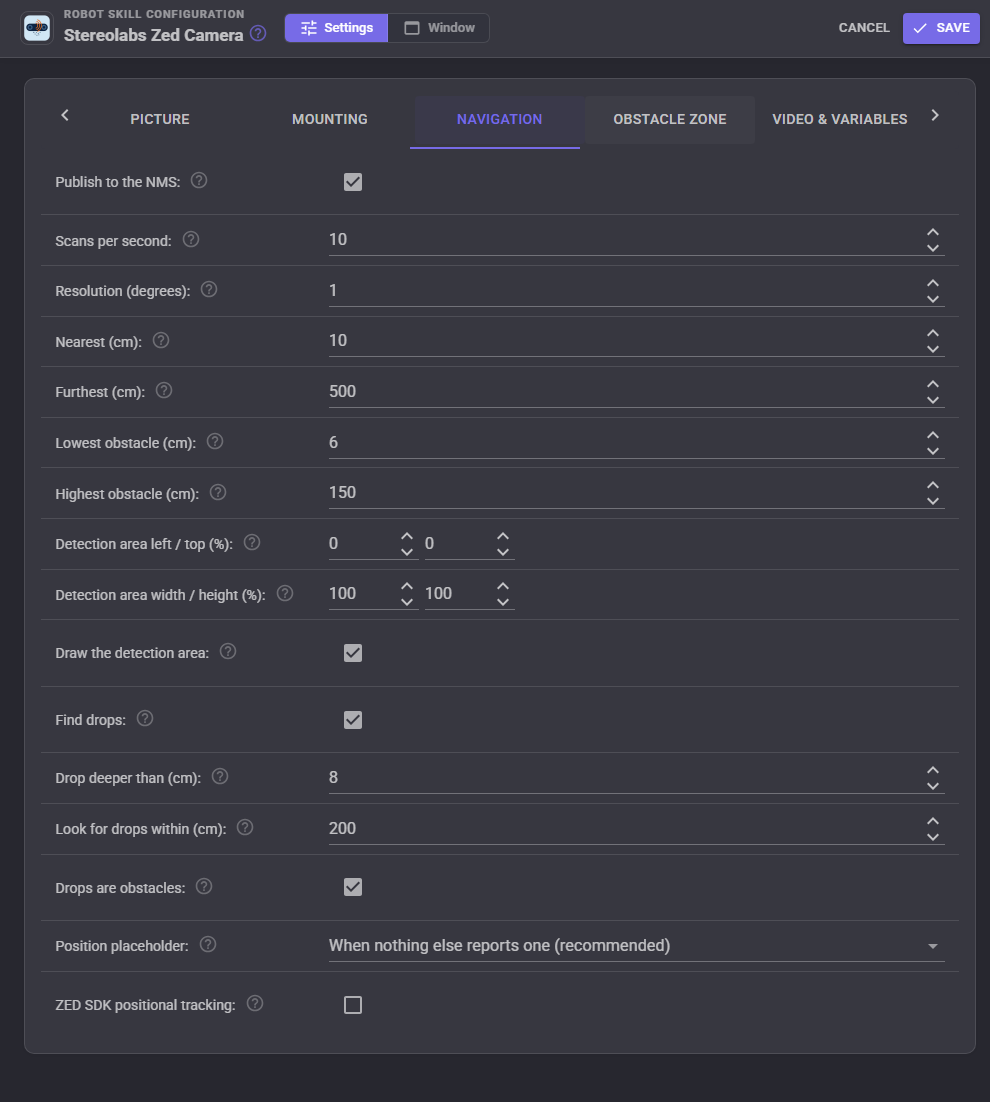
| Setting | What it does |
|---|---|
| Publish to the NMS, Scans per second | Send the scan to the navigation messaging system, at most this often. |
| Resolution | Degrees per reading. |
| Nearest, Furthest | The scan's range along the floor. |
| Lowest obstacle, Highest obstacle | What counts as an obstacle when the mount height is set. |
| Detection area | The part of the depth picture the scan is made from, in percent: left, top, width and height. |
| Find drops, Drop deeper than, Look for drops within, Drops are obstacles | Drop detection, and whether drops go to the NMS as obstacles so a navigator steers round them. |
| Position placeholder | A navigator only takes scans when the robot's position is reported. With nothing else reporting one, the skill repeats the last known position after each scan, and stands aside when another skill reports positions. |
| ZED SDK positional tracking | With the ZED SDK driver, send the robot's tracked position and heading to the NMS. |
Obstacle zone
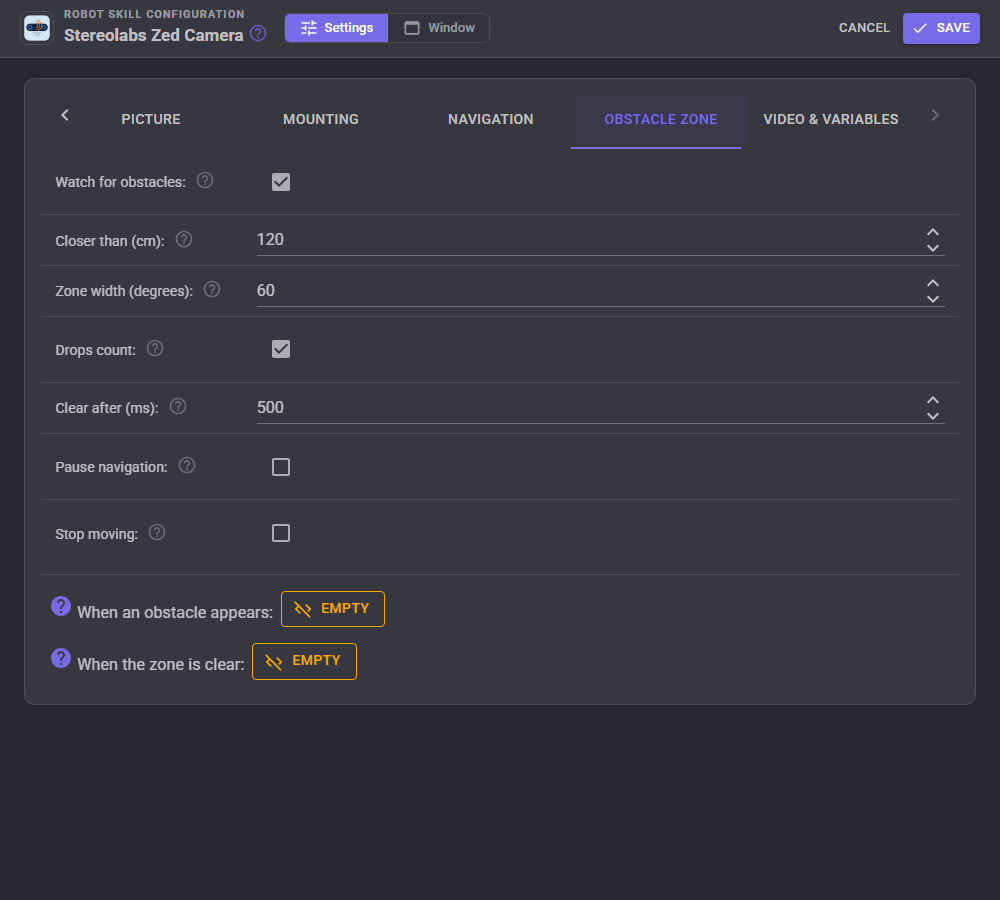
Watch the area straight ahead: anything closer than the distance inside the zone's width is an obstacle. The skill can stop the robot, pause a navigation and carry on once the zone is clear, and run a script when something appears and another when the zone is clear again. The ObstacleDistance and ObstacleAngle variables say where it was.
Video & variables
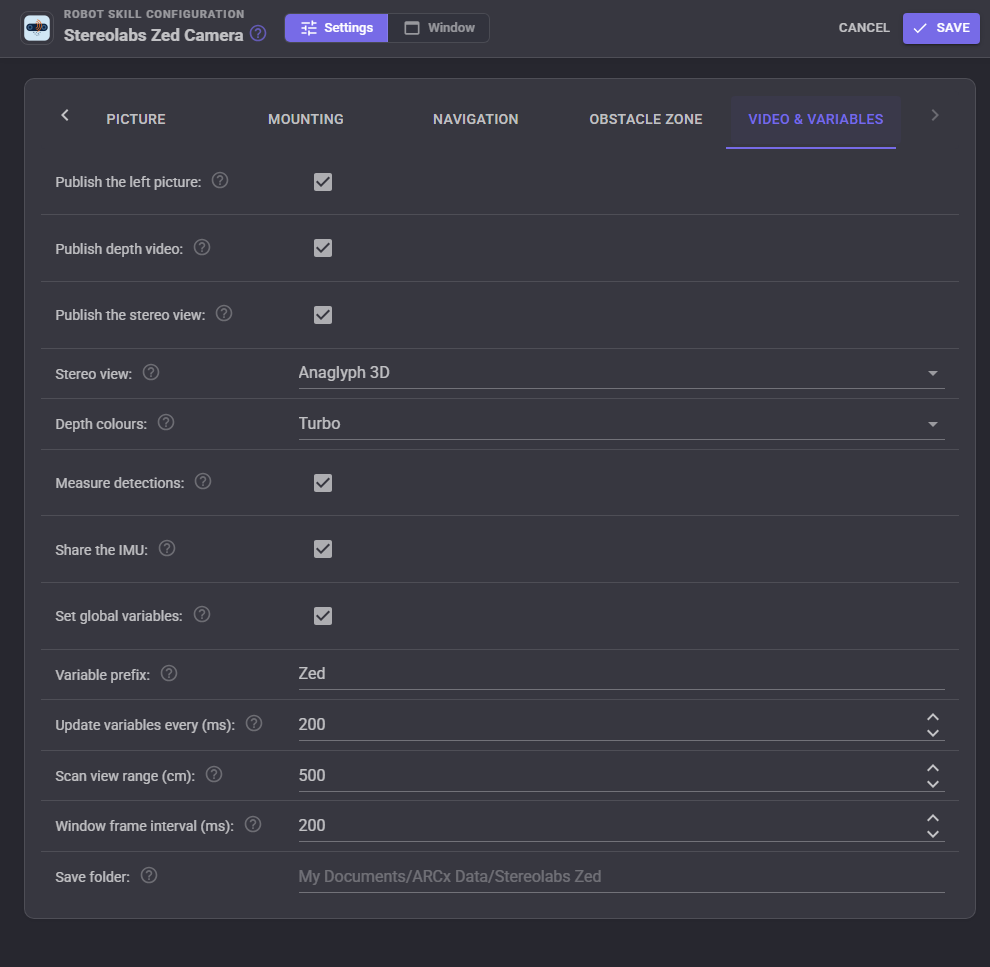
The video sources are named after the window title: "Stereolabs Zed Camera Left", "Stereolabs Zed Camera Depth" and "Stereolabs Zed Camera Stereo". The depth colours can be Jet, Turbo, Inferno, Viridis, Rainbow or Bone. Measure detections gives every detection on the left video its distance and position (DistanceM, ForwardM, LeftM, HeightM), which Vision Detection Tracking Script puts in its Object variables. Share the IMU hands the accelerometer and gyroscope to other skills in the robot's frame.
Global variables
With the prefix Zed (change it for a second camera), distances in metres and angles in radians counter-clockwise from straight ahead (positive is left):
| Variable | Value |
|---|---|
| $ZedIsRunning | True while streaming |
| $ZedNearestDistance, $ZedNearestAngle | The nearest obstacle |
| $ZedFrontDistance | Nearest within 10 degrees of straight ahead |
| $ZedLeftDistance, $ZedRightDistance | Nearest 10 to 45 degrees to either side |
| $ZedCenterDistance | Straight-line distance to what the middle of the picture sees |
| $ZedCliff, $ZedCliffDistance, $ZedCliffAngle | A drop in the floor |
| $ZedObstacle, $ZedObstacleDistance, $ZedObstacleAngle | The obstacle zone |
| $ZedTiltDegrees, $ZedRollDegrees | The camera's tilt down and roll from its accelerometer, in degrees |
| $ZedAccelX, $ZedAccelY, $ZedAccelZ | The accelerometer in m/s, the camera's forward, left and up axes |
| $ZedGyroZ | Turning left in radians a second |
| $ZedHeading | Magnetic heading in degrees (ZED 2 and 2i, uncalibrated) |
| $ZedPressureHPa, $ZedTemperatureC | Air pressure and temperature (ZED 2 and 2i) |
| $ZedPoseX, $ZedPoseY, $ZedPoseYaw | The ZED SDK's tracked position |
| $ZedFPS, $ZedMatchMs, $ZedValidPercent | Frame rate, matching time and how much of the picture has depth |
Scripts, AI and the Custom UI
Scripts reach everything through control commands: distances in any direction or sector, a point of the picture measured in the robot's frame, the IMU, the tracked position, the stereo quality and view, picture controls, the LED, the detection area, point clouds, snapshots, downloading a calibration and the list of cameras. For example, in JavaScript:
// Switch to the quick matcher while driving, and say what is close
controlCommand("Stereolabs Zed Camera", "SetStereoQuality", "Fast");
var front = getVar("$ZedFrontDistance");
if (front > 0 && front < 1.0)
  Audio.say("Something is " + Math.round(front * 100) + " centimetres ahead");
AI clients connected to ARCx's MCP server get six tools: the camera's status, a sector summary of what it sees, measuring a point of the picture (with its confidence), a snapshot of the left, depth or stereo picture, saving a point cloud, and changing the stereo quality. Saved point clouds (.ply, in metres in the robot's frame, coloured from the left picture) open in MeshLab, CloudCompare and Blender.
The ZED view widget puts the left, depth or stereo picture, or the top-down scan, on your own Custom UI screens, with a start/stop button, optional Fast/Balanced/Quality buttons and the nearest distance.
The simulator
The Simulator driver is a pretend ZED 2i in a pretend room: two lenses 12 cm apart, each with lens distortion, the right one turned very slightly, looking at textured walls, a box, a table, a stairwell going down and a person walking across (or a corridor, or flat targets at 1, 2, 3 and 5 m). It renders a real side-by-side stereo pair and hands it to the skill with a calibration file written for it, so the depth goes through exactly the same calibration reading, rectification and matching as a real camera's. It sits where the Mounting tab says, tilted by the typed tilt, and its accelerometer reports that tilt, as a real one would. Its picture controls and LED work.
Troubleshooting
- No ZED found: use a USB 3 port and the cable that came with the camera, close ZED Explorer and ZED Depth Viewer, and press refresh. On Linux, install the udev rule from the Camera tab and replug.
- The calibration cannot be found: type the serial number from the camera's label in the Camera tab, check the internet connection, or copy SN[serial].conf into the calibration folder.
- The camera gave 1344x376 instead of a larger mode: it is on a USB 2 port or cable.
- Little depth on plain surfaces: stereo needs texture. Lower the texture threshold to see more (and trust it less), add light, or try the Quality setting.
- The floor shows as obstacles: set the mount height, and check the lowest obstacle height; stereo is noisier than a lidar, so allow a few centimetres more.
- Depth looks wrong everywhere: check the Rectified pair view. If things do not sit on the same lines, the calibration belongs to another camera.
- Frames a second are low: choose Fast, lower the working width, or use VGA.
Control Commands for the Stereolabs Zed Camera robot skill
There are Control Commands available for this robot skill which allows the skill to be controlled programmatically from scripts or other robot skills. These commands enable you to automate actions, respond to sensor inputs, and integrate the robot skill with other systems or custom interfaces. If you're new to the concept of Control Commands, we have a comprehensive manual available here that explains how to use them, provides examples to get you started and make the most of this powerful feature.
Control Command ManualThis robot skill has 25 control commands, listed below. Send them from a JavaScript or Python script, from Blockly, or from another robot skill.
The first value is always the window title, which is the name in the title bar of the robot skill on your workspace. It starts out as Stereolabs Zed Camera, which is what every example below uses. If you rename the robot skill, or add a second copy of it to the project, use the title as it appears on that window instead.
ControlCommand() can be shortened to CC(), and both spellings work in JavaScript and in Python. The examples are JavaScript; Python is the same call, except that true and false are written True and False.
DownloadCalibration
Download a camera's factory calibration from Stereolabs into the calibration folder. serial is optional: 0 or empty uses the configured or detected serial. Returns the file's path.
Syntax
ControlCommand("Stereolabs Zed Camera", "DownloadCalibration", (Number)serial)
Parameters
| # | Name | Type | What to pass |
|---|---|---|---|
| 1 | serial | Number | A number, without quotes |
Returns: String
Example
var result = ControlCommand("Stereolabs Zed Camera", "DownloadCalibration", 0);
GetCenterDistance
The straight-line distance in metres from the left lens to whatever the middle of its picture sees. 0 when there is no reading there.
Syntax
ControlCommand("Stereolabs Zed Camera", "GetCenterDistance")
Returns: Float [1.5e45 to 3.4e38]
Example
var result = ControlCommand("Stereolabs Zed Camera", "GetCenterDistance");
GetDeviceInfo
The camera, the driver that opened it, its calibration, the matcher and the drivers this computer has.
Syntax
ControlCommand("Stereolabs Zed Camera", "GetDeviceInfo")
Returns: String
Example
var result = ControlCommand("Stereolabs Zed Camera", "GetDeviceInfo");
GetDistance
The distance in metres along the floor from the robot's centre to the nearest obstacle in a direction, from the latest depth scan. angle is in radians counter-clockwise from straight ahead (0 ahead, positive left, negative right). 0 when nothing is seen there or the direction is outside the camera's view.
Syntax
ControlCommand("Stereolabs Zed Camera", "GetDistance", (Number)angle)
Parameters
| # | Name | Type | What to pass |
|---|---|---|---|
| 1 | angle | Number | A number, without quotes |
Returns: Float [1.5e45 to 3.4e38]
Example
var result = ControlCommand("Stereolabs Zed Camera", "GetDistance", 0);
GetDistanceAtPixel
The straight-line distance in metres from the camera to what a point of the left picture (the depth lines up with it) sees. x and y are fractions of the picture's width and height from the top left (0.5, 0.5 is the middle). 0 when there is no reading there.
Syntax
ControlCommand("Stereolabs Zed Camera", "GetDistanceAtPixel", (Number)x, (Number)y)
Parameters
| # | Name | Type | What to pass |
|---|---|---|---|
| 1 | x | Number | A number, without quotes |
| 2 | y | Number | A number, without quotes |
Returns: Float [1.5e45 to 3.4e38]
Example
var result = ControlCommand("Stereolabs Zed Camera", "GetDistanceAtPixel", 0, 0);
GetImu
The camera's inertial sensor as [accel forward, accel left, accel up in m/s, gyro roll, pitch, yaw rates in rad/s] in the camera's own axes. Zeros when the camera has none (the original ZED) or it could not be opened.
Syntax
ControlCommand("Stereolabs Zed Camera", "GetImu")
Returns: Array of Float
Example
var result = ControlCommand("Stereolabs Zed Camera", "GetImu");
GetNearest
The nearest obstacle the camera sees as [distance in metres along the floor, direction in radians counter-clockwise from straight ahead]. [0, 0] when nothing is seen.
Syntax
ControlCommand("Stereolabs Zed Camera", "GetNearest")
Returns: Array of Float
Example
var result = ControlCommand("Stereolabs Zed Camera", "GetNearest");
GetPointAtPixel
Where the thing a point of the left picture sees is, as [forward, left, height] in metres from the robot's centre on the floor (+forward ahead, +left to the robot's left, height off the floor). x and y are fractions of the picture from the top left. [0, 0, 0] when there is no reading there.
Syntax
ControlCommand("Stereolabs Zed Camera", "GetPointAtPixel", (Number)x, (Number)y)
Parameters
| # | Name | Type | What to pass |
|---|---|---|---|
| 1 | x | Number | A number, without quotes |
| 2 | y | Number | A number, without quotes |
Returns: Array of Float
Example
var result = ControlCommand("Stereolabs Zed Camera", "GetPointAtPixel", 0, 0);
GetPose
The robot's position from the ZED SDK's positional tracking as [forward metres, left metres, heading radians] from where tracking began. Zeros unless the ZED SDK driver runs with positional tracking on.
Syntax
ControlCommand("Stereolabs Zed Camera", "GetPose")
Returns: Array of Float
Example
var result = ControlCommand("Stereolabs Zed Camera", "GetPose");
GetSectorDistance
The distance in metres to the nearest obstacle between two directions, going counter-clockwise from startAngle to endAngle, in radians from straight ahead (-0.35 to 0.35 is the 40 degrees around straight ahead). 0 when nothing is seen there.
Syntax
ControlCommand("Stereolabs Zed Camera", "GetSectorDistance", (Number)startAngle, (Number)endAngle)
Parameters
| # | Name | Type | What to pass |
|---|---|---|---|
| 1 | startAngle | Number | A number, without quotes |
| 2 | endAngle | Number | A number, without quotes |
Returns: Float [1.5e45 to 3.4e38]
Example
var result = ControlCommand("Stereolabs Zed Camera", "GetSectorDistance", 0, 0);
GetTilt
How far the camera is tilted down from level in degrees (negative looking up), measured by its accelerometer (ZED Mini, ZED 2, ZED 2i). Without one, the tilt typed into the mounting settings.
Syntax
ControlCommand("Stereolabs Zed Camera", "GetTilt")
Returns: Double [5.0e324 to 1.7e308]
Example
var result = ControlCommand("Stereolabs Zed Camera", "GetTilt");
IsCliffDetected
Whether the camera sees a drop in the floor (stairs, a ledge) right now. Needs drop detection turned on and the mount height set.
Syntax
ControlCommand("Stereolabs Zed Camera", "IsCliffDetected")
Returns: Boolean [true or false]
Example
var result = ControlCommand("Stereolabs Zed Camera", "IsCliffDetected");
IsObstacleDetected
Whether something is inside the obstacle zone right now. Always false when the obstacle zone is turned off.
Syntax
ControlCommand("Stereolabs Zed Camera", "IsObstacleDetected")
Returns: Boolean [true or false]
Example
var result = ControlCommand("Stereolabs Zed Camera", "IsObstacleDetected");
IsRunning
Whether the skill is running (connecting, streaming or waiting to reconnect).
Syntax
ControlCommand("Stereolabs Zed Camera", "IsRunning")
Returns: Boolean [true or false]
Example
var result = ControlCommand("Stereolabs Zed Camera", "IsRunning");
ListCameras
The ZEDs connected to this computer, through every driver it has, plus the simulator: one "name [id]" per item. The id goes in the configuration's DeviceId.
Syntax
ControlCommand("Stereolabs Zed Camera", "ListCameras")
Returns: Array of String
Example
var result = ControlCommand("Stereolabs Zed Camera", "ListCameras");
SavePointCloud
Save the next depth frame as a coloured 3D point cloud (.ply, opens in MeshLab, CloudCompare, Blender), in metres in the robot's frame. filename is optional: empty saves a dated file in the save folder. Returns the file's full path.
Syntax
ControlCommand("Stereolabs Zed Camera", "SavePointCloud", (String)filename)
Parameters
| # | Name | Type | What to pass |
|---|---|---|---|
| 1 | filename | Text | Your text, in quotes |
Returns: String
Example
var result = ControlCommand("Stereolabs Zed Camera", "SavePointCloud", "filename");
SaveSnapshot
Save the next frame's left picture, coloured depth and stereo view as PNG files in the save folder. Returns the left picture's path.
Syntax
ControlCommand("Stereolabs Zed Camera", "SaveSnapshot")
Returns: String
Example
var result = ControlCommand("Stereolabs Zed Camera", "SaveSnapshot");
SetCameraControl
Set one picture control and send it to the camera: Exposure (0-100, turns auto exposure off), Gain (0-100, turns auto exposure off), AutoExposure (0 or 1), Brightness (0-8), Contrast (0-8), Hue (0-11), Saturation (0-8), Sharpness (0-8), Gamma (1-9), WhiteBalance (2800-6500 kelvin, turns auto white balance off) or AutoWhiteBalance (0 or 1). Returns true.
Syntax
ControlCommand("Stereolabs Zed Camera", "SetCameraControl", (String)control, (Number)value)
Parameters
| # | Name | Type | What to pass |
|---|---|---|---|
| 1 | control | Text | Your text, in quotes |
| 2 | value | Number | A number, without quotes |
Returns: Boolean [true or false]
Example
var result = ControlCommand("Stereolabs Zed Camera", "SetCameraControl", "control", 0);
SetDetectionArea
Set the detection area (the part of the depth picture the scan is made from) in percent of the picture: left, top, width and height. 0, 0, 100, 100 is the whole picture.
Syntax
ControlCommand("Stereolabs Zed Camera", "SetDetectionArea", (Number)left, (Number)top, (Number)width, (Number)height)
Parameters
| # | Name | Type | What to pass |
|---|---|---|---|
| 1 | left | Number | A number, without quotes |
| 2 | top | Number | A number, without quotes |
| 3 | width | Number | A number, without quotes |
| 4 | height | Number | A number, without quotes |
Returns: Boolean [true or false]
Example
var result = ControlCommand("Stereolabs Zed Camera", "SetDetectionArea", 0, 0, 0, 0);
SetLed
Turn the camera's LED on (true) or off (false). Linux, the ZED SDK and the simulator; returns false where the platform cannot (Windows and macOS without the ZED SDK).
Syntax
ControlCommand("Stereolabs Zed Camera", "SetLed", (Bool)on)
Parameters
| # | Name | Type | What to pass |
|---|---|---|---|
| 1 | on | True or false | true or false, without quotes |
Returns: Boolean [true or false]
Example
var result = ControlCommand("Stereolabs Zed Camera", "SetLed", true);
SetPublishToNMS
Turn sending the depth scan to the Navigation Messaging System on or off. Returns the new setting.
Syntax
ControlCommand("Stereolabs Zed Camera", "SetPublishToNMS", (Bool)publish)
Parameters
| # | Name | Type | What to pass |
|---|---|---|---|
| 1 | publish | True or false | true or false, without quotes |
Returns: Boolean [true or false]
Example
var result = ControlCommand("Stereolabs Zed Camera", "SetPublishToNMS", true);
SetStereoQuality
Change the stereo matcher's quality while it runs: Fast, Balanced, Quality or Custom. Takes effect on the next frame. Returns the matcher's settings in words.
Syntax
ControlCommand("Stereolabs Zed Camera", "SetStereoQuality", (String)quality)
Parameters
| # | Name | Type | What to pass |
|---|---|---|---|
| 1 | quality | Text | Your text, in quotes |
Returns: String
Example
var result = ControlCommand("Stereolabs Zed Camera", "SetStereoQuality", "quality");
SetStereoView
Change what the stereo video source shows: SideBySide, Rectified, Right, Anaglyph, Disparity or Confidence. Returns true.
Syntax
ControlCommand("Stereolabs Zed Camera", "SetStereoView", (String)view)
Parameters
| # | Name | Type | What to pass |
|---|---|---|---|
| 1 | view | Text | Your text, in quotes |
Returns: Boolean [true or false]
Example
var result = ControlCommand("Stereolabs Zed Camera", "SetStereoView", "view");
Start
Open the ZED and start streaming depth. Returns false if it was already running.
Syntax
ControlCommand("Stereolabs Zed Camera", "Start")
Returns: Boolean [true or false]
Example
var result = ControlCommand("Stereolabs Zed Camera", "Start");
Stop
Stop streaming and close the ZED. Returns false if it was not running.
Syntax
ControlCommand("Stereolabs Zed Camera", "Stop")
Returns: Boolean [true or false]
Example
var result = ControlCommand("Stereolabs Zed Camera", "Stop");
This list is read out of the robot skill itself each time its package is uploaded, so it matches the published version (v2).


This robot skill has been updated to v1.
What has changed
initial release
This robot skill has been updated to v2.
What has changed
updated to use some new ARCx UI features for improved performance.