Camera-based robot pose tracking for ARCx with perspective calibration, floor mapping, and NMS navigation without encoders, lidar, or SLAM.
 Windows
 ARM
ARM
 Linux
Linux
 MacOS
MacOS
How to add the Camera Nms Pose robot skill
- Load the most recent release of ARCx on a compatible operating system (Get ARCx).
- Press the + Skills menu from the top menu bar in ARCx.
- Choose any of these category tabs, the robot skill appears in each of them: Camera, Navigation.
- Press the Camera Nms Pose icon to add the robot skill to your project.
Don't have a robot yet?
Follow the Getting Started Guide to build a robot and use the Camera Nms Pose robot skill.
How to use the Camera Nms Pose robot skill
Mount a camera on the ceiling, put a marker on top of the robot, and this skill tells the Navigation Messaging System (NMS) exactly where the robot is on the floor and which way it is facing. A navigator such as Another Navigator can then drive the robot around the room from that position, with no wheel encoders, lidar or SLAM needed. It is the ARCx version of ARC's Camera NMS Pose, rebuilt with a proper perspective calibration so the camera does not have to look straight down.
The skill does not find the marker itself. A detection skill watching the same camera does that: Glyph Recognition for a printed glyph (which also gives the heading), Color Tracking for coloured dots, or any other skill that reports detections. This skill picks the robot's marker out of what they find, turns its place in the picture into metres on the floor, smooths it, and reports it.
Requirements
- A camera skill such as Camera Source (usb) or Camera Source (ezb), ideally mounted high and looking down on the floor the robot drives on.
- A detection skill on the same camera: Glyph Recognition (recommended) or Color Tracking.
- A marker on top of the robot: a printed glyph (Glyph Recognition prints them), or a red dot at the front and a blue dot at the back.
- Something that uses the pose: a navigator, your own scripts, or an AI assistant connected to ARCx.
How it works
- The detection skill finds the marker in each camera frame.
- Four or more calibration points tie spots in the picture to positions on the floor in metres. From them the skill works out a perspective transform (a homography), so any spot in the picture can be turned into a floor position, even with the camera tilted or rotated.
- The marker's floor position is corrected for its height above the floor, the heading is worked out, and both are smoothed.
- The pose goes to the NMS in metres and radians, counter-clockwise, the same frame ROS uses. The edges of the camera's view and any blocked areas go along with it as scan points, the way a lidar would report walls, so the navigator keeps the robot inside the area the camera can see.
The skill window
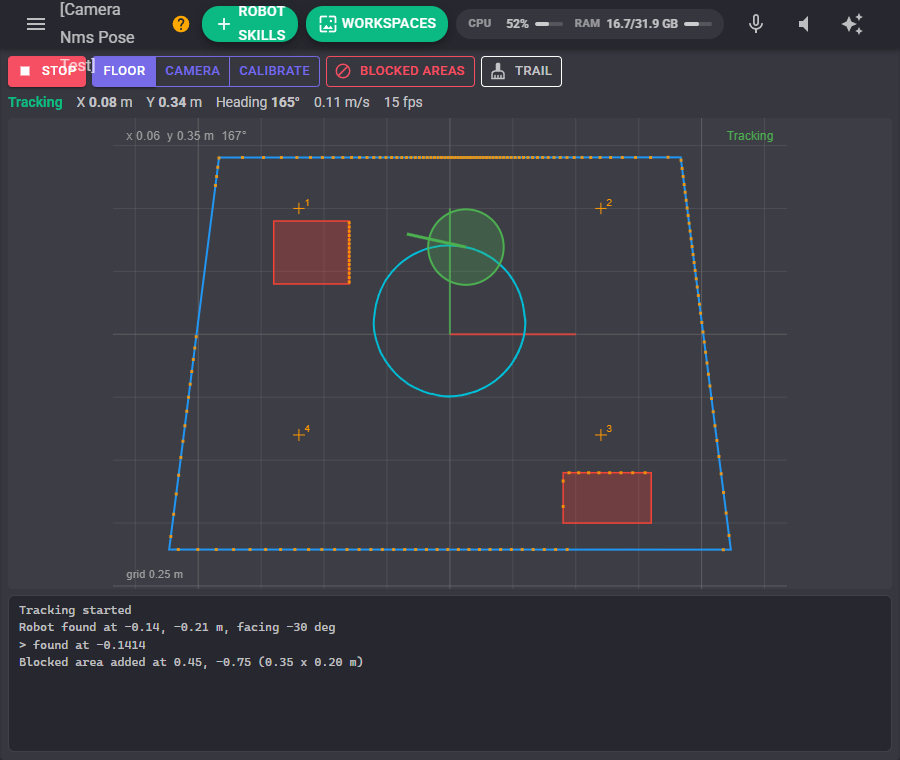
The window has three views, chosen with the buttons along the top. The status line under them shows whether the robot is being tracked, its position, heading and speed, and the camera's frame rate. Start and Stop switch tracking on and off.
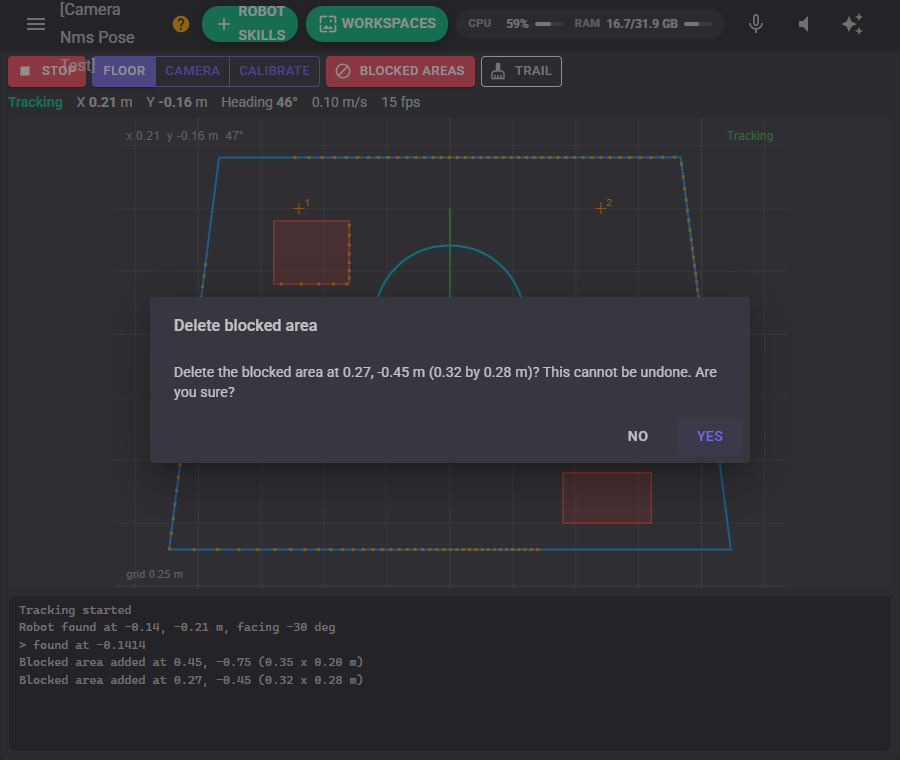
Floor
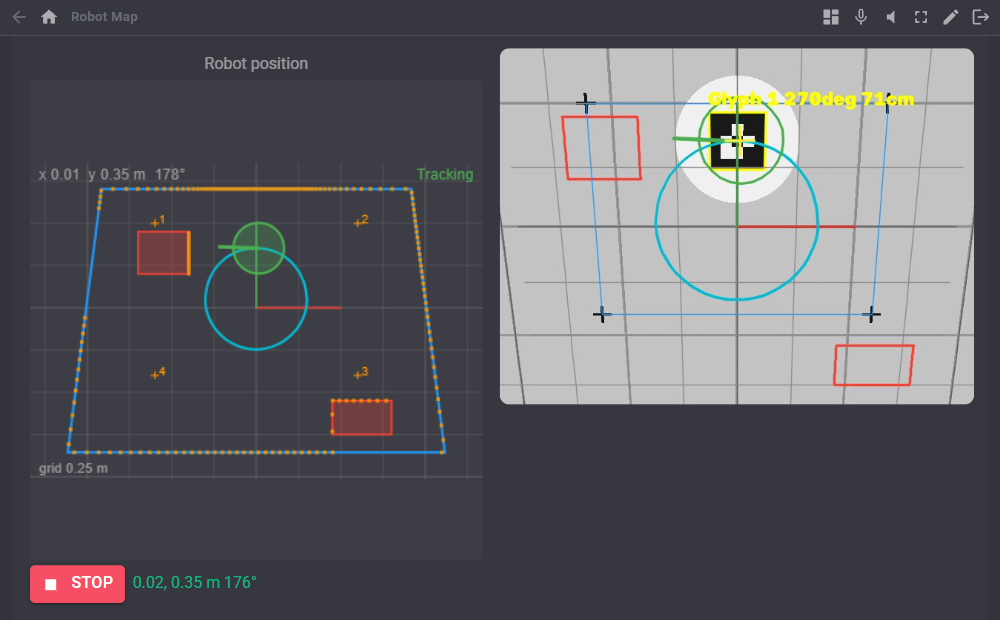
The floor seen from above, with +X to the right and +Y up the screen. It shows the area the camera can see (blue), the calibration points (numbered crosses), blocked areas (red), the virtual scan the NMS last received (orange dots), the trail the robot has driven (cyan) and the robot itself with a line showing which way it faces. The robot turns grey when it is lost. Trail clears the trail.
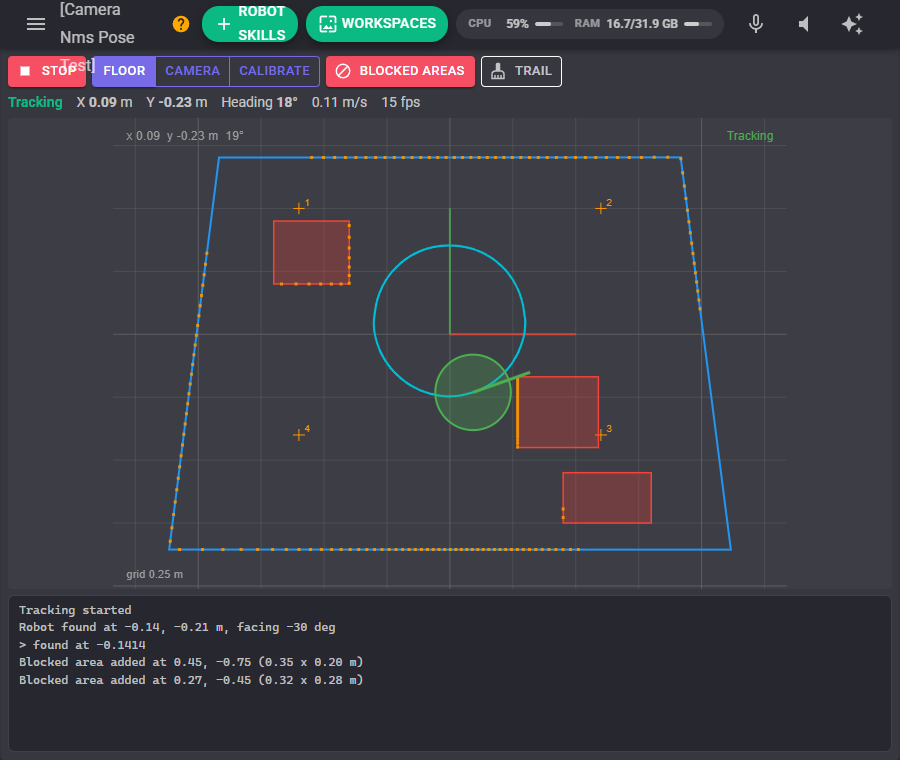
Press Blocked areas to draw rectangles the robot must not enter: drag on the map to add one, click one to remove it (you are asked first). Furniture, a rug the robot gets stuck on, or the top of the stairs are good candidates. They are reported to the NMS as walls.
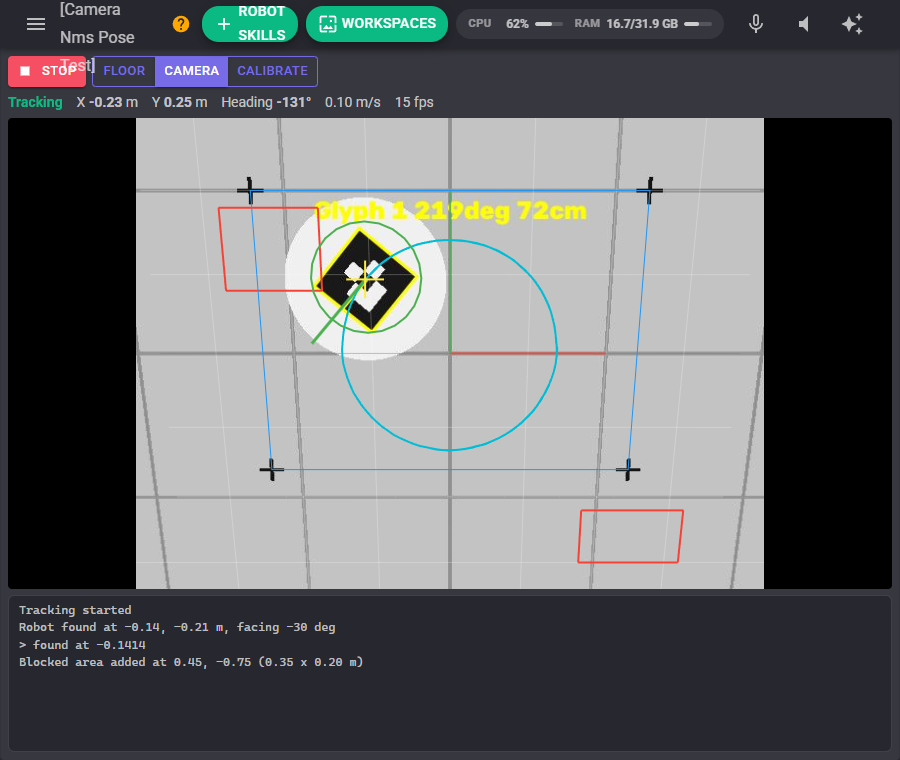
Camera
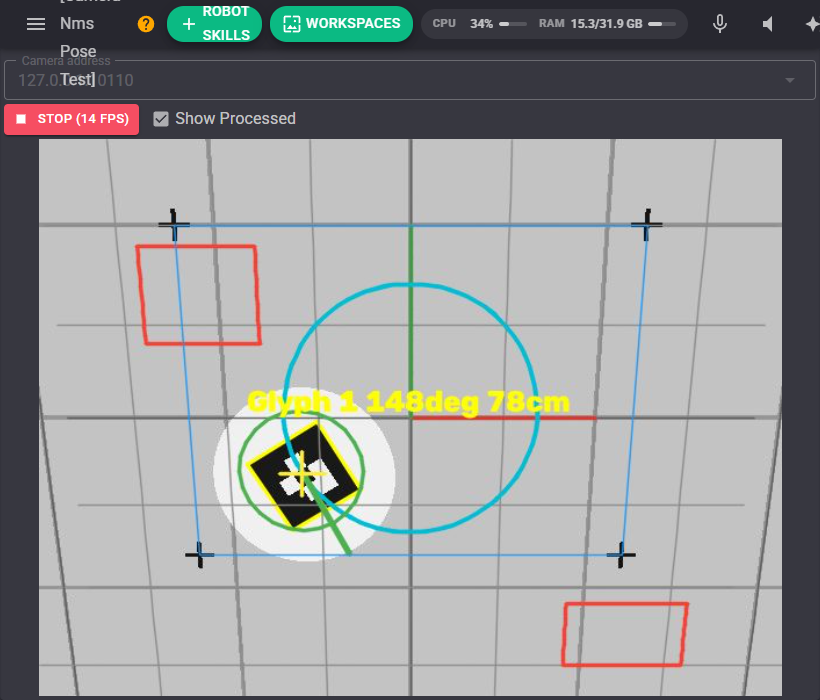
The camera picture with the tracking drawn over it: the floor grid as the calibration sees it, the calibration outline, blocked areas, the trail and the robot. When the grid lines up with lines on your real floor, the calibration is right. A yellow cross marks the marker the skill is following (and a blue cross the rear marker, with two markers).
Calibrate
This is where the picture is tied to the floor. Each numbered point is a handle on the picture with a floor position in metres beside it.
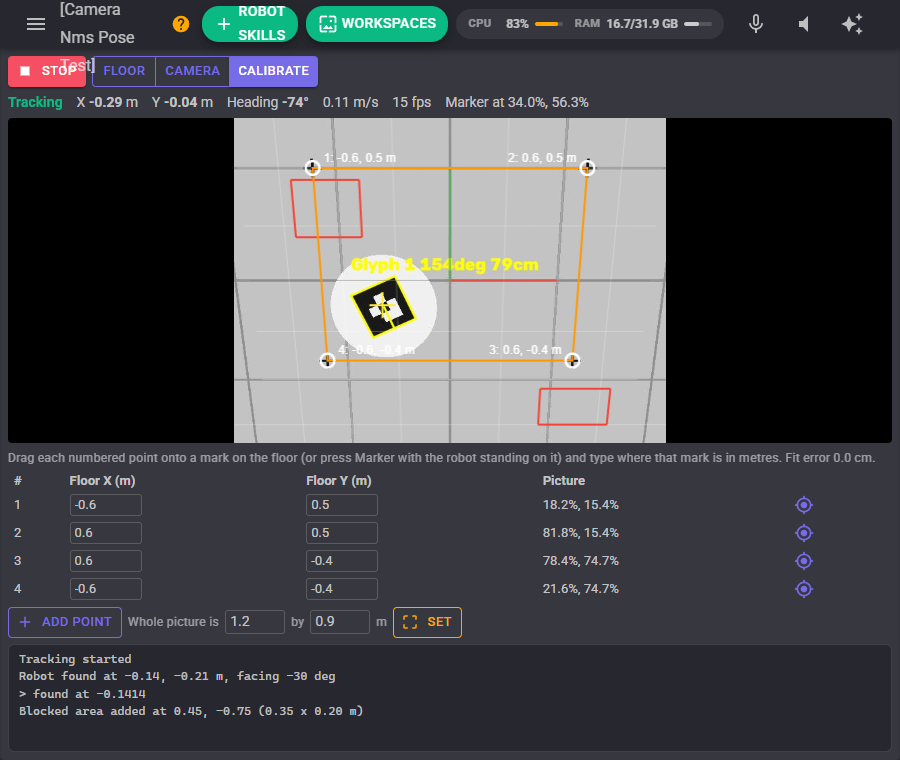
- Mark four spots on the floor, spread out towards the corners of what the camera sees (tape crosses work well), and measure where they are in metres from a point you choose as 0, 0. With the default orientation +X runs to the right of the picture and +Y up it.
- Drag each numbered handle onto its mark in the picture. Clicking an empty spot moves the selected point there.
- Type each mark's floor X and Y into the table.
The grid in the picture updates as you go, so you can see the calibration settle onto the floor. Add point adds more than four points; the fit then averages out small clicking errors and the line above the table shows how well they agree.
Calibrating with the robot is often easier and more accurate: stand the robot on each mark and press the target button on that point's row. The point jumps to wherever the marker is in the picture. Because this calibrates at the height of the marker, leave the camera and marker heights at 0 (see Calibration below). The CalibratePointHere ControlCommand does the same from a script, so a robot can calibrate itself by driving to measured spots.
For a camera that looks straight down there is a shortcut: type the width and height of floor the whole picture covers and press Set. The picture's corners become the four calibration points, centred on 0, 0.
Calibration is done in the window rather than the configuration because detection skills pause while any configuration page is open, and calibrating needs to see the marker live.
Configuration
Marker
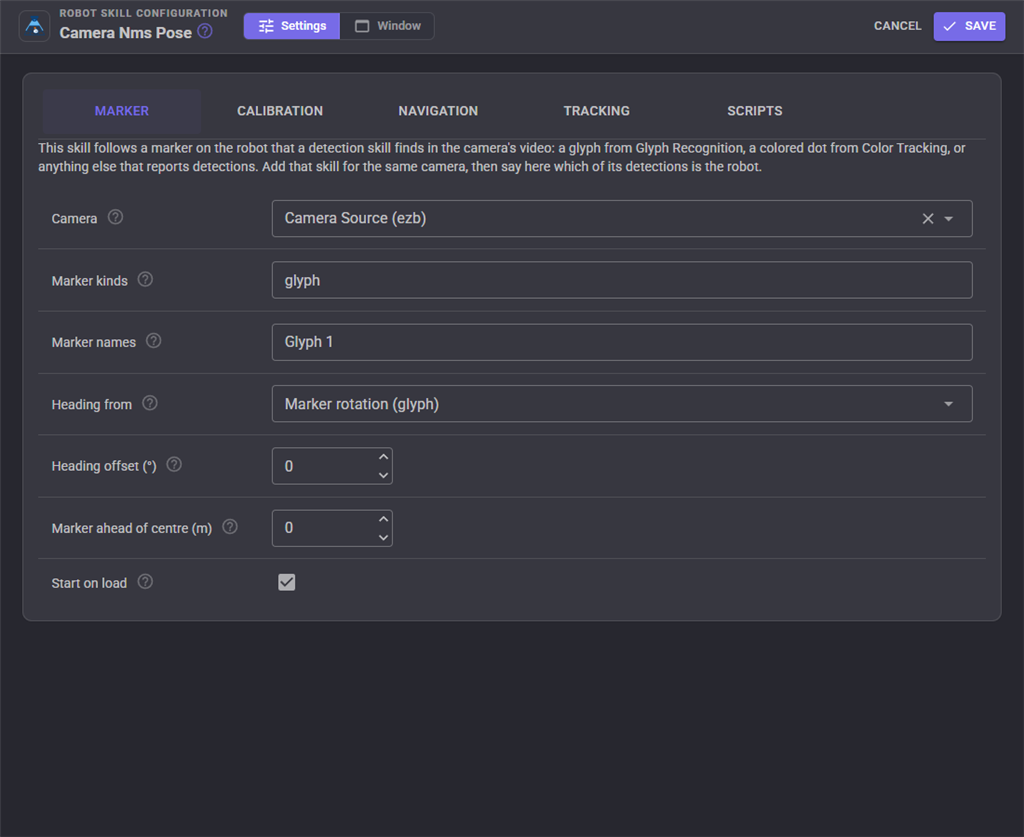
| Setting | What it does |
|---|---|
| Camera | The camera watching the robot. Empty uses the first camera in the project. |
| Marker kinds | The kinds of detection that count as the robot's marker, comma separated, such as glyph or color. * and ? are wildcards. Empty accepts every kind. |
| Marker names | The detections that count, such as Glyph 1 or red. With two markers this is the front one. |
| Heading from | Marker rotation uses the glyph's own rotation. Two markers points from a rear marker to the front one. Direction of travel uses the way the robot last moved (it cannot tell reversing from turning round, and does not change while turning on the spot). None reports position only. |
| Rear marker kinds / names | With two markers, which detections are the rear marker, such as blue. |
| Heading offset | Degrees added to the heading so it matches the way the robot drives: 0 when the glyph's printed top faces the robot's front, 90 when it faces the robot's right, -90 its left. |
| Marker ahead of centre | How far the marker sits ahead of the point the robot turns about, in metres (negative when behind). The reported position is the robot's centre. |
| Start on load | Start tracking when the project loads. |
Calibration
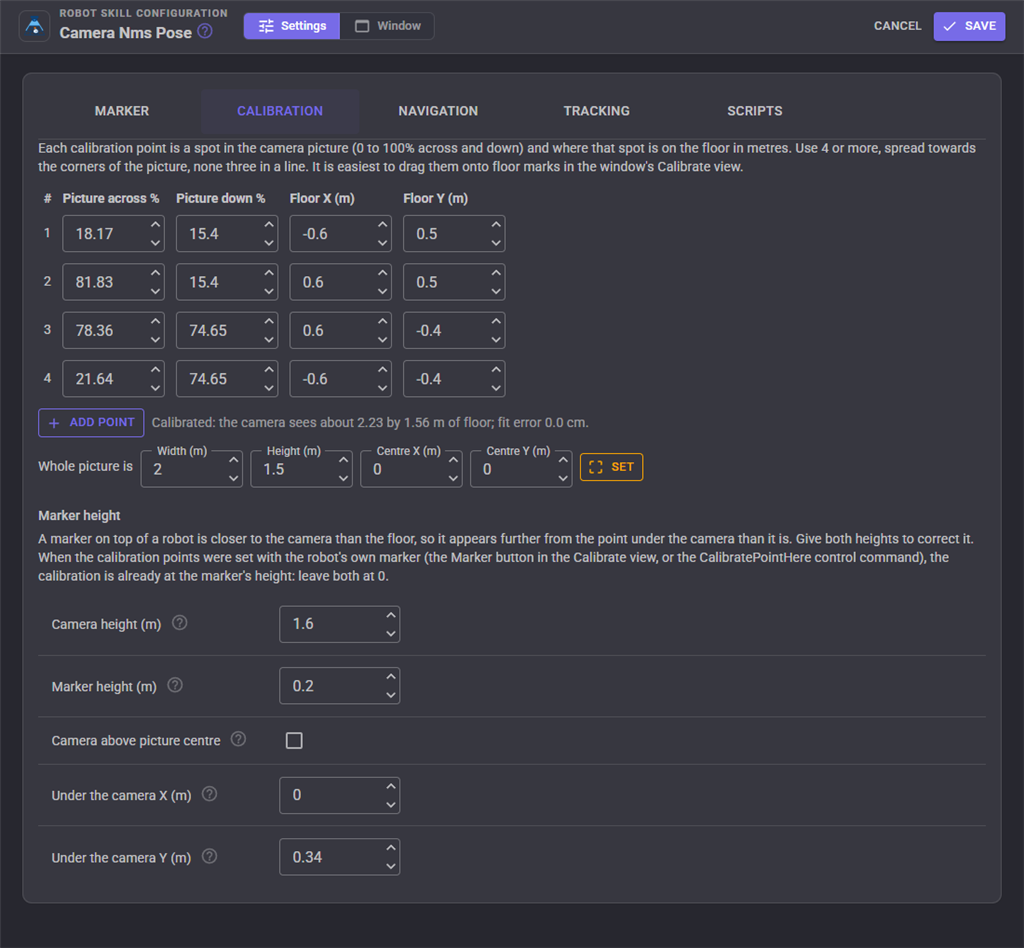
The calibration points as numbers, for typing exact values, with the same Set shortcut as the window. Under them is the marker height correction.
A marker on top of a robot is closer to the camera than the floor, so the camera sees it further out from the spot under the camera than it really is. With the camera 1.6 m up and a marker 20 cm high that is about 10 cm of error at the edge of the view. Give the camera's height and the marker's height and the skill corrects it. For a camera mounted to one side and tilted, untick Camera above picture centre and give the floor position directly under the camera.
When the points were set with the robot's own marker, the calibration is already at the marker's height, so leave both heights at 0.
Navigation
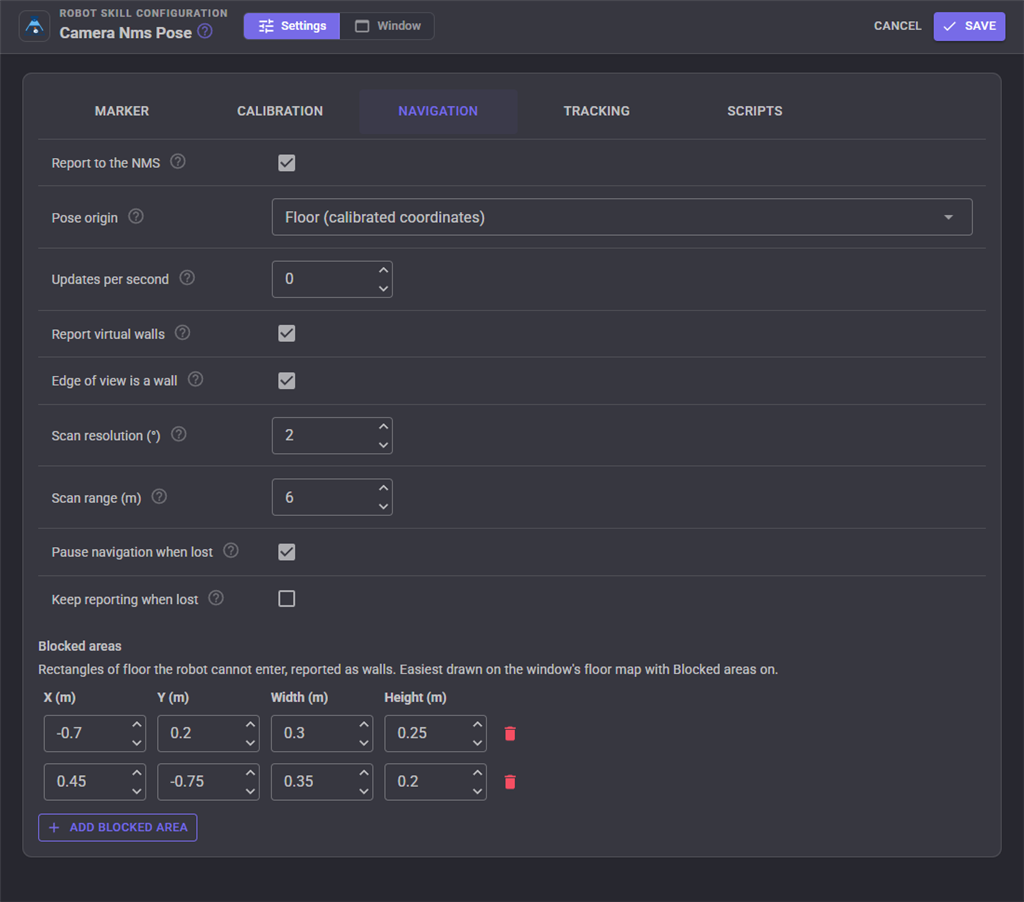
| Setting | What it does |
|---|---|
| Report to the NMS | Give the pose to the NMS, where navigators read it. |
| Pose origin | Floor reports the calibrated floor coordinates, the same every time the project runs, so a navigator's saved waypoints keep lining up. Starting pose makes wherever the robot was, facing whichever way it faced, 0, 0, 0 when tracking starts, like wheel odometry; the ResetPose ControlCommand moves that origin to where the robot is now. |
| Updates per second | The most poses per second given to the NMS. 0 sends one per camera frame. |
| Report virtual walls | Send scan points for the edge of the view and the blocked areas, so the navigator treats them as obstacles. |
| Edge of view is a wall | Turn this off when several cameras, each with its own Camera NMS Pose, cover neighbouring parts of a bigger floor, so the robot can drive from one view into the next. Calibrate each camera in the same floor coordinates. This replaces ARC's Support Multiple Cameras and NMS offset settings. |
| Scan resolution / range | Degrees between virtual scan points, and how far away walls are still reported. |
| Pause navigation when lost | Pause the navigator while the robot cannot be seen, and let it carry on when the robot is found again. Only a pause this skill made is resumed. |
| Keep reporting when lost | Keep giving the NMS the last known pose (with confidence 0) five times a second while the robot is out of view, for a navigator that needs poses to keep arriving. |
The blocked areas can also be typed in here.
Tracking
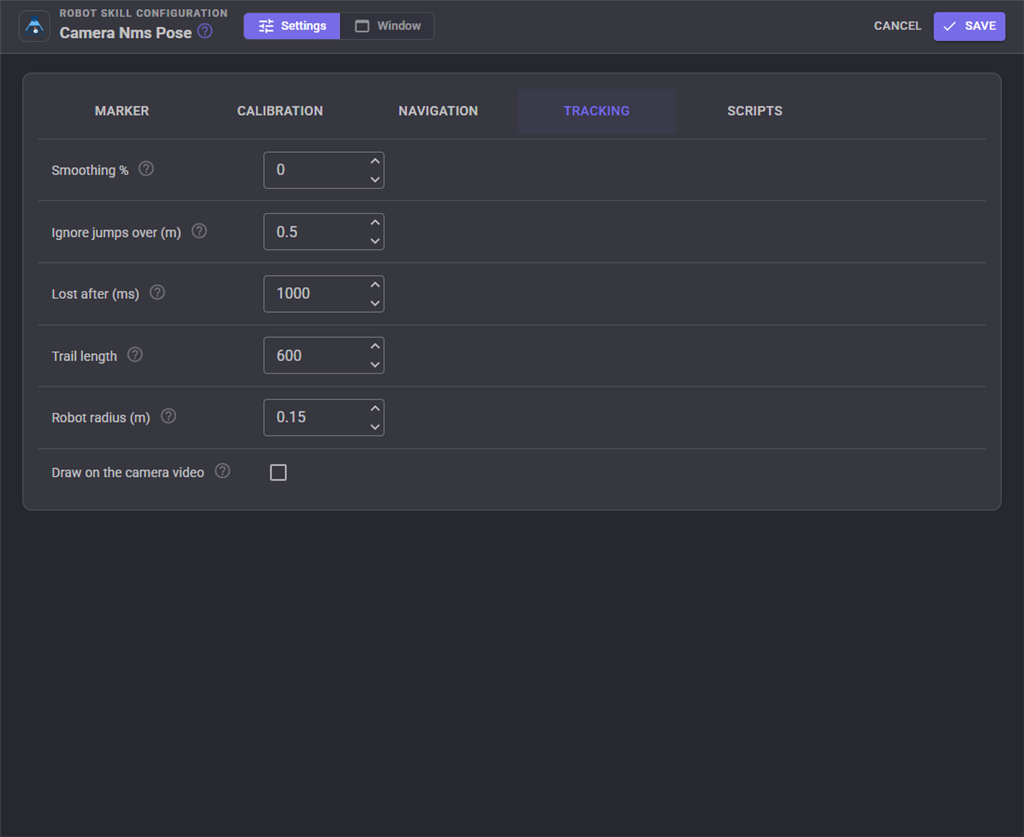
| Setting | What it does |
|---|---|
| Smoothing % | 0 reports every frame as measured; higher hides the detector's jitter but follows the robot more slowly. |
| Ignore jumps over | A detection this far from the last position is ignored as a false one (another glyph, a reflection) unless it is seen six frames in a row, which is taken to mean the robot really was picked up and moved. |
| Lost after | How long the marker can be out of view before the robot counts as lost. |
| Trail length | How many points of trail to keep, one per 2 cm driven. |
| Robot radius | The size the robot is drawn. |
| Draw on the camera video | Draw the grid, blocked areas, trail and robot onto the camera's own video, so the camera skill and any Custom UI camera view show them too. |
Scripts
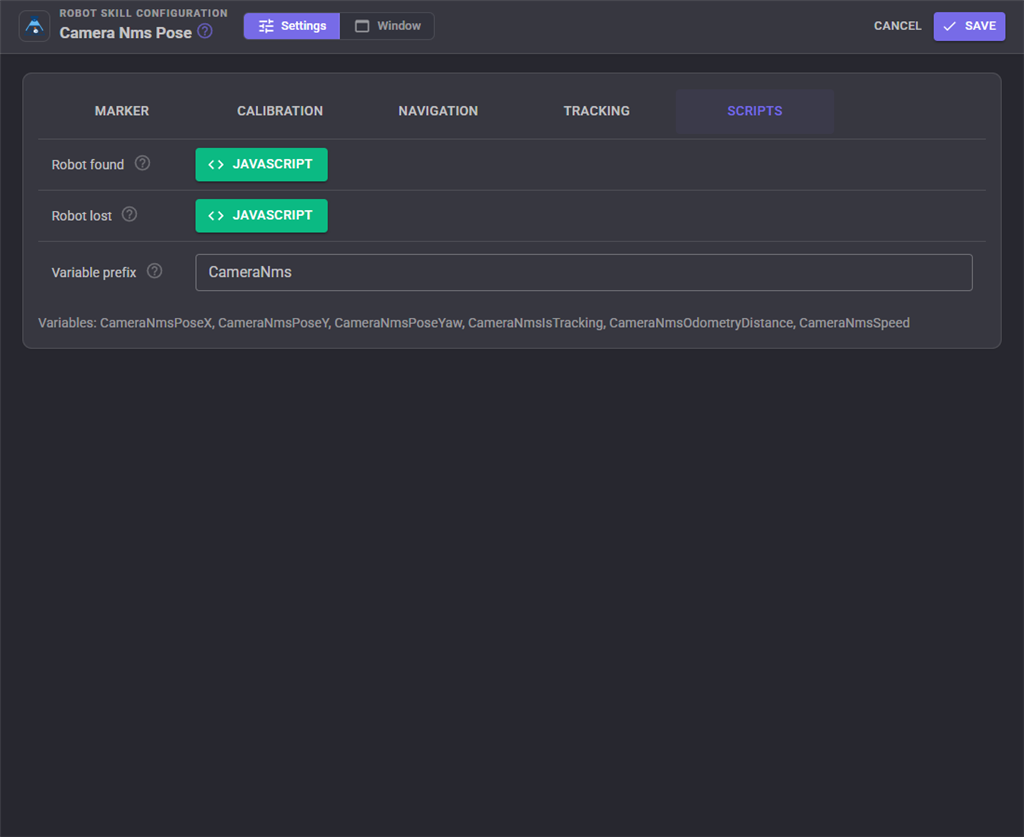
Robot found runs when the robot comes into view (including the first time after tracking starts). Robot lost runs when it has been out of view for the Lost After time. Use them to stop the robot, speak a warning or send a notification.
Variables
With the default prefix the skill sets these global variables. Positions are metres and the heading is radians, counter-clockwise, in the NMS frame chosen by Pose origin. Change the prefix when the project has more than one of these skills.
| Variable | Meaning |
|---|---|
| CameraNmsPoseX, CameraNmsPoseY | The robot's position in metres. |
| CameraNmsPoseYaw | The way it faces, in radians from -PI to PI. |
| CameraNmsIsTracking | true while the robot is in view. |
| CameraNmsOdometryDistance | Metres driven since tracking started. |
| CameraNmsSpeed | Metres per second. |
Scripts can also ask how far away a point on the floor is and which way to turn to face it, which makes "drive to the charger" a few lines of script even without a navigator.
Custom UI widget
The Floor map widget puts the floor map on a Custom UI screen, with the robot's position under it and a start/stop button. Its settings choose the caption and whether the readout and the button are shown.
AI assistants
An AI assistant connected to ARCx over MCP gets three tools from this skill: get_pose (where the robot is, how sure the skill is, and the calibrated area and blocked areas), look (the camera picture with the tracking drawn on it, to check the calibration lines up) and distance_and_angle_to (how far a point is and how far to turn to face it).
Tips
- Mount the camera as high as you can and point it as straight down as you can. The higher it is, the less the marker's height matters and the bigger the area it covers.
- Make the glyph big enough: about 15 to 20 cm across for a camera 1.5 to 2 m up. Turn on Use Full Resolution in Glyph Recognition for the most accurate position and heading.
- Even, bright lighting without glare on the glyph makes detection steadier. A matte print helps.
- Check the calibration in the Camera view: the drawn grid should sit on any straight lines on your floor, and the drawn robot should sit on the marker wherever the robot is.
- A wide angle camera bends straight lines near the edge of the picture, which a flat calibration cannot follow. Keep the calibration points and the robot's driving area away from the very edges of the picture, or use a lens with less distortion.
Control Commands for the Camera Nms Pose robot skill
There are Control Commands available for this robot skill which allows the skill to be controlled programmatically from scripts or other robot skills. These commands enable you to automate actions, respond to sensor inputs, and integrate the robot skill with other systems or custom interfaces. If you're new to the concept of Control Commands, we have a comprehensive manual available here that explains how to use them, provides examples to get you started and make the most of this powerful feature.
Control Command ManualThis robot skill has 15 control commands, listed below. Send them from a JavaScript or Python script, from Blockly, or from another robot skill.
The first value is always the window title, which is the name in the title bar of the robot skill on your workspace. It starts out as Camera NMS Pose, which is what every example below uses. If you rename the robot skill, or add a second copy of it to the project, use the title as it appears on that window instead.
ControlCommand() can be shortened to CC(), and both spellings work in JavaScript and in Python. The examples are JavaScript; Python is the same call, except that true and false are written True and False.
AddBlockedArea
Add a rectangle of floor the robot cannot enter, reported to the NMS as walls: corner x, y and size in metres, in the calibrated floor frame. Returns how many blocked areas there are.
Syntax
ControlCommand("Camera NMS Pose", "AddBlockedArea", (Number)x, (Number)y, (Number)width, (Number)height)
Parameters
| # | Name | Type | What to pass |
|---|---|---|---|
| 1 | x | Number | A number, without quotes |
| 2 | y | Number | A number, without quotes |
| 3 | width | Number | A number, without quotes |
| 4 | height | Number | A number, without quotes |
Returns: Integer [-2,147,483,648 to 2,147,483,647]
Example
var result = ControlCommand("Camera NMS Pose", "AddBlockedArea", 0, 0, 0, 0);
CalibratePointHere
Calibrate with the robot: put calibration point number (1 to 4 or more) where the marker is in the picture now, at floor position x, y metres. Drive or carry the robot to four measured spots and call this at each.
Syntax
ControlCommand("Camera NMS Pose", "CalibratePointHere", (Number)number, (Number)x, (Number)y)
Parameters
| # | Name | Type | What to pass |
|---|---|---|---|
| 1 | number | Number | A number, without quotes |
| 2 | x | Number | A number, without quotes |
| 3 | y | Number | A number, without quotes |
Returns: Boolean [true or false]
Example
var result = ControlCommand("Camera NMS Pose", "CalibratePointHere", 0, 0, 0);
ClearBlockedAreas
Remove every blocked area.
Syntax
ControlCommand("Camera NMS Pose", "ClearBlockedAreas")
Returns: Boolean [true or false]
Example
var result = ControlCommand("Camera NMS Pose", "ClearBlockedAreas");
ClearTrail
Clear the trail drawn behind the robot.
Syntax
ControlCommand("Camera NMS Pose", "ClearTrail")
Returns: Boolean [true or false]
Example
var result = ControlCommand("Camera NMS Pose", "ClearTrail");
FloorToPixel
The camera pixel [x, y] of a calibrated floor position in metres.
Syntax
ControlCommand("Camera NMS Pose", "FloorToPixel", (Number)x, (Number)y)
Parameters
| # | Name | Type | What to pass |
|---|---|---|---|
| 1 | x | Number | A number, without quotes |
| 2 | y | Number | A number, without quotes |
Returns: Array of Double
Example
var result = ControlCommand("Camera NMS Pose", "FloorToPixel", 0, 0);
GetAngleTo
The angle in radians the robot must turn to face a point given in the NMS frame: positive to turn left, negative to turn right, -PI to PI.
Syntax
ControlCommand("Camera NMS Pose", "GetAngleTo", (Number)x, (Number)y)
Parameters
| # | Name | Type | What to pass |
|---|---|---|---|
| 1 | x | Number | A number, without quotes |
| 2 | y | Number | A number, without quotes |
Returns: Double [5.0e324 to 1.7e308]
Example
var result = ControlCommand("Camera NMS Pose", "GetAngleTo", 0, 0);
GetDistanceTo
Metres from the robot's centre to a point given in the NMS frame.
Syntax
ControlCommand("Camera NMS Pose", "GetDistanceTo", (Number)x, (Number)y)
Parameters
| # | Name | Type | What to pass |
|---|---|---|---|
| 1 | x | Number | A number, without quotes |
| 2 | y | Number | A number, without quotes |
Returns: Double [5.0e324 to 1.7e308]
Example
var result = ControlCommand("Camera NMS Pose", "GetDistanceTo", 0, 0);
GetPose
The robot's pose as [x, y, yaw]: metres and radians counter-clockwise, in the NMS frame. The last known pose while the robot is out of view.
Syntax
ControlCommand("Camera NMS Pose", "GetPose")
Returns: Array of Double
Example
var result = ControlCommand("Camera NMS Pose", "GetPose");
IsRunning
True while tracking is switched on (whether or not the robot is in view).
Syntax
ControlCommand("Camera NMS Pose", "IsRunning")
Returns: Boolean [true or false]
Example
var result = ControlCommand("Camera NMS Pose", "IsRunning");
IsTracking
True while the robot's marker is in view and its pose is being reported.
Syntax
ControlCommand("Camera NMS Pose", "IsTracking")
Returns: Boolean [true or false]
Example
var result = ControlCommand("Camera NMS Pose", "IsTracking");
PixelToFloor
The calibrated floor position [x, y] in metres of a camera pixel (0,0 top left).
Syntax
ControlCommand("Camera NMS Pose", "PixelToFloor", (Number)pixelX, (Number)pixelY)
Parameters
| # | Name | Type | What to pass |
|---|---|---|---|
| 1 | pixelX | Number | A number, without quotes |
| 2 | pixelY | Number | A number, without quotes |
Returns: Array of Double
Example
var result = ControlCommand("Camera NMS Pose", "PixelToFloor", 0, 0);
ResetPose
Make the robot's current position and heading 0, 0, 0. Only when the pose origin is Starting Pose; returns false in the Floor frame.
Syntax
ControlCommand("Camera NMS Pose", "ResetPose")
Returns: Boolean [true or false]
Example
var result = ControlCommand("Camera NMS Pose", "ResetPose");
SetCalibrationArea
Calibrate the simple way: the whole picture is a rectangle of floor this many metres wide (left to right) and high (top to bottom), centred on 0, 0. For a camera looking straight down.
Syntax
ControlCommand("Camera NMS Pose", "SetCalibrationArea", (Number)widthM, (Number)heightM)
Parameters
| # | Name | Type | What to pass |
|---|---|---|---|
| 1 | widthM | Number | A number, without quotes |
| 2 | heightM | Number | A number, without quotes |
Returns: Boolean [true or false]
Example
var result = ControlCommand("Camera NMS Pose", "SetCalibrationArea", 0, 0);
Start
Start tracking the robot and reporting its pose to the NMS.
Syntax
ControlCommand("Camera NMS Pose", "Start")
Returns: Boolean [true or false]
Example
var result = ControlCommand("Camera NMS Pose", "Start");
Stop
Stop tracking. Nothing more is reported to the NMS.
Syntax
ControlCommand("Camera NMS Pose", "Stop")
Returns: Boolean [true or false]
Example
var result = ControlCommand("Camera NMS Pose", "Stop");
This list is read out of the robot skill itself each time its package is uploaded, so it matches the published version (v2).

This robot skill has been updated to v1.
What has changed
initial release
This robot skill has been updated to v2.
What has changed
updated to use some new ARCx UI features for improved performance.