
Control an OhmniLabs telepresence robot from ARCx: wheels, neck, battery, light ring, odometry, docking, and navigation support.
 Windows
 ARM
ARM
 Linux
Linux
 MacOS
MacOS
How to add the Ohmnilabs Telepresence robot skill
- Load the most recent release of ARCx on a compatible operating system (Get ARCx).
- Press the + Skills menu from the top menu bar in ARCx.
- Choose the Movement Panels category tab.
- Press the Ohmnilabs Telepresence icon to add the robot skill to your project.
Don't have a robot yet?
Follow the Getting Started Guide to build a robot and use the Ohmnilabs Telepresence robot skill.
How to use the Ohmnilabs Telepresence robot skill
Drives an OhmniLabs Ohmni telepresence robot by talking straight to its control board, the board behind the tablet that runs the wheels, the neck, the battery and the light ring. ARCx replaces the Ohmni's Android software and cloud: a computer inside the robot (or one reached through a serial bridge) runs ARCx, and the robot becomes an ARCx robot.
This is a movement panel: once it is in the project, everything in ARCx that moves the robot - the Movement Joystick, Movement.Forward() in a script, the Autonomous AI skill, a navigator, a ROS /cmd_vel binding - drives the Ohmni. Only one Movement Panel can be in a project at a time.
Besides the wheels, the skill tilts the neck from a servo port, reads the battery, cell voltages and dock contact, works out where the robot is from its wheels (and can send that to the navigation messaging system), drives a measured distance or turns a measured angle, and colors the light ring.
Requirements
- An Ohmni whose control board's USB serial cable is plugged into the computer running ARCx, or into a serial to network bridge inside the robot (ser2net on a single board computer, or an ESP32 running ESP-Link).
- The board talks at 115200 baud. Nothing else is needed: no OhmniLabs account, app or cloud.
The board's cable shows up as a serial port: COM3 or similar on Windows, /dev/ttyUSB0 on Linux. If the Ohmni's own tablet is still installed and running, unplug it from the board first, because only one program can own the port.
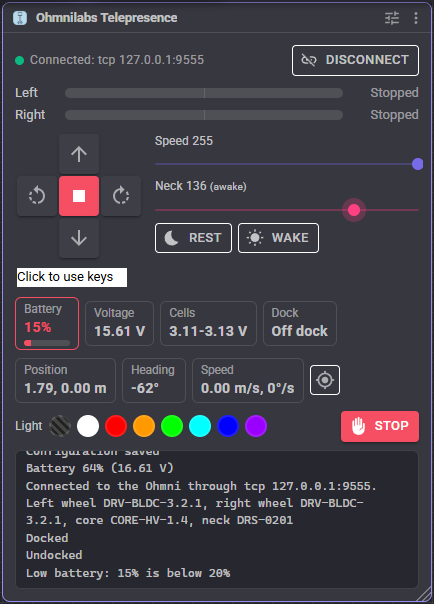
The window
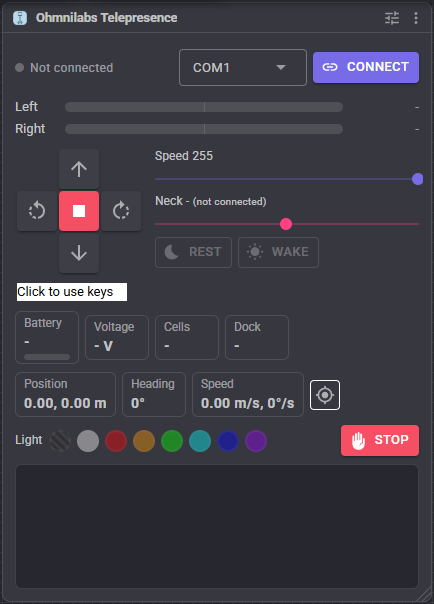
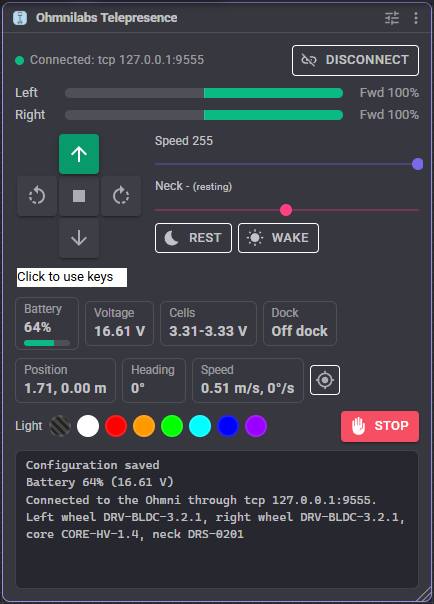
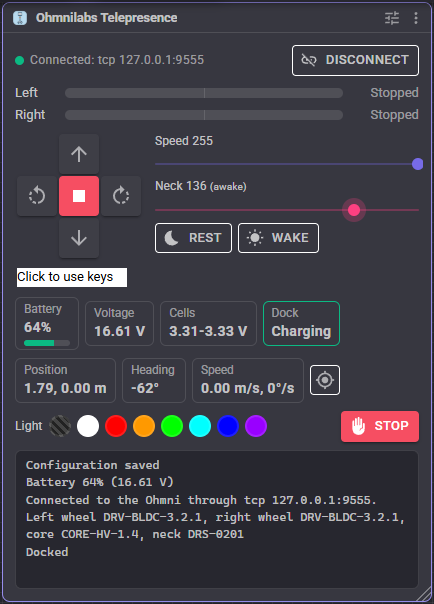
- Status and Connect - the connection's state, the serial port (while not connected) and the Connect / Disconnect button. A green dot is connected, amber is connecting or waiting to reconnect.
- Left / Right - what each wheel is being sent right now, as a bar centred on zero: green to the right is rolling the robot forward, amber to the left is rolling it backwards.
- Direction buttons - forward, spin left, stop, spin right and reverse. Click Click to use keys to drive with the arrow keys.
- Speed - the movement manager's speed, shared with every other skill and script.
- Neck - the neck's servo port position, a slider that moves it, and whether the neck is awake or resting. Rest tilts the neck back and lowers its power; Wake brings it back to full power at the slider's position.
- Battery, Voltage, Cells, Dock - the estimated charge, the pack voltage, the lowest and highest cell, and whether the robot is on its dock (and charging). The battery turns red below the low battery warning.
- Position, Heading, Speed - where the wheels say the robot is since it connected (or since the target button reset it), and how fast it is moving.
- Light - quick colors for the light ring. The striped one turns it off.
- Stop - stops the wheels at once, including a DriveDistance or Turn in progress.
- The log, which says what the skill is doing and anything that went wrong.
Connecting
Choose the serial port and press Connect. The skill checks that an Ohmni answers (an empty or wrong port is reported, not treated as connected), reads the firmware of the wheel controllers and the core board and the neck servo's model, reboots the wheel and neck servos to clear any errors they latched, stops the wheels with their torque on, sets the neck up and colors the light ring if asked. That takes about a second.
If the connection is lost - the cable was pulled, the robot was switched off, the bridge hung up - the robot is stopped, the Disconnected script runs, and with Reconnect automatically on the skill tries again every 3 seconds until it is back or Disconnect is pressed. Tick Connect when the project loads to connect without pressing anything.
How the wheels are driven
In Velocity mode (the default) the skill sends wheel speeds to the wheel controllers' own speed loop, exactly as Ohmni's software does: 800 for full speed driving and 450 for spinning, scaled down by the movement manager's speed. The controllers hold that speed up slopes and over carpet, and they stop by themselves if commands stop arriving, so the skill sends them again every 100 ms while the robot moves. If ARCx crashes or the cable comes out, the robot stops on its own.
When the robot spins on the spot the skill also tells the controllers so, as Ohmni's software does, and tells them the spin has ended 400 ms after it ends. That is what keeps the end of a spin from lurching.
In PWM mode the skill sends a fixed motor power instead, as the ARC version did. The robot slows on carpet and slopes, and a stop switches the wheel torque off so the robot rolls freely.
The neck
The neck tilts the tablet. It follows a servo port, V0 by default as in the ARC version, so anything that moves that port moves the neck: the slider in the window, a script's Servo.setPosition(v0, 120), Auto Position, a joystick, face tracking. The port's lowest position (1) tilts the neck to Neck at the lowest position and its highest to Neck at the highest position, in the neck servo's own units (about a third of a degree each). The defaults are the ARC version's.
Like Ohmni's software, the skill rests the neck between uses: it tilts back to the rest position and drops to low power, enough to hold the tablet's weight but soft enough to give way when pushed. The next move of the port wakes it. Releasing the port rests it the same way rather than letting the tablet fall. Moves arrive at most every 50 ms and the newest always gets through, so the neck never stops short of a quick slide.
Asking ARCx for the port's realtime position reads it from the neck servo itself.
Battery and dock
The skill asks the core board for the battery every second. Older core boards report three cells, newer ones five; each cell is about 3.3 V. The charge is estimated from the lowest cell, using the steps Ohmni's own software uses, so treat it as a guide rather than a fuel gauge.
When the robot arrives on or leaves its dock the Docked or Undocked script runs, and when the charge falls below Low battery warning the Low battery script runs, so a script can send the robot home.
| Variable (with the default prefix) | Meaning |
|---|---|
$OhmniConnected |
True while the board is connected. |
$OhmniBattery1 to $OhmniBattery5 |
Each cell's voltage in volts (0 for cells a three cell robot does not have). |
$OhmniBatteryVoltage |
The pack voltage in volts. |
$OhmniBatteryPercent |
The estimated charge in percent. |
$OhmniLowBattery |
True while the charge is below the low battery warning. |
$OhmniDocked |
True while the robot is on its dock. |
$OhmniCurrent |
The charge current the core board reports, negative while discharging (newer core boards only). |
$OhmniFetStatus |
The core board's charge switch state (newer core boards only). |
Position, DriveDistance and Turn
Each wheel controller counts its wheel's turns. The skill reads both counts ten times a second and works out where the robot is: metres forward and to the left of where it connected, and its heading counter-clockwise, the same frame ROS uses. Tick Send the position to the NMS to give it to navigation skills; leave it off if another skill, such as a lidar with SLAM, already sends the position.
The DriveDistance and Turn control commands drive a measured distance in metres or turn a measured angle in radians using that position, slowing down near the end to stop on the mark, and return how far the robot actually went. If DriveDistance is consistently long or short, adjust Wheel diameter; if Turn is, adjust Wheel base.
Testing
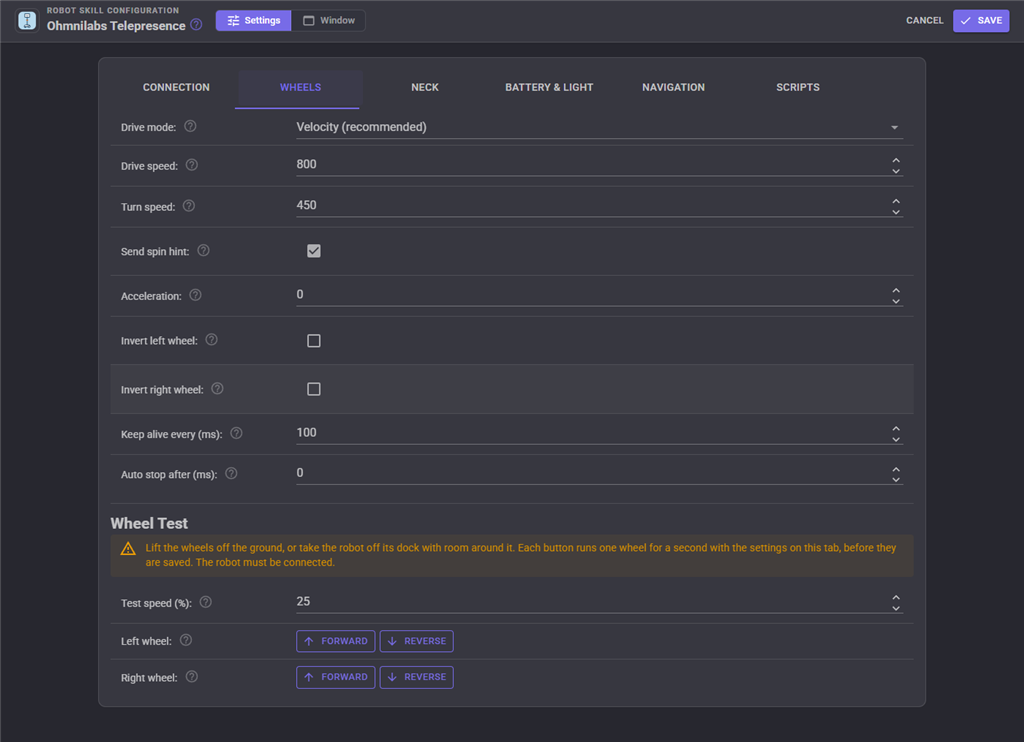
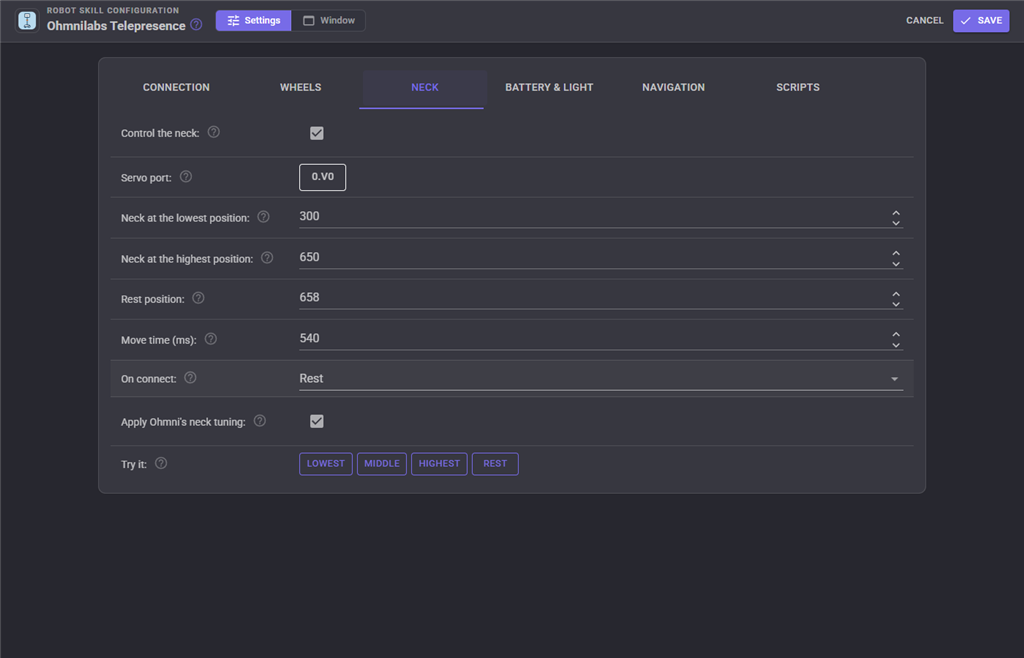
With the robot connected and its wheels off the ground (or with room around it), the wheel test on the Wheels tab runs one wheel for a second with the settings on the page, before they are saved. Forward should roll that wheel the way that drives the robot forward; if it turns backwards, tick Invert for that wheel. The neck buttons on the Neck tab move the neck to the lowest, middle, highest and rest positions so you can see them before saving.
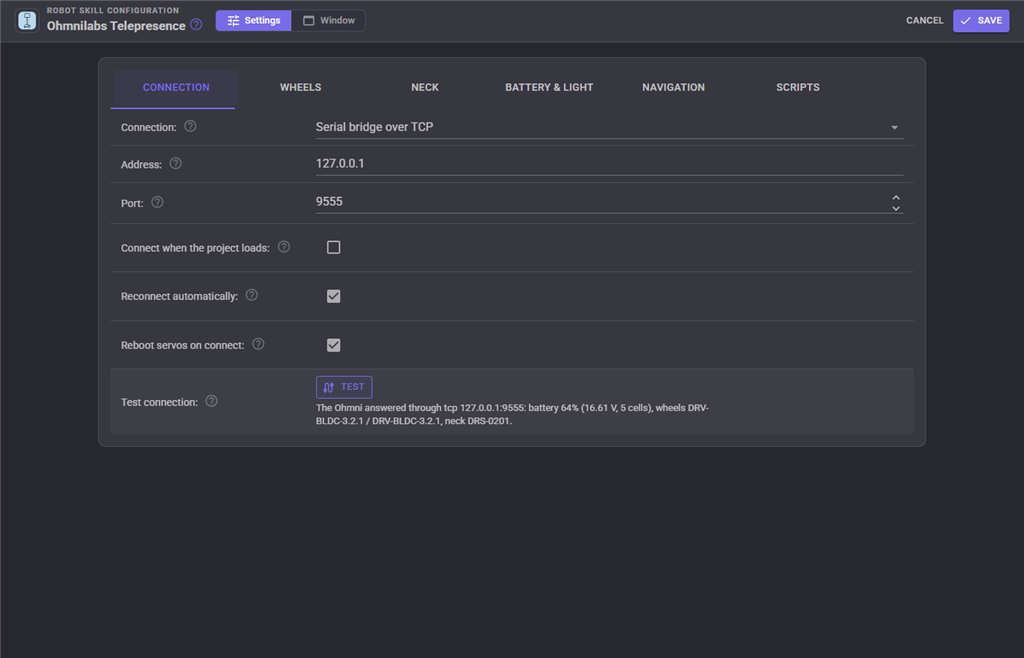
The Test button on the Connection tab works without connecting: it opens the port, asks the board for its battery and firmware, and closes it again.
Configuration
The configuration has six tabs.
Connection - how the board is reached, connecting on load, reconnecting, rebooting the servos, and the connection test.
Wheels - the drive mode, speeds, inversion, keep alive, auto stop and the wheel test (above).
Neck - the servo port, its range, rest, move time and what the neck does on connect.
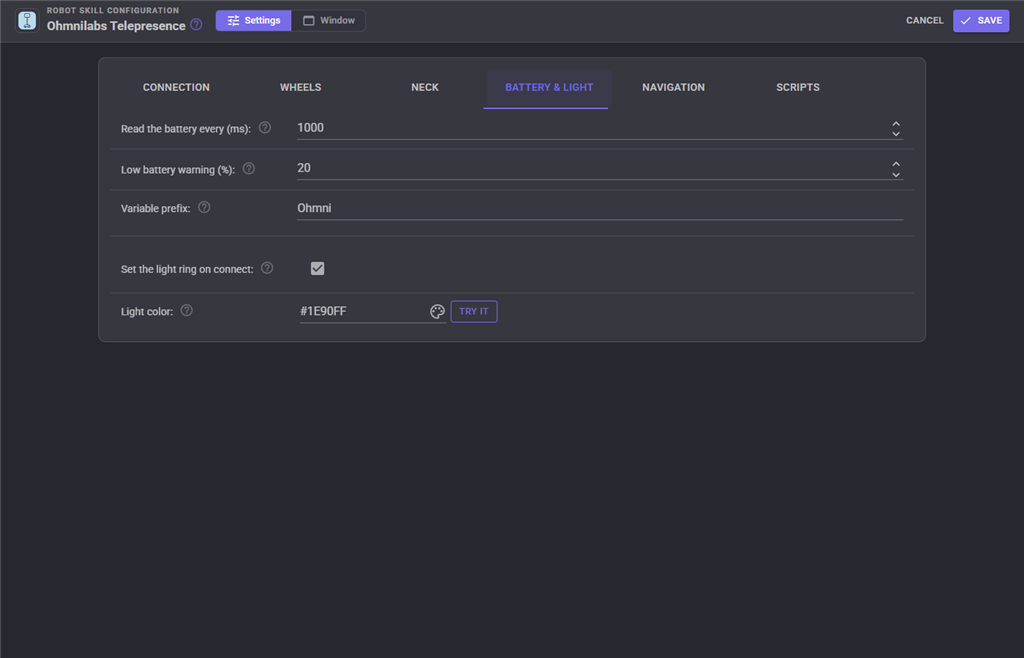
Battery & Light - the battery reading, the low battery warning, the variable prefix and the light ring color.
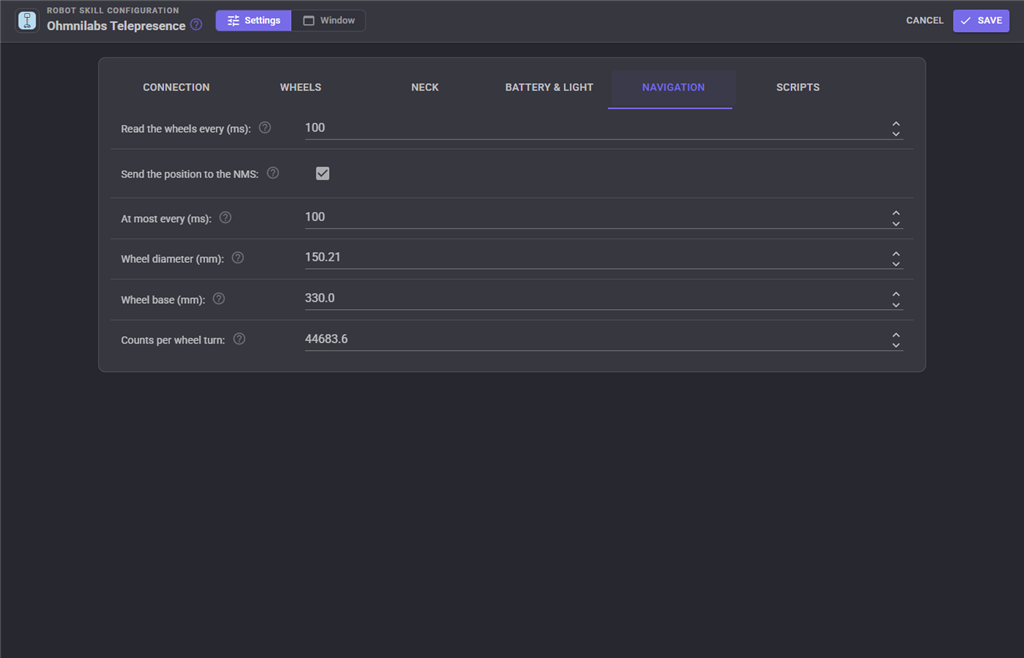
Navigation - odometry, sending the position to the NMS, and the wheel geometry.
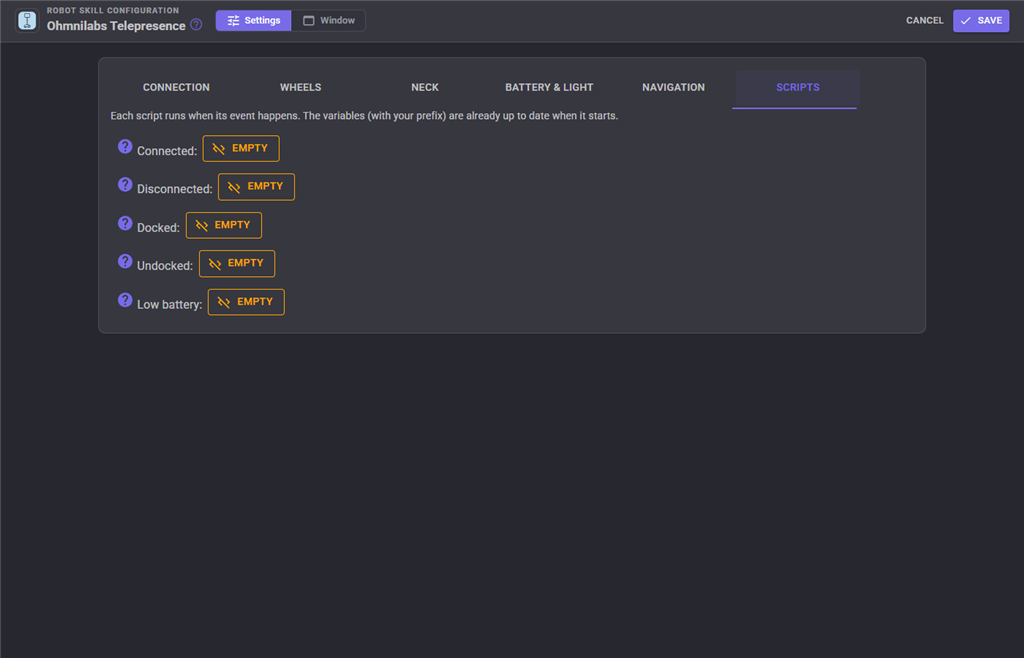
Scripts - the event scripts.
| Setting | Meaning |
|---|---|
| Connection | A serial port on this computer, or a serial bridge over TCP. |
| Serial port / Baud rate | The board's port, and 115200. |
| Address / Port | The TCP serial bridge's address and port. |
| Connect when the project loads | Connect without pressing Connect. |
| Reconnect automatically | Try a lost connection again every 3 seconds. |
| Reboot servos on connect | Reboot the wheel and neck servos when connecting, clearing latched errors. |
| Drive mode | Velocity (the wheels' speed loop) or PWM (fixed power, as the ARC version). |
| Drive speed / Turn speed | Velocity mode: the wheel speed at speed 255. Ohmni's software uses 800 and 450. |
| Drive power / Turn power | PWM mode: the motor power at speed 255, up to 1023. |
| Send spin hint | Tell the wheel controllers when the robot spins on the spot. |
| Acceleration | The wheel controllers' acceleration, sent on connect. 0 leaves it alone; Ohmni's software uses 6500. Kept in the controllers' flash. |
| Invert left / right wheel | Reverse that wheel. The odometry follows. |
| Keep alive every (ms) | How often a moving robot's wheel command is sent again. |
| Auto stop after (ms) | Stop after this long without a change of direction or speed. 0 is off. |
| Test speed (%) | How fast the wheel test runs. Not saved. |
| Control the neck | Whether the skill moves the neck at all. |
| Servo port | The port the neck follows. |
| Neck at the lowest / highest position | The neck servo's position at the port's lowest and highest. Swap them to reverse the direction. |
| Rest position | Where the neck rests. |
| Move time (ms) | How long each neck move takes. |
| On connect | Rest, move to a position, or leave the neck where it is. |
| Start position | Where the neck moves on connect, when On connect is a position. |
| Apply Ohmni's neck tuning | Give the neck servo the power limit and gains Ohmni's software gives it. |
| Read the battery every (ms) | 0 is off. |
| Low battery warning (%) | 0 is off. |
| Variable prefix | The start of the variable names. |
| Set the light ring on connect / Light color | Color the ring when connecting. Try it shows the color now. |
| Read the wheels every (ms) | How often the odometry is read. 0 turns the position, DriveDistance and Turn off. |
| Send the position to the NMS / At most every (ms) | Publish the position for navigation skills. |
| Wheel diameter / Wheel base / Counts per wheel turn | The wheel geometry, from Ohmni's software. |
Custom UI widget
The skill offers an Ohmni Status widget for your own Custom UI screens: the battery charge as a big number with a bar, the pack voltage, whether the robot is docked and connected, and an optional Stop button. Put it beside a joystick widget on a phone screen.
| Widget setting | Meaning |
|---|---|
| Caption | The label at the top. |
| ShowStopButton | true or false, whether the Stop button is shown. |
Coming from the ARC version
The ARC version ("Ohmnilabs Standalone") connected to a COM port, drove the wheels with a fixed power, moved the neck from V0, and set battery variables. With Drive mode set to PWM and the neck settings at their defaults, this skill drives and tilts exactly as it did. The Connect and Disconnect control commands, the Connection script and the $Ohmni... variable names are kept.
Fixed along the way: the ARC version read the battery words in the wrong byte order (its battery numbers were meaningless), dropped the newer boards' charge current, rebooted the left wheel three times instead of each servo once, could lose sync with the board after a single bad byte, and dropped neck moves that arrived within 50 ms of each other, so the neck could stop short of where it was sent. $OhmniBattery1 to $OhmniBattery5 are now each cell's voltage in volts.
New: velocity drive with the controllers' safety timeout, the spin hint, reconnecting, the connection check, the neck's rest and wake, the real neck position, the dock and low battery scripts, the battery estimate, odometry with DriveDistance, Turn and the NMS position, the light ring, the TCP serial bridge, the wheel and neck tests, auto stop, the live readouts and the Custom UI widget.
Troubleshooting
| Symptom | Cause |
|---|---|
| "Nothing answered like an Ohmni control board" | The wrong port, the robot is switched off, or the baud rate is not 115200. |
| "Access is denied" or the port is in use | Another program owns the port: the Ohmni's tablet, a serial terminal, or a second copy of ARCx. |
| The robot drives backwards, or spins when told to go forward | Run the wheel test and tick Invert for each wheel that turns the wrong way. |
| The robot stops by itself every half second while driving | The keep alive is not getting through often enough. Lower Keep alive every, or check the cable or bridge. |
| The robot stops by itself after a while | Auto stop after is set. Raise it or set it to 0. |
| The neck does not move | Control the neck is off, the servo port is not the one being moved, or the neck latched an overload; pressing Wake or the ClearServoErrors ControlCommand clears it. |
| The neck moves the wrong way | Swap Neck at the lowest position and Neck at the highest position. |
| DriveDistance or Turn says the robot is not moving | It is stuck or on its dock, or the odometry is not being read (Read the wheels every is 0). |
| The position drifts | Odometry from wheels always drifts; reset it with the target button or ResetPose, or let a lidar skill provide the position instead. |
| Two movement panels in the project | Remove one; only one Movement Panel is supported. |
Control Commands for the Ohmnilabs Telepresence robot skill
There are Control Commands available for this robot skill which allows the skill to be controlled programmatically from scripts or other robot skills. These commands enable you to automate actions, respond to sensor inputs, and integrate the robot skill with other systems or custom interfaces. If you're new to the concept of Control Commands, we have a comprehensive manual available here that explains how to use them, provides examples to get you started and make the most of this powerful feature.
Control Command ManualThis robot skill has 21 control commands, listed below. Send them from a JavaScript or Python script, from Blockly, or from another robot skill.
The first value is always the window title, which is the name in the title bar of the robot skill on your workspace. It starts out as Ohmnilabs Telepresence, which is what every example below uses. If you rename the robot skill, or add a second copy of it to the project, use the title as it appears on that window instead.
ControlCommand() can be shortened to CC(), and both spellings work in JavaScript and in Python. The examples are JavaScript; Python is the same call, except that true and false are written True and False.
ClearServoErrors
Clear the error the wheel and neck servos latch after an overload, which makes them ignore commands until cleared. Reconnecting (with Reboot servos on connect) does the same more thoroughly.
Syntax
ControlCommand("Ohmnilabs Telepresence", "ClearServoErrors")
Returns: nothing
Example
ControlCommand("Ohmnilabs Telepresence", "ClearServoErrors");
Connect
Connect to the Ohmni's control board and set the robot up, waiting up to 10 seconds. Returns true when connected. A serial port (such as "COM3" or "/dev/ttyUSB0") may be passed as an extra parameter, as in the ARC version; it is then saved in the configuration.
Syntax
ControlCommand("Ohmnilabs Telepresence", "Connect")
Returns: Boolean [true or false]
Example
var result = ControlCommand("Ohmnilabs Telepresence", "Connect");
Disconnect
Stop the wheels and close the connection to the Ohmni.
Syntax
ControlCommand("Ohmnilabs Telepresence", "Disconnect")
Returns: nothing
Example
ControlCommand("Ohmnilabs Telepresence", "Disconnect");
DriveDistance
Drive straight for a distance in metres (negative reverses), measured by the wheels' odometry, at a percent (5 to 100) of the configured drive speed. Blocks until done and returns the distance actually driven, in metres.
Syntax
ControlCommand("Ohmnilabs Telepresence", "DriveDistance", (Number)metres, (Number)speedPercent)
Parameters
| # | Name | Type | What to pass |
|---|---|---|---|
| 1 | metres | Number | A number, without quotes |
| 2 | speedPercent | Number | A number, without quotes |
Returns: Double [5.0e324 to 1.7e308]
Example
var result = ControlCommand("Ohmnilabs Telepresence", "DriveDistance", 0, 0);
GetBatteryPercent
The estimated battery charge in percent, from the lowest cell's voltage (the median of the last five readings). -1 when there is no reading yet.
Syntax
ControlCommand("Ohmnilabs Telepresence", "GetBatteryPercent")
Returns: Double [5.0e324 to 1.7e308]
Example
var result = ControlCommand("Ohmnilabs Telepresence", "GetBatteryPercent");
GetBatteryVoltage
The battery pack's voltage (the cells added up), in volts. 0 when there is no reading yet.
Syntax
ControlCommand("Ohmnilabs Telepresence", "GetBatteryVoltage")
Returns: Double [5.0e324 to 1.7e308]
Example
var result = ControlCommand("Ohmnilabs Telepresence", "GetBatteryVoltage");
GetCellVoltages
Each battery cell's voltage, in volts (three on older robots, five on newer ones). Empty when there is no reading yet.
Syntax
ControlCommand("Ohmnilabs Telepresence", "GetCellVoltages")
Returns: Array of Double
Example
var result = ControlCommand("Ohmnilabs Telepresence", "GetCellVoltages");
GetFirmware
The firmware tags of the wheel controllers and the core board, and the neck servo's model, as read when the board connected.
Syntax
ControlCommand("Ohmnilabs Telepresence", "GetFirmware")
Returns: String
Example
var result = ControlCommand("Ohmnilabs Telepresence", "GetFirmware");
GetPose
The robot's position from its wheels since the connection or the last ResetPose, as [x, y, yaw]: metres forward, metres to the left, and radians counter-clockwise.
Syntax
ControlCommand("Ohmnilabs Telepresence", "GetPose")
Returns: Array of Double
Example
var result = ControlCommand("Ohmnilabs Telepresence", "GetPose");
IsConnected
Whether the Ohmni's control board is connected and answering.
Syntax
ControlCommand("Ohmnilabs Telepresence", "IsConnected")
Returns: Boolean [true or false]
Example
var result = ControlCommand("Ohmnilabs Telepresence", "IsConnected");
IsDocked
Whether the robot is on its charging dock (the dock contacts are touching).
Syntax
ControlCommand("Ohmnilabs Telepresence", "IsDocked")
Returns: Boolean [true or false]
Example
var result = ControlCommand("Ohmnilabs Telepresence", "IsDocked");
PlayLightAnimation
Play the light ring's boot animation.
Syntax
ControlCommand("Ohmnilabs Telepresence", "PlayLightAnimation")
Returns: nothing
Example
ControlCommand("Ohmnilabs Telepresence", "PlayLightAnimation");
ReadRegister
Advanced: read a RAM register of one servo or controller on the board (id 0 left wheel, 1 right wheel, 3 neck, 20 light ring). Returns the register's bytes, or an empty array when it did not answer.
Syntax
ControlCommand("Ohmnilabs Telepresence", "ReadRegister", (Number)id, (Number)address, (Number)length)
Parameters
| # | Name | Type | What to pass |
|---|---|---|---|
| 1 | id | Number | A number, without quotes |
| 2 | address | Number | A number, without quotes |
| 3 | length | Number | A number, without quotes |
Returns: Array of Integer
Example
var result = ControlCommand("Ohmnilabs Telepresence", "ReadRegister", 0, 0, 0);
ResetPose
Make the robot's current position the origin: x 0, y 0, yaw 0.
Syntax
ControlCommand("Ohmnilabs Telepresence", "ResetPose")
Returns: nothing
Example
ControlCommand("Ohmnilabs Telepresence", "ResetPose");
RestHead
Rest the neck: tilt it to the rest position and drop to low power, as Ohmni's own software does between calls. The next move of the neck's servo port wakes it.
Syntax
ControlCommand("Ohmnilabs Telepresence", "RestHead")
Returns: nothing
Example
ControlCommand("Ohmnilabs Telepresence", "RestHead");
SendPacket
Advanced: send one raw packet to the board. The header and checksums are added: give the id, the command (such as 3 for a RAM write) and the data bytes as hex ("34 01 60") or decimal with commas ("52,1,96"). Do not use it to drive the wheels, which the Movement Panel owns.
Syntax
ControlCommand("Ohmnilabs Telepresence", "SendPacket", (Number)id, (Number)command, (String)data)
Parameters
| # | Name | Type | What to pass |
|---|---|---|---|
| 1 | id | Number | A number, without quotes |
| 2 | command | Number | A number, without quotes |
| 3 | data | Text | Your text, in quotes |
Returns: nothing
Example
ControlCommand("Ohmnilabs Telepresence", "SendPacket", 0, 0, "data");
SetLightColor
Set the light ring's color, as #RRGGBB (such as #FF0000 for red, #000000 for off).
Syntax
ControlCommand("Ohmnilabs Telepresence", "SetLightColor", (String)color)
Parameters
| # | Name | Type | What to pass |
|---|---|---|---|
| 1 | color | Text | Your text, in quotes |
Returns: nothing
Example
ControlCommand("Ohmnilabs Telepresence", "SetLightColor", "color");
SetLightHSV
Set the light ring's color as hue, saturation and value, each 0 to 255 (hue 0 is red, about 80 green, about 160 blue).
Syntax
ControlCommand("Ohmnilabs Telepresence", "SetLightHSV", (Number)hue, (Number)saturation, (Number)value)
Parameters
| # | Name | Type | What to pass |
|---|---|---|---|
| 1 | hue | Number | A number, without quotes |
| 2 | saturation | Number | A number, without quotes |
| 3 | value | Number | A number, without quotes |
Returns: nothing
Example
ControlCommand("Ohmnilabs Telepresence", "SetLightHSV", 0, 0, 0);
StopNow
Stop the wheels at once, including a DriveDistance or Turn in progress.
Syntax
ControlCommand("Ohmnilabs Telepresence", "StopNow")
Returns: nothing
Example
ControlCommand("Ohmnilabs Telepresence", "StopNow");
Turn
Spin on the spot by an angle in radians (positive turns left, counter-clockwise; negative right), measured by the wheels' odometry, at a percent (5 to 100) of the configured turn speed. Blocks until done and returns the angle actually turned, in radians.
Syntax
ControlCommand("Ohmnilabs Telepresence", "Turn", (Number)radians, (Number)speedPercent)
Parameters
| # | Name | Type | What to pass |
|---|---|---|---|
| 1 | radians | Number | A number, without quotes |
| 2 | speedPercent | Number | A number, without quotes |
Returns: Double [5.0e324 to 1.7e308]
Example
var result = ControlCommand("Ohmnilabs Telepresence", "Turn", 0, 0);
WakeHead
Wake the neck: full power, at the neck servo port's current position.
Syntax
ControlCommand("Ohmnilabs Telepresence", "WakeHead")
Returns: nothing
Example
ControlCommand("Ohmnilabs Telepresence", "WakeHead");
This list is read out of the robot skill itself each time its package is uploaded, so it matches the published version (v4).

This robot skill has been updated to v1.
What has changed
first release
This robot skill has been updated to v2.
What has changed
performance fix. uses less cpu on uart read
This robot skill has been updated to v3.
What has changed
fix querying battery voltage
This robot skill has been updated to v4.
What has changed
updated to use some new ARCx UI features for improved performance.