Design, edit and export structured Blockly-based lessons, groups and hints for ARC Lite Portable; supports rich HTML, images, JSON import/export.
 Windows
How to add the EDU Activity Editor robot skill
- Load the most recent release of ARC (Get ARC).
- Press the Project tab from the top menu bar in ARC.
- Press Add Robot Skill from the button ribbon bar in ARC.
- Choose the Misc category tab.
- Press the EDU Activity Editor icon to add the robot skill to your project.
Don't have a robot yet?
Follow the Getting Started Guide to build a robot and use the EDU Activity Editor robot skill.
How to use the EDU Activity Editor robot skill
The Edu Activity Editor robot skill is used to create and manage educational programming content for the ARC Lite Portable education app. Educators can design structured learning experiences using Blockly programming by organizing content into groups, lessons, and hints.
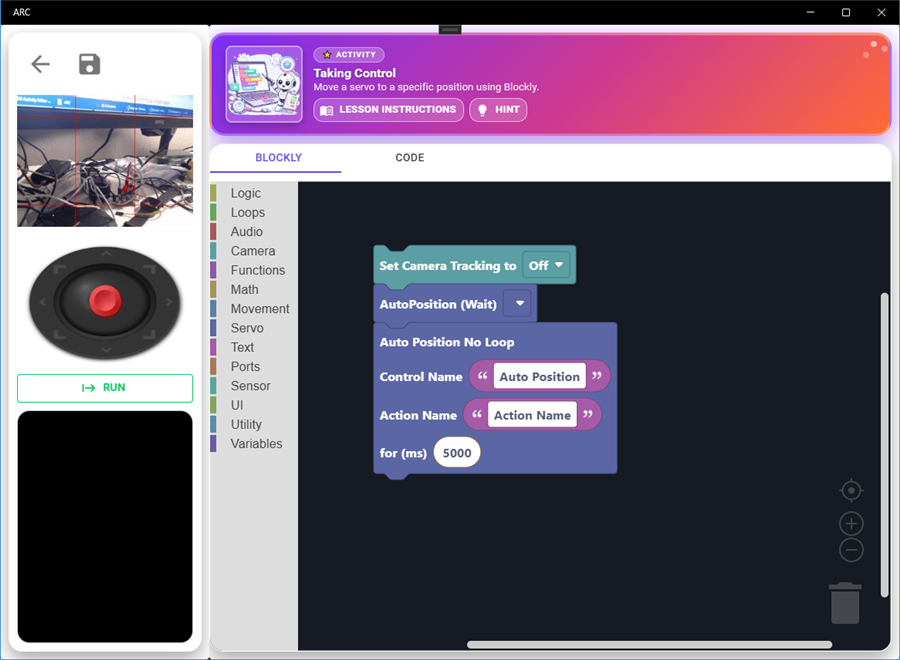
Activities created with this editor are exported as JSON and can be loaded into the ARC education environment, where students interactively complete lessons using Blockly programming.
Activity Structure
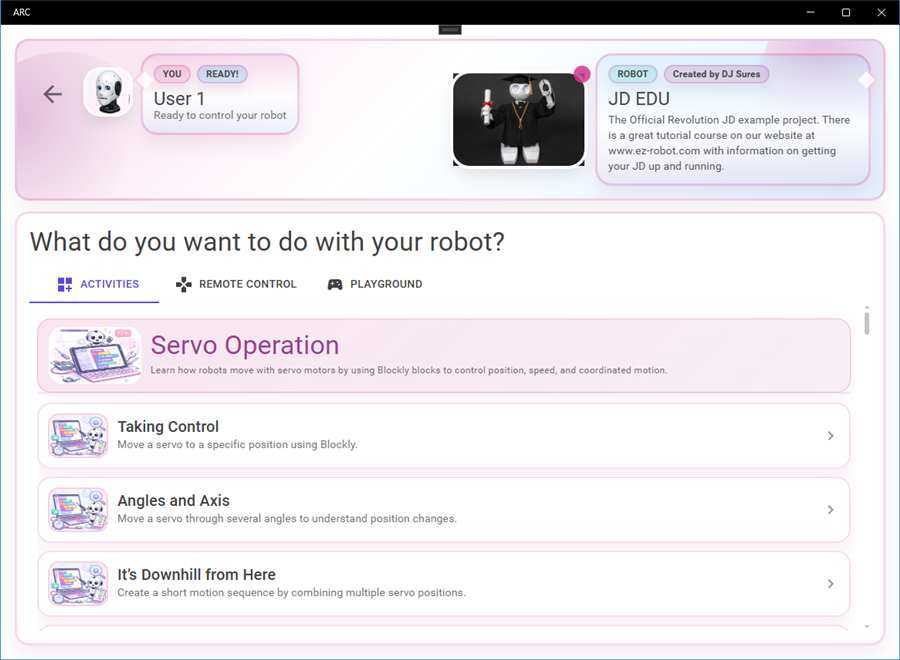
Educational activities are organized into a hierarchical structure consisting of three levels:
- Activity Group – A collection of related lessons (example: "Robot Movement").
- Lesson – A specific activity students will complete (example: "Move Forward").
- Hint – Optional guidance shown to students if they need help.
This structure allows educators to create organized courses where students progress through lessons and receive hints when needed.
User Interface Overview
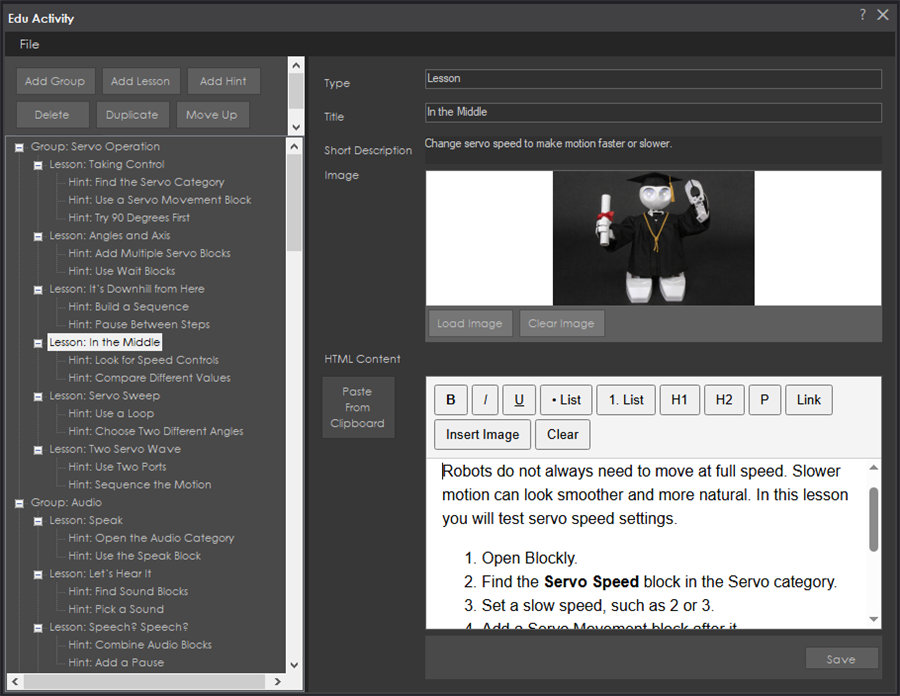
The editor is divided into two main sections:
Hierarchy Tree
Located on the left side of the editor, the TreeView displays the entire activity structure. You can select groups, lessons, and hints to edit their properties.
Content Editor
Located on the right side, this area displays the editable properties for the selected item including titles, descriptions, images, and formatted lesson content.
Creating Activity Content
Add a Group
Groups organize lessons into categories. For example, a robotics course might include groups such as:
- Getting Started
- Robot Movement
- Sensors
- Artificial Intelligence
To create a group:
- Click Add Group.
- Enter a title for the group.
- Add a description explaining the purpose of the group.
- Optionally add an image representing the group.
Add a Lesson
Lessons contain the instructions students will follow when completing an activity.
- Select a group.
- Click Add Lesson.
- Enter a lesson title.
- Add a short description for quick previews.
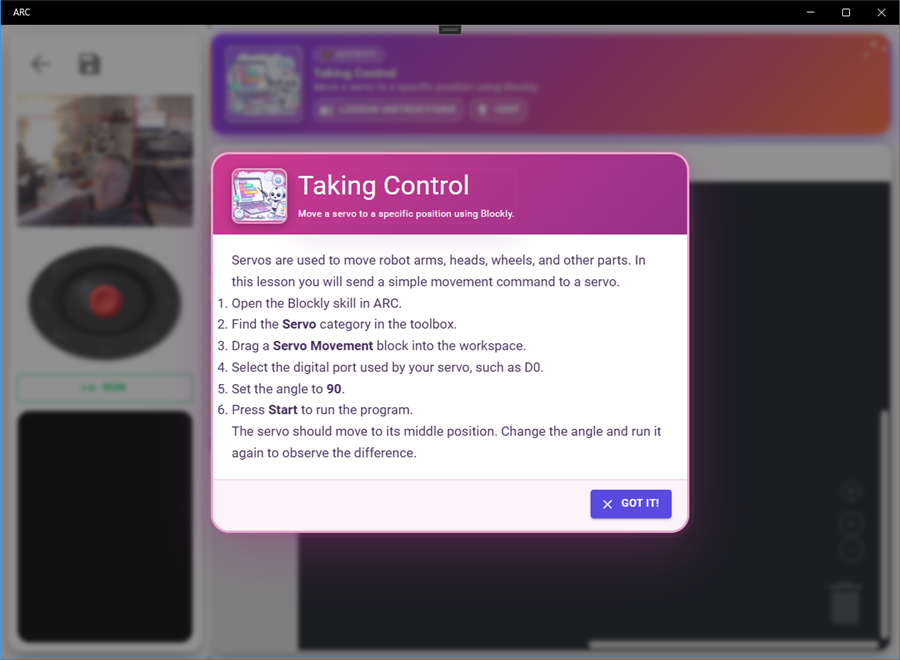
- Write the full lesson instructions using the HTML editor.
Lessons typically include explanations, images, and step-by-step instructions for students.
Add a Hint
Hints provide optional help to students who may be stuck.
- Select a lesson.
- Click Add Hint.
- Enter a title.
- Write hint instructions or guidance.
Students can reveal hints inside the ARC education app when needed.
Editing Lesson Content
The lesson description and hint content are edited using the built-in HTML editor. This editor allows you to format lesson instructions with rich content.
Formatting Tools
- Bold, italic, and underline text
- Bullet lists and numbered lists
- Headings (H1, H2)
- Links
- Insert images
Image Support
Images can be added to lessons in two ways:
- Insert images using the toolbar
- Paste images directly from the clipboard
Images can be resized by dragging the corner handles after selecting the image.
Managing Content
Duplicate Items
The duplicate feature allows you to quickly copy groups, lessons, or hints. The copied item will be inserted next to the original and assigned a new internal ID.
Reorder Items
Use the Move Up and Move Down buttons to change the order of groups, lessons, or hints. This determines the order students see them in the ARC education app.
Delete Items
The delete button removes the selected item from the activity. A confirmation prompt will appear before deletion.
Images
Groups, lessons, and hints can include an image to visually represent the content.
Supported formats include:
- PNG
- JPEG
- GIF
- BMP
- WebP
Images are embedded directly into the activity data so the lesson can be distributed as a single file.
Importing and Exporting Activities
Export JSON
The editor can export all activity content into a JSON file. This file can be used to back up files for offline editing and re-uploading, etc. Essentially, it exports all the data from the activity lessons.
- Open the File menu.
- Select Export JSON.
- Save the file.
Import JSON
Previously created activities can be imported using the Import feature.
- Open the File menu.
- Select Import.
- Select a JSON activity file.
Best Practices for Lesson Design
- Keep lesson instructions clear and detailed.
- Use images to demonstrate robot behavior or required Blockly blocks.
- Break large concepts into multiple lessons.
- Provide hints that guide students instead of giving direct answers.
- Organize lessons into logical groups for easier navigation.