
Creates and plays named RGB eye animations on the EZ-Robot I2C module with 18 LEDs, fades, repeats, and script/AI triggers.
 Windows
 ARM
ARM
 Linux
Linux
 MacOS
MacOS
How to add the Rgb Eyes Animator robot skill
- Load the most recent release of ARCx on a compatible operating system (Get ARCx).
- Press the + Skills menu from the top menu bar in ARCx.
- Choose the I2C category tab.
- Press the Rgb Eyes Animator icon to add the robot skill to your project.
Don't have a robot yet?
Follow the Getting Started Guide to build a robot and use the Rgb Eyes Animator robot skill.
How to use the Rgb Eyes Animator robot skill
Creates and plays colour animations on the EZ-Robot RGB Eyes I2C module - 18 LEDs arranged as two 3x3 eyes. Build named animations frame by frame, then play them by name from a script, from the Autonomous AI skill, from a sound board timeline, or from the skill's own window.
Named actions are the point: an action called Happy or Angry can be triggered by anything in the project that can issue a control command, including the AI.
Requirements
- An EZB with an I2C bus, connected.
- An EZ-Robot RGB Eyes module wired to that bus. It ships at address 0xA0.
Adding it to a project
- Connect the EZB.
- Add the skill (I2C category).
- Open the configuration. On the Settings tab check the EZB Index and the I2C address.
- On the Actions tab create an action, give it a name, and add frames.
- Close the configuration, select the action in the window and press Execute.
The window
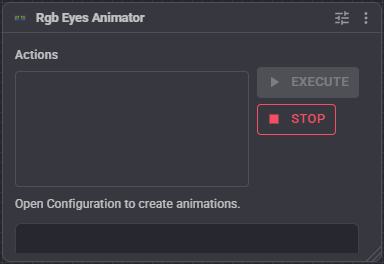
- Actions list - pick one.
- Execute - play the selected animation.
- Stop - stop the animation. The LEDs stay exactly as they are.
- A status line: Playing: name, Idle, a warning when the EZB is not connected, or a prompt to open the configuration when no actions exist yet.
Building an animation
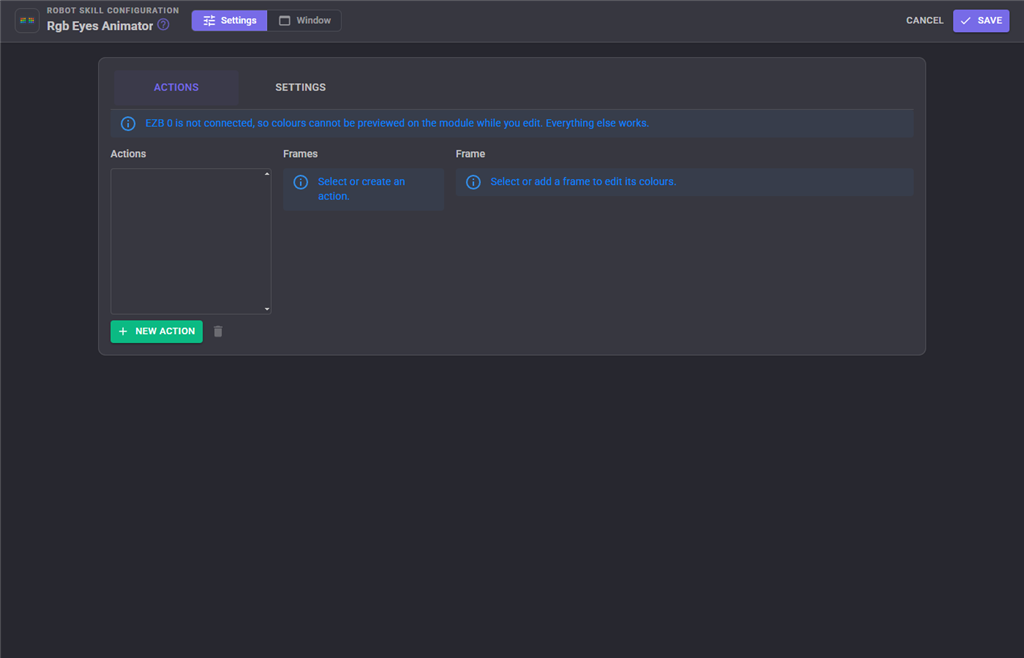
On the Actions tab:
- An action is a named, ordered list of frames, optionally set to repeat until stopped.
- A frame is a colour for each of the 18 LEDs plus its timing:
- Use transition - fade into this frame's colours from whatever is showing, rather than switching at once.
- Transition time (ms) - how long that fade takes.
- Pause time (ms) - how long to hold the frame before moving to the next.
- Frames can be duplicated (handy for building a fade by hand) and deleted.
LED indexes 0-8 are the right eye and 9-17 the left, each row-major across its 3x3 grid. Each colour channel is a brightness from 0 to 7, not 0 to 255 - the module's own resolution.
Settings
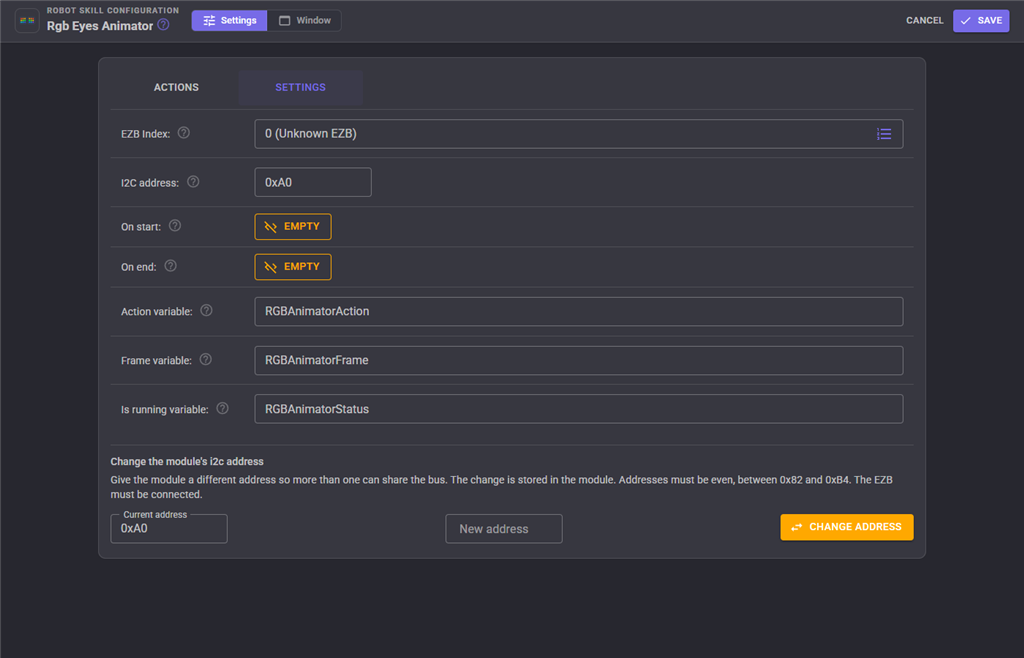
| Setting | Meaning | Default |
|---|---|---|
| EZB Index | The controller whose I2C bus the module is on. | 0 |
| I2C address | The module's address, as hex (0xA0) or decimal (160). |
0xA0 |
| On start | Script that runs when an action begins. | empty |
| On end | Script that runs when an action finishes or is stopped. | empty |
| Action variable | Global variable set to the title of the action currently playing. Blank to turn off. | RGBAnimatorAction |
| Frame variable | Global variable set to the id of the frame currently showing. Blank to turn off. | RGBAnimatorFrame |
| Is running variable | Global variable set to true while an animation is playing. Blank to turn off. | RGBAnimatorStatus |
The Window tab sets the robot skill's window title, its size on the workspace and notes about what it does in this project.
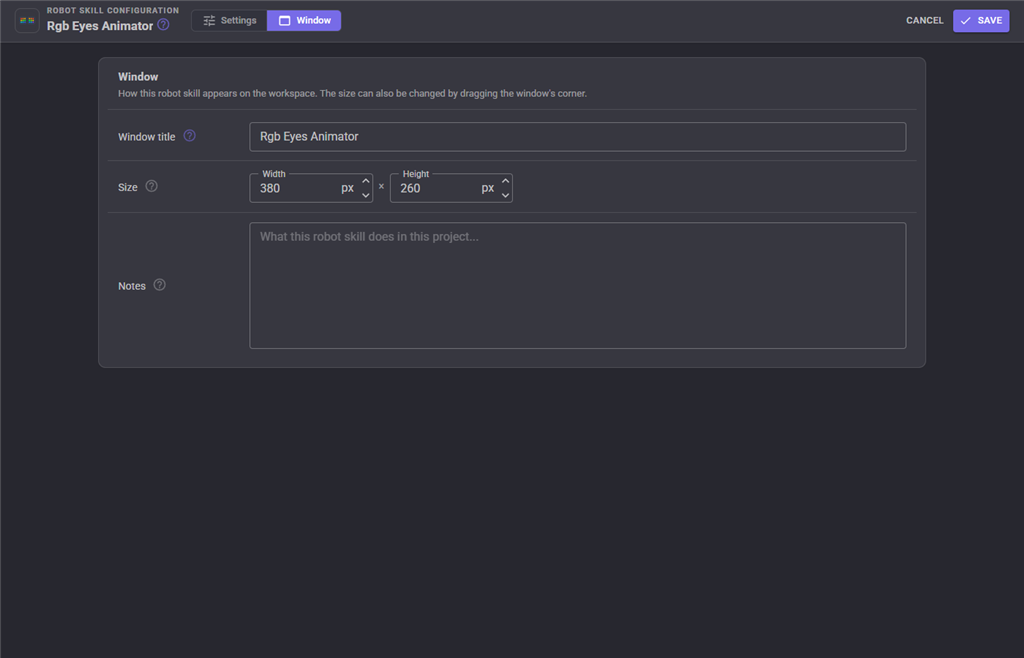
Changing the module's I2C address
The Settings tab can re-address the module so more than one can share the bus. Enter the current address and the new one and press Change Address. The change is stored in the module, not in the project.
Addresses must be even and between 0x82 and 0xB4, and the EZB must be connected. Even addresses only, because the low bit of an 8 bit I2C address is the read/write flag.
How the fading works
The module cannot be read back, so the driver remembers the last colour it sent to each LED and fades from those remembered values. That means a transition is only correct if nothing else has written to the module behind the animator's back.
Damaged projects
A project edited by hand, or saved by a version with a different LED count, is repaired on load: colour arrays are resized to 18 entries, brightness values above 7 are clamped, and negative times are set to zero. Each repair is reported.
Troubleshooting
| Symptom | Cause |
|---|---|
| "EZB n is not connected" | Connect the controller, or fix the EZB Index. |
| Nothing lights up | Wrong I2C address, the module is not on that board's bus, or the bus is not wired or powered. |
| Colours are wrong or washed out | Brightness is 0-7 per channel; values above 7 are clamped. |
| A fade jumps instead of fading | Something else wrote to the module, so the remembered colours no longer match what is showing. |
| An action never ends | It is set to repeat. Stop it, or turn repeating off. |
| "Cannot find an action with the title ..." | The action name in the script does not match; names are matched case-insensitively. |
See also
- Auto Position (movement panel) - the same action-by-name idea for servos
- Sound Board (ezb) - trigger an eye animation from a point in a sound
- Autonomous AI - the AI can play these actions by name
Control Commands for the Rgb Eyes Animator robot skill
There are Control Commands available for this robot skill which allows the skill to be controlled programmatically from scripts or other robot skills. These commands enable you to automate actions, respond to sensor inputs, and integrate the robot skill with other systems or custom interfaces. If you're new to the concept of Control Commands, we have a comprehensive manual available here that explains how to use them, provides examples to get you started and make the most of this powerful feature.
Control Command ManualThis robot skill has 3 control commands, listed below. Send them from a JavaScript or Python script, from Blockly, or from another robot skill.
The first value is always the window title, which is the name in the title bar of the robot skill on your workspace. It starts out as Rgb Eyes Animator, which is what every example below uses. If you rename the robot skill, or add a second copy of it to the project, use the title as it appears on that window instead.
ControlCommand() can be shortened to CC(), and both spellings work in JavaScript and in Python. The examples are JavaScript; Python is the same call, except that true and false are written True and False.
AutoPositionAction
Play the action in the background and continue running the script.
Syntax
ControlCommand("Rgb Eyes Animator", "AutoPositionAction", (String)action name)
Parameters
| # | Name | Type | What to pass |
|---|---|---|---|
| 1 | action name | Text | Your text, in quotes |
Returns: Boolean [true or false]
Example
var result = ControlCommand("Rgb Eyes Animator", "AutoPositionAction", "action name");
AutoPositionActionWait
Play the action and wait for it to finish before continuing the script. An action that repeats cannot be used, because it would never finish.
Syntax
ControlCommand("Rgb Eyes Animator", "AutoPositionActionWait", (String)action name)
Parameters
| # | Name | Type | What to pass |
|---|---|---|---|
| 1 | action name | Text | Your text, in quotes |
Returns: Boolean [true or false]
Example
var result = ControlCommand("Rgb Eyes Animator", "AutoPositionActionWait", "action name");
AutoPositionStop
Stop the animation that is playing. The LEDs stay as they are.
Syntax
ControlCommand("Rgb Eyes Animator", "AutoPositionStop")
Returns: Boolean [true or false]
Example
var result = ControlCommand("Rgb Eyes Animator", "AutoPositionStop");
This list is read out of the robot skill itself each time its package is uploaded, so it matches the published version (v4).


This robot skill has been updated to v1.
This robot skill has been updated to v2.
This robot skill has been updated to v3.
What has changed
compatible with the latest ARCx v2026.09.27.01
This robot skill has been updated to v4.
What has changed
spelling fix correction