
Bridge ARC to ROS2 via rosbridge: publish/subscribe topics for cameras, servos, ports, NMS, variables, scripts, and movement.
 Windows
How to add the ROS2 Connector robot skill
- Load the most recent release of ARC (Get ARC).
- Press the Project tab from the top menu bar in ARC.
- Press Add Robot Skill from the button ribbon bar in ARC.
- Choose the Communication category tab.
- Press the ROS2 Connector icon to add the robot skill to your project.
Don't have a robot yet?
Follow the Getting Started Guide to build a robot and use the ROS2 Connector robot skill.
How to use the ROS2 Connector robot skill
Connect ARC to a ROS2 robot as a node. The ROS2 Connector publishes ARC camera video, servo positions, digital and ADC ports, movement commands, NMS navigation data and script variables to ROS2 topics, and subscribes to ROS2 topics to drive the same ARC features from ROS. Every mapping between an ARC feature and a ROS topic is configured by you, so ARC becomes a graphical front end for a ROS2 robot without writing a ROS node.
Typical uses:
- Drive a ROS2 robot base (Nav2, teleop, your own controller) from ARC's movement panels, joystick skills and scripts.
- Show a ROS camera stream inside ARC and run ARC's camera tracking on it, or send ARC camera video into ROS for OpenCV / RViz.
- Publish ARC servo positions as
sensor_msgs/JointStatefor RViz / robot_state_publisher, and move ARC servos from MoveIt or any joint command topic. - Feed a ROS lidar and localization stack into ARC's NMS so The Better Navigator can use it, or send ARC's lidar and pose skills to slam_toolbox / Nav2.
- Trigger ARC scripts, ControlCommands and variables from any ROS node, and call ROS services from ARC scripts.
How it works
ROS2 uses DDS for transport, which is not available inside ARC. Instead, the skill talks to rosbridge_server, a standard ROS2 package that exposes topics and services as JSON over a WebSocket. The skill is a rosbridge client: it advertises, publishes, subscribes and calls services through that WebSocket, and rosbridge does the DDS work on the ROS side.
All mapped topics are registered when the connection is made and are re-registered automatically after a reconnect.
Requirements
- A machine running ROS2 (Humble, Iron, Jazzy or newer) with
rosbridge_suiteinstalled. - Network connectivity between the ARC PC and the ROS2 machine (they can be the same PC if you run ROS2 in WSL2 or a container; forward port 9090).
Install and start rosbridge on the ROS2 machine:
sudo apt install ros-$ROS_DISTRO-rosbridge-suite
ros2 launch rosbridge_server rosbridge_websocket_launch.xml
rosbridge listens on port 9090 by default. To change it: ros2 launch rosbridge_server rosbridge_websocket_launch.xml port:=9091.
Main window
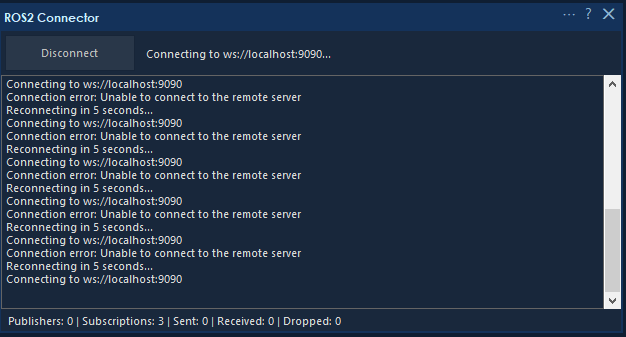
- Connect / Disconnect button - opens or closes the rosbridge connection. With Connect automatically enabled in the configuration the skill connects when the project loads.
- Status - current connection state and URL.
- Log - connection events, registered topics, and errors from the bridges. Enable Log every message in the configuration to also see each JSON frame (very noisy with cameras enabled).
- Statistics - number of advertised publishers and subscriptions, and counts of messages sent, received and dropped. Dropped messages mean the send queue is full or a subscriber is receiving faster than ARC can process; lower a camera frame rate or use rosbridge throttling if this grows.
The connection state is also written to the status variable (default $Ros2Connected) so scripts can check it.
Configuration
Press the gear icon to open the configuration. Each tab covers one area of ARC. In the grids, add a mapping by typing in the empty bottom row and delete a mapping by selecting the row (click the row header) and pressing Delete. Topic names must start with /; the skill adds it if you leave it out.
Message types use the ROS2 form package/msg/Type, for example std_msgs/msg/String. The short form std_msgs/String is accepted too.
Connection
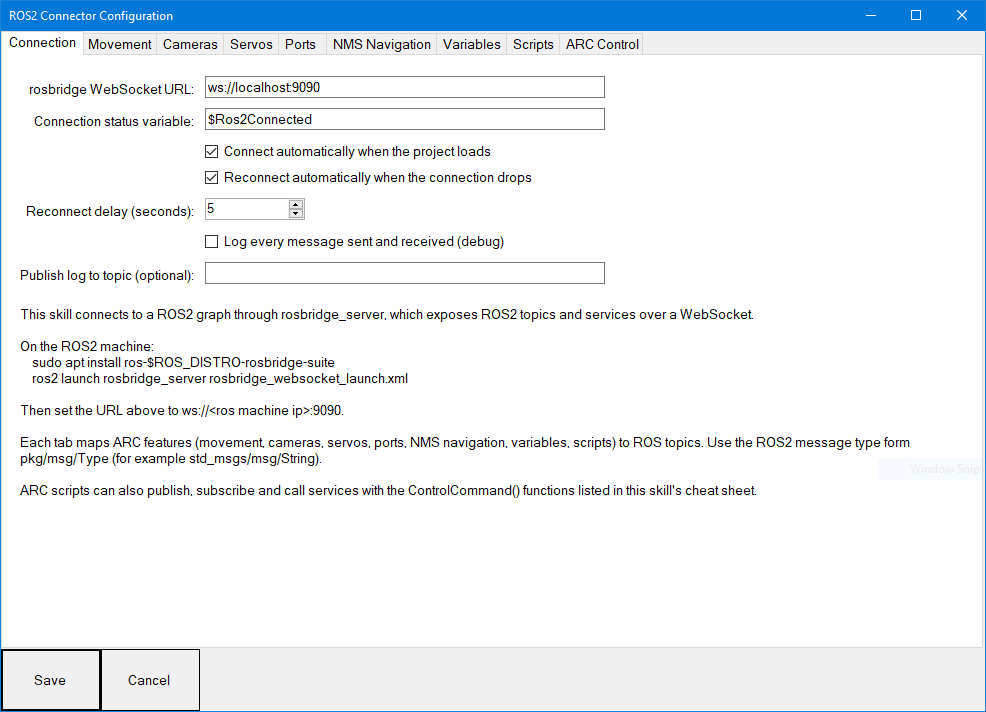
| Setting | Description |
|---|---|
| rosbridge WebSocket URL | ws://<ros machine ip>:9090. Use wss:// if rosbridge is configured with TLS. |
| Connection status variable | ARC variable set to true / false when the connection changes. |
| Connect automatically when the project loads | Connect as soon as the project opens. |
| Reconnect automatically | Keep retrying when the connection drops, at the given delay. |
| Log every message | Debug logging of every JSON frame sent and received. |
| Publish log to topic | Optional std_msgs/String topic that mirrors this skill's log, handy when watching from the ROS side. |
Movement
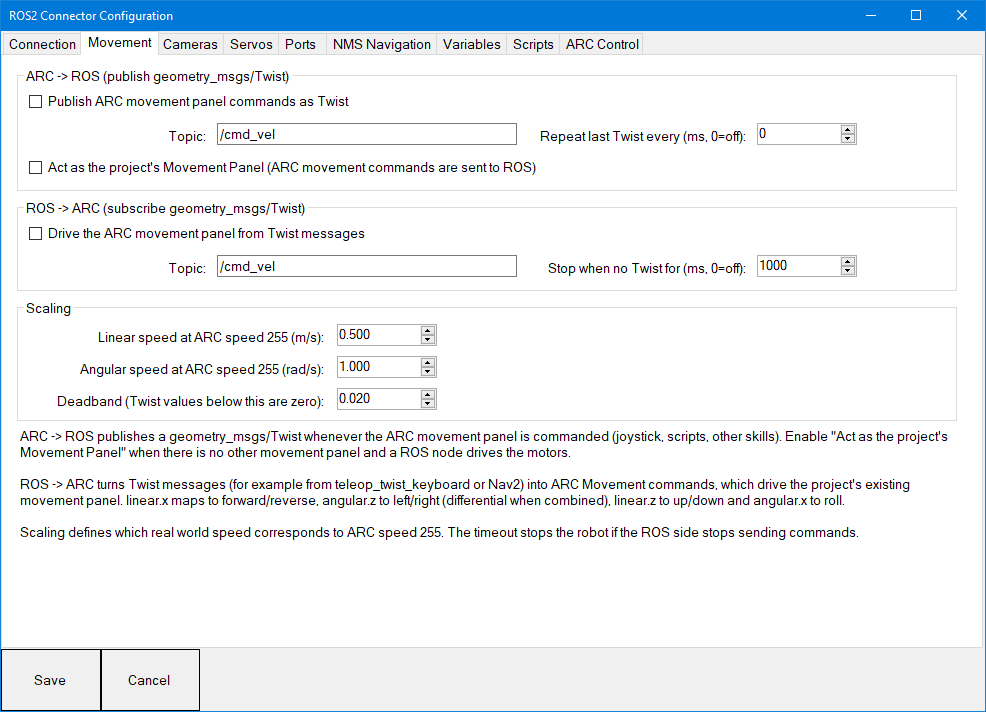 Bridges the ARC Movement Panel and
 geometry_msgs/msg/Twist.
ARC -> ROS (publish Twist) - whenever ARC's movement manager is commanded (movement panel buttons, joystick skills, Movement.forward() in scripts, auto navigation), a Twist is published.
- Act as the project's Movement Panel - enable this when the ROS side drives the motors and there is no other Movement Panel in the project. ARC then routes all movement commands to this skill. Leave it off if another Movement Panel (H-Bridge, Sabertooth, iRobot, etc.) is driving the motors and you only want ROS to observe.
- Repeat last Twist every - many ROS base controllers stop the robot if no command arrives for a while. Set this to, for example, 200 ms to keep re-sending the last command while moving.
ROS -> ARC (subscribe Twist) - Twist messages (teleop_twist_keyboard, Nav2's /cmd_vel, your own node) are converted into ARC movement commands, which drive whatever Movement Panel the project already has.
linear.xforward / reverse,angular.zrotate left (positive) / right, combined they produce a differential turn (inside wheel slows down).linear.zup / down andangular.xroll left / right for drones.- Stop when no Twist for - safety watchdog. If the ROS side stops sending commands (node crashed, Wi-Fi dropped) the robot is stopped.
Scaling - ARC speeds are 0..255. Set the real-world linear (m/s) and angular (rad/s) speed that corresponds to speed 255 so Twist values map sensibly in both directions. Values below the deadband are treated as zero.
The publish and subscribe topics must be different, otherwise ARC would receive its own commands.
Cameras
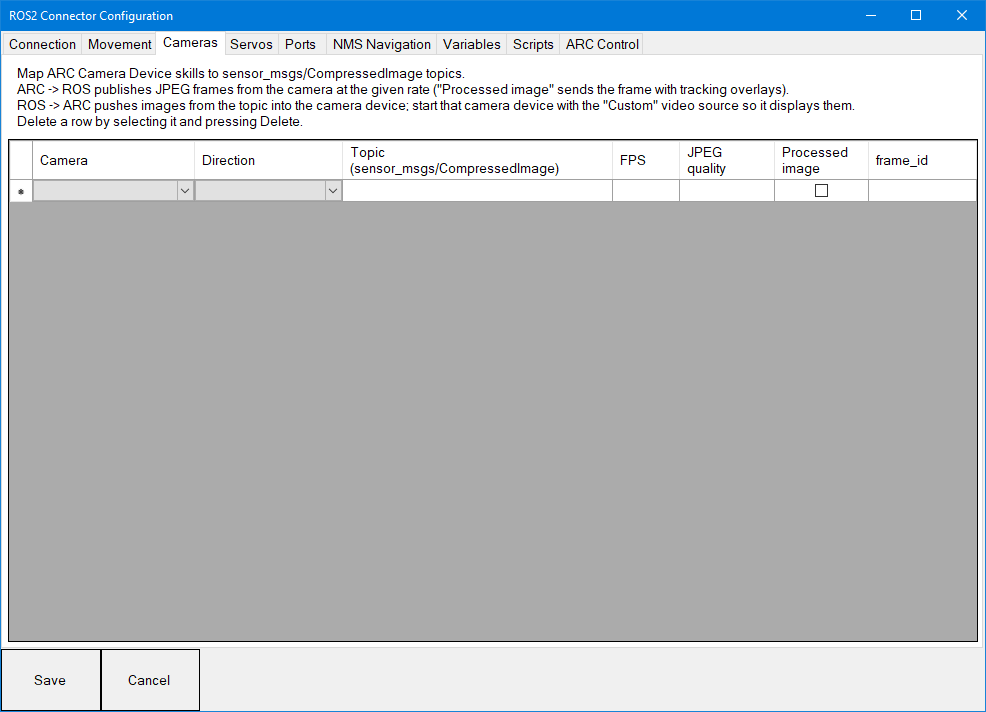 Each row maps an ARC Camera Device skill to a
 sensor_msgs/msg/CompressedImage topic.
| Column | Description |
|---|---|
| Camera | The camera device skill (by its title). Add the camera to the project first. |
| Direction | ARC -> ROS publishes the camera's frames. ROS -> ARC displays images from the topic in the camera device. |
| Topic | The image topic. By ROS convention compressed image topics end in /compressed. |
| FPS | Publish rate limit. Frames above this rate are skipped. Start low (5-10) over Wi-Fi. |
| JPEG quality | 1-100. Lower quality means smaller messages. |
| Processed image | Publish the frame after ARC's tracking overlays instead of the raw frame. |
| frame_id | Header frame id for TF. |
For ROS -> ARC, start the camera device with the Custom video source; the skill pushes each decoded image into it, and all of ARC's tracking features work on the ROS video. The topic must carry JPEG or PNG compressed images (use image_transport republish on the ROS side if your camera only publishes raw sensor_msgs/Image):
ros2 run image_transport republish raw compressed --ros-args -r in:=/camera/image_raw -r out/compressed:=/camera/image/compressed
View ARC's camera in ROS with ros2 run rqt_image_view rqt_image_view and pick the topic.
Servos
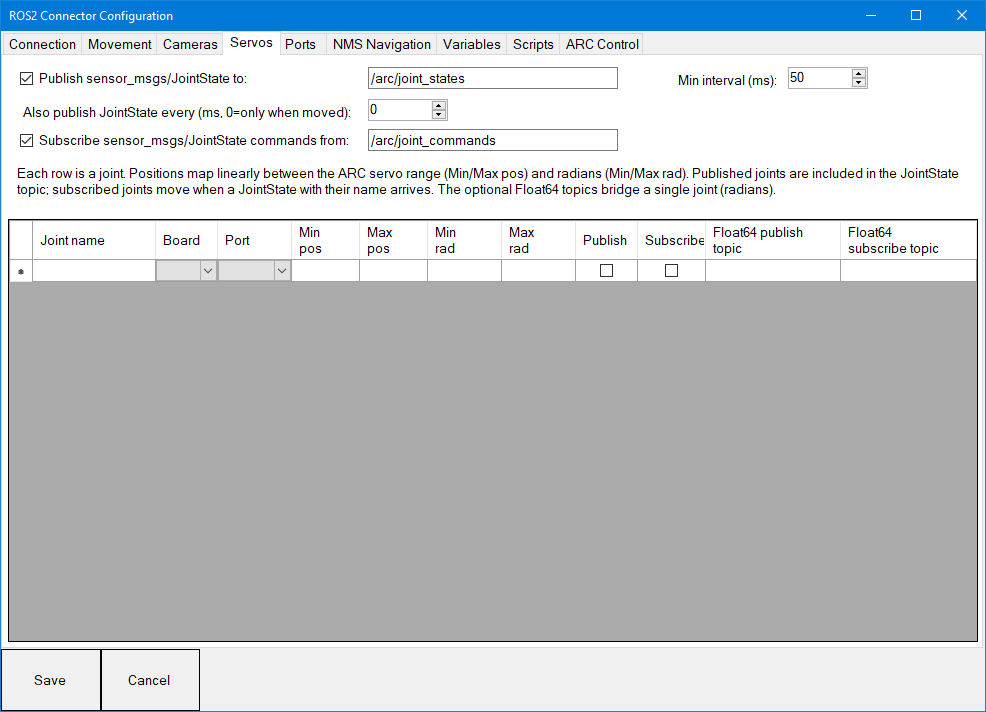 ARC servos are exposed as ROS joints.
- Publish JointState to - one
sensor_msgs/msg/JointStatecontaining every joint marked Publish is sent whenever any of them moves, at most once per Min interval. Optionally repeat it periodically even when nothing moves (robot_state_publisher and RViz like a steady stream). - Subscribe JointState commands from - a
sensor_msgs/msg/JointStatewhosenameentries match joints marked Subscribe moves those servos to the givenposition(radians).
Each row in the grid is one joint:
| Column | Description |
|---|---|
| Joint name | The joint name used in JointState messages (match your URDF). |
| Board | EZB index (0 is the first connection). |
| Port | Servo port (D0-D23 or virtual V0-V99). |
| Min pos / Max pos | ARC servo positions that correspond to Min rad / Max rad. |
| Min rad / Max rad | Joint angle in radians at those servo positions. Swap the two to invert the joint. |
| Publish / Subscribe | Include this joint when publishing / accept commands for it. |
| Float64 publish topic | Optional std_msgs/msg/Float64 topic that gets this joint's angle whenever it moves. |
| Float64 subscribe topic | Optional std_msgs/msg/Float64 topic that moves this joint. |
Positions are mapped linearly between the servo range and the radian range, so a servo with 1..180 mapped to -1.5708..1.5708 reports 0 rad at position 90.
Ports
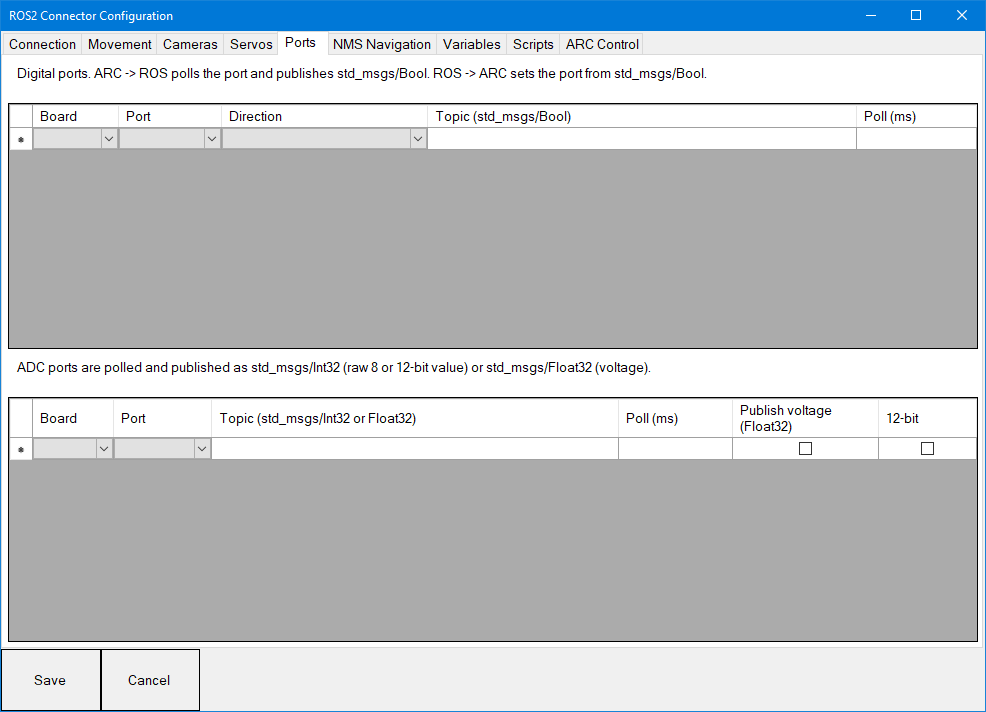 Digital - each row bridges a digital port and a
 std_msgs/msg/Bool topic. ARC -> ROS reads the port at the poll interval and publishes it (use it for bumpers, buttons and switches). ROS -> ARC sets the port from the message (relays, LEDs).
ADC - each row polls an ADC port and publishes std_msgs/msg/Int32 (the raw 8-bit value, or 12-bit when checked) or std_msgs/msg/Float32 (the voltage).
Polling only happens while the EZB is connected. Keep poll intervals reasonable; every poll is a request to the EZB.
NMS Navigation
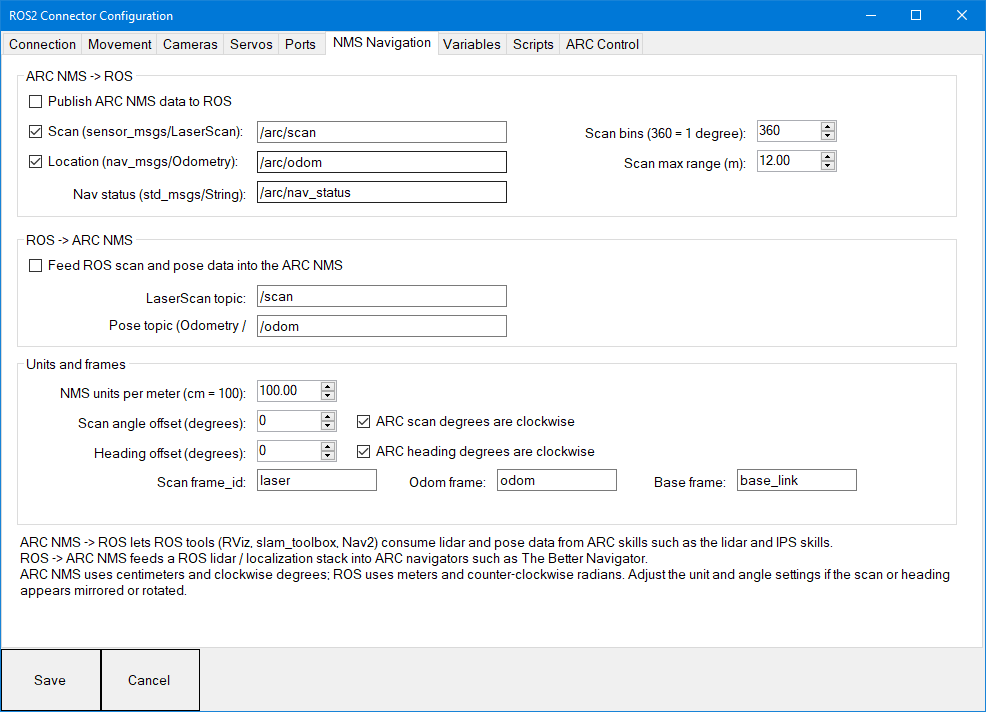 Bridges ARC's Navigation Messaging System (NMS) with ROS navigation messages.
ARC NMS -> ROS - scan points from ARC lidar and distance sensor skills are published as sensor_msgs/msg/LaserScan (binned into the configured number of angles, 360 = one degree resolution), NMS location updates as nav_msgs/msg/Odometry, and navigation status changes as std_msgs/msg/String. Use this to run slam_toolbox, Nav2 or RViz on data coming from ARC skills.
ROS -> ARC NMS - a LaserScan topic is pushed into the NMS as scan points and a pose topic (nav_msgs/Odometry, geometry_msgs/PoseStamped or PoseWithCovarianceStamped, for example /odom or /amcl_pose) updates the NMS location. ARC navigators such as The Better Navigator then work with the ROS lidar and localization.
Units and frames - ARC NMS uses centimeters and clockwise compass-style degrees; ROS uses meters and counter-clockwise radians. The defaults convert between them. If the scan in RViz appears mirrored or rotated, or ARC's map turns the wrong way, adjust the angle offset and clockwise settings. The frame ids are placed in message headers for TF.
Variables
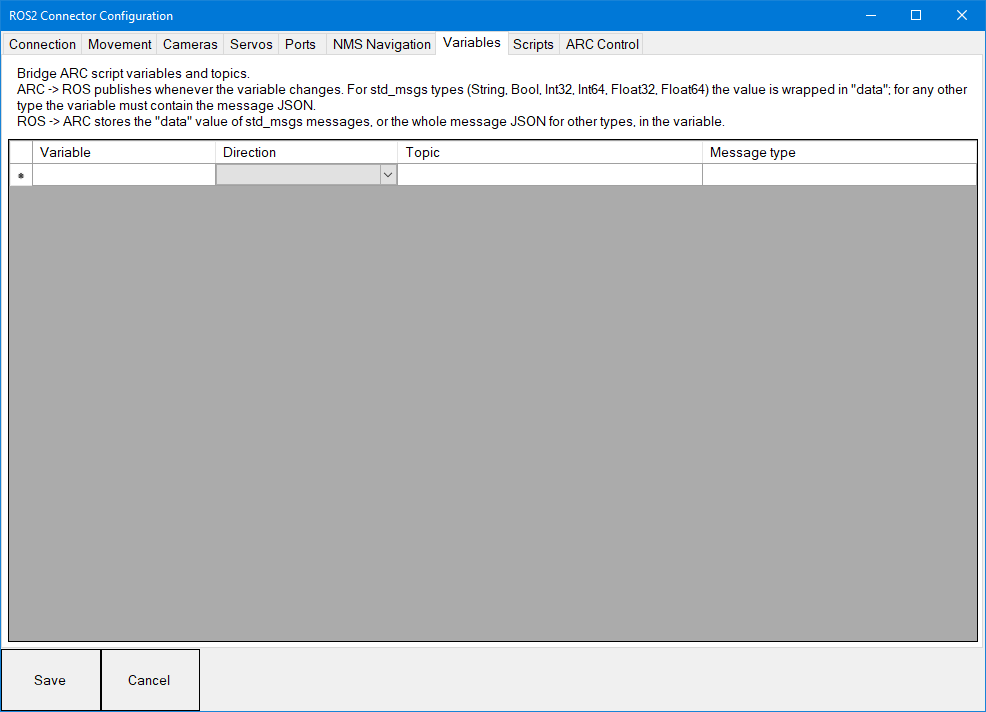 Each row bridges an ARC script variable and a topic.
- ARC -> ROS - whenever the variable changes, a message is published. For the
std_msgstypes (String, Bool, Int32, Int64, Float32, Float64) the variable's value is wrapped in the message'sdatafield. For any other message type the variable must contain the complete message as JSON, for example{"x":1.0,"y":2.0,"z":0.0}forgeometry_msgs/msg/Vector3. - ROS -> ARC - the message's
datafield (forstd_msgstypes) or the whole message as JSON is stored in the variable. Scripts read it withgetVar()and can parse the JSON withJSON.parse()in JavaScript orjson.loads()in Python.
Scripts
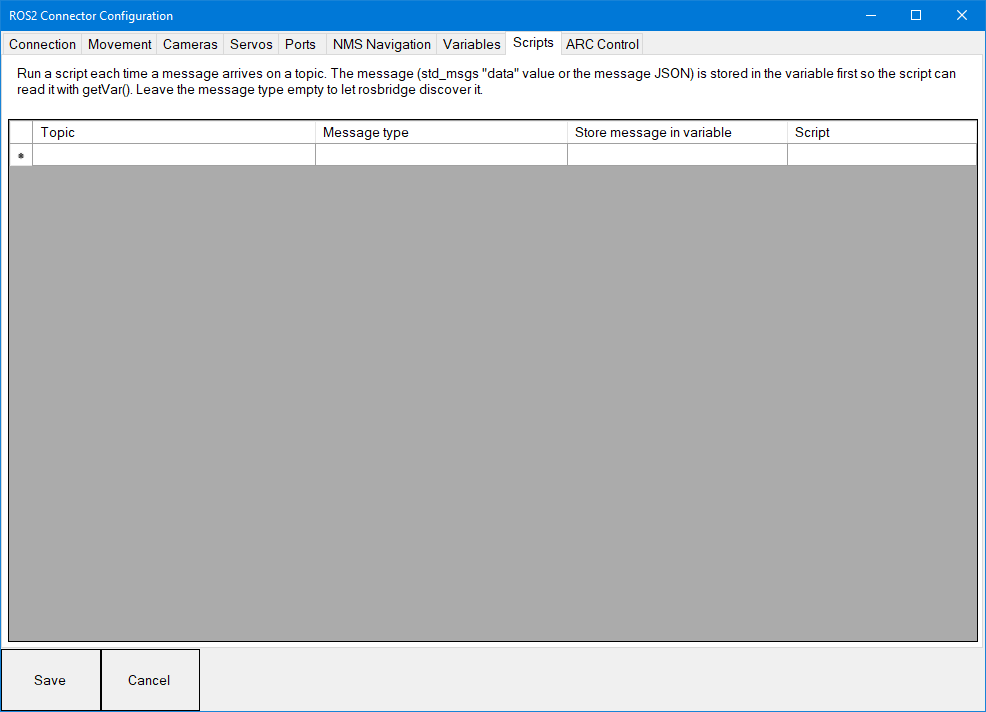 Each row subscribes to a topic and runs a script every time a message arrives. The message is stored in the variable first (same rules as the Variables tab) so the script can read it. Each topic has its own script executor; if the previous script for a topic is still running, the new message is skipped.
Leave the message type empty to let rosbridge discover it from the publisher.
Example JavaScript for a std_msgs/msg/String on /arc/say stored in $RosMsg:
Audio.say(getVar("$RosMsg"));
Example for a geometry_msgs/msg/Point on /target stored in $Target:
var p = JSON.parse(getVar("$Target"));
print("target " + p.x + ", " + p.y);
ARC Control
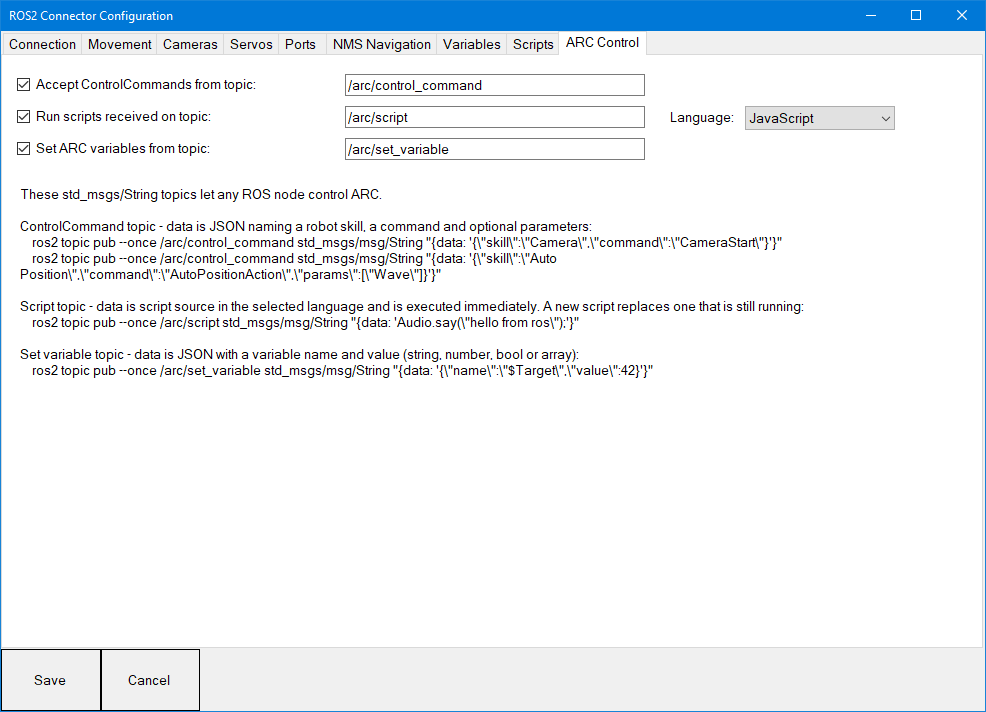 Three
Three std_msgs/msg/String topics let any ROS node control ARC directly. All are enabled by default.
ControlCommand topic (default /arc/control_command) - the message data is JSON naming a robot skill, a command and optional parameters. It is the same as calling ControlCommand() from a script.
ros2 topic pub --once /arc/control_command std_msgs/msg/String "{data: '{\"skill\":\"Camera\",\"command\":\"CameraStart\"}'}"
ros2 topic pub --once /arc/control_command std_msgs/msg/String "{data: '{\"skill\":\"Auto Position\",\"command\":\"AutoPositionAction\",\"params\":[\"Wave\"]}'}"
Script topic (default /arc/script) - the message data is script source in the selected language (JavaScript, Python or EZ-Script) and runs immediately. A new script replaces one that is still running.
ros2 topic pub --once /arc/script std_msgs/msg/String "{data: 'Audio.say(\"hello from ros\");'}"
Set variable topic (default /arc/set_variable) - the message data is JSON with a variable name and a value (string, number, boolean or array).
ros2 topic pub --once /arc/set_variable std_msgs/msg/String "{data: '{\"name\":\"$Target\",\"value\":42}'}"
Troubleshooting
- Connection error / reconnecting - check that rosbridge is running (
ros2 node listshows/rosbridge_websocket), the URL uses the ROS machine's IP and port 9090, and no firewall blocks the port. With WSL2, forward the port or use the WSL IP address. - Topic advertised but nothing arrives in ROS - the ROS subscriber may use an incompatible QoS. rosbridge publishes with default QoS; for sensor data subscribers use
SensorDataQoSor best effort where needed. - Camera device shows nothing for ROS -> ARC - the camera must be started with the Custom video source, and the topic must be
CompressedImage(JPEG/PNG). Check the log for "images arriving ... but the camera is not started". - Servos do not move from ROS - the joint name in the JointState must match the Joint name column exactly (case-insensitive) and the joint must be marked Subscribe. Check that the EZB is connected.
- Robot keeps driving after the ROS node stops - set Stop when no Twist for on the Movement tab.
- Scan appears mirrored or rotated in RViz - toggle ARC scan degrees are clockwise or adjust the scan angle offset on the NMS tab. For heading, adjust the heading settings the same way.
- Dropped counter increases - the send queue is full. Reduce camera FPS / quality, increase the JointState minimum interval, or slow port polling.
- rosbridge error: unable to import message type - the message package is not installed or sourced in the terminal that launched rosbridge. Source the workspace and restart rosbridge.
Notes
- Only one ROS2 Connector can be added to a project.
- Message payloads travel as JSON, so very high rate or very large topics (raw images, dense point clouds) are better handled on the ROS side. Compressed images at modest frame rates work well.
- Custom message types work anywhere a type is entered, as long as the package is available to rosbridge on the ROS machine.
Control Commands for the ROS2 Connector robot skill
There are Control Commands available for this robot skill which allows the skill to be controlled programmatically from scripts or other robot skills. These commands enable you to automate actions, respond to sensor inputs, and integrate the robot skill with other systems or custom interfaces. If you're new to the concept of Control Commands, we have a comprehensive manual available here that explains how to use them, provides examples to get you started and make the most of this powerful feature.
Control Command ManualARC scripts can use these ControlCommand() functions with this skill (they also appear in the script editor cheat sheet):
| Command | Parameters | Description |
|---|---|---|
Connect |
[url] |
Connect to rosbridge. Uses the configured URL when omitted. |
Disconnect |
Disconnect and stop reconnecting. | |
IsConnected |
Returns true when connected (use with getValue style calls). |
|
Publish |
topic, type, message |
Publish any message. message is JSON, or a plain value for std_msgs types. |
PublishString |
topic, text |
Publish std_msgs/msg/String. |
PublishNumber |
topic, number |
Publish std_msgs/msg/Float64. |
PublishBool |
topic, true/false |
Publish std_msgs/msg/Bool. |
Subscribe |
topic, type, $variable |
Store every message from the topic in the variable (type may be empty). |
Unsubscribe |
topic |
Remove a subscription created with Subscribe. |
CallService |
service, type, [args], [$result], [timeoutMs] |
Call a ROS service and wait for the reply. Returns the response JSON and stores it in $result when given. |
Examples (JavaScript):
// publish a Twist by hand

ControlCommand("ROS2 Connector", "Publish", "/cmd_vel", "geometry_msgs/msg/Twist",

  '{"linear":{"x":0.2,"y":0,"z":0},"angular":{"x":0,"y":0,"z":0.5}}');

// publish a simple string

ControlCommand("ROS2 Connector", "PublishString", "/arc/status", "patrol started");

// watch a topic

ControlCommand("ROS2 Connector", "Subscribe", "/battery_state", "sensor_msgs/msg/BatteryState", "$Battery");

sleep(1000);

var battery = JSON.parse(getVar("$Battery"));

print("battery " + battery.percentage);

// call a service

ControlCommand("ROS2 Connector", "CallService", "/reset_odometry", "std_srvs/srv/Trigger", "{}", "$Result", 5000);

print(getVar("$Result"));
Useful ROS commands while testing
ros2 topic list                                  # see what ARC advertised

ros2 topic echo /arc/joint_states                # watch servo positions

ros2 topic hz /arc/camera/image/compressed       # check camera rate

ros2 run teleop_twist_keyboard teleop_twist_keyboard   # drive ARC's  Movement Panel (subscribe Twist on /cmd_vel)

ros2 run rqt_image_view rqt_image_view           # view ARC video

ros2 run rviz2 rviz2                             # LaserScan / Odometry / TF from the  NMS tab