

MQTT client for ARCx: connect to brokers, subscribe/publish topics, bridge robot data to Home Assistant, and enable remote control.
 Windows
 ARM
ARM
 Linux
Linux
 MacOS
MacOS
How to add the Mqtt Client robot skill
- Load the most recent release of ARCx on a compatible operating system (Get ARCx).
- Press the + Skills menu from the top menu bar in ARCx.
- Choose any of these category tabs, the robot skill appears in each of them: Communication, Remote Control, Scripting.
- Press the Mqtt Client icon to add the robot skill to your project.
Don't have a robot yet?
Follow the Getting Started Guide to build a robot and use the Mqtt Client robot skill.
How to use the Mqtt Client robot skill
The MQTT Client connects your robot to an MQTT broker, the message hub that smart homes, IoT sensors, Node-RED flows, dashboards and other robots talk through. Messages that arrive on the topics you subscribe to become global variables (including individual fields of JSON payloads) and can run a script, and your scripts, buttons, Custom UI screens and AI assistants can publish messages back. A robot bridge publishes what the robot knows (variables, servo positions, controller connection, movement) so the rest of your home can follow it, Home Assistant discovers the robot as a device on its own, and, if you allow it, MQTT can drive the robot.
It speaks MQTT 3.1.1 and MQTT 5 over plain TCP or WebSockets, with or without TLS, and works with Mosquitto, the Home Assistant Mosquitto add-on, EMQX, HiveMQ (including HiveMQ Cloud), AWS IoT and the public test brokers test.mosquitto.org and broker.hivemq.com. It is the ARCx successor of the ARC EZMQTT Client, and scripts written for that skill keep working: the Connect, Disconnect, PublishString, PublishBinary and PublishBytes commands and the $MQTTClientStatus variable behave the same.
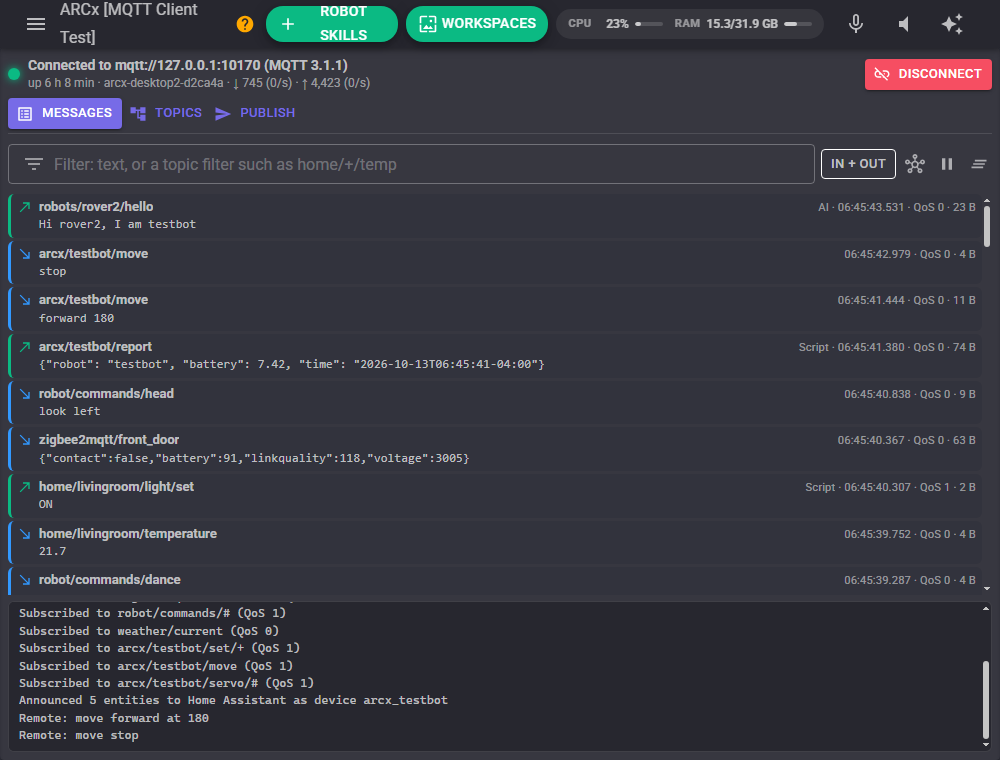
The window
The top of the window shows the connection: a green light when connected, amber while connecting or waiting to reconnect (with a countdown), red when disconnected. Under it are the client id, how long it has been connected, and how many messages were received and sent with the current rate per second. The Connect button connects to the configured broker; while connected it becomes Disconnect.
When a connection fails the reason is shown in plain words, such as "nothing is listening at that address and port", "wrong user name or password" or "TLS: the broker's certificate is not trusted".
The window has three views.
Messages
Every message received (blue, pointing in) and sent (green, pointing out) appears here as it happens, newest first, with its topic, payload, time, QoS, retain flag, size and, for sent messages, who sent it (Window, Script, AI, Custom UI). Binary payloads are shown with unprintable bytes as hex. A message that could not be sent is outlined in red with the reason.
| Control | What it does |
|---|---|
| Filter | Shows only messages whose topic or payload contains the text. A topic filter with + or # wildcards, such as home/+/temperature, matches topics the MQTT way. |
| In + out / In / Out | Shows both directions, only received or only sent messages. |
| Bridge (hub icon) | Shows or hides what the robot bridge and Home Assistant discovery publish. Hidden by default because the bridge repeats itself. |
| Pause | Freezes the list so it can be read while messages keep arriving. |
| Clear | Empties the messages, the topics and the counters, after asking. |
Click a message's topic to copy its topic and payload into the Publish view.
Topics
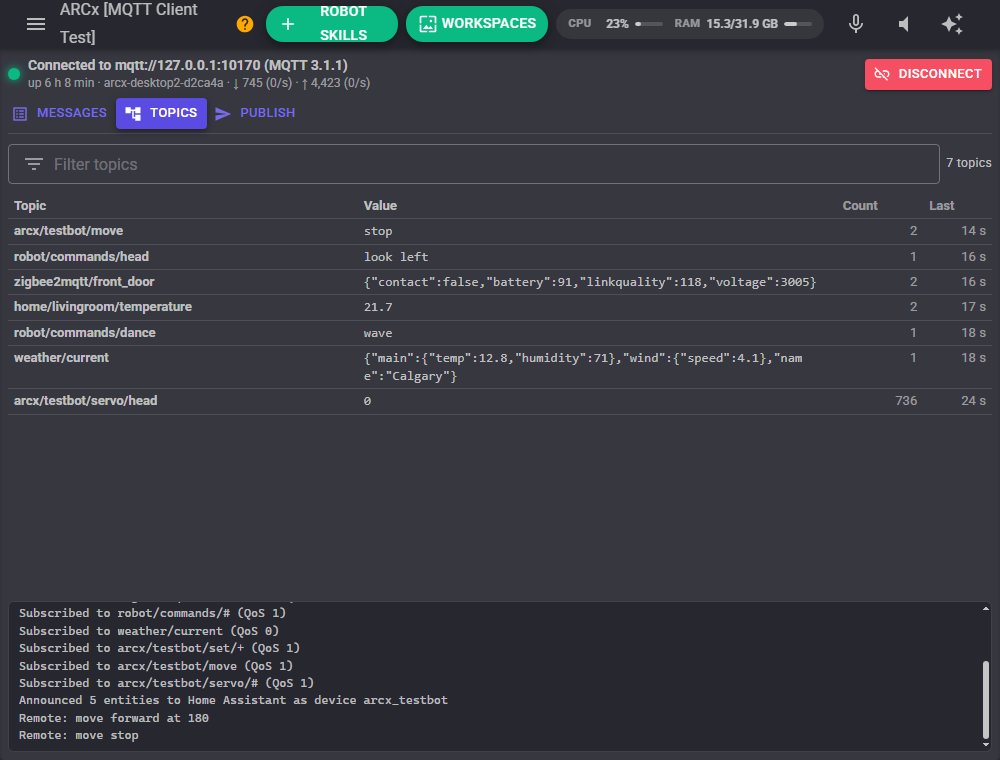
A table of every topic a message arrived on, with its latest value, how many messages came and how long ago the last one did. A topic marked holds a retained value. Click a row to use the topic in the Publish view. Subscribing to # on a test broker and watching this table is a quick way to discover what a device publishes.
Publish
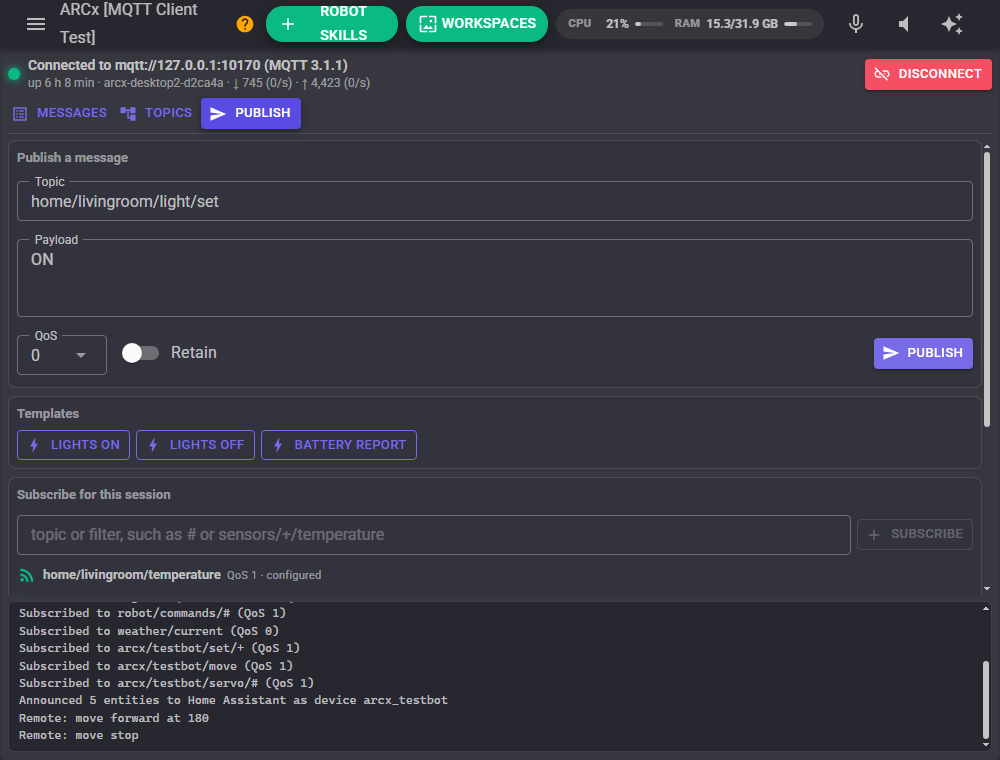
Send a message by hand: the topic, the payload, the QoS and whether the broker should retain it. , , and any global variable as {$Name} in the payload are filled in. Below the composer:
- Templates: a button for each publish template from the configuration.
- Subscribe for this session: subscribe to a topic or filter without changing the configuration, for exploring a broker. The list shows every subscription in force, what QoS the broker granted (or why it refused), and whether it is configured or only for this session. Session subscriptions are forgotten when the project closes.
- Robot bridge: what the bridge publishes and where, with a button to publish everything now.
Configuration
Broker
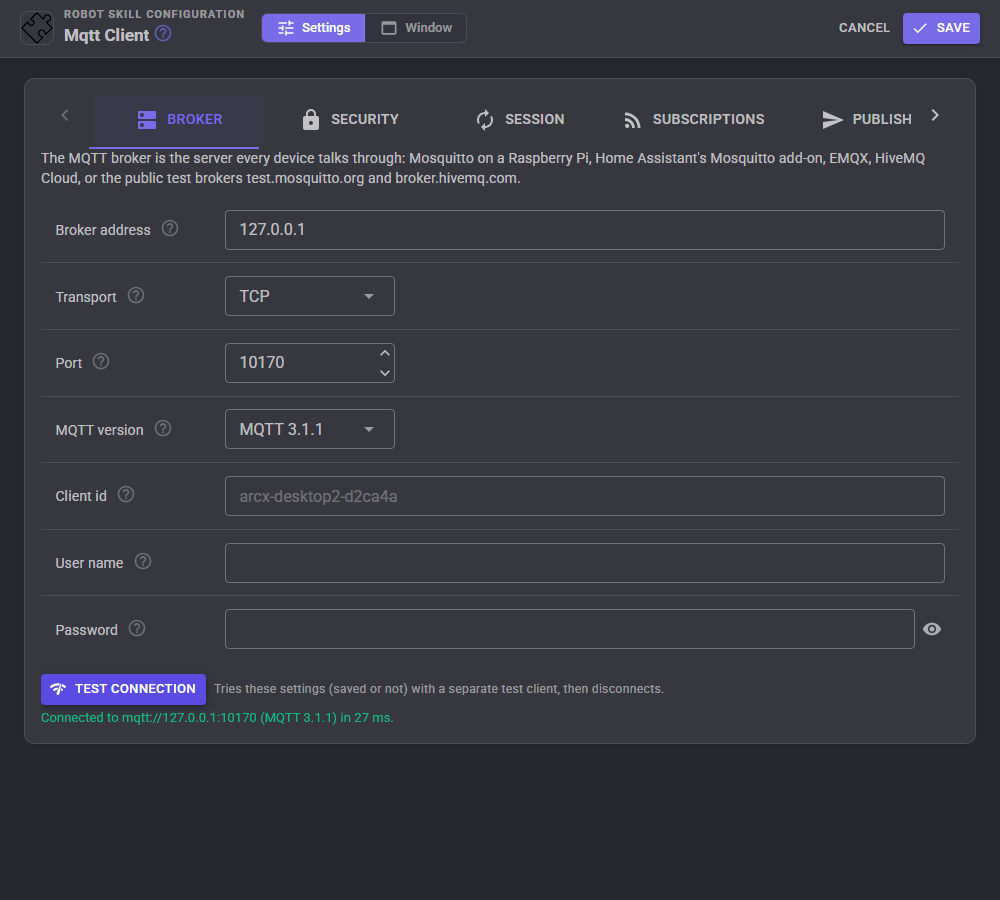
| Setting | What it means |
|---|---|
| Broker address | The broker's host name or IP address. A full address such as mqtts://broker:8883 or wss://broker/mqtt also works and decides the transport, TLS and port by itself. |
| Transport | TCP (normal MQTT) or WebSocket, for brokers behind a web server or cloud brokers that only open port 443. |
| Port | 0 uses the usual port: 1883 for TCP, 8883 for TCP with TLS, 80 for WebSocket, 443 for WebSocket with TLS. |
| WebSocket path | The broker's WebSocket endpoint, usually /mqtt. |
| MQTT version | 3.1.1 works with every broker. MQTT 5 gives clearer reasons when the broker refuses something. 3.1 only for very old brokers. |
| Client id | The name the broker knows the robot by. Empty makes one from the computer's name and the window title. Two clients with the same id keep knocking each other off the broker. |
| User name / Password | For brokers that need a login. The password is saved in the project. |
Test connection tries the settings on the page, saved or not, with a separate test client (so it never disturbs the live connection) and says how long it took or why it failed.
Security
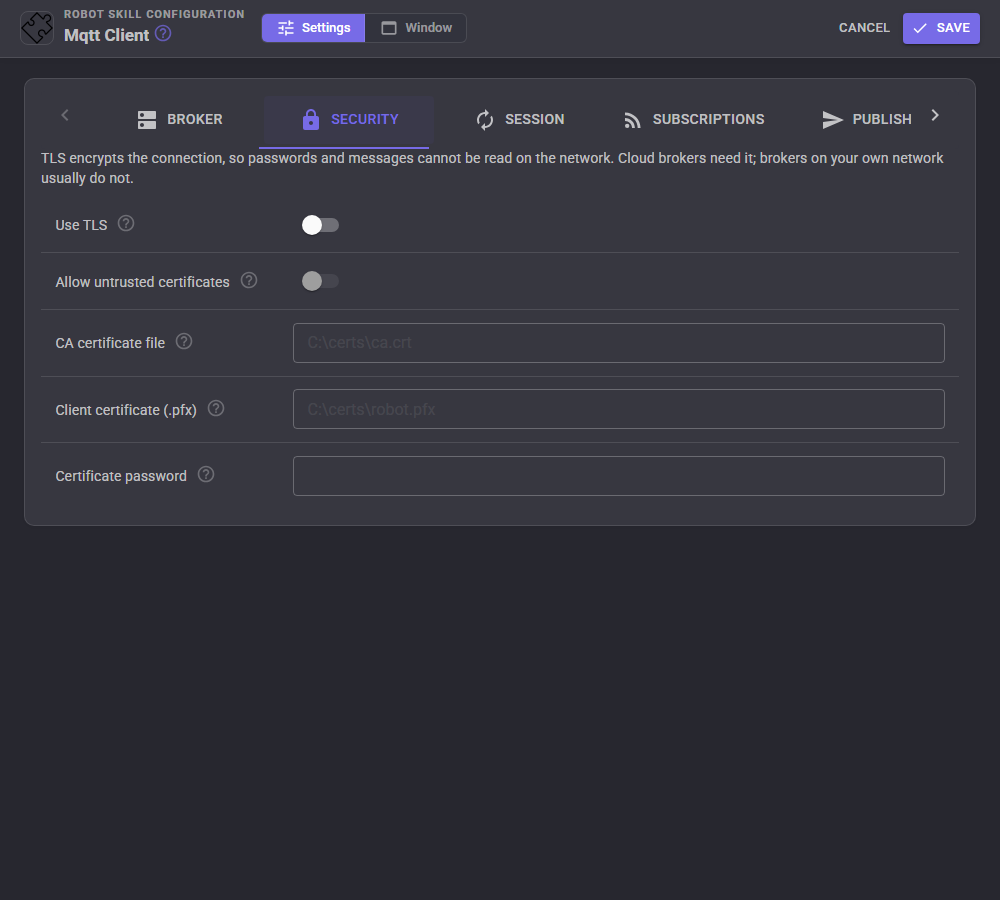
| Setting | What it means |
|---|---|
| Use TLS | Encrypts the connection. Needed for cloud brokers and anything across the internet. |
| Allow untrusted certificates | Accepts a self-signed, expired or wrong-name certificate. Only for a broker you run on your own network. |
| CA certificate file | The certificate authority (.crt or .pem) that signed the broker's certificate, for a broker with its own private certificate authority. The connection is then checked against that authority alone, which is safer than allowing untrusted certificates. |
| Client certificate (.pfx) | For brokers that identify each device by a certificate, such as AWS IoT or Mosquitto with require_certificate: a .pfx or .p12 file holding the certificate and its key. |
| Certificate password | The password of the .pfx file. |
Session
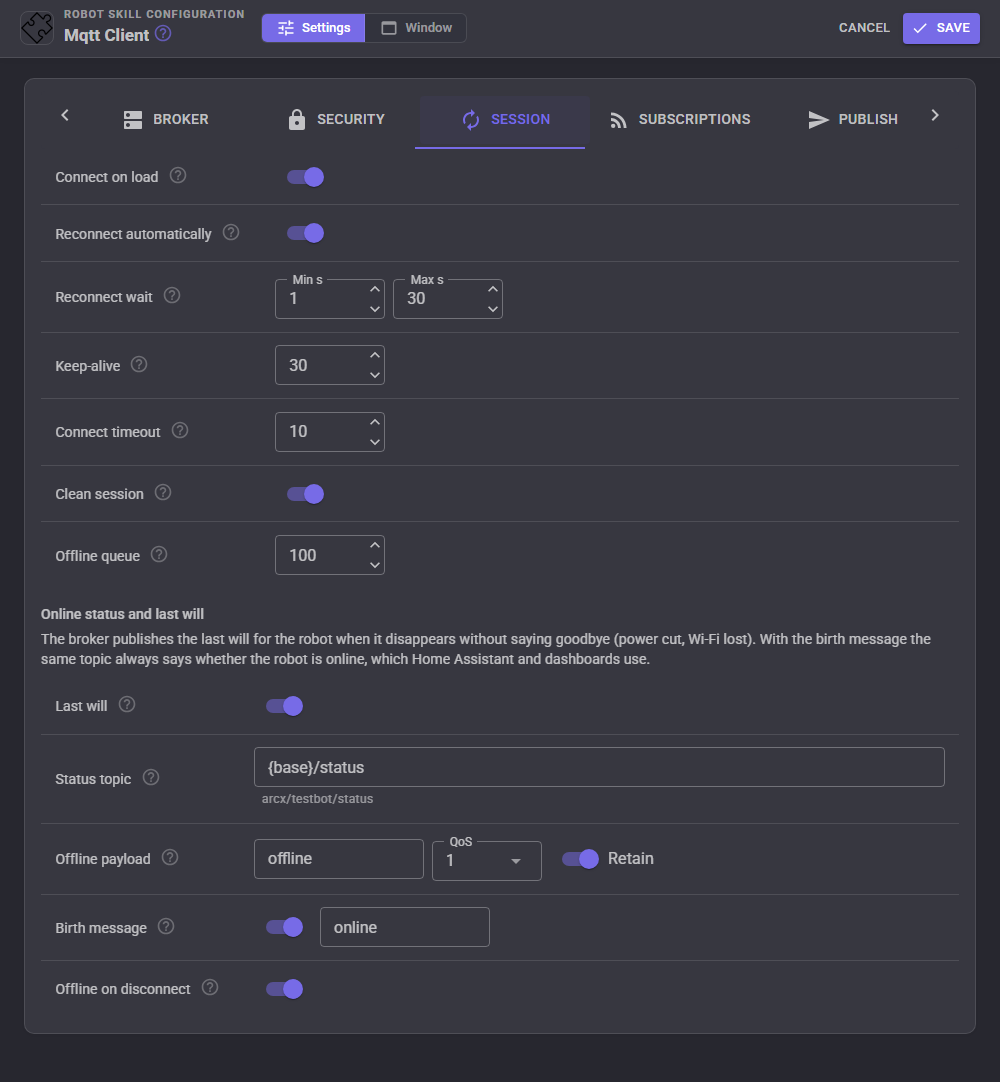
| Setting | What it means |
|---|---|
| Connect on load | Connects as soon as the project is loaded. |
| Reconnect automatically | Keeps trying when the connection is lost or an attempt fails. The wait starts at the minimum and doubles after each failure up to the maximum, with a little randomness so a fleet of robots does not hammer a broker that has just restarted. |
| Keep-alive | Seconds between pings. The broker gives up on the robot after 1.5 times this without hearing from it. |
| Connect timeout | How long to wait for the broker to answer. |
| Clean session | Off asks the broker to remember the subscriptions and keep QoS 1 and 2 messages that arrive while the robot is away. Give the robot a fixed client id when turning it off. |
| Offline queue | Messages published while disconnected are kept, up to this many, and sent once connected again. 0 drops them. |
Online status and last will. The last will is a message the broker publishes for the robot when it disappears without saying goodbye, such as a power cut or lost Wi-Fi. With the birth message the same status topic (by default /status) always says online or offline, retained, which is exactly what Home Assistant and dashboards use to show whether the robot is available. Because brokers only send the last will when a connection is lost, Offline on disconnect publishes the offline payload when the robot disconnects on purpose too.
Subscriptions
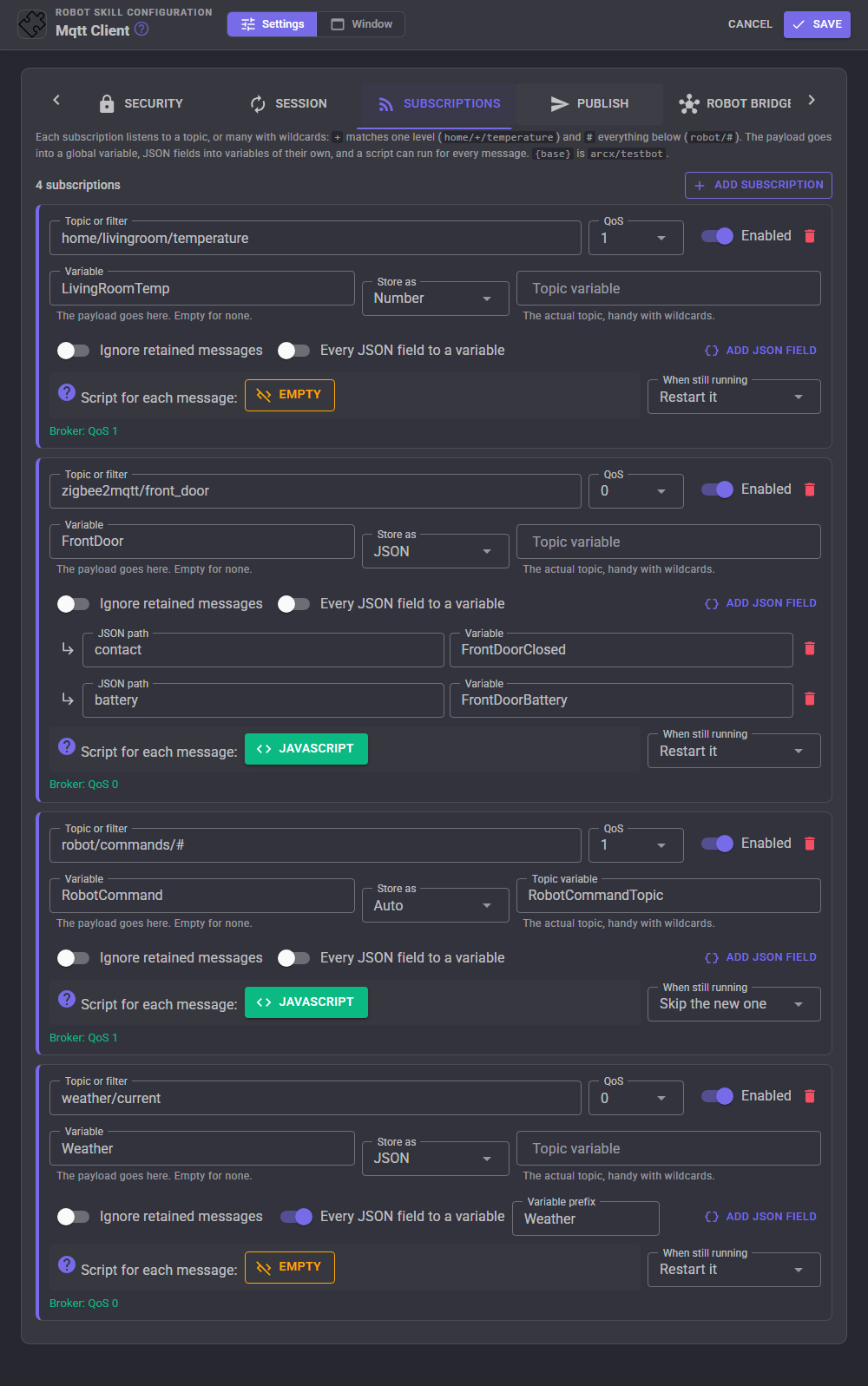
Each subscription listens to a topic or a filter: + matches one level (home/+/temperature) and # matches everything below (robot/#). and are filled in.
| Setting | What it means |
|---|---|
| Topic or filter | What to listen to. |
| QoS | 0 at most once, 1 at least once, 2 exactly once. |
| Variable | The global variable the payload is stored in. Empty to store nothing. |
| Store as | Auto stores numbers as numbers, true and false as booleans and anything else as text. Text always stores text. Number keeps the variable unchanged when the payload is not a number. Byte array stores the raw bytes as an array of numbers 0 to 255 (the ARC skill's binary option). JSON stores the JSON text. |
| Topic variable | Receives the actual topic, which tells a script which device sent the message when the filter has wildcards. |
| Ignore retained messages | Skips the stored value a broker sends straight after subscribing, so only new messages count. |
| Every JSON field to a variable | Copies every field of a JSON payload into its own variable, named prefix_path, such as Weather_main_temp for {"main": {"temp": 12.8}}. |
| JSON fields | Copies chosen fields into chosen variables. The path uses dots for objects and brackets for arrays: sensors.front.distance, readings[0].value, readings[-1].value for the last element, or ['field with spaces']. |
| Script for each message | Runs after the variables are set. getVar("$MqttLastTopic") and getVar("$MqttLastPayload") hold the message. |
| When still running | Restart stops the running script and starts it again so the newest message wins; Skip lets it finish and ignores the new message's script. The variables are updated either way. |
Once connected, each subscription shows what the broker granted, or why it refused it.
Publish
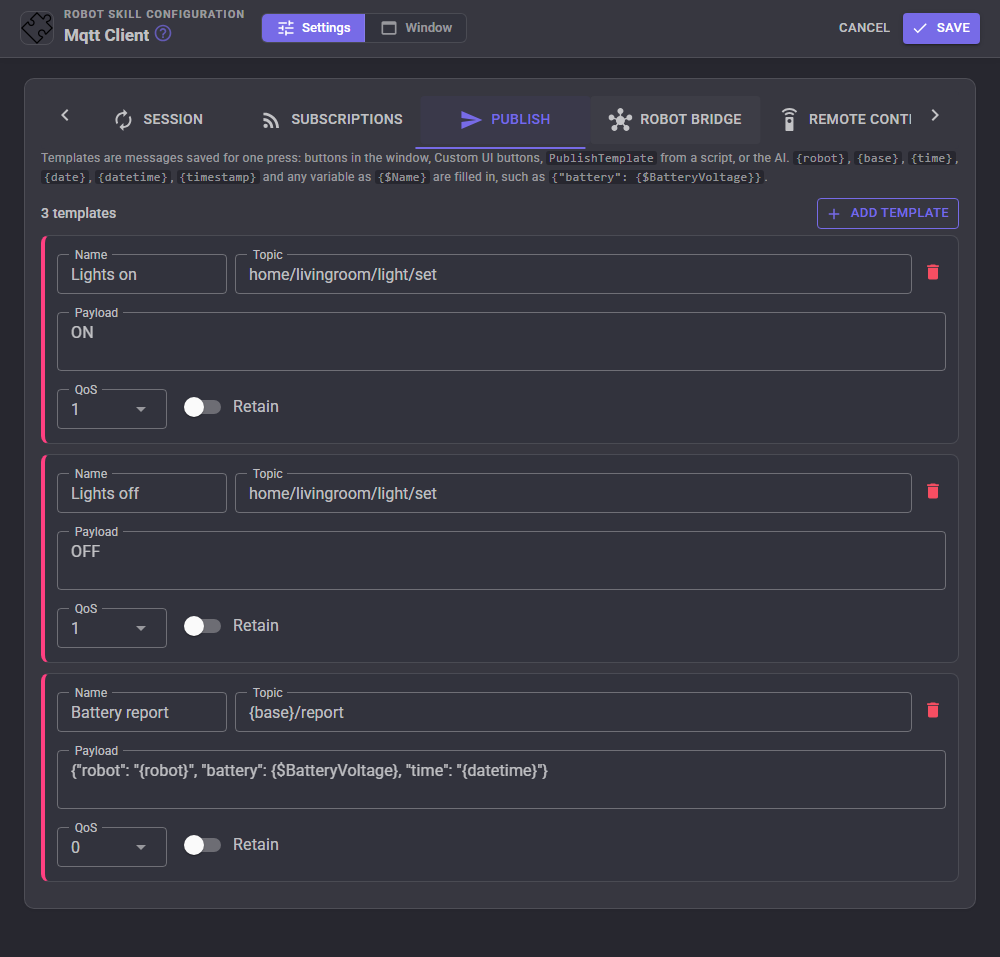
Publish templates are messages saved for one press: a button in the window, a Custom UI button, the PublishTemplate command from a script, or an AI assistant. Each has a name, a topic, a payload, a QoS and the retain flag. These are filled in when the template is sent:
| Token | Becomes |
|---|---|
| The robot's name | |
| The base topic | |
| , | The local time (14:05:09) and date (2026-10-13) |
| The local date and time with its time zone, ISO 8601 | |
| Unix time in seconds | |
| {$Name} | The value of the global variable Name |
For example {"robot": "", "battery": {$BatteryVoltage}} publishes the battery voltage as JSON.
Robot bridge and Home Assistant
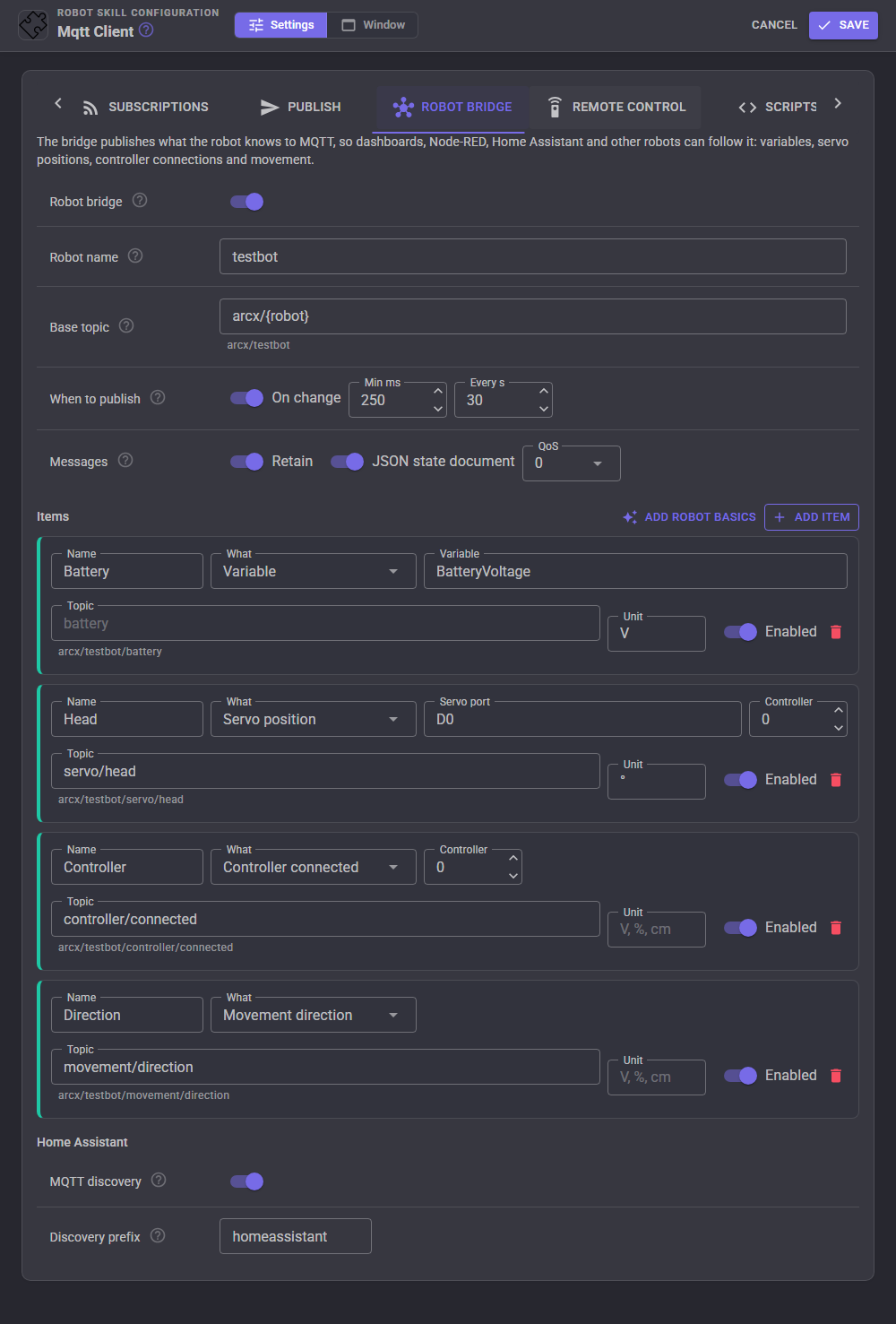
The bridge publishes what the robot knows, under the base topic (arcx/ unless you change it), so dashboards, Node-RED, Home Assistant and other robots can follow it.
| Item | Publishes |
|---|---|
| Variable | A global variable. |
| Variables starting with | Every variable whose name starts with the text, each to its own topic under the item's topic. |
| Servo position | The position of a servo port (D0 to D255, V0 to V255) on a controller. |
| Controller connected | true or false for a controller. |
| Movement direction | stop, forward, reverse, left, right... |
| Movement speed | 0 to 255. |
Add robot basics adds the controller connection, the movement direction and the speed in one press.
When to publish: on change sends an item as soon as it changes but never faster than the minimum interval, and every N seconds sends everything again whether it changed or not. Retained bridge messages let a dashboard that connects later see the latest values at once. The JSON state document collects every item into one message on /state, such as {"Battery": 7.42, "Direction": "stop", "timestamp": "..."}. The bridge pauses while a robot skill's configuration is open.
Home Assistant MQTT discovery announces each bridge item to Home Assistant, which then shows the robot as a device named after it, with a sensor per item (true/false items become binary sensors, a controller connection a connectivity sensor) that goes unavailable when the robot goes offline. With remote movement on, a Drive selector appears too, so the robot can be driven from a Home Assistant dashboard or automation. Home Assistant's MQTT integration must use the same broker. Removing an item removes it from Home Assistant.
Remote control
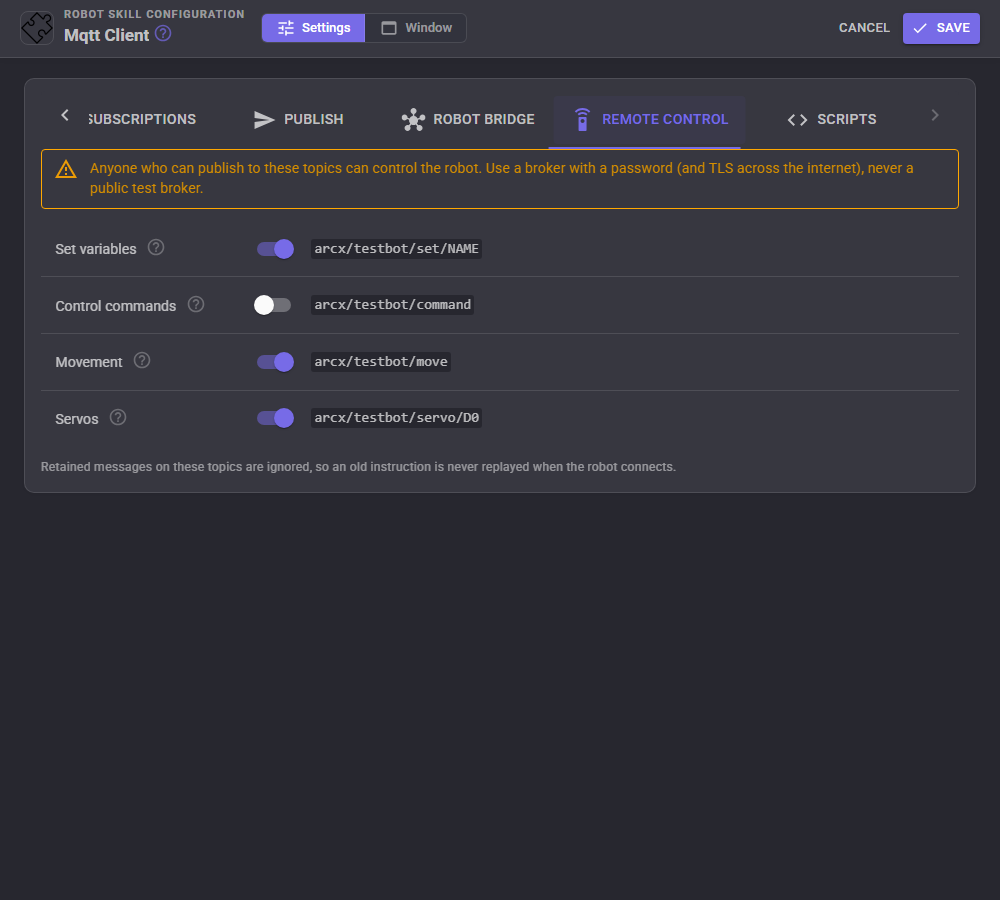
Remote control lets other MQTT clients act on the robot. Each feature is off until you switch it on. Anyone who can publish to these topics can control the robot, so use a broker with a password (and TLS across the internet), never a public test broker.
| Feature | Topic | Payload |
|---|---|---|
| Set variables | /set/NAME | The value. Numbers and true/false become numbers and booleans. |
| Control commands | /command | JSON: {"skill": "Window title", "command": "Name", "params": [..], "id": "optional"}. The result is published to /command/result as {"ok": true, "result": ..., "id": ...} or {"ok": false, "error": "..."}. |
| Movement | /move | forward, reverse, left, right or stop, optionally with a speed (forward 200), or JSON {"direction": "left", "speed": 120}. |
| Servos | /servo/PORT or /servo/BOARD/PORT | The position, such as 90. |
Retained messages on these topics are ignored, so an old instruction is never replayed when the robot connects, and the robot's own bridge messages are never taken as instructions.
Scripts
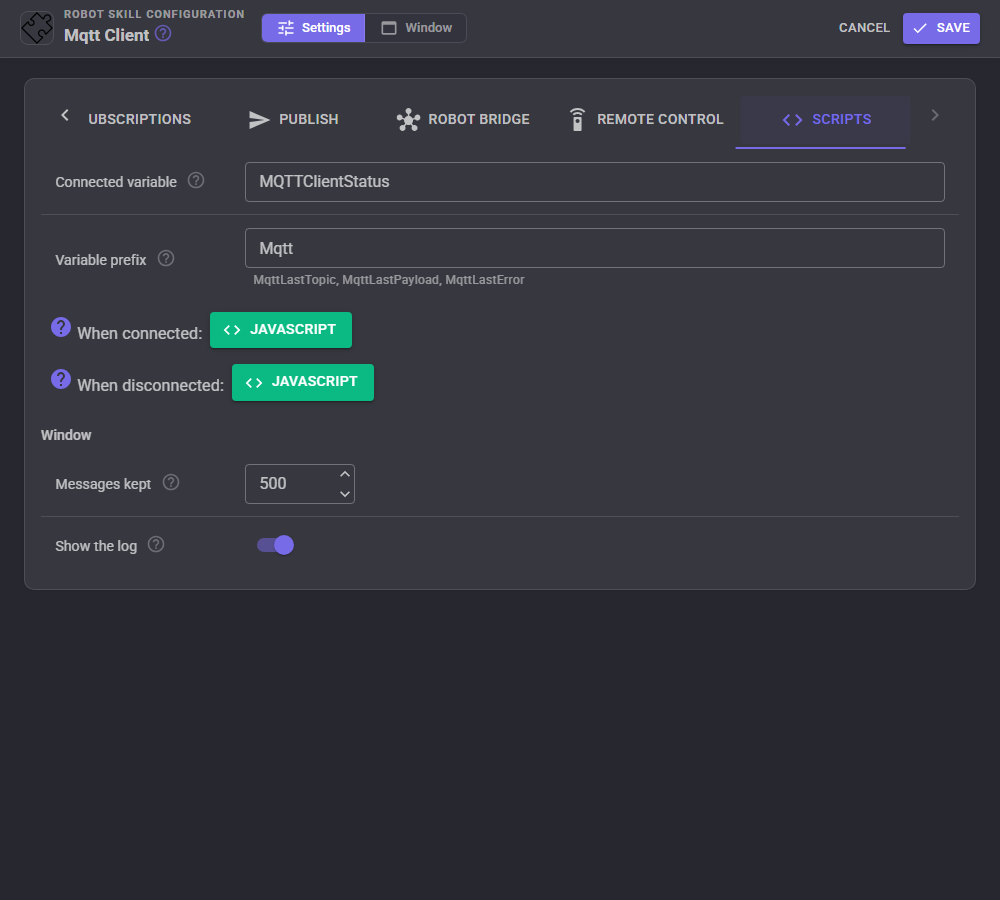
| Setting | What it means |
|---|---|
| Connected variable | True while connected. MQTTClientStatus by default, the variable the ARC EZMQTT Client used. |
| Variable prefix | The start of the variables LastTopic, LastPayload and LastError (MqttLastTopic and so on). Give each MQTT Client its own prefix when a project has several. |
| When connected | A script run on every connection and reconnection, for instance to announce the robot. |
| When disconnected | A script run when the connection is lost or closed, for instance to stop the robot when its remote control goes away. |
| Messages kept | How many messages the Messages view keeps. |
| Show the log | Shows the robot skill's log at the bottom of the window. |
Scripting
A script can do everything the window does: connect to the configured broker or another one (Connect returns once connected, so a script can publish straight after it), publish text, bytes, a variable, a JSON object built from several variables or a saved template, subscribe and unsubscribe for the session, read the last message on any topic, clear a retained message and turn the bridge on or off. The script editor's ControlCommand list describes each command. For example, in JavaScript:
controlCommand("Mqtt Client", "PublishJson", "robot/telemetry", "$BatteryVoltage", "$FrontDistance");

var reply = controlCommand("Mqtt Client", "GetLastMessage", "home/livingroom/temperature");
Custom UI widgets
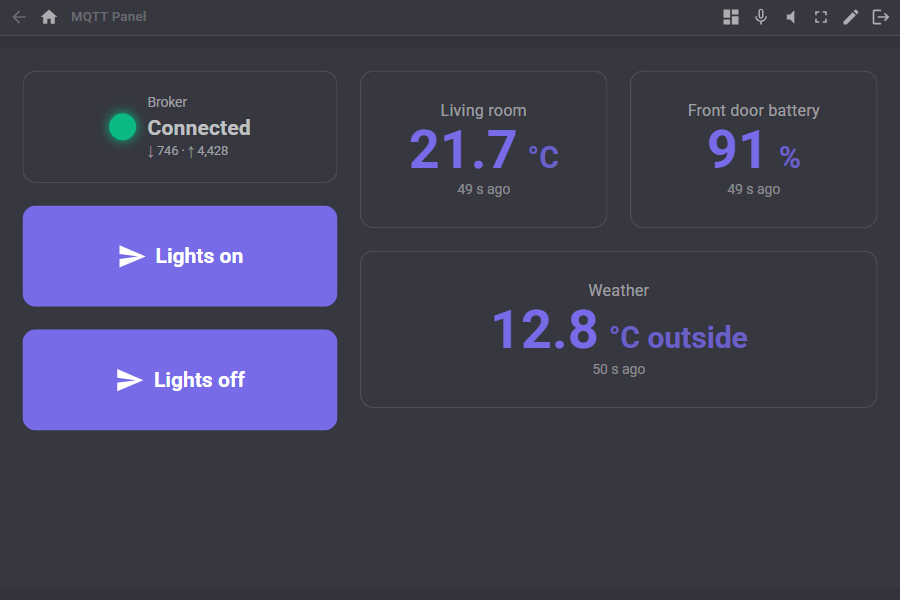
Three widgets can be placed on Custom UI screens:
| Widget | What it shows |
|---|---|
| MQTT status | A light with Connected, Connecting, Reconnecting or Disconnected and the message counts. Pressing it connects or disconnects unless AllowToggle is false. |
| MQTT value | The latest payload of a topic in large text, or one field of a JSON payload (JsonPath), with a caption and a suffix such as C. The topic must be subscribed. |
| MQTT publish button | Publishes a template (Template) or its own topic and payload. It flashes green when the broker took the message, amber when it was queued and red when it failed. |
AI assistants
AI assistants connected to ARCx through MCP get tools to read the connection status (with every subscription, template, bridge item and remote control topic), publish, publish a template, subscribe and unsubscribe, read recent messages and the topic table, connect and disconnect, and wait for a message, which lets an assistant ask a device something and read its reply. The status is also offered as a resource. Passwords are never included.
Several brokers
A project can hold several MQTT Clients, each connected to its own broker. Give each its own variable prefix and connected variable, and its own base topic if both run a bridge.
Control Commands for the Mqtt Client robot skill
There are Control Commands available for this robot skill which allows the skill to be controlled programmatically from scripts or other robot skills. These commands enable you to automate actions, respond to sensor inputs, and integrate the robot skill with other systems or custom interfaces. If you're new to the concept of Control Commands, we have a comprehensive manual available here that explains how to use them, provides examples to get you started and make the most of this powerful feature.
Control Command ManualThis robot skill has 21 control commands, listed below. Send them from a JavaScript or Python script, from Blockly, or from another robot skill.
The first value is always the window title, which is the name in the title bar of the robot skill on your workspace. It starts out as Mqtt Client, which is what every example below uses. If you rename the robot skill, or add a second copy of it to the project, use the title as it appears on that window instead.
ControlCommand() can be shortened to CC(), and both spellings work in JavaScript and in Python. The examples are JavaScript; Python is the same call, except that true and false are written True and False.
BridgePublishNow
Publish every robot bridge item now, whether it changed or not. Returns how many values were published.
Syntax
ControlCommand("Mqtt Client", "BridgePublishNow")
Returns: Integer [-2,147,483,648 to 2,147,483,647]
Example
var result = ControlCommand("Mqtt Client", "BridgePublishNow");
ClearMessages
Empty the window's message list and topic table and zero the counters.
Syntax
ControlCommand("Mqtt Client", "ClearMessages")
Returns: nothing
Example
ControlCommand("Mqtt Client", "ClearMessages");
ClearRetained
Remove the message the broker retained on a topic (publishes an empty retained message).
Syntax
ControlCommand("Mqtt Client", "ClearRetained", (String)topic)
Parameters
| # | Name | Type | What to pass |
|---|---|---|---|
| 1 | topic | Text | Your text, in quotes |
Returns: Boolean [true or false]
Example
var result = ControlCommand("Mqtt Client", "ClearRetained", "topic");
Connect
Connect to the broker and wait until connected (or the attempt fails). With no parameter it uses the configured broker; with one it connects to that address instead: a host, host:port, or mqtt://, mqtts://, ws:// or wss:// address. Keeps reconnecting by itself when AutoReconnect is on. Returns true when connected.
Syntax
ControlCommand("Mqtt Client", "Connect", (String)server address)
Parameters
| # | Name | Type | What to pass |
|---|---|---|---|
| 1 | server address | Text | Your text, in quotes |
Returns: Boolean [true or false]
Example
var result = ControlCommand("Mqtt Client", "Connect", "server address");
Disconnect
Disconnect from the broker on purpose (publishing the offline status when configured) and stop reconnecting.
Syntax
ControlCommand("Mqtt Client", "Disconnect")
Returns: nothing
Example
ControlCommand("Mqtt Client", "Disconnect");
GetLastMessage
The payload (as text) of the last message received on a topic, or on any topic matching a filter with + or #. Empty when none arrived yet. Only subscribed topics are received.
Syntax
ControlCommand("Mqtt Client", "GetLastMessage", (String)topic)
Parameters
| # | Name | Type | What to pass |
|---|---|---|---|
| 1 | topic | Text | Your text, in quotes |
Returns: String
Example
var result = ControlCommand("Mqtt Client", "GetLastMessage", "topic");
GetStatus
One line about the connection, such as "Connected to mqtt://192.168.1.10:1883 (MQTT 3.1.1)" or "Reconnecting to ... in 8 s (attempt 3)".
Syntax
ControlCommand("Mqtt Client", "GetStatus")
Returns: String
Example
var result = ControlCommand("Mqtt Client", "GetStatus");
GetTopics
The topics messages were received on, most recent first.
Syntax
ControlCommand("Mqtt Client", "GetTopics")
Returns: Array of String
Example
var result = ControlCommand("Mqtt Client", "GetTopics");
IsConnected
Whether the client is connected to the broker right now.
Syntax
ControlCommand("Mqtt Client", "IsConnected")
Returns: Boolean [true or false]
Example
var result = ControlCommand("Mqtt Client", "IsConnected");
Publish
Publish text with a quality of service (0, 1 or 2) and the retain flag (true to have the broker keep it for later subscribers). Returns true when sent or queued.
Syntax
ControlCommand("Mqtt Client", "Publish", (String)topic, (String)payload, (Number)qos, (Bool)retain)
Parameters
| # | Name | Type | What to pass |
|---|---|---|---|
| 1 | topic | Text | Your text, in quotes |
| 2 | payload | Text | Your text, in quotes |
| 3 | qos | Number | A number, without quotes |
| 4 | retain | True or false | true or false, without quotes |
Returns: Boolean [true or false]
Example
var result = ControlCommand("Mqtt Client", "Publish", "topic", "payload", 0, true);
PublishBinary
Publish the bytes held in an array variable (numbers 0 to 255): pass the variable's name, such as "$MyBytes", or the array itself. The ARC EZMQTT Client command. Returns true when sent or queued.
Syntax
ControlCommand("Mqtt Client", "PublishBinary", (String)topic, (String)$ArrayVariable)
Parameters
| # | Name | Type | What to pass |
|---|---|---|---|
| 1 | topic | Text | Your text, in quotes |
| 2 | $ArrayVariable | Text | Your text, in quotes |
Returns: Boolean [true or false]
Example
var result = ControlCommand("Mqtt Client", "PublishBinary", "topic", "$ArrayVariable");
PublishBytes
Publish bytes built from the remaining parameters: each number (0 to 255) becomes one byte and each text becomes its characters, such as PublishBytes("robot/serial", 255, "Hello", 13, 10). The ARC EZMQTT Client command. Returns true when sent or queued.
Syntax
ControlCommand("Mqtt Client", "PublishBytes", (String)topic, (String)value, (String)...)
Parameters
| # | Name | Type | What to pass |
|---|---|---|---|
| 1 | topic | Text | Your text, in quotes |
| 2 | value | Text | Your text, in quotes |
| 3 | ... | Text | Your text, in quotes |
Returns: Boolean [true or false]
Example
var result = ControlCommand("Mqtt Client", "PublishBytes", "topic", "value", "...");
PublishJson
Publish a JSON object built from global variables: each remaining parameter is a variable name and becomes a field, such as PublishJson("robot/telemetry", "$Battery", "$Distance") giving {"Battery":7.4,"Distance":32}. Returns true when sent or queued.
Syntax
ControlCommand("Mqtt Client", "PublishJson", (String)topic, (String)$Variable, (String)...)
Parameters
| # | Name | Type | What to pass |
|---|---|---|---|
| 1 | topic | Text | Your text, in quotes |
| 2 | $Variable | Text | Your text, in quotes |
| 3 | ... | Text | Your text, in quotes |
Returns: Boolean [true or false]
Example
var result = ControlCommand("Mqtt Client", "PublishJson", "topic", "$Variable", "...");
PublishRetained
Publish text with the retain flag, so the broker keeps it and hands it to anyone who subscribes later (QoS 1). Returns true when sent or queued.
Syntax
ControlCommand("Mqtt Client", "PublishRetained", (String)topic, (String)payload)
Parameters
| # | Name | Type | What to pass |
|---|---|---|---|
| 1 | topic | Text | Your text, in quotes |
| 2 | payload | Text | Your text, in quotes |
Returns: Boolean [true or false]
Example
var result = ControlCommand("Mqtt Client", "PublishRetained", "topic", "payload");
PublishString
Publish text to a topic (QoS 0, not retained). The ARC EZMQTT Client command. Returns true when sent, or queued while reconnecting.
Syntax
ControlCommand("Mqtt Client", "PublishString", (String)topic, (String)text)
Parameters
| # | Name | Type | What to pass |
|---|---|---|---|
| 1 | topic | Text | Your text, in quotes |
| 2 | text | Text | Your text, in quotes |
Returns: Boolean [true or false]
Example
var result = ControlCommand("Mqtt Client", "PublishString", "topic", "text");
PublishTemplate
Publish one of the configured publish templates by name, with its filled in. Returns true when sent or queued.
Syntax
ControlCommand("Mqtt Client", "PublishTemplate", (String)template name)
Parameters
| # | Name | Type | What to pass |
|---|---|---|---|
| 1 | template name | Text | Your text, in quotes |
Returns: Boolean [true or false]
Example
var result = ControlCommand("Mqtt Client", "PublishTemplate", "template name");
PublishVariable
Publish the value of a global variable: numbers and true/false as text, arrays and lists as JSON. Returns true when sent or queued.
Syntax
ControlCommand("Mqtt Client", "PublishVariable", (String)topic, (String)$Variable)
Parameters
| # | Name | Type | What to pass |
|---|---|---|---|
| 1 | topic | Text | Your text, in quotes |
| 2 | $Variable | Text | Your text, in quotes |
Returns: Boolean [true or false]
Example
var result = ControlCommand("Mqtt Client", "PublishVariable", "topic", "$Variable");
Reconnect
Drop the connection and connect again straight away, for instance after the broker's address changed. Returns true when connected again.
Syntax
ControlCommand("Mqtt Client", "Reconnect")
Returns: Boolean [true or false]
Example
var result = ControlCommand("Mqtt Client", "Reconnect");
SetBridge
Turn the robot bridge on (true) or off (false). Not saved with the project unless the project is saved.
Syntax
ControlCommand("Mqtt Client", "SetBridge", (Bool)enabled)
Parameters
| # | Name | Type | What to pass |
|---|---|---|---|
| 1 | enabled | True or false | true or false, without quotes |
Returns: Boolean [true or false]
Example
var result = ControlCommand("Mqtt Client", "SetBridge", true);
Subscribe
Subscribe to a topic or filter (+ and # wildcards) until the project closes, without saving it. Optionally store each payload in a global variable, and ask for a QoS (0 to 2). Returns true.
Syntax
ControlCommand("Mqtt Client", "Subscribe", (String)topic, (String)$Variable, (Number)qos)
Parameters
| # | Name | Type | What to pass |
|---|---|---|---|
| 1 | topic | Text | Your text, in quotes |
| 2 | $Variable | Text | Your text, in quotes |
| 3 | qos | Number | A number, without quotes |
Returns: Boolean [true or false]
Example
var result = ControlCommand("Mqtt Client", "Subscribe", "topic", "$Variable", 0);
Unsubscribe
Stop a subscription made with Subscribe. Configured subscriptions stay. Returns true when there was one.
Syntax
ControlCommand("Mqtt Client", "Unsubscribe", (String)topic)
Parameters
| # | Name | Type | What to pass |
|---|---|---|---|
| 1 | topic | Text | Your text, in quotes |
Returns: Boolean [true or false]
Example
var result = ControlCommand("Mqtt Client", "Unsubscribe", "topic");
This list is read out of the robot skill itself each time its package is uploaded, so it matches the published version (v1).


This robot skill has been updated to v1.
What has changed
initial release