

MQTT broker for ARCx with robot bridge, topics, triggers, retained messages, TLS/WebSockets, security, and scripting control
 Windows
 ARM
ARM
 Linux
Linux
 MacOS
MacOS
How to add the Mqtt Broker robot skill
- Load the most recent release of ARCx on a compatible operating system (Get ARCx).
- Press the + Skills menu from the top menu bar in ARCx.
- Choose any of these category tabs, the robot skill appears in each of them: Communication, Remote Control, Scripting.
- Press the Mqtt Broker icon to add the robot skill to your project.
Don't have a robot yet?
Follow the Getting Started Guide to build a robot and use the Mqtt Broker robot skill.
How to use the Mqtt Broker robot skill
The Mqtt Broker robot skill turns your robot into an MQTT broker: the hub that ESP32 and Arduino boards, smart plugs and lights, Home Assistant, Node-RED, phone apps, web dashboards and other robots connect to and talk through. Everything they publish passes through your robot, so the robot can watch it, react to it and join in, and the robot's own status and global variables become topics any of them can read.
MQTT is a small publish/subscribe protocol. A client publishes a message (a payload, usually text or JSON) on a topic such as home/livingroom/temperature, and every client subscribed to that topic, or to a filter that matches it such as home/+/temperature or home/#, receives it. The broker is the one place they all connect to. A retained message is kept by the broker and handed to every client that subscribes later, which is how a dashboard learns the current state the moment it connects.
The broker is MQTTnet, which supports MQTT 3.1, 3.1.1 and 5.0. It runs inside ARCx on Windows, Linux and macOS, so no separate broker such as Mosquitto needs to be installed.
Connecting clients
The broker starts with the project, listening on port 1883 on every network. The window shows the address clients connect to, such as mqtt://192.168.1.20:1883; give that to your devices. If another broker (such as Mosquitto) already uses the port, the window says so: stop the other broker or choose another port in the configuration.
A few common clients:
- MQTT Explorer or MQTTX (desktop apps): a new connection to the robot's address, port 1883, no user name unless you require logins. They show every topic as a tree, much like this robot skill's Topics view.
- mosquitto_sub / mosquitto_pub:
mosquitto_sub -h 192.168.1.20 -t "arcx/#" -vshows the robot's bridge topics as they change. - ESP32 / Arduino with PubSubClient:
client.setServer("192.168.1.20", 1883);then publish sensor readings and subscribe to commands. - Home Assistant: add the MQTT integration with the robot's address as the broker.
- Web pages (MQTT.js, Paho): turn on WebSockets in the configuration and connect to
ws://192.168.1.20:8083/mqtt.
The window
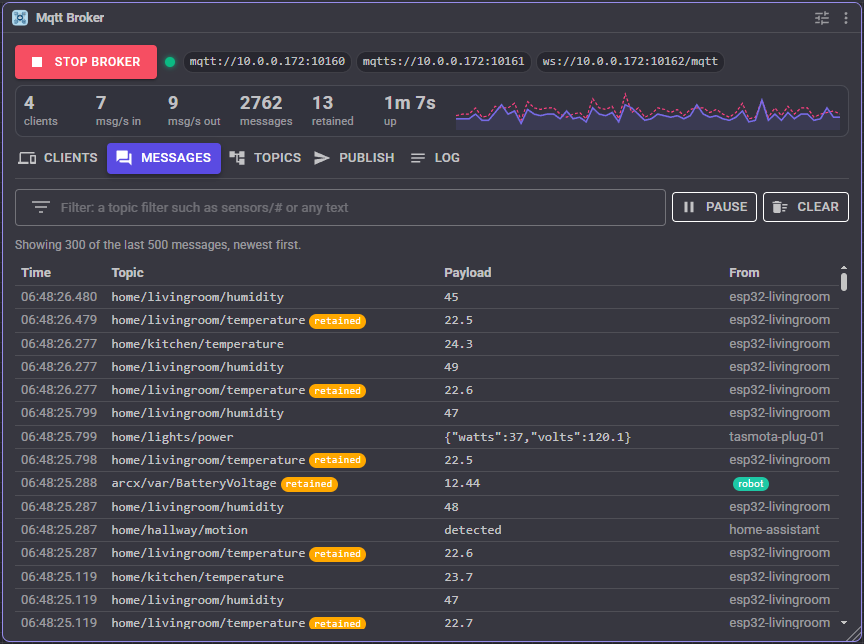
- Start broker / Stop broker starts and stops the broker. Stopping disconnects every client.
- Beside it, the addresses clients connect to, one per listener (MQTT, TLS, WebSockets, secure WebSockets).
- The live numbers: connected clients, messages published to the broker in the last second, messages delivered to subscribers in the last second, messages since ARCx started, retained messages, how long the broker has been running, and a graph of the last minute of traffic (solid line in, dashed line out).
- Five views, chosen with the buttons below the numbers:
Messages is a live log of the most recent messages (500 by default): time, topic, payload, and who published it. Messages the robot published itself are marked robot, retained messages retained. The filter box takes an MQTT topic filter such as sensors/# or home/+/temperature, or any text to look for in the topic, payload or client id. Pause freezes the list so you can read it while traffic continues; Clear empties it.
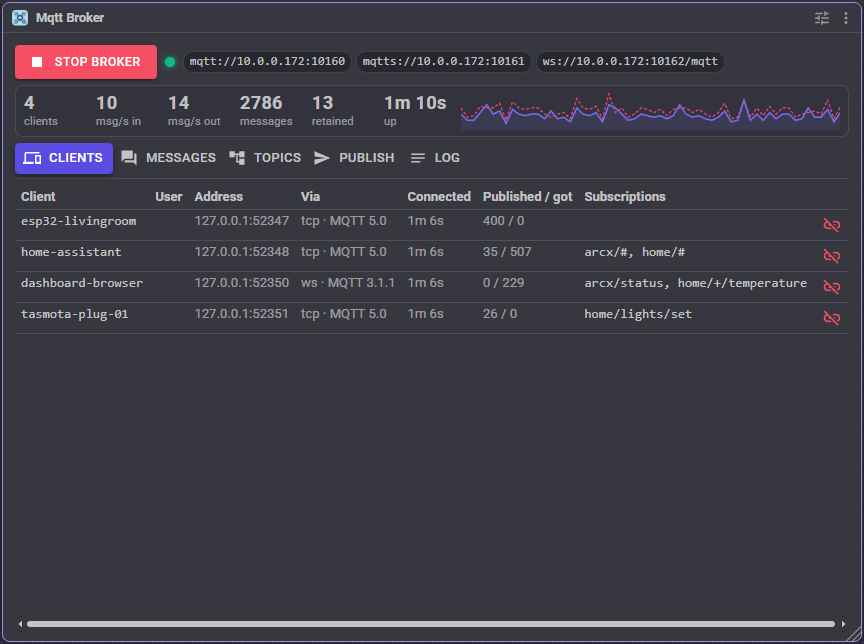
Clients lists the connected clients: client id, user name, network address, how it connected (tcp, tls, ws or wss) and with which MQTT version, how long ago, how many messages it published and was given, and its subscriptions. The unlink button disconnects a client (it may reconnect on its own).
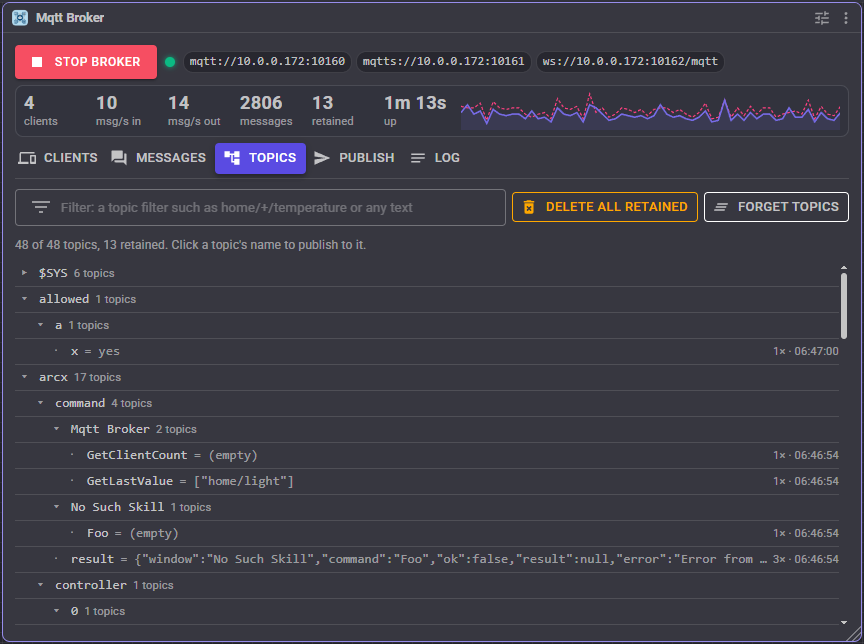
Topics is a tree of every topic a message has been published on, with the last payload, how many messages it has seen and when the last one came. Retained messages are marked, and the bin button beside one deletes that retained message. Delete all retained deletes every retained message the broker holds; Forget topics clears the tree (retained messages stay). Click a topic's name to open it in the publisher with its last payload. The broker's own statistics are under $SYS.
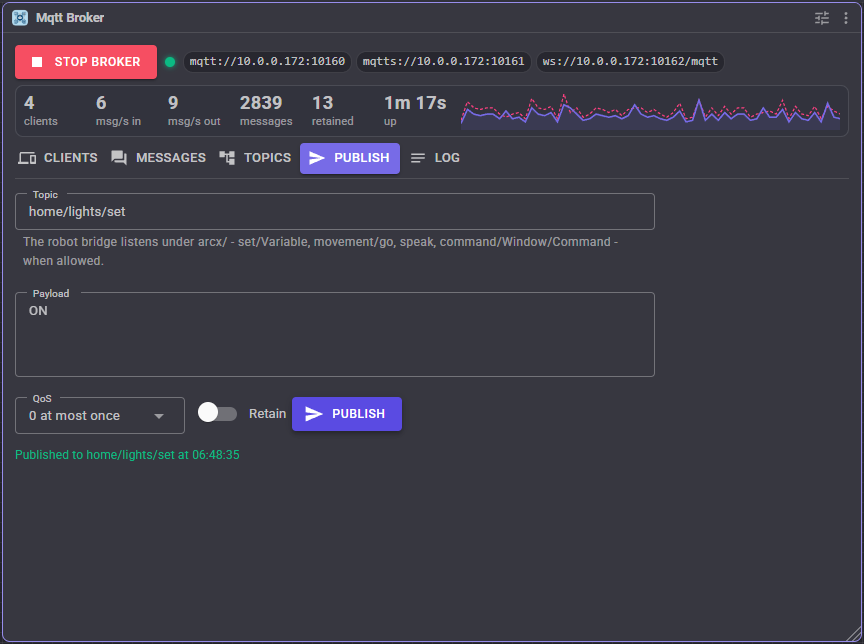
Publish sends a message from the robot: topic, payload, quality of service and the retain switch.
Log says what the broker did: starts and stops, clients connecting and disconnecting, refused logins and refused topics.
The robot bridge
The robot bridge connects the robot to MQTT without writing a script. Every bridge topic starts with the base topic, arcx unless you change it (use something like robots/r2 when several robots share one network).
What the robot publishes:
| Topic | Payload |
|---|---|
arcx/status |
online while the broker runs and offline when it stops. Retained. |
arcx/controller/0/connected |
true or false as each robot controller (0, 1, 2...) connects and disconnects. Retained. |
arcx/movement/direction |
forward, reverse, left, right or stop whenever the robot's movement changes. Retained. |
arcx/var/Name |
The value of the global variable Name, whenever it changes, for every variable you list in the configuration. Retained unless you turn that off. |
To publish variables, list them in the configuration one per line. A * matches any characters, so Battery* picks every variable starting with Battery, and * publishes them all. A variable that changes very quickly is published at most every 100 milliseconds (adjustable), always ending with its latest value.
What the robot listens to:
| Topic | What happens | Default |
|---|---|---|
arcx/set/Name |
The global variable Name is set to the payload. 42 and 3.5 become numbers and true / false booleans, so scripts can do arithmetic with them. You can limit which variables may be set. |
On |
arcx/movement/go |
The robot drives through its movement panel: forward, reverse, left, right or stop. |
Off |
arcx/speak |
The robot says the payload with the project's text to speech. | Off |
arcx/command/Window title/Command |
That ControlCommand is sent to that robot skill. The payload is its parameters: a JSON array such as ["Wave"], or values separated by commas. What the command returns (or why it failed) is published on arcx/command/result as JSON. |
Off |
arcx/script/javascript, arcx/script/python |
The payload runs as a script. | Off |
For example, with commands allowed, publishing ["Wave"] to arcx/command/Auto Position/AutoPositionAction makes the robot wave, and Home Assistant can show arcx/var/BatteryVoltage as a sensor.
Driving, speaking, control commands and scripts are off until you turn them on, because anyone who can reach the broker can then use them. Running scripts lets them run any code on the robot's computer. When you turn any of these on, require logins (see Security) or listen on this computer only.
The robot's own publishes count as well: a script that publishes to arcx/set/Speed sets the variable just as a client would.
Topic triggers
A trigger runs a script when a message arrives on a topic filter, optionally only when the payload is a particular word. While the script runs, the global variables MqttBrokerTopic, MqttBrokerPayload and MqttBrokerSender hold the message that fired it.
// A trigger on home/frontdoor/bell
Audio.say("Someone is at the door");
controlCommand("Auto Position", "AutoPositionAction", "Wave");
// A trigger on sensors/+/temperature
var room = getVar("MqttBrokerTopic").split("/")[1];
var t = getVar("MqttBrokerPayload");

if (t > 30)
  Audio.say("It is getting hot in the " + room);
Each trigger runs its own script. When messages come faster than the script finishes, the newest message stops the running script and starts it again.
Event scripts
Scripts can run when a client connects, disconnects or is refused a login, and when the broker starts and stops. MqttBrokerEventClient, MqttBrokerEventUser, MqttBrokerEventEndpoint and MqttBrokerEventReason say who and why.
// Client connected
if (getVar("MqttBrokerEventClient") == "home-assistant")
  Audio.say("Home Assistant is connected");
Scripting with the broker
The robot skill's control commands let any script publish, wait for messages and read the last value of a topic. Use the script editor's ControlCommand list for the full set.
// Switch a smart plug, then wait up to 2 seconds for it to report its new state
controlCommand("Mqtt Broker", "Publish", "home/plug1/set", "ON");
var state = controlCommand("Mqtt Broker", "WaitForMessage", "home/plug1/state", 2000);

if (state == "")
  print("The plug did not answer");

// The last temperature an ESP32 reported
var t = controlCommand("Mqtt Broker", "GetLastValue", "home/livingroom/temperature");

// A retained message: clients that connect later still get it
controlCommand("Mqtt Broker", "PublishRetained", "robot/mode", "patrol");
Scripts written for the ARC EZMQTT Broker keep working: its Start and Stop commands have the same names.
Security
By default any client can connect without a user name, which suits a home network. To require a login, add users on the Security tab and turn off Allow anonymous.
Each user can be limited to topics: May publish to and May subscribe to take MQTT filters separated by commas, such as home/livingroom/# or arcx/set/+. A client that publishes elsewhere has the message dropped (an MQTT 5 client is told it was not authorized), and a subscription that is not the same as, or narrower than, one of the allowed filters is refused. Empty allows every topic.
While no users are set up and anonymous logins are allowed, any user name and password is accepted, because many clients send one out of habit. Once there are users, a client that sends a user name must match one of them.
Passwords are saved in the project file as typed. Listen on: This computer only accepts only programs running on the robot's own computer, the safest choice when nothing else needs the broker.
TLS and WebSockets
Besides plain MQTT on port 1883, the broker can listen for:
- MQTT over TLS (
mqtts://, port 8883): encrypted MQTT. - WebSockets (
ws://, port 8083, path/mqtt): MQTT for web pages and browser dashboards. - Secure WebSockets (
wss://, port 8084): needed by web pages that are themselves served over https.
The encrypted listeners need a certificate. The robot skill makes a self-signed certificate the first time one starts, naming this computer and its network addresses, and keeps it in the project (save the project to keep it). Clients must either be told to trust it or not to check the certificate. Show certificate on the Listeners tab shows it as text to copy into a .crt file for a client (for example mosquitto_sub --cafile robot.crt, or an ESP32's root CA). Make a new one replaces it. A certificate issued for the robot's host name can be used instead as a PFX file.
Retained messages
Retained messages are saved with the project, so after ARCx or the robot restarts the broker still knows the last state of everything that was retained. Turn Keep retained messages off on the Advanced tab to start empty each time. Publishing an empty retained message to a topic deletes its retained message, as does the bin button in the Topics view or the ClearRetained control command.
Configuration
Listeners
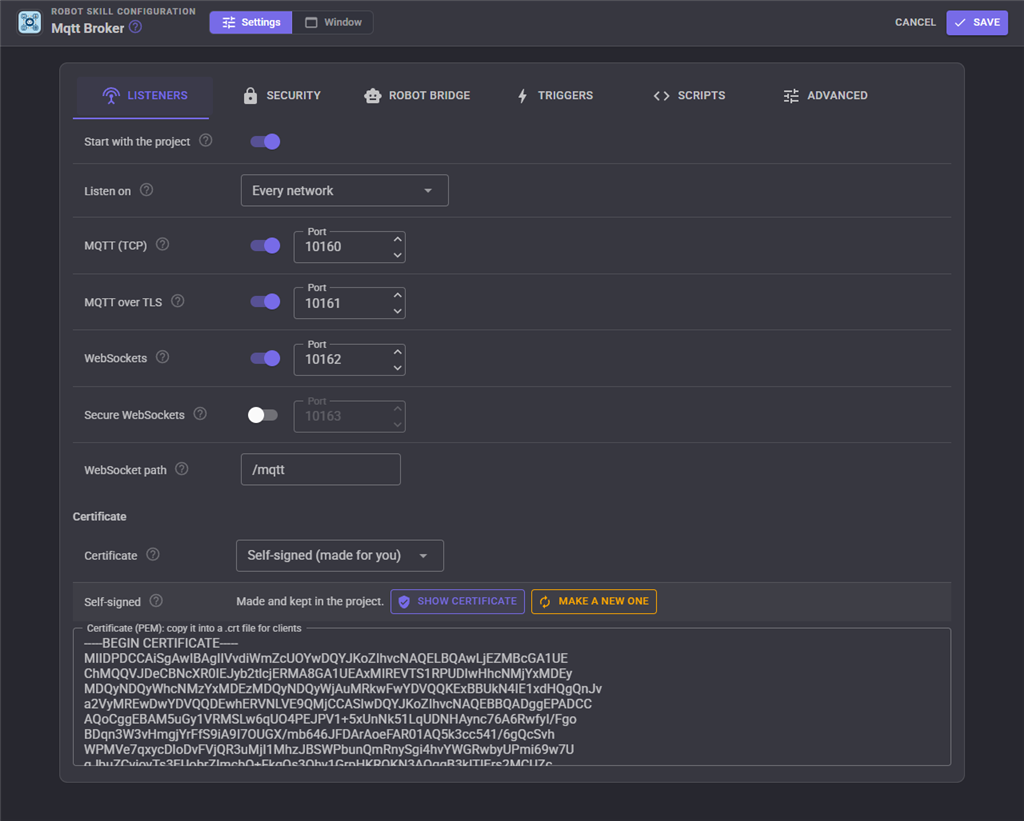
| Setting | What it does |
|---|---|
| Start with the project | Start the broker when the project loads. Off, it waits for the Start button or command. |
| Listen on | Every network, or this computer only. |
| MQTT (TCP) | Plain MQTT and its port (1883). |
| MQTT over TLS | Encrypted MQTT and its port (8883). |
| WebSockets | MQTT over WebSockets and its port (8083). |
| Secure WebSockets | MQTT over secure WebSockets and its port (8084). |
| WebSocket path | The path in the WebSocket address, /mqtt by default. Empty accepts any path. |
| Certificate | Self-signed (made for you) or a PFX file with its password. |
Saving the configuration while the broker runs restarts it with the new settings; connected clients reconnect.
Security
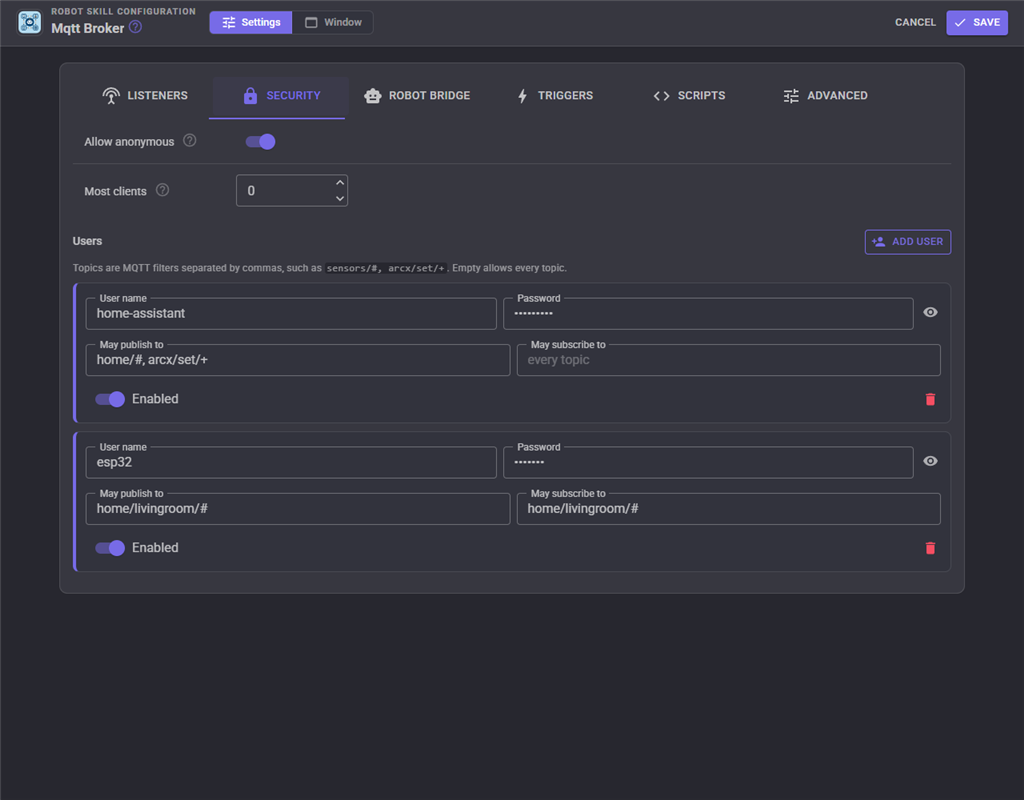
| Setting | What it does |
|---|---|
| Allow anonymous | Let clients connect without a user name. |
| Most clients | The most clients connected at once; 0 is no limit. |
| Users | User names, passwords, and the topics each may publish and subscribe to. A user can be disabled without deleting it. |
Robot bridge
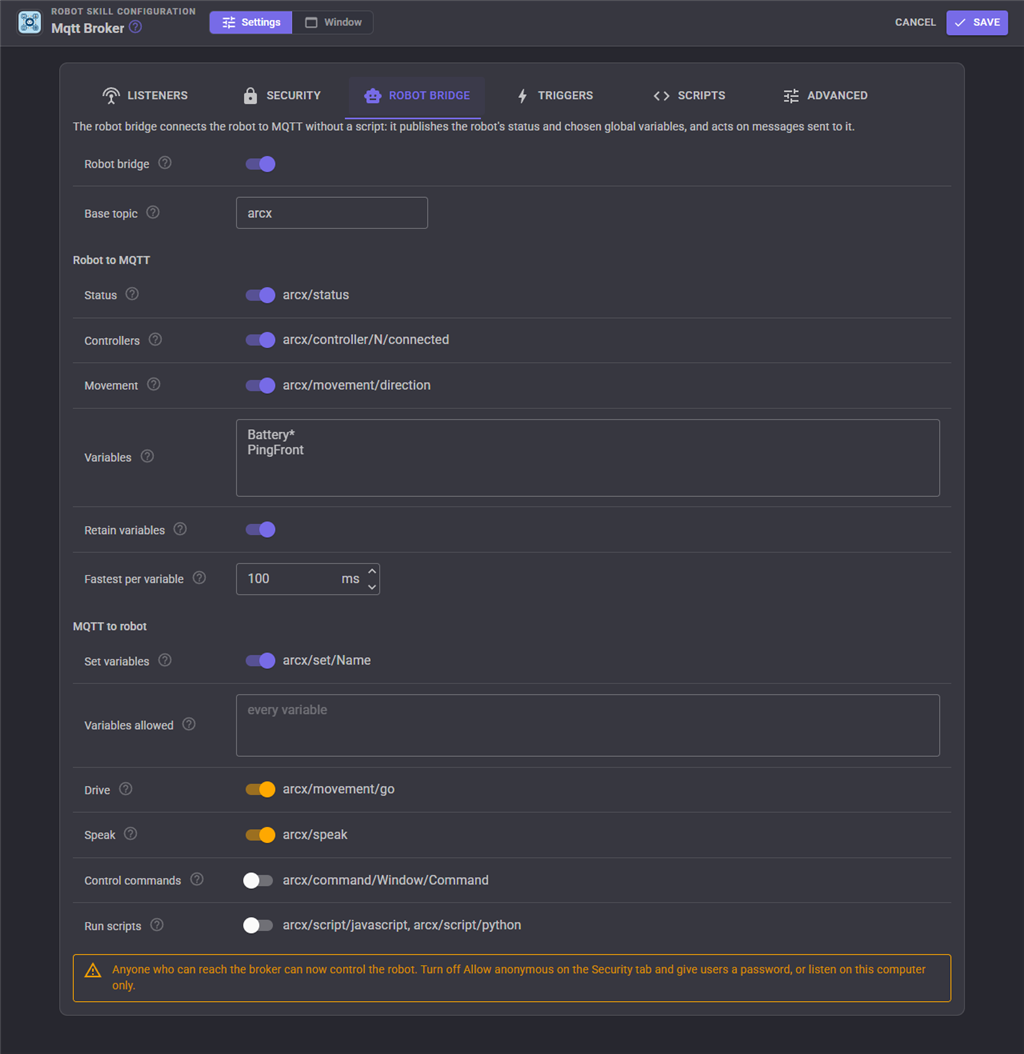
| Setting | What it does |
|---|---|
| Robot bridge | Turns the whole bridge on or off. |
| Base topic | What every bridge topic starts with. |
| Status, Controllers, Movement | Which robot state is published. |
| Variables | The global variables published, one per line, with * wildcards. |
| Retain variables | Publish variables as retained messages. |
| Fastest per variable | The shortest time between two publishes of one variable. |
| Set variables, Variables allowed | Whether set/Name may change variables, and which. |
| Drive, Speak, Control commands, Run scripts | Whether the other inbound topics act on the robot. |
Triggers
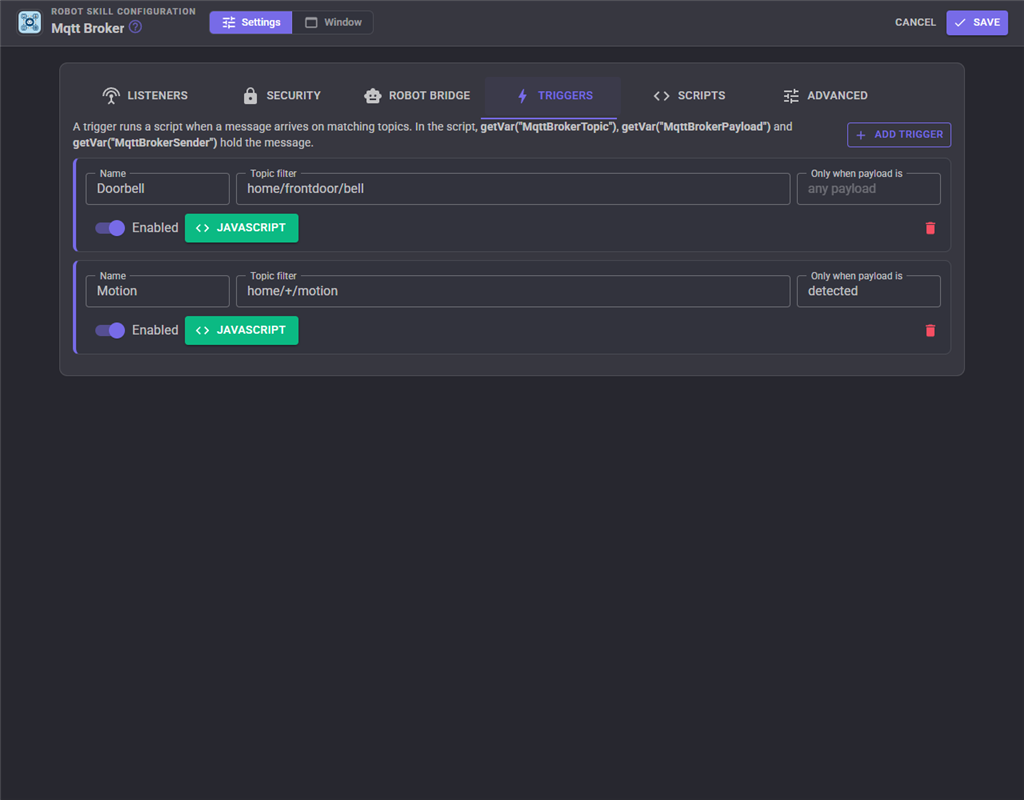
Each trigger has a name, a topic filter, an optional payload it must equal (not case sensitive) and its script.
Scripts
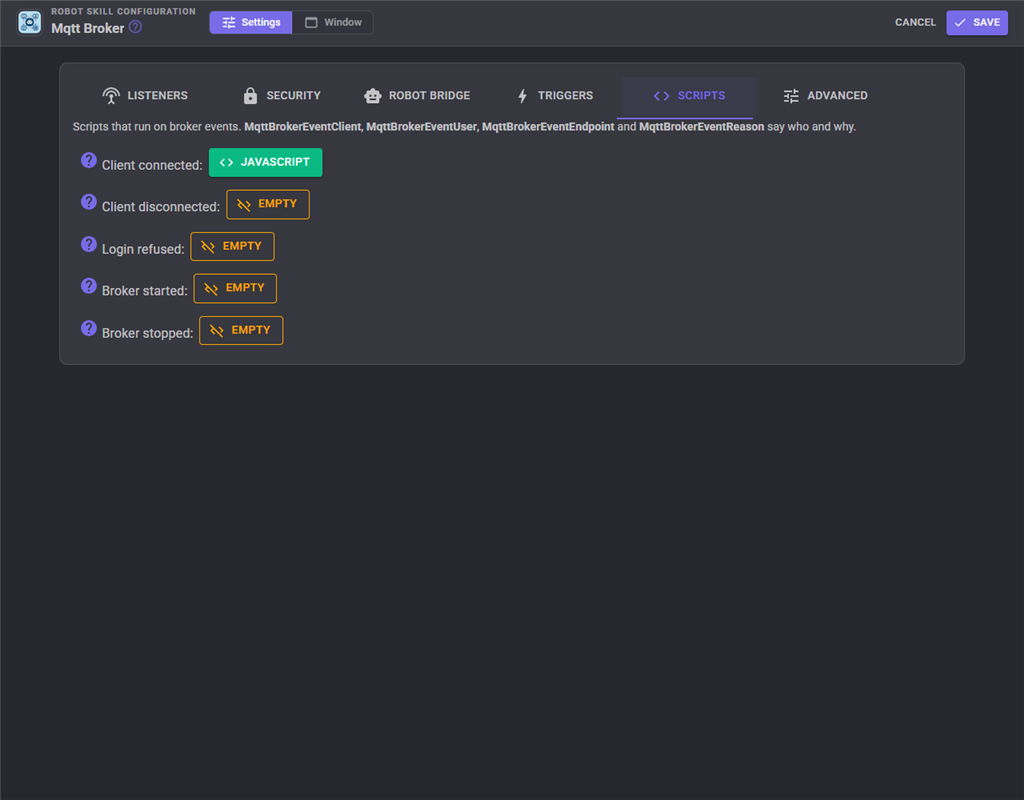
The event scripts: client connected, client disconnected, login refused, broker started, broker stopped.
Advanced
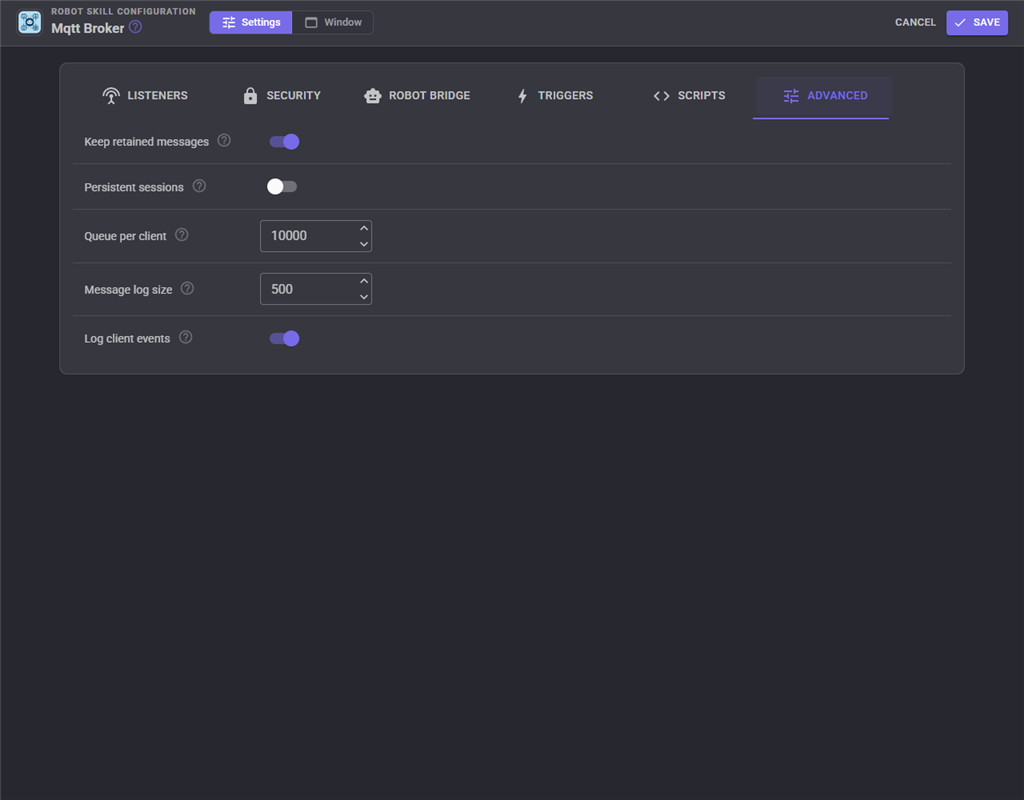
| Setting | What it does |
|---|---|
| Keep retained messages | Save retained messages with the project. |
| Persistent sessions | Keep the subscriptions and queued messages of clients that connect with clean session off while they are away. |
| Queue per client | How many messages can wait for one slow client before the oldest are dropped (1000). |
| Message log size | How many messages the window's message log keeps. |
| Log client events | Write connects, disconnects and refusals to the robot skill's log. |
Global variables
| Variable | Holds |
|---|---|
MqttBrokerRunning |
True while the broker runs. |
MqttBrokerClients |
How many clients are connected. |
MqttBrokerMessagesPerSecond |
Messages published to the broker in the last second. |
MqttBrokerTopic, MqttBrokerPayload, MqttBrokerSender |
The message that fired the running topic trigger. |
MqttBrokerEventClient, MqttBrokerEventUser, MqttBrokerEventEndpoint, MqttBrokerEventReason |
The client of the last connect, disconnect or refused login, and why. |
Custom UI widgets
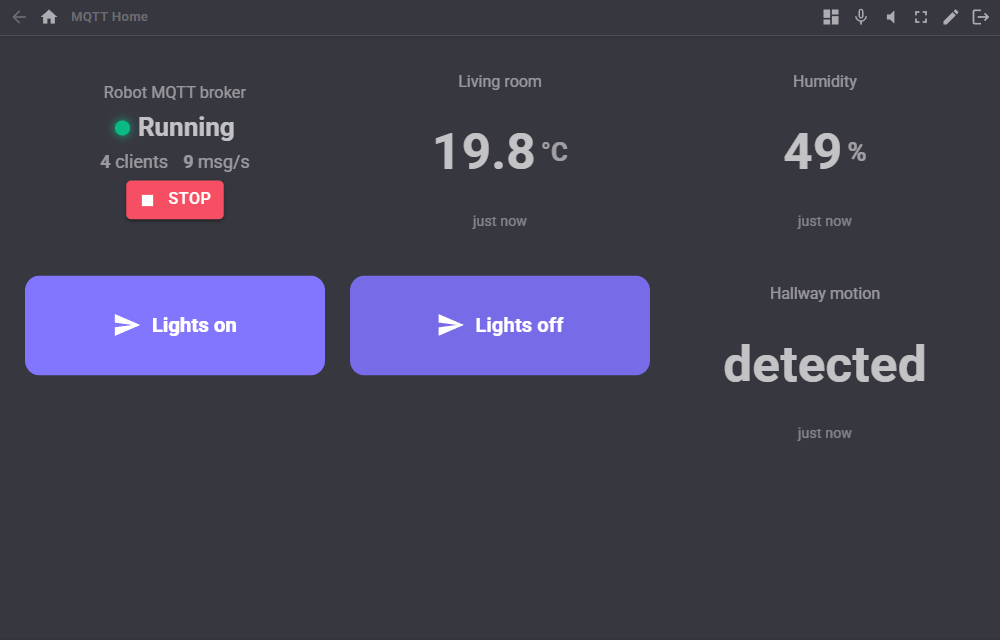
Three widgets can be placed on your own Custom UI screens:
- Broker status: running or stopped, connected clients and messages per second, with a start/stop button.
- Topic value: the last payload of one topic, large, with a caption and a unit, such as a temperature from an ESP32.
- Publish button: a button that publishes a payload to a topic, such as switching a light.
AI assistants
AI assistants connected to ARCx (Options, Preferences, AI connections) get tools to use the broker: the broker's status, publish a message, list the connected clients, list the topics with their last values, read the recent messages, wait for a message, delete retained messages and disconnect a client. An assistant can then switch your MQTT devices, read your sensors and tell you what is happening on the network.
Control Commands for the Mqtt Broker robot skill
There are Control Commands available for this robot skill which allows the skill to be controlled programmatically from scripts or other robot skills. These commands enable you to automate actions, respond to sensor inputs, and integrate the robot skill with other systems or custom interfaces. If you're new to the concept of Control Commands, we have a comprehensive manual available here that explains how to use them, provides examples to get you started and make the most of this powerful feature.
Control Command ManualThis robot skill has 16 control commands, listed below. Send them from a JavaScript or Python script, from Blockly, or from another robot skill.
The first value is always the window title, which is the name in the title bar of the robot skill on your workspace. It starts out as Mqtt Broker, which is what every example below uses. If you rename the robot skill, or add a second copy of it to the project, use the title as it appears on that window instead.
ControlCommand() can be shortened to CC(), and both spellings work in JavaScript and in Python. The examples are JavaScript; Python is the same call, except that true and false are written True and False.
ClearAllRetained
Delete every retained message the broker holds. Returns how many there were.
Syntax
ControlCommand("Mqtt Broker", "ClearAllRetained")
Returns: Integer [-2,147,483,648 to 2,147,483,647]
Example
var result = ControlCommand("Mqtt Broker", "ClearAllRetained");
ClearMessageLog
Empty the message log shown in the window.
Syntax
ControlCommand("Mqtt Broker", "ClearMessageLog")
Returns: nothing
Example
ControlCommand("Mqtt Broker", "ClearMessageLog");
ClearRetained
Delete the retained message of one topic. Returns false when the topic had none.
Syntax
ControlCommand("Mqtt Broker", "ClearRetained", (String)topic)
Parameters
| # | Name | Type | What to pass |
|---|---|---|---|
| 1 | topic | Text | Your text, in quotes |
Returns: Boolean [true or false]
Example
var result = ControlCommand("Mqtt Broker", "ClearRetained", "topic");
DisconnectClient
Disconnect a client by its client id. Returns false when no such client is connected. The client may connect again.
Syntax
ControlCommand("Mqtt Broker", "DisconnectClient", (String)clientId)
Parameters
| # | Name | Type | What to pass |
|---|---|---|---|
| 1 | clientId | Text | Your text, in quotes |
Returns: Boolean [true or false]
Example
var result = ControlCommand("Mqtt Broker", "DisconnectClient", "clientId");
GetClientCount
How many MQTT clients are connected.
Syntax
ControlCommand("Mqtt Broker", "GetClientCount")
Returns: Integer [-2,147,483,648 to 2,147,483,647]
Example
var result = ControlCommand("Mqtt Broker", "GetClientCount");
GetClients
The client ids of the connected MQTT clients.
Syntax
ControlCommand("Mqtt Broker", "GetClients")
Returns: Array of String
Example
var result = ControlCommand("Mqtt Broker", "GetClients");
GetLastValue
The payload (as text) of the last message published on a topic, or an empty string when nothing has been published there.
Syntax
ControlCommand("Mqtt Broker", "GetLastValue", (String)topic)
Parameters
| # | Name | Type | What to pass |
|---|---|---|---|
| 1 | topic | Text | Your text, in quotes |
Returns: String
Example
var result = ControlCommand("Mqtt Broker", "GetLastValue", "topic");
GetListeners
The addresses clients connect to while the broker runs, such as mqtt://192.168.1.20:1883 and ws://192.168.1.20:8083/mqtt.
Syntax
ControlCommand("Mqtt Broker", "GetListeners")
Returns: Array of String
Example
var result = ControlCommand("Mqtt Broker", "GetListeners");
GetMessagesPerSecond
How many messages were published to the broker in the last second.
Syntax
ControlCommand("Mqtt Broker", "GetMessagesPerSecond")
Returns: Integer [-2,147,483,648 to 2,147,483,647]
Example
var result = ControlCommand("Mqtt Broker", "GetMessagesPerSecond");
GetTopics
The topics messages have been published on that match a topic filter (# for all).
Syntax
ControlCommand("Mqtt Broker", "GetTopics", (String)topicFilter)
Parameters
| # | Name | Type | What to pass |
|---|---|---|---|
| 1 | topicFilter | Text | Your text, in quotes |
Returns: Array of String
Example
var result = ControlCommand("Mqtt Broker", "GetTopics", "topicFilter");
IsRunning
True while the MQTT broker is running.
Syntax
ControlCommand("Mqtt Broker", "IsRunning")
Returns: Boolean [true or false]
Example
var result = ControlCommand("Mqtt Broker", "IsRunning");
Publish
Publish a message to every client subscribed to the topic, as the robot. The topic has no wildcards.
Syntax
ControlCommand("Mqtt Broker", "Publish", (String)topic, (String)payload)
Parameters
| # | Name | Type | What to pass |
|---|---|---|---|
| 1 | topic | Text | Your text, in quotes |
| 2 | payload | Text | Your text, in quotes |
Returns: Boolean [true or false]
Example
var result = ControlCommand("Mqtt Broker", "Publish", "topic", "payload");
PublishRetained
Publish a retained message: the broker keeps it and gives it to every client that subscribes to the topic later. An empty payload deletes the topic's retained message.
Syntax
ControlCommand("Mqtt Broker", "PublishRetained", (String)topic, (String)payload)
Parameters
| # | Name | Type | What to pass |
|---|---|---|---|
| 1 | topic | Text | Your text, in quotes |
| 2 | payload | Text | Your text, in quotes |
Returns: Boolean [true or false]
Example
var result = ControlCommand("Mqtt Broker", "PublishRetained", "topic", "payload");
Start
Start the MQTT broker (restarting it when it is already running). Returns true when it is running; false when it could not start, for example because another program uses the port.
Syntax
ControlCommand("Mqtt Broker", "Start")
Returns: Boolean [true or false]
Example
var result = ControlCommand("Mqtt Broker", "Start");
Stop
Stop the MQTT broker. Connected clients are disconnected.
Syntax
ControlCommand("Mqtt Broker", "Stop")
Returns: Boolean [true or false]
Example
var result = ControlCommand("Mqtt Broker", "Stop");
WaitForMessage
Wait for the next message on a topic filter (+ and # wildcards) and return its payload as text, or an empty string when none arrives within the timeout in milliseconds.
Syntax
ControlCommand("Mqtt Broker", "WaitForMessage", (String)topicFilter, (Number)timeoutMs)
Parameters
| # | Name | Type | What to pass |
|---|---|---|---|
| 1 | topicFilter | Text | Your text, in quotes |
| 2 | timeoutMs | Number | A number, without quotes |
Returns: String
Example
var result = ControlCommand("Mqtt Broker", "WaitForMessage", "topicFilter", 0);
This list is read out of the robot skill itself each time its package is uploaded, so it matches the published version (v2).


This robot skill has been updated to v1.
What has changed
initial release
This robot skill has been updated to v2.
What has changed
updated to use some new ARCx UI features for improved performance.