

Teach-and-repeat navigation with one camera: train waypoints and routes, then drive to places by visual matching.
 Windows
 ARM
ARM
 Linux
Linux
 MacOS
MacOS
How to add the Visual Waypoint Navigation robot skill
- Load the most recent release of ARCx on a compatible operating system (Get ARCx).
- Press the + Skills menu from the top menu bar in ARCx.
- Choose any of these category tabs, the robot skill appears in each of them: Camera, Navigation.
- Press the Visual Waypoint Navigation icon to add the robot skill to your project.
Don't have a robot yet?
Follow the Getting Started Guide to build a robot and use the Visual Waypoint Navigation robot skill.
How to use the Visual Waypoint Navigation robot skill
Teach the robot places by driving it around once, then tell it to go to them. Visual Waypoint Navigation is teach-and-repeat navigation with a single forward-facing camera: no lidar, no map to build, no X/Y coordinates. You drive the robot from one named place to another while it remembers what it sees along the way, and later it follows the same path back by comparing the camera with what it remembered.
- Waypoints are named places - Kitchen, Hallway, Front Door, Charging Station - each remembered as a few camera views.
- Routes are drives from one waypoint to another, remembered as a sequence of keyframes.
- Navigation chains routes together: ask for the kitchen from the bedroom and it drives bedroom hallway kitchen if those are the routes you trained.
How it works
Every camera frame is turned into a compact feature vector by DINOv2, a pretrained vision model running in ONNX Runtime. Two views of the same place give similar vectors and different places give different ones, so comparing vectors with cosine similarity tells the robot which waypoint, or which keyframe of which route, it is looking at.
While following a route, the robot matches keypoints between the camera and the next keyframe. The sideways shift between them is the heading error, and the robot turns to cancel it. When the view matches the next keyframe better than the current one, it moves on. At the last keyframe it stops when the view matches the destination closely and the scene is as big as it was when trained. All driving goes through the Movement Manager, so it works with any movement panel.
Requirements
- A forward-facing camera fixed to the robot: Camera Source (usb) or Camera Source (ezb), with video running. Use the same camera, mounted the same way, for training and navigating.
- A movement panel in the project (H-Bridge, continuous rotation servos, and so on).
- An internet connection the first time, to download the model (23MB) from Hugging Face. It is shared by every project on the computer.
- ARCx with ONNX Runtime included. On macOS it runs on Apple Silicon only.
- The model runs on the graphics card chosen in ARCx's Options, Preferences, Acceleration, or on the processor. A graphics card leaves the processor free for the rest of the robot. The log says which one it is using when the model loads.
Training
Press Train in the skill window (or Open training on the configuration's Waypoints tab).
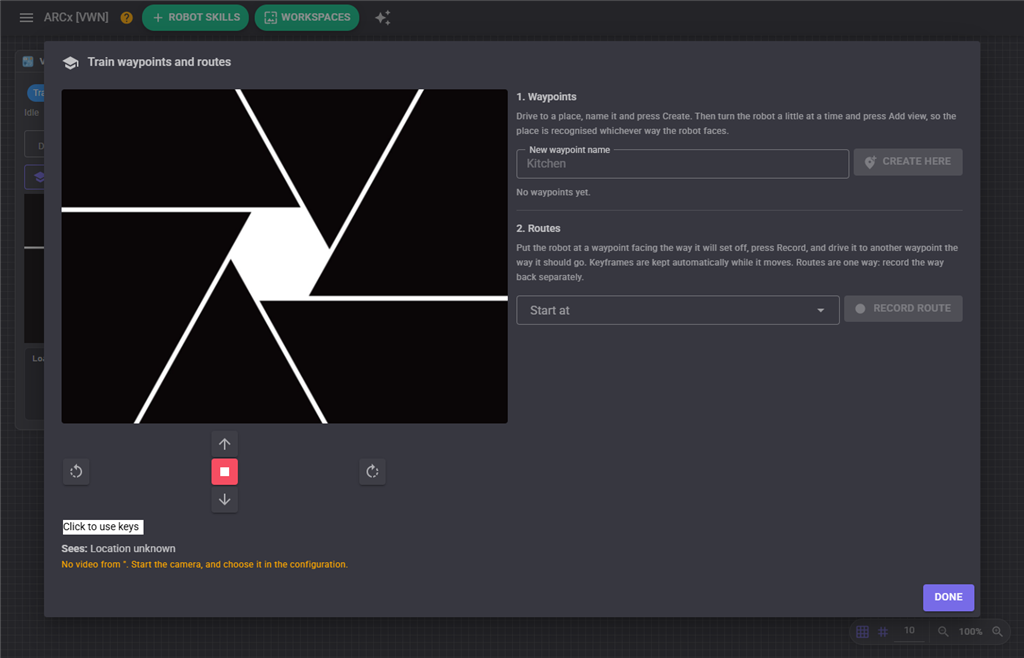
1. Waypoints. Drive the robot to a place with the buttons (or the arrow keys in the box beside them). Type a name and press Create here. Then turn the robot a little at a time and press Add view after each turn - four to eight views facing different ways lets the place be recognised whichever way the robot arrives. The Sees line shows what the robot currently recognises and how closely (0 to 1).
2. Routes. Put the robot at a waypoint, facing the way it will set off. Choose it under Start at and press Record route. Drive to the next place the way the robot should go - keyframes are kept automatically as the view changes while the robot moves. Press Keyframe now at tricky spots such as doorways and corners. Stop at the destination, type or pick its name under Ends at, and press Finish here. A name that does not exist yet becomes a new waypoint at that spot.
Routes are one way: the camera faces forward, so the way back looks nothing like the way there. Record it as its own route.
Tips:
- Drive at the speed the robot will navigate at, smoothly, down the middle of the path you want it to take.
- Train in the lighting the robot will normally see. Train again at night if it must work at night.
- Places need something to see. A blank wall filling the view is hard to recognise; step back from it.
- Keep routes to a room or two. Long drives are better split at a waypoint in between.
- Map changes are saved immediately to the map file; the configuration's Cancel does not undo them.
Navigating
Choose a Destination in the skill window and press Go, or use a control command. The robot first recognises where it is: it must be at a trained waypoint, or somewhere along a trained route. It then plans the shortest chain of routes and drives. At each waypoint it may turn on the spot to find the way the next route sets off.
If the robot stops recognising where it is, it stands still and waits (a person walking past, a door opened) and gives up after Lost After. It also stops if the camera stops sending video, if a configuration window is opened (and carries on when it closes), and when the panic button is pressed.
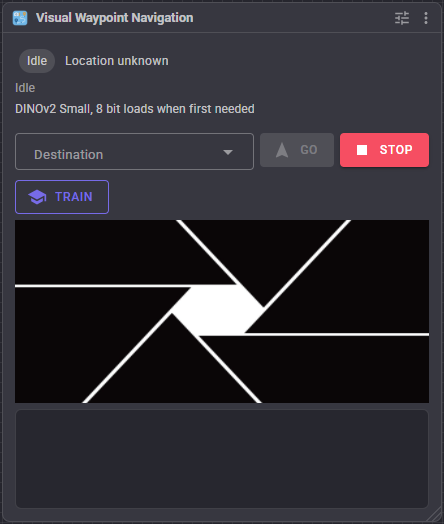
The window shows where the robot is, the journey's progress, the similarity, keypoint count and heading error of the latest frame, the camera with the navigator's status drawn on it, and the log. Resizing the window resizes the camera; the log keeps the height set by Log Height.
Variables
| Variable | |
|---|---|
VisualNavCurrentWaypoint |
The recognised waypoint, or empty |
VisualNavConfidence |
Similarity to it, 0 to 1 |
VisualNavIsNavigating |
true while driving to a waypoint |
VisualNavDestination |
Where it is driving to |
VisualNavStatus |
What it is doing, or why it stopped |
Configuration
Camera & Map
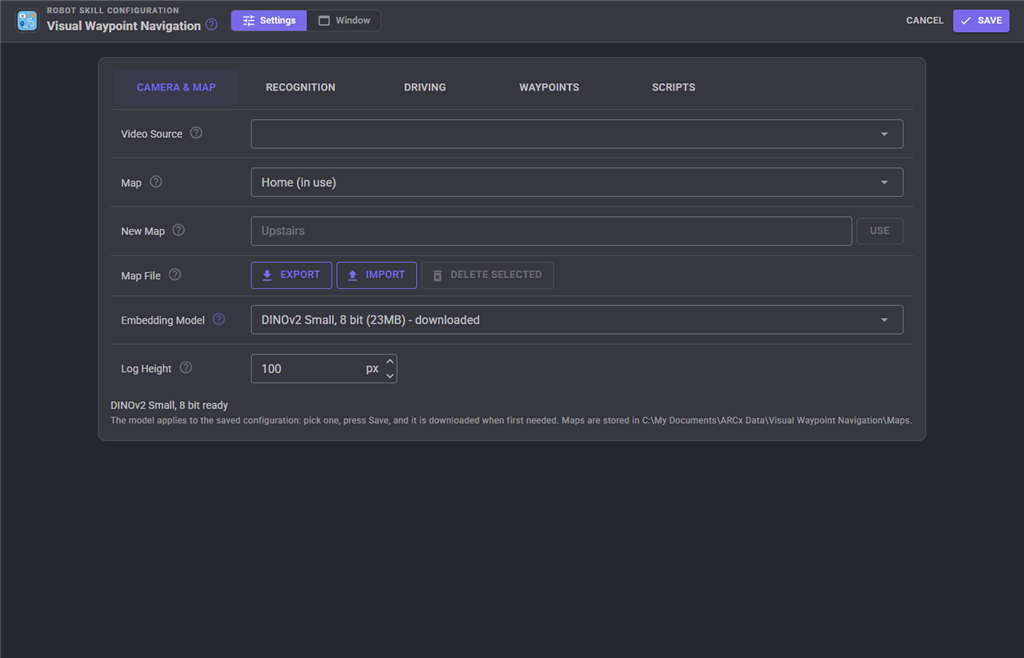
| Setting | Meaning | Default |
|---|---|---|
| Video Source | The forward-facing camera. | first source |
| Map | The waypoints and routes for one building. Maps live in ARCx Data\Visual Waypoint Navigation\Maps, so every project on the robot can use them. New Map, Export, Import and Delete manage them; a .vwmap file moves a map to another robot. | Default |
| Embedding Model | DINOv2 Small, 8 bit (23MB, recommended) or full precision (84MB). Changing it recomputes the map from its stored pictures. | 8 bit |
| Log Height | Height of the log in the main window, in pixels (40-2000). The log keeps this height when the window is resized, so the camera image takes the remaining space. | 100 |
Recognition
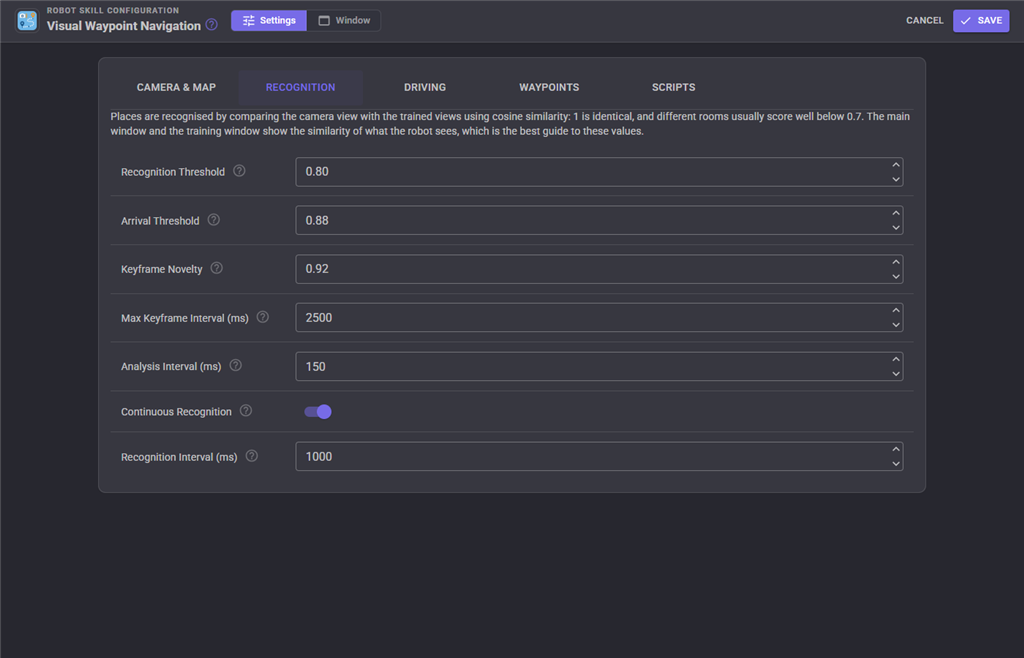
| Setting | Meaning | Default |
|---|---|---|
| Recognition Threshold | Similarity needed to say the robot is at a waypoint, or to trust where it is on a route. | 0.80 |
| Arrival Threshold | Similarity to the destination needed to count as arrived. | 0.88 |
| Keyframe Novelty | While recording, a keyframe is kept when the view's similarity to the last one falls below this. | 0.92 |
| Max Keyframe Interval | While recording and moving, a keyframe at least this often (ms). | 2500 |
| Analysis Interval | Shortest time between frames analysed while navigating or training (ms). | 150 |
| Continuous Recognition | Keep recognising the location when not navigating. | on |
| Recognition Interval | How often, when not navigating (ms). | 1000 |
Driving
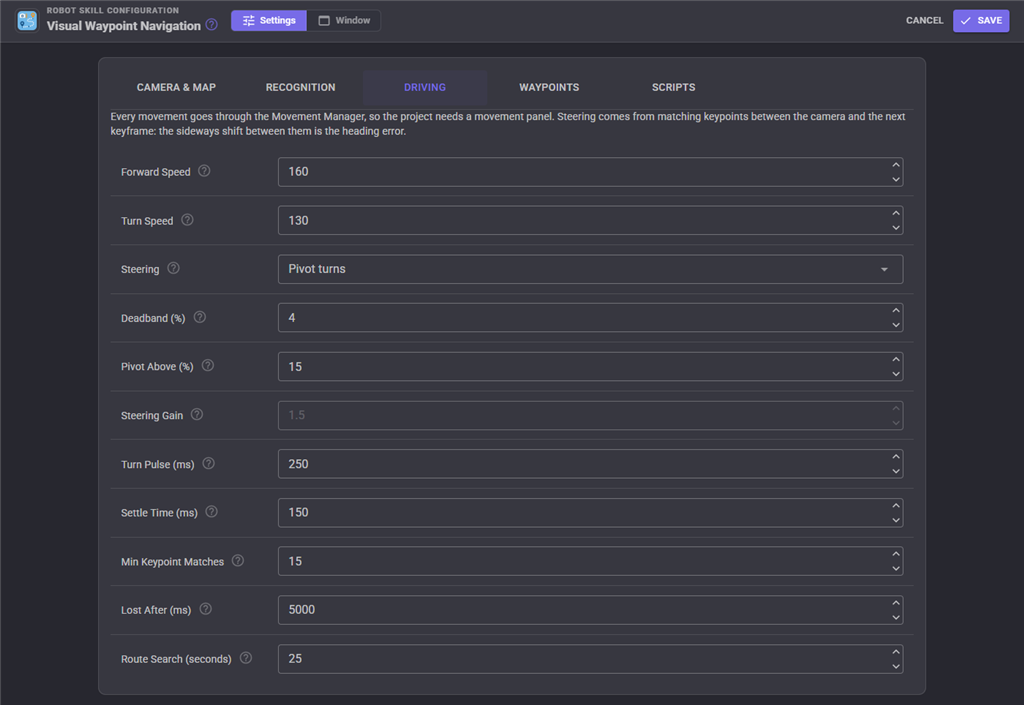
| Setting | Meaning | Default |
|---|---|---|
| Forward Speed / Turn Speed | Movement Manager speeds, 0 to 255. | 160 / 130 |
| Steering | Pivot turns corrects with short turns on the spot and works with every movement panel. Blended speeds steers while driving with different left and right speeds, for movement panels that support it. | Pivot turns |
| Deadband | Heading errors below this % of the image width are ignored. | 4 |
| Pivot Above | Heading errors above this % are corrected by stopping and turning on the spot. | 15 |
| Steering Gain | Blended speeds only: wheel speed difference per unit of heading error. | 1.5 |
| Turn Pulse | Longest single correcting turn (ms). Lower it if the robot overshoots. | 250 |
| Settle Time | Wait after a turn before trusting the camera (ms). | 150 |
| Min Keypoint Matches | Keypoints that must agree before a match steers. | 15 |
| Lost After | How long it may stand unsure before giving up (ms). | 5000 |
| Route Search | How long it turns looking for the start of a route (s). | 25 |
Waypoints
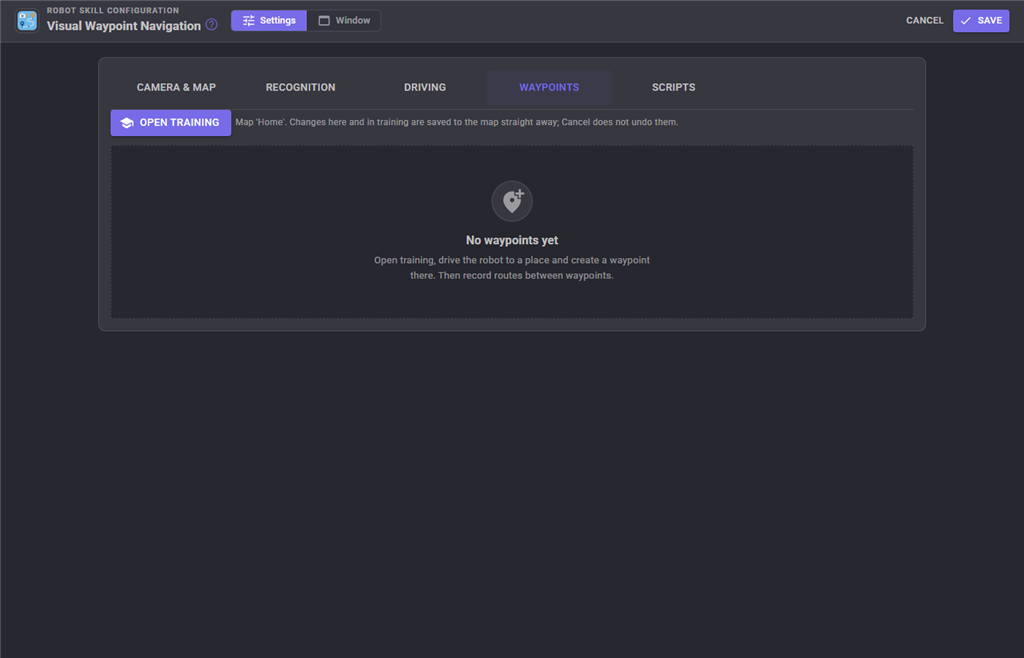
Lists the map's waypoints, with a picture of each view, and its routes. Rename a waypoint by editing its name, or delete a view, a waypoint (with its routes) or a route. Open training opens the training window. Changes here are saved to the map straight away; Cancel does not undo them.
Scripts
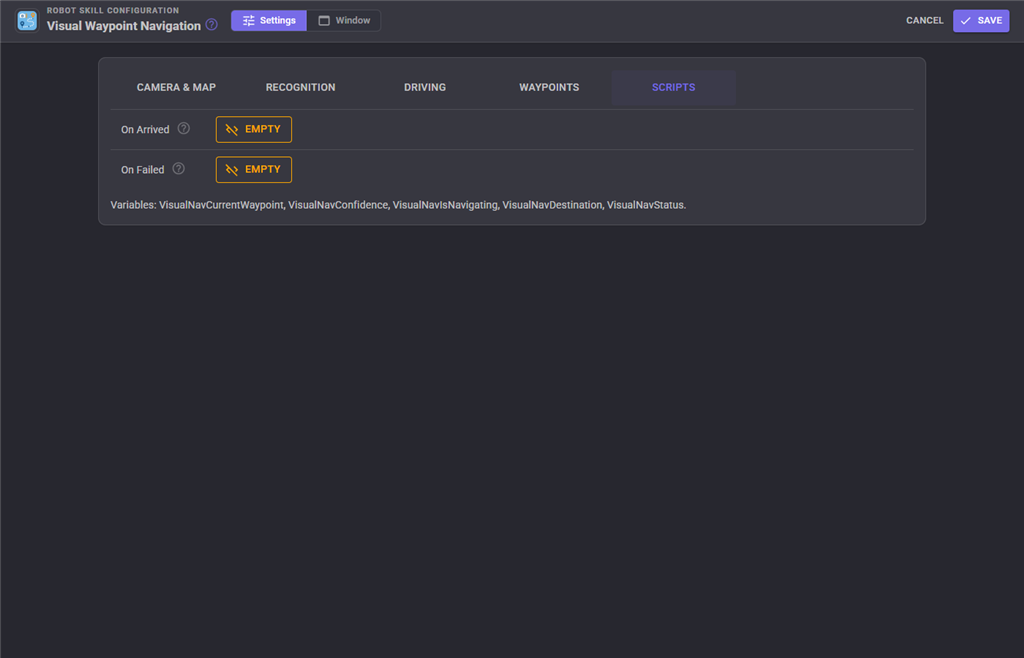
On Arrived runs when a NavigateTo arrives. On Failed runs when navigation fails (no route, lost, camera stopped) - not when stopped on purpose.
Troubleshooting
| Problem | What to do |
|---|---|
| "The robot does not recognise where it is" | Drive it to a trained waypoint, or add more views there. Check the Sees similarity in the training window against the Recognition Threshold. |
| The wrong place is recognised | Two places look alike. Raise the Recognition Threshold, or add views of both from angles that show what differs. |
| It weaves from side to side | Raise the Deadband, lower the Turn Pulse, or lower the Steering Gain. |
| It stops short or drives past the destination | Adjust the Arrival Threshold, and record the end of the route slowly, stopping exactly on the spot. |
| "Lost the route" in one spot | Record that part again, with Keyframe now at the spot, in the lighting it fails in. |
| "Could not find the start of the route" | Add views of the starting waypoint facing the way the route sets off, or start the robot facing roughly that way. |
| The model does not download | The computer needs the internet the first time. The model can also be downloaded from the configuration with Download now. |
Control Commands for the Visual Waypoint Navigation robot skill
There are Control Commands available for this robot skill which allows the skill to be controlled programmatically from scripts or other robot skills. These commands enable you to automate actions, respond to sensor inputs, and integrate the robot skill with other systems or custom interfaces. If you're new to the concept of Control Commands, we have a comprehensive manual available here that explains how to use them, provides examples to get you started and make the most of this powerful feature.
Control Command ManualThis robot skill has 17 control commands, listed below. Send them from a JavaScript or Python script, from Blockly, or from another robot skill.
The first value is always the window title, which is the name in the title bar of the robot skill on your workspace. It starts out as Visual Waypoint Navigation, which is what every example below uses. If you rename the robot skill, or add a second copy of it to the project, use the title as it appears on that window instead.
ControlCommand() can be shortened to CC(), and both spellings work in JavaScript and in Python. The examples are JavaScript; Python is the same call, except that true and false are written True and False.
AddWaypointView
Add what the camera sees now as another view of the named waypoint. Returns how many views it has.
Syntax
ControlCommand("Visual Waypoint Navigation", "AddWaypointView", (String)waypoint)
Parameters
| # | Name | Type | What to pass |
|---|---|---|---|
| 1 | waypoint | Text | Your text, in quotes |
Returns: Integer [-2,147,483,648 to 2,147,483,647]
Example
var result = ControlCommand("Visual Waypoint Navigation", "AddWaypointView", "waypoint");
CancelRouteRecording
Throw away the route being recorded.
Syntax
ControlCommand("Visual Waypoint Navigation", "CancelRouteRecording")
Returns: nothing
Example
ControlCommand("Visual Waypoint Navigation", "CancelRouteRecording");
CreateWaypoint
Create a waypoint with the given name here, from what the camera sees now. Take more views of it with AddWaypointView after turning the robot.
Syntax
ControlCommand("Visual Waypoint Navigation", "CreateWaypoint", (String)name)
Parameters
| # | Name | Type | What to pass |
|---|---|---|---|
| 1 | name | Text | Your text, in quotes |
Returns: Boolean [true or false]
Example
var result = ControlCommand("Visual Waypoint Navigation", "CreateWaypoint", "name");
FinishRouteRecording
Finish the route being recorded at the named waypoint, where the robot is now. A waypoint that does not exist is created here. Returns how many keyframes the route has.
Syntax
ControlCommand("Visual Waypoint Navigation", "FinishRouteRecording", (String)toWaypoint)
Parameters
| # | Name | Type | What to pass |
|---|---|---|---|
| 1 | toWaypoint | Text | Your text, in quotes |
Returns: Integer [-2,147,483,648 to 2,147,483,647]
Example
var result = ControlCommand("Visual Waypoint Navigation", "FinishRouteRecording", "toWaypoint");
GetCurrentWaypoint
The name of the trained waypoint the camera recognises the robot is at, or an empty string when it is not at one. Kept up to date while navigating, training, or when continuous recognition is on.
Syntax
ControlCommand("Visual Waypoint Navigation", "GetCurrentWaypoint")
Returns: String
Example
var result = ControlCommand("Visual Waypoint Navigation", "GetCurrentWaypoint");
GetDestination
The waypoint being driven to, or an empty string when not navigating.
Syntax
ControlCommand("Visual Waypoint Navigation", "GetDestination")
Returns: String
Example
var result = ControlCommand("Visual Waypoint Navigation", "GetDestination");
GetNavigationStatus
A sentence about what navigation is doing, or why it last stopped.
Syntax
ControlCommand("Visual Waypoint Navigation", "GetNavigationStatus")
Returns: String
Example
var result = ControlCommand("Visual Waypoint Navigation", "GetNavigationStatus");
GetRecognitionConfidence
How closely the camera view matches the nearest trained waypoint, from 0 to 1. Above the recognition threshold the robot counts as being there.
Syntax
ControlCommand("Visual Waypoint Navigation", "GetRecognitionConfidence")
Returns: Double [5.0e324 to 1.7e308]
Example
var result = ControlCommand("Visual Waypoint Navigation", "GetRecognitionConfidence");
GetRoutes
Every trained route, as "From -> To".
Syntax
ControlCommand("Visual Waypoint Navigation", "GetRoutes")
Returns: Array of String
Example
var result = ControlCommand("Visual Waypoint Navigation", "GetRoutes");
GetWaypoints
The names of every trained waypoint in the map.
Syntax
ControlCommand("Visual Waypoint Navigation", "GetWaypoints")
Returns: Array of String
Example
var result = ControlCommand("Visual Waypoint Navigation", "GetWaypoints");
IsAtWaypoint
Whether the camera recognises the robot is at the named waypoint.
Syntax
ControlCommand("Visual Waypoint Navigation", "IsAtWaypoint", (String)waypoint)
Parameters
| # | Name | Type | What to pass |
|---|---|---|---|
| 1 | waypoint | Text | Your text, in quotes |
Returns: Boolean [true or false]
Example
var result = ControlCommand("Visual Waypoint Navigation", "IsAtWaypoint", "waypoint");
IsNavigating
Whether the robot is driving to a waypoint right now.
Syntax
ControlCommand("Visual Waypoint Navigation", "IsNavigating")
Returns: Boolean [true or false]
Example
var result = ControlCommand("Visual Waypoint Navigation", "IsNavigating");
NavigateTo
Start driving to the named waypoint along the trained routes, and return straight away. Throws when the waypoint is unknown, the robot does not recognise where it is, or no trained route leads there. Use WaitForNavigation or IsNavigating to know when it has arrived.
Syntax
ControlCommand("Visual Waypoint Navigation", "NavigateTo", (String)waypoint)
Parameters
| # | Name | Type | What to pass |
|---|---|---|---|
| 1 | waypoint | Text | Your text, in quotes |
Returns: Boolean [true or false]
Example
var result = ControlCommand("Visual Waypoint Navigation", "NavigateTo", "waypoint");
NavigateToAndWait
Drive to the named waypoint and wait until the robot arrives or navigation fails or is stopped. Returns true when it arrived. Stopping the script stops the robot.
Syntax
ControlCommand("Visual Waypoint Navigation", "NavigateToAndWait", (String)waypoint)
Parameters
| # | Name | Type | What to pass |
|---|---|---|---|
| 1 | waypoint | Text | Your text, in quotes |
Returns: Boolean [true or false]
Example
var result = ControlCommand("Visual Waypoint Navigation", "NavigateToAndWait", "waypoint");
StartRouteRecording
Start recording a route from the named waypoint, where the robot must be now. Then drive the robot to the destination and call FinishRouteRecording.
Syntax
ControlCommand("Visual Waypoint Navigation", "StartRouteRecording", (String)fromWaypoint)
Parameters
| # | Name | Type | What to pass |
|---|---|---|---|
| 1 | fromWaypoint | Text | Your text, in quotes |
Returns: Boolean [true or false]
Example
var result = ControlCommand("Visual Waypoint Navigation", "StartRouteRecording", "fromWaypoint");
StopNavigation
Stop navigating and stop the robot. Does nothing when not navigating.
Syntax
ControlCommand("Visual Waypoint Navigation", "StopNavigation")
Returns: nothing
Example
ControlCommand("Visual Waypoint Navigation", "StopNavigation");
WaitForNavigation
Wait for the current navigation to end, for at most the given number of seconds (0 waits forever). Returns true when the robot arrived, false when it failed, was stopped, timed out or was not navigating.
Syntax
ControlCommand("Visual Waypoint Navigation", "WaitForNavigation", (Number)timeoutSeconds)
Parameters
| # | Name | Type | What to pass |
|---|---|---|---|
| 1 | timeoutSeconds | Number | A number, without quotes |
Returns: Boolean [true or false]
Example
var result = ControlCommand("Visual Waypoint Navigation", "WaitForNavigation", 0);
This list is read out of the robot skill itself each time its package is uploaded, so it matches the published version (v5).



This robot skill has been updated to v3.
What has changed
The latest ARCx (2026.09.30.03) includes ONNX runtimes. This robot skill uses those runtimes rather than distributing duplicates.
This robot skill has been updated to v4.
What has changed
updated to use new threading features of ARCx v2026.10.04.01
This robot skill has been updated to v5.
What has changed
updated to use some new ARCx UI features for improved performance.