Tracks detections from one camera to drive servos, movement, scripts, variables, and commands for faces, glyphs, objects, and colors.
 Windows
 ARM
ARM
 Linux
Linux
 MacOS
MacOS
How to add the Vision Detection Tracking Script robot skill
- Load the most recent release of ARCx on a compatible operating system (Get ARCx).
- Press the + Skills menu from the top menu bar in ARCx.
- Choose the Camera category tab.
- Press the Vision Detection Tracking Script icon to add the robot skill to your project.
Don't have a robot yet?
Follow the Getting Started Guide to build a robot and use the Vision Detection Tracking Script robot skill.
How to use the Vision Detection Tracking Script robot skill
Follow, react to and ask about anything the camera detection skills find: glyphs, faces, colours, trained objects, recognised people. This skill doesn't detect anything itself. It watches what every detection skill reports for one camera, and turns that into servo tracking, movement tracking, scripts, variables and control commands.
The detection skill decides what is seen. This skill decides what to do about it, in the same way for all of them. Put Glyph Recognition and Face Tracking on the same camera, and one Vision Detection Tracking Script skill can follow faces, react to glyphs, and count both.
Requirements
- A video source in the project, such as Camera Source (usb) or Camera Source (ezb), with video running.
- At least one detection skill watching the same camera, such as Glyph Recognition or Face Tracking.
Setting it up
- In the detection skill's configuration (Glyph Recognition, say), choose the camera.
- On the Detections tab of this skill's configuration, choose the same camera. Until one is chosen, the skill uses the first camera in the project.
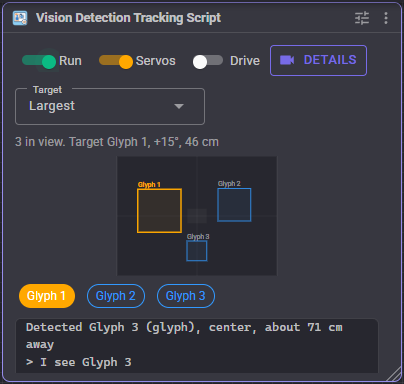
- Show the camera something to detect. It appears on the map in the skill window, and the target is outlined in yellow.
- Turn on Servos or Drive to follow it.
How it works
Every detection skill marks what it finds on the video, along with:
| Detail | Example |
|---|---|
| Kind | glyph, face, color, object |
| Name | Glyph 1, red, person. A detection without a name (a face that isn't recognised) uses its kind as its name |
| Position and size | in camera pixels |
| Confidence | how sure the detector is, when it says |
| Details | anything only that kind of detection has, such as a glyph's Rotation, or a distance the detector measured |
On each frame, this skill:
- Filters the detections down to the ones you care about: by kind, name, confidence, size and region of the picture.
- Keeps track of what is in view. An object counts as in view once it has been detected for Consecutive Frames frames in a row. It counts as lost once it hasn't been seen for Lost After milliseconds.
- Chooses a target: the one object that the servos and movement follow and that the variables describe.
- Runs scripts for objects that have just come into view or gone out of view.
Objects are told apart by kind and name only, because detectors don't give objects an identity. Two people are both person: both are listed and counted, but they come into and go out of view together.
The skill window
| Control | What it does |
|---|---|
| Run | Follows detections. Turning it off forgets everything in view without running scripts, clears the variables, and stops the robot if it was following something |
| Servos | Servo tracking on or off |
| Drive | Movement tracking on or off |
| Details | Opens the processed video, next to a table of every value of every object in view |
| Target | How the target is chosen. When Target Names is set, it appears beside this and can be closed to target any object again |
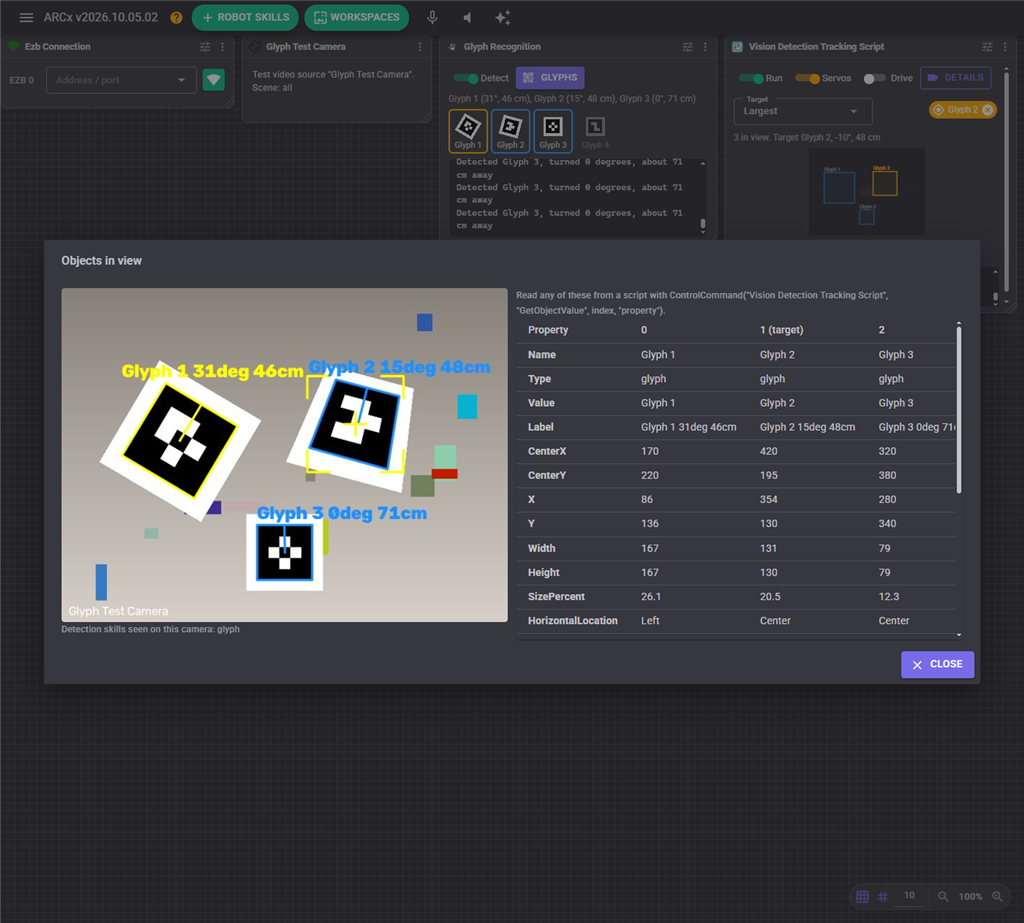
Below the controls, the status line says how many objects are in view, which one is the target, its bearing in degrees (positive to the left) and its distance when that is known. The map shows the camera picture, with every object in view as a box, the target in yellow, the dead zone in the middle (while tracking is on) and the filter region. Each object in view also gets a chip: click one to target only that name, and click it again to target any object.
Clicking a chip fills in Target Names. Here the Glyph 2 chip was clicked, so Glyph 2 is the target even though Glyph 1 is larger. Close the chip beside Target to go back to any object.
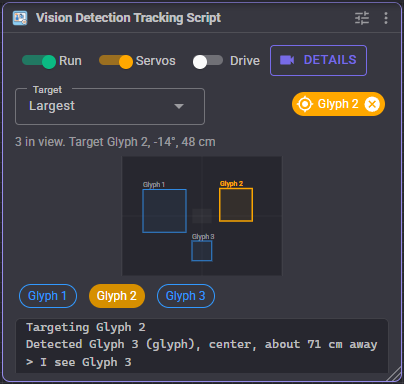
The log at the bottom says what came into view and went out of view, and shows what the scripts print.
Details
The Details window shows the processed video on the left and a table on the right with one column per object in view, numbered the same way as the control commands, and the target marked. It is the place to see exactly what a detector reports, including details such as a glyph's Rotation, before you write a script that uses them. With Mark Target on, the target has yellow corner brackets and a crosshair in the video. The video is only sent to the browser while this window is open.
Configuration
Detections
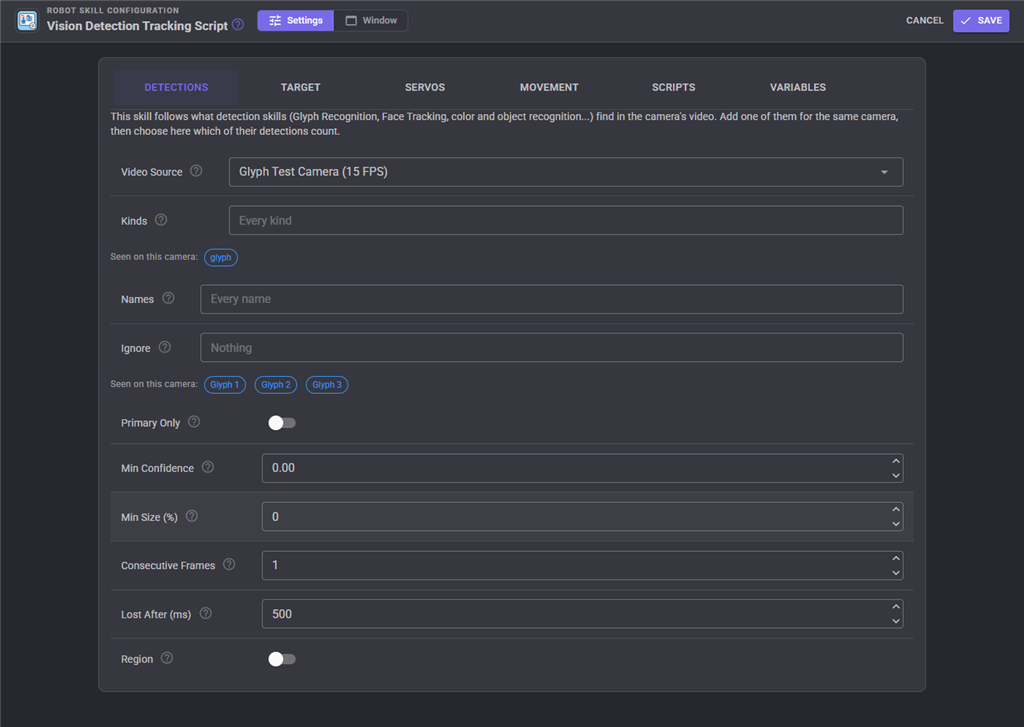
| Setting | Description |
|---|---|
| Video Source | The camera whose detections are followed |
| Kinds | Only these kinds of detection, comma separated. Empty is every kind |
| Names | Only objects with these names, comma separated. Empty is every name |
| Ignore | Never these names or kinds |
| Primary Only | Only the detection each detection skill flags as its primary one, which is usually its largest |
| Min Confidence | Ignore detections the detector is less sure of, from 0 to 1. Detectors that report no confidence always pass |
| Min Size (%) | Ignore objects narrower than this percentage of the picture width |
| Consecutive Frames | Frames in a row an object must be detected before it counts |
| Lost After (ms) | How long an object can go unseen before it counts as lost |
| Region | Only accept objects whose centre is inside part of the picture, given as percentages from the left and top. The region is drawn as a dashed box on the map |
Names and kinds take * and ? wildcards, so Glyph * is every glyph whose name starts with "Glyph ". The kinds and names already seen on the camera are listed below each field. Click one to add it.
Target
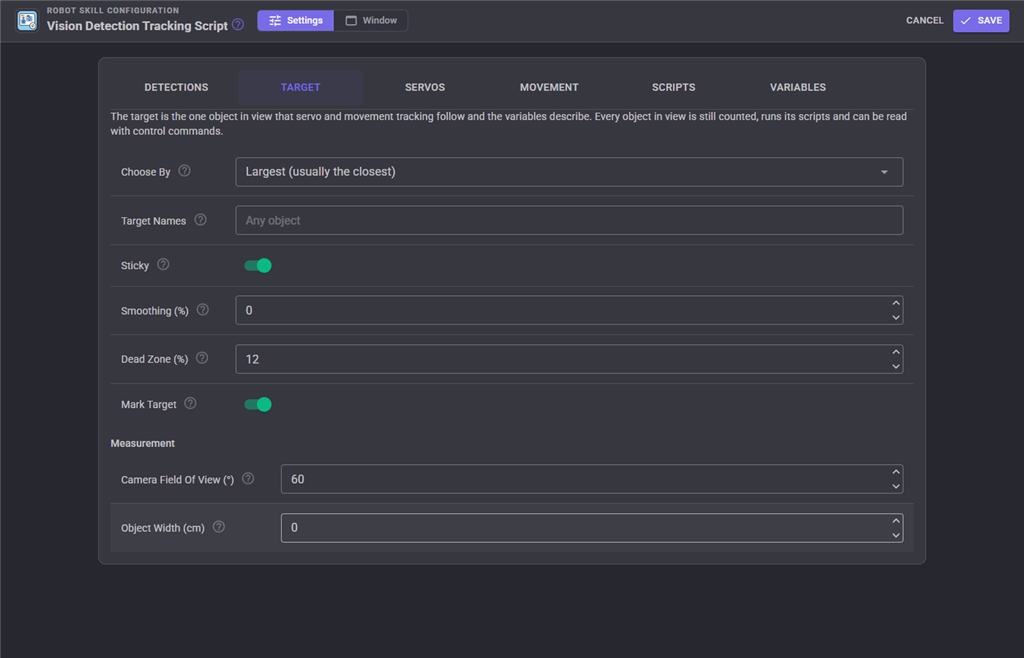
| Setting | Description |
|---|---|
| Choose By | Largest, closest to the centre, most confident, the detector's primary detection, leftmost, rightmost, or longest in view |
| Target Names | Only target these names, in order of preference: the first one in view is targeted. Dock, Glyph 1 drives to the dock when it is in view, and otherwise to Glyph 1 |
| Sticky | Stay with the current target while it is in view, even if another object becomes larger or more central |
| Smoothing (%) | Smooths the target's position before the servos and the robot react. Calms a jittery detector |
| Dead Zone (%) | How far from the middle the target can be before the servos or the robot react |
| Mark Target | Draw yellow corner brackets and a crosshair on the target in the processed video |
| Camera Field Of View () | The camera's horizontal field of view, used for the angles and the distance estimate. Most webcams are between 55 and 78, and the EZ-B camera is about 60 |
| Object Width (cm) | The real width of the objects, to estimate their distance from how wide they look (about 15 for a face). 0 turns the estimate off. A detector that measures distance itself, as Glyph Recognition does, is used instead |
Servos
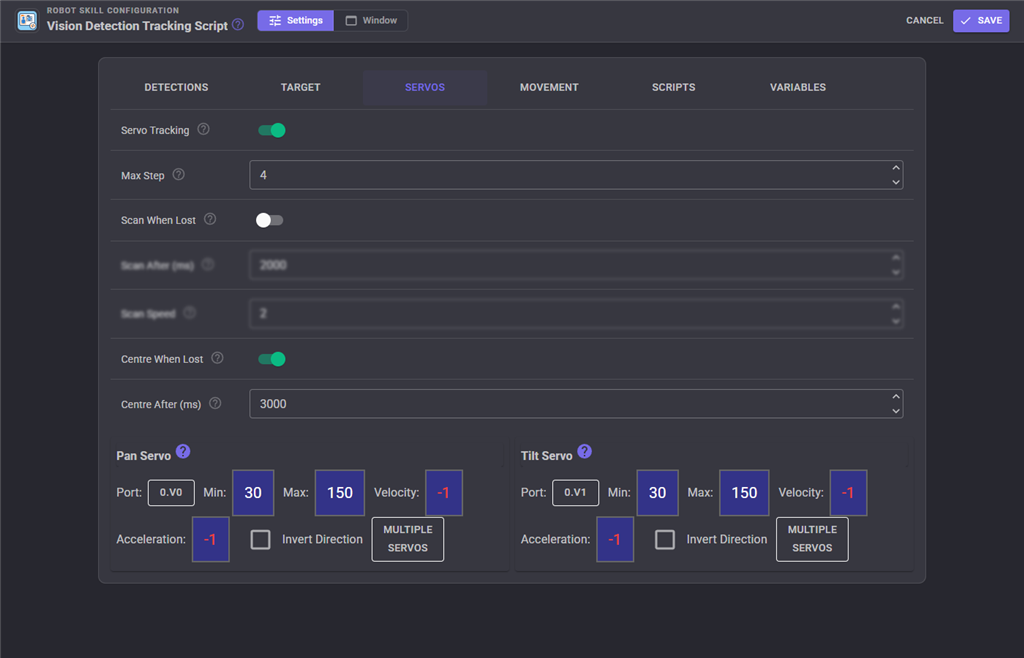
| Setting | Description |
|---|---|
| Servo Tracking | Turn the pan and tilt servos to keep the target in the middle of the picture |
| Max Step | The most servo positions moved per frame when the target is at the edge of the picture. Closer to the middle it moves less. Higher is quicker but can overshoot |
| Scan When Lost | Sweep the pan servo from side to side looking for something to target, starting toward the side the last target went |
| Scan After (ms) | How long without a target before scanning starts |
| Scan Speed | Servo positions moved every tenth of a second while scanning, 1 to 20 |
| Centre When Lost | Return both servos to the middle of their range when nothing has been targeted for a while. Scanning, when on, takes priority |
| Centre After (ms) | How long without a target before the servos are centred |
| Pan Servo | Turns the camera left and right |
| Tilt Servo | Tilts the camera up and down |
If the camera turns away from the object instead of toward it, tick Invert Direction on that servo. The servo's Min and Max limit how far tracking and scanning turn it.
Movement
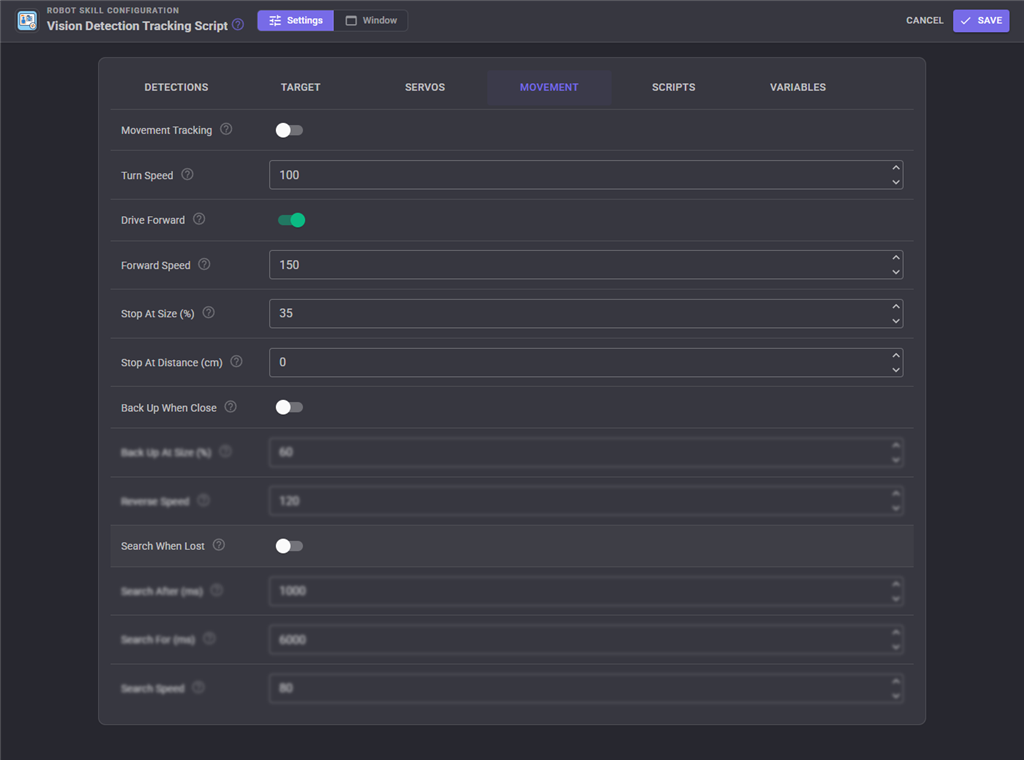
Movement tracking drives the robot with the project's movement panel.
| Setting | Description |
|---|---|
| Movement Tracking | Turn the robot toward the target, and drive to it |
| Turn Speed | Speed while turning toward the target, 0 to 255 |
| Drive Forward | Drive toward the target when it is in the middle of the picture, until it is close. Off only turns to face it |
| Forward Speed | Speed while driving toward the target, 0 to 255 |
| Stop At Size (%) | Stop driving forward once the target is this wide, as a percentage of the picture width. Larger gets closer |
| Stop At Distance (cm) | Also stop once the target is this close, when its distance is known. 0 uses only the size |
| Back Up When Close | Reverse away from the target when it comes closer than Back Up At Size, so the robot keeps its distance from a person or object that walks toward it |
| Back Up At Size (%) | Reverse once the target is this wide. Keep it well above Stop At Size so the robot settles between the two |
| Reverse Speed | Speed while backing up, 0 to 255 |
| Search When Lost | When the target is lost, turn toward the side it was last seen on to find it again |
| Search After (ms) | How long without a target before the robot starts turning to look for it |
| Search For (ms) | How long the robot keeps turning to look before it gives up and stops |
| Search Speed | Speed while turning to look, 0 to 255 |
With Drive Forward and Back Up When Close both on, the robot keeps its distance from a person who walks toward it and follows them when they walk away.
The robot stops when the target is lost, when the skill stops, and while any configuration window is open. It never stops a movement that this skill didn't start. The panic button turns servo and movement tracking off.
Scripts
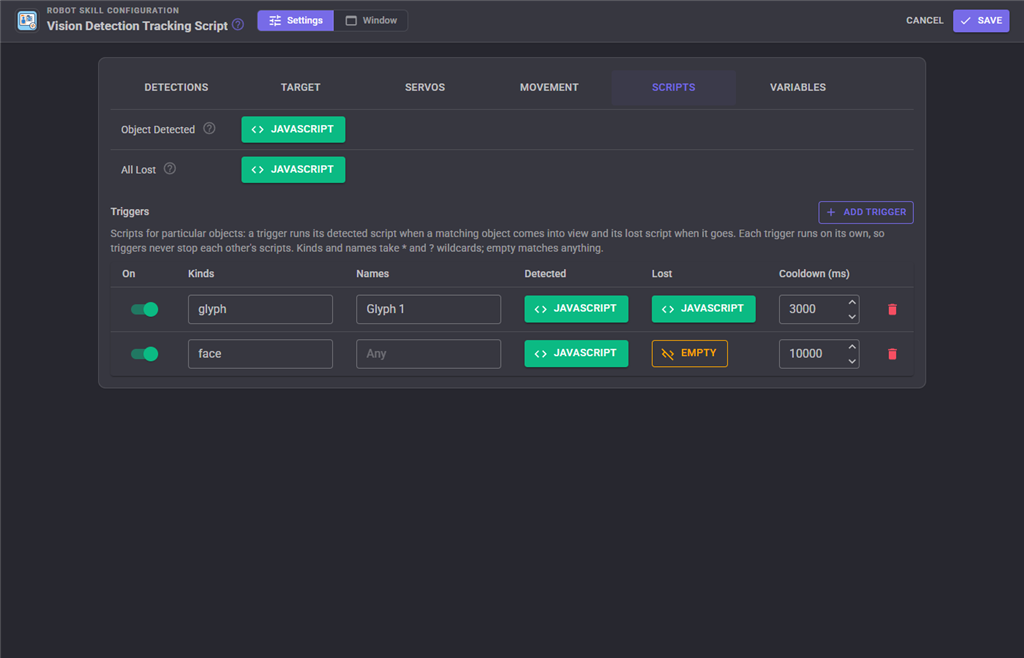
| Script | Runs |
|---|---|
| Object Detected | When an object comes into view. $ObjectLastDetected holds its name, and the other variables describe the target |
| All Lost | When the last object in view has been gone for the Lost After time, or when the camera stops sending video |
Triggers run scripts for particular objects. Click Add Trigger for each one. A trigger has kinds and names to match (empty matches anything), a script for when a matching object comes into view, and a script for when it goes. Cooldown stops the detected script from running again for that many milliseconds, which helps with an object that flickers in and out at the edge of the picture. Each trigger runs its scripts on its own, so one trigger never stops another's script. Objects that arrive on the same frame run a script once.
In the picture above, the first trigger reacts to Glyph 1 coming and going, and the second greets any face, at most once every 10 seconds.
Variables
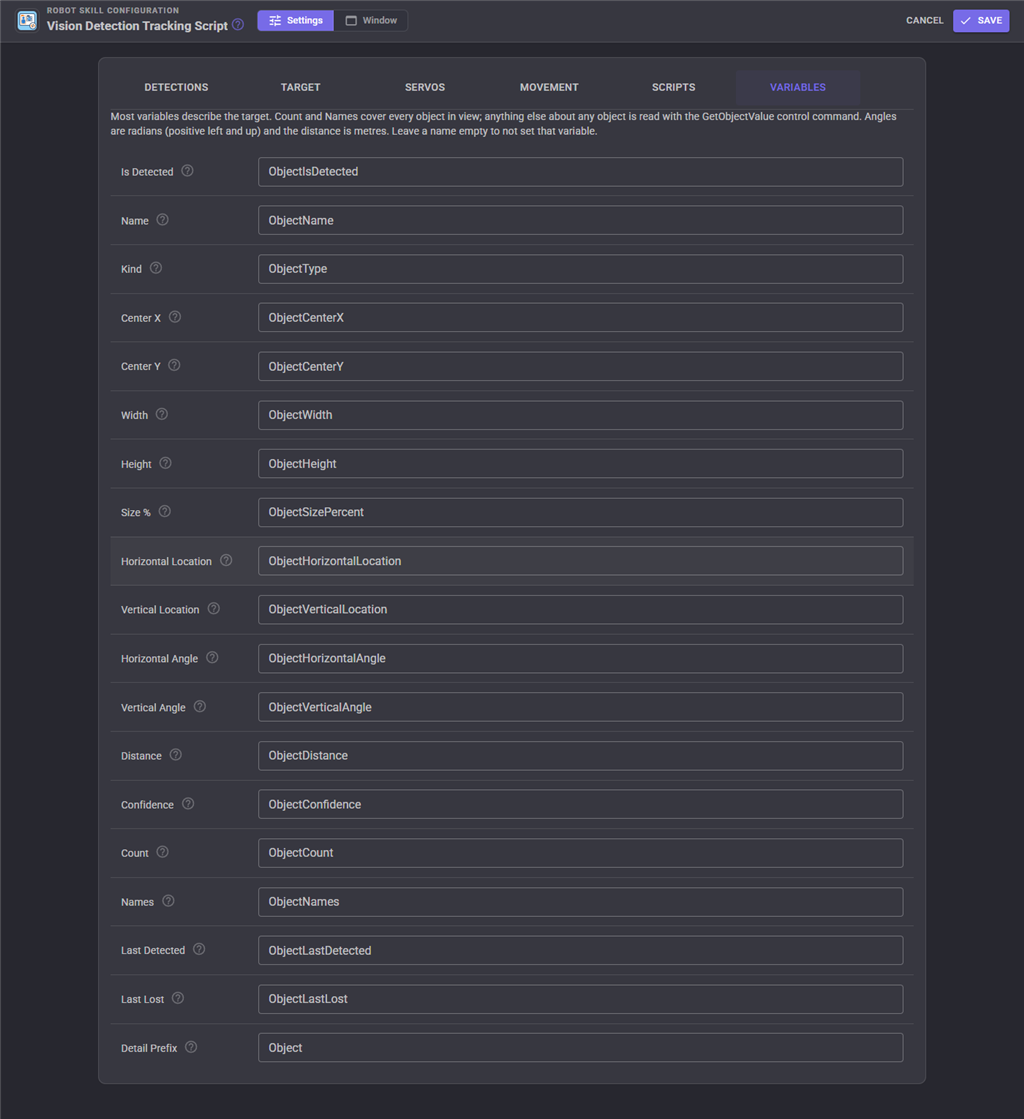
Each variable's name can be changed, or left empty to not set it. Detail Prefix names the variables for details only some detectors report, described below.
Variables published
Most variables describe the target. Angles are radians and distances metres, like every other position a script sees in ARCx.
| Variable | Description |
|---|---|
$ObjectIsDetected |
true while there is a target |
$ObjectName |
The target's name |
$ObjectType |
The target's kind of detection: glyph, face, color... |
$ObjectCenterX, $ObjectCenterY |
The centre of the target in camera pixels |
$ObjectWidth, $ObjectHeight |
The size of the target in camera pixels |
$ObjectSizePercent |
The target's width as a percentage of the picture width |
$ObjectHorizontalLocation |
Left, Center or Right, by thirds of the picture |
$ObjectVerticalLocation |
Top, Middle or Bottom, by thirds of the picture |
$ObjectHorizontalAngle |
Bearing to the target in radians, positive to the left |
$ObjectVerticalAngle |
Elevation to the target in radians, positive up |
$ObjectDistance |
Distance to the target in metres, or -1 when it is not known |
$ObjectConfidence |
How sure the detector is of the target, 0 to 1 |
$ObjectCount |
How many objects are in view |
$ObjectNames |
An array of the names of every object in view, largest first |
$ObjectLastDetected |
The name of the object that most recently came into view |
$ObjectLastLost |
The name of the object that most recently went out of view |
Details that only some detectors report are also set for the target, named with the Detail Prefix (Object by default). For a glyph, that is $ObjectRotation and $ObjectPattern.
Scripting examples
Variables describe one object. To ask about any object in view, use this skill's control commands. Each answer comes from one moment, so a script never gets the X of one frame and the Y of the next.
Objects are numbered from 0, largest first, in the same order as GetNames and the columns of the Details window. Index -1 is the target. Names take * and ? wildcards and also match kinds, so "face" matches every face.
Every object in view has the properties Name, Type, Value, Label, CenterX, CenterY, X, Y, Width, Height, SizePercent, HorizontalLocation, VerticalLocation, HorizontalAngle, VerticalAngle, Distance, Confidence, IsTracked, IsPrimary and InViewMS, plus any detail the detector reports, such as Rotation.
Say hello to each person in view:
var count = ControlCommand("Vision Detection Tracking Script", "GetCount");
for (var i = 0; i < count; i++) {
  if (ControlCommand("Vision Detection Tracking Script", "GetObjectValue", i, "Name") == "person")
    Audio.Say("Hello person on the " + ControlCommand("Vision Detection Tracking Script", "GetObjectValue", i, "HorizontalLocation"));
}
Drive until the dock glyph is seen, then report how it is turned:
Movement.Forward();
if (ControlCommand("Vision Detection Tracking Script", "WaitForObject", "Dock", 10000))
  print("Dock is " + ControlCommand("Vision Detection Tracking Script", "GetObjectValueByName", "Dock", "Rotation") + " degrees round");
Movement.Stop();
Everything at once, in Python:
import json
objects = json.loads(ControlCommand("Vision Detection Tracking Script", "GetObjectsJson"))
for o in objects:
    print(o["Name"], o["CenterX"], o["Distance"])
Custom UI widgets
| Widget | Shows |
|---|---|
| Target Object | The target's name, a map of the picture with everything in view, and optionally its angle and distance and a start/stop button |
| Object Indicator | Lights up while a named object (or kind) is in view, with how many there are. Put one on the screen for each object the robot reacts to |
The Target Object widget's settings are Caption, ShowMap, ShowDetails (the angle and distance) and ShowSwitch (the start/stop button). The Object Indicator's are Name, which takes wildcards and kinds such as face, and Caption, which shows the name when it is empty.
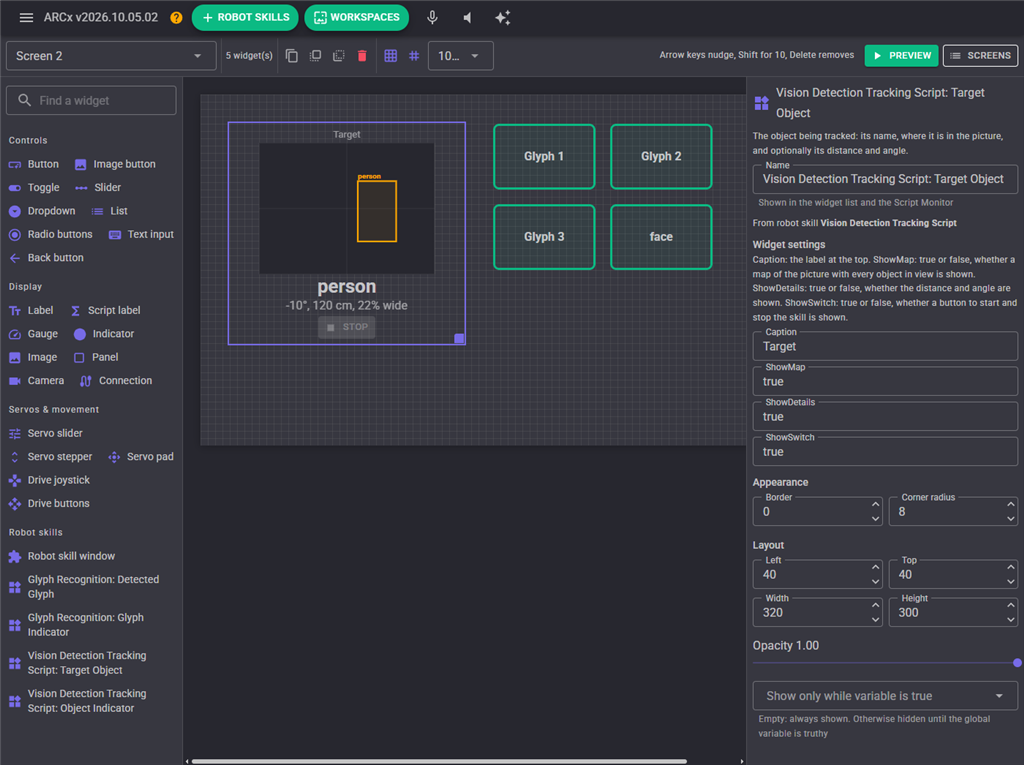
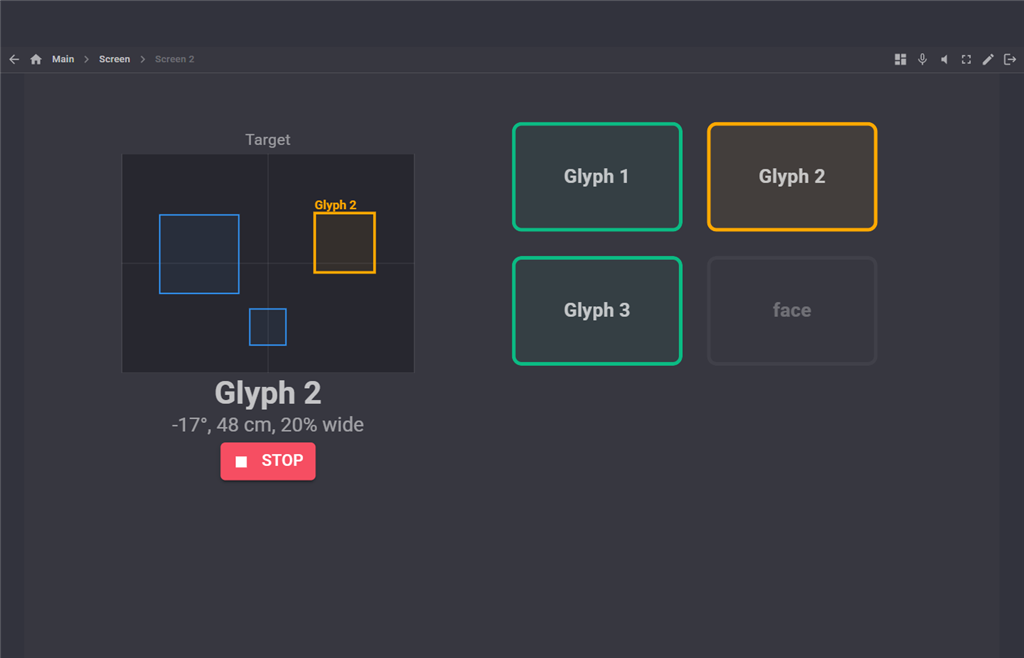
On the screen, the target is outlined in yellow in both widgets. Here Glyph 1, Glyph 2 and Glyph 3 are in view and Glyph 2 is the target, while no face is in view.
Tips
- Use one Vision Detection Tracking Script per job. One can follow faces with the pan/tilt servos while another, set to
glyph, runs scripts for glyphs on the same camera. - If the target jumps between two similar objects, turn on Sticky, or raise Smoothing if the servos twitch.
- A detector that misses the odd frame makes objects flicker in and out of view. Raise Lost After rather than lowering the detector's own thresholds.
- For a robot that follows a person: use an object detector (or Face Tracking), set Names to
personor Kinds toface, and turn on Drive Forward, Back Up When Close and Search When Lost.
Control Commands for the Vision Detection Tracking Script robot skill
There are Control Commands available for this robot skill which allows the skill to be controlled programmatically from scripts or other robot skills. These commands enable you to automate actions, respond to sensor inputs, and integrate the robot skill with other systems or custom interfaces. If you're new to the concept of Control Commands, we have a comprehensive manual available here that explains how to use them, provides examples to get you started and make the most of this powerful feature.
Control Command ManualThis robot skill has 22 control commands, listed below. Send them from a JavaScript or Python script, from Blockly, or from another robot skill.
The first value is always the window title, which is the name in the title bar of the robot skill on your workspace. It starts out as Vision Detection Tracking Script, which is what every example below uses. If you rename the robot skill, or add a second copy of it to the project, use the title as it appears on that window instead.
ControlCommand() can be shortened to CC(), and both spellings work in JavaScript and in Python. The examples are JavaScript; Python is the same call, except that true and false are written True and False.
CenterServos
Move the pan and tilt servos to the middle of their range
Syntax
ControlCommand("Vision Detection Tracking Script", "CenterServos")
Returns: Boolean [true or false]
Example
var result = ControlCommand("Vision Detection Tracking Script", "CenterServos");
GetCount
How many objects are in view
Syntax
ControlCommand("Vision Detection Tracking Script", "GetCount")
Returns: Integer [-2,147,483,648 to 2,147,483,647]
Example
var result = ControlCommand("Vision Detection Tracking Script", "GetCount");
GetNames
The names of every object in view, largest first. The index of a name here is the index GetObjectValue takes.
Syntax
ControlCommand("Vision Detection Tracking Script", "GetNames")
Returns: Array of String
Example
var result = ControlCommand("Vision Detection Tracking Script", "GetNames");
GetObjectCount
How many of the named object are in view, i.e. how many "person". * and ? are wildcards.
Syntax
ControlCommand("Vision Detection Tracking Script", "GetObjectCount", (String)name)
Parameters
| # | Name | Type | What to pass |
|---|---|---|---|
| 1 | name | Text | Your text, in quotes |
Returns: Integer [-2,147,483,648 to 2,147,483,647]
Example
var result = ControlCommand("Vision Detection Tracking Script", "GetObjectCount", "name");
GetObjectsJson
Every object in view with every property, as a JSON array, largest first. Parse it with JSON.parse() in JavaScript or json.loads() in Python.
Syntax
ControlCommand("Vision Detection Tracking Script", "GetObjectsJson")
Returns: String
Example
var result = ControlCommand("Vision Detection Tracking Script", "GetObjectsJson");
GetObjectValue
One property of an object in view, by index: 0 is the largest, as in GetNames, and -1 is the target. Returns null when there is no such object. The property is one of Name, Type, Value, Label, CenterX, CenterY, X, Y, Width, Height, SizePercent, HorizontalLocation, VerticalLocation, HorizontalAngle, VerticalAngle, Distance, Confidence, IsTracked, IsPrimary, InViewMS, or a detail the detecting skill reports such as a glyph's Rotation. Positions are camera pixels, angles radians (positive left and up), Distance metres (-1 when unknown).
Syntax
ControlCommand("Vision Detection Tracking Script", "GetObjectValue", (Number)index, (String)property)
Parameters
| # | Name | Type | What to pass |
|---|---|---|---|
| 1 | index | Number | A number, without quotes |
| 2 | property | Text | Your text, in quotes |
Returns: Object
Example
var result = ControlCommand("Vision Detection Tracking Script", "GetObjectValue", 0, "property");
GetObjectValueByName
One property of the largest object in view with this name or kind (* and ? are wildcards). Returns null when none is in view. The property is one of Name, Type, Value, Label, CenterX, CenterY, X, Y, Width, Height, SizePercent, HorizontalLocation, VerticalLocation, HorizontalAngle, VerticalAngle, Distance, Confidence, IsTracked, IsPrimary, InViewMS, or a detail the detecting skill reports such as a glyph's Rotation. Positions are camera pixels, angles radians (positive left and up), Distance metres (-1 when unknown).
Syntax
ControlCommand("Vision Detection Tracking Script", "GetObjectValueByName", (String)name, (String)property)
Parameters
| # | Name | Type | What to pass |
|---|---|---|---|
| 1 | name | Text | Your text, in quotes |
| 2 | property | Text | Your text, in quotes |
Returns: Object
Example
var result = ControlCommand("Vision Detection Tracking Script", "GetObjectValueByName", "name", "property");
GetTarget
The name of the target (the object tracking follows and the variables describe), or an empty string
Syntax
ControlCommand("Vision Detection Tracking Script", "GetTarget")
Returns: String
Example
var result = ControlCommand("Vision Detection Tracking Script", "GetTarget");
IsDetected
Is any object in view right now?
Syntax
ControlCommand("Vision Detection Tracking Script", "IsDetected")
Returns: Boolean [true or false]
Example
var result = ControlCommand("Vision Detection Tracking Script", "IsDetected");
IsObjectDetected
Is the named object in view right now? The name is matched against each object's name and kind (i.e. "Glyph 1", "person", "face"), with * and ? wildcards.
Syntax
ControlCommand("Vision Detection Tracking Script", "IsObjectDetected", (String)name)
Parameters
| # | Name | Type | What to pass |
|---|---|---|---|
| 1 | name | Text | Your text, in quotes |
Returns: Boolean [true or false]
Example
var result = ControlCommand("Vision Detection Tracking Script", "IsObjectDetected", "name");
IsRunning
Is the skill following detections?
Syntax
ControlCommand("Vision Detection Tracking Script", "IsRunning")
Returns: Boolean [true or false]
Example
var result = ControlCommand("Vision Detection Tracking Script", "IsRunning");
SetFilter
Which detections count: the kinds and the names, each comma separated with * and ? wildcards (i.e. "glyph", "Glyph 1, Glyph 2"). An empty string accepts every kind or name.
Syntax
ControlCommand("Vision Detection Tracking Script", "SetFilter", (String)kinds, (String)names)
Parameters
| # | Name | Type | What to pass |
|---|---|---|---|
| 1 | kinds | Text | Your text, in quotes |
| 2 | names | Text | Your text, in quotes |
Returns: Boolean [true or false]
Example
var result = ControlCommand("Vision Detection Tracking Script", "SetFilter", "kinds", "names");
SetTargetSelection
How the target is chosen from the objects in view: Largest, ClosestToCenter, MostConfident, Primary, Leftmost, Rightmost, LongestInView
Syntax
ControlCommand("Vision Detection Tracking Script", "SetTargetSelection", (String)selection)
Parameters
| # | Name | Type | What to pass |
|---|---|---|---|
| 1 | selection | Text | Your text, in quotes |
Returns: Boolean [true or false]
Example
var result = ControlCommand("Vision Detection Tracking Script", "SetTargetSelection", "selection");
SetTrackNames
Only target objects with these names, in order of preference, comma separated (i.e. "Dock, Glyph 1"). An empty string targets any object in view.
Syntax
ControlCommand("Vision Detection Tracking Script", "SetTrackNames", (String)names)
Parameters
| # | Name | Type | What to pass |
|---|---|---|---|
| 1 | names | Text | Your text, in quotes |
Returns: Boolean [true or false]
Example
var result = ControlCommand("Vision Detection Tracking Script", "SetTrackNames", "names");
Start
Start following detections
Syntax
ControlCommand("Vision Detection Tracking Script", "Start")
Returns: Boolean [true or false]
Example
var result = ControlCommand("Vision Detection Tracking Script", "Start");
StartMovementTracking
Turn and drive the robot toward the target with the movement panel
Syntax
ControlCommand("Vision Detection Tracking Script", "StartMovementTracking")
Returns: Boolean [true or false]
Example
var result = ControlCommand("Vision Detection Tracking Script", "StartMovementTracking");
StartServoTracking
Turn the pan and tilt servos to keep the target in the middle of the picture
Syntax
ControlCommand("Vision Detection Tracking Script", "StartServoTracking")
Returns: Boolean [true or false]
Example
var result = ControlCommand("Vision Detection Tracking Script", "StartServoTracking");
Stop
Stop following detections. Objects in view are forgotten without running scripts, the variables are cleared and the robot stops if it was following one.
Syntax
ControlCommand("Vision Detection Tracking Script", "Stop")
Returns: Boolean [true or false]
Example
var result = ControlCommand("Vision Detection Tracking Script", "Stop");
StopMovementTracking
Stop driving toward the target. The robot stops if it was moving.
Syntax
ControlCommand("Vision Detection Tracking Script", "StopMovementTracking")
Returns: Boolean [true or false]
Example
var result = ControlCommand("Vision Detection Tracking Script", "StopMovementTracking");
StopServoTracking
Stop moving the pan and tilt servos
Syntax
ControlCommand("Vision Detection Tracking Script", "StopServoTracking")
Returns: Boolean [true or false]
Example
var result = ControlCommand("Vision Detection Tracking Script", "StopServoTracking");
WaitForObject
Wait until the named object is in view, or any object when the name is empty. * and ? are wildcards. Returns true when it was seen, false when the timeout ran out first. A timeout of 0 waits until the script is stopped.
Syntax
ControlCommand("Vision Detection Tracking Script", "WaitForObject", (String)name, (Number)timeoutMS)
Parameters
| # | Name | Type | What to pass |
|---|---|---|---|
| 1 | name | Text | Your text, in quotes |
| 2 | timeoutMS | Number | A number, without quotes |
Returns: Boolean [true or false]
Example
var result = ControlCommand("Vision Detection Tracking Script", "WaitForObject", "name", 0);
WaitForObjectLost
Wait until the named object is out of view, or every object when the name is empty. Returns true when it went, false when the timeout ran out first. A timeout of 0 waits until the script is stopped.
Syntax
ControlCommand("Vision Detection Tracking Script", "WaitForObjectLost", (String)name, (Number)timeoutMS)
Parameters
| # | Name | Type | What to pass |
|---|---|---|---|
| 1 | name | Text | Your text, in quotes |
| 2 | timeoutMS | Number | A number, without quotes |
Returns: Boolean [true or false]
Example
var result = ControlCommand("Vision Detection Tracking Script", "WaitForObjectLost", "name", 0);
This list is read out of the robot skill itself each time its package is uploaded, so it matches the published version (v5).




This robot skill has been updated to v3.
What has changed
initial release
This robot skill has been updated to v4.
What has changed
updated new features based on arcx platform
This robot skill has been updated to v5.
What has changed
updated to use some new ARCx UI features for improved performance.