Play RTSP, MJPEG, snapshots, HLS, video files and web streams as an ARCx camera for vision skills, with auto reconnect and web page resolution.
 Windows
 ARM
ARM
 Linux
Linux
 MacOS
MacOS
How to add the Video Stream Source robot skill
- Load the most recent release of ARCx on a compatible operating system (Get ARCx).
- Press the + Skills menu from the top menu bar in ARCx.
- Choose the Camera category tab.
- Press the Video Stream Source icon to add the robot skill to your project.
Don't have a robot yet?
Follow the Getting Started Guide to build a robot and use the Video Stream Source robot skill.
How to use the Video Stream Source robot skill
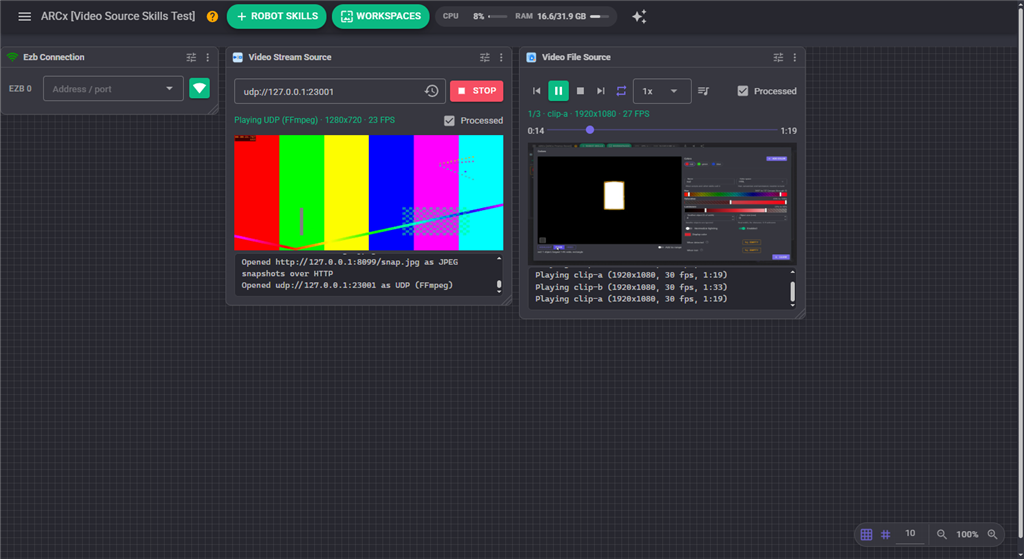
Video Stream Source plays whatever video an address points at and makes it a camera in ARCx. Type in an RTSP address from an IP camera, the MJPEG page of an ESP32-CAM or a phone camera app, a JPEG snapshot URL, an HLS stream, a link to an MP4 file or a YouTube page, and every vision skill (Face Tracking, Color Tracking, Glyph Recognition, OpenCV Filter Flow, recording and the rest) can use it exactly as it would a USB camera.
The video source is named after the robot skill's window title, so rename the window to give the camera a meaningful name, and add the skill more than once for more than one stream.
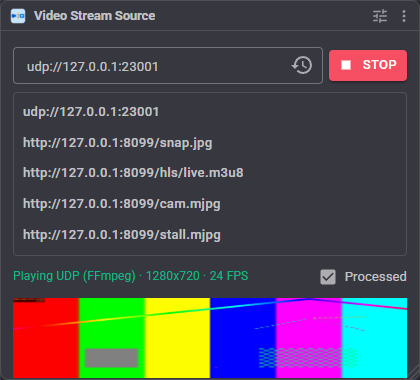
The window
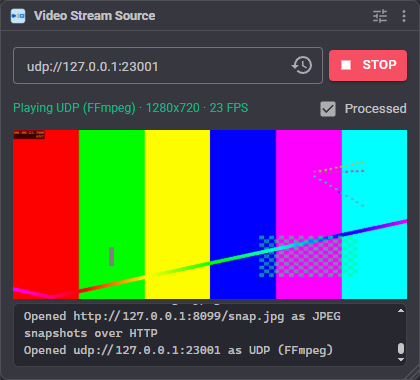
| Part | What it does |
|---|---|
| Address | The address to play. Press Enter or Play to open it. |
| History button | Shows the addresses that have played before, newest first. Click one to play it again. Passwords typed into an address are never kept in this list. |
| Play / Stop | Opens the address, or stops the stream. While a stream plays, Play with a different address switches to it. |
| Status line | What the stream is doing: how the address is being read (such as "RTSP (FFmpeg)" or "MJPEG over HTTP"), the picture size and the frame rate, or the reason it is connecting again. |
| Processed | Shows the video with the vision skills' boxes and labels drawn on it, or the original video. |
| Log | How each address was opened, drops, reconnects and errors. |
What it can play
| Kind of address | Example | How it is read |
|---|---|---|
| RTSP IP camera | rtsp://192.168.1.20:554/stream1 | FFmpeg, over TCP by default |
| RTMP | rtmp://server/live/key | FFmpeg |
| MJPEG over HTTP | http://192.168.1.30/stream, http://192.168.1.31:81/stream (ESP32-CAM) | Managed reader, no FFmpeg needed |
| JPEG or PNG snapshot | http://192.168.1.20/snapshot.jpg, http://phone:8080/shot.jpg | Downloaded over and over |
| HLS live or recorded | https://example.com/live/index.m3u8 | FFmpeg, at the stream's own frame rate |
| DASH | https://example.com/manifest.mpd | FFmpeg |
| Video file over HTTP | https://example.com/clip.mp4, .webm, .mkv, .mov | FFmpeg, at the video's own frame rate, looped |
| UDP or SRT | udp://0.0.0.0:5000, srt://host:9000 | FFmpeg |
| Web page | https://www.youtube.com/watch?v=..., Twitch, Vimeo | yt-dlp finds the video, FFmpeg plays it |
| File on the ARCx computer | C:\Videos\test.mp4 | FFmpeg (the Video File Source skill does playlists) |
An address without a scheme, such as 192.168.1.30:81/stream, is taken as http.
With the Mode set to Auto, the skill works out how to read the address by itself. Addresses that are not http(s) go to FFmpeg. For http(s), a video file extension or a known video site decides it; otherwise the skill asks the server and looks at what it says it is sending: a multipart stream is read as MJPEG, a picture as snapshots, a web page through yt-dlp, and anything else (video, HLS, MPEG transport streams) by FFmpeg. An MJPEG stream or a snapshot is read from that very first answer, so cameras that allow only one connection at a time are not asked twice. If a camera is misidentified, set the Mode by hand.
User names and passwords
A camera that asks for a login can be given one in the address itself, such as rtsp://admin:[email protected]/stream1, or in the User Name and Password settings, which are added to the address for FFmpeg and sent as basic or digest authentication over HTTP. Either way the password is saved in the project file as plain text, so keep a project with camera passwords to yourself. The window, the status, the log and the GetUrl ControlCommand never show a password.
YouTube and other web pages
A web page is not a stream: the video on it has an address of its own, which changes. When Resolve Web Pages is on and the yt-dlp program is installed, the skill asks yt-dlp for the video behind the page (no taller than 720 lines, which is plenty for vision and light to decode) and plays that. This works for YouTube videos and live streams, Twitch, Vimeo and the thousands of other sites yt-dlp supports.
yt-dlp is a free program that is not part of ARCx. Download it from github.com/yt-dlp/yt-dlp and put it on the PATH, or give its full path in the configuration's Web Pages tab, which says whether it was found. Every other kind of address plays without it.
Staying connected
When a stream drops, cannot be reached, or stops sending pictures, the skill connects again by itself after 1, 2, 4 and then every 5 seconds, until it works or Stop is pressed (Max Reconnect Attempts can limit the tries). An MJPEG or snapshot stream that goes silent without closing its connection is noticed after the connect timeout, and the status says "Waiting for pictures" in the meantime. A wrong password or a missing page is reported in the status line and the log while it keeps trying, in case the camera is still starting.
The stream is read on one thread and handed to the vision skills on another, which always takes the newest picture. When the vision skills are slower than the camera, the pictures in between are dropped rather than queued, so the video never falls seconds behind the way an RTSP camera read in a single loop does. Max FPS limits how many pictures a second reach the vision skills, which saves CPU when a camera sends more than is needed. HLS and DASH streams arrive a few seconds of video at a time, so those are handed on at their own frame rate instead, as is a video file with an end, which plays in real time and starts again when it finishes (unless Loop Videos is off).
Configuration
Stream
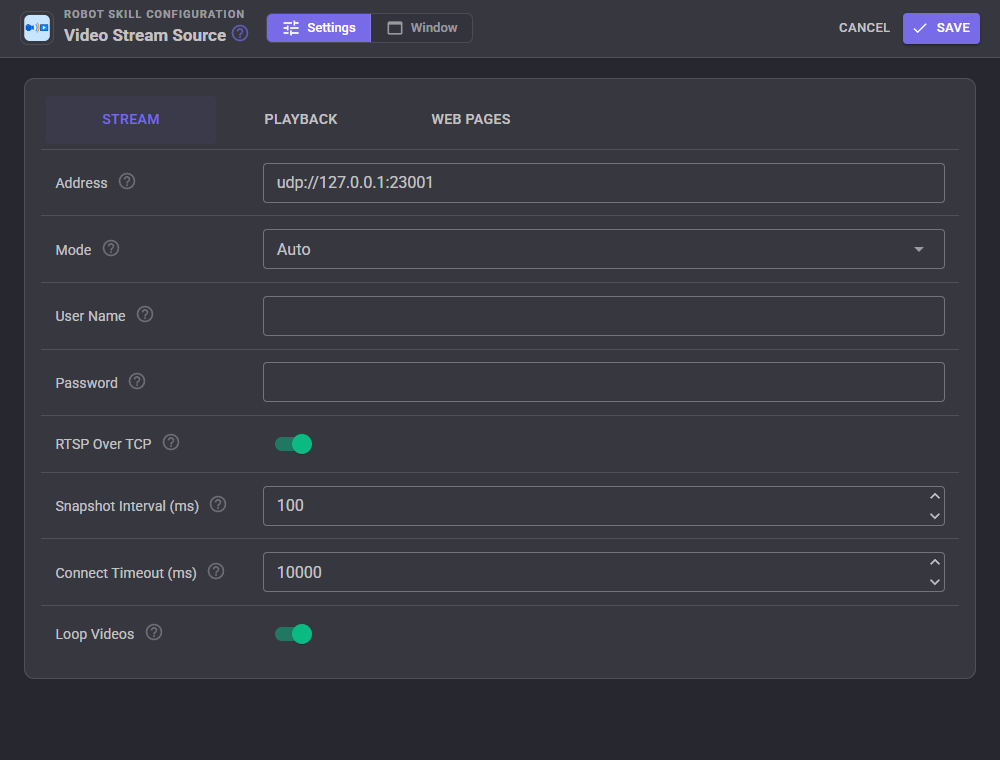
| Setting | What it does |
|---|---|
| Address | The address to play, as in the window. |
| Mode | Auto, Video (always FFmpeg), MJPEG over HTTP, or JPEG snapshots. |
| User Name, Password | For cameras that ask for a login and do not have it in the address. |
| RTSP Over TCP | Read RTSP over TCP (gets through Wi-Fi and firewalls without broken pictures) rather than UDP (slightly less delay on a clean wired network). |
| Snapshot Interval (ms) | In snapshot mode, the wait between downloads. |
| Connect Timeout (ms) | How long to wait for an answer before treating the address as unreachable. |
| Loop Videos | Play a video with an end again from the start when it finishes. |
Playback
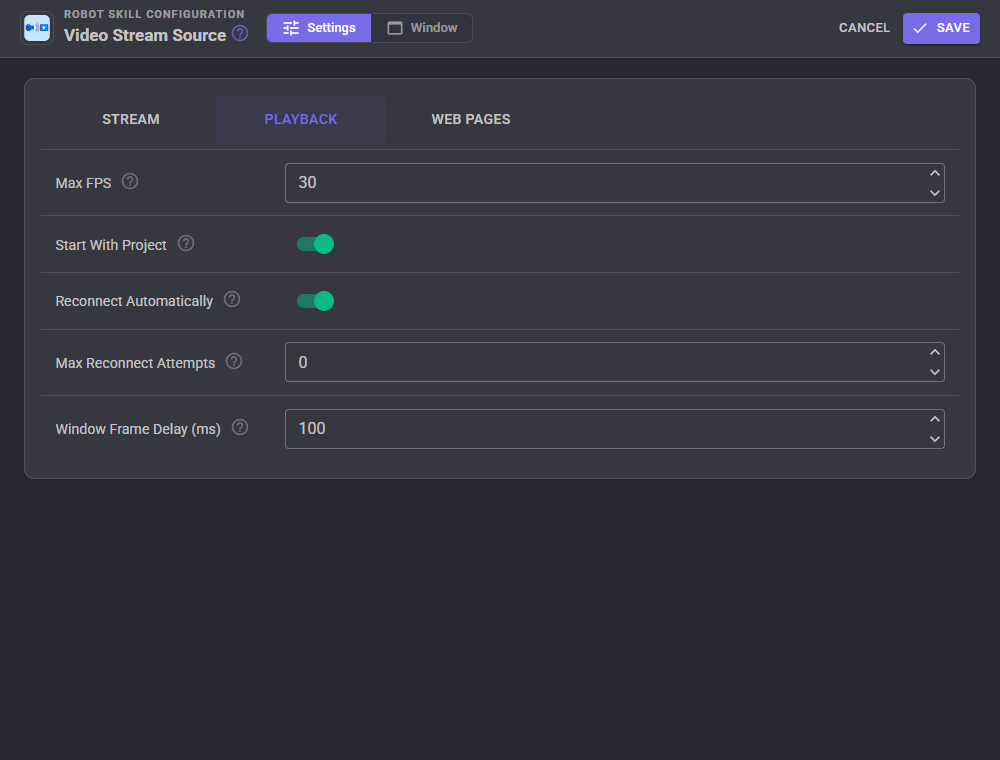
| Setting | What it does |
|---|---|
| Max FPS | The most pictures a second passed on to the vision skills. 0 passes every picture. |
| Start With Project | Start the stream when the project opens. |
| Reconnect Automatically | Connect again by itself when the stream is lost. |
| Max Reconnect Attempts | Give up after this many tries in a row. 0 keeps trying. |
| Window Frame Delay (ms) | How often this window's picture is refreshed. It does not change what the vision skills receive. |
Web Pages
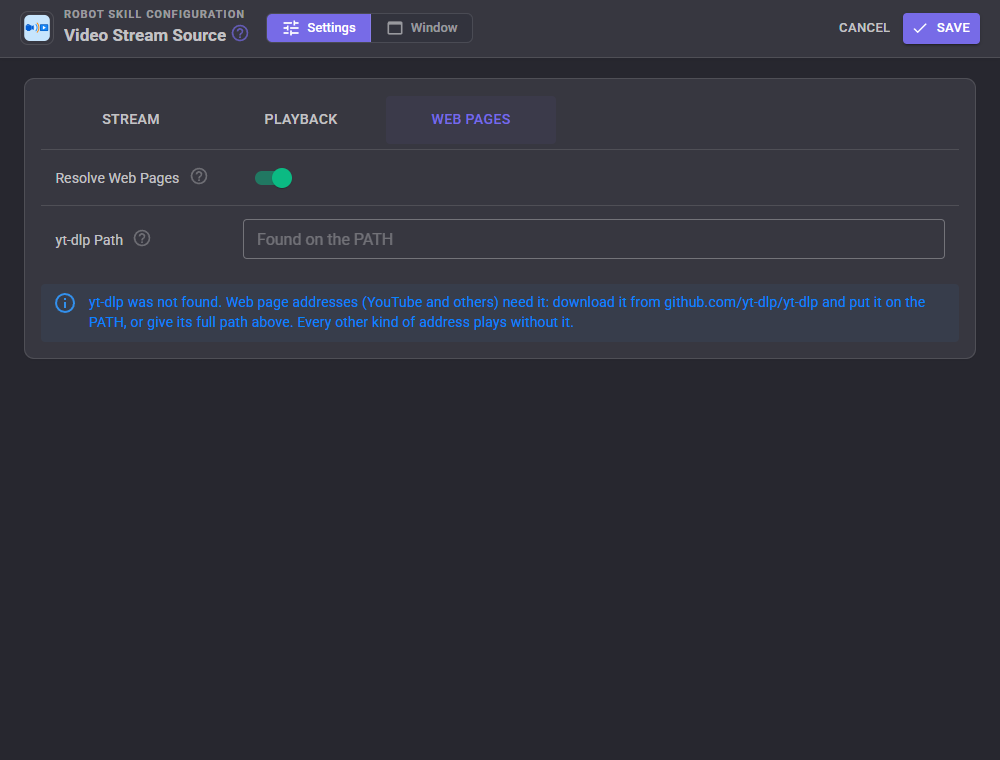
| Setting | What it does |
|---|---|
| Resolve Web Pages | Use yt-dlp to play the video on a web page address. |
| yt-dlp Path | The full path of yt-dlp. Empty looks for it on the PATH. |
Scripts
A script can switch the camera to another address with the SetUrl ControlCommand (for example, to show a different IP camera when the robot changes rooms), stop and start it, and read its status, frame rate and picture size. The control commands are listed in the script editor's ControlCommand view.
Good to know
The stream is video only; sound in the stream is not played. FFmpeg comes with ARCx on Windows. On Linux and macOS, RTSP, HLS and the other FFmpeg kinds need an OpenCV built with FFmpeg, while MJPEG and snapshots always work because they are read by the skill itself.
Control Commands for the Video Stream Source robot skill
There are Control Commands available for this robot skill which allows the skill to be controlled programmatically from scripts or other robot skills. These commands enable you to automate actions, respond to sensor inputs, and integrate the robot skill with other systems or custom interfaces. If you're new to the concept of Control Commands, we have a comprehensive manual available here that explains how to use them, provides examples to get you started and make the most of this powerful feature.
Control Command ManualThis robot skill has 11 control commands, listed below. Send them from a JavaScript or Python script, from Blockly, or from another robot skill.
The first value is always the window title, which is the name in the title bar of the robot skill on your workspace. It starts out as Video Stream Source, which is what every example below uses. If you rename the robot skill, or add a second copy of it to the project, use the title as it appears on that window instead.
ControlCommand() can be shortened to CC(), and both spellings work in JavaScript and in Python. The examples are JavaScript; Python is the same call, except that true and false are written True and False.
GetFPS
The frames per second passed on to the video source.
Syntax
ControlCommand("Video Stream Source", "GetFPS")
Returns: Integer [-2,147,483,648 to 2,147,483,647]
Example
var result = ControlCommand("Video Stream Source", "GetFPS");
GetResolution
The picture size as WIDTHxHEIGHT, or empty when nothing is playing.
Syntax
ControlCommand("Video Stream Source", "GetResolution")
Returns: String
Example
var result = ControlCommand("Video Stream Source", "GetResolution");
GetStatus
One line saying what the stream is doing, such as 'Playing RTSP (FFmpeg) 1280x720 25 FPS' or the last error.
Syntax
ControlCommand("Video Stream Source", "GetStatus")
Returns: String
Example
var result = ControlCommand("Video Stream Source", "GetStatus");
GetUrl
The address being played.
Syntax
ControlCommand("Video Stream Source", "GetUrl")
Returns: String
Example
var result = ControlCommand("Video Stream Source", "GetUrl");
IsActive
Whether the stream is started, including while it is connecting or reconnecting.
Syntax
ControlCommand("Video Stream Source", "IsActive")
Returns: Boolean [true or false]
Example
var result = ControlCommand("Video Stream Source", "IsActive");
IsPlaying
Whether pictures are arriving right now.
Syntax
ControlCommand("Video Stream Source", "IsPlaying")
Returns: Boolean [true or false]
Example
var result = ControlCommand("Video Stream Source", "IsPlaying");
SetUrl
Play a different address (rtsp://, http://, a YouTube page, a file path...). Starts the stream, or reopens it if it is playing.
Syntax
ControlCommand("Video Stream Source", "SetUrl", (String)url)
Parameters
| # | Name | Type | What to pass |
|---|---|---|---|
| 1 | url | Text | Your text, in quotes |
Returns: Boolean [true or false]
Example
var result = ControlCommand("Video Stream Source", "SetUrl", "url");
ShowOriginal
Show the original video in the window.
Syntax
ControlCommand("Video Stream Source", "ShowOriginal")
Returns: Boolean [true or false]
Example
var result = ControlCommand("Video Stream Source", "ShowOriginal");
ShowProcessed
Show the processed video, with the vision skills' boxes and labels, in the window.
Syntax
ControlCommand("Video Stream Source", "ShowProcessed")
Returns: Boolean [true or false]
Example
var result = ControlCommand("Video Stream Source", "ShowProcessed");
Start
Open the configured address and start the video.
Syntax
ControlCommand("Video Stream Source", "Start")
Returns: Boolean [true or false]
Example
var result = ControlCommand("Video Stream Source", "Start");
Stop
Stop the video and close the address.
Syntax
ControlCommand("Video Stream Source", "Stop")
Returns: Boolean [true or false]
Example
var result = ControlCommand("Video Stream Source", "Stop");
This list is read out of the robot skill itself each time its package is uploaded, so it matches the published version (v2).





This robot skill has been updated to v1.
What has changed
First release. Plays any video address as a camera for every vision skill: RTSP and RTMP IP cameras (TCP or UDP), MJPEG over HTTP (read in managed code, no FFmpeg needed), JPEG snapshot URLs, live and recorded HLS, DASH, MP4/WebM links, UDP and SRT, local files, and YouTube-style web pages through yt-dlp when it is installed. Auto mode works out the kind of address by itself; user name and password in the address or the configuration (passwords are never shown). Reconnects automatically, detects silent streams, always hands on the newest frame so the video never falls behind, recent address list, Max FPS, and control commands to switch address from a script.
This robot skill has been updated to v2.
What has changed
updated to use some new ARCx UI features for improved performance.