

Plays video files as a virtual camera in ARCx for vision skills, with playlists, repeat modes, embedded files, and scripting support
 Windows
 ARM
ARM
 Linux
Linux
 MacOS
MacOS
How to add the Video File Source robot skill
- Load the most recent release of ARCx on a compatible operating system (Get ARCx).
- Press the + Skills menu from the top menu bar in ARCx.
- Choose the Camera category tab.
- Press the Video File Source icon to add the robot skill to your project.
Don't have a robot yet?
Follow the Getting Started Guide to build a robot and use the Video File Source robot skill.
How to use the Video File Source robot skill
Video File Source plays video files as a camera in ARCx. Play one recording or a whole playlist, once or on repeat, and every vision skill (Face Tracking, Color Tracking, Glyph Recognition, OpenCV Filter Flow and the rest) sees it exactly as it would a live camera. It is the easy way to tune a detector on the same footage over and over, demonstrate a project without the robot's camera, or run a robot's vision against recordings.
The videos can be files on the ARCx computer's drive, or embedded in the project file so the project carries them to another computer.
The video source is named after the robot skill's window title, so rename the window to give it a meaningful name, and add the skill more than once for more than one source.
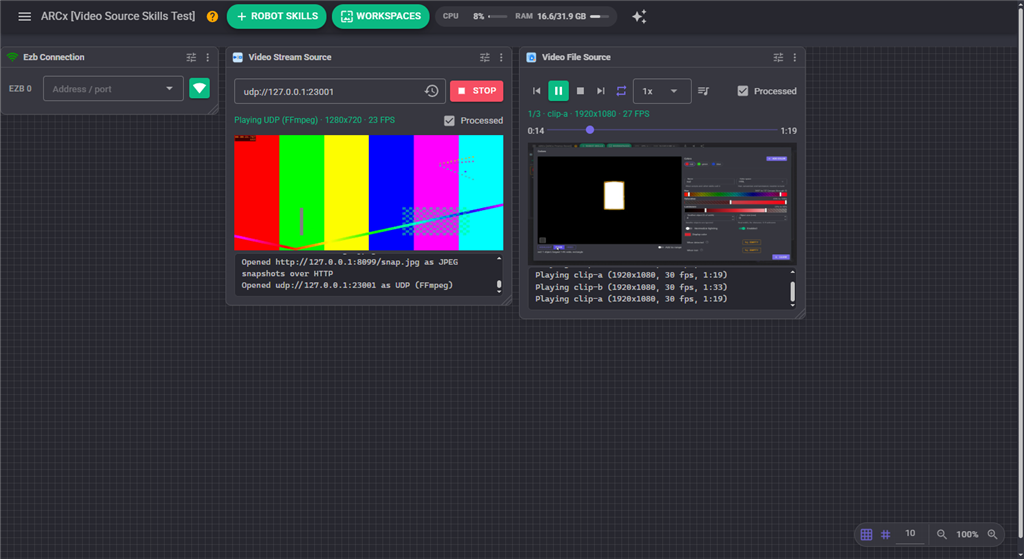
The window
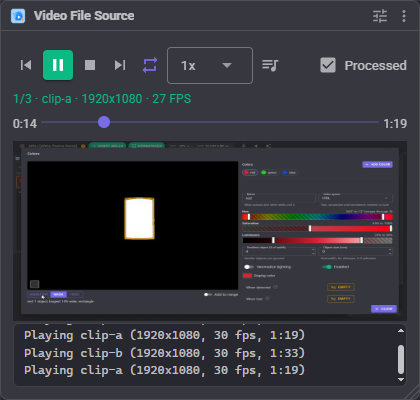
| Part | What it does |
|---|---|
| Previous | Back to the start of the video, or within its first 3 seconds, to the video before it. |
| Play / Pause | Play, or pause on the current picture. A paused video keeps sending its picture, so the vision skills keep seeing it. |
| Stop | Stops playing. The video source stops sending pictures. |
| Next | The next video in the playlist. |
| Repeat | Click to step through Repeat off, Repeat one, Repeat all and Shuffle. |
| Speed | Playback speed, from a quarter to eight times normal. |
| Playlist | The videos in the playlist. Click one to play it. Embedded videos have a box icon; a missing file is greyed out. |
| Status line | Which video is playing, its picture size and frame rate. |
| Seek bar | The time into the video and its length. Drag to jump to another time. |
| Log | Videos started, skipped and finished. |
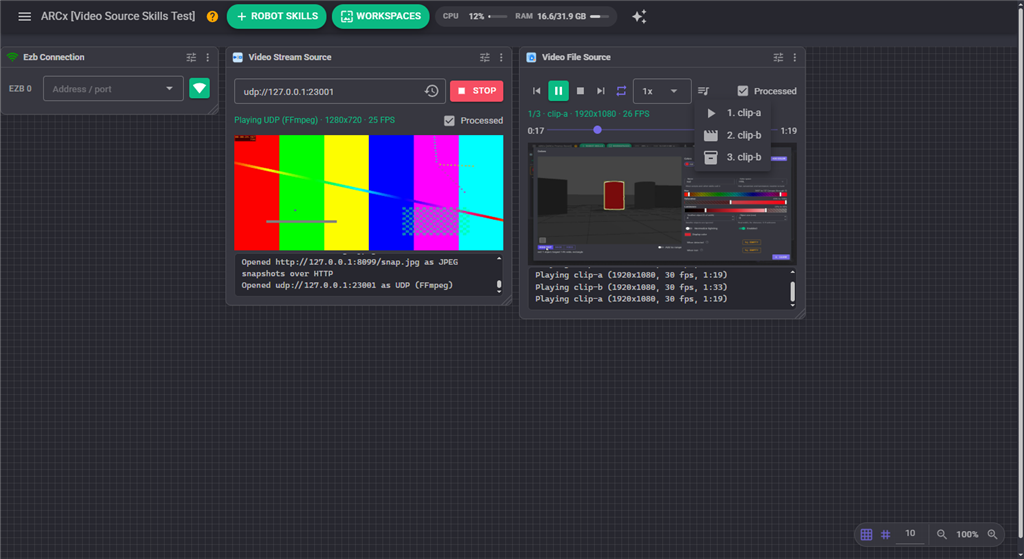
The playlist
The playlist is set up in the configuration. Each video can be switched off without removing it, renamed (scripts refer to videos by name), and given a start and end time to play only part of it.
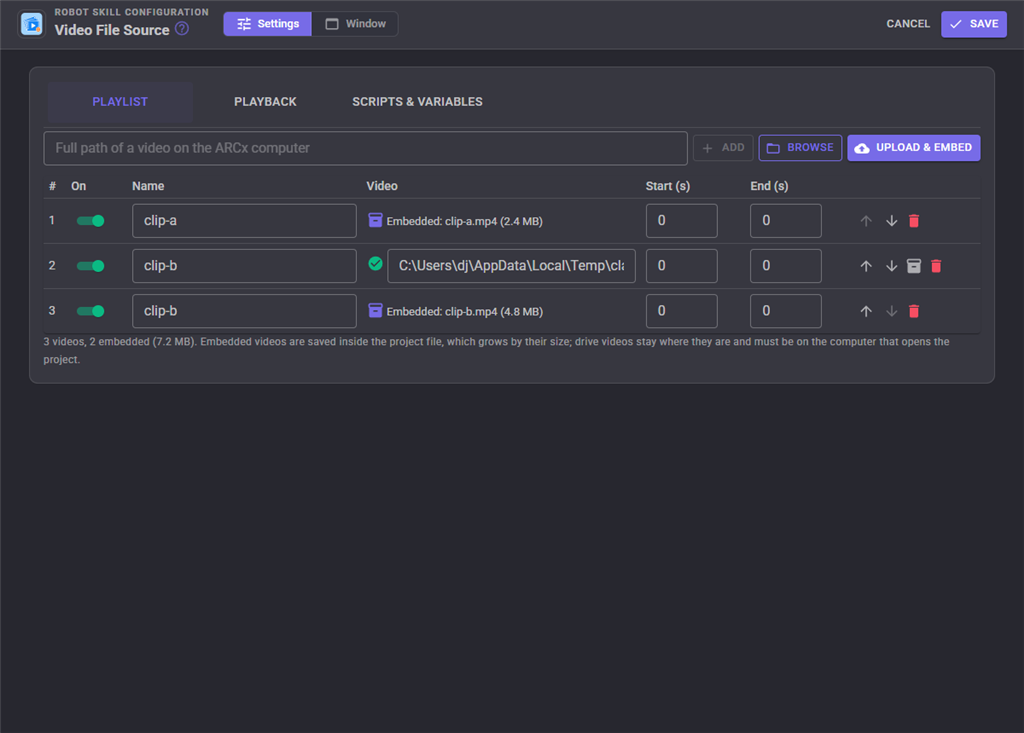
There are three ways to add videos.
- Type the full path of a video on the ARCx computer and press Add.
- Browse lists the folders and videos on the ARCx computer, which is not necessarily the computer the browser is on. Tick videos and add them, or add every video in a folder.
- Upload & embed sends videos from the computer the browser is on and embeds them in the project.
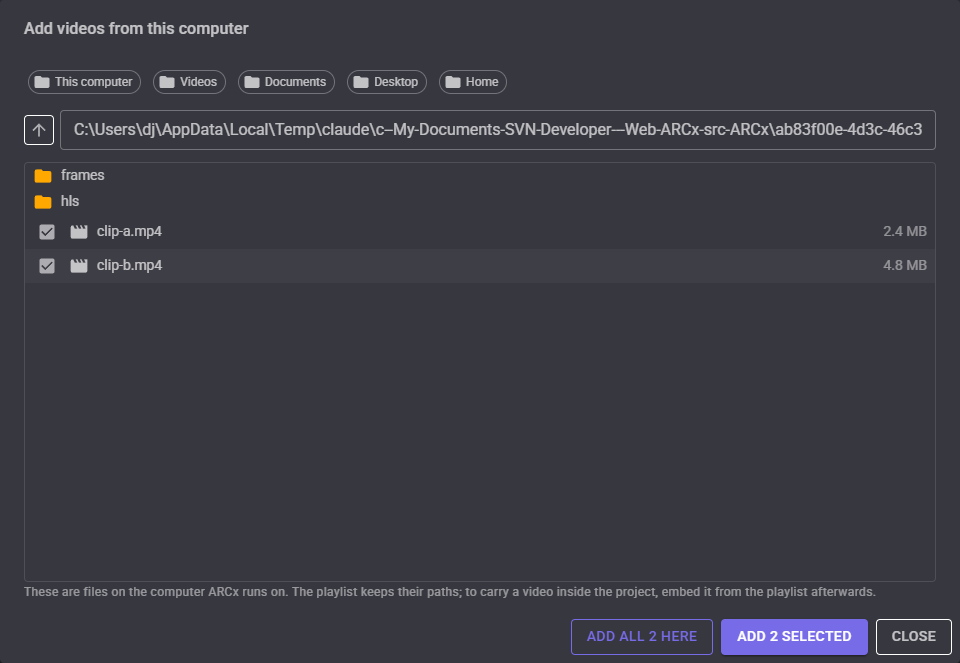
A video on the drive can also be embedded afterwards with the box button on its row, which stores a copy in the project.
Any format FFmpeg reads plays: MP4, MKV, WebM, MOV, AVI, WMV, FLV, MPEG, TS, 3GP and more.
Drive or embedded
| Drive | Embedded | |
|---|---|---|
| Where the video is | A file on the ARCx computer | Inside the project file |
| Project file size | Unchanged | Grows by the size of the video |
| Opening the project on another computer | The file must be at the same path there | Plays as it is |
| Changing the video | Replace the file | Upload it again |
Embedded videos are stored as they are, without compressing them again, beside the skill's settings in the project file. While the project is open each one is copied to a temporary folder that the player reads from; the folder is deleted when the skill is removed or ARCx closes. An AI reading the skill's configuration sees the playlist and the names and sizes of the embedded videos, never the video bytes, and can change the playlist and settings without disturbing them.
Uploads and embeds are copied into the skill straight away but only kept if the configuration is saved; Cancel throws them away.
Repeat and timing
| Repeat | What happens when a video ends |
|---|---|
| Off | The next video plays; after the last one the playlist has finished. |
| Repeat one | The same video plays again. |
| Repeat all | The next video plays, and after the last one the first. |
| Shuffle | A random video plays. Every video plays once before any plays again, and the order is shuffled again each time round. |
When the playlist has finished (Repeat off), the When Finished setting either stops the video source or keeps sending the last picture, so the vision skills still have something to look at. The When Finished script runs either way.
Videos play in real time, at their own frame rate times the speed. When the vision skills take longer than a frame, the frames that are already late are stepped over without being decoded, so a recording keeps its real timing instead of turning into slow motion. Max FPS limits how many pictures a second reach the vision skills, which saves CPU on high frame rate videos.
Configuration
Playback
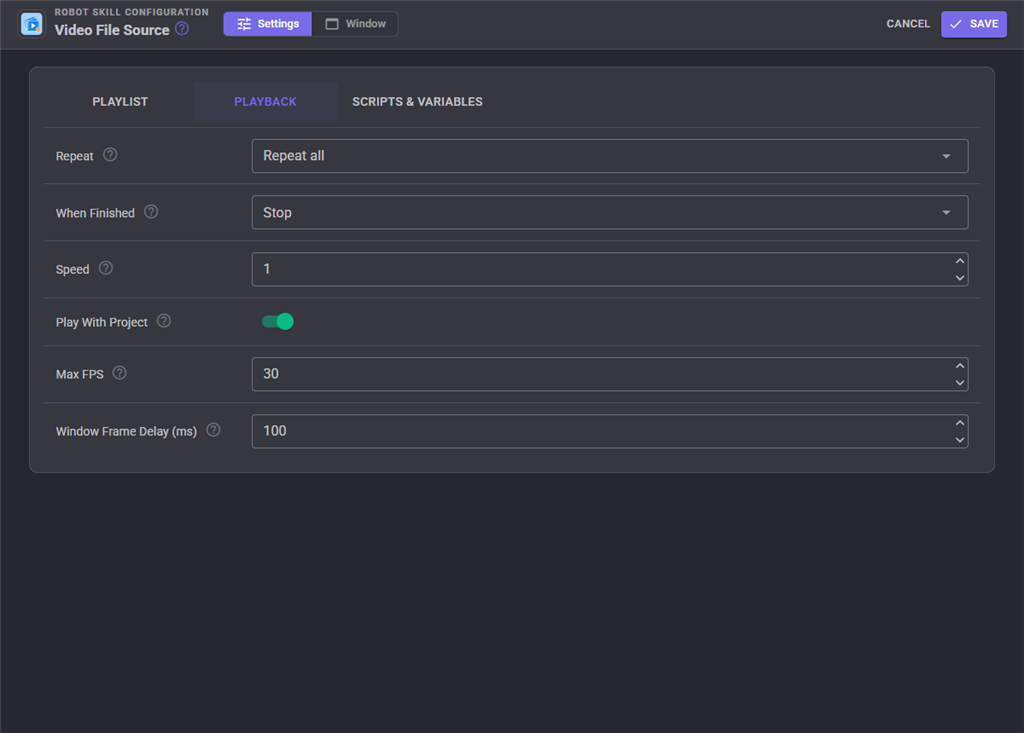
| Setting | What it does |
|---|---|
| Repeat | Off, Repeat one, Repeat all or Shuffle. |
| When Finished | With Repeat off, stop or hold the last picture after the last video. |
| Speed | 1 is normal speed, 0.5 half, 2 double (0.1 to 8). |
| Play With Project | Start playing when the project opens. |
| Max FPS | The most pictures a second passed on to the vision skills. 0 passes every frame. |
| Window Frame Delay (ms) | How often this window's picture is refreshed. It does not change what the vision skills receive. |
Scripts and variables
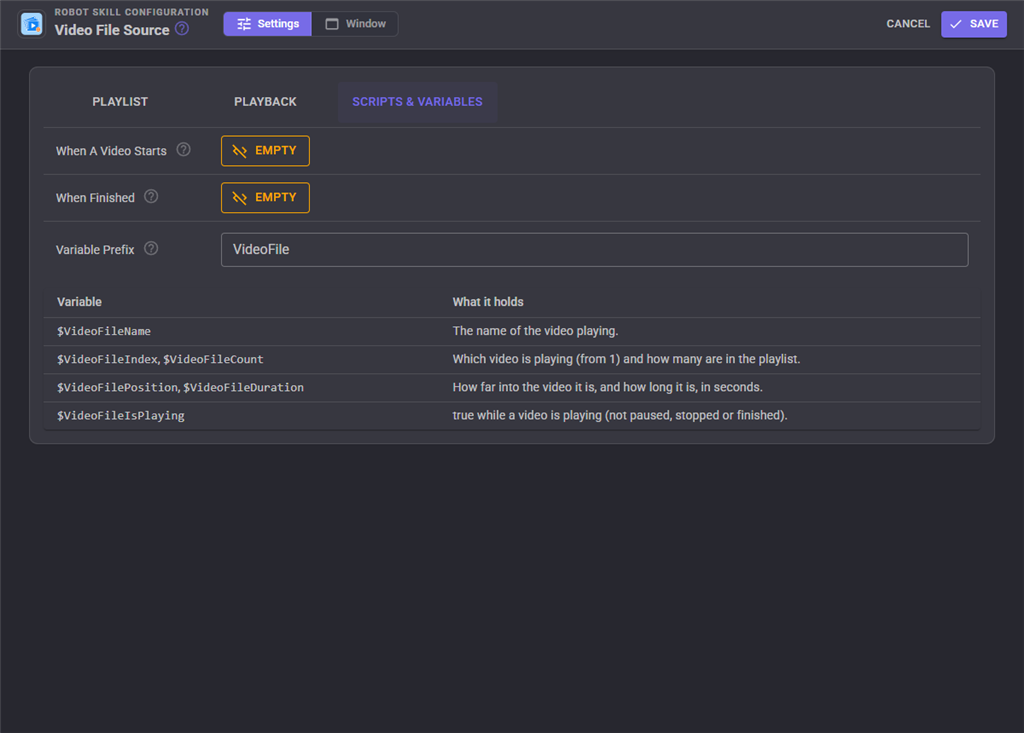
When A Video Starts runs each time a video starts playing, and When Finished runs when the playlist has finished with Repeat off.
The skill keeps these global variables, named after the Variable Prefix (VideoFile by default). Empty the prefix to set no variables, and give each copy of the skill its own prefix when a project has more than one.
| Variable | What it holds |
|---|---|
| $VideoFileName | The name of the video playing. |
| $VideoFileIndex | Which video is playing, counting from 1. |
| $VideoFileCount | How many videos are in the playlist. |
| $VideoFilePosition | How far into the video it is, in seconds. |
| $VideoFileDuration | How long the video is, in seconds. |
| $VideoFileIsPlaying | true while a video is playing (not paused, stopped or finished). |
Scripts can also play, pause, seek, change the speed and repeat mode, jump to a video by name or number, and add files to the playlist with the skill's control commands, which are listed in the script editor's ControlCommand view.
Good to know
Videos play as pictures only; their sound is not played. FFmpeg comes with ARCx on Windows. On Linux and macOS, playing video files needs an OpenCV built with FFmpeg.
Control Commands for the Video File Source robot skill
There are Control Commands available for this robot skill which allows the skill to be controlled programmatically from scripts or other robot skills. These commands enable you to automate actions, respond to sensor inputs, and integrate the robot skill with other systems or custom interfaces. If you're new to the concept of Control Commands, we have a comprehensive manual available here that explains how to use them, provides examples to get you started and make the most of this powerful feature.
Control Command ManualThis robot skill has 19 control commands, listed below. Send them from a JavaScript or Python script, from Blockly, or from another robot skill.
The first value is always the window title, which is the name in the title bar of the robot skill on your workspace. It starts out as Video File Source, which is what every example below uses. If you rename the robot skill, or add a second copy of it to the project, use the title as it appears on that window instead.
ControlCommand() can be shortened to CC(), and both spellings work in JavaScript and in Python. The examples are JavaScript; Python is the same call, except that true and false are written True and False.
AddFile
Add a video file on the ARCx computer's drive to the end of the playlist, by its full path.
Syntax
ControlCommand("Video File Source", "AddFile", (String)path)
Parameters
| # | Name | Type | What to pass |
|---|---|---|---|
| 1 | path | Text | Your text, in quotes |
Returns: Boolean [true or false]
Example
var result = ControlCommand("Video File Source", "AddFile", "path");
ClearPlaylist
Remove every video from the playlist, including embedded ones.
Syntax
ControlCommand("Video File Source", "ClearPlaylist")
Returns: Boolean [true or false]
Example
var result = ControlCommand("Video File Source", "ClearPlaylist");
GetCurrentItem
The name of the video playing, or empty.
Syntax
ControlCommand("Video File Source", "GetCurrentItem")
Returns: String
Example
var result = ControlCommand("Video File Source", "GetCurrentItem");
GetDuration
How long the video playing is, in seconds (0 when unknown).
Syntax
ControlCommand("Video File Source", "GetDuration")
Returns: Double [5.0e324 to 1.7e308]
Example
var result = ControlCommand("Video File Source", "GetDuration");
GetPlaylist
The names of the videos in the playlist, in order.
Syntax
ControlCommand("Video File Source", "GetPlaylist")
Returns: Array of String
Example
var result = ControlCommand("Video File Source", "GetPlaylist");
GetPosition
How far into the video it is, in seconds.
Syntax
ControlCommand("Video File Source", "GetPosition")
Returns: Double [5.0e324 to 1.7e308]
Example
var result = ControlCommand("Video File Source", "GetPosition");
GetStatus
One line saying what the player is doing.
Syntax
ControlCommand("Video File Source", "GetStatus")
Returns: String
Example
var result = ControlCommand("Video File Source", "GetStatus");
IsPlaying
Whether a video is playing (not paused, stopped or finished).
Syntax
ControlCommand("Video File Source", "IsPlaying")
Returns: Boolean [true or false]
Example
var result = ControlCommand("Video File Source", "IsPlaying");
Next
Play the next video of the playlist.
Syntax
ControlCommand("Video File Source", "Next")
Returns: Boolean [true or false]
Example
var result = ControlCommand("Video File Source", "Next");
Pause
Pause. The paused picture is still sent, so the vision skills keep seeing it.
Syntax
ControlCommand("Video File Source", "Pause")
Returns: Boolean [true or false]
Example
var result = ControlCommand("Video File Source", "Pause");
Play
Play. Resumes when paused, starts the playlist when stopped or finished.
Syntax
ControlCommand("Video File Source", "Play")
Returns: Boolean [true or false]
Example
var result = ControlCommand("Video File Source", "Play");
PlayItem
Play a video of the playlist, by its name or its number counting from 1.
Syntax
ControlCommand("Video File Source", "PlayItem", (String)nameOrNumber)
Parameters
| # | Name | Type | What to pass |
|---|---|---|---|
| 1 | nameOrNumber | Text | Your text, in quotes |
Returns: Boolean [true or false]
Example
var result = ControlCommand("Video File Source", "PlayItem", "nameOrNumber");
Previous
Go back to the start of this video, or within its first 3 seconds to the video before it.
Syntax
ControlCommand("Video File Source", "Previous")
Returns: Boolean [true or false]
Example
var result = ControlCommand("Video File Source", "Previous");
Seek
Jump to a time in the video playing, in seconds.
Syntax
ControlCommand("Video File Source", "Seek", (Number)seconds)
Parameters
| # | Name | Type | What to pass |
|---|---|---|---|
| 1 | seconds | Number | A number, without quotes |
Returns: Boolean [true or false]
Example
var result = ControlCommand("Video File Source", "Seek", 0);
SetRepeat
Set what happens when a video ends: Off, RepeatOne, RepeatAll or Shuffle.
Syntax
ControlCommand("Video File Source", "SetRepeat", (String)mode)
Parameters
| # | Name | Type | What to pass |
|---|---|---|---|
| 1 | mode | Text | Your text, in quotes |
Returns: Boolean [true or false]
Example
var result = ControlCommand("Video File Source", "SetRepeat", "mode");
SetSpeed
Set the playback speed: 1 is normal, 0.5 half, 2 double (0.1 to 8).
Syntax
ControlCommand("Video File Source", "SetSpeed", (Number)speed)
Parameters
| # | Name | Type | What to pass |
|---|---|---|---|
| 1 | speed | Number | A number, without quotes |
Returns: Boolean [true or false]
Example
var result = ControlCommand("Video File Source", "SetSpeed", 0);
ShowOriginal
Show the original video in the window.
Syntax
ControlCommand("Video File Source", "ShowOriginal")
Returns: Boolean [true or false]
Example
var result = ControlCommand("Video File Source", "ShowOriginal");
ShowProcessed
Show the processed video, with the vision skills' boxes and labels, in the window.
Syntax
ControlCommand("Video File Source", "ShowProcessed")
Returns: Boolean [true or false]
Example
var result = ControlCommand("Video File Source", "ShowProcessed");
Stop
Stop playing. The video source stops sending pictures.
Syntax
ControlCommand("Video File Source", "Stop")
Returns: Boolean [true or false]
Example
var result = ControlCommand("Video File Source", "Stop");
This list is read out of the robot skill itself each time its package is uploaded, so it matches the published version (v2).


This robot skill has been updated to v1.
What has changed
First release. Plays a video file or a playlist as a camera for every vision skill, in real time at the video's own frame rate (late frames are skipped without decoding). Repeat off, repeat one, repeat all and shuffle; hold the last picture when finished; speed 0.1x to 8x; pause, seek, previous and next; start and end times per video. Videos can be files on the ARCx computer (added by path or by browsing the ARCx computer) or embedded in the project file (uploaded from the browser or embedded from the drive) so the project carries its own video. Scripts when a video starts and when the playlist finishes, variables for the name, position and duration, and control commands for everything.
This robot skill has been updated to v2.
What has changed
updated to use some new ARCx UI features for improved performance.