
Save JPEG or PNG snapshots from any running camera source on demand, in bursts, or on a timer for time-lapse capture.
 Windows
 ARM
ARM
 Linux
Linux
 MacOS
MacOS
How to add the Camera Snapshot robot skill
- Load the most recent release of ARCx on a compatible operating system (Get ARCx).
- Press the + Skills menu from the top menu bar in ARCx.
- Choose the Camera category tab.
- Press the Camera Snapshot icon to add the robot skill to your project.
Don't have a robot yet?
Follow the Getting Started Guide to build a robot and use the Camera Snapshot robot skill.
How to use the Camera Snapshot robot skill
Saves still pictures from any video source in the project to JPEG or PNG files on the computer: one at a time from a button or a script, in quick bursts, or on a timer for a time lapse.
Every snapshot is the next frame the camera delivers after it was asked for, so a script that moves the robot and then takes a snapshot gets a picture of where the robot is now, not a frame that was already on its way.
Requirements
- A video source in the project - Camera Source (usb) or Camera Source (ezb) - with its video running.
Several instances are allowed, so each camera can have its own snapshot skill with its own folder and settings. One instance can also take snapshots from any camera, because a script can name the source for a single snapshot.
The window
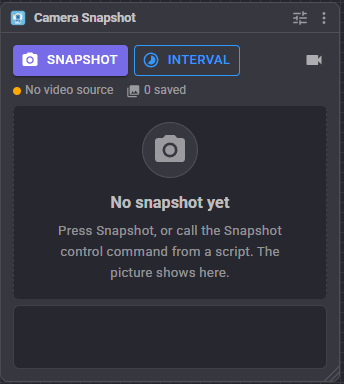
Toolbar
- Snapshot - saves the next frame to a file named with the date and time.
- Interval - starts interval (time lapse) capture. While it runs the button reads Stop (n), where n is how many snapshots it has taken.
- Live / Photo switch - shows the live camera instead of the last snapshot, to line up a shot. It only changes the view in your own browser.
- Download - saves the snapshot being shown to the device you are browsing from. On a phone or tablet this is how a photo taken by the robot ends up in your camera roll.
- Clear - forgets the recent snapshots shown in the window. The files are kept.
Status line - the video source in use (a green dot when it is running, amber when it is not), how many snapshots were saved this session, the interval while it runs, and a spinner while a snapshot is waiting for its frame.
Preview - the last snapshot, with its filename, size and time. A white flash plays when a new one is saved.
Recent strip - thumbnails of the recent snapshots. Click one to show it in the preview and make it the one Download saves; click the newest to go back to following new snapshots.
Log - every saved file, with its size, and the reason whenever a snapshot fails.
Filenames
A snapshot without a filename is saved in the save folder as
<prefix> <date and time>.jpg, i.e. Snapshot 2026-09-25-14-33-07.jpg
A second snapshot in the same second gets a counter: Snapshot 2026-09-25-14-33-07 (2).jpg.
A script can give its own filename:
- A name without a folder, such as
door.jpg, is saved in the save folder. A relative path such asvisitors/door.jpgcreates the subfolder. - A full path, such as
C:\Robot\door.png, is used as it is, and missing folders are created. - The extension picks the format:
.jpg,.jpegor.png. A name without one gets the configured format. Any other extension is refused with an error. - An existing file of the same name is overwritten.
- Environment variables such as
%USERPROFILE%are expanded.
Every command that saves returns the full path of the file, so a script can use it straight away - attach it to an email, send it to an AI vision service, show it on a Custom UI screen.
Choosing a camera
The configured Video source is used unless a script names another one for a single snapshot. With the source left on (first running source), whichever camera is running is used, which is right for the usual project with one camera.
Names are matched ignoring case. Naming a source that is not running fails with an error that lists the sources that are.
Interval capture
Takes a snapshot straight away, then one every Every (seconds), until it is stopped or has taken Stop after snapshots. It can start by itself when the project loads.
Interval snapshots pause while any robot skill's configuration window is open, as every robot skill's background work does. A snapshot that fails - the camera was stopped, say - is written to the log and the interval carries on.
For a long running time lapse on a robot with a small disk, set Keep newest files so the oldest snapshots are deleted as new ones arrive.
Custom UI widgets
Three widgets can be placed on your own Custom UI screens.
Snapshot button - a big shutter button filling its box, with the last snapshot behind it and a flash when a new one is saved.
| Setting | Meaning |
|---|---|
| Caption | The text on the button. |
| Source | A video source for this button only, so a screen can have one button per camera. Empty uses the skill's own. |
| ShowThumbnail | Shows the last snapshot behind the button. |
| ShowCount | Shows how many snapshots were saved this session. |
Last snapshot - the most recent snapshot, filling its box.
| Setting | Meaning |
|---|---|
| Fit | contain shows the whole photo (may leave bars), cover fills the box (may crop). |
| ShowInfo | Shows the time and size in the corner. |
| ShowDownload | Shows a button that downloads the full size file to the phone or computer. |
| ShowRecent | Shows a strip of recent snapshots to flip back through. |
| TapToCapture | Tapping the photo takes a new snapshot, so this one widget is a whole camera panel. |
Interval capture - start and stop the time lapse, with the interval and the count.
| Setting | Meaning |
|---|---|
| Caption | The label above the button. |
Scripts
After every snapshot the full path of the file is put in a global variable - SnapshotFilename unless you change it - and the On snapshot script runs if one is set. The variable already holds the new path when the script starts:
var file = getVar("SnapshotFilename");
print("Saved " + file);
With more than one Camera Snapshot skill in a project, give each its own variable name.
A script that is stopped while its snapshot is waiting for a frame stops waiting at once.
Configuration
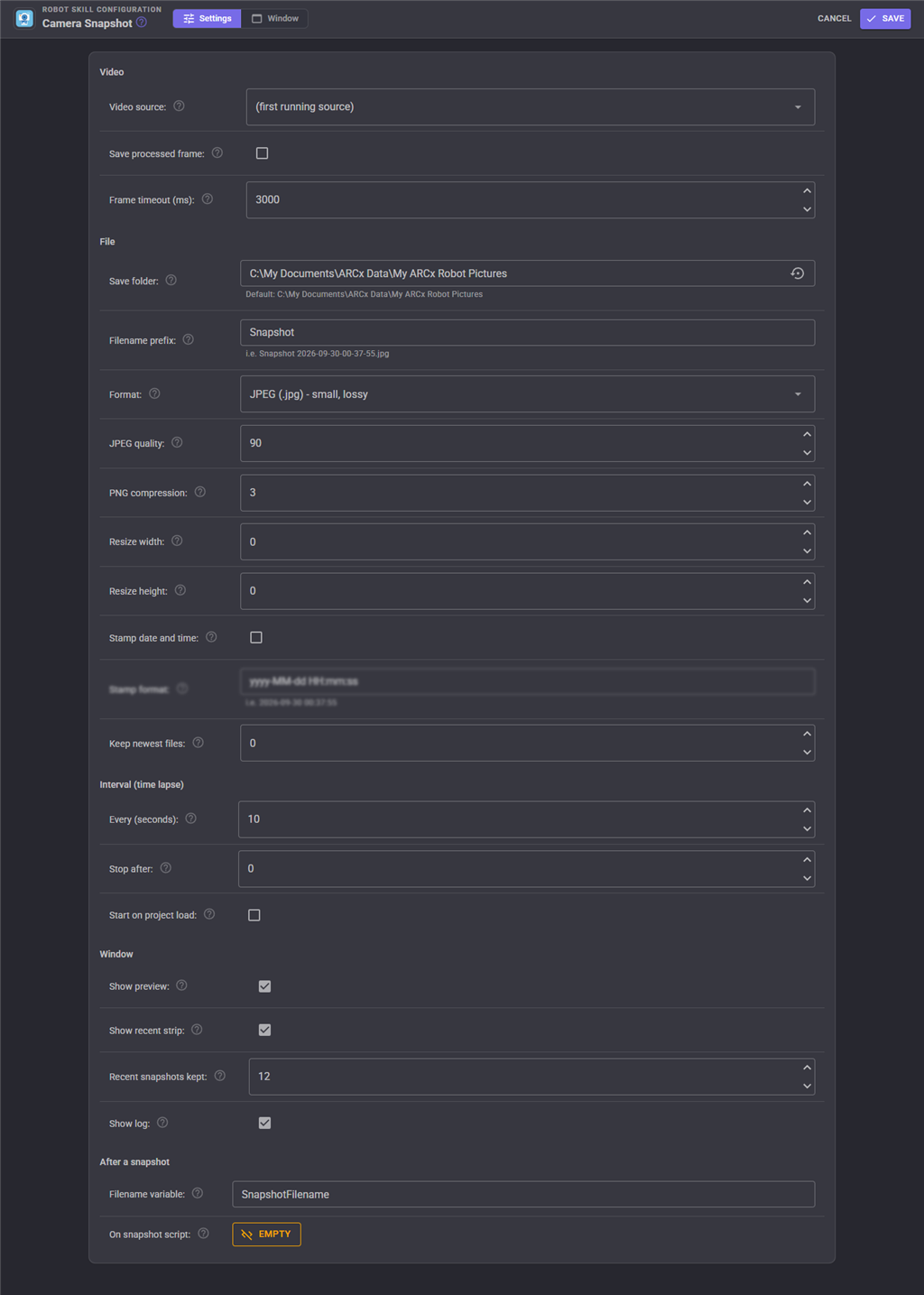
Video
| Setting | Meaning | Default |
|---|---|---|
| Video source | The camera snapshots are taken from. The list shows each running source's frame rate. | first running source |
| Save processed frame | On saves the picture with the boxes and text drawn by tracking and detection skills. Off saves the raw camera image. | off |
| Frame timeout (ms) | How long a snapshot waits for the camera's next frame before failing. Raise it for slow network cameras. | 3000 |
File
| Setting | Meaning | Default |
|---|---|---|
| Save folder | Where snapshots go. The reset button beside it restores the default. | My ARCx Robot Pictures in the ARCx data folder |
| Filename prefix | The start of every automatic filename. The field shows an example. | Snapshot |
| Format | JPEG (small, lossy) or PNG (larger, lossless) for automatic filenames and names without an extension. | JPEG |
| JPEG quality | 1 to 100. 85 to 95 is hard to tell from the original. | 90 |
| PNG compression | 0 (fast, large) to 9 (slow, small). The picture is identical either way. | 3 |
| Resize width / height | Scale the saved picture. 0 keeps the camera's size. Set only one to keep the aspect ratio. | 0 x 0 |
| Stamp date and time | Prints the date and time in the bottom left corner. | off |
| Stamp format | The .NET date and time format of the stamp. The field shows what it will look like. | yyyy-MM-dd HH:mm:ss |
| Keep newest files | Deletes the oldest automatically named snapshots beyond this many. Only files that start with the prefix and end in .jpg, .jpeg or .png are ever touched; files saved with a script's own filename never are. 0 keeps everything. |
0 |
Interval (time lapse)
| Setting | Meaning | Default |
|---|---|---|
| Every (seconds) | Time between snapshots. | 10 |
| Stop after | Stop after this many snapshots. 0 runs until stopped. | 0 |
| Start on project load | Start interval capture when the project loads. | off |
Window
| Setting | Meaning | Default |
|---|---|---|
| Show preview | Show the last snapshot in the window. Off leaves the buttons and log. | on |
| Show recent strip | Show thumbnails of the recent snapshots under the preview. | on |
| Recent snapshots kept | How many recent snapshots the window and widgets remember, in memory, for this session. | 12 |
| Show log | Show the log in the window. | on |
After a snapshot
| Setting | Meaning | Default |
|---|---|---|
| Filename variable | The global variable that receives each new file's path. Empty sets none. | SnapshotFilename |
| On snapshot script | Runs after every snapshot is saved. | empty |
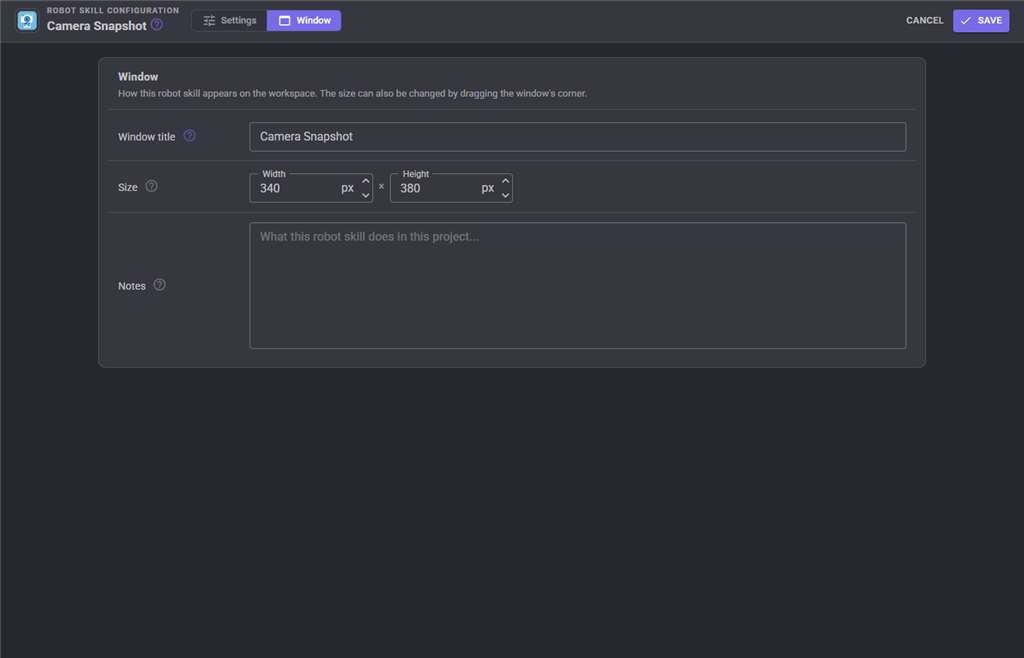
The Window tab sets the robot skill's window title, its size on the workspace and notes about what it does in this project.
Notes and limitations
- The recent snapshots, the strip and the widgets remember only this session. The files on disk are the permanent record.
- The download button serves only the snapshots this skill took this session; it cannot reach any other file on the computer.
- When Keep newest files is on, a path returned to a script can be deleted by a later snapshot's cleanup. Copy a file somewhere else if the script needs to keep it.
- Pictures are taken at the camera's own resolution unless Resize is set.
Troubleshooting
| Symptom | Cause |
|---|---|
| "There is no video source in the project" | No camera skill is running. Add one and start its video. |
| "There is no video source named ..." | The name does not match a running source. The message lists the ones that are running. |
| "No frame arrived ... within ... ms" | The camera is added but its video is not started, or it is too slow. Start it, or raise Frame timeout. |
| "... is not a supported image type" | The filename ends in something other than .jpg, .jpeg or .png. |
| The status dot is amber | The configured source is not running. |
| No boxes or labels in the picture | Turn on Save processed frame. |
| Old snapshots are disappearing | Keep newest files is set. |
| Interval capture is not taking pictures | A configuration window is open somewhere; interval snapshots pause until it is closed. |
See also
- Camera Source (usb) / Camera Source (ezb) - the video sources
- Video Recorder - records video to a file instead of stills
Control Commands for the Camera Snapshot robot skill
There are Control Commands available for this robot skill which allows the skill to be controlled programmatically from scripts or other robot skills. These commands enable you to automate actions, respond to sensor inputs, and integrate the robot skill with other systems or custom interfaces. If you're new to the concept of Control Commands, we have a comprehensive manual available here that explains how to use them, provides examples to get you started and make the most of this powerful feature.
Control Command ManualThis robot skill has 17 control commands, listed below. Send them from a JavaScript or Python script, from Blockly, or from another robot skill.
The first value is always the window title, which is the name in the title bar of the robot skill on your workspace. It starts out as Camera Snapshot, which is what every example below uses. If you rename the robot skill, or add a second copy of it to the project, use the title as it appears on that window instead.
ControlCommand() can be shortened to CC(), and both spellings work in JavaScript and in Python. The examples are JavaScript; Python is the same call, except that true and false are written True and False.
ClearRecent
Clear the recent snapshots shown in the robot skill window and widgets. The files are not deleted.
Syntax
ControlCommand("Camera Snapshot", "ClearRecent")
Returns: nothing
Example
ControlCommand("Camera Snapshot", "ClearRecent");
GetLastFilename
The full path of the last snapshot saved, or an empty string when none has been saved this session.
Syntax
ControlCommand("Camera Snapshot", "GetLastFilename")
Returns: String
Example
var result = ControlCommand("Camera Snapshot", "GetLastFilename");
GetSnapshotCount
How many snapshots this robot skill has saved this session.
Syntax
ControlCommand("Camera Snapshot", "GetSnapshotCount")
Returns: Integer [-2,147,483,648 to 2,147,483,647]
Example
var result = ControlCommand("Camera Snapshot", "GetSnapshotCount");
GetSources
The names of the video sources running in the project, any of which can be passed to SnapshotFromSource or SetSource.
Syntax
ControlCommand("Camera Snapshot", "GetSources")
Returns: Array of String
Example
var result = ControlCommand("Camera Snapshot", "GetSources");
IsIntervalRunning
Whether interval capture is running.
Syntax
ControlCommand("Camera Snapshot", "IsIntervalRunning")
Returns: Boolean [true or false]
Example
var result = ControlCommand("Camera Snapshot", "IsIntervalRunning");
SetFolder
Change the folder snapshots are saved in. It is created when it does not exist. Returns the full folder path.
Syntax
ControlCommand("Camera Snapshot", "SetFolder", (String)folder)
Parameters
| # | Name | Type | What to pass |
|---|---|---|---|
| 1 | folder | Text | Your text, in quotes |
Returns: String
Example
var result = ControlCommand("Camera Snapshot", "SetFolder", "folder");
SetFormat
Change the image format of automatically named snapshots: jpg or png. Returns true.
Syntax
ControlCommand("Camera Snapshot", "SetFormat", (String)format)
Parameters
| # | Name | Type | What to pass |
|---|---|---|---|
| 1 | format | Text | Your text, in quotes |
Returns: Boolean [true or false]
Example
var result = ControlCommand("Camera Snapshot", "SetFormat", "format");
SetInterval
Set the number of seconds between interval snapshots (1 to 86400). Takes effect at once if interval capture is running. Returns the seconds set.
Syntax
ControlCommand("Camera Snapshot", "SetInterval", (Number)seconds)
Parameters
| # | Name | Type | What to pass |
|---|---|---|---|
| 1 | seconds | Number | A number, without quotes |
Returns: Integer [-2,147,483,648 to 2,147,483,647]
Example
var result = ControlCommand("Camera Snapshot", "SetInterval", 0);
SetProcessed
True saves the processed frame with the overlays drawn by tracking robot skills; false saves the raw camera image. Returns the value set.
Syntax
ControlCommand("Camera Snapshot", "SetProcessed", (Bool)processed)
Parameters
| # | Name | Type | What to pass |
|---|---|---|---|
| 1 | processed | True or false | true or false, without quotes |
Returns: Boolean [true or false]
Example
var result = ControlCommand("Camera Snapshot", "SetProcessed", true);
SetSource
Change the configured video source that snapshots are taken from. An empty name uses the first running source. Returns true.
Syntax
ControlCommand("Camera Snapshot", "SetSource", (String)sourceName)
Parameters
| # | Name | Type | What to pass |
|---|---|---|---|
| 1 | sourceName | Text | Your text, in quotes |
Returns: Boolean [true or false]
Example
var result = ControlCommand("Camera Snapshot", "SetSource", "sourceName");
Snapshot
Save the next frame of the configured video source to the save folder, named with the date and time. Waits for the file to be written and returns its full path.
Syntax
ControlCommand("Camera Snapshot", "Snapshot")
Returns: String
Example
var result = ControlCommand("Camera Snapshot", "Snapshot");
SnapshotBurst
Save several snapshots in a row from the configured video source, each from a new frame, waiting delayMS milliseconds between them (0 for as fast as the camera delivers frames). Returns the full paths.
Syntax
ControlCommand("Camera Snapshot", "SnapshotBurst", (Number)count, (Number)delayMS)
Parameters
| # | Name | Type | What to pass |
|---|---|---|---|
| 1 | count | Number | A number, without quotes |
| 2 | delayMS | Number | A number, without quotes |
Returns: Array of String
Example
var result = ControlCommand("Camera Snapshot", "SnapshotBurst", 0, 0);
SnapshotFromSource
Save the next frame of the named video source instead of the configured one, named with the date and time. The configured source is not changed. Returns the full path.
Syntax
ControlCommand("Camera Snapshot", "SnapshotFromSource", (String)sourceName)
Parameters
| # | Name | Type | What to pass |
|---|---|---|---|
| 1 | sourceName | Text | Your text, in quotes |
Returns: String
Example
var result = ControlCommand("Camera Snapshot", "SnapshotFromSource", "sourceName");
SnapshotFromSourceToFile
Save the next frame of the named video source to the given file (.jpg, .jpeg or .png). Returns the full path.
Syntax
ControlCommand("Camera Snapshot", "SnapshotFromSourceToFile", (String)sourceName, (String)filename)
Parameters
| # | Name | Type | What to pass |
|---|---|---|---|
| 1 | sourceName | Text | Your text, in quotes |
| 2 | filename | Text | Your text, in quotes |
Returns: String
Example
var result = ControlCommand("Camera Snapshot", "SnapshotFromSourceToFile", "sourceName", "filename");
SnapshotToFile
Save the next frame of the configured video source to the given file (.jpg, .jpeg or .png). A name without a folder is saved in the save folder, and one without an extension gets the configured format. An existing file is overwritten. Returns the full path.
Syntax
ControlCommand("Camera Snapshot", "SnapshotToFile", (String)filename)
Parameters
| # | Name | Type | What to pass |
|---|---|---|---|
| 1 | filename | Text | Your text, in quotes |
Returns: String
Example
var result = ControlCommand("Camera Snapshot", "SnapshotToFile", "filename");
StartInterval
Start interval (time lapse) capture: a snapshot now and then one every configured number of seconds, until stopped or the configured count is reached.
Syntax
ControlCommand("Camera Snapshot", "StartInterval")
Returns: Boolean [true or false]
Example
var result = ControlCommand("Camera Snapshot", "StartInterval");
StopInterval
Stop interval capture.
Syntax
ControlCommand("Camera Snapshot", "StopInterval")
Returns: Boolean [true or false]
Example
var result = ControlCommand("Camera Snapshot", "StopInterval");
This list is read out of the robot skill itself each time its package is uploaded, so it matches the published version (v3).




This robot skill has been updated to v1.
What has changed
This is the first upload of this robot skill.
This robot skill has been updated to v2.
What has changed
compatible with the latest ARCx v2026.09.27.01
This robot skill has been updated to v3.
What has changed
integration support for MCP server