

Offline Windows speech recognition with open dictionary, confidence filtering, and scriptable phrase actions for ARC robots
 Windows
How to add the Total Speech Recognition robot skill
- Load the most recent release of ARC (Get ARC).
- Press the Project tab from the top menu bar in ARC.
- Press Add Robot Skill from the button ribbon bar in ARC.
- Choose the Audio category tab.
- Press the Total Speech Recognition icon to add the robot skill to your project.
Don't have a robot yet?
Follow the Getting Started Guide to build a robot and use the Total Speech Recognition robot skill.
How to use the Total Speech Recognition robot skill
Humorously known as "the worst speech recognizer" - by request of users who wish for an open dictionary, offline speech recognition for Windows 10 and 11. Unlike the regular speech recognition control, which allows pre-defined phrases or the Bing Speech Recognition, which works, this is an open dictionary, allowing any combination of words. However, the implementation of this type of speech recognition is not great... not great at all! You can sometimes achieve acceptable results by using a handheld microphone and very well-trained data for your voice, specifically.
This skill uses the speech recognition engine that is built into Windows (System.Speech), loaded with the full dictation dictionary of the selected language. Because it runs locally on your PC, no internet connection is required - and because it is trying to match anything you say against every word in the language, accuracy is significantly lower than the cloud-based alternatives listed at the bottom of this manual.
Main Window
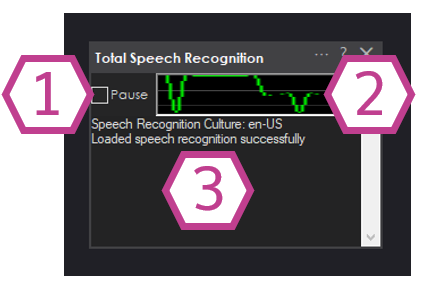
1. Pause Checkbox When not in use you can keep the skill paused. While paused, phrases are still recognized and displayed in the response field, and the Phrase/Confidence variables are still updated - but no scripts are executed.
2. Audio Waveform This gives visual feedback that your microphone is configured correctly and is picking up voice/sounds. The level comes from the default Windows audio input device.
3. Response Field Here you will get feedback from the Total speech recognition offline database. It will show the text version of your detected words, followed by the confidence value in brackets - for example turn on the lights (0.72). Phrases that fall below your configured confidence threshold are prefixed with Low confidence:. The field keeps the most recent 100 lines. Any errors from the recognition engine, and the culture (language) that was loaded at startup, are also reported here.
Settings
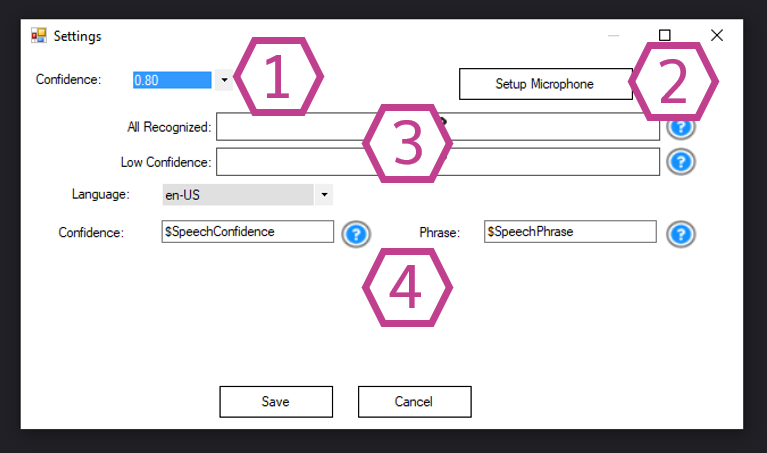
1. Confidence Selection If you notice Low confidence messages in response field use this selection to lower the confidence level. Be aware that if you lower the level too much the speech recognition will produce false positives. The selectable range is 0.50 to 0.95 in steps of 0.01, and the default is 0.80.
2. Setup Microphone Button This button selects an audio input device from a list of installed devices. It opens the Windows Sound control panel on the Recording tab, where you set the device you wish to use as the Default Device. This skill always listens to the Windows default input device, so the device you choose here is the one that will be used. If you change the default device, restart the ARC project so the recognizer binds to the new device.
3. Scripts The "All recognized" script is where you enter the phrases which will be recognized and the command associated with each phrase. It runs whenever a phrase is recognized at or above the confidence threshold. The "Low Confidence" script runs instead when the recognized phrase falls below the threshold. Your script can parse the text and try to figure out what was said. Both scripts run asynchronously, and either script can read the Phrase and Confidence variables described below.
4. Variables The recognized text is placed into the Phrase variable. The confidence level is placed in the Confidence variable. The variable names are configurable, and both must begin with a $. The defaults are $SpeechPhrase and $SpeechConfidence. Both variables are set before the script is executed, so they are always current when your script runs. Note that the recognized phrase is always returned in lowercase, so compare against lowercase text in your scripts.
Language Select the recognizer language (culture) to use, for example en-US. Only the languages with a Windows speech recognition engine installed on your PC are listed. If the saved language is no longer installed, the skill falls back to the first installed recognizer and reports this in the response field. Additional languages can be added through Windows Settings -> Time & Language -> Speech.
Control Commands
This skill supports ControlCommand() calls from any script in your project, which lets you enable and disable speech responses programmatically. A common use is pausing recognition while your robot is speaking so it does not hear itself.
# Stop scripts from being executed on recognized phrases
ControlCommand("Total Speech Recognition", "PauseOn")

# Resume executing scripts on recognized phrases
ControlCommand("Total Speech Recognition", "PauseOff")

# Toggle between paused and not paused
ControlCommand("Total Speech Recognition", "PauseToggle")
Example Script
Because this is an open dictionary, you will rarely get an exact match on a spoken phrase. Instead of comparing the entire phrase, search it for keywords.
if (Contains($SpeechPhrase, "forward") >= 0)
  Forward()
elseif (Contains($SpeechPhrase, "stop") >= 0)
  Stop()
elseif (Contains($SpeechPhrase, "light") >= 0 and Contains($SpeechPhrase, "on") >= 0)
  Set(d0, true)
endif
How to Use the Total Speech Recognition Skill
- Add the skill to your ARC project (Project -> Add Skill -> Audio -> Total Speech recognition).
- In the settings menu of this skill setup your microphone (if not already setup), select your language, and lower the confidence value if needed.
- Save your settings, and start speaking into the microphone. You'll find the words that the skill recognizes in the the response field.
- Once you know what the recognizer returns for your spoken commands, add a script to the "All Recognized" script that parses the $SpeechPhrase variable and performs the action you want.
Requirements
Windows 10 or 11 with the Windows speech recognition engine for your language installed. There is no internet connection required, and there is no cloud account or API key to configure.Using a headset or external mic will produce dramatically better results compared to the internal PC/Laptop mic. Using a headset or mic will enable the recognition engine to "hear" your voice much clearer with less background noise. The background noise of the laptop, motors, radio, and room echo will cause the recognition software to return False Positives. This means the software recognizes an incorrect phrase. An external mic will also prevent the recognition software from hearing the robot speak. In short, it is important to use a Mic Headset or external Mic for a positive Speech Recognition experience.
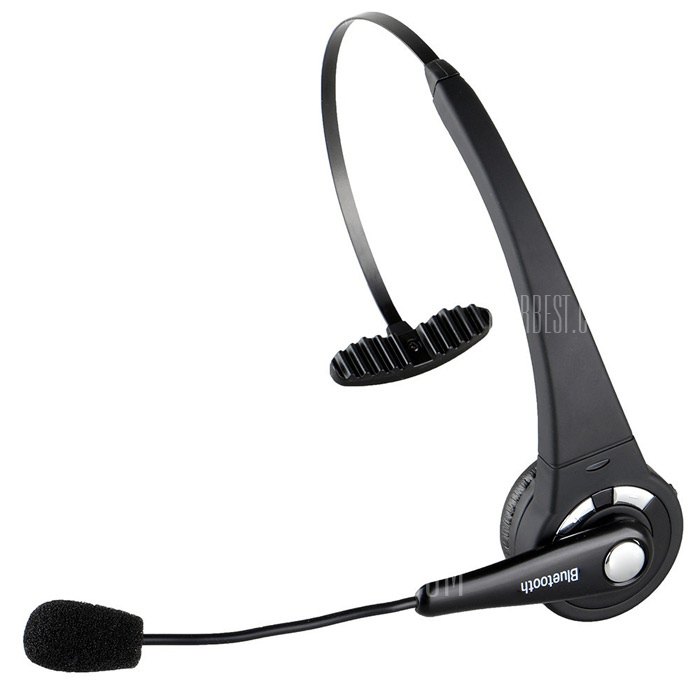
Training the Windows speech recognition profile for your voice (Windows Control Panel -> Speech Recognition -> Train your computer to better understand you) will noticeably improve the results of this skill, because it uses the same underlying Windows engine.
Alternatives There are alternative robot skills that utilize online recognition, which means you will require an internet connection. The alternative robot skills are much better and have incredible accuracy. The recommended online skills are Bing Speech Recognition and Advanced Speech Recognition. There may be others as well. Check the Audio section of Docs/Skills for more.




yes with other plaug-in worl well