
Speech-to-text with Whisper for ARC: transcribes phrases in many languages via OpenAI, Groq, or local OpenAI-compatible servers.
 Windows
 ARM
ARM
 Linux
Linux
 MacOS
MacOS
How to add the Openai Whisper robot skill
- Load the most recent release of ARCx on a compatible operating system (Get ARCx).
- Press the + Skills menu from the top menu bar in ARCx.
- Choose any of these category tabs, the robot skill appears in each of them: Artificial Intelligence, Audio.
- Press the Openai Whisper icon to add the robot skill to your project.
Don't have a robot yet?
Follow the Getting Started Guide to build a robot and use the Openai Whisper robot skill.
How to use the Openai Whisper robot skill
OpenAI Whisper gives your robot a speech to text engine that writes down what people say, in almost any language. It records one phrase from the ARCx microphone, sends it to Whisper and hands the text to whatever asked for it: its own phrase list, the Wait For Speech popup, Speech Phrase Recognition, an AI robot skill or a script. It works with OpenAI, with Groq, and with any server that speaks the same API, such as a faster-whisper, speaches, whisper.cpp or LocalAI server on your own computer, which is free and keeps the audio private.
The window
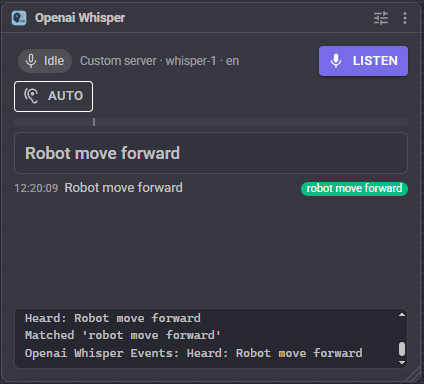
The chip on the left says what the engine is doing: Idle, Listening (recording, waiting for somebody to talk), Hearing speech, Transcribing (waiting for the answer), or, while auto listening, Waiting for wake word and Awake. Beside it are the service, the model and the language in use.
Listen beeps and records one phrase. The phrase is sent when the speaker goes quiet; while recording, the button becomes Send, which sends what was said straight away, and the X beside it throws the recording away. Auto keeps listening for phrase after phrase, waking on the wake word set on the Listening tab.
The bar under the buttons is the microphone level while recording. The small mark on it is the speech loudness setting: audio louder than the mark counts as speech and turns the bar green.
Below that are the last phrase heard and the phrases heard before it, newest first. A green chip shows the phrase from the phrase list that it matched and ran. A phrase marked other skill was heard for another robot skill using this engine, so the phrase list did not run for it. The log at the bottom says what the skill did, and what the scripts printed.
Service
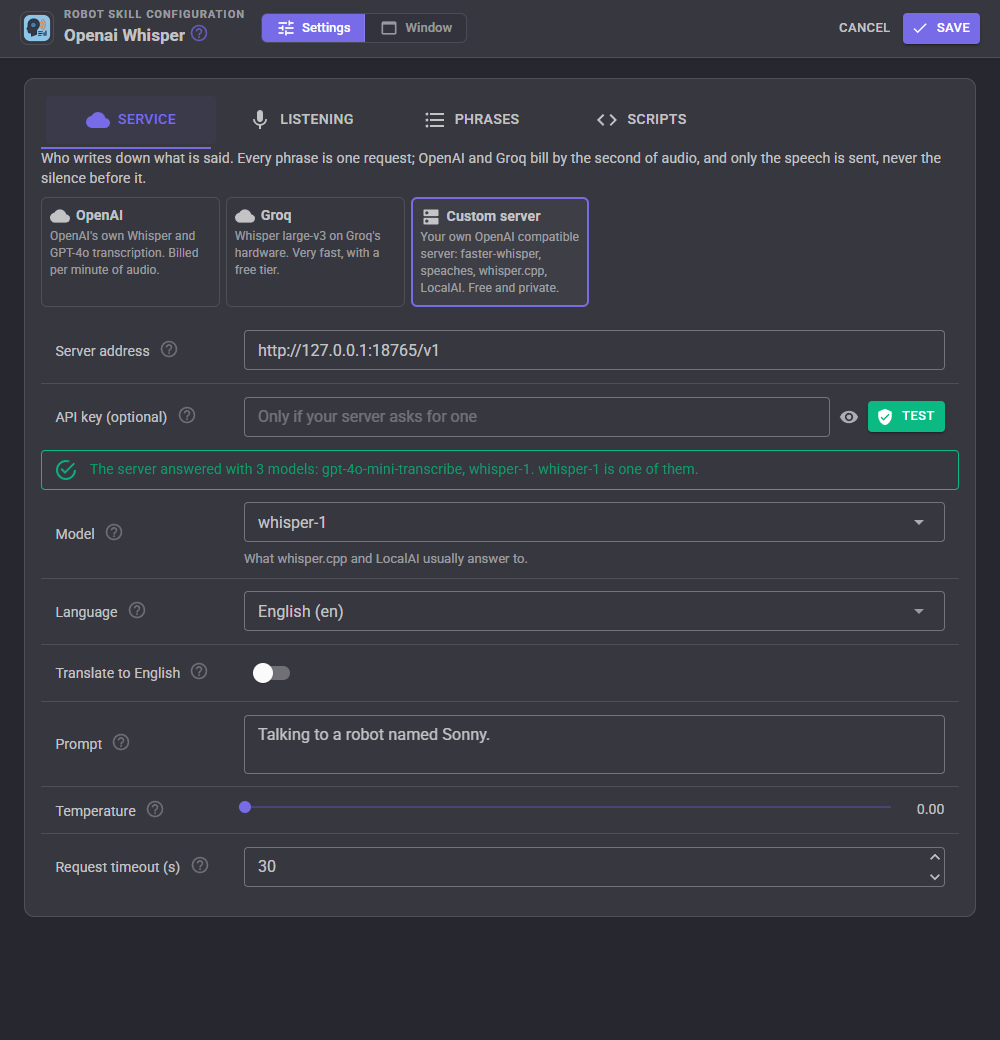
Pick who writes down what is said.
| Service | What it is |
|---|---|
| OpenAI | OpenAI's own whisper-1, gpt-4o-mini-transcribe and gpt-4o-transcribe. Needs an OpenAI API key and is billed by the second of audio. |
| Groq | Whisper large-v3 on Groq's hardware. Very fast, with a free tier. Needs a Groq API key. |
| Custom server | Any server with the OpenAI audio API, on this computer or your network. Free and private. |
| Setting | What it does |
|---|---|
| Server address | Custom server only. The address of your server, ending in /v1, such as http://localhost:8000/v1. |
| API key | Your key for the service. It is stored encrypted on this computer and never saved in the project, so a shared project does not carry it. With no key here, a key you already saved for the same service in the Chat Gpt or Autonomous Ai robot skill is used, and then the OPENAI_API_KEY or GROQ_API_KEY environment variable. Test checks the key and the server and says whether the chosen model is available. A custom server only needs a key if you set it up to ask for one. |
| Model | The transcription model. whisper-1 is the original Whisper and the only OpenAI model that translates; gpt-4o-mini-transcribe is more accurate and half the price; gpt-4o-transcribe is the most accurate, in noisy rooms too. For a custom server, type the name your server uses. |
| Language | The language that will be spoken. Setting it makes recognition quicker and more accurate than detecting it every time. |
| Translate to English | Writes down whatever language is spoken as English. Only whisper-1 and whisper-large-v3 translate; with another model the speech is written down in the language it was spoken in, and the log says so once. |
| Prompt | Names and words it should spell correctly, such as the robot's name, people, places and jargon, or a sentence in the style you want back. |
| Temperature | 0 is the most predictable and is right for commands. |
| Request timeout | How long to wait for the answer to one phrase. |
Only the speech is sent. The silence before the person started talking is cut off before the recording leaves the computer, and nothing at all is sent when nobody speaks, so an empty room costs nothing.
Listening
| Setting | What it does |
|---|---|
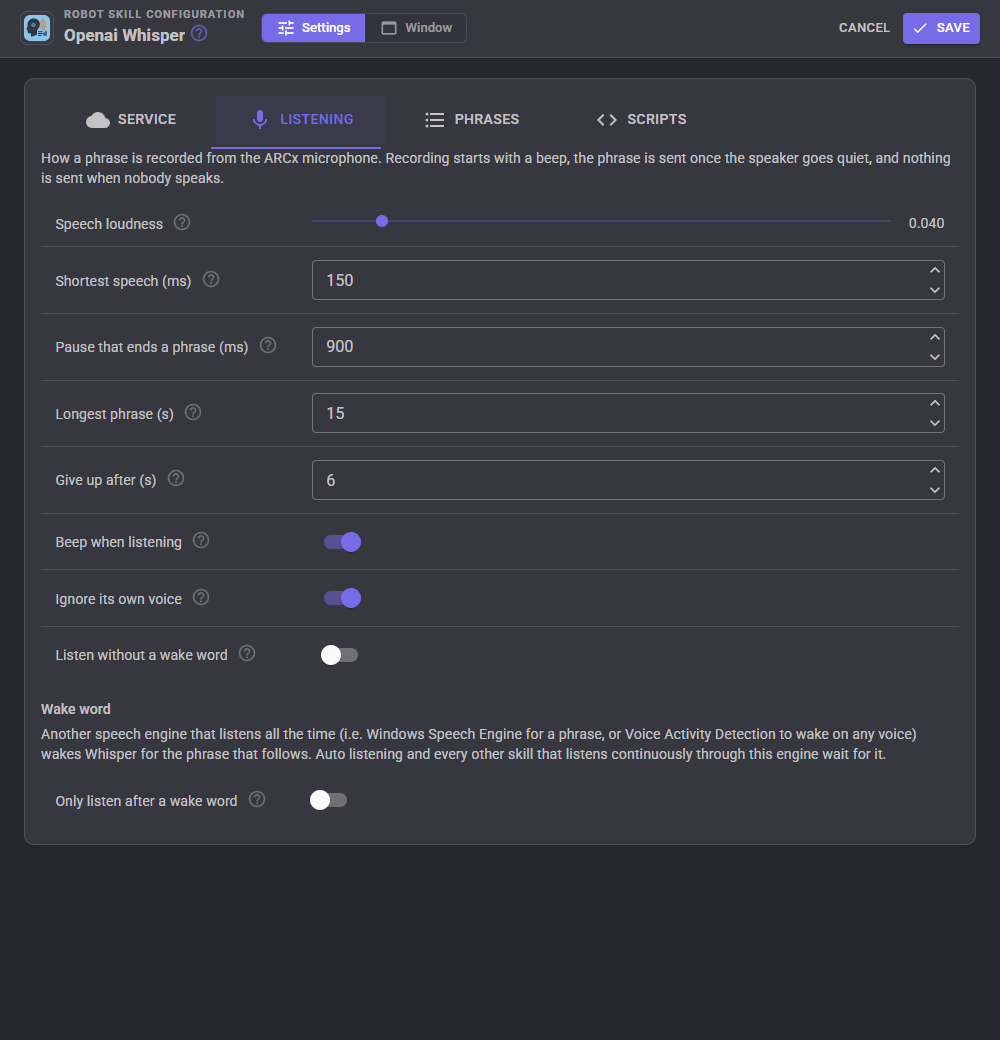
| Speech loudness | How loud the microphone has to be to count as speech. Lower it if quiet speech is missed; raise it if background noise keeps a recording going. The mark on the level bar in the window shows it. |
| Shortest speech | How much loud audio counts as somebody talking, so a click or a door is not sent. |
| Pause that ends a phrase | How long the speaker has to be quiet before the phrase is sent. |
| Longest phrase | The recording is sent when it reaches this, even if the speaker is still talking. |
| Give up after | How long to wait for somebody to start talking before giving up without sending anything. |
| Beep when listening | A short beep when recording starts, so the person knows when to talk. Recording starts after the beep, so the beep is never sent. |
| Ignore its own voice | Does not record while the robot is talking, so it does not hear itself. |
| Listen without a wake word | Lets auto listening, and other robot skills that listen all the time, run this engine with no wake word, so every phrase anybody says is sent. Meant for a free server of your own; leave it off for OpenAI and Groq. |
Wake word
Whisper answers one phrase at a time and OpenAI and Groq bill every one, so by itself the engine only listens when it is asked: the Listen button, a control command, the Wait For Speech popup or a script. To have it listen all day, give it a wake word: another speech engine that runs all the time for free listens for the wake phrase and wakes Whisper for the phrase that follows. Use the Windows Speech Engine to wake on a phrase such as "hey robot", or Voice Activity Detection to wake whenever anybody speaks. Auto listening, Speech Phrase Recognition and any other robot skill that listens continuously through this engine all wait for it.
Phrases
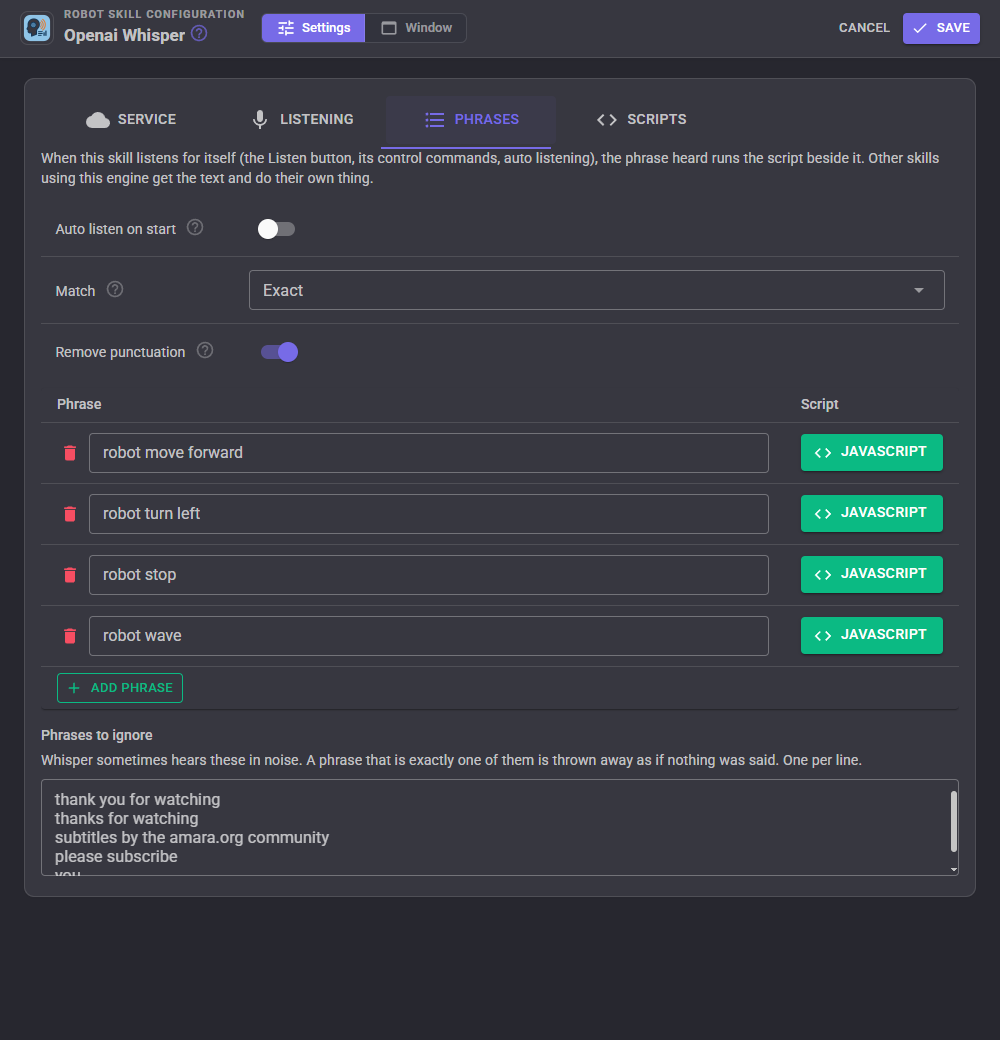
When this robot skill listens for itself (its Listen button, its control commands, auto listening), the phrase it hears runs the script beside the matching phrase in the list. When another robot skill uses the engine, that skill gets the text and decides what to do with it, and the list does not run.
| Setting | What it does |
|---|---|
| Auto listen on start | Starts auto listening when the project loads. |
| Match | Exact runs a phrase only when it is everything that was said. Starts with runs "robot stop" for "robot stop now". Contains runs it when the phrase appears anywhere in what was said. Case and punctuation never matter, and when several phrases match, the longest one wins. |
| Remove punctuation | "Robot, stop!" arrives as "Robot stop". This applies to the text every robot skill gets from this engine. A decimal point between digits is kept. |
| Phrases to ignore | Whisper sometimes "hears" phrases such as "Thanks for watching!" in noise. A phrase that is exactly one of these is thrown away as if nothing was said. |
Scripts and variables
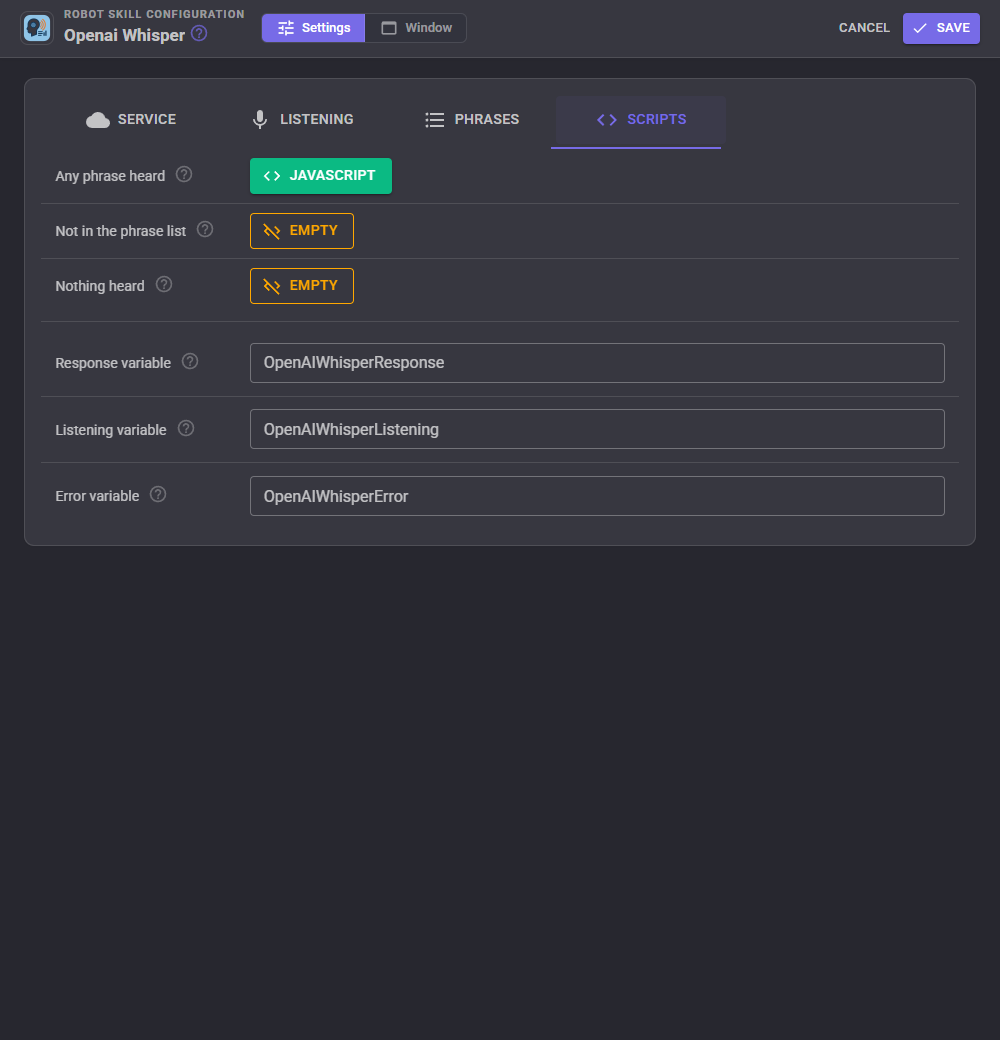
| Script | When it runs |
|---|---|
| Any phrase heard | After every phrase this skill heard for itself, once the response variable holds it. |
| Not in the phrase list | When a phrase was heard that matches nothing in the phrase list. |
| Nothing heard | When listening ended without a phrase: nobody spoke, or the request failed. The error variable says why. |
| Variable | What it holds |
|---|---|
| $OpenAIWhisperResponse | The last phrase this engine heard, whichever robot skill asked for it. |
| $OpenAIWhisperListening | True while the microphone is being recorded. |
| $OpenAIWhisperError | Why the last attempt failed, or empty after a success. |
The variable names can be changed on the Scripts tab, which matters when a project has more than one copy of this robot skill.
A script can also listen and use the answer directly. This asks a question and waits for the reply:
Audio.sayWait("What is your name?");
var name = controlCommand("Openai Whisper", "WaitForPhrase", 10);
if (name != "")
  Audio.say("Nice to meet you, " + name);
Scripts can change the language, the model and the prompt while the project runs, for a robot that switches language when asked, and can transcribe an audio file that was recorded earlier.
Custom UI
The Listen widget is a large microphone button for a Custom UI screen, with the last phrase heard underneath. While it records, the button becomes Send.
AI assistants
An AI assistant connected to ARCx can use the listen tool to hear what somebody says to the robot, and transcribe_file to transcribe an audio file on the ARCx computer.
Running your own server
A local server costs nothing per phrase and keeps every recording on your network. Two that work well:
- speaches (formerly faster-whisper-server):
docker run -p 8000:8000 ghcr.io/speaches-ai/speaches:latest-cpu, then use the address http://localhost:8000/v1 and a model such as Systran/faster-whisper-small. - whisper.cpp server or LocalAI: start it with its OpenAI compatible API enabled and use its address ending in /v1, usually with the model name whisper-1.
With your own server it is reasonable to turn on Listen without a wake word on the Listening tab, so auto listening hears everything said in the room.
Control Commands for the Openai Whisper robot skill
There are Control Commands available for this robot skill which allows the skill to be controlled programmatically from scripts or other robot skills. These commands enable you to automate actions, respond to sensor inputs, and integrate the robot skill with other systems or custom interfaces. If you're new to the concept of Control Commands, we have a comprehensive manual available here that explains how to use them, provides examples to get you started and make the most of this powerful feature.
Control Command ManualThis robot skill has 13 control commands, listed below. Send them from a JavaScript or Python script, from Blockly, or from another robot skill.
The first value is always the window title, which is the name in the title bar of the robot skill on your workspace. It starts out as Openai Whisper, which is what every example below uses. If you rename the robot skill, or add a second copy of it to the project, use the title as it appears on that window instead.
ControlCommand() can be shortened to CC(), and both spellings work in JavaScript and in Python. The examples are JavaScript; Python is the same call, except that true and false are written True and False.
CancelListening
Throw away the phrase being recorded or transcribed. Nothing more is sent.
Syntax
ControlCommand("Openai Whisper", "CancelListening")
Returns: nothing
Example
ControlCommand("Openai Whisper", "CancelListening");
GetLastPhrase
The last phrase this engine heard, for any skill that used it.
Syntax
ControlCommand("Openai Whisper", "GetLastPhrase")
Returns: String
Example
var result = ControlCommand("Openai Whisper", "GetLastPhrase");
IsAutoListening
Whether auto listening is on.
Syntax
ControlCommand("Openai Whisper", "IsAutoListening")
Returns: Boolean [true or false]
Example
var result = ControlCommand("Openai Whisper", "IsAutoListening");
IsListening
Whether the microphone is being recorded right now.
Syntax
ControlCommand("Openai Whisper", "IsListening")
Returns: Boolean [true or false]
Example
var result = ControlCommand("Openai Whisper", "IsListening");
SetLanguage
Set the spoken language as an ISO-639-1 code (en, fr, ja...), or an empty string to detect it. Until the project is saved.
Syntax
ControlCommand("Openai Whisper", "SetLanguage", (String)language)
Parameters
| # | Name | Type | What to pass |
|---|---|---|---|
| 1 | language | Text | Your text, in quotes |
Returns: Boolean [true or false]
Example
var result = ControlCommand("Openai Whisper", "SetLanguage", "language");
SetModel
Set the transcription model, i.e. whisper-1 or gpt-4o-mini-transcribe.
Syntax
ControlCommand("Openai Whisper", "SetModel", (String)model)
Parameters
| # | Name | Type | What to pass |
|---|---|---|---|
| 1 | model | Text | Your text, in quotes |
Returns: Boolean [true or false]
Example
var result = ControlCommand("Openai Whisper", "SetModel", "model");
SetPrompt
Set the prompt that steers the transcription (names, jargon), or an empty string for none.
Syntax
ControlCommand("Openai Whisper", "SetPrompt", (String)prompt)
Parameters
| # | Name | Type | What to pass |
|---|---|---|---|
| 1 | prompt | Text | Your text, in quotes |
Returns: Boolean [true or false]
Example
var result = ControlCommand("Openai Whisper", "SetPrompt", "prompt");
StartAutoListening
Keep listening for phrases, waking on the wake word set on the Listening tab, and run the phrase list for each one.
Syntax
ControlCommand("Openai Whisper", "StartAutoListening")
Returns: Boolean [true or false]
Example
var result = ControlCommand("Openai Whisper", "StartAutoListening");
StartListening
Beep and listen for one phrase. When it is heard the phrase list runs and the response variable is set. Returns at once; false when it cannot listen (no API key, for instance).
Syntax
ControlCommand("Openai Whisper", "StartListening")
Returns: Boolean [true or false]
Example
var result = ControlCommand("Openai Whisper", "StartListening");
StopAutoListening
Stop auto listening.
Syntax
ControlCommand("Openai Whisper", "StopAutoListening")
Returns: nothing
Example
ControlCommand("Openai Whisper", "StopAutoListening");
StopListening
Stop recording now and send what was recorded, without waiting for the speaker to go quiet. False when nothing was being recorded.
Syntax
ControlCommand("Openai Whisper", "StopListening")
Returns: Boolean [true or false]
Example
var result = ControlCommand("Openai Whisper", "StopListening");
TranscribeFile
Transcribe an audio file (wav, mp3, m4a, ogg, webm or flac, up to 25 MB) and return its text. Waits for the answer. The phrase list does not run.
Syntax
ControlCommand("Openai Whisper", "TranscribeFile", (String)filename)
Parameters
| # | Name | Type | What to pass |
|---|---|---|---|
| 1 | filename | Text | Your text, in quotes |
Returns: String
Example
var result = ControlCommand("Openai Whisper", "TranscribeFile", "filename");
WaitForPhrase
Beep, listen for one phrase and wait for it, returning what was heard (empty when nothing was). The phrase list runs as well. The optional timeout is in seconds; 0 waits as long as one phrase can take.
Syntax
ControlCommand("Openai Whisper", "WaitForPhrase", (Number)timeoutSeconds)
Parameters
| # | Name | Type | What to pass |
|---|---|---|---|
| 1 | timeoutSeconds | Number | A number, without quotes |
Returns: String
Example
var result = ControlCommand("Openai Whisper", "WaitForPhrase", 0);
This list is read out of the robot skill itself each time its package is uploaded, so it matches the published version (v1).




This robot skill has been updated to v1.
What has changed
initial release