

Analyzes camera images for eight emotions, logs scores, triggers scripts, and can speak or auto-detect mood changes.
 Windows
 ARM
ARM
 Linux
Linux
 MacOS
MacOS
How to add the Cognitive Emotion robot skill
- Load the most recent release of ARCx on a compatible operating system (Get ARCx).
- Press the + Skills menu from the top menu bar in ARCx.
- Choose any of these category tabs, the robot skill appears in each of them: Artificial Intelligence, Camera.
- Press the Cognitive Emotion icon to add the robot skill to your project.
Don't have a robot yet?
Follow the Getting Started Guide to build a robot and use the Cognitive Emotion robot skill.
How to use the Cognitive Emotion robot skill
The Cognitive Emotion robot skill lets your robot read how a person feels. It takes a picture from a camera robot skill, sends it to Synthiam's cloud emotion service, and gets back a score from 0 to 100 for eight emotions: anger, contempt, disgust, fear, happiness, neutral, sadness and surprise. The strongest emotion and every score go into global variables, your scripts run, and the robot can say what it sees.
It can look when you press a button or a script asks, or on its own every few seconds while somebody is in front of the camera. With a face detector such as the Face Tracking robot skill on the same camera, it sends just the face, waits for a face before spending an analysis, and the window shows when a face is in view.
The service runs on your Synthiam account, so ARCx must be signed in (Options -> Account). Every analysis counts toward the account's daily quota for the service: 10 a day without an ARC Pro subscription and 1,000 a day with one.
The window
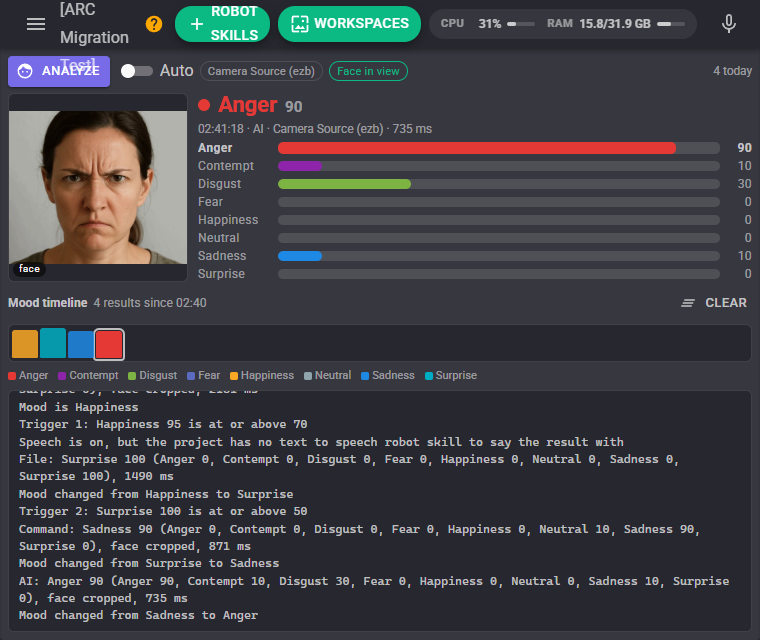
- Analyze takes the next picture from the camera and sends it. It reads Analysing... until the answer arrives, usually in a second or two.
- Auto turns auto mode on and off (see below). While it is on, the line beside it says what it is doing: counting down to the next look, waiting for a face, or that the picture has not changed.
- Camera chip names the camera pictures come from, or says there is no camera in the project.
- Face chip turns green while a face detector reports a face on that camera. It reads No face when there is no face detector in the project.
- Today counts the successful analyses on this computer since ARCx started, next to the daily quota in its tooltip.
- Picture is exactly what was sent. A face badge means it was cropped to the face a face detector found.
- Strongest emotion is shown in its own colour with its score, when it was analysed, what started it (Button, Auto, Command, AI, Widget or File), the camera and how long the service took.
- Bars show all eight scores, the strongest in bold.
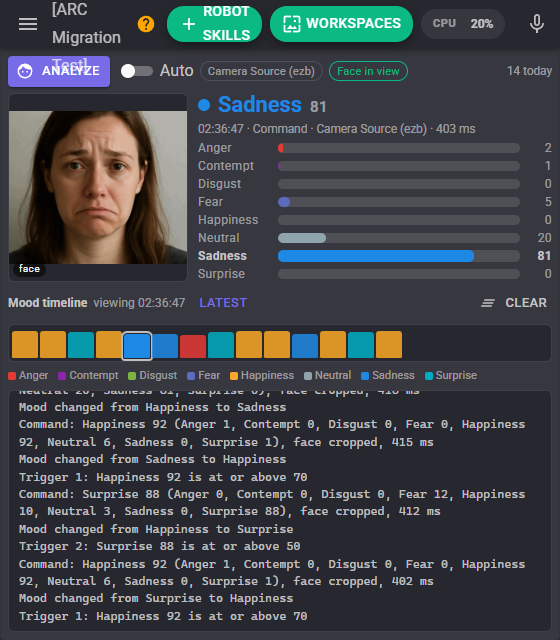
- Mood timeline has one block per result, oldest on the left, in the colour of its strongest emotion; a taller block is a surer result. Click a block to look at that result and its picture again, and Latest (or the block again) to go back. Clear empties the timeline after asking.
- Log at the bottom lists every result with all eight scores, mood changes, triggers that ran, and the reason for anything that failed.
When an analysis fails, a banner above the picture says why:
| Banner | What it means |
|---|---|
| Not signed in | ARCx is not signed in to a Synthiam account. Sign in with Options -> Account. |
| No picture | There is no camera in the project, the camera is not started, or the image file could not be read. |
| No connection | The service could not be reached or did not answer within 30 seconds. |
| Service error | The service refused the request, for example because it did not recognise the signed in account. |
| No result (daily quota?) | The service answered without a result. This is almost always the daily quota for the service being used up; it can also mean the picture could not be read. Results come back the next day, or with an ARC Pro subscription. |
Auto mode
Auto mode looks every few seconds by itself, so the robot notices when someone's mood changes without a script asking. Because every look is an analysis that counts toward the daily quota, it is careful about when it sends:
- Only when a face is in view (on by default) waits until a face detector reports a face on the camera, and looks as soon as one appears. Add the Face Tracking robot skill for the same camera. Without a face detector nothing is ever sent while this is on, and the log says so.
- Only when the picture changed compares a small greyscale copy of each picture with the last one sent, and skips the look when the scene has not changed by more than the percentage you set.
- Stop after failures turns auto mode off after a number of failed analyses in a row, so it does not keep calling a service that has run out of quota.
- Daily limit turns auto mode off after a number of successful analyses today, keeping the rest of the quota for the button and your scripts.
Auto mode is saved with the project, and it holds while any robot skill's configuration page is open. The Detach ControlCommand (and StopAuto) turns it off.
Face cropping
When Crop to the face is on and a face detector found a face on the camera a moment ago, only the face and a generous margin around it are sent. The expression is then most of the picture the service sees, which gives surer results when the person is far from the camera. Without a recent face the whole picture is sent, scaled down to the Picture width.
Mood changes and triggers
The mood is the strongest emotion of the last result that was sure enough (at least the Mood change needs score). When a result's strongest emotion differs from the mood, the mood changes: the Mood changed script runs, Emotion_Previous holds the emotion before, and the robot speaks if speech is set to When the mood changes.
Triggers run a script when one emotion's score crosses a threshold, for example "when Happiness is at or above 70" or "when Neutral is below 30". With Only when crossing, the script runs once when the condition becomes true and not again until it has been false; without it, the script runs after every result for which it is true. Each trigger has its own script runner, so two triggers that fire on the same result do not stop each other.
Speech
Say the result speaks with the project's text to speech robot skill after every result, or only when the mood changes. What to say is the sentence, with {adjective} (happy, sad, angry, afraid, surprised, disgusted, contemptuous or calm), {emotion} (the emotion's name, such as Happiness) and {confidence} (its score) filled in. The default is "You look ."
Variables
| Variable | Holds |
|---|---|
EmotionDescription |
The strongest emotion of the last result: Anger, Contempt, Disgust, Fear, Happiness, Neutral, Sadness or Surprise. The name is set on the Variables tab. |
EmotionConfidence |
The strongest emotion's score, 0 to 100. The name is set on the Variables tab. |
Emotion_Anger ... Emotion_Surprise |
The eight scores of the last result, 0 to 100: Emotion_Anger, Emotion_Contempt, Emotion_Disgust, Emotion_Fear, Emotion_Happiness, Emotion_Neutral, Emotion_Sadness, Emotion_Surprise. |
Emotion_Previous |
The strongest emotion before the mood last changed. |
Emotion_Error |
Why the last analysis failed, or empty when it succeeded. |
Emotion_AnalysesToday |
Successful analyses today on this computer since ARCx started. |
These are the variable names the ARC robot skill used ($EmotionDescription and $EmotionConfidence are the same variables; ARCx ignores the leading $), so scripts written for ARC keep working.
A script that reacts to a happy face:
// Ask for a fresh look and wait for it
var emotion = controlCommand("Cognitive Emotion", "DetectWait");

if (emotion == "Happiness" && getVar("EmotionConfidence") > 70)
  Audio.say("I love that smile!");
else if (emotion == "")
  print("No result: " + getVar("Emotion_Error"));
emotion = controlCommand("Cognitive Emotion", "DetectWait")

if getVar("Emotion_Sadness") > 60:
  Audio.say("Is everything all right?")
Configuration
Camera
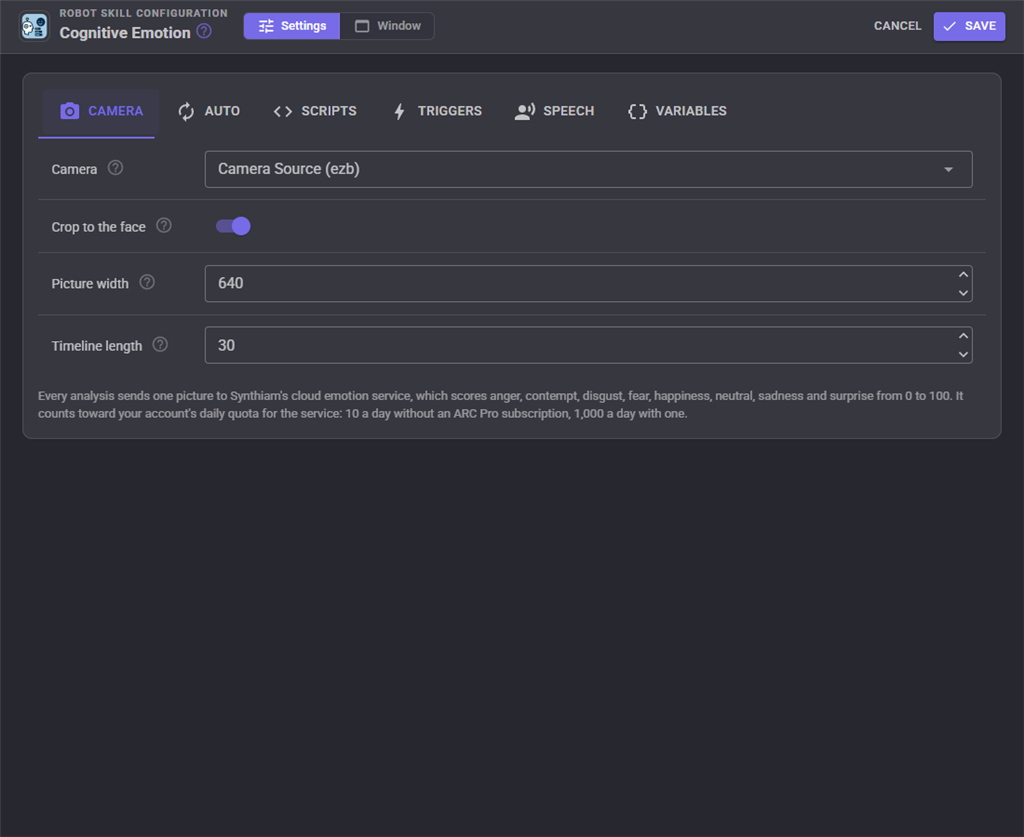
| Setting | What it does |
|---|---|
| Camera | The camera robot skill pictures come from. (first camera) uses whichever camera is first in the project. |
| Crop to the face | Send only the face and a margin around it when a face detector found one on this camera a moment ago. |
| Picture width | Pictures are scaled down to this many pixels wide before they are sent, 160 to 1280. A face only needs a few hundred pixels. |
| Timeline length | How many results the mood timeline keeps, with their pictures, 0 to 200. |
Auto
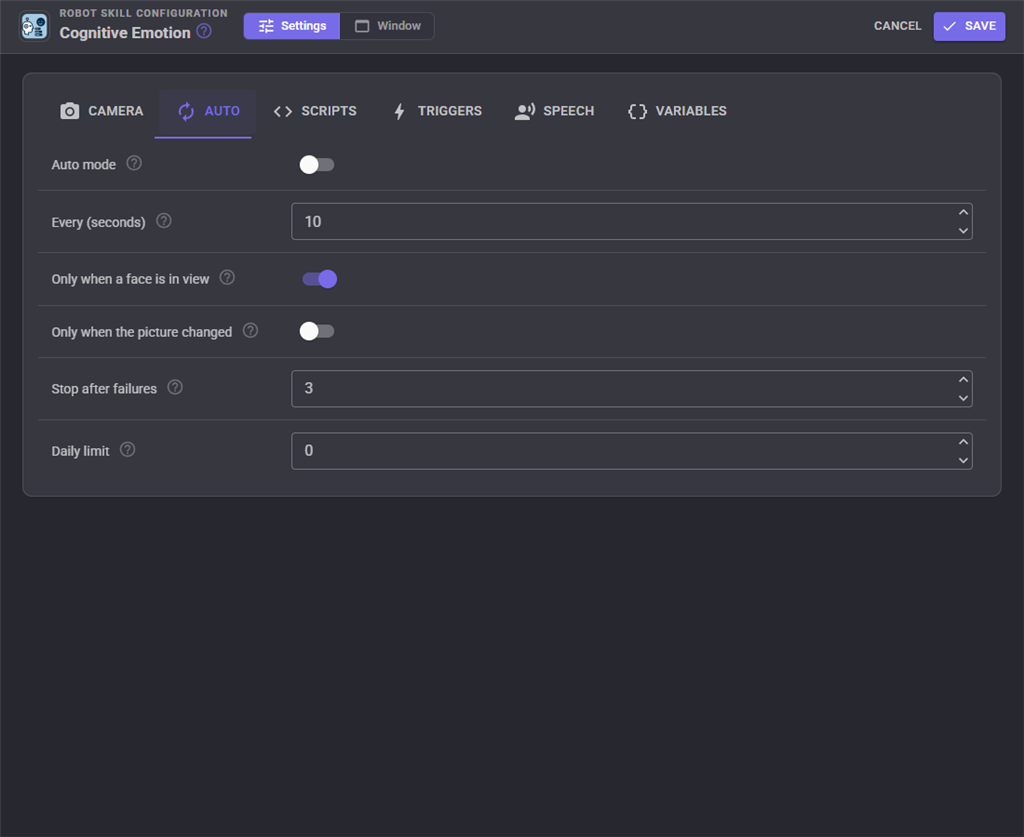
| Setting | What it does |
|---|---|
| Auto mode | Analyse a picture automatically every few seconds. |
| Every (seconds) | Seconds between looks, 2 to 3600. |
| Only when a face is in view | Wait for a face detector to report a face on the camera before sending. |
| Only when the picture changed | Skip the look when the picture has not changed since the last one sent. |
| Change needed (%) | How different the picture must be, 1 to 50. About 5 ignores camera noise; 15 needs someone to move. |
| Stop after failures | Turn auto mode off after this many failed analyses in a row. 0 never does. |
| Daily limit | Turn auto mode off after this many successful analyses today. 0 has no limit. |
Scripts
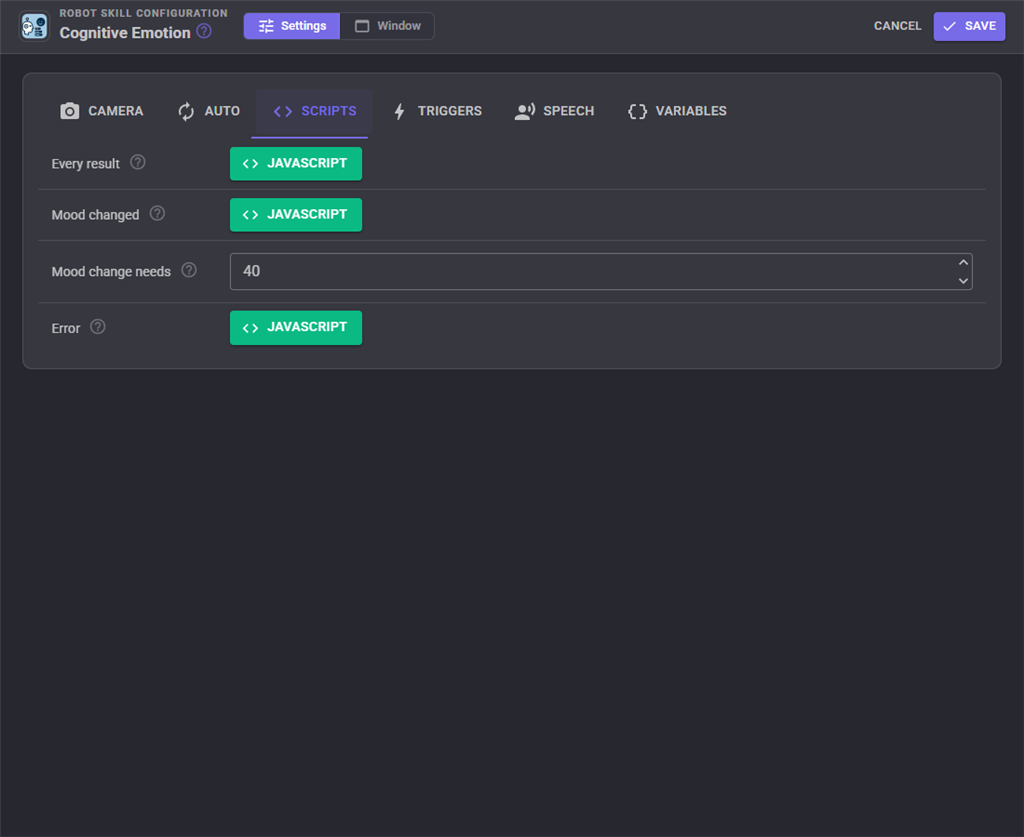
| Setting | What it does |
|---|---|
| Every result | Runs after every successful analysis, like the ARC robot skill's script. The variables already hold the new result. |
| Mood changed | Runs when the strongest emotion changes. Emotion_Previous holds the one before. |
| Mood change needs | The score the strongest emotion needs to count as a change of mood (for the script and speech), so an unsure result does not flip the mood. |
| Error | Runs when an analysis fails. Emotion_Error says why. |
Triggers
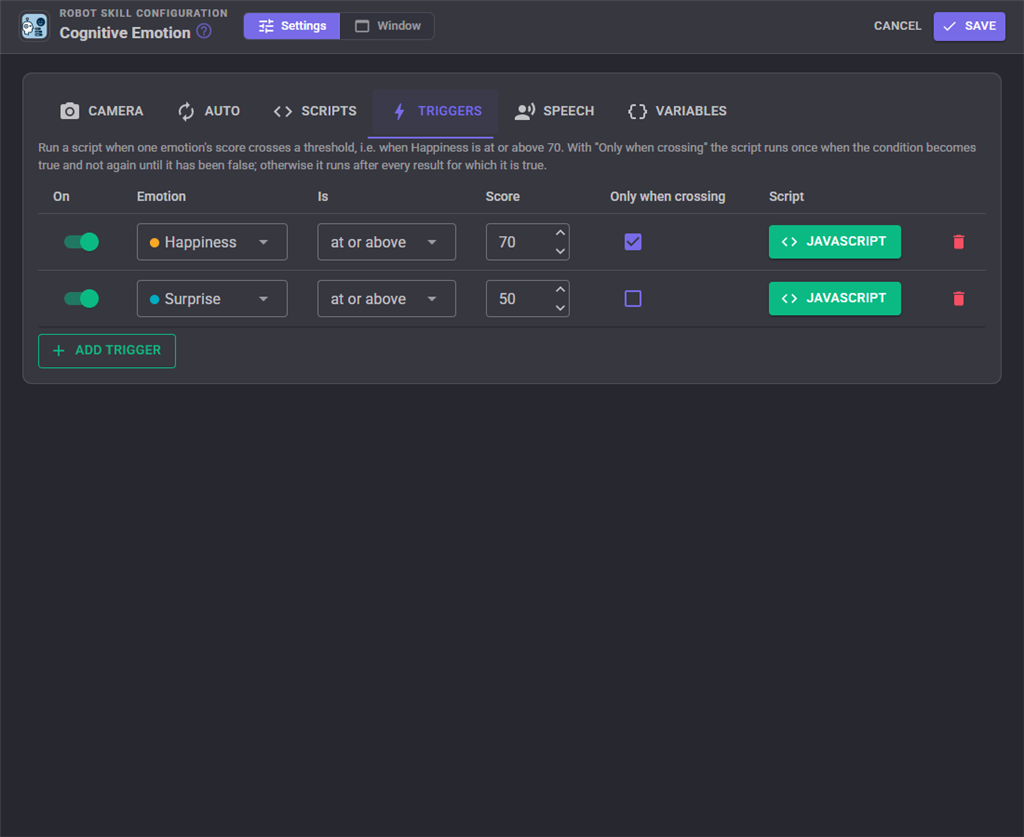
Each row is one trigger: whether it is on, the emotion, at or above or below, the score, Only when crossing, and its script. Add trigger adds a row, and the bin removes one after asking.
Speech
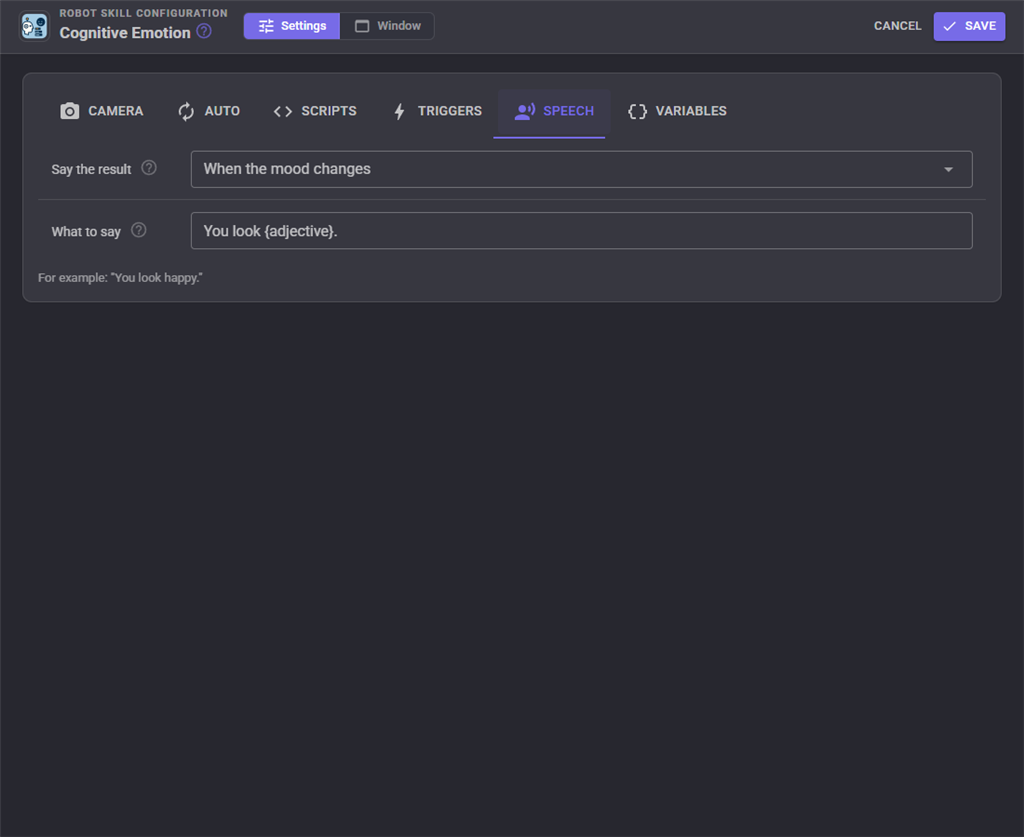
| Setting | What it does |
|---|---|
| Say the result | Never, after every result, or when the mood changes. |
| What to say | The sentence, with , and filled in. The example below it shows what a happy result would say. |
Variables
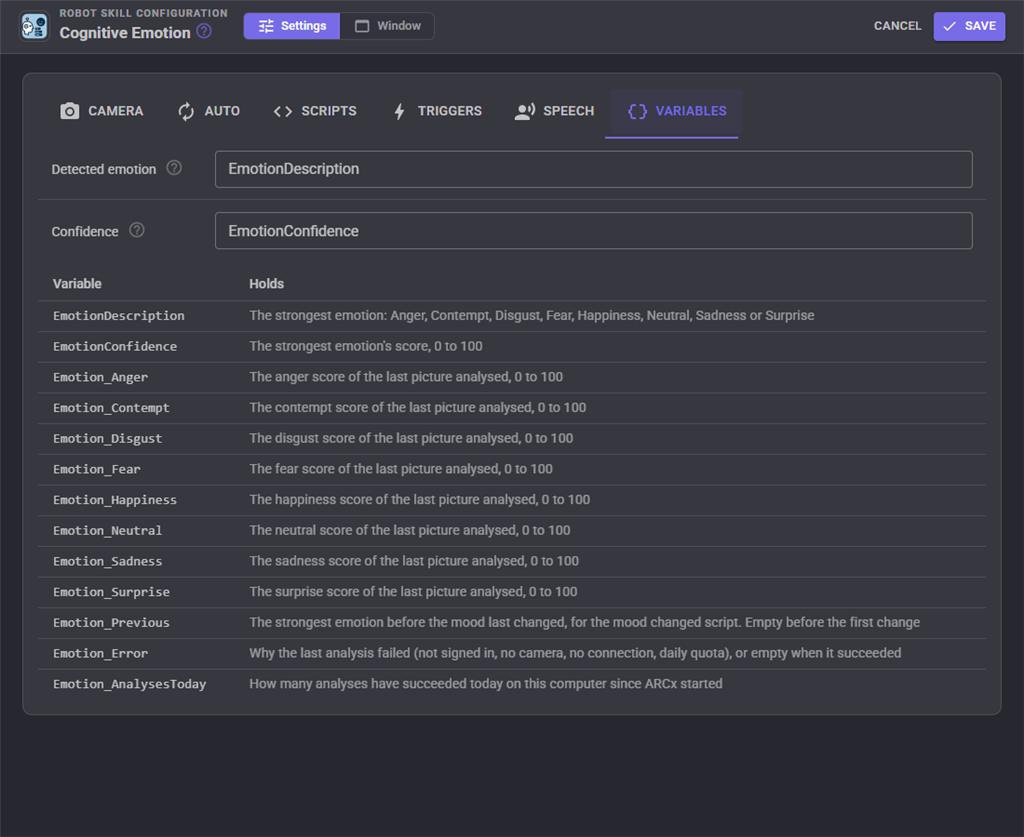
| Setting | What it does |
|---|---|
| Detected emotion | The variable that holds the strongest emotion's name. EmotionDescription by default. |
| Confidence | The variable that holds the strongest emotion's score. EmotionConfidence by default. |
The table below them lists every variable the robot skill sets.
Custom UI widget
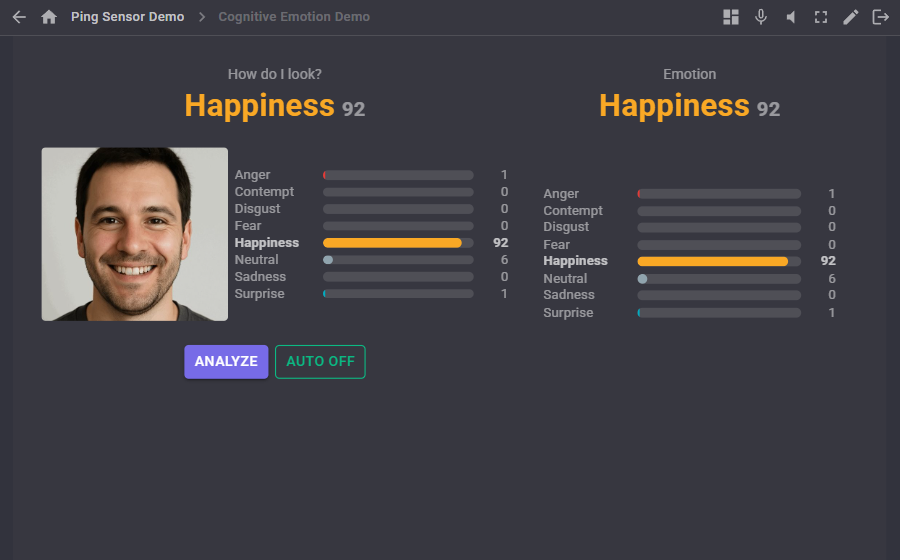
The Emotion bars widget shows the strongest emotion in its colour and the eight bars, and scales with the box you draw. Its settings:
| Setting | What it does |
|---|---|
| Caption | The label at the top. |
| ShowButtons | true or false: the Analyze button and an Auto on/off button. |
| ShowPicture | true or false: the analysed picture beside the bars. |
AI assistants (MCP)
An AI assistant connected to ARCx can use three tools of this robot skill. analyze_emotion takes a picture, analyses it and returns the scores together with the picture, so the assistant sees who it looked at; the robot acts on the result as on any other. get_emotion returns the last result, the recent ones, auto mode, whether a face is in view, today's count and the last error, without spending an analysis. set_auto_mode turns auto mode on or off and can change its interval and whether it waits for a face.
Tips
- Put the camera at face height and keep the face lit from the front; a face in shadow often reads as Neutral or Sadness.
- For a robot that greets people, add Face Tracking, turn on auto mode with Only when a face is in view, and put the greeting in the Mood changed script so it speaks once per new mood instead of after every look.
- Use DetectWait in a script when the next line needs the answer; Detect returns at once and the result arrives a moment later.
- AnalyzeFile analyses a JPEG, PNG or BMP from disk instead of the camera, which is handy for trying the service without a camera.
Control Commands for the Cognitive Emotion robot skill
There are Control Commands available for this robot skill which allows the skill to be controlled programmatically from scripts or other robot skills. These commands enable you to automate actions, respond to sensor inputs, and integrate the robot skill with other systems or custom interfaces. If you're new to the concept of Control Commands, we have a comprehensive manual available here that explains how to use them, provides examples to get you started and make the most of this powerful feature.
Control Command ManualThis robot skill has 13 control commands, listed below. Send them from a JavaScript or Python script, from Blockly, or from another robot skill.
The first value is always the window title, which is the name in the title bar of the robot skill on your workspace. It starts out as Cognitive Emotion, which is what every example below uses. If you rename the robot skill, or add a second copy of it to the project, use the title as it appears on that window instead.
ControlCommand() can be shortened to CC(), and both spellings work in JavaScript and in Python. The examples are JavaScript; Python is the same call, except that true and false are written True and False.
AnalyzeFile
Analyse a picture file (JPEG, PNG or BMP) instead of the camera, and wait for the result. Returns the strongest emotion, or an empty string when it failed. Counts toward the account's daily quota.
Syntax
ControlCommand("Cognitive Emotion", "AnalyzeFile", (String)filePath)
Parameters
| # | Name | Type | What to pass |
|---|---|---|---|
| 1 | filePath | Text | Your text, in quotes |
Returns: String
Example
var result = ControlCommand("Cognitive Emotion", "AnalyzeFile", "filePath");
ClearHistory
Empty the mood timeline in the window.
Syntax
ControlCommand("Cognitive Emotion", "ClearHistory")
Returns: nothing
Example
ControlCommand("Cognitive Emotion", "ClearHistory");
Detach
Turn auto mode off and abandon an analysis that is still waiting for the camera or the service. Detect still works afterwards.
Syntax
ControlCommand("Cognitive Emotion", "Detach")
Returns: nothing
Example
ControlCommand("Cognitive Emotion", "Detach");
Detect
Analyse the next camera picture in the background and return at once, as the ARC robot skill did. When the result arrives the Emotion_ variables and the description and confidence variables are set and the scripts run. Ignored while an analysis is already running. Counts toward the account's daily quota.
Syntax
ControlCommand("Cognitive Emotion", "Detect")
Returns: nothing
Example
ControlCommand("Cognitive Emotion", "Detect");
DetectWait
Analyse the next camera picture and wait for the result (a few seconds). Returns the strongest emotion (Anger, Contempt, Disgust, Fear, Happiness, Neutral, Sadness or Surprise), or an empty string when it failed; Emotion_Error then says why. Counts toward the account's daily quota.
Syntax
ControlCommand("Cognitive Emotion", "DetectWait")
Returns: String
Example
var result = ControlCommand("Cognitive Emotion", "DetectWait");
GetAnalysesToday
How many analyses have succeeded today on this computer since ARCx started. The service allows 10 a day without an ARC Pro subscription and 1,000 with one.
Syntax
ControlCommand("Cognitive Emotion", "GetAnalysesToday")
Returns: Integer [-2,147,483,648 to 2,147,483,647]
Example
var result = ControlCommand("Cognitive Emotion", "GetAnalysesToday");
GetConfidence
The score of the strongest emotion of the last result, 0 to 100.
Syntax
ControlCommand("Cognitive Emotion", "GetConfidence")
Returns: Integer [-2,147,483,648 to 2,147,483,647]
Example
var result = ControlCommand("Cognitive Emotion", "GetConfidence");
GetDominant
The strongest emotion of the last result, or an empty string before the first result.
Syntax
ControlCommand("Cognitive Emotion", "GetDominant")
Returns: String
Example
var result = ControlCommand("Cognitive Emotion", "GetDominant");
GetScore
The score, 0 to 100, the last result gave one emotion: Anger, Contempt, Disgust, Fear, Happiness, Neutral, Sadness or Surprise (happy, sad, angry and so on work too). 0 before the first result.
Syntax
ControlCommand("Cognitive Emotion", "GetScore", (String)emotion)
Parameters
| # | Name | Type | What to pass |
|---|---|---|---|
| 1 | emotion | Text | Your text, in quotes |
Returns: Integer [-2,147,483,648 to 2,147,483,647]
Example
var result = ControlCommand("Cognitive Emotion", "GetScore", "emotion");
IsAutoRunning
Whether auto mode is on.
Syntax
ControlCommand("Cognitive Emotion", "IsAutoRunning")
Returns: Boolean [true or false]
Example
var result = ControlCommand("Cognitive Emotion", "IsAutoRunning");
SetAutoInterval
Set the seconds between automatic analyses, 2 to 3600. Returns the interval that was set.
Syntax
ControlCommand("Cognitive Emotion", "SetAutoInterval", (Number)seconds)
Parameters
| # | Name | Type | What to pass |
|---|---|---|---|
| 1 | seconds | Number | A number, without quotes |
Returns: Integer [-2,147,483,648 to 2,147,483,647]
Example
var result = ControlCommand("Cognitive Emotion", "SetAutoInterval", 0);
StartAuto
Turn auto mode on: analyse a picture every few seconds (while a face is in view, if that option is on). Every analysis counts toward the account's daily quota.
Syntax
ControlCommand("Cognitive Emotion", "StartAuto")
Returns: nothing
Example
ControlCommand("Cognitive Emotion", "StartAuto");
StopAuto
Turn auto mode off.
Syntax
ControlCommand("Cognitive Emotion", "StopAuto")
Returns: nothing
Example
ControlCommand("Cognitive Emotion", "StopAuto");
This list is read out of the robot skill itself each time its package is uploaded, so it matches the published version (v1).




This robot skill has been updated to v1.
What has changed
initial release