

Manage and execute multiple scripts in a single Script Manager using ControlCommand(), with Control Details showing available commands.
 Windows
How to add the Script Collection robot skill
- Load the most recent release of ARC (Get ARC).
- Press the Project tab from the top menu bar in ARC.
- Press Add Robot Skill from the button ribbon bar in ARC.
- Choose the Scripting category tab.
- Press the Script Collection icon to add the robot skill to your project.
Don't have a robot yet?
Follow the Getting Started Guide to build a robot and use the Script Collection robot skill.
How to use the Script Collection robot skill
The Script Collection (also known as the Script Manager) is a control that can store multiple scripts in one place. This is helpful because you don’t need to add a separate Script control for every script—this single control can hold many scripts and keep your project more organized.
Running a script from the Script Collection
Just like the regular Script control, you can start a script inside the Script Collection by using
ControlCommand() from any script in your project.
Example: this starts a script named MyScript that is stored inside the Script Collection control named
Script Manager.
ControlCommand("Script Manager", "ScriptStart", "MyScript")How this command is structured (simple breakdown)
ControlCommand() uses three main pieces of information:
- Control Name — the name of the control you added to the ARC project (example:
"Script Manager") - Command — what you want that control to do (example:
"ScriptStart", "GetStatus") - Parameter — extra information the command needs (example: the script name
"MyScript")
ControlCommand() must match the script’s name exactly
(including spaces and capitalization if your project distinguishes them).
Finding the available ControlCommand options
If you’re not sure what commands are available, ARC can show you a list:
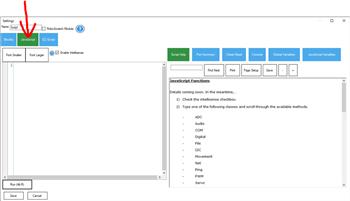
- Open (edit) any script in your project.
- Click the Control Details tab.
- Browse the list of controls in your project to see the supported
ControlCommand()options.
The Control Details tab will display the commands for all controls in your project, including the Script Collection. Each script in the Script Collection can be executed by calling it by name, as shown in the example above.
Common beginner workflow
- Add the Script Collection / Script Manager control to your ARC project.
- Create multiple scripts inside it (for example:
Init,Wave,Dance). - Start any one of those scripts from another script using
ControlCommand().
Control Commands for the Script Collection robot skill
There are Control Commands available for this robot skill which allows the skill to be controlled programmatically from scripts or other robot skills. These commands enable you to automate actions, respond to sensor inputs, and integrate the robot skill with other systems or custom interfaces. If you're new to the concept of Control Commands, we have a comprehensive manual available here that explains how to use them, provides examples to get you started and make the most of this powerful feature.
Control Command ManualScriptStopAll
Example: controlCommand("Script Collection", "ScriptStopAll")
ScriptStart", "Name Of Script
Example: controlCommand("Script Collection", "ScriptStart", "Name Of Script")
ScriptStartWait", "Name Of Script
Example: controlCommand("Script Collection", "ScriptStartWait", "Name Of Script")
ScriptStop", "Name Of Script
Example: controlCommand("Script Collection", "ScriptStop", "Name Of Script")
GetStatus
Get the status if the script is running.
- Parameter 3: Script name as String (required)
- Returns: Boolean [true or false]
Example:
controlCommand("Script Collection", "GetStatus", "Name Of Script")
Video



Related Tutorials
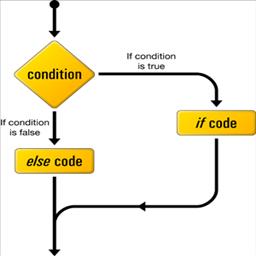
If Elseif Else Goto & Return Commands

Display Popup Tutorial.

Explanation And Uses Of Arrays.
The ARC Script Manual.
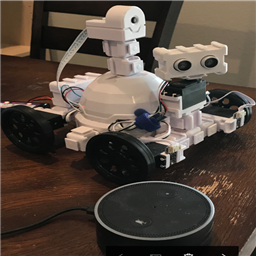
Using Amazon Echo (Alexa) As Microphone For Synthiam
Setting Servo Speeds And Initialization Script Tutorial
Related Questions

Upgrade to ARC Pro
Become a Synthiam ARC Pro subscriber to unleash the power of easy and powerful robot programming