Overview
Introduction to Blockly
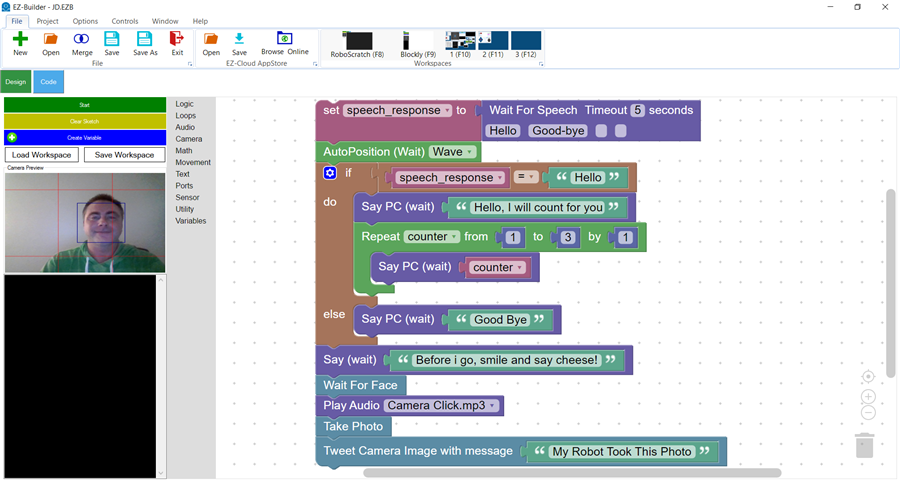
ARC introduces Blockly programming for beginners. If you are new to programming, we recommend starting with RoboScratch. Once you are comfortable with RoboScratch, Blockly is the next step to learn structured programming concepts such as loops, conditions, functions, and variables while avoiding syntax errors.
Video: Getting started with Blockly in ARC.
Copy Blocks
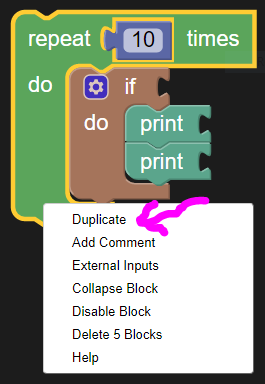
To duplicate a group of blocks, select the outer scope block that surrounds the group (for example, an IF block, a REPEAT loop, or a FUNCTION block). Right-click on that outer block and choose Duplicate. This duplicates the block and all its nested blocks together.
Variables
Blockly in ARC supports two types of variables:
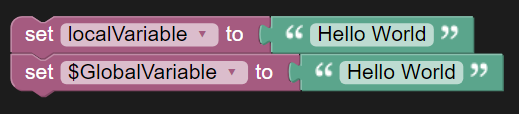
- Local / Private variables — These do not use a dollar sign and exist only within the current script (for example,
myVariable). - Global variables — These use a dollar sign prefix (for example,
$MyVariable) and are stored in the project's global storage so any script can access them.
In the examples below, the left image shows assigning a local variable; the right image shows assigning a global variable. Notice that global variables are set using the setVar() command which stores the value in global storage accessible to other scripts.

Global vs Private Variables
A private (local) variable is only available within the script where it is defined. Other scripts in the ARC project cannot read or modify it. Use local variables to keep script-specific data isolated and avoid unintended interactions.
A global variable is accessible by any script in the ARC project. Global variables are useful for sharing state or data between multiple scripts — for example, the robot's mode, shared sensor values, or flags indicating overall program state.
How to Use Blockly
Step 1 — Load an ARC Project
Before using Blockly, load your robot project into ARC and ensure the robot is connected. Blockly commands and actions operate on the currently loaded project, so the project provides the context and resources (motors, sensors, devices) your program will control.
Step 2 — Open the Blockly Interface
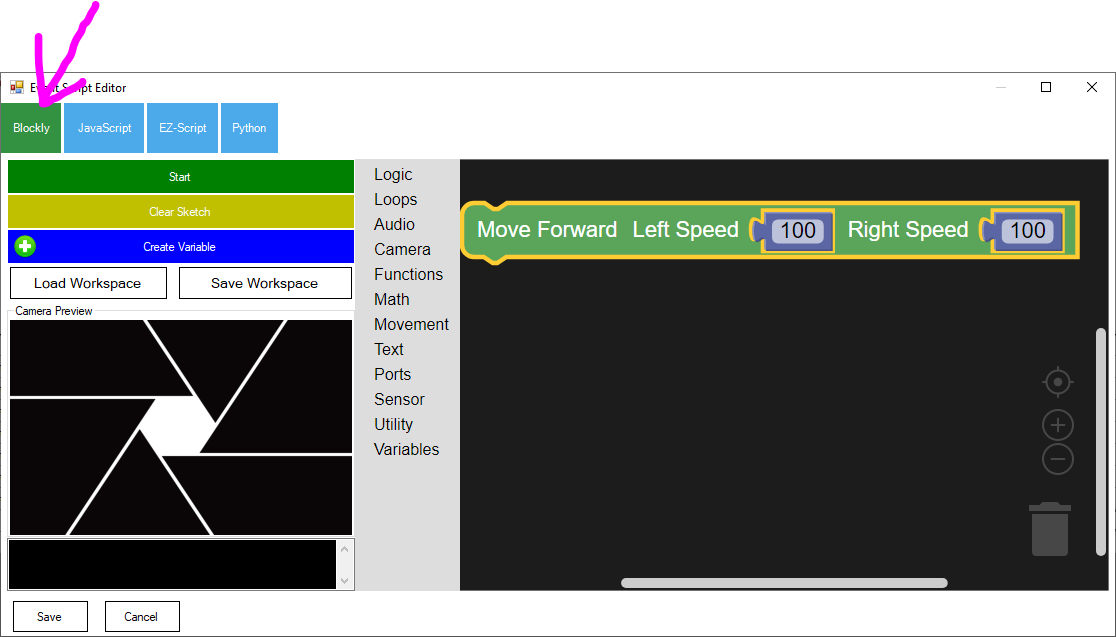
The Blockly UI is available in two places within ARC:
- Within the script editor: open the Blockly tab when editing a robot skill.
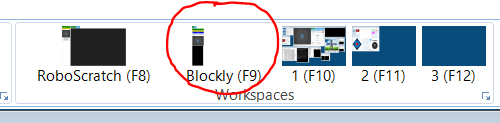
- From the top File menu: select Blockly (next to RoboScratch and Virtual Desktops).
Step 3 — Build Your Program
Start assembling blocks to create logic using loops, conditions, functions, and variables. Block-based programming removes syntax concerns (such as typos or missing punctuation), allowing you to focus on program flow and problem-solving. As you build, frequently test your program on the robot to validate behavior and debug logic.