
Troubleshoot Wifi Connections
An EZB is any robot or microcontroller running ARC-compatible firmware that uses the ARC communication protocol. EZB connection types can vary and may include USB, Bluetooth, or Wi-Fi. This diagnostic page is specifically for Wi-Fi-enabled EZBs. If you are not using a Wi-Fi-enabled EZB, select your EZB connection type from the connection troubleshooting index page.
Antivirus Software and Wi-Fi EZB Controllers
Third-party antivirus software is the most common cause of connection issues with Wi-Fi controllers such as the EZ-Robot EZB v4 and IoTiny. Many users report connection problems on PCs running third-party security software such as Avast, McAfee, Norton, and similar products.
For best results, use Microsoft Defender alone while testing the connection.
Wi-Fi EZB Connection Diagnostic
The most common Wi-Fi controllers include the ESP32, ESP32-CAM, EZ-Robot EZB v4, and EZ-Robot IoTiny. This diagnostic page focuses on connection troubleshooting and does not replace hardware support from the manufacturer. For hardware-specific problems, visit the manufacturer’s website for documentation and support. In this guide, the EZ-B is assumed to be operating in AP Mode (also called Wi-Fi Access Point or Ad Hoc mode).
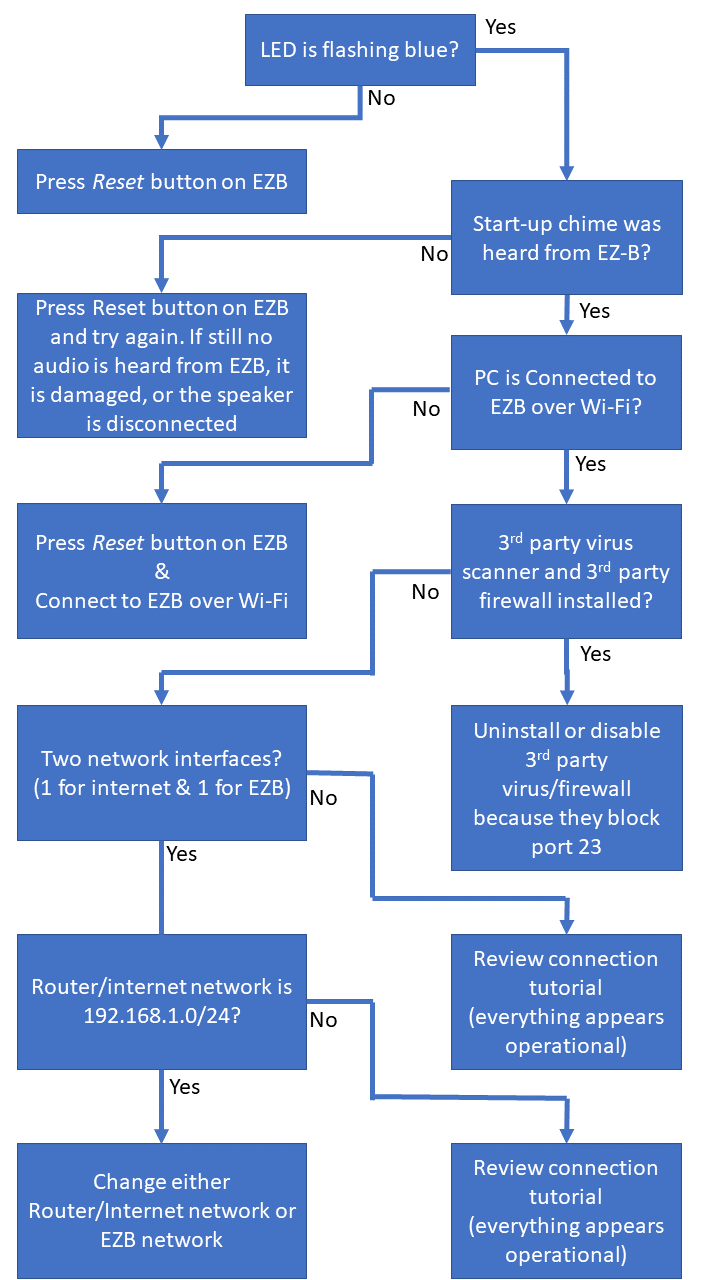
Connection Diagnostic Checklist
-
Is the LED flashing blue?
If No, press the Reset button on the EZB. -
Was the start-up chime heard from the EZ-B?
If No, press the Reset button on the EZB and try again. If there is still no sound, the EZB may be damaged or the speaker may be disconnected. -
Is the PC connected to the EZB over Wi-Fi?
If No, press the Reset button on the EZB and connect to the EZB over Wi-Fi. -
Is third-party antivirus software or a third-party firewall installed?
If Yes, disable or uninstall the third-party antivirus or firewall because it may block port 23. -
Does the PC have two network interfaces? (one for internet and one for the EZB)
If No, review the connection tutorial to verify that everything appears operational. -
Is the router or internet network using 192.168.1.0/24?
If Yes, change either the router/internet network or the EZB network to avoid an IP conflict. - If everything appears operational but the connection still fails, review the connection tutorial again and verify each step carefully.
Wi-Fi Channel and Signal Scan
Some EZB controllers connect over Wi-Fi, including the ESP32, EZ-Robot IoTiny, and EZB v4. Although Wi-Fi is convenient because it eliminates cables, it is also one of the most common causes of unstable connections and disconnects. For the best performance, the Wi-Fi connection should use a channel with minimal congestion and strong signal quality.
- Check for Wi-Fi channel congestion. Use this tool to scan nearby wireless networks and choose a less congested channel. If possible, consider a hard-wired connection between the EZB and the PC.
Download the Wi-Fi Scan Tool WifiInfo.exe
EZ-Robot Controllers
EZ-Robot provides tutorials for changing Wi-Fi modes, which can be accessed here. EZ-Robot EZB controllers also use different LED status indicators, which are documented in the EZB v4 datasheet.
One important status to recognize is a solid red LED. This usually indicates a connection or communication problem, often involving an I2C device or communication with the lower EZB board. Also verify that the EZB plays its start-up chime when powered on. If there is no audio on startup, the lower EZB board may be damaged. The startup sound of the v4 and iotiny is a diagnostic to let you know communication between the microprocessors is working.
Guide: Posting in the Community for Help
If you are still having trouble connecting to an EZ-B, follow the troubleshooting steps above first. When you are ready to post in the community for help, include answers to the questions below so others can assist you more effectively.
- Have you checked the manufacturer’s website for instructions on how to use the product? Most manufacturers provide setup guides, FAQs, and troubleshooting steps.
- What product are you trying to connect to? (For example: Arduino, ESP32, EZ-Robot JD, Raspberry Pi, Robotis Bioloid, etc.)
- What power source is powering the robot? (Battery, wall adapter, voltage, amperage, and so on.)
- Does the robot make a startup sound when powered on, if applicable? Some controllers play a spoken startup message or a chime.
- If it is a Wi-Fi device, are you connected to the correct EZB or robot Wi-Fi network?
- Does your PC have two network adapters? (For example, one for internet access and one for the robot.)
- What error message appears in the ARC status window at the bottom of the screen? Press the COPY button in the status window and paste the contents into your forum post. Also include the LED status shown on the EZB, if applicable.
Additional Diagnostics
If the EZB connection drops after it has connected successfully, review the EZB Disconnection Troubleshooting Guide.