
Trigger direction-specific scripts when ARC movement panels change; assign scripts per direction/stop, access direction and speed (JS/Python/EZ).
 Windows
How to add the Movement Script robot skill
- Load the most recent release of ARC (Get ARC).
- Press the Project tab from the top menu bar in ARC.
- Press Add Robot Skill from the button ribbon bar in ARC.
- Choose the Scripting category tab.
- Press the Movement Script icon to add the robot skill to your project.
Don't have a robot yet?
Follow the Getting Started Guide to build a robot and use the Movement Script robot skill.
How to use the Movement Script robot skill
The Movement Script skill lets ARC run a script automatically whenever your robot’s movement direction changes (for example: Forward, Left, Right, Stop, etc.). This is useful when you want your robot to do “extra actions” whenever it moves—such as turning on lights, playing a sound, changing camera settings, moving an arm, logging data, and more.
In ARC, movement is controlled by a Movement Panel (for example: Modified Servo, Auto Position, H-Bridge, Omnidirectional, etc.). When you press a direction button on a movement panel (or when a script sends a movement command), ARC changes the robot’s “current movement state.” The Movement Script skill listens for that change and runs the script you assigned for that direction.
Important beginner concept: Movement commands are global in ARC. That means there is one “active movement direction” for the whole project. So regardless of which movement panel you use, when ARC goes Forward, the Movement Script skill will run your Forward script (if you configured one).
How it works (beginner-friendly example)
- You add a Movement Panel to your ARC project (example: Modified Servo Movement Panel).
- You add the Movement Script skill.
- In the Movement Script skill settings, you assign a script to Forward.
- When you press Forward on the movement panel (or call a forward command from a script), ARC changes direction to Forward.
- The Movement Script skill detects that change and runs your Forward script.
You can do this for each direction (Forward, Reverse, Left, Right, Stop, and any other directions your ARC build supports). Each script is optional—if you leave a direction script empty, nothing runs for that direction.
Using direction and speed inside your scripts
Sometimes you want your script to know what direction the robot is moving and how fast. The Movement Script skill runs your code, and inside that code you can read:
- $DIRECTION (global variable): the current movement direction.
-
Speed using the available
getSpeedfunctions.
$DIRECTION or call speed functions depends on the language you are using
(EZ-Script, JavaScript, or Python).
Use the programming language manuals in the Synthiam Support section to see the correct syntax for your language.
If you want more background on how direction and speed relate to Movement Panels, the Movement Panel document is the best place to start: Movement Panels (Support Document) .
Main Window
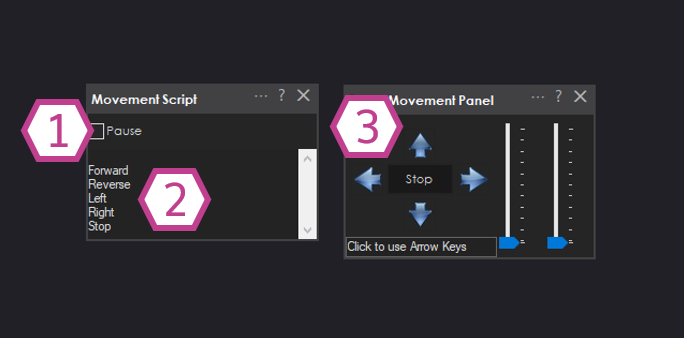
1. Pause Checkbox
When checked, the Movement Script skill will not run any direction scripts. This is helpful for testing movement without triggering extra actions, or for temporarily disabling automation.
2. Movement Command Display
Shows the most recent movement command that was activated (for example: Forward, Left, Stop). Use this to confirm ARC is receiving the movement change you expect.
3. Movement Panel
Movement Panels can be controlled by clicking direction buttons, using a joystick, or sending movement commands from scripts. Whenever the active movement direction changes, the Movement Script skill will run the script that matches that direction.
Settings
The Settings window is where you connect a script to each movement direction. Each direction has a button. Clicking a button opens the script editor so you can write (or paste) the script that should run when that direction is activated.
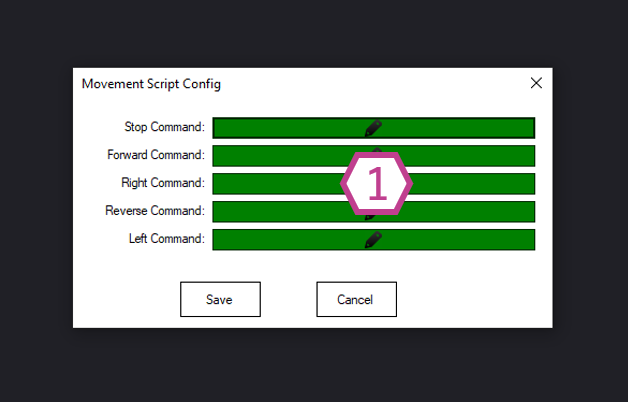
1. Script Buttons
Click a button to edit the script for that direction (such as Forward, Reverse, Left, Right, Stop, etc.). When the robot’s movement changes to that direction, ARC runs the script you saved for it.



Related Questions
Change Action Name.
Turn Adventurebot Using Angles
Import Respeaker USB Mic Array DOA Information To Ez-B
Encoder Reading With Arduino After It's Been Programmed With...
Getp Command For Kangaroox2 For Use With If/Endif??

Upgrade to ARC Pro
Don't limit your robot's potential – subscribe to ARC Pro and transform it into a dynamic, intelligent machine.