

Displays local PC COM/Serial ports opened by scripts, showing open/closed status (no communication logs); not the EZ-B UART.
 Windows
How to add the Com Port Manager robot skill
- Load the most recent release of ARC (Get ARC).
- Press the Project tab from the top menu bar in ARC.
- Press Add Robot Skill from the button ribbon bar in ARC.
- Choose the Communication category tab.
- Press the Com Port Manager icon to add the robot skill to your project.
Don't have a robot yet?
Follow the Getting Started Guide to build a robot and use the Com Port Manager robot skill.
How to use the Com Port Manager robot skill
The Com Port Manager robot skill helps you see which COM/Serial ports on your Windows PC are currently being used (opened) by your ARC project through scripts. This is useful when you’re not sure whether your script successfully opened a port, or when you suspect a port is already in use.
What this skill does
- Displays a list of COM/Serial ports that have been opened by ARC script commands.
- Shows whether each port is currently Open or Closed.
- Helps you confirm that your script is managing ports correctly (opening when needed, closing when finished).
What this skill does not do
- It does not display a real-time communication log (you will not see the data being sent/received).
- It does not open or close ports by itself; it only reports what your scripts have opened.
How COM ports are opened (beginner explanation)
A COM port is a numbered connection on Windows (like COM3 or COM7) used to talk to serial devices.
In ARC, COM ports are typically opened and used by scripts (EZ-Script, JavaScript, or Python) using the COM/Serial commands provided by ARC.
Where to find the script commands
The commands for working with COM ports are listed in the ARC script manual for your chosen language (EZ-Script, JavaScript, or Python) in the website’s Support/Documentation section. Look for topics related to Serial, COM, or Port commands.
When you would use Com Port Manager
- Port won’t open: You want to confirm whether your script actually opened the correct COM port.
- Port conflict: Another program may already be using the port. This skill helps you see if ARC has it open.
- Cleanup: You want to make sure your script closes the port when your project stops or when a task finishes.
Need to see the actual serial data?
If you need to view the communication traffic (sent/received bytes) in real-time, use an external tool such as Microsoft PortMon. This Com Port Manager skill only shows open/closed status—there is no communication log in this skill.



Related Questions
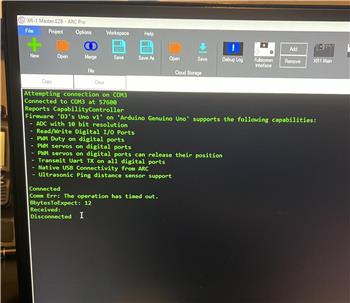
What Causes Dropping USB Connection 0?
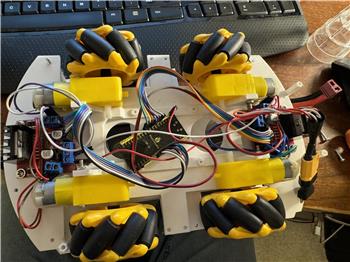
Connect Wiring For Iotiny To Arduino

Upgrade to ARC Pro
Unleash your creativity with the power of easy robot programming using Synthiam ARC Pro