Commandline Installation
This document describes command-line installation, uninstallation, and deployment details useful for schools or enterprise environments that manage ARC installations across multiple PCs.
Install from the Command Line (Unattended)
Use an unattended (silent) installation to install or upgrade ARC across multiple machines without interactive prompts. This is ideal for scripted or managed deployments.
Steps
- Open a Command Prompt and change directory to the folder that contains the downloaded installer (for example, a USB drive, a network share, or a mapped drive).
- Run the installer with the quiet switch:
"ARC Installer.exe" /quietThe installer will run in the background and bypass interactive prompts, speeding up updates and automated installs.
Tip: If you are deploying to remote or locked-down systems, ensure you have appropriate administrative privileges and that the installer binary is accessible from the target machine.
Uninstall from the Command Line
To remove ARC non-interactively, use the Windows Management Instrumentation Command-line (WMIC). Run the command in an elevated (administrator) Command Prompt.
WMIC product where name="ARC by Synthiam" call uninstallThis command invokes the product uninstaller via WMIC. Note that WMIC queries installed products by their registered display name, so the exact name must match.
Installer Options
The installer accepts additional command-line parameters for automation and customization. To view the full list of supported options, run the installer with the /? parameter from a command prompt:
"ARC Installer.exe" /?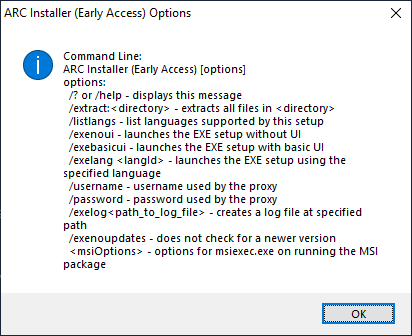
Use the listed switches to tailor installations (for example, to specify silent install, logging, or custom behavior) when deploying at scale.
Product Code (GUID) for Deployment Tools
If you deploy ARC with Microsoft System Center Configuration Manager (SCCM) or similar tools, use the product code (GUID) to detect whether ARC is already installed on a machine.
ARC Product Code: 281E4CB7-6897-44DF-A347-1C28741536CF
SCCM and other deployment systems use this GUID to determine installation state and to target upgrade or removal actions.