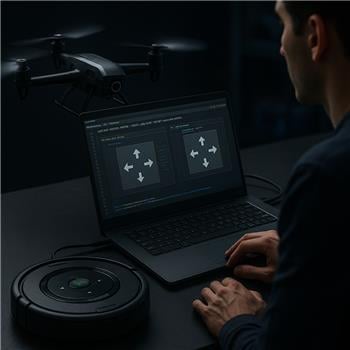
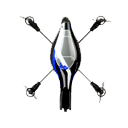
Control Parrot AR Drone v1/v2 via ARC: keyboard, joystick, speech, Wii, web; camera feed, face/color/motion/glyph tracking.
 Windows
How to add the AR Parrot Drone Movement robot skill
- Load the most recent release of ARC (Get ARC).
- Press the Project tab from the top menu bar in ARC.
- Press Add Robot Skill from the button ribbon bar in ARC.
- Choose the Movement Panels category tab.
- Press the AR Parrot Drone Movement icon to add the robot skill to your project.
Don't have a robot yet?
Follow the Getting Started Guide to build a robot and use the AR Parrot Drone Movement robot skill.
How to use the AR Parrot Drone Movement robot skill
The AR Parrot Drone Movement robot skill (movement panel) lets you control a Parrot AR.Drone Quadcopter using Synthiam ARC. It supports both AR.Drone v1 and AR.Drone v2.
What you need before you start
- A Parrot AR.Drone v1 or v2 with a charged battery
- A Windows PC running Synthiam ARC
- WiFi: your PC must connect directly to the drone’s WiFi network
- (Optional) A joystick/gamepad, Wii controller, or other ARC input method
Keyboard controls (Keyboard Mode)
If you are using keyboard control, ARC uses these default keys:
Altitude (Up / Down)
- A = Up
- Z = Down
Movement / Turning
- Arrow Up = Forward
- Arrow Down = Reverse
- Arrow Left = Rotate Left
- Arrow Right = Rotate Right
ARC also supports other control methods such as speech recognition, joysticks, Wii control, web control, and camera tracking (faces, colors, motion, and glyphs). These can be used to fly the drone once the movement panel is connected.
Video Device (how to see the drone camera feed)
To view the drone’s live camera feed inside ARC, you must add a separate camera viewer skill: Camera Device robot skill.
- Add the Camera Device skill to your ARC project.
- Open the Camera Device settings and set the video device to Custom.
- Press START on the Camera Device skill.
Specify AR.Drone version (required)
Before ARC can connect, you must tell the movement panel which drone model you have.
- Open the movement panel’s Configure menu.
- Select your drone model: AR.Drone v1 or AR.Drone v2.
- Save/close configuration.
Connect to the drone (step-by-step)
- Power on the drone and place it on a flat surface.
- On your PC, open WiFi networks and connect to the drone’s WiFi (often named something like ardrone2_XXXXXX).
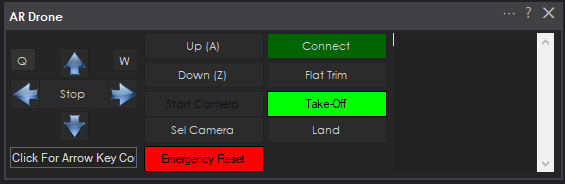
- Return to ARC and press CONNECT on the AR Parrot Drone Movement panel.
- If you added the Camera Device skill (set to Custom and started), the video feed should appear there.
Control the drone
This movement panel includes on-screen buttons for basic flight actions, such as:
- Take Off and Land
- Up / Down (altitude)
- Forward / Reverse
- Rotate Left / Rotate Right
- Roll Left / Roll Right (strafe/side movement)
Because it is a movement panel, you can also control the drone using other ARC robot skills and methods, including: joystick panels, scripts, speech recognition commands, and tracking skills.
Augmented Reality Example
In this example, DJ Sures is flying an AR Parrot Drone using a Vuzix VR headset for an augmented reality experience:
Control Commands for the AR Parrot Drone Movement robot skill
There are Control Commands available for this robot skill which allows the skill to be controlled programmatically from scripts or other robot skills. These commands enable you to automate actions, respond to sensor inputs, and integrate the robot skill with other systems or custom interfaces. If you're new to the concept of Control Commands, we have a comprehensive manual available here that explains how to use them, provides examples to get you started and make the most of this powerful feature.
Control Command ManualCameraSelectHorizontal
Example: controlCommand("AR Drone", "CameraSelectHorizontal")
CameraSelectHorizontalInVertical
Example: controlCommand("AR Drone", "CameraSelectHorizontalInVertical")
CameraSelectHorizontalInVertical
Example: controlCommand("AR Drone", "CameraSelectHorizontalInVertical")
CameraSelectNext
Example: controlCommand("AR Drone", "CameraSelectNext")
CameraSelectVertical
Example: controlCommand("AR Drone", "CameraSelectVertical")
CameraSelectVerticalInHorizontal
Example: controlCommand("AR Drone", "CameraSelectVerticalInHorizontal")