
Play WAV/MP3 via EZ-B v4, manage tracks, add timed scripts for synced robot actions, control via ControlCommand(), volume and clipping indicators.
 Windows
How to add the Soundboard (EZB) robot skill
- Load the most recent release of ARC (Get ARC).
- Press the Project tab from the top menu bar in ARC.
- Press Add Robot Skill from the button ribbon bar in ARC.
- Choose the Audio category tab.
- Press the Soundboard (EZB) icon to add the robot skill to your project.
Don't have a robot yet?
Follow the Getting Started Guide to build a robot and use the Soundboard (EZB) robot skill.
How to use the Soundboard (EZB) robot skill
The Soundboard (EZB) Skill lets your robot play sound files through the EZ-B v4 speaker. You can load WAV or MP3 files into the Soundboard list (track list). When you add a file, ARC automatically converts it into a format the EZ-B v4 can play.
You can play tracks by clicking the play button in the Skill, or by using ControlCommand() in scripts
(for example: when a button is pressed, when speech is recognized, or when an animation starts).
Main Window
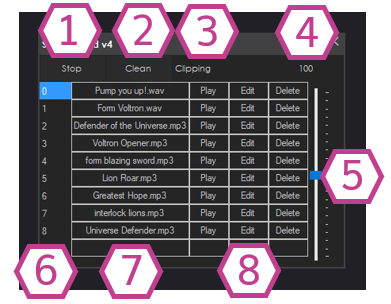
1. Stop Button
Stops audio that is currently playing from this Soundboard.
2. Clean Button
If you delete tracks, the list can show empty (blank) rows. Clean removes those blank rows and re-compacts the list.
This is helpful to keep track numbers tidy.
3. Clipping Indicator
Turns red when the audio is too loud and becomes distorted (clipping).
If you see clipping, lower the volume slider to improve sound quality.
4. Volume Display
Shows the current Soundboard volume as a percentage. It ranges from 1% (very quiet) up to 200% (very loud).
5. Volume Slider
Adjusts the playback volume for this Soundboard. If you hear distortion, reduce this slider until the clipping indicator stays off. Due to the way the EZB Audio protocol works, the audio must be "stopped" and restarted for the new volume to take effect.
6. Track Number Column
Shows the track number for each row.
7. Tracklist Column
Shows each track’s filename and format. Left-click in this area to choose an audio file and place it on that row.
8. Track Management Buttons
Buttons for each track let you:
Play the audio,
Edit the track (add timed scripts),
or Delete it from the list.
Settings
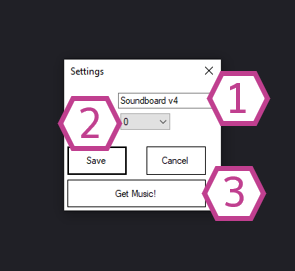
1. Title Field
This is the name of the Skill as it appears in your ARC project.
You can rename it to something like Robot Sounds or Dance Music.
ControlCommand() calls.
Example: if you rename it from Soundboard v4 to Robot Sounds, then your script must use
controlCommand("Robot Sounds", ...).
2. Board Index Drop-down
Select which EZ-B v4 this Soundboard should use.
If you only have one EZ-B connected, this is usually Board 0.
If you have multiple boards, match this to the board number shown in your Connection skill.
3. Get Music! Button
Opens freemusicarchive.org where you can download royalty-free music
(internet connection required).
How to Use Soundboard (EZB) (Beginner Steps)
-
Add the Skill
In ARC go to: Project → Add Skill → Audio → Soundboard (EZB). -
Add an audio file
Click in the Tracklist column on an empty row, then select a.mp3or.wavfile. The file will be added and converted automatically. -
Connect to the EZ-B v4
Make sure ARC is connected to your EZ-B v4 using the appropriate connection skill. If you are not connected, the Soundboard cannot play through the EZ-B speaker. -
Press Play
Click the track’s Play button and confirm you hear audio from the EZ-B v4 speaker. -
(Optional) Adjust volume
Use the Volume Slider. If the clipping indicator turns red or the sound is harsh, reduce the volume.
Track Editor (Timed Scripts)
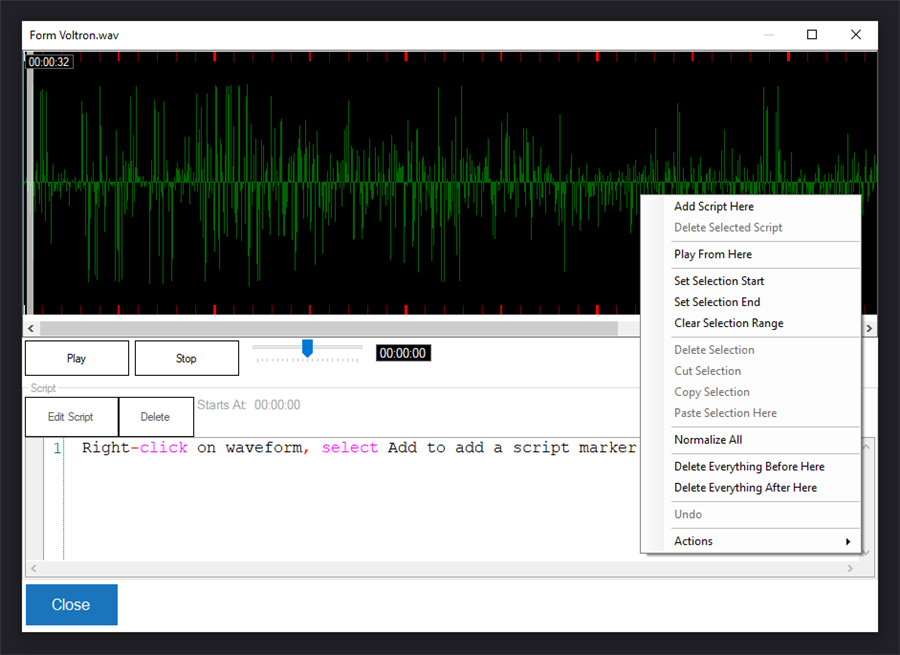
The Track Editor lets you synchronize robot actions with audio. You can place scripts at specific timestamps so ARC can do things like: move servos, change LEDs, start an animation, or trigger other skills while the sound plays.
How to access the editor: Click a track’s Edit button (in the Track Management Buttons). Inside the editor, right-click on the waveform to see options.
- Add Script Here: Adds a script at the selected timestamp.
- Delete selected script: Removes the script from that timestamp.
- Play from here: Plays starting from the clicked point (useful for testing timing).
- Set selection start: Marks the start of a selection range.
- Set Selection End: Marks the end of a selection range.
- Clear Range: Clears the selection start/end markers.
- Delete Selection: Deletes the selected audio portion.
- Cut Selection: Cuts the selected audio portion (remove and place on clipboard).
- Copy Selection: Copies the selected audio portion.
- Paste Selection: Pastes audio from the clipboard into the track.
- Delete Everything Before Here: Deletes audio from the start up to the clicked point.
- Delete Everything After Here: Deletes audio from the clicked point to the end.
- Actions: Automatically inserts “Auto Position” actions to quickly create simple dances/animations.
Control Commands (Playing Sounds from Scripts)
This Skill supports ControlCommand(), so you can trigger sounds from any ARC script (for example, from buttons, events, speech recognition, or an Auto Position action).
You can find the exact commands for your project by opening the Cheat Sheet tab in ARC (it lists control commands for all skills).
Resources (Creating and Editing Audio)
To record or edit your audio files, you can use free, open-source audio software like
Audacity.
Save your final files as .wav or .mp3 before adding them to the Soundboard.
- Free Music Archive: Download free royalty free music
- Audacity sound editing tutorial: How To Edit Sounds Files For Use In EZ-Robot
- General Soundboard tutorial: Soundboard (PC Soundboard + EZ-B) Tutorial
Control Commands for the Soundboard (EZB) robot skill
There are Control Commands available for this robot skill which allows the skill to be controlled programmatically from scripts or other robot skills. These commands enable you to automate actions, respond to sensor inputs, and integrate the robot skill with other systems or custom interfaces. If you're new to the concept of Control Commands, we have a comprehensive manual available here that explains how to use them, provides examples to get you started and make the most of this powerful feature.
Control Command ManualStop
Stop the current soundboard audio from playing
- Returns: Boolean [true or false]
Example:
controlCommand("Soundboard v4", "Stop")
Track_Random
Play a random audio file within this soundboard.
- Returns: Boolean [true or false]
Example:
controlCommand("Soundboard v4", "Track_Random")
Play
Play an audio file by name.
- Parameter 3: Name of the audio file as String (required)
- Parameter 4: Execute scripts embedded in audio timeline as Boolean (required)
- Returns: Boolean [true or false]
Example:
controlCommand("Soundboard v4", "Play", "Name of the audio file as a string", Execute scripts embedded in audio timeline as true or false)
Play
Play an audio file by index.
- Parameter 3: Index number of the audio file in the list as Number (required)
- Returns: Boolean [true or false]
Example:
controlCommand("Soundboard v4", "Play", Index number of the audio file in the list as a number)
Count
Returns the number of sounds in this soundboard.
- Returns: Integer [-2,147,483,648 to 2,147,483,647]
Example:
controlCommand("Soundboard v4", "Count")


Related Tutorials
Break Out Sound Hack: Ez-B V4 External Sound Hack
Soundboard PC & Soundbard EZ-B Tutorial.
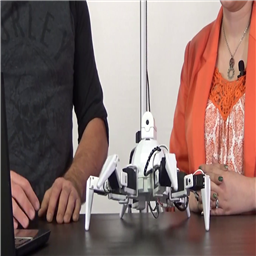
The Robot Program Episode 009: Getting Six To Move
The Robot Program Episode 006: Introducing ARC
The Robot Program Episode 003: Getting JD To Move
Breaking Out The Sound From The V4 Ezb
Related Robots
Related Questions
Soundboard Ticking-Noise Scriptcode - Energy Pulse
$Ezbplayingaudio Variable Not Changing To 1 When Playing...

Error Playing Audio
Using Pwm's On Connection 3

Upgrade to ARC Pro
ARC Pro is your passport to a world of endless possibilities in robot programming, waiting for you to explore.
Hi there,
I have been trying to get my JD robot to play sounds and songs in response to some voice commands. I used the block ControlCommand(soundboard_v4, "Track_1") in the speech recognition settings but when I use the command, the robot does not play the sounds. I am able to play the sounds from the soundboard only if I go in and edit the tracks. It does not let me play by pressing the play button on the soundboard window either.
What have I been doing wrong? There must be something I have missed.
Good morn,
When you open ARC - turn off your anti -virus - I can't connect to ARC with mine.
I just tested - I made a small mp3 file in audacity. called test5.mp3
Opened ARC, clicked on audio, opened soundboard (PC) loaded the file, then I added "speech recognition, added in the java script with controlCommand("Soundboard", "Track_0");
Too come out of your "robot" - open ARC , you need to connect to robot - b open soundboard EZB[/b] add - speech recognition - add in the in the java script with - controlCommand("Soundboard v4", "Track_0");
I only had one track, so it is "Track_0" - I added a second track, so it is "Track_1" - and so on, and on...
In the computer world, we count 0 , 1, 2 ,3 etc... not 1, 2, 3 etc...
It works well.
Hope this helps you
EzAng
Hello @Kat777
I noticed that there's an underscore in your code that shouldn't be there on "Soundboard v4".
Otherwise, the track should play in the Soundboard skill when you press play. I've never seen any issues with this unless a script is already using the Soundboard control or the volume is at 0.
Use the Cheat Sheet to display available control commands rather than guessing
reference this manual page: https://synthiam.com/Docs/Programming/control-command
Always make sure you have the latest ARC
Version 2020.09.08.00 https://synthiam.com/Products/ARC
EzAng
Hi guys,
Here is an update. I have the latest version of ARC and my commands were written the same as in the cheat sheet. The underscore in my earlier comment was a typo. I managed to get my program working by switching off the speech recognition controls after activating the sequence using a voice command. If I leave the voice recognition on, my program terminates after taking in the background noise.
One thing I have noticed though, is some of the sounds I have included in my program do not play all the way through. I have included a short "BOING" sound that should play for 2 seconds but it gets cut 200 ms in. Is there a way of fixing this that you can recommend?
You can make them a bit longer with silence at the end. If they’re short the network buffering may cut it short. That’s pretty much at the mercy of the operating system and any networking hardware.
What do you mean by switching off the speech recognition controls? Do you mean that they’re removed/deleted from the project?
lastly, is the microphone a Bluetooth connection?
Hi DJ,
I'll try adding some silence on the end of the shorter tracks.
By switching off the speech recognition controls I meant I click the pause button on the speech recognition window in ARC so that the speech recognition is not picking up the background sounds and causing the program to cancel prematurely.
At the moment, I have been using my laptop's built-in microphone not a Bluetooth enabled device. Going to invest in a pair of noise-cancelling headphones eventually.