Numeric Slider
An Innovative Numeric Input Solution for Precision and Efficiency
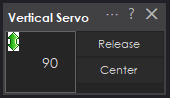
What the ARC Number Selector Does
The ARC Number Selector is the compact numeric control used throughout Synthiam ARC whenever a numeric value is required. It looks simple but provides multiple convenient input methods for efficient and precise editing.
Common uses
- Servo positions in Auto Position frames.
- Servo values, limits, and other parameters in robot skill configuration windows.
- Camera device parameters (tracking thresholds, region sizes, speeds, etc.).
- Any numeric field across ARC that requires entering or adjusting numbers.
Beyond direct typing, the control supports dragging to change values, entering math expressions, and referencing ARC global variables such as $myVariable.
Anatomy of the Number Selector
The visible parts are simple and consistent:
- Numeric label – displays the current value; this area is what you typically click and drag.
- Drag icon – a small icon beside the number that indicates whether dragging is vertical or horizontal for adjustment.
The drag direction (vertical or horizontal) depends on where the control is used, but the behavior is the same: drag one way to increase and the opposite way to decrease the value.
↕ for vertical or ↔ for horizontal), you can left-click and drag to change the value.
Changing Values by Dragging
Quick steps to adjust a value by dragging:
- Hover over the numeric label or drag icon until the cursor changes to the appropriate move cursor.
- Left-click and hold on the number.
- Drag in the indicated direction:
- Vertical control: drag up to increase and down to decrease.
- Horizontal control: drag right to increase and left to decrease.
- Release the mouse button when you reach the desired value.
The increment step (for example, 1, 5, or 10) depends on the control’s internal configuration for that context.
Fine vs. Normal Adjustment
Hold Shift while dragging to switch to an alternate sensitivity (often finer) for precise adjustments. ARC uses configured sensitivity settings, so the exact change rate may vary by control.
Visual Feedback
- While dragging, the number’s background may change (for example, to a light green) to show the control is active.
- If the value reaches zero or below, the text may turn red to indicate a special or potentially critical state (for example, a 0 servo position).
Typing Values, Expressions, and Variables
The Number Selector supports direct numeric entry, simple math expressions, and references to ARC global variables. This allows quick calculations and dynamic values without leaving the control.
Opening manual entry
- Right-click on the numeric label.
- The numeric label and drag icon will be replaced by a textbox for manual input.
- Type a number, expression, or a variable expression and press Enter to apply.
- Enter – evaluate and apply the entry.
- Esc – cancel manual entry and restore the prior value.
Plain numeric entry
Type a simple number, for example:
90
180
45
On Enter, the value is applied and clamped to the control’s defined Minimum and Maximum.
Math expressions
Enter basic mathematical expressions to compute values on the fly. Examples:
90 + 10
(180 / 2)
45 * 3
(10 + 5) * 2
ARC evaluates the expression when you press Enter and uses the resulting number as the control value.
Using ARC global variables
You can reference ARC global variables (the same ones used in scripts and other controls) by prefixing with $, for example $myServoPosition or $panCenter.
$myServoPosition
$panCenter + 10
($tiltMax - $tiltMin) / 2
$cameraTrackingThreshold * 0.8- The referenced global variable must exist and evaluate to a numeric value.
- After evaluation, the result will be clamped to the control’s Minimum and Maximum.
Minimum, Maximum, and Clamping
Every Number Selector has defined Minimum and Maximum limits that depend on its context (for example, servo positions often range from 1 to 180).
When you drag or enter a value (or expression), ARC evaluates the result and then clamps it:
- If the result is less than Minimum, the value is set to Minimum.
- If the result is greater than Maximum, the value is set to Maximum.
Where You Will See This Control in ARC
The Number Selector is a shared control used widely across ARC. Typical locations include:
- Auto Position – defining servo positions in frames and fine-tuning poses.
- Robot skill configuration windows – setting speeds, delays, thresholds, and numerical limits.
- Camera Device – configuring tracking types (color, object, face), region sizes, sensitivity, and related parameters.
- Other settings – timers, counters, and various numeric fields in plugins and general configuration panels.
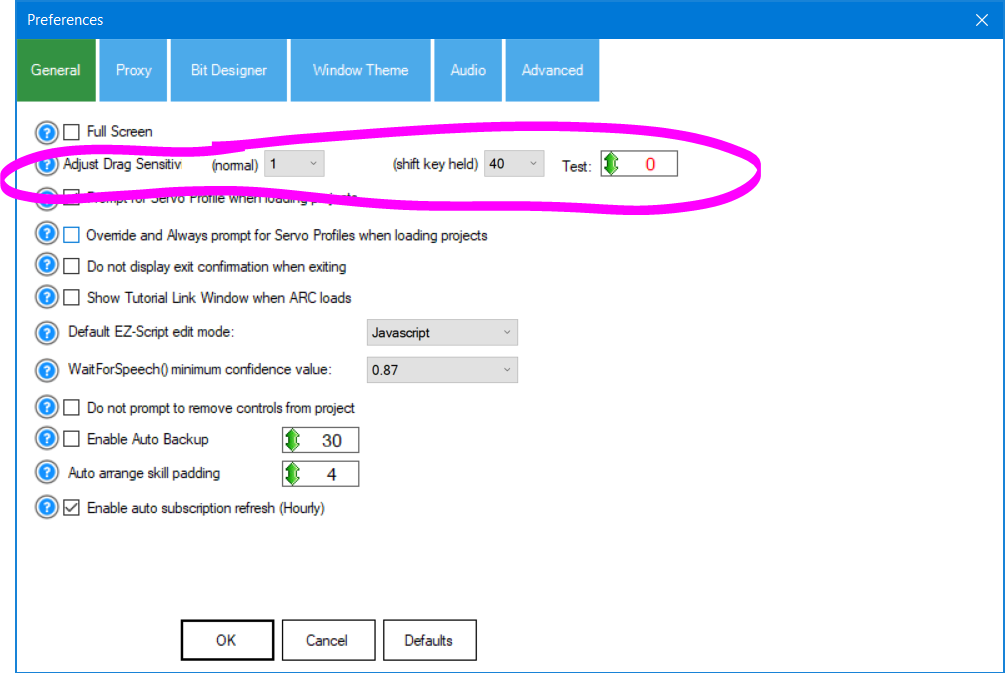
Once you are comfortable with dragging, typing expressions, and using ARC variables, the workflow is the same everywhere the Number Selector appears — providing a consistent numeric input experience across Synthiam ARC.
Quick Reference
| Action | Result |
|---|---|
| Left-click + drag | Adjust value (direction and speed depend on drag direction and sensitivity). |
| Hold Shift while dragging | Use alternate (often finer) drag sensitivity. |
| Right-click on value | Open manual entry textbox for typing numbers, expressions, or variables. |
Type a number (e.g., 90) |
Set exact value (clamped to Min/Max on Enter). |
Type an expression (e.g., 90 + 10) |
Evaluate the expression and use the numeric result. |
Use global variable (e.g., $myVariable + 5) |
Evaluate using the ARC global variable’s numeric value. |
| Enter in manual entry | Apply the expression, clamp to Min/Max, and close the textbox. |
| Esc in manual entry | Cancel and restore the previous value. |
| Value becomes red | Indicates the value is zero or below — a special or warning state. |