

Microsoft Cognitive Vision integration for ARC: real-time object, face, emotion detection, OCR, confidence data and script-triggered robot actions.
 Windows
How to add the Cognitive Vision robot skill
- Load the most recent release of ARC (Get ARC).
- Press the Project tab from the top menu bar in ARC.
- Press Add Robot Skill from the button ribbon bar in ARC.
- Choose the Camera category tab.
- Press the Cognitive Vision icon to add the robot skill to your project.
Don't have a robot yet?
Follow the Getting Started Guide to build a robot and use the Cognitive Vision robot skill.
How to use the Cognitive Vision robot skill
- Describe a scene (example: “a person standing in a room”).
- Read printed text in an image (OCR).
- Return extra details such as object locations (boxes), sizes, and content flags (ex: adult content indicators).
Beginner Overview (How It Works)
Think of this skill as a “smart helper” for your robot’s camera. Your camera provides a picture (a single frame). Cognitive Vision uploads that image to Synthiam, Synthiam analyzes it using machine learning, and ARC stores the results in variables that your scripts can use.
Typical flow
- Add a Camera Device to your ARC project.
- Add the Cognitive Vision Robot Skill.
- Press Detect (to describe the image) or ReadText (to read text).
- The skill fills in configured variables (scene description, confidence, read text, and arrays of object details).
- Optional: ARC runs a script automatically after the result is returned, so your robot can speak or react.
What You Need Before You Start
- Synthiam ARC installed (ARC Pro recommended).
- A working Camera Device in your project (USB camera, IP camera, etc.).
- Internet access on the computer running ARC (or on the robot setup, depending on your configuration).
Recommended Tools
- Variable Watcher to see values update live.
- ARC scripting (to speak results or trigger actions).
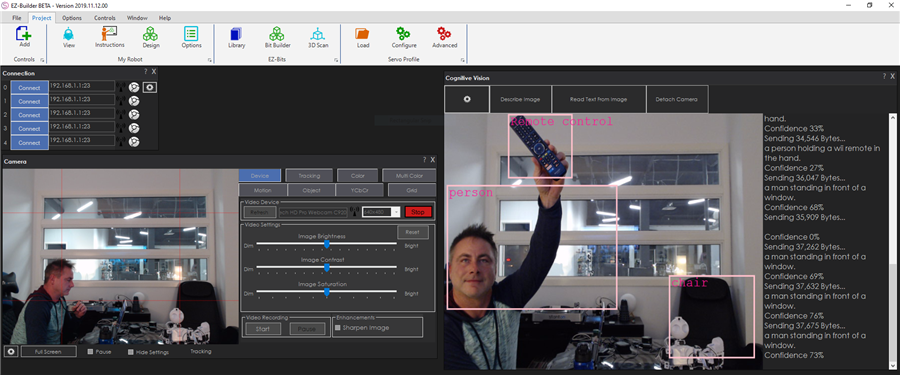
Adding Cognitive Vision to a Project (Step-by-Step)
-
Add a Camera Device
Follow: Camera Device tutorial. Confirm you have a live image. -
Add the Cognitive Vision Robot Skill
Add it from the Robot Skills list, then open it so you can configure its settings. -
Select/attach the camera
The skill must be connected to the camera you want to analyze. If you have multiple cameras, choose the correct one. -
Test with “Detect”
Use the Detect button/command to generate a scene description and object data. -
Test with “Read Text”
Place readable text in view (paper sign, label, etc.) and run ReadText to populate the text variable.
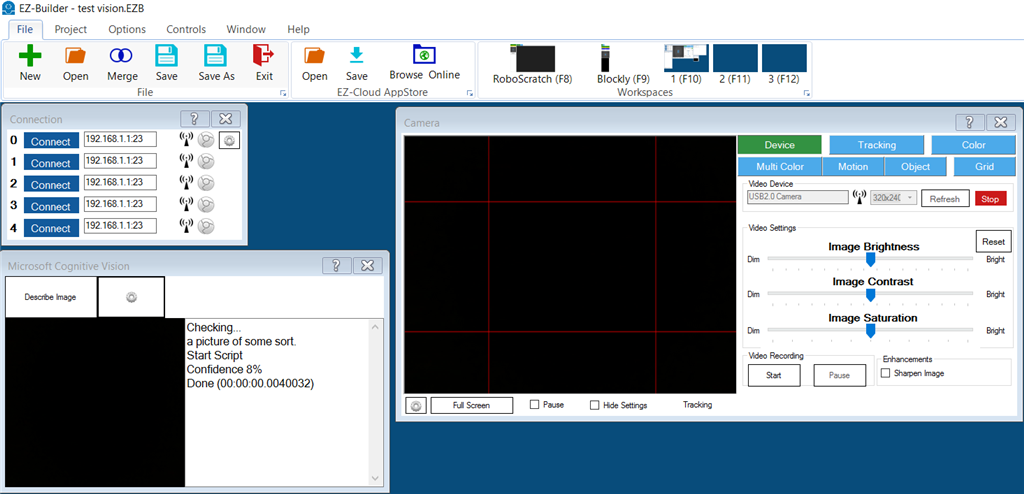
Understanding the Results (Variables and Arrays)
After a Detect or ReadText request finishes, the skill stores results in variables (and arrays) so other skills and scripts can use them. The easiest way to see these values is to open the Variable Watcher.
Common result values
- Detected Scene (variable): A plain-language description of the image (filled after Detect).
- Confidence (variable): How confident the service is in the scene description (higher is more certain).
- Read Text (variable): The text found in the image (filled after ReadText).
- Object arrays (advanced): For each detected object, the skill stores width/height and location data (useful for tracking where an object is in the image).
- Adult content indicators: The analysis includes content classification flags intended for safety filtering.
Configuration Menu (What Each Setting Means)
The configuration menu lets you define which scripts to run after results are returned and which variables should receive the data. If you change variable names here, make sure your scripts use the same names.
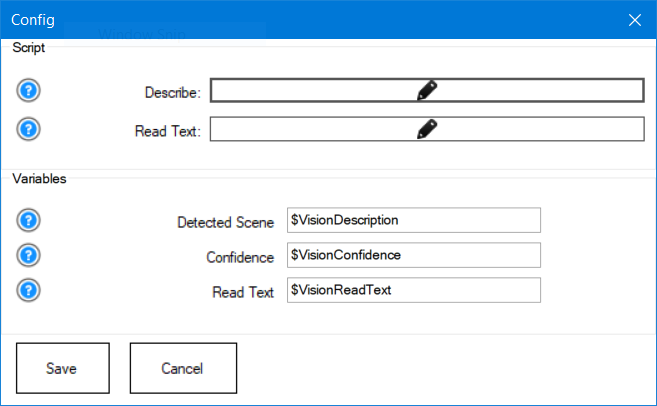
Scripts (run automatically)
-
Describe
Runs after a Detect completes. Use it to speak the scene, move the robot, or make decisions using the detected data. -
Read Text
Runs after ReadText completes. Use it to speak the text or trigger actions (example: if the sign says “STOP”, stop the robot).
Variables (store the results)
- Detected Scene: the description of the image after Detect.
- Confidence: confidence value for the scene description.
- Read Text: text extracted from the image after ReadText.
Using Scripts (Beginner Examples)
Scripts let you turn vision results into robot behavior. For example, you can have your robot speak what it sees using the scene description variable.
Example: speak what the camera sees
Add this to the skill’s Describe script so it runs automatically after Detect:
Say("I am " + $VisionConfidence + " percent certain that I see " + $VisionDescription)
Sample project: testvision.EZB
Control Commands (Use from Other Skills or Scripts)
You can trigger Cognitive Vision from anywhere in ARC using ControlCommand(). This is useful if you want another skill (like speech recognition,
autoposition, or a timer) to request a vision update.
Available commands
Detach — disconnect the skill from the current camera
ControlCommand("Cognitive Vision", "Detach");
Detect — analyze the current camera frame and populate description/object variables
ControlCommand("Cognitive Vision", "Detect");
ReadText — read text (OCR) from the current camera frame and populate the text variable
ControlCommand("Cognitive Vision", "ReadText");
Video Tutorials
Educational Tutorial
This tutorial shows how to use Cognitive Vision with a camera in ARC.
Demo (Cognitive Vision + Conversation)
Example project combining Cognitive Vision, Pandora Bot, and speech recognition for interactive conversations.
Limited Daily Quota (Important)
Troubleshooting (Beginner Checklist)
If Detect/ReadText returns nothing
- Verify your Camera Device shows live video.
- Confirm you have an internet connection.
- Check the Variable Watcher to see if variables update.
- Make sure you’re using the correct action: Detect for scenes/objects, ReadText for OCR.
If results seem inaccurate
- Improve lighting and reduce motion blur.
- Move closer to the object or text.
- Use the Confidence value to ignore weak guesses.
- For text: ensure it’s large enough, high-contrast, and not heavily angled.



Related Questions
Detect Multiple Face From EZ Blocky Logic
Cognitive Vision Not Speaking
Choosing Right Camera FOV

Upgrade to ARC Pro
Synthiam ARC Pro is a new tool that will help unleash your creativity with programming robots in just seconds!
Is cognitive emotion redundant, because Cognitive Face reports back the same emotions as well as the other options: age, name, etc? Not sure if I am missing something.
This skill, Cognitive vision does not return any face or emotional information.
I believe you are asking about Cognitive Face and Cognitive Emotion? Those two report similar stuff, except Emotion doesn't report face. There's slight differences in the returned data of those two. This skill that you replied to is Cognitive Vision and not related to either of those
I see the parameter you need to pass in the ControlCommand to read text is "ReadText". But what parameter do you send to describe an image? "DescribeImage"?
Thomas Messerschmidt
You will want to use the Cheat Sheet to view available control commands for each control. The manual for accessing the Cheat Sheet is here: https://synthiam.com/Support/Programming/control-command
Also, you may find the getting started guide helpful. There's great information about learning how to build a robot. Here is a link to the programming section that introduces the ControlCommand() syntax: https://synthiam.com/Support/Get-Started/how-to-make-a-robot/choose-skill-level
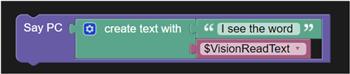
(The robot skill will analyze the image, and each detected object will be stored in variable arrays-the width, height, location, and description of each object.) I do not see any arrays as your above photo shows, do we need to enable this somewhere? For some reason my results have been mixed. The computer camera is taking a very clear picture 106k Bytes and returning after about 3 seconds with 81% confidence Say PC $VisionDescription in Blockly but it does not want to say it any more. Is there a preliminary block that I need to put above it to verify it has loaded the new variable value? The read text from image doesn't work at all as fxrtst was mentioning which I was really hoping it would. Tried multiple different word scenarios. Used Say PC $ReadTextFromImage in Blockly. It did say something the very first time but nothing since. I have a lot of plans for this skill, just need to get it work like your video.
Use the variable watcher to see variables. Please read the manuals. Here is the link to the variable watcher: synthiam.com/Support/Skills?id=16056
Thanks for pointing me in the right direction, Got it working reading words but couldn't get it to read numbers at all. Is there any way that I can help train it? Taking this to the next step is there a way to read only a certain area of the screen grid rather than read everything on the screen-I have my reasons. What would the script look like? I realize that we can do that on our end with x,y variables but microsoft will probably will want to speak the whole screen. I will try to find the manual from Microsoft on this but if you have the more in depth manual on it's capabilities that would help. They probably have lots of other things they have encountered and overcome as well. Thanks