
Displays HC-SR04 ultrasonic distance readings in ARC; scriptable via GetPing(), pausable, sets a variable with multiplier, optional NMS output
 Hardware Info
 Windows
How to add the Ultrasonic Distance robot skill
- Load the most recent release of ARC (Get ARC).
- Press the Project tab from the top menu bar in ARC.
- Press Add Robot Skill from the button ribbon bar in ARC.
- Choose the Ultrasonic category tab.
- Press the Ultrasonic Distance icon to add the robot skill to your project.
Don't have a robot yet?
Follow the Getting Started Guide to build a robot and use the Ultrasonic Distance robot skill.
How to use the Ultrasonic Distance robot skill
What this skill does NOT do: It does not automatically steer, stop, or avoid obstacles. For navigation/avoidance, use the Ultrasonic Radar skill.
Ultrasonic sensors measure distance using sonar (sound navigation ranging)—they send out a quick burst of sound and listen for the echo. The time it takes for the echo to return is used to estimate how far away an object is. This is similar to how bats and dolphins “see” with sound.
Good to Know (Beginner Tips)
- Works well on hard surfaces (walls, wood, plastic, boxes).
- Less reliable on soft or angled surfaces (fabric, carpet, curtains, plush items) because they absorb or deflect the sound.
- Unlike many IR sensors, ultrasonic sensors are generally not affected by sunlight or black materials.
- Temperature and voltage can affect readings (sound travels differently in warm vs. cold air).
When an HC-SR04 (or equivalent) Ultrasonic Distance Sensor is wired to your EZB and configured in this skill, the skill will display a distance value for whatever is directly in front of the sensor.
How Readings Work (Important)
The value shown by this skill is typically 0–255. This number is a raw sensor value and is not automatically “cm” or “inches”. The raw value can vary depending on the sensor model, input voltage, the surface you’re detecting, and even room temperature.
Main Window
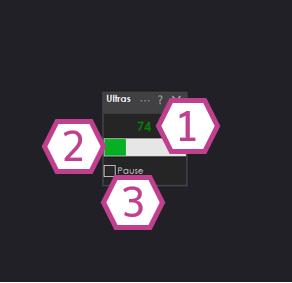
What You See
1. Ultrasonic Distance Value
- Shows the current distance reading (usually 0–255).
- Higher/lower values represent farther/closer objects depending on sensor and configuration.
2. Bar Display
- A quick visual way to see changes in distance without watching the number.
- Helpful for testing wiring and sensor direction (point it at a wall and move closer/farther).
3. Pause Checkbox
- When checked, the skill stops continuously sampling the sensor.
- This is useful if you only want readings on demand from a script (see next section).
Using This Skill with Scripts (GetPing)
This skill integrates with ARC scripting. If the Pause checkbox is checked, the skill will not constantly poll the sensor.
Instead, it will update when your script calls GetPing() (as long as the skill’s configured ports match your wiring).
Why pause + GetPing() is useful
- Reduces unnecessary communication traffic to the EZB.
- Lets you control exactly when a reading is taken (for example, only when the robot is moving forward).
- You can keep the skill paused permanently and still see updated values whenever
GetPing()is called.
Settings
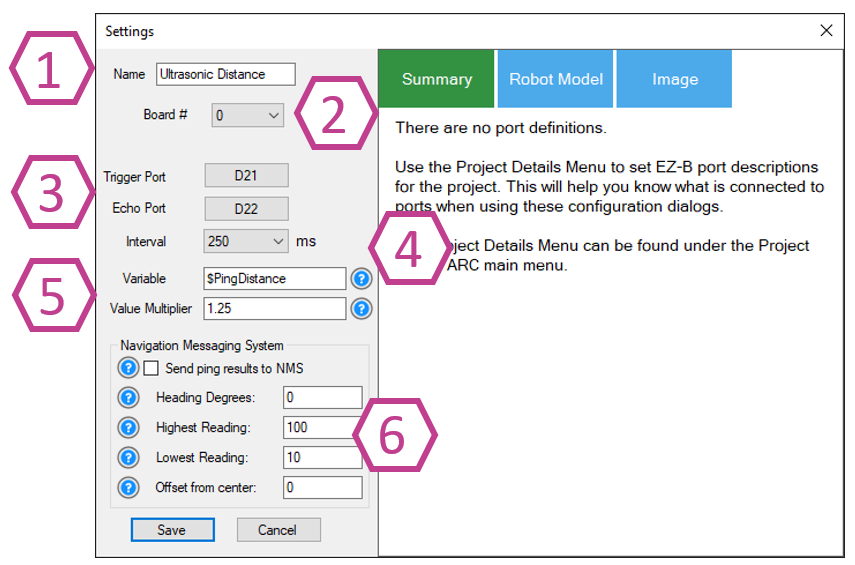
Sets the name shown on the skill’s window. You can rename it to match where it’s installed (example: “Front Ultrasonic”).
Note: Changing the title also changes the name used in the controlCommand() reference for this skill.
Choose which EZB you are using (example: EZB #0). If you only have one EZB connected, it is usually 0.
- Trigger port: the digital pin used to send the ultrasonic “ping”.
- Echo port: the digital pin used to listen for the returning echo.
- 3-wire sensors: some combine trigger/echo into one signal wire—when using that type, set Echo to the same port as Trigger (as required by the sensor design).
Controls how often the skill samples the sensor (in milliseconds). Range: 100–60000 ms. Default: 250 ms.
- Smaller number = faster updates (more frequent readings).
- Larger number = fewer updates (less traffic and CPU usage).
Variable
- Stores the most recent reading into a variable automatically.
- This can reduce the need to call
GetPing()repeatedly, which can add unnecessary communication overhead.
Multiplier
- Scales the raw value into a more useful unit.
- Example: the default multiplier of 1.25 is commonly used to convert the reading into centimeters (depending on the sensor and setup).
- For best accuracy, calibrate: measure a known distance with a tape measure, compare to the raw value, then adjust the multiplier until it matches.
Optionally pushes distance data into the NMS (Level #3, Group #1) so other navigation skills (such as The Navigator) can use it. If you are new, you can leave this disabled until you start working with navigation behaviors. Use the ? help icons in ARC and the NMS manual for details on each option.
Wiring Diagram
Ultrasonic distance sensors commonly come in two styles: 3-wire (trigger+echo combined) and 4-wire (separate trigger and echo). Some versions include a voltage regulator (inline or built-in).
If your ultrasonic sensor has a regulator, it typically needs +6V or higher (often connected to Vin).
If it does not have a regulator, it typically needs +5V.
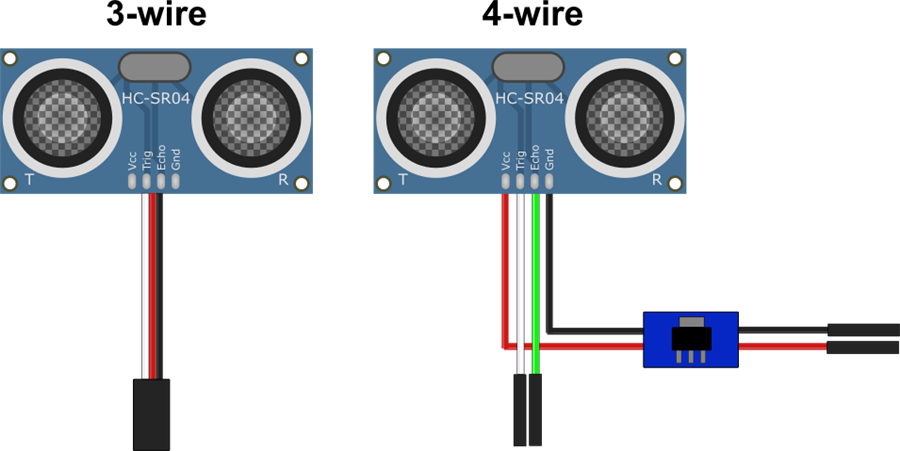
3-wire Wiring (with built-in regulator)
- Ground: Black wire to GND
- Power: Red wire to Vin
- Trigger/Echo: White wire to a Digital pin
4-wire Wiring (with regulator)
- Ground: Black wire from regulator to GND
- Power: Red wire from regulator to Vin
- Trigger: White wire to a Digital pin
- Echo: Green wire to a second Digital pin
Beginner Troubleshooting Checklist
- No reading / stuck value: confirm GND and power wiring, then confirm the configured digital ports match where you plugged in trigger/echo.
- Reading seems random: try changing the Interval to a slower value (e.g., 500–1000 ms), and test with a flat wall 30–100 cm away.
- Always detects “something”: check for nearby surfaces that could reflect sound (robot body panels, brackets), and see the “Fix Resolution” section below.
- Inconsistent on fabric: test with a hard surface; fabric often absorbs sonar.
Fix Resolution (False Positives on Some Housings)
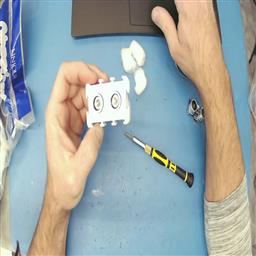
If you use an EZ-Robot ultrasonic distance sensor, you may occasionally see false positives caused by the ping echoing inside the sensor casing. A common fix is placing a few small cotton balls inside the case around the sensors to dampen internal reflections.
Tech Details (Video)
Resources
Synthiam’s ultrasonic hardware reference design is available here.


Related Tutorials
Related Robots
Related Questions
Wire Length For The EZB Ultrasonic Sensor
How Do I... Not Be Hopelessly Lost?

Upgrade to ARC Pro
Unlock the true power of automation and robotics by becoming a proud subscriber of Synthiam ARC Pro.
DJ,
I got it. I guess I'll stick with my first solution of using the Arduino with Arduino code to monitor the sensors and then feed that to the EZ-B. I want to keep the EZ-B with my current project so that I can plug in a camera, output sound, and have all of those 24 digital I/O ports. Yes, I know I could use an Arduino Mega or some larger version of Arduino with a wireless camera and Bluetooth speakers.
Jeremie, I suppose altering the EZ-B to allow the cheaper ping sensors would be a large & costly upgrade for EZ-Robot and probably out of the question. Yes?
Thomas
I don't know of a larger Arduino with wireless, but an ESP32 would work. The ESP32 firmware doesn't currently support HC-SR04, but I have added it to be added in a future release. All ESP32 Arduino's are wifi enabled and come in various form factors. There are an unfathomably high number of ESP32 form factors, so you'll have to decide what has the appropriate I/O for your needs.
While I would first and foremost recommend the EZ-Robot Ultrasonic, thank you @DJ and @Nomad, as it is tested to work 100% with the EZ-B. I can see it being quite expensive if you are trying to use an array of these sensors on a DIY robot.
Here's what you need to know when purchasing HC-SR04 ultrasonics. All of the new style sensors are removing components to make more profit. It looks like the removal of these components causes these sensors to be slower (>2mS wait times per pulse). The older version sensors you want still have the load caps by the crystal and still have transistors on board.
If these components are missing you have a new and NOT-improved sensor.
It's not in my best interest to send you back to amazon, as we would love everyone to continue to support EZ-Robot with your hardware purchases, but I also don't like to be a gatekeeper so I'll say this: These sensors are still available online, I found some myself a few minutes ago that are $4CAD each, you have to wait a week to get them though.
Sorry Thomas, changing the EZ-Bv4 to support a sensor that we don't sell isn't in the cards.
@Dj and @Jeremie, I for one appreacheat all the time and effort you two put into this issue. It shows that you want to keep your product's quality high and you really care about us as users. I've never been disappointed in the support you all have offered. In fact you're commitment to keeping your products the best in the business and your customers on all levels up and running has alway been and continues to amaze me. I've never seen anything like this in any other company out there. Thank you!
@TMesserschmidt, I hope you write about that in one of the articles you author.
hi dave
i agree with you . use parts that belong to a brand . dj&jeremie well done masters .
If I were to use EZ-Robot's sensors, it would be an expensive project because I need 10 ping sensors. I'll take a look for the ping sensors that Jeremie is suggesting.
Thanks to everyone who assisted with this issue.
Thomas
TMesserschmidt
maybe you get a discount if you by 10 sensors from ez robot .:) if you would by 10 random sensors , howmany arduino would you need to , get them all to work ?
Nomad,
thanks for the suggestion.
Thomas