
Play and manage MP3/WAV sound effects from a PC soundboard, load tracks, trigger or script playback (one file at a time), export and automate.
 Windows
How to add the Soundboard (PC) robot skill
- Load the most recent release of ARC (Get ARC).
- Press the Project tab from the top menu bar in ARC.
- Press Add Robot Skill from the button ribbon bar in ARC.
- Choose the Audio category tab.
- Press the Soundboard (PC) icon to add the robot skill to your project.
Don't have a robot yet?
Follow the Getting Started Guide to build a robot and use the Soundboard (PC) robot skill.
How to use the Soundboard (PC) robot skill
You add audio files to the Soundboard’s tracklist, then press Play to trigger them. The Soundboard is a simple “digital sound effect player” for your project.
- Add multiple Soundboard skills (one skill per audio stream you want playing at once).
- Or use the scripting command
Audio.playAudioFile()as an alternative method.
Main Window
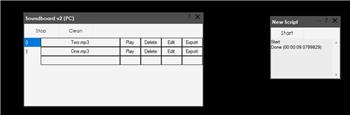
The Main Window is where you load your audio files and play them.
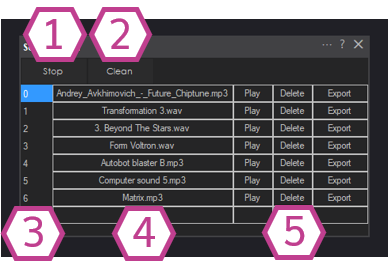
- 1. Stop Button
-
Stops the currently playing track from this Soundboard immediately.
Tip: If you trigger a track from a script and need to cancel it early, this is the button you’d use (or the
Stopcontrol command). - 2. Clean Button
-
Removes blank rows from the tracklist. Blank rows can appear after you delete tracks.
Tip: Use Clean after reorganizing or deleting tracks so your list stays neat and the numbering is easier to follow.
- 3. Track Number Column
-
Shows the track number for each row (for example:
0,1,2, etc.). - 4. Tracklist Column
-
Displays the track name and file type (example:
door_open.wav).To add/assign an audio file to a specific row: left-click the track name area on that row and select a.mp3or.wavfile. - 5. Track Management Buttons
-
Buttons for managing each row’s audio track:
- Play: plays the selected row’s track.
- Delete: removes the track from that row (may leave a blank row until you press Clean).
- Export: saves/copies the track from the Soundboard list back to your computer.
Settings
Settings control how the skill is identified in ARC and what happens when a sound finishes.
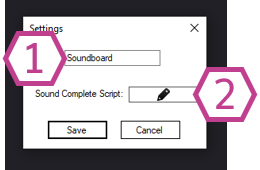
- 1. Title Field
-
This is the name of the Soundboard skill as it appears in your ARC project.
Note: If you rename the skill, you must also use the new name in any
controlCommand()scripts that refer to it.Example: If you rename it fromSoundboardtoRobotSFX, your scripts must usecontrolCommand("RobotSFX", ...). - 2. Sound Complete Script
-
A script that runs automatically when a track finishes playing.
Common uses: trigger an animation, start another track, change an LED color, resume speech recognition, or move to the next step in a routine.
Requirements
- A computer running ARC with a working sound output device (internal sound card, USB sound card, HDMI audio, etc.).
- Speakers or headphones connected to your selected output device.
- Audio files saved as .WAV or .MP3.
Resources (Creating and Editing Sound Files)
To record or edit your sound clips, you can use free/open-source audio software such as Audacity. Make sure you export/save your clips as .wav or .mp3 so they will load into the Soundboard.
- Get Music: Download royalty free music
- Audacity tutorial for preparing clips: How to Edit Sounds Files for Use in Synthiam ARC
- General Soundboard skill tutorial: Soundboard (PC) tutorial
Control Commands for the Soundboard (PC) robot skill
There are Control Commands available for this robot skill which allows the skill to be controlled programmatically from scripts or other robot skills. These commands enable you to automate actions, respond to sensor inputs, and integrate the robot skill with other systems or custom interfaces. If you're new to the concept of Control Commands, we have a comprehensive manual available here that explains how to use them, provides examples to get you started and make the most of this powerful feature.
Control Command ManualStop
Stop the current soundboard audio from playing
- Returns: Boolean [true or false]
Example:
controlCommand("Soundboard", "Stop")
Track_Random
Play a random audio file within this soundboard.
- Returns: Boolean [true or false]
Example:
controlCommand("Soundboard", "Track_Random")
Play
Play an audio file by name.
- Parameter 3: Name of the audio file as String (required)
- Returns: Boolean [true or false]
Example:
controlCommand("Soundboard", "Play", "Name of the audio file as a string")
Play
Play an audio file by index.
- Parameter 3: Index number of the audio file in the list as Number (required)
- Returns: Boolean [true or false]
Example:
controlCommand("Soundboard", "Play", Index number of the audio file in the list as a number)
Count
Returns the number of sounds in this soundboard.
- Returns: Integer [-2,147,483,648 to 2,147,483,647]
Example:
controlCommand("Soundboard", "Count")


Related Tutorials
Soundboard PC & Soundbard EZ-B Tutorial.
The Robot Program Episode 009: Getting Six To Move
The Robot Program Episode 006: Introducing ARC
The Robot Program Episode 003: Getting JD To Move
Related Robots
Related Questions
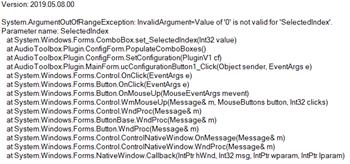
Waiting For Audio From Soundboard (PC) To Finish
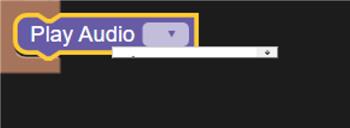
How Do I Play Audio File In Blocky?
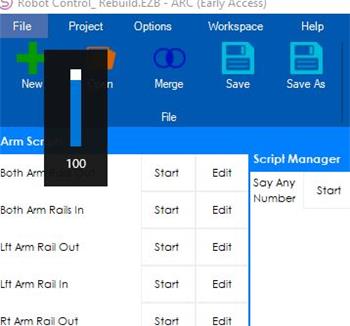
Why Does A Windows Volume Slider Pop Up On ARC?
Start Frames (Actions) Synchronously To Mp3

Upgrade to ARC Pro
Stay on the cutting edge of robotics with ARC Pro, guaranteeing that your robot is always ahead of the game.