
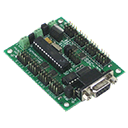
ARC integration for SSC-32 servo controllers via PC COM or EZ-B/Arduino UART; maps V0-V31, configurable baud, enables servos in ARC skills.
 Windows
How to add the SSC-32 Servo Controller robot skill
- Load the most recent release of ARC (Get ARC).
- Press the Project tab from the top menu bar in ARC.
- Press Add Robot Skill from the button ribbon bar in ARC.
- Choose the Servo category tab.
- Press the SSC-32 Servo Controller icon to add the robot skill to your project.
Don't have a robot yet?
Follow the Getting Started Guide to build a robot and use the SSC-32 Servo Controller robot skill.
How to use the SSC-32 Servo Controller robot skill
Adding the Synthiam ARC SSC-32 Servo Controller robot skill to your ARC project lets ARC communicate with a Lynxmotion SSC-32 servo controller. The SSC-32 is the hardware that actually generates the servo signal for each channel, and ARC is the software that tells it what to do.
Before you start (beginner checklist)
- Servo power: Servos connected to an SSC-32 need an appropriate external power supply. USB alone will not power typical servos.
- Common ground: When using separate power supplies/controllers, make sure grounds are shared where required (follow SSC-32 wiring guidance).
- Know your channel: SSC-32 channels are numbered (commonly
0–31). Each servo must be plugged into the channel you intend to control. - Know your connection method: You will connect either directly to your PC (COM port) or through a UART device (EZB/Arduino).
What this skill does
- Creates a communication “bridge” between ARC and the SSC-32.
- Adds Virtual Servo Ports in ARC named
V0,V1,V2…V31. - Maps those ARC virtual ports to the SSC-32 hardware channels so other ARC controls can move SSC-32 servos easily.
Vx. Behind the scenes this skill sends the matching command to the SSC-32 channel.
Connection options (how ARC talks to the SSC-32)
You can connect to the SSC-32 in two common ways. Choose the one that matches your hardware setup.
Option 1: Direct connection to the PC (COM port)
Connect the SSC-32 to your computer using a serial connection (or a USB-to-serial adapter, depending on your SSC-32 setup).
Windows will assign a COM port (example: COM3).
- In the skill configuration, select the correct COM port.
- Select the correct baud rate (this must match the SSC-32’s serial settings).
- If you are unsure which COM port it is, check Windows Device Manager under “Ports (COM & LPT)”.
Option 2: Connection through a UART device (EZB / Arduino Mega)
Instead of connecting the SSC-32 directly to the PC, ARC can talk to another controller and that controller can relay serial (UART) data to the SSC-32. This is common when the SSC-32 is mounted on the robot and you want ARC to control it wirelessly.
- EZ-Robot EZ-B v4/2 (Hardware UART or Software UART)
- Arduino Mega (multiple hardware serial ports)
In this setup: ARC → (EZB/Arduino) → SSC-32. The UART device acts like a “serial cable replacement.”
Virtual Servo Ports (V0–V31) explained
After the skill is added and configured, ARC shows servo ports labeled V0 through V31.
These are Virtual Servo Ports created by this skill.
- When an ARC control moves
V0, this skill sends the appropriate command to the SSC-32 channel assigned toV0. - This lets you use SSC-32 servos in ARC the same way you would use servos on other supported controllers.
- Anywhere ARC asks for a “servo port,” you can choose
V0–V31for servos connected to the SSC-32.
V0 in ARC.
If it is plugged into channel 1, you will typically select V1, and so on (depending on your mapping/settings).
Configuration (what to set in the skill menu)
Open the skill’s Configuration menu and set the connection information so ARC can reach the SSC-32. Exact options may vary slightly by ARC version, but you will typically set:
- Connection type
- Direct COM Port (SSC-32 connected to your PC)
- UART (SSC-32 connected through EZB/Arduino)
- COM Port (only for direct PC connection)
- Baud Rate (must match the SSC-32’s serial configuration)
Using SSC-32 servos in other ARC controls
After the connection is working, most ARC robot skills/controls that can move servos can use the SSC-32 by selecting the virtual ports:
- Auto Position
- Camera Tracking
- WiiMote
- Myo
- And many other controls that request a servo port
V0–V31 for SSC-32 servos (not D0, D1, etc.).
Basic troubleshooting (beginner-friendly)
-
No movement at all:
- Confirm the skill is configured for the correct COM port (direct) or correct UART (EZB/Arduino).
- Verify the baud rate matches the SSC-32.
- Make sure the SSC-32 has power and the servo power supply is connected (servos often need their own power source).
-
Servo moves the wrong one:
- Check which SSC-32 channel the servo is plugged into.
- Confirm you selected the correct virtual port (
Vx) in ARC.
-
Servo jitters or behaves strangely:
- Confirm your servo power supply can provide enough current.
- Check wiring and ensure a proper common ground where required.
- Confirm the servo horn/mechanics are not binding (mechanical load can look like a control problem).
-
SSC-32 not responding:
- Double-check baud rate first (most common issue).
- Ensure only one program is using the COM port at a time (close other serial terminal apps).



I would like to see more about this either more clarity (pics) in its connection and use or maybe a hack night?!
I'll add that to a hack night idea
Can you connect more than one SSC-32 to the pc using USB to ttl and address all the servos in ARC?
No - because the servos are mapped to the V0-v31 servos
Thanks for confirming that DJ.
DJ is there anyway you could change the skill to support at least two of these?
https://a.aliexpress.com/_mqTRPGuhttps://a.aliexpress.com/_mqTRPGu