

Real-time EZ-Script console for ARC: enter and execute single-line commands, view output, clear display, and recall history with UP/DOWN.
 Windows
How to add the EZ-Script Console robot skill
- Load the most recent release of ARC (Get ARC).
- Press the Project tab from the top menu bar in ARC.
- Press Add Robot Skill from the button ribbon bar in ARC.
- Choose the Scripting category tab.
- Press the EZ-Script Console icon to add the robot skill to your project.
Don't have a robot yet?
Follow the Getting Started Guide to build a robot and use the EZ-Script Console robot skill.
How to use the EZ-Script Console robot skill
The EZ-Script Console skill gives you a direct “command line” to the ARC EZ-Script engine. It lets you type a single EZ-Script command (or a short line of commands) and run it immediately—without creating a full script file.
This is especially useful for beginners because you can quickly test commands, verify hardware responses (like servos or speech), and learn EZ-Script one line at a time. The console also saves a history of what you typed, so you can bring previous commands back with your keyboard.
Main Window
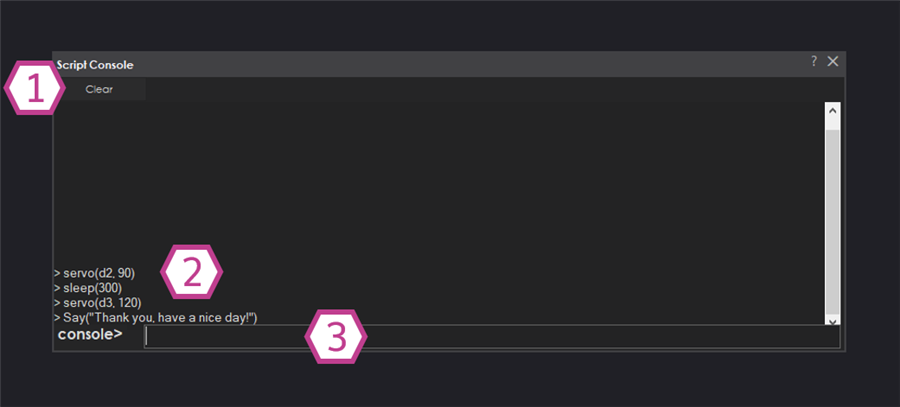
1. Clear Button
Clears the console display so you can start fresh. This does not change your ARC project or delete scripts—only the visible text in the console window.
2. Console Display
Shows what you have executed and any output/messages that appear. Think of this area as the “results” window for what you type. It is helpful for confirming that a command ran successfully.
3. Console Text Field
This is where you type EZ-Script commands one line at a time. Press Enter to execute the line immediately.
- Up Arrow / Down Arrow: scroll through your command history and re-load previous commands.
- Great for repeating tests without retyping.
How to Use the Script Console (Beginner Steps)
-
Add the skill to your ARC project
In ARC, go to: Project → Add Skill → Scripting → Script Console.
-
Type a command into the Console Text Field
Click inside the text field (area #3), type an EZ-Script command, then press Enter. The command will run immediately and you will see it (and any output) appear in the Console Display (area #2).
-
Reuse previous commands
Press the ↑ (Up) key to bring back the last command you ran. Keep pressing ↑ to go further back in history. Use ↓ (Down) to move forward again.
-
Clear the window when it gets cluttered
If you’ve run many commands and want a clean view, click Clear (area #1). This only clears what you see on-screen.



Related Questions
Scripts, Add Java Script
ARC Software Is Not Working - Happy Halloween
Adding Values To Variable

Upgrade to ARC Pro
Become a Synthiam ARC Pro subscriber to unleash the power of easy and powerful robot programming