
UART-based EZ-B/ESP32 skill to control WowWee MIP, enabling ESP32-Cam camera support and flexible battery-powered integration.
 Windows
How to add the Wowwee MIP Movement Panel robot skill
- Load the most recent release of ARC (Get ARC).
- Press the Project tab from the top menu bar in ARC.
- Press Add Robot Skill from the button ribbon bar in ARC.
- Choose the Movement Panels category tab.
- Press the Wowwee MIP Movement Panel icon to add the robot skill to your project.
Don't have a robot yet?
Follow the Getting Started Guide to build a robot and use the Wowwee MIP Movement Panel robot skill.
How to use the Wowwee MIP Movement Panel robot skill
The WowWee MIP robot can be controlled from Synthiam ARC by connecting to the MIP’s internal UART (serial) port. This Movement Panel robot skill sends serial commands to the MIP through an EZ-B (such as an EZ-B v4, ESP32, or ESP32-Cam) that supports a hardware UART.
What You Need
- WowWee MIP robot
- One EZ-B that has a hardware UART (supported examples: EZ-B v4, ESP32, ESP32-Cam)
- Hookup wire (3 wires minimum) and basic tools for accessing the MIP mainboard
- Optional: extra power source (for example, a 9V battery for an EZ-B v4 + camera, if needed)
Hardware Wiring (UART)
The MIP exposes a UART on the mainboard. UART uses three connections for basic communication: GND (ground reference), TX (transmit), and RX (receive).
Connect These Three Wires
- MIP GND → EZ-B GND
- MIP TX → EZ-B UART RX (cross connection)
- MIP RX → EZ-B UART TX (cross connection)
Power Options
In many setups, you can power the EZ-B from the MIP’s onboard batteries. This keeps wiring simple and ensures both devices share a common power system.
If your project requires more power (for example, an EZ-B v4 with a camera or additional accessories), you can power the EZ-B from a separate battery, such as an additional 9V source (as an example).
It does not matter where the grounds originate from (MIP battery ground or EZ-B battery ground) as long as they are connected together.
Using the Skill in ARC (Beginner Steps)
- Connect your EZ-B (EZ-B v4 / ESP32 / ESP32-Cam) to ARC as you normally would.
- Add the WowWee MIP Movement Panel skill to your ARC project.
- In the skill settings, select the hardware UART port you physically wired to the MIP. (Example: choose the UART that uses the EZ-B pins connected to MIP TX/RX.)
- Power on the MIP and the EZ-B.
- Use the Movement Panel controls to send movement commands to the MIP.
Reminder: This skill requires an EZ-B that supports a hardware UART. Software/bit-banged serial is not recommended for reliable control.
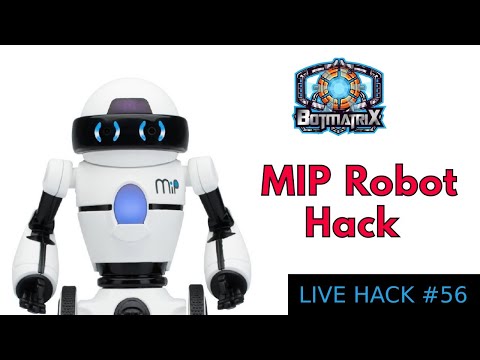

can u connect a MiP to ez-builder? if so, how? confused
Do you have an EZ-B v4?
yes
There is a control for it in ARC... Have you taken the time to play with it first? See how it works, etc? Remember each control has basic information on how to use. Also have you googled the mip on it's features and functions? This would give you a good idea of how it would interface with ez robot....
i watched a video of it on youtube so i know how it works. but i still have not figured out how to make him do all of the tricks,games,etc.
Forget a video... Google it's features/details or go to wow wee robotics website to see the details on it.... It must have a data sheet on it... Anyway, If I had the same question as you this is what I would do. Once you find a data sheet on it, it should be clear on how it would work with the ezb...
i found out that it can connect to a phone or tablet using wi-fi or bluetooth,so it can connect to your computer too,right? than i can hook it up to ARC.
So my guess ARC would connect over wifi....that's just my guess..... Looking at the control it looks like this is how it works.... Remember it's ez robot so I am sure DJ made it pretty simple....