

Notepad for ARC: store project notes and connection details in a themed window
 Windows
How to add the Notepad robot skill
- Load the most recent release of ARC (Get ARC).
- Press the Project tab from the top menu bar in ARC.
- Press Add Robot Skill from the button ribbon bar in ARC.
- Choose the General category tab.
- Press the Notepad icon to add the robot skill to your project.
Don't have a robot yet?
Follow the Getting Started Guide to build a robot and use the Notepad robot skill.
How to use the Notepad robot skill
The Notepad skill is a simple place to store text notes inside your Synthiam ARC project. It is useful for keeping track of things like wiring details, IP addresses, login information (if appropriate), servo port mappings, calibration notes, “to-do” lists, and reminders about how your robot is configured.
Notes are saved with your ARC project, so when you re-open the project later, your notes are still there.
Main Window
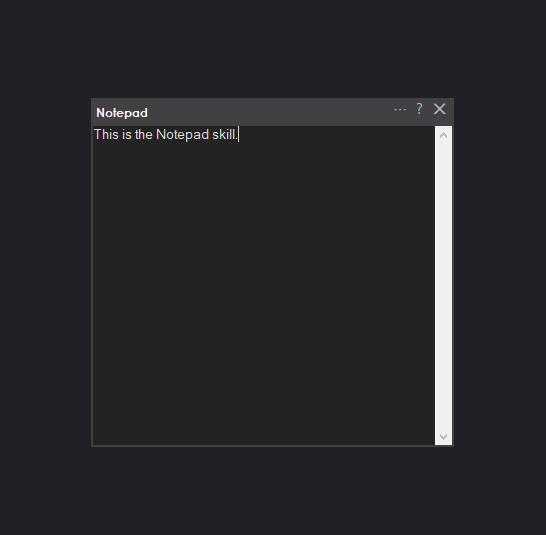
- Large text area: This is where you type your notes. Click inside the box and begin typing.
- Theme colors: The text and background colors follow your ARC window theme. You can change the theme from Options → Preferences → Window Theme.
How to Use Notepad (Step-by-Step)
1) Add the Notepad skill to your project
- In ARC, open the project you want to add notes to.
- From the top menu, click Project.
- Choose Add Skill.
- Open the General category.
- Select Notepad to add it to your project.
2) Type your notes
- Click inside the main text area of the Notepad window.
- Type anything you want to remember about your robot or project.
- Your notes are stored with the project—save your ARC project as you normally would.
Control Commands for the Notepad robot skill
There are Control Commands available for this robot skill which allows the skill to be controlled programmatically from scripts or other robot skills. These commands enable you to automate actions, respond to sensor inputs, and integrate the robot skill with other systems or custom interfaces. If you're new to the concept of Control Commands, we have a comprehensive manual available here that explains how to use them, provides examples to get you started and make the most of this powerful feature.
Control Command ManualClear text in the notepad. Returns: Boolean [true or false] Example: controlCommand("Notepad", "Clear")
Append text to the existing notepad content. Parameter 3: Text to append. as String (optional: False) Returns: Boolean [true or false] Example: controlCommand("Notepad", "AppendText", "Text to append. as a string")
Append text to the existing notepad content with a terminating new line. Parameter 3: Text to append. as String (optional: False) Returns: Boolean [true or false] Example: controlCommand("Notepad", "AppendTextNewLine", "Text to append. as a string")
Replace existing text with provided text. Parameter 3: Text to replace with. as String (optional: False) Returns: Boolean [true or false] Example: controlCommand("Notepad", "SetText", "Text to replace with. as a string")
Returns the text stored in the notepad. Returns: String Example: controlCommand("Notepad", "GetText")
Writes all the text to the specified file. Parameter 3: Filename to write text to. as String (optional: False) Returns: Boolean [true or false] Example: controlCommand("Notepad", "WriteTextToFile", "Filename to write text to. as a string")
Reads all the text from the specified file and populates the notepad. Parameter 3: Filename to read text from. as String (optional: False) Returns: Boolean [true or false] Example: controlCommand("Notepad", "ReadTextFromFile", "Filename to read text from. as a string")