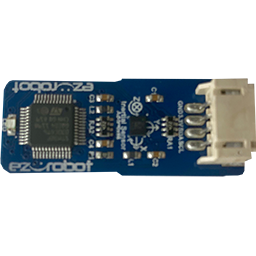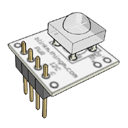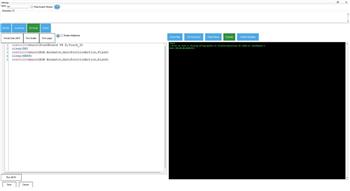
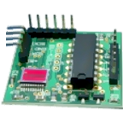
Adds IR sensor support and button mapping for USB joysticks in ARC, enabling remote control functions; third-party hardware supported.
Compatible with:
 Windows
Windows
How to add the BV4615 RC-5 IR Decoder robot skill
- Load the most recent release of ARC (Get ARC).
- Press the Project tab from the top menu bar in ARC.
- Press Add Robot Skill from the button ribbon bar in ARC.
- Choose the I2C category tab.
- Press the BV4615 RC-5 IR Decoder icon to add the robot skill to your project.
Don't have a robot yet?
Follow the Getting Started Guide to build a robot and use the BV4615 RC-5 IR Decoder robot skill.
How to use the BV4615 RC-5 IR Decoder robot skill
What this skill does: The BV4615 RC-5 IR Decoder skill lets your robot “listen” to an infrared (IR) remote control and then run actions in ARC when you press buttons.
ARC (Synthiam’s robot software) can already use USB joysticks/gamepads to control a robot. This skill adds another option: connect an IR receiver + BV4615 RC-5 decoder so you can trigger ARC actions using a common handheld IR remote.
Beginner overview
- IR remote: The handheld controller you point at the robot (like a TV remote).
- IR receiver: A small sensor that “sees” the remote’s infrared light.
- RC-5: A common IR protocol used by some remotes (often Philips-style).
- BV4615 decoder: A hardware board/chip that converts RC-5 IR signals into a form ARC can read.
- ARC skill: Software inside ARC that reads the decoder output and lets you map buttons to robot actions.
What you can use it for
- Drive your robot (forward/back/left/right) from an IR remote.
- Trigger animations or sound effects.
- Start/stop scripts.
- Turn lights/servos on and off using button presses.
Tip: IR is line-of-sight. The remote usually needs to be pointed toward the robot’s IR receiver.
Before you start
-
Confirm your remote uses RC-5.
Not all remotes are RC-5. If your remote uses a different protocol, this decoder/skill may not respond. -
Install and wire the hardware (IR receiver + BV4615 decoder) per the manufacturer’s documentation.
ARC can only read what the decoder outputs, so correct wiring and power are essential. - Connect your EZ-B to ARC as you normally would, and verify your project connects successfully before troubleshooting the IR setup.
Using the skill in ARC (basic workflow)
- Add the BV4615 RC-5 IR Decoder skill to your ARC project.
- Select the correct EZ-B connection/port in the skill (the one your decoder is connected to).
-
Press buttons on the remote and watch the skill for incoming codes/values.
If nothing changes, re-check power, wiring, and whether the remote is RC-5. - Assign actions to buttons: map each detected code to an ARC action (for example: run a script, move a servo, drive, speak, etc.).
- Test each mapping one button at a time so you know exactly what each button does.
Troubleshooting tips
- No response at all: Confirm the decoder is powered, grounds are shared, and the signal wire is connected to the correct pin.
- Works only sometimes: Make sure the receiver has a clear view; bright sunlight and some indoor lighting can interfere with IR.
- Wrong button actions: Re-learn/re-map the button codes in ARC and verify you’re using the intended remote.
- Short range: Try repositioning the IR receiver so it faces outward and is not blocked by the robot chassis.
Firmware note: In future firmware, this setup may allow your robot to respond to the remote without requiring the PC to be running ARC.
For now, ARC typically needs to be running to interpret the IR button presses and execute actions.
Note: Synthiam is not the manufacturer of this third-party hardware device, and EZ-Robot is not responsible for the operation of this third-party device.
For hardware operation questions (wiring, supported remotes, electrical specs, etc.), consult the BV4615/IR receiver manufacturer documentation.