

Adjust a numeric variable via slider (0-1000) with customizable min/max, center button and scripts triggered on value change or bonus button press.
 Windows
How to add the Slide Script robot skill
- Load the most recent release of ARC (Get ARC).
- Press the Project tab from the top menu bar in ARC.
- Press Add Robot Skill from the button ribbon bar in ARC.
- Choose the Scripting category tab.
- Press the Slide Script icon to add the robot skill to your project.
Don't have a robot yet?
Follow the Getting Started Guide to build a robot and use the Slide Script robot skill.
How to use the Slide Script robot skill
The Slide Script skill gives you a simple slider control that writes a number into a variable. You can also run a script when the value changes and/or when an optional Bonus Button is pressed.
Think of it like a “volume knob” for your robot logic: as you move the slider, the skill updates a variable that other scripts or skills can use (for example: speed, brightness, distance, position, etc.).
Main Window
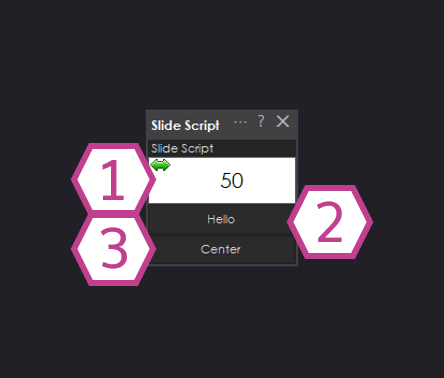
1. Slider
Click and hold the left mouse button on the slider area, then drag to change the value. The current value is shown on the control and will always stay between the Minimum and Maximum values you set in Settings.
Tip: Use this slider as a live “input” to your scripts—move it and watch your robot react.2. Bonus Button
This button only appears if you add a script in Button Pressed Script (in Settings). When you press the Bonus Button, ARC runs that script.
Example uses: start an action, confirm a setting, trigger a test routine, save a value, etc.3. Center Button
Sets the slider to the middle of your Min/Max range. This is helpful when you want a quick “neutral” value (for example: steering straight, speed at 50%, etc.).
Settings
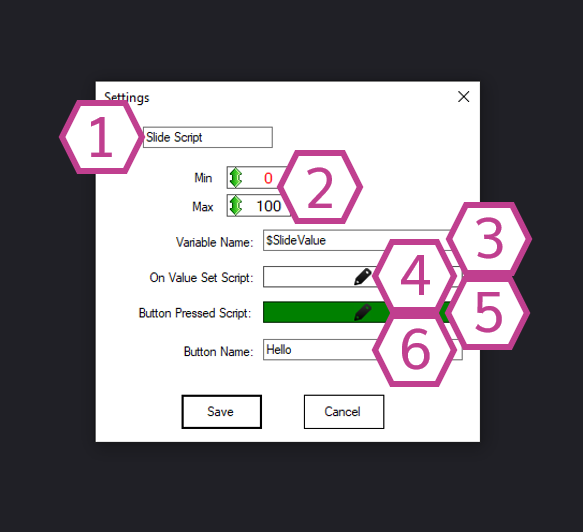
This is the name of the skill as it appears in your ARC project. You can rename it to match what it controls (for example: Speed Slider, Head Turn, LED Brightness).
controlCommand()
call that targets this skill.
These values define the slider range.
- Left-click and drag to adjust the numbers.
- Right-click a value to type it with the keyboard.
Range allowed: 0 to 1000. Defaults: Min = 0, Max = 100.
Tip: Match these numbers to what your script expects. For example, use 0–180 for degrees, or 0–255 for brightness.This is the variable name that will store the current slider value. Every time you move the slider, ARC updates this variable.
$speed, $turn, or $brightness
so your scripts are easy to read.
This script runs whenever the slider value changes. Use it to react immediately (for example: update a servo position, change a motor speed, set an LED level).
Note: Because it runs while you drag, keep this script efficient to avoid lag.This script runs when you click the Bonus Button in the Main Window. If this field is empty, the Bonus Button will not be shown.
Sets the text label shown on the Bonus Button (for example: Test, Apply, Go, Center Head).
How to Use Slide Script (Beginner Steps)
-
Add the skill to your project:
In ARC, go to Project → Add Skill → Scripting → Slide Script. -
Open the skill Settings and configure:
- Min/Max to the range you want (example: 0–100 for speed).
- Slider Variable to a meaningful variable name (example:
$speed). - On Value Set Script if you want something to happen as you drag the slider.
- Button Pressed Script (optional) if you want a separate button-triggered action.
-
Use the slider in the Main Window:
Click and hold the left mouse button on the slider area and drag to change the value. -
Use the value in your project:
Anywhere in ARC scripting, you can read the variable you selected (for example, use$speedinside scripts).



Related Questions

UART_V6 Subject Line Options:- UART_V6 Waypoint Be…
Smoothing Micro:Bit PWM From Slide Script

Upgrade to ARC Pro
ARC Pro will give you immediate updates and new features needed to unleash your robot's potential!