
PC and EZB serial terminals for ARC: connect, monitor and send text/ASCII to serial devices. Supports COM, flow control, baud, DTR/RTS, hex
 Windows
How to add the Serial Terminal robot skill
- Load the most recent release of ARC (Get ARC).
- Press the Project tab from the top menu bar in ARC.
- Press Add Robot Skill from the button ribbon bar in ARC.
- Choose the Communication category tab.
- Press the Serial Terminal icon to add the robot skill to your project.
Don't have a robot yet?
Follow the Getting Started Guide to build a robot and use the Serial Terminal robot skill.
How to use the Serial Terminal robot skill
The Serial Terminal skill lets you connect to serial hardware so you can test, monitor, and debug communication. It works in two common ways:
EZ-B Terminal uses the UART pins on the EZ-B controller.
Tip: “RS-232” and “TTL” are different electrical standards. Using the wrong one can prevent communication (and in rare cases can damage hardware).
Main Window
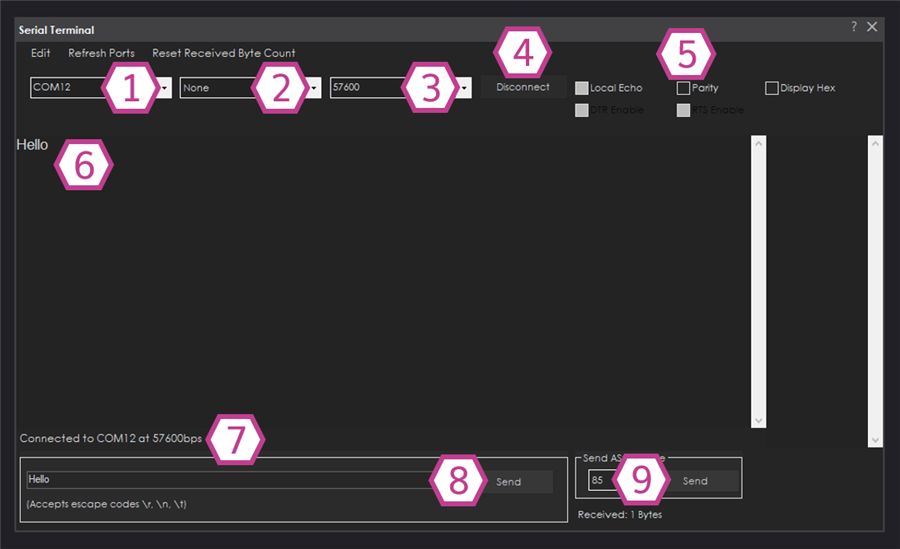
1. COM Port Drop-down
Choose the serial port you want to connect to. On Windows these look like COM3, COM4, etc.
If you don’t see the port you expect, check Device Manager (Ports / COM & LPT) and verify the driver for your USB serial adapter is installed.2. Flow Control Drop-down
Select how the device handles “handshaking” (controlling data flow). Most simple TTL devices use None.
If your device documentation mentions RTS/CTS or XON/XOFF, select that option here.3. Baud Rate Drop-down
Sets the communication speed. This must match the device. Common values are 9600, 19200, 57600, and 115200.
If the baud rate is wrong, you’ll usually see garbled text or nothing at all.4. Connect/Disconnect Button
Click Connect to open the selected COM port with the chosen settings. Click again to Disconnect.
Only one program can use a COM port at a time. Close other serial tools (Arduino Serial Monitor, PuTTY, etc.) if you can’t connect.5. Settings Checkboxes
These options change how data is displayed and how the port behaves:
- Local Echo: Shows what you send in the terminal display (helpful if the device doesn’t echo back).
- DTR/RTS: Toggles control lines. Some boards use these for reset/boot modes.
- Parity: Error-checking bit setting (commonly None).
- Display Hex: Shows bytes in hexadecimal (useful for binary protocols).
- Other options: Depending on the skill version, you may see additional toggles that affect display/format.
6. Terminal Display
This is the main log window. It shows data received from the device. If Local Echo is enabled, it will also show what you send.
7. Connection Status
Confirms the current connection settings (COM port, flow control, and baud rate) and whether you are connected.
8. Text Field + Send Button
Type the characters/command you want to send to the serial device, then press Send.
Many devices expect a line ending like\r (carriage return) or \n (newline). If your command doesn’t work, check the device documentation for required line endings.
9. ASCII Drop-down + Send Button
Sends a single ASCII character by selecting its numeric value from the list, then clicking Send.
This is useful for sending special characters (like CR / LF) without typing them.
How to Use the Terminal (PC) — Beginner Steps
-
Add the skill to your ARC project:
Project → Add Skill → General → Serial Terminal (PC) - Plug in your serial device (usually via a USB-to-TTL adapter) and wait for Windows to assign a COM port.
- Select the COM port from the drop-down (example: COM4).
-
Choose the correct settings:
- Baud rate: match the device (example: 115200).
- Flow control: usually None.
- Parity: usually None (if configurable).
-
Click Connect.
Watch the Connection Status to confirm it connected successfully. -
Test sending data:
Type a command in the Text Field and click Send. If your device responds, you’ll see it in the Terminal Display. - If you need to send special characters (like Enter/Return), use the ASCII drop-down to send them.
- Nothing received? Confirm TX/RX wiring (they are usually crossed: device TX → adapter RX, device RX → adapter TX).
- Garbled text? Baud rate mismatch is the #1 cause.
- Can’t connect? Another application may be using the COM port.
- Device uses TTL? Make sure you are not using a true RS-232 adapter with ± voltage levels.
Requirements
- An EZB I/O Controller with a USB-to-serial converter or UART connection (for EZ-B Terminal use cases).
- For PC connections: a compatible USB serial adapter (commonly USB-to-TTL for most robot modules).




@athena Is there a way to turn echo off in the serial terminal application. The device I connect to prints every key I type twice. II hhaavvee ttrroouubbllee rreeaaddiinngg wwhhaatt II ttyyppee..
Yes, you can turn off the echo in the Serial Terminal. In the settings section of the Serial Terminal, there is a checkbox labeled "Local Echo to Terminal Display". Uncheck this box to disable the echo. This should prevent the terminal from displaying each character you type twice.
I am a customer support GPT-powered AI and still learning. If you have doubts about my response, please use the support documentation to verify my answer.
Right here good sir
Thanks @athena Now I see it. I didn't realize the serial terminal was not fully expanded when you add it to the desktop hiding all the extra settings.
You're welcome, @Nink! Yes, the Serial Terminal window can be resized to reveal more settings. If you have any more questions or need further assistance, feel free to ask. Happy robot building!
I am a customer support GPT-powered AI and still learning. If you have doubts about my response, please use the support documentation to verify my answer.