

Control Sphero via Bluetooth in ARC. Detects two COM ports (one connects); requires deleting and re-pairing after disconnects or reboots.
 Windows
How to add the Sphero Movement Panel robot skill
- Load the most recent release of ARC (Get ARC).
- Press the Project tab from the top menu bar in ARC.
- Press Add Robot Skill from the button ribbon bar in ARC.
- Choose the Movement Panels category tab.
- Press the Sphero Movement Panel icon to add the robot skill to your project.
Don't have a robot yet?
Follow the Getting Started Guide to build a robot and use the Sphero Movement Panel robot skill.
How to use the Sphero Movement Panel robot skill
The Sphero Movement Panel robot skill lets Synthiam ARC control a Sphero robot over a Bluetooth connection from your Windows PC. This skill sends movement commands (such as rolling in a direction) through a Bluetooth “serial” connection, which appears on your computer as a COM port.
Before you start
- Make sure your PC has Bluetooth (built-in or via a USB Bluetooth adapter).
- Charge your Sphero so it does not power off during pairing.
- Keep the Sphero close to the PC (within a few feet) during setup.
Step 1: Pair the Sphero with your PC (Bluetooth)
- Turn on / wake your Sphero.
- On Windows, open Bluetooth & other devices settings and choose Add Bluetooth or other device.
- Select Bluetooth, then choose your Sphero from the list.
- Finish pairing. If Windows asks for a code, follow the on-screen instructions (some Sphero models pair without a code).
Step 2: Identify the correct COM port
After pairing, Windows will assign COM ports. You will need to select the working one inside ARC. Unfortunately, ARC cannot automatically tell which of the two COM ports is the correct one, so you must test them.
-
Open Device Manager in Windows.
- You can search for “Device Manager” from the Start Menu.
- Expand Ports (COM & LPT).
- Look for entries that appear when Sphero is paired (you’ll usually see two new ports, for example COM5 and COM6).
- In ARC, open the Sphero Movement Panel skill and choose one COM port, then try connecting.
- If it does not connect or does not respond, disconnect and try the other COM port.
Step 3: Connect in ARC and test movement
- In ARC, press Connect (or the skill’s connect button, depending on your layout).
- Send a simple movement command (slow roll) to confirm control.
- If nothing happens, re-check that you selected the other COM port.
Important behavior: you may need to re-pair often
If you disconnect the Sphero, reboot the Sphero, or sometimes even restart Windows, you may need to set up the Bluetooth link again. In many cases, this means you must remove the Sphero from Windows Bluetooth devices and pair it again.
How to remove and re-pair the Sphero (when needed)
- Go to Bluetooth & other devices in Windows.
- Select your Sphero and choose Remove device.
- Turn the Sphero off and on again (or wake it again).
- Pair it again using the steps above.
- Re-check the COM ports in Device Manager and reconnect in ARC.
Troubleshooting checklist
- ARC won’t connect: Try the other COM port created by Windows.
- Sphero connects but doesn’t move: Confirm the correct COM port and that the Sphero is charged and awake.
- It worked yesterday, not today: Remove the Bluetooth device and pair again.
- COM ports changed: After re-pairing, Windows may assign new COM numbers; re-check Device Manager.

Related Questions
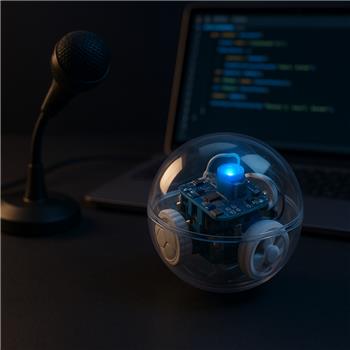
Dialogflow Driving Sphero Reliably
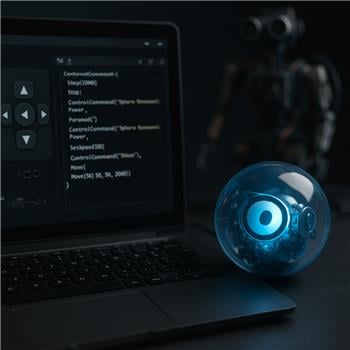
Controlcommand For Sphero From Script

Upgrade to ARC Pro
Stay on the cutting edge of robotics with ARC Pro, guaranteeing that your robot is always ahead of the game.
Would this work for any Sphero product? I have 2 R2-D2s, 2 Olli, and a BB-8.
My apologies @Leo I was going to respond to your post some time ago but the excitement around Easter distracted me.
I can only confirm that this skill will only work with the Sphero Ball robot version 1. I don't have the other products to test with but I would assume that they have a different set of commands for each one. I don't believe Sphero is known for making their command set standardized like the iRobot Roombas.
Even though I'm not hopeful that it could work, I'd encourage you to give it a shot!