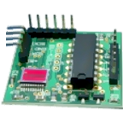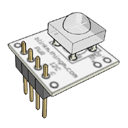
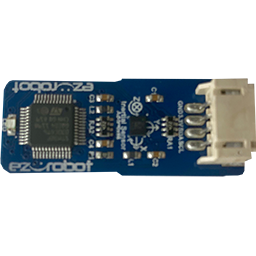
EZ-Robot 3-in-1 IMU driver: accelerometer, gyroscope and compass support for motion sensing, orientation tracking and heading/navigation.
 Windows
How to add the 3-In-1 IMU robot skill
- Load the most recent release of ARC (Get ARC).
- Press the Project tab from the top menu bar in ARC.
- Press Add Robot Skill from the button ribbon bar in ARC.
- Choose the I2C category tab.
- Press the 3-In-1 IMU icon to add the robot skill to your project.
Don't have a robot yet?
Follow the Getting Started Guide to build a robot and use the 3-In-1 IMU robot skill.
How to use the 3-In-1 IMU robot skill
The Synthiam ARC 3-in-1 IMU robot skill is a driver for the EZ-Robot 3-in-1 IMU sensor. An IMU (Inertial Measurement Unit) combines three types of sensors into one board:
- Accelerometer – detects movement and tilt (acceleration and gravity)
- Gyroscope – detects how fast the sensor is rotating
- Compass (Magnetometer) – detects magnetic north (heading)
What You Can Do With a 3-in-1 IMU
Here are common beginner-friendly uses:
- Tilt detection: know if the robot is leaning forward/back/left/right
- Shake/movement detection: detect bumps, taps, or sudden movement
- Turn/rotation detection: know when the robot is rotating and how quickly
- Compass heading: approximate direction (N/E/S/W) for navigation projects
What You Need Before You Start
- ARC installed and running (Synthiam ARC)
- An EZ-Robot controller connected to ARC (for example EZ-B)
- The EZ-Robot 3-in-1 IMU sensor wired/connected to the controller correctly
- A basic understanding that ports matter (you must select the same port in ARC that the sensor is plugged into)
Adding the Skill in ARC (Step-by-Step)
- Open your ARC project.
- Click Add Skill.
- Find and select 3-in-1 IMU (EZ-Robot) from the skill list.
- Add it to your project.
- Open the skill’s configuration (gear/settings) and choose the correct port that the IMU sensor is connected to.
- Press Connect (or start your ARC connection) so the skill can begin reading data.
Understanding the Sensor Readings (Beginner Friendly)
Accelerometer
Measures acceleration on axes (usually X, Y, Z). At rest, it still “feels” gravity, which is why it can detect tilt.
Gyroscope
Measures how quickly the sensor is rotating (turning). Useful for detecting spins and turns.
Compass
Measures magnetic heading. Works best when calibrated and kept away from magnetic interference.
Calibration & Placement Tips
- Mount the sensor firmly: If the IMU is loose, vibration can cause noisy readings.
- Keep away from interference: Place it as far as possible from drive motors, high-current wires, speakers, and magnets.
- Compass accuracy: If your project relies on compass heading, you may need to calibrate and test in the environment where the robot will operate.
Using IMU Data in Your Project
After the skill is running, you can use its values in ARC scripts or other skills to make decisions. For example, you might:
- Stop driving if the robot tilts past a safe angle
- Trigger an alarm or sound if the robot is bumped
- Correct steering if the robot is rotating unexpectedly
- Navigate using compass heading (basic direction awareness)
Troubleshooting
- Confirm ARC is connected to your EZ-Robot controller.
- Confirm the skill is set to the correct port.
- Check the sensor cable/connection and ensure the sensor is powered.
- Move the sensor away from motors, metal brackets, batteries, and high-current wiring.
- Try testing in a different area (magnetic interference varies by location).
- If available in your workflow, calibrate the compass and retest.
- Mount the sensor more securely to reduce vibration.
- Keep it away from moving parts and motor wiring.
- Test with the robot stationary to establish a baseline.
Summary
This skill enables ARC to read accelerometer, gyroscope, and compass data from the EZ-Robot 3-in-1 IMU sensor. Use it when you want your robot to understand its movement, orientation, and direction so your scripts and behaviors can respond intelligently.