
Monitor and diagnose running ARC scripts: view active script labels, statuses, and stop long-running or background scripts easily.
 Windows
How to add the Script Monitor robot skill
- Load the most recent release of ARC (Get ARC).
- Press the Project tab from the top menu bar in ARC.
- Press Add Robot Skill from the button ribbon bar in ARC.
- Choose the Scripting category tab.
- Press the Script Monitor icon to add the robot skill to your project.
Don't have a robot yet?
Follow the Getting Started Guide to build a robot and use the Script Monitor robot skill.
How to use the Script Monitor robot skill
The Script Monitor skill is a troubleshooting (diagnostic) tool in Synthiam ARC that helps you see which scripts are currently running in your project.
Many ARC skills can automatically run scripts when something happens. These are often called script events (for example: “When a Wii button is pressed, run this script”). Because those scripts start in the background, it’s not always obvious which one is running—or if it ever stopped. Script Monitor makes that activity visible.
:loop label with a Goto, or a
“repeat forever” style pattern), it can run much longer than you expect. Script Monitor helps you quickly find
scripts that are still running and stop them.
Main Window
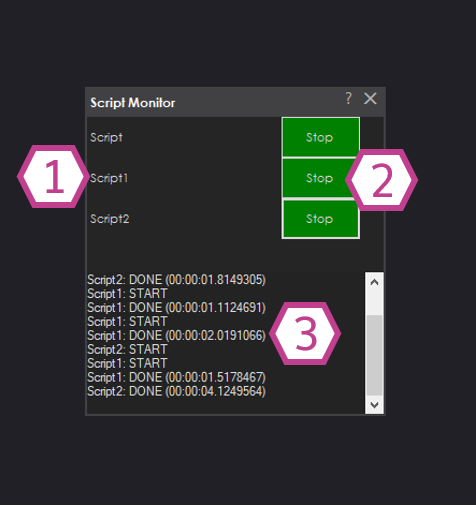
1. Script Labels
These are the names of your Script skills in the project. Each Script skill you add to ARC appears here so you can identify it quickly. If you have multiple scripts (for different behaviors), you’ll see multiple labels.
2. Stop Buttons
Each Stop button lets you stop the script on that row. This is useful when a script gets stuck, runs too long, or you started a script by accident. Stopping a script here is often faster than hunting for the script and pressing Stop inside the Script skill window.
3. Status Display
This area shows whether a script is currently running or has stopped. Use it to confirm a script started when you expected (for example, after pressing a controller button) and to verify that it actually stopped when you pressed Stop.
How to Use Script Monitor
-
Add Script Monitor to your project:
In ARC, go to Project → Add Skill → Scripting → Script Monitor. -
Add at least one Script skill:
Go to Project → Add Skill → Scripting → Script.
(Script Monitor only has something to display if your project contains Script skills.) -
Run your script:
Open your Script skill, create or edit your script, and click Run (or trigger it using a skill event, such as a button press or sensor event). -
Watch and control scripts in Script Monitor:
Switch to the Script Monitor window to see which scripts are active. If a script keeps running (especially if it has a loop), click its Stop button to stop it immediately.
- A script started automatically and you’re not sure which one it was.
- Your robot is still moving/speaking and you suspect a background script is continuing to run.
- A loop is running indefinitely and you need to stop it quickly.
- You want to confirm that an event-triggered script actually fired.