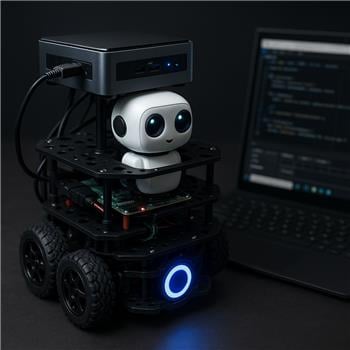

Background randomizer that executes timed scripts to add lifelike actions (movement, servos, camera/control) and unique personality to your robot
 Windows
How to add the Personality Generator robot skill
- Load the most recent release of ARC (Get ARC).
- Press the Project tab from the top menu bar in ARC.
- Press Add Robot Skill from the button ribbon bar in ARC.
- Choose the Scripting category tab.
- Press the Personality Generator icon to add the robot skill to your project.
Don't have a robot yet?
Follow the Getting Started Guide to build a robot and use the Personality Generator robot skill.
How to use the Personality Generator robot skill
The Personality Generator skill gives your robot a more lifelike presence by periodically executing user-defined script commands at semi-random intervals. Instead of behaving strictly on direct user input, your robot will perform spontaneous actions—creating the impression that it has its own awareness, curiosity, or “personality.”
This skill runs quietly in the background while your robot is operating and can trigger any ARC-compatible script or control command you choose.
How It Works
The Personality Generator uses a randomized time interval system to determine when actions should occur:
- You define a minimum (Low) and maximum (High) interval in seconds
- ARC randomly selects a value between those two limits
- When the timer expires, the configured script commands are executed
- A new random interval is calculated and the process repeats
This avoids predictable timing and results in more natural, organic robot behavior.
Script Execution Behavior
The Personality Generator enforces a single-script execution model to prevent overlapping or conflicting behavior. If a personality script is already running when the next randomized interval occurs, the following will happen:
- The currently running personality script is stopped and cancelled
- The newly selected personality script is started immediately
- The previous script does not resume after cancellation
This is especially important when using long-running or looping scripts. The Personality Generator always prioritizes the most recent execution trigger, ensuring the robot remains responsive and avoids stacking multiple background behaviors.
Tip: For best results, design personality scripts to be short, non-blocking, and self-contained.
Main Features
🧠 Autonomous Behavior
Your robot performs actions without direct user input, creating the illusion of independent thought.
⏱ Randomized Timing
Actions occur at unpredictable intervals within your configured range.
🔁 Background Operation
Runs continuously while other skills, scripts, and controls are active.
🚫 Disable While Moving
Automatically pauses personality actions while the robot is actively moving.
🧩 Fully Scriptable
Trigger any ARC script, camera action, or control command.
🔧 Highly Customizable
Behavior is entirely defined by your own script ideas.
Configuration Options
Interval Settings
The minimum amount of time before a personality action can occur.
The maximum amount of time before a personality action can occur.
ARC will randomly choose a value between these two numbers for each execution cycle.
Disable When Moving
When enabled, the Personality Generator will not execute any scripts while the robot is moving via a Movement Panel.
This prevents conflicts between autonomous personality actions and intentional navigation commands, ensuring smooth and predictable robot movement.
Note: This applies only to movement initiated through ARC movement panels. Other non-movement scripts may still run normally.
Adding Personality Scripts
The Config → Script Commands section is where you define what your robot will do. Each entry is a standard ARC script command that will be executed whenever the timer triggers.
Example Script Commands
ControlCommand("ScriptStart", "Flash Eyes")
ControlCommand("Camera", "CameraTrackToggle", "Camera Color")
ControlCommand("Camera", "CameraMovementTrackToggle", "Camera Color")
These commands might:
- Flash LEDs or eyes
- Enable or disable camera tracking
- Make the robot appear to “notice” its surroundings
Behavior Design Tips
💡 Best Practices
- Use short, subtle actions for realism
- Avoid long-running or blocking scripts
- Design scripts so they can be safely cancelled
- Mix visual, audio, and motion-based behaviors
- Keep intervals long enough to avoid distraction
Good Personality Ideas
- Random head or camera movements
- LED color changes or blinking
- Looking toward detected objects
- Playing short sounds or phrases
- Enabling or disabling tracking modes
Enhancing Realism with Sensors
For even more believable behavior, pair the Personality Generator with sensor-based skills, such as:
- Radar Scanner (Sharp IR)
- Ping Distance Sensor
- Camera Object Tracking
These allow your robot to react to real-world stimuli, making spontaneous actions feel purposeful rather than random.
Use Cases
Keep robots engaging while idle
Add lifelike behavior during downtime
Prevent robots from appearing inactive
Control Commands for the Personality Generator robot skill
There are Control Commands available for this robot skill which allows the skill to be controlled programmatically from scripts or other robot skills. These commands enable you to automate actions, respond to sensor inputs, and integrate the robot skill with other systems or custom interfaces. If you're new to the concept of Control Commands, we have a comprehensive manual available here that explains how to use them, provides examples to get you started and make the most of this powerful feature.
Control Command ManualPauseOn
Example: controlCommand("Personality Generator", "PauseOn")
PauseOff
Example: controlCommand("Personality Generator", "PauseOff")
PauseToggle
Example: controlCommand("Personality Generator", "PauseToggle")
RunOnce
Example: controlCommand("Personality Generator", "RunOnce")