


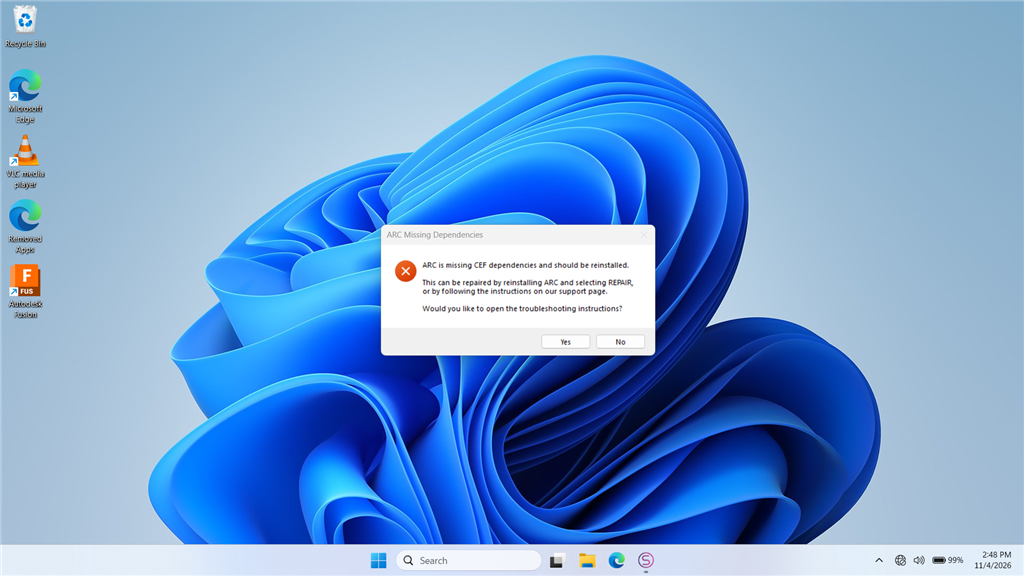
The latest install of ARC errors when opening the app. On launch I first get a Google/Chromium error screen, then a CEF error message. I attempted to re-run the ARC installer and use the REPAIR option, but the installer reports I already have the latest copy of ARC and exits. I also tried installing the "Latest VC Redist x86" with limited success, and I am unable to install any of the "Latest Supported Visual C++ Redistributable Downloads" from Microsoft.
ARC still runs, but the CEF (Chromium Embedded Framework / CefSharp) error appears every time I open the program. I'm running ARC on a Windows PC (no EZB or other hardware activity involved when the error occurs). How can I properly fix this?
CEF / Chromium Embedded Browser details included below (for reference):
ARC uses a Chromium Embedded Browser (WebView) for rich media content, including Blockly. If you see an error similar to the example below, the installer can be run again, or a required redistributable library may be missing from your system.
=== Exception Information ===
Type: System.InvalidOperationException
Message: Cef.IsInitialized was false!. Check the log file for errors. See https://github.com/cefsharp/CefSharp/wiki/Trouble-Shooting#log-file for details.
HResult: -2146233079
Source: CefSharp.WinForms
TargetSite: Void InitializeCefInternal()
Steps I've already tried (from the ARC documentation):
- Re-run the installer and select REPAIR.
- Install the required runtime(s):



What you’re describing is almost always an incomplete CEF/VC++ runtime or a blocked Chromium startup dependency, not a robot hardware problem.
Since ARC still launches, but CEF/CefSharp fails every time, the proven fix is usually:
1) Remove the broken ARC install completely
A repair install often won’t replace corrupted browser components if Windows thinks the same version is already installed.
Do this instead:
Typical places to check:
C:\Program Files (x86)\Synthiam\ARCC:\Users\<your user>\AppData\Local\SynthiamC:\Users\<your user>\AppData\Roaming\SynthiamIf you want, I can give you a clean "remove everything ARC-related" checklist.
2) Install the Microsoft VC++ runtime manually
ARC’s Chromium components depend on the Microsoft Visual C++ runtime.
If the Microsoft installer is failing, use the direct installer that Synthiam provides first:
https://synthiam.com/uploads/SoftwareDownloads/resources/VC_redist.x86.exe
Also install the x64 runtime too, even if ARC is 32-bit, because other dependencies on the system may need it:
https://learn.microsoft.com/en-us/cpp/windows/latest-supported-vc-redist?view=msvc-180#latest-supported-redistributable-version
If Microsoft’s installer refuses to run, the usual causes are:
3) Do a full Windows Update
Before reinstalling ARC:
CEF/Chromium failures are sometimes caused by outdated system libraries or missing servicing updates.
4) Install ARC fresh from the current download
After the reboot:
https://synthiam.com/Products/ARC
5) Check antivirus or security software
Some security tools block Chromium Embedded Framework startup files or quarantine browser DLLs.
Temporarily disable or whitelist ARC’s install folder and test again.
If that fixes it, the issue is antivirus interference.
6) If it still fails, check the ARC debug log
Add the Debug skill to a project and inspect the ARC logs for the exact missing file or exception:
https://synthiam.com/Support/Skills/General/Debug?id=19885
Also, the startup error document is here:
What I suspect most here
Because:
this strongly points to a broken or blocked runtime dependency, not ARC itself.
Best next step
I’d recommend this exact sequence:
One question so I can narrow it down
What Windows version/build are you on, and when you say the Microsoft VC++ installer fails, what exact error message do you get?
If you paste the exact wording, I can tell you the most likely fix immediately.