


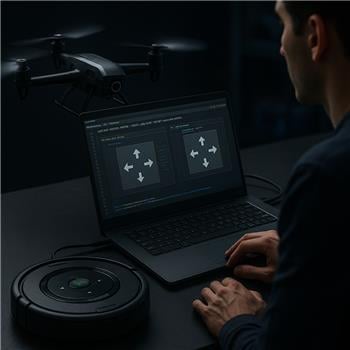
I’m trying to run an AR Parrot Drone and a ground bot in the same ARC project as a demo: the drone hovers while a Roomba does a path. I’ve added the AR Parrot Drone Movement Panel and the iRobot Roomba Movement Panel. The PC is on the drone’s WiFi (SSID ardrone_***), and the Roomba is connected via a USBTTL adapter on COM4 (set in the Roomba Movement Panel as PC COM Port at 115200). Individually, both panels work: the drone takes off/lands fine, and the Roomba responds to its panel’s drive buttons.
The issue is routing generic movement commands and keyboard arrows when both skills are loaded. If I run a simple script like:
Forward()
Sleep(2000)
Stop()
or tap the arrow keys, the AR Parrot Drone Movement Panel always receives the commands, even when I want to drive the Roomba. Clicking inside the Roomba panel’s keyboard box helps for manual arrows, but I need to switch sources in a script depending on state (e.g., drone landed -> Roomba active; drone flying -> drone active). If I remove the AR Drone panel, the Roomba receives Forward()/Left()/Stop() as expected.
What I’ve tried: searching for a ControlCommand to set the active Movement Panel, disabling keyboard in one panel (didn’t see an option in either), and calling ControlCommand("iRobot Roomba Movement Panel", "Forward") which returns command not found. I couldn’t find a documented way to programmatically change which Movement Panel is the target for ARC’s movement framework.
How can I programmatically switch which skill receives ARC’s movement commands between AR Parrot Drone Movement Panel and iRobot Roomba Movement Panel at runtime?
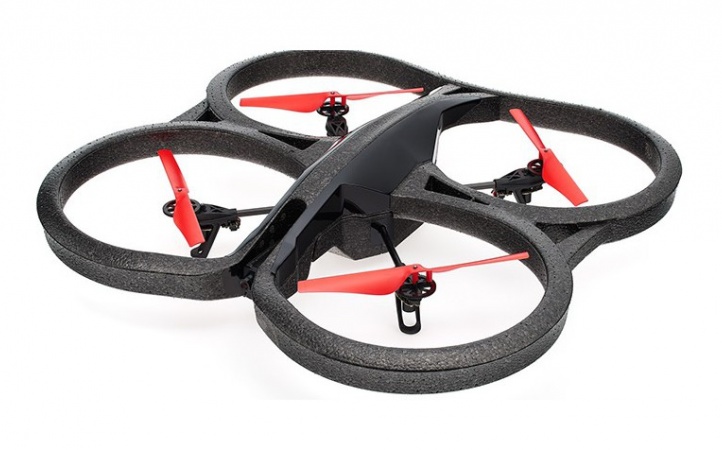

You’ve run into an ARC movement framework behavior: only one Movement Panel can be the active movement target for generic commands like
Forward(), arrow keys, speech movement, joystick movement, etc.Since the AR Parrot Drone Movement Panel is present, it is currently registered as the project’s movement handler, so generic movement commands will go to it instead of the Roomba.
What this means
Forward(),Left(),Stop(), keyboard arrows, joystick movement, etc. do not target a specific Movement Panel directly.Recommended approach
For your demo, the cleanest solution is to bypass generic movement commands and call the specific Movement Panel with
controlCommand()for each robot skill.For example, instead of:
use the panel-specific commands:
and for the Roomba, use the Roomba panel’s specific control commands from its manual/settings. If the skill doesn’t expose movement commands through
controlCommand(), then the panel is likely only designed to respond to ARC’s global movement routing.Better architecture for your use case
If you need both robots in one project, I’d suggest one of these patterns:
Option 1: Use scripts for each robot directly
Create two helper scripts:
controlCommand()to send drone actionsThen decide in your logic which one runs.
Option 2: Use separate projects
If the goal is a live demo where one robot is airborne while the other drives, separate ARC projects can be easier:
This avoids movement-routing conflicts entirely.
Option 3: Create a custom robot skill
If you truly need a single interface that can switch between movement targets at runtime, the best long-term solution is to create a custom robot skill that acts as a dispatcher.
You can start here:
About keyboard arrows
Keyboard arrows are also tied to the active Movement Panel, so there isn’t a separate per-skill keyboard focus setting for generic movement routing. Clicking into a panel’s keyboard box changes which control has keyboard focus for that UI element, but it does not change ARC’s global movement target in the way you’re hoping.
Practical workaround
For your state-based logic:
In other words, don’t rely on
Forward()/Stop()when multiple movement panels are loaded.If you want, I can help you with one of these next steps:
If you’d like, I can also help convert your current logic from EZ-Script to JavaScript, which is the better fit in ARC.